KPIs are great, small, condensed, pieces of information that we all love and use to keep us informed about the most critical aspects of our business or life. How many items are we selling daily? How many calories did I burn in my work out? How many users visited my website?
Are you looking for a way to consume the latest API updates in the Qlikosphere? Wondering what new tutorials have been added to qlik.dev without having to click the nav banner? Need to find out if you are using the most current version of qlik-cli?
The new developer changelog on qlik.dev is the source for all of this and more! Check out the blog to learn more.
Implementing Section Access in Qlik Sense SaaS can be challenging. There are several hurdles: The user name could be different in the cloud than in an on-premise installation, and the logic in Section Access is different between Qlik Sense and QlikView. This blog post will help you set up a secure solution.
IntroductionWe've discussed Engima.js on this blog before (Enigma.js posts) but it is usually within the context of building a mashup (Enigma is also the library that the Qlik Demo Team uses for Qdt-Components). Enigma.js is a library that helps you communicate with the Qlik QIX Engine. One cool feature about Enigma.js is that it allows you to write your own mixins to extend or override the methods on the Qlik objects that you use all the time. This post will teach you the basics of mixins and show you how to implement your own.Your First MixinHere is the finished repo if you want to see the final product:https://github.com/coolinmc6/enigma-mixins-tutorial. If you want to follow along, clone the repo and checkout the "start" branch `git checkout -b start` to follow along from the beginning.Hopefully you are familiar with the typical Enigma configuration (https://community.qlik.com/t5/Qlik-Design-Blog/Qlik-Engine-and-Picasso-js/ba-p/1706241) because that's where mixins must be included. For this first mixin and the others that we'll write, we'll create a separate mixin file just to keep the code clean. We'll be mostly working in that mixin file and `index.js`.First, create a separate file in your `/config` directory called `mixins.js`. Copy the code below and we'll get started:// mixins.js
const docMixin = {
types: ['Doc'],
init(args) {},
extend: {
myMixin() {
console.log('myMixin was called - this is all it does');
},
}
}
export {
docMixin,
};Add your mixin to the config file `app.js`:// app.js
import { docMixin } from './mixins';
// CODE
export default enigma.create({
schema, url, mixins: [docMixin] // add docMixin
}).open().then(global => global.openDoc(config.appId));Now, in your index.js file, simply call your mixin by doing: `app.myMixin()`. If you check your console, you'll see the console.log message we entered; you've just completed your first mixin!I want to quickly summarize the mixin object before we move on (here are the docsto learn more). Mixin objects should have a types property to indicate which Qlik Objects (e.g. Doc, GenericObject, GenericBookmark, etc.) you are modifying. For this first mixin, we'll be modifying the Doc class. Next is the `init(args)` method which runs some code when you initialize your mixin. Lastly there are two properties: "extend" and "override". As their names suggest, "extend" will add methods to the Qlik Object while "override" will overwrite the existing Qlik Object methods. This tutorial will mainly focus on extending the functionality of Qlik Objects.Using Qlik Objects in MixinsNow that we've created our first mixin with a single method that extends our Doc object, let's step it up and write a method to get hypercube data. The point of this method is to do all that Qlik QIX Engine stuff for us.We know that we want this method to be on the Doc class so in our code, we can just write the method below our `myMixin()` code like so:// mixins.js
const docMixin = {
types: ['Doc'],
init(args) {},
extend: {
myMixin() {
console.log('myMixin was called - this is all it does');
},
mGetData({ object }) {
return new Promise((res) => {
this.createSessionObject(object).then((obj) => {
console.log(obj)
obj.getLayout().then((layout) => {
const data = layout.qHyperCube.qDataPages;
res(data);
})
})
})
},
}
}
export {
docMixin,
};In our index.js file, we'll call the method and provide a hypercube. We've used this hypercube before on this blog (it simply shows the sales margin by product category from our Consumer Sales app). Copy the hypercube and code below to call the method:// index.js
const hypercube = {
qInfo: { qId: 'Sales by Year', qType: 'data'},
qHyperCubeDef: {
qDimensions: [
// { qDef: { qFieldDefs: ['[Country]']} },
{ qDef: { qFieldDefs: ['[Product Group Desc]']} }
],
qMeasures: [
{ qDef: { qDef: 'SUM([Sales Margin Amount])'}, },
],
qInitialDataFetch: [{
qTop: 0, qLeft: 0, qWidth: 10, qHeight: 1000,
}],
qInterColumnSortOrder: [],
qSuppressZero: true,
qSuppressMissing: true,
}
}
// CODE
(async () => {
const app = await appPromise;
app.myMixin()
const data = await app.mGetData({ object: hypercube })
console.log(data)
})()In the console, you'll notice two more logs there. The first is the session object that we just created (and that you're probably all too familiar with). The second is the data that we've requested in a JavaScript array. It's still in the Qlik formatting and may require more clean-up if you wanted to look at just the data but notice how easy it now is to request data for any hypercubes that you may write. We can now avoid having to write all that code over and over and just use our new `mGetData()` method.Using Other Mixin MethodsAnother cool feature of these methods is that we can use other methods that we've written. For this method, we're going to use our `mGetData()` method to just log a table of the data in the console.Let's add the code to our mixins file right below `mGetData()`:// CODE
mPrintTable({ object }) {
return new Promise((res) => {
this.mGetData({ object }).then((qObj) => {
const table = []
qObj[0].qMatrix.map((o) => {
const row = {}
o.map((c,i) => {
let val = c.qNum === "NaN" ? c.qText : c.qNum
row[`c${i}`] = val;
})
table.push(row);
})
console.table(table);
res(table);
})
})
},And call it in our index.js file:// CODE
const table = await app.mPrintTable({ object: hypercube })
console.log(table);
// CODENow take a look at your console. You'll see that we have printed a table!To quickly summarize what's going on here, we now have three methods on the doc class: `myMixin()`, `mGetData()`, and `mPrintTable()`. We can call ALL of them within each other using the "this" object because it is the "doc" object; they are the same. All of these methods have extended the functionality of the Doc class so ALL of them are available whenever you use `app` or, within these methods, the `this` object. In the next section, we are going to create a separate mixin for just Generic Objects so you can see this concept in action.Generic Object MixinFirst, add the code below to our mixins file:// mixins.js
// docMixin CODE
const objectMixin = {
types: ['GenericObject'],
init(args) {},
extend: {
objectMixin(msg) {
console.log('layout mixin', msg)
this.getLayout().then((layout) => {
console.log("Layout: ", layout)
})
}
},
}
export {
docMixin, objectMixin
};Notice that the the "types" property says "GenericObject" and NOT "Doc". This method will ONLY be available for Generic Objects. (Don't forget to export our objectMixin at the bottom of the mixins.js file).// app.js
import { docMixin, objectMixin } from './mixins'; // import the objectMixin
// CODE
export default enigma.create({
schema, url, mixins: [docMixin, objectMixin] // add it to our mixins array
}).open().then(global => global.openDoc(config.appId));Now in our index.js file, do the following:app.createSessionObject(hypercube).then((obj) => {
console.log(obj)
obj.objectMixin('hey there')
obj.myMixin()
})As you can see here, we used our Doc object to call `createSessionObject()` to manually create an instance of the Generic Object class. You'll see in the console that there are a few more logs. First, you'll see the Generic Object that you've probably seen many times. Next, you'll see the message "layout mixin hey there" from our `objectMixin()` method as well as the layout object. Last, and this was just to illustrate the point, when we called `myMixin()` on our Generic Object, it didn't work - we got an error. This happens because the `myMixin()` method is ONLY on the Doc class. Just like `objectMixin()` is ONLY on the Generic Object class. Keep this in mind when you are writing your own methods as you'll most likely need different behaviors for the different Qlik Objects.Additional Mixins for Same TypeNow let's create a second Generic Object mixin.const objectMixin2 = {
types: ['GenericObject'],
init(args) {},
extend: {
objectMixin2() {
console.log('layout mixin #2')
this.getLayout().then((layout) => {
console.log("Layout #2: ", layout)
})
}
},
}
export {
docMixin, objectMixin, objectMixin2
};Update your config:import { docMixin, objectMixin, objectMixin2 } from './mixins';
export default enigma.create({
schema, url, mixins: [docMixin, objectMixin, objectMixin2]
}).open().then(global => global.openDoc(config.appId));And then call it in index.js:app.createSessionObject(hypercube).then((obj) => {
console.log(obj)
obj.objectMixin2('hey there')
})And there we go. We've just created a second mixin for our Generic Object class. Now why is this important? It allows you to organize your code into blocks that make sense to YOU and not feel constrained by keeping the "types" together. You may have methods that you want available across ALL types and then methods for only one class. In that case, you'd need separate mixins. One important caveat to remember is that you cannot have name clashes within the same type. So if we called our method "objectMixin()` inside our second object mixin, we'd get an error because the method name clashes with the method name from our first object mixin.Bring it All TogetherThe last little bit of code we'll write reinforces what we did above with with the `mPrintTable()` method. But instead of doing two Doc class methods, we'll call our new `objectMixin()` method within our `mGetData()` method. Here we go:// mixins.js
mGetData({ object }) {
return new Promise((res) => {
this.createSessionObject(object).then((obj) => {
console.log(obj)
obj.objectMixin('from inside mGetData') // NEW CODE
obj.getLayout().then((layout) => {
const data = layout.qHyperCube.qDataPages;
res(data);
})
})
})
},Now take a look in your console (clean-up or comment out some of our older code if you have trouble seeing the log). You'll see the "from inside mGetData" message. This is the power of mixins. You simply pick the Qlik Object type you'd like to modify or extend (Doc, Generic Object, etc.) and write your code. Now you can call your custom method directly on those objects as if they were native to that object. It gives developers a great deal of flexibility and the ability to write code that can be used in multiple projects.ConclusionLet's wrap things up by reviewing what we did here in this blog:Overview of mixins and their purposeMethod #1: `myMixin()` - how to call a method from your mixinMethod #2: `mGetData()` - using Enigma.js methods from your mixinMethod #3: `mPrintTable()` - calling your own custom methodsMethod #4: `objectMixin()` - creating and calling a method from your Generic Object mixinMethod #5: `objectMixin2()` - creating a second Generic Object methodUsing code from your other mixinsFor more information on mixins, please take a look at these links below:Enigma.js Mixin DocumentationEnigma.js Mixin Examples
...View More
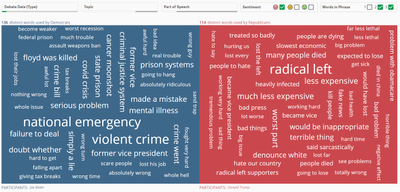
Have you watched any of the debates so far this year? How about the town halls last night? We thought it would be fun to do some debate analysis using Qlik Sense, so we did some basic natural language processing on debate transcripts dating back to 1984, loaded the data into Qlik Sense, and created an app to explore what's being said. You can check it out@https://qdt-apps.qlik.com/presidential-election-2020/. Let's take a look at how we did it.First, we had to generate some data from the transcripts. Obviously, we wanted who's saying what words, but we also wanted to have some interesting ways to explore the data, so we decided to include topics, parts of speech, and sentiment. We also wanted to include not just single words but bigrams (two-word phrases) and trigrams (three-word phrases). We wrote a python script which utilized NLTK (https://www.nltk.org/) to generate the data and wrote it to CSV files, which we then loaded into a Qlik Sense app.With our data now in a Qlik Sense app, we used the Word cloud chart that now comes with Qlik Sense in the Qlik Visualization bundle to create a word cloud for each party using set analysis. We then added the fields we wanted to filter on to a filter pane, and were quickly and easily able to start exploring our word clouds.Then we used the Capability APIs to embed the filters and word clouds into a web app. We thought it would add a bit of fun to create checkbox filters for the "Sentiment" and "Words in Phrase" fields, and if you're interested in how to build checkbox filters like that yourself, I've included the code at the end of this blog post.And that's it. Again you can find the completed project@https://qdt-apps.qlik.com/presidential-election-2020/. Play around with it, have some fun, and let me know if you discover anything that's really interesting to you.Here's the code for the custom filter checkbox component, in case you're interested.import React, {
useCallback, useRef, useState, useEffect,
} from 'react';
import PropTypes from 'prop-types';
import { makeStyles } from '@material-ui/core/styles';
import Checkbox from '@material-ui/core/Checkbox';
import { appPromise } from '../config/app';
const useStyles = makeStyles({
root: {
display: 'flex',
alignItems: 'center',
justifyContent: 'space-between',
border: '1px solid #ccc',
padding: 5,
borderRadius: 3,
},
checks: {
display: 'flex',
alignItems: 'center',
justifyContent: 'center',
},
legend: {
marginRight: 5,
fontWeight: '700',
fontFamily: '"QlikView Sans"',
fontSize: 13,
color: '#595959',
whiteSpace: 'nowrap',
},
label: {
display: 'flex',
alignItems: 'center',
marginRight: 5,
height: 20,
},
});
const useCheckboxStyles = makeStyles({
root: {
padding: 0,
},
});
const CheckboxFilter = ({ field, labels, hideLegend }) => {
const classes = useStyles();
const checkboxClasses = useCheckboxStyles();
const app = useRef(null);
const model = useRef(null);
const [layout, setLayout] = useState(null);
useEffect(() => {
(async () => {
app.current = await appPromise;
model.current = await app.current.createSessionObject({
qInfo: { qType: 'field' },
qListObjectDef: {
qDef: { qFieldDefs: [`[${field}]`] },
qInitialDataFetch: [{
qWidth: 1,
qHeight: 100,
}],
},
});
model.current.on('changed', async () => { setLayout(await model.current.getLayout()); });
setLayout(await model.current.getLayout());
})();
}, []);
const handleChange = useCallback((event) => {
const qElemNumber = Number(event.target.name);
model.current.selectListObjectValues('/qListObjectDef', [qElemNumber], true);
}, []);
return (
<div className={classes.root}>
<div className={classes.legend}>
{field}
</div>
<div className={classes.checks}>
{layout && layout.qListObject.qDataPages[0].qMatrix.map((row) => (
<label
key={row[0].qElemNumber}
htmlFor={`${field}${row[0].qElemNumber}`}
className={classes.label}
>
{labels && labels.find((label) => label.qText === row[0].qText).component}
{!labels && row[0].qText}
<Checkbox
checked={row[0].qState === 'S'}
onChange={handleChange}
name={String(row[0].qElemNumber)}
id={`${field}${row[0].qElemNumber}`}
classes={checkboxClasses}
/>
</label>
))}
</div>
</div>
);
};
CheckboxFilter.propTypes = {
field: PropTypes.string.isRequired,
labels: PropTypes.array,
};
CheckboxFilter.defaultProps = {
labels: null,
};
export default CheckboxFilter;
...View More
When creating analytics - you may want to use specific calculations within your charts to view your measures differently or possibly even combine standard aggregated measures ( SUM(Sales) ) with more advanced calculations (Moving Average). Now - this could always be done of course, but you would need to create the specific expression using a combination of available Qlik functions such as RangeSum, Above, Replace along with aggregate functions such as SUM, MIN and MAX, etc. This can get tedious, is time consuming and error prone.Measure modifiers have been designed to easily add these specific calculations without the need to create these expressions.Currently there are 4 Measure Modifiers:Accumulation -see accumulated values of a measure over dimensions.Difference -see the difference between consecutive values of a measure.Moving Average -see the average values of a measure over a specific period.Relative Number -see relative percentages.We realize the importance of these expressions and how easy they are to use, so we plan on adding additional ones that make sense in future releases.Watch this 60 second video to see how easy it is to use Measure ModifiersLearn more:https://help.qlik.com/en-US/sense/September2020/Subsystems/Hub/Content/Sense_Hub/Measures/modifiers.htmDon't have access to YouTube? - Download the attached.mp4 to watch on your computer or mobile device.
...View More
In the Qlik Sense September 2020 release, many improvements were made to reference lines. Now, a dimensional reference line can be added to a bar chart or a line chart and there are additional formatting options as well. In this blog, I will show 2 examples of dimensional reference lines. In the first example, I will show how text can be used to add a dimensional reference line to a discrete axis bar chart. In the second example, I will show how dimensional reference lines can be added to a continuous axis line chart.Example 1In the chart below, a dimensional reference line is used to highlight the bar for Donald Trump.This reference line is created by setting the Dimension value to ='Donald Trump' which is simply text. In this example, the line type is set to dashed and the colored background checkbox is checked. The alignment of the chart is set to center so that the line goes through the bar versus above (start) or below (end) the bar. Some of the properties set can be seen in the image below.Example 2The second example of dimensional reference lines can be seen in the continuous line chart below. This line chart shows the net difference in media mentions each party receives. The red line is for Donald Trump and Mike Pence mentions and the blue line is for Joe Biden and Kamala Harris mentions. The reference lines point out key moments leading up to the 2020 presidential election so you can see if the media talk was based on a specific event. Check out the 2020 Presidential Election app to see this chart in action.In this example, the reference lines are based on the date of the event and the labels and lines are styled to match the candidate party color. The new formatting features available in the Qlik Sense September 2020 release makes it easy to identity events for a specific party. There are other options available for dimensional reference lines. You can also set a show condition to determine when the reference line is displayed. This is what was done in the 2020 Presidential Election app – the selected key campaign event is displayed in the line chart. There is also the option to show the label and the value. The label can be hard-coded, or it can be an expression. The same is true for the reference line expression. The color of the label can be set to any color and the line type can be solid or dashed.Learn more about reference line improvements and other new Qlik Sense enhancements in theWhat's New - September 2020 appand video.Thanks,Jennell
...View More
Hey Guys - I really enjoyed preparing for this session and wanted to share this with you in case you missed it. Qlik offers a unique technology advantage delivering true augmented intelligence, built into our platform at a foundational level. We support human exploration with our one-of-a-kind associative engine and we combine this with a powerful Cognitive Engine, adding AI and machine learning capabilities that enhance the ability of people to uncover insights and interact with data. The result is a broad set of powerful, context aware augmented analytics capabilities. Watch the presentation and demo to learn what AI means to Qlik and what it should mean to you as I present ournew enhanced augmented intelligence capabilities.Let us know what you think in the comments below or send us a note as DoMoreWithQlik@qlik.com.Register for a future session:https://go.qlik.com/Do-More-with-Qlik-Webinar-Series.htmlView the Archive:https://gateway.on24.com/wcc/experience/eliteqliktech/1910644/2395144/do-more-with-qlik-for-beginners-and-beyondPresentation starts at: 10 min mark
...View More
Nebula.js is an open source “collection of JavaScript libraries, visualizations, and CLIs that helps developers build and integrate visualizations on top of Qlik's Associative Engine”.
It connects to all of our available Qlik Sense products, including the Qlik hosted, Qlik Sense Business and Qlik Sense Enterprise for SaaS.
Since 1990, the Fortune Global 500 has highlighted the top 500 corporations worldwide. Qlik and Fortune teamed up to create an interactive experience that throws light on how the economy’s evolution during the last 30 years was. To do so, we crafted a webapp that guides the reader from a time when Japan was briefly the list world leader to the vast dominance of the USA, until to the most recent unstoppable rise of China.We, the Qlik Demo Team, created a narrative that includes several data visualization pieces to help readers to better understand how dramatic the list changes were. Using Qlik Engine and Qlik’s open source libraries like enigma.js and picasso.js, we designed an animated scatterplot that shows China’s fantastic transition from the bottom of the pack in 1990 to the very top in 2020.The webapp also includes a fully interactive map where readers can make selections to explore country by country all the information that the Fortune Magazine gathers for their list of the global top 500 companies.You can check the site here: https://qlik.fortune.com/global500 I hope you like it
...View More