All these years when I needed a nested data object to create something like a pivot table, I had to get multiple HyperCubes and then refactor them to have one big object with all of the data so we can display them in a webpage.Few weeks ago I came across the newGetHyperCubeTreeData method (note that it has a stability index of Experimental). This basically retrieves data in a nested tree with qNodes. Each qNode represents a Dimension with an array of all the values and the qValues is an array of all of the Measures values.In this example I am connecting to the general Helpdesk app and I will try to create a simple Pivot Table.The first level of data will come from 'Status' and the seconds level from 'Case Owner Group'. The measure will be '=Count([Case Count])'.First, let build the TreeData propconst qProp = {
qInfo: { qType: 'data' },
qTreeDataDef: {
qDimensions: [
{
qDef: {
qFieldDefs: ['Status'],
},
qSortCriterias: [{ qSortByAscii: -1 }],
qValueExprs: [
{ qDef: { qDef: '=Count([Case Count])' } },
],
qShowAll: false,
qTotalLabel: 'Totals',
},
{
qDef: { qFieldDefs: ['Case Owner Group'] },
qSortCriterias: [{ qSortByAscii: -1 }],
qValueExprs: [
{ qDef: { qDef: '=Count([Case Count])' } },
],
qNullSuppression: true,
qShowAll: false,
qTotalLabel: 'Totals',
},
],
qInterColumnSortOrder: [0, 1],
qOpenFullyExpanded: true,
qTitle: 'Pivot Table',
},
};Then , get the tree data by using theGetHyperCubeTreeData methodconst qObject = await qDoc.createSessionObject(qProp);
const qData = await qObject.getHyperCubeTreeData('/qTreeDataDef');The results should be likeAs you see above we have each dimension values nested under qNodes.Now that we have all the data in one object, we can create the pivot table.Here is the live examplehttps://qdt-apps.qlik.com/qdt-components/react/#/pivot-table-engineMore reading:https://help.qlik.com/en-US/sense-developer/June2019/APIs/EngineAPI/services-GenericObject-GetHyperCubeTreeData.htmlhttps://help.qlik.com/en-US/sense-developer/June2019/APIs/EngineAPI/definitions-TreeDataDef.htmlhttps://help.qlik.com/en-US/sense-developer/June2019/APIs/EngineAPI/definitions-NxTreeDimensionDef.htmlhttps://help.qlik.com/en-US/sense-developer/June2019/APIs/EngineAPI/definitions-NxTreeDataOption.htmlHappy Coding!!Yianni
...View More
Hi guys - happy to be back in the Qlik Community teaching you about our latest Qlik Sense cloud-based deployment options / editions. In this 2 part video I take you on a simple tour of our cloud-based deployment options / editions of Qlik Sense - namely Qlik Sense Enterprise on Kubernetes, Qlik Sense Enterprise on Qlik Cloud Services and Qlik Sense Business. I start with a brief explanation of the editions and then dive right into the product.
Part 1 focuses on a brief introduction and the creation of a simple app, while part 2 dives in deeper to the capabilities available that demonstrate how to share and manage content from the hub interface. I am working on a bonus video that goes in deeper to our latest content management capabilities - Shared and Managed spaces. So stay tuned for more content coming soon in this area by subscribing to this blog. Please note that what I present is almost identical to each cloud-based edition / deployment option - with some slight differences. We will be actively monitoring the community so please let us know if you have any comments or questions.
You can experience these features and more immediately by signing up for a FREE 30 DAY trial of Qlik Sense Business here:https://www.qlik.com/us/trial/qlik-sense-business
I also attached the data file I used in case you would like some sample data for your testing.
Regards,
Mike TaralloQlikhttps://twitter.com/mtarallo
Part 1
Part 2
Bonus Video: Spaces
Helpful Resources:
BONUS Video - Shared and Managed Spaces
Time to Transition to Qlik Sense Business
Qlik Sense Enterprise on Qlik Cloud Services - Tenant Set up
Announcing Qlik Sense Business
...View More
It’s time! In August we announced Qlik Sense Cloud Business will transition to Qlik Sense Business. Now, Qlik Sense Cloud users can begin to migrate content and users to Qlik Sense Business with a Qlik Sense Business Subscription. The video above and attached PDF can guide you through that process.
Qlik Sense Business, Qlik’s newest SaaS offering, brings the power of Qlik’s third-generation analytics platform to groups, teams, and businesses that want to quickly get started operationalizing analytics and making data-driven decisions. All users get unmatched analytical power, with unique associative exploration and search, AI-powered insight suggestions, and app creation and data prep. Qlik Sense Business is built on the same cloud-native architecture and highly-scalable cloud service as Qlik Sense Enterprise, ensuring the same consistent, seamless, and powerful experience for all users of cloud editions of Qlik Sense.
All Qlik Sense Cloud users (Business and Basic) must migrate their content to Qlik Sense Business by December 15, 2019, or it will be lost.
Here's what you need to know to prepare:
Qlik Sense Cloud Business Customers on Annual Subscriptions
You will receive two emails this week guiding you to set up Qlik Sense Business. The first email will explain the product change and how to set up Qlik Sense Business. The second email will include a unique link to set up Qlik Sense Business. Once you complete the set up process, Qlik Sense Business will be automatically configured to the same number of users and renewal date as your existing Qlik Sense Cloud Business subscription. You can then begin moving content and adding users to complete the migration.
You’ll have access to both Qlik Sense Cloud Business and Qlik Sense Business through December 15, 2019 to ensure ample time to smoothly transition your content and users.
If you didn’t receive your set-up email or the link in the email expired, please log a support case.
Qlik Sense Cloud Business Customers on Month-to-Month Subscriptions and Qlik Sense Cloud Basic Customers
Next month you will receive emails with information about how to sign up for a Qlik Sense Business free trial and a limited time offer for 50% off your first annual subscription of Qlik Sense Business (month-to-month subscriptions will not be available). Be sure to follow the instructions in that email to ensure you receive the discount.
Once you sign up for a Qlik Sense Business subscription, you will also have access to both Qlik Sense Cloud Business and Qlik Sense Basic through December 15, 2019 to ensure ample time to smoothly transition your content and users.
To learn more about how to use Qlik Sense Business, visit our Help website, and if you have questions about the transition process, post them down below.
...View More
For our projects on the Qlik Demo Team, we’re now using React Hooks with functional components in place of class components. I’ve been playing around with ways to connect to a doc with enigma.js and use it in React components and this is what I’ve come up with most recently. Check out the code and notes below, or download the files and try it out yourself, and let me know what you think, if you like it or if you’re doing anything similar or if you have any ideas on improving it.src/qDoc.config.jsThis file imports enigma.js and defines the config for connecting to a Qlik doc, and exports an openDoc function which returns a promise which will resolve to the doc.const enigma = require('enigma.js');
const schema = require('enigma.js/schemas/12.20.0.json');
const SenseUtilities = require('enigma.js/sense-utilities');
const config = {
host: 'sense-demo.qlik.com',
secure: true,
port: 443,
prefix: '',
appId: '372cbc85-f7fb-4db6-a620-9a5367845dce',
};
const url = SenseUtilities.buildUrl(config);
const session = enigma.create({ schema, url, suspendOnClose: true });
// open doc and return promise which will resolve to doc
export const openDoc = () => (
session.open().then((global) => global.openDoc(config.appId))
);
// close session
export const closeSession = () => (
session.close()
);src/components/QDoc.jsxThis file creates and exports a React context and creates and exports a QDocProvider component. The QDocProvider component is responsible for connecting to the doc by calling the openDoc function from src/qDoc.config.js and storing the doc in state. Once the doc is available it renders the context provider and children.import React, { useEffect, useState } from 'react';
import PropTypes from 'prop-types';
import { openDoc, closeSession } from '../qDoc.config';
export const QDocContext = React.createContext();
const QDocProvider = ({ children }) => {
const [qDoc, setQDoc] = useState(null);
useEffect(() => {
(async () => {
setQDoc(await openDoc());
})();
return closeSession;
}, []);
return (
<>
{!qDoc && <div>Connecting to Qlik...</div>}
{qDoc && (
<QDocContext.Provider value={qDoc}>
{children}
</QDocContext.Provider>
)}
</>
);
};
QDocProvider.propTypes = {
children: PropTypes.oneOfType([
PropTypes.arrayOf(PropTypes.node),
PropTypes.node,
]),
};
QDocProvider.defaultProps = {
children: null,
};
export { QDocProvider };src/components/App.jsxThis component is the entry point component and just wraps a component called SomeConsumer in the QDocProvider component imported from src/components/QDoc.jsx.import React from 'react';
import { QDocProvider } from './QDoc';
import SomeConsumer from './SomeConsumer';
const App = () => (
<>
<QDocProvider>
<SomeConsumer />
</QDocProvider>
</>
);
App.propTypes = {};
export default App;src/components/SomeConsumer.jsxThis component consumes the QDoc context and can use the Qlik doc.import React, { useContext } from 'react';
import { QDocContext } from './QDoc';
const SomeConsumer = () => {
const qDoc = useContext(QDocContext);
console.log(qDoc); // print qDoc to console to make sure everything is working
return (
<>
</>
);
};
export default SomeConsumer;Project is attached. Download it, play around, sound off.
...View More
Several years ago, I blogged about how I used IntervalMatch to create a profit and loss statement. Now that Qlik Sense has the P&L Pivot chart extension in the visualization bundle, I decided to test out the extension to see how it may help create a P&L report in Qlik Sense. This blog will review some of my findings and what was involved to create the P&L Pivot chart shown below.The P&L Pivot chart extension provides a lot of properties that allow you to change the style and coloring in the chart. You can find a complete list of the properties here in Qlik Help. The chart above uses one dimension and 6 measures but I could have used up to 9 measures with my single dimension or used 2 dimensions and up to 8 measures. After loading the data into Qlik Sense, my next step was to create a style template that I could use to handle the formatting of the chart. Here is a snapshot of the template in Excel:I added a header row so that I could easily see what options I could set but it is not required and can be omitted. In the styling template, Column A should include the data that is in the first dimension of the chart you will be applying the template to. Note that this data is case sensitive. The other columns have the various styles that can be modified via the template.Here is an example of the same template in a CSV file.If a template is used, it needs to be loaded via the script. Here is how you can load the Excel and CSV versions of the templates:Excel:CSV:The key in both scripts is that the entire template needs to be loaded into one field which can later be selected from the Style template field drop down in the Properties window of the P&L Pivot chart. In the Excel script, the styles are concatenated into one field separated by semi-colons. In the CSV file, the file format is set to Fixed record to load all the data into one field. Note that the name that you give the field in the script will be the template name you select from the Style template field drop down.Each row of the template should have this format:DimensionValue;Bold;Background;FontStyle;TextColor;Align;FontSize;CommentDimensionValue is the data value of the dimension in the row that you would like the changeBold is used to bold the text in a rowBackground is used to set the background color of a rowFontStyle is used to change the font style of a row to italic or obliqueTextColor is used to change the default black font color of a row to whiteAlign is used to set the alignment to centerFontSize is used to change the font size of a rowComment is used to replace all zeros with a spaceCheck Qlik Help to see the default and styling options that are available in the styling template.There are many additional properties that can be set in the properties window of the P&L Pivot chart extension. I kept many of the defaults but here are some that I changed. In the Table Format section of the Properties, I checked Indent to indent the P&L Heading. The columns can be narrow so I moved the Column width slider all the way to the right, (for max width), and changed the Font family so that I could see as much of the numeric values in the chart as possible. I tweaked the header coloring in the Header format section. I opted not to color variances below 0% red because then I would lose some of my styling template changes. While I used a styling template in my example, you do not have to. The P&L Pivot chart extension can be styled via the Properties window without using a template.The P&L Pivot chart extension provides a ton of styling options that can be used to easily make your profit and loss statement looks exactly the way you want. It is worth checking out or you can watch this video to learn more.Thanks,Jennell
...View More
Hey Guys - with all the excitement around our new Qlik Sense Enterprise deployment options:
Qlik Sense Enterprise on Windows
Qlik Sense Enterprise on Kubernetes
Qlik Sense Enterprise on Qlik Cloud Services
...I wanted to share a brief video to show you how easy it is to setup a tenant along with an integrated identity provider (IdP) to provide authentication, using Qlik Sense Enterprise on Qlik Cloud Services. (Please note in this video I use OKTA as my integrated IdP but Auth0 is also supported. This video does not go into setting up the actual IdP subscripition so please have that available prior. ) In order to get access to Qlik Sense Enterprise on Qlik Cloud Services please contact your Qlik representative. If you are want to experience Qlik Sense right away you can always sign up for a 30 Day Trial of Qlik Sense Business. To learn more about Qlik Sense Business check out this blog.
First just to recap – Qlik Sense Enterprise on Qlik Cloud Services is a deployment option on Qlik’s multi-tenanted SaaS-based analytics platform. Offering all the great features of Qlik Sense Enterprise on a secure scalable SaaS environment managed by Qlik.
When setting up your tenant and IdP there are few things you should know.
#1 – Once your information has been entered into the Qlik customer system, you should receive an invitation via email to register your Qlik Sense Enterprise tenant. You will login using the email used when registering for a Qlik Account on our web site. The tenant registration process will guide you to select a region for the tenant to operate in as well as create a tenant name for the URL structure that is to be used to access your Qlik Sense tenant.
#2 – you need to have an identity provider (IDP) setup to provide authentication to your Qlik Sense tenant. This can be done currently using Okta and Auth0. This video will focus on Okta, but the steps outlined will be similar. Setting up an IdP is beyond the scope of this video and it is assumed you have the appropriate access and rights to manage it as we will need some information from the IDP environment to setup the tenant.
3# - you will configure your Qlik Sense Enterprise tenant to use the identity provider and will need your IdP client key, client secret from the IDP system. You will also need the OpenID Connect metadata URI from your Qlik Sense tenant used within your IDP configuration as well as a callback URL to be added to your OKTA configuration.
Let's get started.
Please post your questions here and we will address appropriately.
Regards,
Mike TaralloQlik
...View More
We have created many charts with the Engine API and Picasso.js in the past. What was missing, was the navigation bar with a minimap of the entire chart.
Hi guys -
I'm pleased to present to you a new video series that shows you how Qlik Sense and Salesforce work together.
With so many companies running multiple business systems, Qlik offers an alternative to data consolidation confusion by relating information within Salesforce and other enterprise systems for seamless visual analysis, dashboards and reports. Qlik can easily be accessed within Salesforce as a custom tab or as embedded Qlik graphs, tables, and charts within other Salesforce tabs. Alternatively, Salesforce data can be immediately integrated into a Qlik application via a native data connector to provide an unparalleled view into your business’ entire data.
Please take a few minutes to watch and learn. Enjoy!
Regards,
Mike TaralloQlik
Follow mehttps://twitter.com/mtarallo- for instant Qlik updates and insights!
Part 1: Introduction
Part 2: Embedded Analytics Use Case DemoPart 3: Qlik Sense Client & Other Features
Resources:
Salesforce Connector
Configuring SAML
Embedding Qlik Sense in Web Apps
...View More
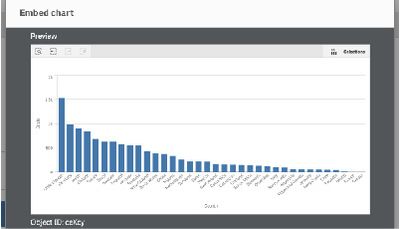
The latest Qlik Sense June 19 version ships with a nice new feature that should let anyone to embed or share a chart in style.How toIt’s simple, find the chart you want to embed and right-click on it, you should access to the context menu where you could for example see the data table for the chart you are looking at. In this case what we want to click on in that menu is the option called “Embed Chart”. Note if your screen mode is set to touch, you will find this option by touching in the vertical ellipsis (aka Kebab Menu) icon.That will pop a window up with a nice preview of the chart and some options that are very handy.Setting appearance and interactionYou can customize how you can interact with the embedded object.Allow interactionYou can select if you want the user to be able to interact with the embedded object.Enable context menuYou can select if you want the context menu to be available when the embedded object is right-clicked.LanguageYou can select which language to use in menus for the embedded object.ThemeYou can select which theme to use for the embedded object.Selections in the embedded objectYou can choose if the user can make selections in the embedded object, and which selection state to show in the embedded object.Use current selectionsYou can select to use the current selections in the app.Show selections barYou can select to show the selections bar above the sheet.Allow selectionsYou can select if you want the user to be able to make selections in the embedded object. You also need to enableAllow interaction.Clear selections on reloadYou can select to clear all selections made in the app when the object is rendered.Apply bookmarkYou can select to apply a bookmark and use the selections defined in the bookmark.Bookmarking selectionsWhen the page containing the embedded object is rendered, the initial selection state is defined by the order of execution and your settings.Clear selections on reloadApply bookmarkUse current selectionsWhen you make selections in the embedded object, they will be replicated in the app. If you selectClear selections on reload, for example, and use the embedded object, selections are cleared in the app.Enjoy it,Arturo (@arturoqv)
...View More