With Qlik Sense June 2019 comes the addition of a container object to the list of native objects. The new container object allows you to add Qlik Sense visualizations in a limited space by using tabs to switch between the visualizations. Developers can use the Visualization API to create container objects and add visualizations to it on the fly.You can check out the documentation for the creating a container object with the Visualization API at https://help.qlik.com/en-US/sense-developer/June2019/Subsystems/APIs/Content/Sense_ClientAPIs/CapabilityAPIs/VisualizationAPI/container-properties.htm. Let’s walk through the example of creating a container object and adding some visualizations to it from the docs.The first step is to create a few visualizations. There's no need to show them yet, but the promises need to be resolved so the visualization objects can be used.// create some visualizations
var bar = app.visualization.create('barchart', ["Dim1","=num([Expression1])"],{ title:"Great on-the-fly barchart" });
var line = app.visualization.create('linechart', ["Dim1","=Sum([Expression1])"],{ title:"Great on-the-fly linechart" });
var pie = app.visualization.create('piechart', ["Dim2", "=Sum([Expression2])"], { title: "Great on-the-fly piechart" });
// wait for the promises to resolve so the visualization objects can be used
Promise.all([pie, bar, line]).then(function(data) {
// the rest of the code will go here
});The next step is to create the container. Let's take a look at that.// create the container object using the Visualization API
app.visualization.create('container', null, {
// only a couple of options are set here, but you can refer to the docs for other available options
title: 'My container',
showTitles: true
}).then(function(container) {
// the rest of the code will go here
});Now that the container has been created, it's time to add visualizations to it, and then to show the container. That will look like this.// loop through the visualization objects
for (var i = 0; i < data.length; i++) {
// use the getProperties method on each visualization object model to get its qProp
data[i].model.getProperties().then(function(child) {
// use the createChild method on the container object model to add each child to the container
container.model.createChild(child);
});
}
// show the container on element with id="QV02"
container.show("QV02");Now the container is created and displayed. There are two methods used above from the Engine API on the model of visualization objects, which are really just generic objects, which you may not be familiar with if you are not familiar with the Engine API. I've linked to those below.https://help.qlik.com/en-US/sense-developer/June2019/APIs/EngineAPI/services-GenericObject-GetProperties.htmlhttps://help.qlik.com/en-US/sense-developer/June2019/APIs/EngineAPI/services-GenericObject-CreateChild.htmlYou can also save a reference to the child when using the createChild method, so you can later remove it from the container object if that's something that you anticipate. You would just use the id of the reference to the child in the destroyChild method you can find herehttps://help.qlik.com/en-US/sense-developer/June2019/APIs/EngineAPI/services-GenericObject-DestroyChild.html.It looks like this when all put together.var bar = app.visualization.create('barchart', ["Dim1","=num([Expression1])"],{ title:"Great on-the-fly barchart" });
var line = app.visualization.create('linechart', ["Dim1","=Sum([Expression1])"],{ title:"Great on-the-fly linechart" });
var pie = app.visualization.create('piechart', ["Dim2", "=Sum([Expression2])"], { title: "Great on-the-fly piechart" });
Promise.all([pie, bar, line]).then(function(data) {
app.visualization.create('container', null, {
title: 'My container',
showTitles: true
}).then(function(container) {
for (var i = 0; i < data.length; i++) {
data[i].model.getProperties().then(function(child) {
container.model.createChild(child);
});
}
container.show("QV02");
});
});That's how to create the new container object and add visualizations to it using the Visualization API.
...View More
Today I have the pleasure of introducing today's guest blogger, Jesús Centeno. Jesús and I go back about 7+ years and I've always known him to be extremely knowledgeable in many subject areas. Hence, he is here today to share what he has learned and resources that he has consolidated, including made some suggestions when deploying our latest multi-cloud technology, Qlik Sense® Enterprise on Kubernetes. Qlik Sense® Enterprise on Kubernetes is just another flavor of Qlik Sense Enterprise, but offers multiple deployment options that are optimized and built to run at cloud scale. The attached document walks you through prerequisites and areas of technical knowledge that you should be aware of before deploying Qlik Sense® Enterprise on Kubernetes. Thank you Jesús for your valuable contribution.
Hey guys, happy to be back and sharing some awesome tips and tricks with you today! When demonstrating Qlik Sense the other day to some business users, we touched on the topics of Set Analysis, Set Expressions and the use of Bookmarks in Qlik Sense. Thoughdocumented in the Qlik Online help, many methods and approaches to using these powerful capabilities can often be missed. In this video I'll show how you can use the expression editor and a defined Bookmark (from your selection state) as a Set Expression.
Ohh...one thing not covered in the video, that I will mention here is that when you create a Bookmark, if you select the information icon (i) nesx to the Bookmark date on the right in the Bookmark list pop-up, you can preview the Set Expression that is defined from the selection before you insert it with the expression editor.
Bookmarks and Set Expressions
If you have any comments or questions, I'd love to hear from you, so please speak up and don't be shy.
Regards,
Mike TaralloQlik
...View More
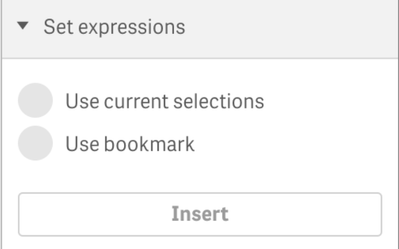
One of my favorite new things in Qlik Sense is the Set Expression section available in the Expression editor.The Set expressions sectionlet users addcomplexset analysis to theexpressions without typingit, which seems to me like a fantastic addition for new Qlik Sense users. Users decide whether theywant to insert the current selection or a bookmark as a set expression. If available,userscan choose which alternate state to base the current selection or the bookmark on.The “Set expressions” section is available in the ExpressioneditorHow it works?Let us assume I have a chart that contains Sales byState and I want to add a simple condition to my expression where Year=2019.With Set expressions section a user could just select 2019 in the field Year as she would normally do and then pick “Use current selections” from the Expression editor. This will add the correct syntax into the expression. Something like:Sum({<Year={'2019'}>}[Actual Amount]) But if we add a bit of Qlik magic to it, then it gets more interesting, for example let say we want the Sales byStatechart to show only the data for those Sales Reps that achieved their quota.(I’m using Consumer Sales app for this example)In the Sales Rep filter panel I can search those Sales Reps by using=sum([Sales Amount])>sum([Budget Amount]) in the search box. That will return the sales representatives that match that condition.With this new feature adding a powerful set analysis to my expression gets easy, just by editing the chart expression for Sales and inserting the current selections I can achieve the example’s goal.Remember, you can also pick bookmarks and specify an alternate state if your app uses it.I hope you find it interesting.Arturo @arturoqv
...View More
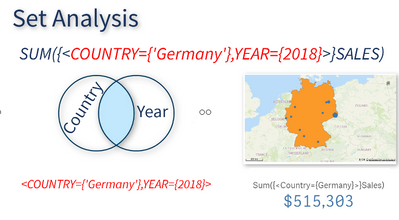
Quickly learn what Set Analysis is and where you can learn more to get started in 60 seconds.
Introduction to Set Analysis - Part 1
Set Analysis Cheat Sheet by Mike Garcia
Romancing Set Analysis
Quotes in Set Analysis
A Primer on Set Analysis
Dates in Set Analysis
Excluding Values in Set Analysis
Share your best Set Analysis resource with the Qlik Community!
Want more in 60 - view the Playlist here.
Regards,
Mike TaralloQlik
...View More
Stay in the know on Qlik product innovations
Register today!go.qlik.com/QlikInsider.html
Our next Qlik Insider Webinar is on May 29th. Today I'll give you the rundown on what to expect to see on our next webinar focusing on our April 2019 release.
The more you understand about what’s possible with our platform, the more you and your organization can benefit from it. That’s why you don’t want to miss our quarterly Qlik Insider Webinar Series.
Register now for our May 29 Qlik Insider session for a live, exclusive look at the Qlik April 2019 release, including the newest features and extensions to our platform:
Enterprise SaaS and Kubernetes deployment enhancements– including Qlik Sense®app creation and reload features across cloud services, Kubernetes, and Windows for standalone and/or multi-cloud deployments
Associative Insights– including powerful new AI insight suggestions – driven by our Cognitive and Associative Engines – revealing hidden insights in selections
Dual-Use QlikView®and Qlik Sense features– including new unified licensing and integrated links to QlikView apps from select Qlik Sense environments
And more– including new visualizations, mapping enhancements, content creator UX improvements, extended Qlik Associative Big Data Index™ functionality, and Qlik NPrinting®task notifications
Regards,
Mike Tarallo - QlikFollow us to see the latest Qlik Insights
...View More
If you are creating an app with React, Redux, and enigma.js, you may be wondering when and where to create Qlik session objects, and how to handle getting and updating data from those objects.The first decision to make is whether you want to be storing the data received from the Qlik object (by using the getLayout() method or the getHyperCubeData() method for example) in component state or globally in Redux. This decision may change from project to project or even from object to object. Generally, if the data is only needed in the component, like when creating a visualization, I bypass Redux and just use React component state. But if the data will be needed globally at the app level, then I use Redux.WHEN I WANT TO USE COMPONENT STATEWhen using component state, I create the Qlik session object and get data when the component mounts and I destroy the session object when the component unmounts because there’s no reason to have a session object around longer than it needs to be. I use a render prop pattern to make it reusable. I’d have one component whose job it is create and destroy the session object, and pass the object along to the component to be rendered. And then the component to be rendered would usually be a visualization in this case, and depending on the circumstance, may want to use different methods available on a generic object, such as getLayout(), or getHyperCubeData(), or selectHyperCubeValues(), or any of the other methods available on a generic object. Those two components, and their usage, would look like this.WHEN I WANT TO USE GLOBAL STATEIf I want data from session objects stored in Redux to access globally, the pattern I’ve used before works like the below flow chart.The idea is that I create modules that export promises that resolve to the session object, and then when a component mounts that needs the data it will first check to see if that object has been loaded before and if not call a thunk who awaits the promise that resolves to the session object, and then subscribes to changes in the object and dispatches another thunk whose job it is to get the data from the session object with either getLayout() or getHyperCubeData() or some similar method and format it and then finally dispatch an action to Redux with the formatted data as the payload which can then store the data and also set some loaded flag to true.If anyone is interested in a code sample of this, let me know.
...View More