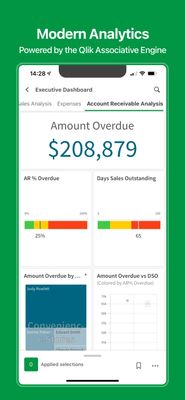
Qlik Sense Mobile for SaaS was recently released to the general public and judging by what I have seen on my social media feeds, it has been well received. Having had the experience of working with the app leading up to the release, I thought it might be helpful to share some of the things that I learned about developing an app for the Mobile SaaS app.
In the past few posts, I have discussed the modern, lightweight framework from Qlik, Nebula.js, and its usage in developing various Qlik Sense objects such as — creating a new visualization chart or building Embedded analytics solutions like Mashups. Nebula.js is a collection of product and framework agnostic JavaScript libraries and APIs that helps developers easily integrate out-of-the-box capabilities on top of the Qlik Associative Engine. So, let’s assume you have an already existing extension developed using the Extension API, and you would like to migrate this extension to the Nebula.js framework. How would you do this?The focus of this post is to understand what resources are required by a Developer to effectively migrate an existing extension developed using Extension API to the Nebula.js framework and its potential benefits.To demonstrate the overall migration process, I will take an existing visualization extension that I have developed in the past using the Extension API. The extension is a Scatter-Pie plot that allows us to visualize each scatter plot’s bubble as a pie-chart to understand the Sales-Profit correlation for the three categories state-wise as shown below:Let us try to recreate the exact same visualization by leveraging the novel Nebula.js framework.Traditional Extension API-based visualizations need JavaScript code (.js), a metadata file (.qext), and stylesheets (.css). The logic of the extension is controlled using the code in the JavaScript file and so that is the entry point for your development activity. In Nebula.js, we try to segregate the various modules of the code to align it to a modular architecture, thus providing greater flexibility to the developers. Let’s deep dive into the steps required to migrate our current extension.Step 1: Create a Nebula project structure.The first step is to get all the files required as part of developing the extension. We can use the Nebula.js CLI like below and structure the project.npx @nebula.js/cli create hello --picasso noneExecuting the above command, gives us the three required files.Step 2: Starting the local development server.One of the advantages of using the Nebula.js framework is that it comes with a local development server that allows developers to see their output as they code. To start the server, execute the following command.cd hello
npm run startNow, we will need to connect to Qlik’s Associative Engine using the WebSocket protocol. Once we establish a connection, we will be presented with the list of apps to test our visualization in the Developer UI.Step 3: Configuring the data structure.Next, we need to configure the data structure and define our hypercube as shown in the code snippet below. This is similar to what we have in our current extension (Extension API). However, all this information is saved under one single JavaScript file in the older approach.const properties = {
showTitles: true,
qHyperCubeDef: {
qInitialDataFetch: [{ qWidth: 6, qHeight: 100 }],
},
definition: {
type: "items",
component: "accordion",
items: {
dimensions: {
uses: "dimensions",
min: 1,
max: 6,
},
measures: {
uses: "measures",
min: 2,
max: 2,
},
sorting: {
uses: "sorting",
},
settings: {
uses: "settings",
},
},
},
};
export default properties;The only thing that we do differently here in Nebula is to add the/qHyperCubeDef as a data target in data.js like this:export default {
targets: [{
path: '/qHyperCubeDef'
}],
};Step 4: Import packages.Nebula.js is built on the concept of custom hooks. If you do not know what hooks are, this tutorial will give you a high-level idea of how to leverage them in terms of Nebula. As per the Getting started with Nebula extension tutorial, we will need to import two essential packages to access the Qlik Sense object’s layout and render the data. They are useLayout and useEffect. Also, since our visualization is built using D3.js, we will need to install D3.js in our NodeJS environment and import the package for D3 using the commands below.Install D3 by runningnpm install d3 --saveImport D3 toindex.jsby addingimport * as d3 from d3Now, let us understand what we did differently here in the Nebula.js framework as compared to the Extension API.As we can see from the above comparative analysis, the primary difference is that the Extension API uses RequireJS to load resources asynchronously and has a jQuery wrapper around the HTML element. In the Nebula.js framework, we eliminate all these dependencies, thereby making it framework agnostic and faster.Step 5: Code Logic.Our most important goal is to develop the main functionality of the extension. Again, the whole idea here is to replicate the exact visualization developed using Extension API without investing additional time in rewriting the source code. The entry point for the extension’s code is the index.js file, and currently, it looks like below with all the necessary packages.import { useLayout, useElement, useEffect } from "@nebula.js/stardust";
import properties from './object-properties';
import data from './data';
import * as d3 from "d3";
export default function supernova() {
return {
qae: {
properties,
data,
},
component() {
const element = useElement();
element.innerHTML = '<div>Hello!</div>'; // eslint-disable-line
},
};
}Now, let’s take a look at our current extension’s JS code.To render the visualization with an HTML element, we take advantage of thepaint($element, layout)method where$elementis a jQuery wrapper containing the HTML element andlayoutpresents the data and properties for the visualization. This method is called every time the visualization is rendered. So,do we have a similar approach in the Nebula.js framework?The answer is Yes!If we go back to our index.js file, we notice a functionsupernova( )that consists of thecomponent( )method, which is where all the rendering takes place. To render something, we need to access the DOM element the visualization is assigned to, and to do so, we need to use the useElement method. Also, as I mentioned in Step 4, to access the QS object’s layout and bind the data, we need to use the useLayout and useEffect methods. These three methods are all we need to migrate our current code to the newer framework successfully.After copying the current code and aligning it to Nebula’s programming standard, this is what we get.export default function supernova() {
return {
qae: {
properties,
data,
},
component() {
const element = useElement();
const layout = useLayout();
const selections = useSelections();
console.log(layout)
//getting data array from QS object layout
useEffect(() => {
if (layout.qSelectionInfo.qInSelections) {
return;
}
var qMatrix = layout.qHyperCube.qDataPages[0].qMatrix;
var measureLabels = layout.qHyperCube.qMeasureInfo.map(function (d) {
return d.qFallbackTitle;
});
//an array that invokes each row of qMatrix from layout:
var data = qMatrix.map(function (d) {
return {
Dim1: d[0].qText,
Dim2: d[1].qText,
Dim3: d[2].qText,
Dim4: d[3].qText,
};
});
var width = 1000;
var height = 400;
var id = "container_" + layout.qInfo.qId;
const elem_new = `<div id=${id}></div>`;
element.innerHTML = elem_new;
viz(data, measureLabels, width, height, id);
}, [element, layout]);
}
}
}We see that most of the code lines are similar to what we had in our Extension API. The only difference lies in the way we interact with the three methods here in Nebula.js. In the end, theviz( )method is called within thecomponent( )function, and that is where our D3.js code for the visualization is. Again, this is similar to what we did in the Extension API. That is all we needed to do from a code perspective.Step 6: Build & Deploy.The good old extensions developed using Extension API had to be bundled (zipped) together with a .qext file, a JavaScript file, and any other dependency files. Nebula.js presents a modern way of building and preparing the extension to be deployed to the Qlik Sense environment.Firstly, since Nebula runs in a NodeJS environment, we can easily bundle everything and distribute the visualization as an NPM package using:npm run buildSecondly, to deploy the extension to a QS environment, we use the command below, which generates all files into the folder/hello-ext that you can then use as an extension in QS.npm run senseNow that we know about the resources required to migrate our existing extensions to the Nebula.js framework, let’s recap the potential benefits of the new SDK.Nebula.js is modular and allows developers greater flexibility in programming and code maintenance.It comes with a local development server to visualize the output as we code.Modern framework with no dependency on module loaders such as RequireJS or wrappers like jQuery.Available as an NPM package and hence very easy to get started with.Faster build and deployment; visualizations can be distributed as NPM packages.Way forward — support, etc.This brings an end to the post, and hopefully, this serves as an initial guide for developers and organizations planning to migrate their existing visualizations to the Nebula.js framework. For folks who want to get started with Nebula or build advanced visual representations using the SDK, here is a list of accumulated resources -Building a Hello world extension using NebulaWhy should we stop using Capability APIs?Building an advanced visualization extension using Nebula.js and 3rd party libs such as D3.jsDealing with variables in a Mashup using Nebula.js & Enigma.js (alternative to Variable API)
...View More
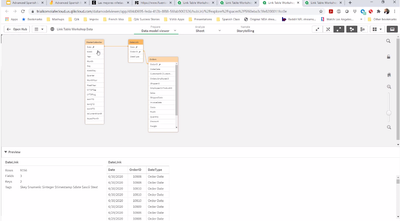
In today's blog and video, Qlik Solution Architect Tomilayo Komolafe (Tomi) is back providing real in-the-trenches solutions to real customer problems.How does one do analysis with multiple date fields?Here is the scenario:Customer had multiple date fieldsOne primary key is related to multiple date fieldsI was recently working with a prospect in the quality assurance (QA) space. The customer had an interesting problem on his hands. Whenever a QA event arises in his team, a QA number is generated. However, each QA #, at some point, would have a Date Identified, Date Initiated, Date of Occurrence, and Date Closed field. He was stumped on how to perform analysis on his data with these multiple date fields. For example, if he wanted to know how many events were Identified, Occurred, and Closed, in August 2020, how could he do this? He knew he would need some arbitrary master calendar that connects all these date fields together. (For a great explainer video on Master Calendar - check out this video from my colleague Mike Tarallo . It is slightly older but still valid in this scenario and explains the Master Calendar concept in an easy to understand manner. )NOW....that’s not all, my customer still needed a way to relate all the four date field types to the master calendar. We resolved his problem using Link Tables and my video below goes through how this can be implemented. In this example, I am playing the role of a retailer, think of Amazon, whom for any order generated with some Order ID number, there would be multiple dates related to this order. The dates here are OrderDate, InvoiceDate, ShippedDate, and ArrivalDate. Watch how easy Qlik makes analyzing this data set easy.Watch this video to learn more and see how we solved it:Can't see the video? YouTube blocked by your region or organization? Download the .mp4 files to watch on your computer or mobile device.See more of Tomi's posts:Looping Through Cloud Based Data FilesContact Tracing with Qlik Sense SaaS
...View More
There are two script and chart functions that I recently became aware of that I will start to use in future scripts. They are: Coalesce and EmptyIsNull. In this blog, I will explain how they both can be used. Let’s start with the Coalesce function.Coalescecoalesce(expr1[ , expr2 , expr3 , ...])According to Qlik Help, the Coalesce “function returns the first of the parameters that has a valid non-NULL representation.” This function can take an unlimited number of parameters. Let’s see it in action. In the table below, there are two fields: FirstName and LastName. The last column uses the Coalesce function to check first the FirstName field and then the LastName field for any non-NULL values. The first one found is returned. If neither the FirstName or LastName fields contain a value, then the last parameter (the default) is returned. In this example, that is “No name provided.”You can see that when there is a first name in the FirstName field, it is returned and when there is not a first name but just as a last name in the LastName field, the last name is returned as seen with Johnson. The last row in the table did not have a first name or last name, so the default “No name provided” is returned. The first row has an empty string in both the FirstName and LastName fields, so an empty string is returned by the Coalesce function.In the future, I will use the code below when I want to replace fields that are empty with a value.I would replace expressions like this:If(Len(Gender)>0, Gender, ‘Unknown’)With this expression:Coalesce(Gender, ’Unknown’)EmptyIsNullEmptyIsNull(exp )The EmptyIsNull function converts empty strings to NULL. In the first row of the table below, FirstName and LastName are empty strings. When using the EmptyIsNull function in the last column, you can see that it returns NULL in place of the empty string in the LastName field. Whereas in the other rows (rows 2-6), the last name is returned.When I have a field that is not 100% populated, I sometimes replace the empty strings with NULL. In the past, I would use an expression like this:If(Len(Gender)=0, Null(), Gender) or If(IsNull(Gender) or Gender=’’, Null(), Gender)Now, using the EmptyIsNull function, I can shorten my expression to this:EmptyIsNull(Gender)The Coalesce and EmptyIsNull functions are less complex and effective for use in chart expressions and in the script. Test them out the next time you need to replace empty strings in a field.Thanks,Jennell
...View More
Modern Embedded Analytics solutions using Qlik offers a stack of open-source libraries to build customized analytical platforms backed up with the robustness of Qlik’s Associative Engine. These new mediums facilitates communication with the Engine and provides the flexibility to develop your own client and services or to integrate visualizations and mashups. Historically, Capability APIs have been extensively used to build mashups and perform application related operations. An alternative offering to Capability API-based operations is Nebula.js and Enigma.js.To clarify the use of each of these libraries, let’s breakdown their functionalities in a simplistic way to help the developer community to get started with them.In this tutorial, we are going to focus on a user scenario that involves applying both Enigma.js and Nebula.js. This way we can have a fair idea of their applications and get started with their immense capabilities.User scenario: A company needs to build its own analytic solution while being able to leverage data from Qlik’s Associative engine and embed a couple of visualizations. The overall goal is to have some buttons in their webpage that would control the ‘dimensions’, allowing them to render the visualizations based on the buttons’ click. They have approached a similar type of situation in the native Qlik Sense using ‘variables’ and they would like the same capability in their own web solution.Solution: Since the company has taken advantage of ‘variables’ in the native QS, a similar approach for their web solution using the two libraries would be the following:Create a Mashup template using Nebula.js.Fetch the variable and its definition from QIX using Enigma.js.Load and register QS objects(action-button, charts) using Nebula’s stardust package.Consume the fetched variable in the ‘action-button’ and render.Integrate all the required visualizations from QS in the mashup.Let’s go through each of the steps in detail to understand how we can implement them -Step 1 — Creating Mashup template: In this tutorial, the focus is not on developing mashups but to implement the user scenario. A very simple tutorial to get started with developing mashups is on the official Qlik Developer site. Link: https://qlik.dev/tutorials/build-a-simple-mashup-using-nebulajsUsing the command line interface, we create a web project that has the following structure -/srcconfigure.js - Initial configuration of nebula.jsconnect.js - Connection setup with enigma.jsindex.html - A html page templateindex.js - Connect and visualizeStep 2 — Fetch the variable using Enigma.js: Like I discussed, Enigma.js allows us to communicate with the QIX engine and enables us to perform CRUD(create, read, update, delete) operations on QS apps and their entities. Since in this case, our target is to read a variable named ‘vChangeField’ from a QS app, we first create an object with list definition like below: const variableListProps = {
qInfo: {
qId: "VariableList",
qType: "VariableList",
},
qVariableListDef: {
qType: "variable",
qData: {
tags: "/tags",
name: "/",
},
},
};In order to create the list object that we have defined, we use the createSessionObject() method provided by Enigma.js. After that, the properties of the object, including dynamic properties are retrieved using the getLayout() function and passed on to a passVariable(layout) like below: const variableListModel = await app
.createSessionObject(variableListProps)
.then((model) => model);
variableListModel.getLayout().then((layout) => {
passVariable(layout);
});Now that we have the object properties in the layout, the next step is to retrieve the ‘variable’ inside our function passVariable() and use it on the ‘action-button’ that we will create for our mashup. function passVariable(layout) {
const {
qVariableList: { qItems: data },
} = layout;
var pass_need = data[1].qName;
}So, we finally have our desired variable stored in ‘pass_need’. This is all we had to do to fetch our variable using Enigma.js.Step 3 — Load and register ‘action-button’ and other charts: Our next step is to load the QS objects, i.e., ‘action-button’ and ‘combo’ and ‘bar’ charts required as part of this use case in our mashup and, to do that we will leverage Nebula.js. So, let’s go to the template defined in the configure.js file where we can see the following:import { embed } from '@nebula.js/stardust';
import barchart from '@nebula.js/sn-bar-chart';
const n = embed.createConfiguration({
context: {
theme: 'light',
language: 'en-US',
},
types: [
{
name: 'barchart',
load: () => Promise.resolve(barchart),
},
],
});
export default n;In this file, we have the initial configuration needed from Nebula.js perspective. First, an embedclass is imported from the ‘@nebula.js/stardust’ package and then using the Configuration object, we define the guidelines for our visualization and website. We also see that a bar-chart module is loaded from the package and then registered under types. This is what needs to be done to render our QS visualizations.For this use case, we need three action buttons, and one bar and one combo chart in our mashup. So, let’s load and register these three visualization components as shown in the snippet below:import { embed } from '@nebula.js/stardust';
import barchart from '@nebula.js/sn-bar-chart';
import actionButton from '@nebula.js/sn-action-button';
import combochart from '@nebula.js/sn-combo-chart';
const n = embed.createConfiguration({
context: {
theme: 'dark',
language: 'en-US',
},
types: [
{
name: 'barchart',
load: () => Promise.resolve(barchart),
},
{
name: 'action-button',
load: () => Promise.resolve(actionButton),
},
{
name: 'combochart',
load: () => Promise.resolve(combochart),
},
],
});
export default n;Step 4 — Create the action-buttons and render: In our previous step, we loaded and registered the three types of visual components we need as part of this mashup. Now, we need to use the fetched variable ‘vChangeField’ in the three action-buttons and render them. First, let’s create a new embed instance using the Enigma app in the index.js file and then render the action-buttons using the render function. This function renders a visualization into an HTMLElement.const n = embed(app);
function passVariable(layout) {
n.render({
type: "action-button",
element: document.querySelector(".object_new"),
properties: {
actions: [
{
actionType: "setVariable",
variable: pass_need,
value: "Decade",
},
],
style: {
label: "By Decade",
font: {
size: 0.7,
style: {
italic: true,
},
},
background: {
color: "Grey",
},
border: {
useBorder: true,
radius: 0.25,
width: 0.1,
color: "Grey",
},
icon: {},
},
},
}),
n.render({
type: "action-button",
element: document.querySelector(".object_new"),
properties: {
actions: [
{
actionType: "setVariable",
variable: pass_need,
value: "Actor",
},
],
style: {
label: "By Actor",
font: {
size: 0.7,
style: {
italic: true,
},
},
background: {
color: "Grey",
},
border: {
useBorder: true,
radius: 0.25,
width: 0.1,
color: "Grey",
},
icon: {},
},
},
}),
n.render({
type: "action-button",
element: document.querySelector(".object_new"),
properties: {
actions: [
{
actionType: "setVariable",
variable: pass_need,
value: "Director",
},
],
style: {
label: "By Director",
font: {
size: 0.7,
style: {
italic: true,
},
},
background: {
color: "Grey",
},
border: {
useBorder: true,
radius: 0.25,
width: 0.1,
color: "Grey",
},
icon: {},
},
},
});
}While creating the three action-buttons, we also need to specify their properties under properties as seen above. One of the important things to consider when defining the properties for an ‘action-button’ is what action do we want this button to execute on click. This is very similar to what we do non-programmatically in the native Qlik Sense app with action buttons. For this use case, we want these buttons to set a variable when clicked. So, under actions we set the actionType: “setVariable”. The next step is to pass the variable that we have retrieved using Enigma.js. In Step 2, we stored the variable in ‘pass_need’. So, we will pass this to the variable: pass_need property. We also, set a default value for each variable using the property value: “Director”.Step 5 — Integrate all the visualizations: Our final step is to bring all QS objects together in the mashup. We have already created and rendered the action buttons and, since we already have the combo and bar-chart in our QS app, we don’t need to create them but we will just retrieve them using their object IDs like the snippet below:n.render({
element: document.querySelector(".object"),
id: "QVngr", //object ID of combo-chart
}),
n.render({
element: document.querySelector(".object"),
id: "JbtsBVB", //object ID of bar-chart
});
}Mashup inaction:As we can see, the rendering of the charts changes on the basis of the ‘button’ we click. The button leverages the ‘variable’ defined in our Qlik Sense application. This tutorial presents an alternative to the Variable API used inherently for performing CRUD operations with variables. It also demonstrates the usefulness of Nebula and Enigma.js frameworks for developing modern embedded analytic solutions.The Source code for this mashup can be found here: https://github.com/dipankarqlik/Variable_Enigma
...View More
GeoCoding in action on Qlik Sense SaaSRegister now: Did you know you can perform address lookups and convert them to geographic coordinates with Qlik Sense SaaS? Did you know you can perform advanced mapping operations using your native Qlik Sense Maps? Introducing GeoOperations and Qlik Geocoding. (A separate hosted subscription service) – With Qlik Sense GeoOperations you can perform address to coordinate lookups and create more sophisticated mapping analytics. Join Mike Tarallo along with special guest Patric Nordström – Director of Product Management – Qlik Sense Visualizations and GeoAnalytics, on this Do More with Qlik to learn more about this awesome capability add on service and see it in action with live usage and demonstration.Resources:Get started with GeoAnalyticshttps://community.qlik.com/t5/GeoAnalytics/New-to-GeoAnalytics-Read-this-first/td-p/1565699GeoOperations examples:https://community.qlik.com/t5/Documents/GeoOperations-Examples-Qlik-GeoAnalytics/ta-p/1753980GeoOperations ref docs:https://help.qlik.com/en-US/geoanalytics/Subsystems/GeoOperationsService/Content/connector/connector...Geocoding templatehttps://community.qlik.com/t5/Documents/Qlik-Geocoding-Geocoding-Template-Data-and-presentation/ta-p...DataOpen data Hawaiihttps://geoportal.hawaii.gov/Elevation Rangeshttps://geoportal.hawaii.gov/datasets/elevation-rangesHotelshttps://geoportal.hawaii.gov/datasets/hotelsHazard zoneshttps://geoportal.hawaii.gov/datasets/volcano-lava-flow-hazard-zonesCan't see the video? YouTube Blocked by your organization or region? Download the .mp4 attached to this post to watch on your mobile device or computer.
...View More
Nebula.js and its ecosystem with extensions is growing and is growing fast. In the past, I have covered some of the available charts like bar-chart, funnel-chart, line-chart, mekko-chart, pie-chart, sankey-chart and a simple table.Today I will go over some of the latest editions, a simple Filter, based on a field, a KPI object and a Combo chart.Let's start with the Nebula.js configuration and the connection to our Qlik Sense server.The code is in observablehq, for framework specific, check links at the end of this blog post.nebula = require("@nebula.js/stardust")
n = {
const { embed } = nebula;
const config = {
host: 'qlik-sense.your-server.com',
appId: 'xxxxxxxx-xxxx-xxxx-xxxx-xxxxxxxxxxxx’,
}
const enigmaApp = await enigma
.create({
schema,
url: `wss://${config.host}/app/${config.appId}`,
})
.open();
const app = await enigmaApp.openDoc(config.appId);
const n = await embed(app, {
context: {
theme: 'light',
language: 'en-US',
constraints: {
active: false,
passive: false,
select: false,
},
},
types: [
// We will add the charts later on
],
});
return n;
}Ok we have Nebula.js configured and a Websocket connection to the engine.We start with a simple Filter. All you have to do is get the Field Name from Qlik Sense and then add the following code into your js page. All of these examples are using the default Helpdesk app.const field = await n.field('Case Owner Group');
field.mount(filterElement, { title: 'Department' } );And here is the rendered objectFilterLive example: https://observablehq.com/@yianni-ververis/nebula-js-filterOk, we’ve got the simple filter, lets see how to get a KPI object.In the previous example add the sn-kpi and then render itnebula = require("@nebula.js/stardust")
kpi = require("@nebula.js/sn-kpi")
…
types: [
{
name: 'kpi',
load: () => Promise.resolve(kpi),
}
],
…
n.render({
element: kpiElement1,
type: 'kpi',
fields: ["=Count( {$<Priority={'High'}, Status -={'Closed'} >} Distinct %CaseId )"],
});This is what we getKPILive Example: https://observablehq.com/@yianni-ververis/nebula-js-kpi?collection=@yianni-ververis/nebulaThat was easy, right?Now let’s get into a more complicated one, the Combo Chart.In the previous example add the sn-combo-chart and then render it but with a hyperCube this time so we have more fine control over the labels, type bar/line etc.nebula = require("@nebula.js/stardust")
comboChart = require("@nebula.js/sn-combo-chart")
…
types: [
{
name: 'comboChart',
load: () => Promise.resolve(comboChart),
}
],
…
n.render({
element: chartElement,
type: 'comboChart',
properties: {
qHyperCubeDef: {
qDimensions: [
{
qDef: {
qFieldDefs: ['Date.autoCalendar.Date'],
qFieldLabels: ['Date']
},
qNullSuppression: true,
},
],
qMeasures: [
{
qDef: {
qDef: 'Sum([Number of New Cases])',
series: { type: "bar", axis: 0 },
qLabel: 'New Cases',
// autoSort: false
},
qSortBy: { qSortByNumeric: -1 },
},
{
qDef: {
qDef: 'Sum([Number of Closed Cases])',
series: { type: "line", axis: 1 },
qLabel: 'Closed Cases',
},
qSortBy: { qSortByNumeric: -1 },
},
],
qInitialDataFetch: [{ qWidth: 3, qHeight: 1000 }],
qAlwaysFullyExpanded: true,
qSuppressMissing: true,
qSuppressZero: true,
},
scrollStartPos: 1,
showTitles: true,
title: 'Combo-chart',
subtitle: 'Sample supernova combochart',
footnote: 'Sample supernova combochart',
},
});And this is the rendered objectCombo chartSo, what if we want to change this to a stacked bar chart and the x-axis labels underneath? We specify the "type" to be "bar" on the second measure and the "dock" to "near"...
series: { type: "bar", axis: 1 },
...
dock: 'near',
...and we should see thisStacked barchartLive example: https://observablehq.com/@yianni-ververis/nebula-js-combo-chart?collection=@yianni-ververis/nebulaThat's it for today! Make sure you check out my previous articles with different framework implementations and some visualizationshttps://community.qlik.com/t5/Qlik-Design-Blog/Using-Nebula-js-with-React-js-or-in-Simple-html-pages/ba-p/1744410https://community.qlik.com/t5/Qlik-Design-Blog/Using-Nebula-js-with-Angular-or-Svelte/ba-p/1764361https://community.qlik.com/t5/Qlik-Design-Blog/Sn-table-Nebula-js-latest-extension/ba-p/1780153Described extensions in the above blogs with live examplesSelectionsSelectionsBarcharthttps://observablehq.com/@yianni-ververis/nebula-js-barchart?collection=@yianni-ververis/nebulaFunnel charthttps://observablehq.com/@yianni-ververis/nebula-js-funnel-chart?collection=@yianni-ververis/nebulaLine charthttps://observablehq.com/@yianni-ververis/nebula-js-line-chart?collection=@yianni-ververis/nebulaMekko charthttps://observablehq.com/@yianni-ververis/nebula-js-mekko-chart?collection=@yianni-ververis/nebulaPie charthttps://observablehq.com/@yianni-ververis/nebula-js-pie-chart?collection=@yianni-ververis/nebulaSankey Charthttps://observablehq.com/@yianni-ververis/nebula-js-sankey-chart?collection=@yianni-ververis/nebulaTablehttps://observablehq.com/@yianni-ververis/nebula-js-table?collection=@yianni-ververis/nebulaSpecific Framework templates:React:https://github.com/yianni-ververis/nebula-reactAngular:https://github.com/yianni-ververis/nebula-angularSvelte:https://github.com/yianni-ververis/nebula-svelteComing up, Grid chart and Bullet chart./Yianni
...View More
In my last post, I discussed the robust capabilities of Qlik Sense(QS) APIs to build out-of-the-box visual metaphors and ways to integrate them within Qlik’s ecosystem. A natural choice for developers while building QS extensions throughout the years has been the Extension APIprimarily using vanilla JavaScript, jQuery and AngularJS.The Extension API consists of methods and properties used to create custom visualization extensions.Enter… Qlik Sense’s Open Source Solution — Nebula.js!Nebula.js is a collection of product and framework agnostic JavaScript libraries and APIs that helps developers integrate visualizations and mashups on top of the Qlik Associative Engine in QS Desktop, QS Enterprise on Windows, and SaaS editions of Qlik Sense. This tutorial specifically applies to the QS SaaS edition. Nebula.js offers developers an alternative to the 'Capability APIs' that have historically been used to create mashups. The tutorial will focus on developing a new visualization based on a user scenario using Nebula.js and the 3rd-party visualization library D3.js. Our target is to understand how we can leverage Nebula.js to build a QS extension object and bring in out-of-the-box visualization capabilities within the SaaS platform. This tutorial does not emphasize the D3.js programming part, but the motivation behind the visualization is discussed.User scenario: An organization using Qlik Sense has a new requirement to develop a visual representation to understand high-dimensional mutlivariate dataset for their organization. Their dataset consists of numerical values, and they want to compare multiple features together to analyze the relationships between them. Based on these requirements, their Data Visualization Engineer presents to them the ‘Parallel Coordinate plot’.So, what is a Parallel coordinate plot?Parallel coordinate plots (PCP) have proved to be efficient in effectively visualizing high-dimensional multivariate datasets. In a parallel coordinate, each feature is represented as vertical bars and the values are plotted as a series of lines connected across each axis. Their advantage is that the vertical bars(features) can have their own scale, as each feature works off a different unit of measurement. PCP provides insights into specific hidden patterns in data like similarities, clusters, etc., and allows for more straightforward comparative analysis.Based on the requirements, lets get started with building a QS extension using Nebula.js.Prerequisites:Node.js(version 10 or newer)A terminal(for example, Git Bash on Windows or Terminal on Mac)An IDE of your choice, for example, VS Code.An existing web integration, or possibility to get one created in your tenant(this specifically applies to QS SaaS edition).A Qlik Sense app with data.Step1: Use nebula.js CLI to import the necessary packages. The command scaffolds a project into the /hello folder with the following structure:/srcindex.js - Main entry point of this visualizationobject-properties.js - Object properties stored in the appdata.js - Data configuration/test - Integration testspackage.jsonCommand:npx @nebula.js/cli create hello --picasso noneStep 2: Start the development server by running:cd hellonpm run startThe command starts a local development server and opens up http://localhost:8080 in your browser. The benefit of having the dev server with Nebula.js is that it provides an interactive way to test and edit your extension without the need to iteratively deploy in QS every time a new change is made.Step 3: Configure the data structure.Visualizations in QS are based on a hypercube definition(qHyperCubeDef ). Therefore, any new visual object we want to bring into the QS ecosystem needs to have the data structure defined. With Nebula.js, we have the object-properties.js file that allows defining the structure of our object.const properties = {
showTitles: true,
qHyperCubeDef: {
qInitialDataFetch: [{ qWidth: 30, qHeight: 200 }],
}
}We also need to set a data target in the data.js file so we refer to the right hypercube definition(important to note in case you have multiple qHyperCubeDef objects).export default {
targets: [
{
path:'/qHyperCubeDef',
}
],
};Step 4: Developing the visualization extension using Nebula.js and D3.js.QS Nebula.js specific code:Now that we have everything ready, we start developing our extension with the custom visualization object using the index.js file from our project.Note that Nebula.js and its primary package @nebula.js/stardust is built on the concept of custom hooks. This might sound familiar to people working with React.js. Hooks is a concept that emphasizes reusable, composable functions rather than classical object-oriented classes and inheritance. The primary hooks that we are dependent on for developing our extension object are described below:The method that helps us in rendering our visualization object is the component()function. The component() function is executed every time something related to the object rendering changes, for example, theme, data model, data selections, component state, etc. This function can be compared to the paint() function in the Extension API.To render our data, we first need to access the layout through the useLayout hook and then use it in combination with the useEffect hook. The hypercube’s qDataPages[0].qMatrix contains all the data(dimension and measures) used in the QS environment, and we will need to pass this data to our D3.js-based visualization.component() {
const element = useElement();
const layout = useLayout();
useEffect(() => {
var qMatrix = layout.qHyperCube.qDataPages[0].qMatrix;
}
}To see the data values and understand the structure of the qHyperCube, it is always a good idea to do a console.log(layout). A snippet shows values specific to our use case. Every time a new dimension or measure is added to our extension object, qDataPages[0].qMatrix is updated with those values.The required dimension values for our chart are then extracted from the hypercube using the qText property from qDataPages[0].qMatrix like below.var data = qMatrix.map(function (d) {
return {
PetalLength: d[0].qText,
PetalWidth: d[1].qText,
SepalLength: d[2].qText,
SepalWidth: d[3].qText,
Species: d[4].qText,
};
});Our next step is to define the width and height of the visualization object, and capture its id. We will use this id to bind it to our element object from the useLayout hook as shown below:var width = 1000;
var height = 400;
var id = "container_" + layout.qInfo.qId;
const elem_new = `<div id=${id}></div>`;
element.innerHTML = elem_new;Finally, we make a call to the D3.js function from within the useEffect hook.viz(data, width, height, id);D3.js specific code:The viz() function contains all of our D3.js code that allows us to draw a Parallel coordinate plot. First, we would need to append the SVG to the <div> that contains the id of our QS object, like below.var svg = d3
.select("#" + id)
.append("svg")
.attr("width", width + margin.left + margin.right)
.attr("height", height + margin.top + margin.bottom)
.append("g")
.attr(
"transform",
"translate(" + margin.left + "," + margin.top + ")"
);We then get all of the dimensions except Species to build our x and y axes.var dimensions = Object.keys(data[0]).filter(function (d) {
return d != "Species";
});
var y = {};
for (var i in dimensions) {
var name_new = dimensions[i];
y[name_new] = d3.scaleLinear().domain([0, 8]).range([height, 0]);
}
var x = d3.scalePoint().range([0, width]).domain(dimensions);To draw the lines for our Parallel coordinate plot, we will need to build the path function that would take a row from our qHyperCube and return the x and y coordinates of the line.function path(d) {
return d3.line()(
dimensions.map(function (p) {
return [x(p), y[p](d[p])];
})
);
}And finally, we bind everything with our SVG like below:svg
.selectAll("myPath")
.data(data)
.enter()
.append("path")
.attr("class", function (d) {
return "line " + d.Species;
})
.attr("d", path)
.style("fill", "none")
.style("stroke", function (d) {
return color(d.Species);
})
.style("opacity", 0.5);Step 5: Deploying the extension.To build our project, we use the below command below to generates all QS readable files and puts them in a folder /hello-ext. This folder can then be compressed(.zip) and uploaded to the Extension section of SaaS console to be used within the QS environment.npm run senseDashboard:If you are just getting started with Nebula.js, https://qlik.dev is a great place to review the basics and drill-down on related functions.This project’s source code is made available at: https://github.com/dipankarqlik/Nebula
...View More