Unlock a world of possibilities! Login now and discover the exclusive benefits awaiting you.

Product Innovation
By reading the Product Innovation blog, you will learn about what's new across all of the products in our growing Qlik product portfolio.
Support Updates
The Support Updates blog delivers important and useful Qlik Support information about end-of-product support, new service releases, and general support topics.
Qlik Academic Program
This blog was created for professors and students using Qlik within academia.
Community News
Hear it from your Community Managers! The Community News blog provides updates about the Qlik Community Platform and other news and important announcements.
Qlik Digest
The Qlik Digest is your essential monthly low-down of the need-to-know product updates, events, and resources from Qlik.
Qlik Learning
The Qlik Learning blog offers information about the latest updates to our courses and programs, as well as insights from the Qlik Learning team.
Recent Blog Posts
-
Conditional Aggregations
Often you need to create conditional aggregations in QlikView, e.g. when you want to create a graph that shows this year’s numbers only, also if there are several years possible. There are basically three ways to do this A conditional expression outside the aggregation function, e.g. If(<Condition>, Sum(<Expression>)) A conditional expression inside the aggregation function, e.g. Sum(If(<Condition>,<Expression>)) Set Analysis, e.g. Sum( {<S... Show MoreOften you need to create conditional aggregations in QlikView, e.g. when you want to create a graph that shows this year’s numbers only, also if there are several years possible.
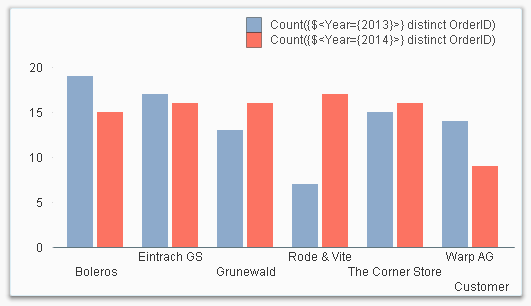
There are basically three ways to do this
- A conditional expression outside the aggregation function, e.g. If(<Condition>, Sum(<Expression>))
- A conditional expression inside the aggregation function, e.g. Sum(If(<Condition>,<Expression>))
- Set Analysis, e.g. Sum( {<Set Expression>} <Expression> )
If you choose a conditional expression outside the aggregation function, you will have a condition that is evaluated once per dimensional value. Further, all three parameters of the If() function are aggregations, so you need to use aggregation functions, also in the condition, otherwise the expression will not be evaluated the way you want to.
So - don’t use naked field references!
If( ShippingDate >= vReferenceDate, Sum( Amount ) ) // Incorrect !
If( Min( ShippingDate ) >= vReferenceDate, Sum( Amount ) ) // Correct
If you instead put the conditional expression inside the aggregation function, you will have a very different situation: First, the condition will be evaluated on the record level of the source data. In other words: You may get performance problems if you have large data amounts.
Sum( If( ShippingDate >= vReferenceDate, Amount ) )
Secondly, the aggregation function now contains an expression based on several fields (in the above example, ShippingDate and Amount), possibly from several source tables. This means that QlikView will aggregate over the Cartesian product of the included source tables. Normally this is not a problem, but in some odd cases, you will have results different from what you expect.
For instance, if the record with Amount has several shipping dates associated with it, the amount will be counted several times, once per shipping date, and you will get a result that you probably consider incorrect. There is usually a way to get around this problem by writing the expression differently, but if you can’t find one, you should use Set Analysis instead.
The conditional expression can be written in several ways:
- String comparison: If( Field = ‘string’, Amount )
- Numeric comparison: If( Field = number, Amount )
- Boolean condition: If( Flag, Amount ) e.g. Sum( If( IsThisYear, Amount ) )
- Multiplication: Flag * Amount e.g. Sum( IsThisYear * Amount )
The two first examples contain comparisons, whereas the two last contain flags - Boolean fields created in the script. All four ways work fine, but I would recommend avoiding comparisons altogether. Use flags instead. See e.g. Year-over-Year Comparisons for more on flags.
Finally, you can choose to use Set Analysis. This is slightly different from other conditional expressions in that it uses the QlikView selection metaphor for the analysis: First, the Set Expression is interpreted as a selection, whereupon the aggregation is evaluated given this selection.
Sum( {$<ShippingDate = {">='$(vReferenceDate)'"}>} Amount )
Sum( {$<IsThisYear = {1}>} Amount )
This means that Set Analysis often is faster than using a conditional expression inside the aggregation. It also means that it calculates what you expect, as opposed to a case where an inside condition creates an unwanted Cartesian product.
However, a drawback with the Set Analysis is that it needs to be performed before QlikView performs the aggregation – you cannot have a Set Expression that evaluates to different values for different rows. The work-around is to calculate the condition in the script and store it in a flag.
Bottom line: Define flags in the script. And use Set Analysis.
Further reading related to this topic:

-
Dissecting the New UI: Analytics
In this blog, we take a look at the second section of the new UI: Analytics. -
Accessibility Best Practices for Qlik Sense
Web accessibility is a topic that's not often brought up when planning to build an experience on the web. It is however crucial to acknowledge the importance of ensuring that all users are able to access the content you create as it helps to eliminate barriers to access valuable information and proactively creates an inclusive environment for people regardless of their visual, cognitive, physical, or auditory disabilities. You can read more about... Show MoreWeb accessibility is a topic that's not often brought up when planning to build an experience on the web. It is however crucial to acknowledge the importance of ensuring that all users are able to access the content you create as it helps to eliminate barriers to access valuable information and proactively creates an inclusive environment for people regardless of their visual, cognitive, physical, or auditory disabilities.
You can read more about Qlik’s commitment to making products and services available to everyone here. Qlik Sense comes with features and improvements aimed at accessibility compliance with WCAG 2.0 standards.
Accessibility in Qlik Sense
The product features in Qlik Sense include:
- Default color schemes with high contrast
- Support for keyboard navigation
- Keyboard shortcuts
- Screen reader support (A screen reader - NVDA is supported - can be used to interact with apps built-in Qlik Sense)
Note: Navigation through the hub, app sheets, toolbar, and data visualizations can be done using a keyboard only for screen reader users. All key shortcuts can be found on this handy help page.
Recommendations when building apps and visualizations
- Overall app best practices:
- Aim for a simplified design and decluttered apps
- Aim for a simple/flat structure instead of a complicated grid when building sheets (This makes it easier for users with keyboard-only navigation to find their way around the page)
- Build sheets so that the content provides a general overview first, then goes into details later on
- Include descriptive titles that make it easier for users navigating with a screen reader to understand the context of the current object
- Accessible visualizations best practices:
- Color accessibility: since the spectrum of colors is narrower for people who have certain visual impairments, they may interpret visualizations differently than intended.
- For instance: a red and green KPI can be confusing if users see those colors as more yellow and brown. In this case, including shapes with colors can help make it more accessible.
- Stick to standard colors or safe palettes and test for sufficient color contrast ratio to allow better readability.
- Using charts that include the accessible built-in Data View
- Providing context whenever possible through labels and clear text descriptions (titles, subtitles, and footers)
- Limiting values in dimensions to a minimum when possible
- Make use of separation and space, for instance, adjusting the spacing between bars and segments in a bar chart can help users distinguish sections of a chart
- Color accessibility: since the spectrum of colors is narrower for people who have certain visual impairments, they may interpret visualizations differently than intended.
Example:
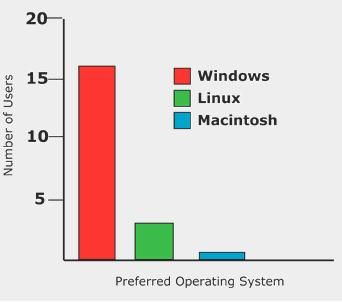
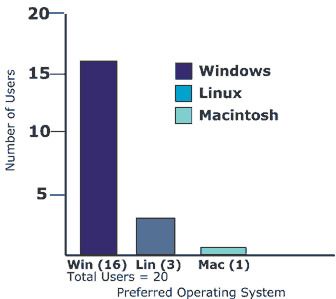
(Source - https://accessibility.psu.edu/images/charts/)
Inaccessible Bar Chart: Information is conveyed only by color
Accessible version of the Bar Chart: labels for each category added to the bottomAccessibility in Mashups
When it comes to building web apps or mashups that integrate with Qlik Sense, developers should plan for creating an accessible experience.
It is true that there are challenges in doing so especially when relying on direct iframe embeds or certain libraries that have limited support for accessibility features or are still in the works. But leveraging the available methods, enforcing best practices stated above, and making fallbacks available for users can be a good start.
If using the Capability API, you can make use of the Visualization API's toggleDataView method as described here to change between a visualization and a data view.
Otherwise, a screen-reader only text description can be added to explain this feature which will be hidden to users of the site via CSS.
<h3>Nebula.js Rendered Line Chart</h3>
<p>A description of the chart that explains in detail the chart for screen readers</p>
<div className="sr-only">[This text is hidden for screen readers only] Explain here how to toggle between the chart view and the data table view by clicking on the Enter key and the Escape key and navigating the rows with Up/Down arrows.</div>
<div id="barViz" ref={elementRef} style={{ height: 500}} onKeyDown={handleKeyDown}></div>
If working with a third party library such as D3.js, you can use attributes to add descriptive text to your charts.
// append the svg object to the body of the page
var svg = d3.select("#" + id)
 .append("svg")
   .attr("width", width + margin.left + margin.right)
   .attr("height", height + margin.top + margin.bottom)
   .attr("role", "img")
   .attr("aria-label", "Include a clear description here including the type of the chart, the data represente, and the overall trend")
  .append("g")
    .attr("transform", "translate(" + margin.left + "," + margin.top + ")");
I have put together a basic example in this github repo where you can explore the code.
I hope you found this post helpful and it helped motivate you to introduce accessibility into your development workflow. If you have techniques or ideas that you already use, please do not hesitate to share them below!
-
Capacity Pricing and Usage Telemetry in Qlik Cloud – available today for Analyti...
Qlik now offers capacity-based pricing and packaging for Qlik Analytics - building upon the rollout of the Data Integration capacity model in Q2. Starting today, our customers can select a pricing tier that best suits their needs around data movement and data analysis. -
Get Familiar with Qlik GeoAnalytics - The "Closest" Operator
Hi guys - continuing my series on making your more familiar with Qlik GeoAnalytics, I build on my previous example where we used the Qlik Geocoding service to grab and plot coordinate points for our video game store street addresses. In this example we will use the "Closest" operator, available from the Qlik GeoAnalyics Connector, to see which stores are the closest to my "home" within in a 30 mile radius. We will even take this to the next ... Show MoreHi guys - continuing my series on making your more familiar with Qlik GeoAnalytics, I build on my previous example where we used the Qlik Geocoding service to grab and plot coordinate points for our video game store street addresses. In this example we will use the "Closest" operator, available from the Qlik GeoAnalyics Connector, to see which stores are the closest to my "home" within in a 30 mile radius. We will even take this to the next level and use a Line Layer to visual depict that distance as well. Watch or download the video and samples to learn more!
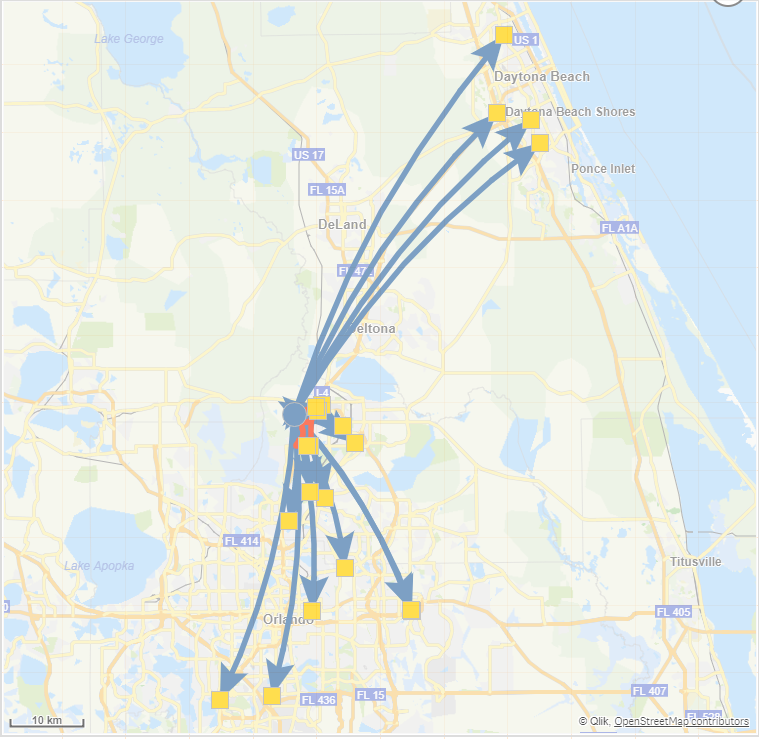
Qlik GeoAnalytics - The Closest Operator
Part 3: Get Familiar with Qlik GeoAnalytics - Custom Info Bubble
Regards,
Qlik
Can't see the video? YouTube blocked by your region or organization? Download the .mp4 video to watch on your computer or mobile device.

-
Bike Share
Bike ShareThilaka BIChicago has a bikeshare system, with hundreds of stations and thousands of bikes and scooters. This app lets you analyze bike trip data.DiscoveriesThis app can help the public discover locations of Divvy bikes and days of usage. For transportation and city planners, usage can be analyzed for improving service and profit.ImpactThis app lets the city decide how to best serve the public based on usage.AudienceCTA data analysts ... Show MoreBike ShareThilaka BI Chicago has a bikeshare system, with hundreds of stations and thousands of bikes and scooters. This app lets you analyze bike trip data.
Discoveries
This app can help the public discover locations of Divvy bikes and days of usage. For transportation and city planners, usage can be analyzed for improving service and profit.
Impact
This app lets the city decide how to best serve the public based on usage.
Audience
CTA data analysts will be able to assess how the public can make it to the final mile.
Data and advanced analytics
Profitability of the business as well as value for the tax payers dollars can be increased by analyzing the data and noting trends
-
Border Crossing
Border CrossingThilaka BIThis app shows border crossing and entry data collected by the U.S. Customs and Border Protection at the port level. This can be used to analyze North American travel and trade.DiscoveriesGovernment agencies and Private sector organizations can use the app for transportation planning, port studies, travel analyses, corridor assessments, and other purposes.ImpactThis app provides information on the amount of activity at p... Show MoreBorder CrossingThilaka BIThis app shows border crossing and entry data collected by the U.S. Customs and Border Protection at the port level. This can be used to analyze North American travel and trade.Discoveries
Government agencies and Private sector organizations can use the app for transportation planning, port studies, travel analyses, corridor assessments, and other purposes.
Impact
This app provides information on the amount of activity at ports along the US-Canada and US-Mexico border. It is also used to track trade and travel flows, particularly for North America.
Audience
It is used by data analysts who provide interpretative reports on the level of trade and travel. It is also used by business managers who want to find an ideal port for shipping goods.
Data and advanced analytics
The app allows analysis of delays. We can also check monthly trends and mode of transportation across the border.
-
Silent Auth using qlik-embed and OAuth
On a previous blog post, we took a look at qlik-embed, Qlik’s newest embedding framework and saw how easy it is to get started using it to integrate content from Qlik directly in your web applications. Today, we will see how to integrate qlik-embed UIs in your web applications that are connected to an OIDC-compliant IDP silently, without prompting users for authorization. Before we get started, consider the following pre-requisites: 1- IDP: We n... Show MoreOn a previous blog post, we took a look at qlik-embed, Qlik’s newest embedding framework and saw how easy it is to get started using it to integrate content from Qlik directly in your web applications.
Today, we will see how to integrate qlik-embed UIs in your web applications that are connected to an OIDC-compliant IDP silently, without prompting users for authorization.
Before we get started, consider the following pre-requisites:
1- IDP:
- We need an IDP, in this blog post, I will use Auth0 which offers a Free starter plan that you can use to test out this functionality.
2- Qlik Cloud Tenant:
- We will configure the Qlik Cloud tenant with both the IDP provider and an OAuth Client.
3- Web App
- Our Web App will be served using Node.js, so make sure to have the latest node.js version installed
Step 1- Auth0 IDP Configuration
After creating an account on Auth0, create an Application and select “Single Page Web Application” as the application type.
Next,, navigate to Settings and take node of the following:
- Domain
- Client ID
- Client Secret
- OpenID Configuration URL (you will find this after you expand Advanced Settings under Endpoints)
We will need these values later on in the post.
In the allowed Callback URLs field, add the following URL:
https://{YOUR TENANT DOMAIN}.us.qlikcloud.com/login/callback
In Allowed Web Origins, add the following URL:
Step 2- Qlik Cloud Tenant Configuration
In this step, we will do 2 things, first, we will create and configure an identity provider. Second, we will configure an OAuth client.
2.1- Identity Provider:
- Navigate to your Management Console > Identity Provider > Create New
- Choose OIDC as the type
- Choose Auth0 as the Provider
- Enter the OpenID Configuration URL from Step 1
- Enter the Client ID and Client Secret from Step 1
- Expand Advanced Options and turn ON Email Verified Override
- You can now Save and then Validate the IDP configuration, this will prompt you to authenticate to Auth0 (make sure you have an active user).
2.1- Configure the OAuth Client:
-
Navigate to the Management Console > OAuth > Click on Create new
-
Select Single-page app as the Client type
-
Select user_default for scope
-
Add the following as your Redirect URL
-
Add the following in the allowed origins:
- Once your Save, Copy the Client ID
We will need it in the next step.
Step 3- Creating the Web Application
3.1- Server: We will use Express to spin up a small server and use the “express-openid-connect” as a middleware to configure Auth0 and require authentication when a user tried to access resources without being authenticated.
It will redirect the user to log in and then back to the site once successfully authenticated.
- the .env file should contain your Environment variables with the following:
- HOST → localhost:3000
- clientId → the client ID from Auth0 from step1
- clientSecret → the client secret from Auth0 from step1
- idpUri → the Domain from Auth0 from step1
- sessionSecret → A random string
- tenantUri → Qlik Cloud tenant
- redirectPage → oauth-callback.html
3.2- Frontend
- index.html: In the public folder, the index.html contains the setup for qlik-embed. In the script tag, the following values need to be entered:
- data-host: Qlik Cloud tenant
- data-client-id: The OAuth client Id from Step 2.2
- data-auto-redirect: set to True, this will remove the Authorize button that appears on qlik-embed UIs. It will silently redirect to Qlik Cloud if the user is authenticated.
- oauth-callback.html
This file contains a script tag with a qlik-embed callback. Make sure to set up data-host to your Qlik Cloud tenant url.
The entire source code can be found in the following Github Repo:
https://github.com/ouadie-limouni/silent-auth-qlik-embedRun the project:
First, you will need to generate a self signed certificate to put in the certs folder so we can be able to open localhost as https.
You can do this using openssl by following the directions below:
1- run the following command:
openssl genrsa -out cert.key 20482- then run and hit enter on all the prompts:
openssl req -new -key cert.key -out cert.csr3- then run:
openssl x509 -req -days 3650 -in cert.csr -signkey cert.key -out cert.crtyou will generate a cert.crt and cert.key files that you should put in the certs folder.
To compile and run the project:
- run: npm install
- then run: node index.js
Once you open https://localhost:3000, you will be automatically redirected to the Auth0 page.
After successfully authenticating in Auth0, you will be redirected to the web app and the qlik-embed UI will render the Qlik Sense app.
I hope you found this post helpful, for a more in depth tutorial and more, visit https://qlik.dev/embed/qlik-embed/
-
-
Extending Talend Studio with DBeaver Plugin
DBeaver is a popular and powerful SQL editor available built as an Eclipse Rich Client Platform (RCP) just like Qlik Talend Studio. The DBeaver Plugin is also available in the Eclipse Marketplace so it can be incorporated directly into your Studio environment. This document provides a step-by-step guide to extend Talend Studio with DBeaver. -
Tab Container
The tab container, formerly the container object, has many new features that allow developers to style the container tabs. In this blog, I will review some of these new features but first let’s do a quick review of what the tab container is and how you can use it. The tab container can be used to show many visualizations, one at a time, thus using less space on a sheet. It is ideal when there is the need to have many visualizations on a single sh... Show MoreThe tab container, formerly the container object, has many new features that allow developers to style the container tabs. In this blog, I will review some of these new features but first let’s do a quick review of what the tab container is and how you can use it. The tab container can be used to show many visualizations, one at a time, thus using less space on a sheet. It is ideal when there is the need to have many visualizations on a single sheet but not quite enough space to display them all. When using a tab container, tabs or menu items are selected to navigate through the visualizations. Tabs and visualizations can also be displayed based on a variable or the user’s access. Below is an example from the What’s New app.
There are many ways a visualization can be added to a container object. A visualization on the sheet or a master visualization can be dragged and dropped onto the tab container object, or a chart can be added from the content section of the tab container. When tabs are toggled on, a tab will exist for each visualization in the tab container.
Some of the new features of the tab container are around the tabs. For example, the font, font size, width, alignment and color for each tab can now be set by the developer. Here are the style settings for the KPI chart tab (Tab container > Content > KPI object > Styling > Tab).
Notice that the width of the tab can be set based on a percentage or pixels. This allows the developer to make accommodations for larger tab labels that may need more width to be fully visible. The background color can be set to a single color, or an expression can be used. This can be done for each tab in the tab container object. Each tab can also have a different font type and/or font size, if desired, although a consistent look and feel (font type and font size) among all tabs is ideal. Note that when the orientation of the tabs is vertical, the width of the tab cannot be set. These styles can also be applied from the styling section of the tab container (Tab container > Appearance > Presentation > Styling > Tabs). Applying a background color here, will apply it to the entire object and all tabs. From here you can also set the table label alignment to left, center or right.
Another new feature is the orientation of the tab container tabs can now be vertical. Notice in the image below how the top chart shows just the icons of the tab, and the bottom chart shows just the labels. Both are neat and clean.
When there are many tabs in a tab container, you may consider showing the menu. This is helpful when all tabs are not visible without scrolling. It provides another way to navigate the tab container.
The added tab container features allow developers to easily style the object so that it fits in better with the theme/style of the sheet it is on. This is a welcomed new feature.
Thanks,
Jennell
-
【開催報告】Qlik ユーザーミートアップ
この 12月 11日、今年2回目の Qlik ユーザーミートアップが開催されました。今回も 100名近いお申し込みをいただき、盛況を迎えました。その内容をご報告します。 -
Talend Master Data Management (“MDM”) Server End of Life: December 31, 2024
On July 16, 2021, Talend announced the retirement of the Talend Master Data Management (MDM) Server component of the following licenses: Talend MDM Platform, Talend Platform for MDM, Talend Platform for MDM with Big Data, and Talend Data Fabric. At that time, Talend also provided notice that this product would have an End-of-Life date of December 31, 2024. This is a reminder that Qlik will deprecate the MDM capability as of December 31, 2024. W... Show MoreOn July 16, 2021, Talend announced the retirement of the Talend Master Data Management (MDM) Server component of the following licenses: Talend MDM Platform, Talend Platform for MDM, Talend Platform for MDM with Big Data, and Talend Data Fabric. At that time, Talend also provided notice that this product would have an End-of-Life date of December 31, 2024.
This is a reminder that Qlik will deprecate the MDM capability as of December 31, 2024. We strongly encourage you to contact us to help you transition to an alternative, supported Talend product. We know that change can be difficult and are here to help.
Please contact your Qlik Customer Success manager or Qlik Customer Support for the next steps regarding Talend MDM Server end of life.
Thank you for choosing Qlik,
Qlik Support -
Connector Factory – November and December 2024 releases
For November & December 2024, Connector Factory has released more connectors and enhancements for data integration, data analytics and application automation. -
2024: A year of strong engagement with the academic community!
The year 2024 saw a strong level of engagement with the academic community in India and the Asia-Pacific region, for the Qlik Academic Program. New initiatives, different interactions and activities were the hallmark of 2024! Here are some of the highlights that marked 2024:1. Datathon with Anurag University: This year's first datathon featuring Qlik was a big success with over 1/3rd students choosing to work on Qlik Sense among all the other pro... Show MoreThe year 2024 saw a strong level of engagement with the academic community in India and the Asia-Pacific region, for the Qlik Academic Program. New initiatives, different interactions and activities were the hallmark of 2024!
Here are some of the highlights that marked 2024:
1. Datathon with Anurag University: This year's first datathon featuring Qlik was a big success with over 1/3rd students choosing to work on Qlik Sense among all the other products and companies. The event saw participation from students across the Telangana region.2. Datathon with Kristu Jayanti College: With a Qlik only datathon featuring students from different Bachelors courses including Data Science, students presented impressive Qlik Sense apps. Many of them were successfully qualified as Qlik Sense Business Analyst prior to participating in this datathon.
3. Session on data analytics/ Qlik with Republic Polytechnic, Singapore: Qlik's technical expert and Pre Sales leader, Kam Wei delivered a talk for professors and students of Republic Polytechnic. Most of these students were familiar with other analytics technologies and they were able to appreciate Qlik Sense's strengths with this presentation.
4. Datathon with VJIT: Another successful Qlik specific datathon with one of the active and old academic program partners, VJIT saw participation from more than 200 students, all unleashing their skills on building apps on Qlik Sense. Students came from CSE, IT and other departments
5. Keynote speaker at ICT event: I was privileged to be invited to deliver a key note address at an ICT Academy event on the Future of Technology. Attendees included academicians from different parts of the country including Deans, Heads of Department, Professors. Hon ICT Minister of Tamil Nadu graced the occasion as the Chief Guest. ICT Academy is an organisation, part of the Government of Tamil Nadu, tasked with skilling students with new age technologies helping them get career ready.
Many other engagements marked 2024 including interactions with students, workshops, presentations etc. further strengthening the Qlik Academic Program as the premier data analytics program by a data analytics and AI leader. Students and Professors keep enjoying free resources of this program including training, software, qualifications and certifications.
Signing off 2024 and look forward to a stronger 2025! -
Improved in-app and space navigation, and more
🎁🎄🎅 At Qlik, listening to our customers and users is at the heart of everything we do. For those of you who missed the ability to click on the Qlik logo or found it a bit quirky having all app assets, especially Sheets and Bookmarks, under a single button, we have great news! 🎉 Here’s an early Christmas gift from the dedicated teams at Qlik – just for you. 🙇 Enjoy! -
Public collections: A powerful way to organize content
When we were considering how to best support our customers with managing their content in Qlik Cloud, we took a deep look at what we had and what it could become. We quickly realized that if we separated the needs customers have around security, organization, and process into distinct solutions, we could make the system more flexible and better suited to our customers.
-
Qlik Digest - December 2024
Welcome to the December Qlik Digest, your one-stop source for the latest updates from Qlik. This month, we highlight Qlik’s recognition as a Leader in the 2024 Gartner Magic Quadrant for Data Integration Tools, marking the ninth consecutive year of this achievement. Additionally, we are excited to announce the keynote speaker for Qlik Connect, our upcoming annual event. Stay tuned for essential product updates and much more! -
Talend Data Catalog 8.0 End of Support: December 31, 2024
This notice is to remind you that Talend Data Catalog version 8.0, released in April 2022, reaches the end of support on December 31, 2024, as detailed in the Talend Product Documentation. After this date, Talend Data Catalog version 8.1 will be the only regularly supported version. If you are currently using Talend Data Catalog version 8.0, we encourage you to transition to fully supported Talend Data Catalog 8.1 as soon as possible. Talend Data... Show MoreThis notice is to remind you that Talend Data Catalog version 8.0, released in April 2022, reaches the end of support on December 31, 2024, as detailed in the Talend Product Documentation. After this date, Talend Data Catalog version 8.1 will be the only regularly supported version.
If you are currently using Talend Data Catalog version 8.0, we encourage you to transition to fully supported Talend Data Catalog 8.1 as soon as possible. Talend Data Catalog 8.1 includes many new features and improvements that enhance your productivity and efficiency, not to mention that upgrading to a supported version helps ensure that your software stays relevant, secure, and usable for years to come. Head to Talend Data Catalog 8.1 for a list of new features in Talend Data Catalog 8.1. You can continue operating Talend Data Catalog 8.0, but it will no longer be supported by Qlik under the Support Policy.
Every active Talend Data Catalog subscription is entitled to a current Talend Data Catalog version 8.1 license. If you do not already have a Talend Data Catalog 8.1 license, please contact Qlik Customer Support via the customer portal to request one. The 8.1 license key is 100% backward compatible with 8.0. and can be safely applied to your 8.0 installation.
Finally, for all other upgrade and troubleshooting information, contact Qlik Customer support.
Thank you for choosing Qlik,
Qlik Support -
Football Betting Dashboard
Football Betting Dashboard 2Foqus WHAT IF: you would bet €10 on your favorite sports team for every game?⚽ Would you end up with a profit by the end of the season? Let's find out! What IF analysis in combination with Football Betting Data, visualized using the powerful Layout Container. Discoveries Flexibility and countless visualization possibilities with Layout Container in combination with a WHAT IF analysis Impact New ways... Show MoreFootball Betting Dashboard2FoqusWHAT IF: you would bet €10 on your favorite sports team for every game?⚽ Would you end up with a profit by the end of the season? Let's find out! What IF analysis in combination with Football Betting Data, visualized using the powerful Layout Container.Discoveries
Flexibility and countless visualization possibilities with Layout Container in combination with a WHAT IF analysis
Impact
New ways to design dashboards using new visualization objects in this application
Audience
Primarily for Qlik developers, but also for any end users interested in exploring new possibilities with the tool.
Data and advanced analytics
Showcasing the power of WHAT IF analysis within Qlik