Unlock a world of possibilities! Login now and discover the exclusive benefits awaiting you.

Product Innovation
By reading the Product Innovation blog, you will learn about what's new across all of the products in our growing Qlik product portfolio.
Support Updates
The Support Updates blog delivers important and useful Qlik Support information about end-of-product support, new service releases, and general support topics.
Qlik Academic Program
This blog was created for professors and students using Qlik within academia.
Community News
Hear it from your Community Managers! The Community News blog provides updates about the Qlik Community Platform and other news and important announcements.
Qlik Digest
The Qlik Digest is your essential monthly low-down of the need-to-know product updates, events, and resources from Qlik.
Qlik Learning
The Qlik Learning blog offers information about the latest updates to our courses and programs, as well as insights from the Qlik Learning team.
Recent Blog Posts
-
Qlik Sense Hub and QMC with a custom SSL certificate
If you’ve just installed Qlik Sense Enterprise, then this image probably looks familiar. Alternatively, Chrome might display The site's security certificate is not trusted, while Firefox may report This Connection is Untrusted. By default, Qlik Sense uses a self-signed certificate to enable HTTPS access across both the Hub (https:// YourSenseServer/hub) and the Management Console (https://YourSenseServer/qmc). But self-signed certificates cannot... Show MoreIf you’ve just installed Qlik Sense Enterprise, then this image probably looks familiar. Alternatively, Chrome might display The site's security certificate is not trusted, while Firefox may report This Connection is Untrusted.
By default, Qlik Sense uses a self-signed certificate to enable HTTPS access across both the Hub (https:// YourSenseServer/hub) and the Management Console (https://YourSenseServer/qmc). But self-signed certificates cannot be validated or trusted by web browsers and tend to prompt a warning message.
That's alright though. All we need is the following:
- An additional (signed) certificate.
- A brief (5 minute) downtime of the Qlik Sense Proxy.
- And, I suppose, this blog post for the instructions.
So, let’s get started.
What is the current certificate used for?
During the initial install, the Qlik Sense Repository Service creates a set of certificates. Their purpose is to:
- Secure Service Communication and Service Authentication.
Qlik Sense uses certificates to authenticate its service across all nodes. See the Qlik Sense Online Help for details. In addition, other products (such as Qlik NPrinting) require these certificates to be establish a connection.
- HTTPS enabled access for the Hub the QMC.
Note: We will not modify, replace, or remove the originally created certificates. Doing so will break service communication.
What we’ll do instead is to add an additional one.
Certificate options, or: What type of certificate is right for me?
There are three possible types of certificates for us to use.
- A certificate purchased from and signed by a trusted CA (Certificate Authority) such as VeriSign, Thawte, Geotrust, etc.
- A certificate provided and signed by your own Enterprise CA (Certificate Authority).
- And, of course, a self-signed one. Those can be created by any number of applications, such as Microsoft IIS, but is generally only recommended for test environments. More so, it has the potential side effect of teaching users to ignore browser warnings, which we do not want.
Requirements, or: What to look out for when getting your cert.
- The certificate itself must contain a private key
- Has an up to date valid from / valid to date range
- Is signed by a valid and OS or browser configured Certificate Authority
When support gets questions, they are most often related to a certificate missing the private key. Always verify the certificate comes bundled with one when you install it.
It’ll look like this:
As far as formats and algorithms are concerned, the following are confirmed to work with Qlik Sense:
- Certificates that are x509 version 3
- Use signature algorithm sha256RSA
- Use signature hash algorithm sha256
Where to get a certificate and how to do a CSR?
The Certificate Authority you chose will have instructions for this, and if you are looking to get a self-signed one or one from your corporation's CA, then a local administrator can provide the certificate to you.
Either way, you are going to need to generate a Certificate Signing Request (CSR) to pass on to your CA. There are tools out there to get that done with, such as certreq from Microsoft (found here), and SSLhopper has a great article on that, which I often send to customers when they ask us about CSRs and how to do them.
Once you obtain the certificate, we'll move on to installing it and activating it in Qlik Sense. This will be done in three quick steps:
- Import
- Get the Thumbprint
- Provide Thumbprint to the Proxy
Importing the Certificate
As mentioned before, we are not replacing certificates. The already existing ones will not be deleted. Doing so would break service authentication between the individual Qlik Sense services and render the system… broken.
Step 1:
On the Qlik Sense node running the Qlik Sense Proxy, log on with the user running the Sense services. This is important since the certificate needs to be accessible for this account.
Step 2:
If the certificate was saved in the .pfx format, then all you need to do is double click the file. Follow the prompt to import the certificate into the Personal store.
Longer Step 2:
If you want to import it manually or verify if it was correctly installed, then we'll need to do a little more work.
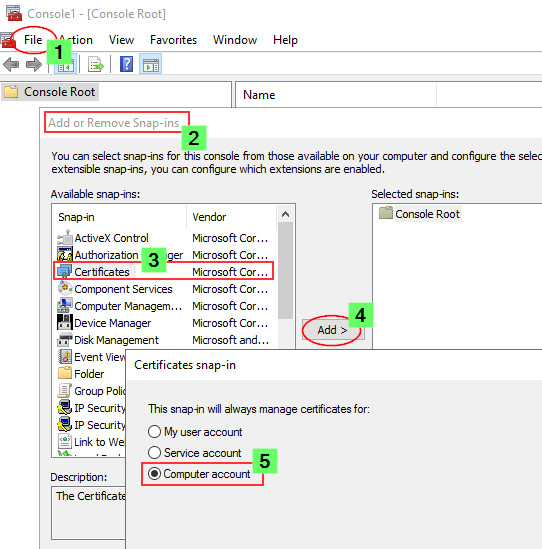
- Launch the Microsoft Management Console (mmc.exe) on the Proxy node
- In the MMC, go to File > Add / Remove Snap-in...
- Select Certificates and click Add
- Select Computer account, click Next, select Local computer and click Finish
- In the MMC, go to Certificates (Local Computer)/Personal
- In the MMC, go to Actions > All Tasks > Import...
- Browse to the certificate file provided to you from your CA
- Follow the instructions on the screen to import the certificate, including the private key
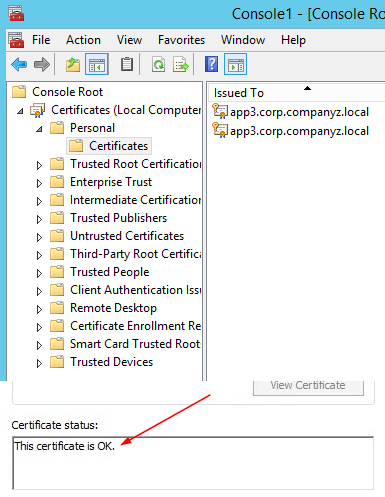
- Verify the new certificate has been imported into Certificates (Local Computer) > Personal > Certificates and that it contains a private key
- Double-click the Certificate > Certification Path and confirm it shows "This certificate is OK"
Getting the Thumbprint
Well, since we are already in the MMC, let's open the freshly installed certificate again.
- Switch to the Details tab and scroll down until you find Thumbprint
- Mark the entire thing and copy it into, for example, Notepad.
Configuring the Qlik Sense ProxyAlmost done!
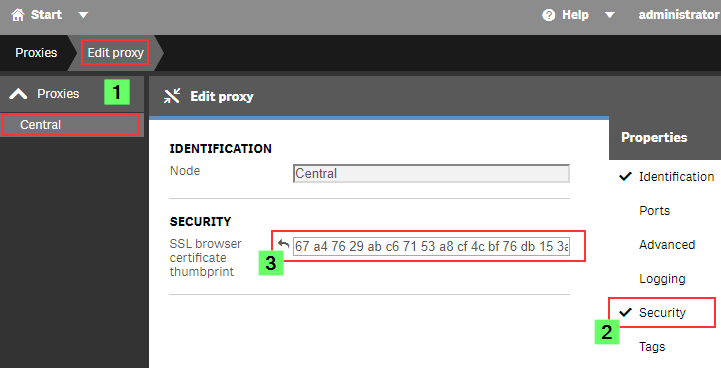
- Open the Qlik Sense Management Console (QMC)
- Go to Proxies
- Double click the Proxy you want to use (or select and choose Edit)
- Enable the Security options in the Properties panel on the right
- Paste the certificate Thumbprint into the SSL browser certificate thumbprint text box.
Click Apply.
The Sense Proxy will now restart. During the restart, it will be using Windows API calls to correctly bind the new certificate to its SSL ports.
Verification, or: How to prove the certificate was accepted.
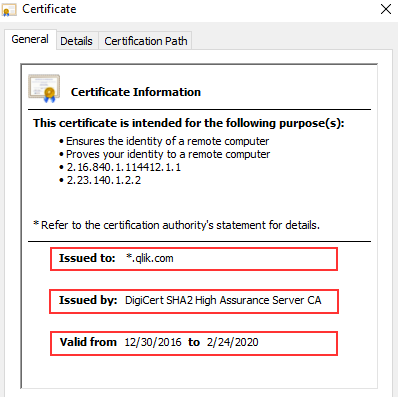
In the web browser:When opening the Qlik Sense Hub or QMC, the certificate will now be displayed in the browser. This may look different depending on the web browser, but in Google Chrome you can click the padlock to the left of the URL to verify what certificate is used.
The information displayed needs to match the properties of the certificate you installed.
In the log files:
If you’d rather see what the Qlik Sense Proxy service is doing, then you can directly check up on that, too.
On the Proxy node, go to C:\ProgramData\Qlik\Sense\Log\Proxy\Trace and open the Security log file from just after the last start.
It will now print a slightly different message than before:
Security.Proxy.Qlik.Sense.Common.Security.Cryptography.LoggingDigester DOMAIN\_service Setting crypto key for log file secure signing: success
Security.Proxy.Qlik.Sense.Common.Security.Cryptography.SecretsKey DOMAIN\_service retrieving symmetric key from cert: success
Security.Proxy.Qlik.Sense.Common.Security.Cryptography.CryptoKey DOMAIN\_service setting crypto key: success
Security.Proxy.Qlik.Sense.Communication.Security.CertSetup 'CN=localhost' (08C871933A58E072FED7AD65E2DB6D5AD3EAF9FA) as SSL certificate presented to browser, which is a 3rd party SSL certificate
And that's it!
There isn't much more to it in a standard Qlik Sense Enterprise installation, but if you have more questions, then maybe a few of these articles can help:
I applied my certificate and it seems to be using it correctly, but browsers are still saying the Common Name is Invalid?
ERR_CERT_COMMON_NAME_INVALID when using 3rd party certificate
Qlik Sense keeps reverting to the default and complains it can't find a valid ssl certificate with the thumbprint.
The certificate may not have a Private key or the service account does not have access to it.
How to: Manage Certificate Private Key
The Qlik Sense Service account doesn't have admin privileges and the certificate is not accepted.
I hope that this was useful 😊 Stay tuned for an upcoming post where we’ll focus on QlikView and how to enable HTTPS for its AccessPoint, and don’t forget to subscribe to this blog for more content delivered by #QlikSupport. We’ll be watching for your comments and questions and we’ll to get back to you as soon as possible. Your feedback is always appreciated.
-
Dealing with variables in a Mashup using Nebula.js & Enigma.js (alternative to V...
Modern Embedded Analytics solutions using Qlik offers a stack of open-source libraries to build customized analytical platforms backed up with the robustness of Qlik’s Associative Engine. These new mediums facilitates communication with the Engine and provides the flexibility to develop your own client and services or to integrate visualizations and mashups. Historically, Capability APIs have been extensively used to build mashups and perform app... Show MoreModern Embedded Analytics solutions using Qlik offers a stack of open-source libraries to build customized analytical platforms backed up with the robustness of Qlik’s Associative Engine. These new mediums facilitates communication with the Engine and provides the flexibility to develop your own client and services or to integrate visualizations and mashups. Historically, Capability APIs have been extensively used to build mashups and perform application related operations. An alternative offering to Capability API-based operations is Nebula.js and Enigma.js.
To clarify the use of each of these libraries, let’s breakdown their functionalities in a simplistic way to help the developer community to get started with them.
In this tutorial, we are going to focus on a user scenario that involves applying both Enigma.js and Nebula.js. This way we can have a fair idea of their applications and get started with their immense capabilities.
User scenario: A company needs to build its own analytic solution while being able to leverage data from Qlik’s Associative engine and embed a couple of visualizations. The overall goal is to have some buttons in their webpage that would control the ‘dimensions’, allowing them to render the visualizations based on the buttons’ click. They have approached a similar type of situation in the native Qlik Sense using ‘variables’ and they would like the same capability in their own web solution.
Solution: Since the company has taken advantage of ‘variables’ in the native QS, a similar approach for their web solution using the two libraries would be the following:
- Create a Mashup template using Nebula.js.
- Fetch the variable and its definition from QIX using Enigma.js.
- Load and register QS objects(action-button, charts) using Nebula’s stardust package.
- Consume the fetched variable in the ‘action-button’ and render.
- Integrate all the required visualizations from QS in the mashup.
Let’s go through each of the steps in detail to understand how we can implement them -
Step 1 — Creating Mashup template: In this tutorial, the focus is not on developing mashups but to implement the user scenario. A very simple tutorial to get started with developing mashups is on the official Qlik Developer site. Link: https://qlik.dev/tutorials/build-a-simple-mashup-using-nebulajs
Using the command line interface, we create a web project that has the following structure -
/src
- configure.js - Initial configuration of nebula.js
- connect.js - Connection setup with enigma.js
- index.html - A html page template
- index.js - Connect and visualize
Step 2 — Fetch the variable using Enigma.js: Like I discussed, Enigma.js allows us to communicate with the QIX engine and enables us to perform CRUD(create, read, update, delete) operations on QS apps and their entities. Since in this case, our target is to read a variable named ‘vChangeField’ from a QS app, we first create an object with list definition like below:
 const variableListProps = {
    qInfo: {
      qId: "VariableList",
      qType: "VariableList",
    },
    qVariableListDef: {
      qType: "variable",
      qData: {
        tags: "/tags",
        name: "/",
      },
    },
  };
In order to create the list object that we have defined, we use the createSessionObject() method provided by Enigma.js. After that, the properties of the object, including dynamic properties are retrieved using the getLayout() function and passed on to a passVariable(layout) like below:
 const variableListModel = await app
    .createSessionObject(variableListProps)
    .then((model) => model);

  variableListModel.getLayout().then((layout) => {
    passVariable(layout);
  });
Now that we have the object properties in the layout, the next step is to retrieve the ‘variable’ inside our function passVariable() and use it on the ‘action-button’ that we will create for our mashup.
 function passVariable(layout) {
    const {
      qVariableList: { qItems: data },
    } = layout;
    var pass_need = data[1].qName;
 }
So, we finally have our desired variable stored in ‘pass_need’. This is all we had to do to fetch our variable using Enigma.js.
Step 3 — Load and register ‘action-button’ and other charts: Our next step is to load the QS objects, i.e., ‘action-button’ and ‘combo’ and ‘bar’ charts required as part of this use case in our mashup and, to do that we will leverage Nebula.js. So, let’s go to the template defined in the configure.js file where we can see the following:
import { embed } from '@nebula.js/stardust';

import barchart from '@nebula.js/sn-bar-chart';

const n = embed.createConfiguration({
  context: {
    theme: 'light',
    language: 'en-US',
  },
  types: [
    {
      name: 'barchart',
      load: () => Promise.resolve(barchart),
    },
  ],
});

export default n;
In this file, we have the initial configuration needed from Nebula.js perspective. First, an embedclass is imported from the ‘@nebula.js/stardust’ package and then using the Configuration object, we define the guidelines for our visualization and website. We also see that a bar-chart module is loaded from the package and then registered under types. This is what needs to be done to render our QS visualizations.
For this use case, we need three action buttons , and one bar and one combo chart in our mashup. So, let’s load and register these three visualization components as shown in the snippet below:
import { embed } from '@nebula.js/stardust';

import barchart from '@nebula.js/sn-bar-chart';

import actionButton from '@nebula.js/sn-action-button';

import combochart from '@nebula.js/sn-combo-chart';

const n = embed.createConfiguration({
  context: {
    theme: 'dark',
    language: 'en-US',
  },
  types: [
    {
      name: 'barchart',
      load: () => Promise.resolve(barchart),
    },

    {
      name: 'action-button',
      load: () => Promise.resolve(actionButton),
    },

    {
      name: 'combochart',
      load: () => Promise.resolve(combochart),
    },

  ],
});

export default n;
Step 4 — Create the action-buttons and render: In our previous step, we loaded and registered the three types of visual components we need as part of this mashup. Now, we need to use the fetched variable ‘vChangeField’ in the three action-buttons and render them. First, let’s create a new embed instance using the Enigma app in the index.js file and then render the action-buttons using the render function. This function renders a visualization into an HTMLElement.
const n = embed(app);

function passVariable(layout) {
   n.render({
      type: "action-button",
      element: document.querySelector(".object_new"),
      properties: {
        actions: [
          {
            actionType: "setVariable",
            variable: pass_need,
            value: "Decade",
          },
        ],
        style: {
          label: "By Decade",
          font: {
            size: 0.7,
            style: {
              italic: true,
            },
          },
          background: {
            color: "Grey",
          },
          border: {
            useBorder: true,
            radius: 0.25,
            width: 0.1,
            color: "Grey",
          },
          icon: {},
        },
      },
    }),
      n.render({
        type: "action-button",
        element: document.querySelector(".object_new"),
        properties: {
          actions: [
            {
              actionType: "setVariable",
              variable: pass_need,
              value: "Actor",
            },
          ],
          style: {
            label: "By Actor",
            font: {
              size: 0.7,
              style: {
                italic: true,
              },
            },
            background: {
              color: "Grey",
            },
            border: {
              useBorder: true,
              radius: 0.25,
              width: 0.1,
              color: "Grey",
            },
            icon: {},
          },
        },
      }),
      n.render({
        type: "action-button",
        element: document.querySelector(".object_new"),
        properties: {
          actions: [
            {
              actionType: "setVariable",
              variable: pass_need,
              value: "Director",
            },
          ],
          style: {
            label: "By Director",
            font: {
              size: 0.7,
              style: {
                italic: true,
              },
            },
            background: {
              color: "Grey",
            },
            border: {
              useBorder: true,
              radius: 0.25,
              width: 0.1,
              color: "Grey",
            },
            icon: {},
          },
        },
      });
}
While creating the three action-buttons, we also need to specify their properties under properties as seen above. One of the important things to consider when defining the properties for an ‘action-button’ is what action do we want this button to execute on click. This is very similar to what we do non-programmatically in the native Qlik Sense app with action buttons. For this use case, we want these buttons to set a variable when clicked. So, under actions we set the actionType: “setVariable” . The next step is to pass the variable that we have retrieved using Enigma.js. In Step 2, we stored the variable in ‘pass_need’. So, we will pass this to the variable: pass_need property. We also, set a default value for each variable using the property value: “Director”.
Step 5 — Integrate all the visualizations: Our final step is to bring all QS objects together in the mashup. We have already created and rendered the action buttons and, since we already have the combo and bar-chart in our QS app, we don’t need to create them but we will just retrieve them using their object IDs like the snippet below:
n.render({
    element: document.querySelector(".object"),
    id: "QVngr", //object ID of combo-chart
  }),
    n.render({
      element: document.querySelector(".object"),
      id: "JbtsBVB", //object ID of bar-chart
    });
}
Mashup in action:
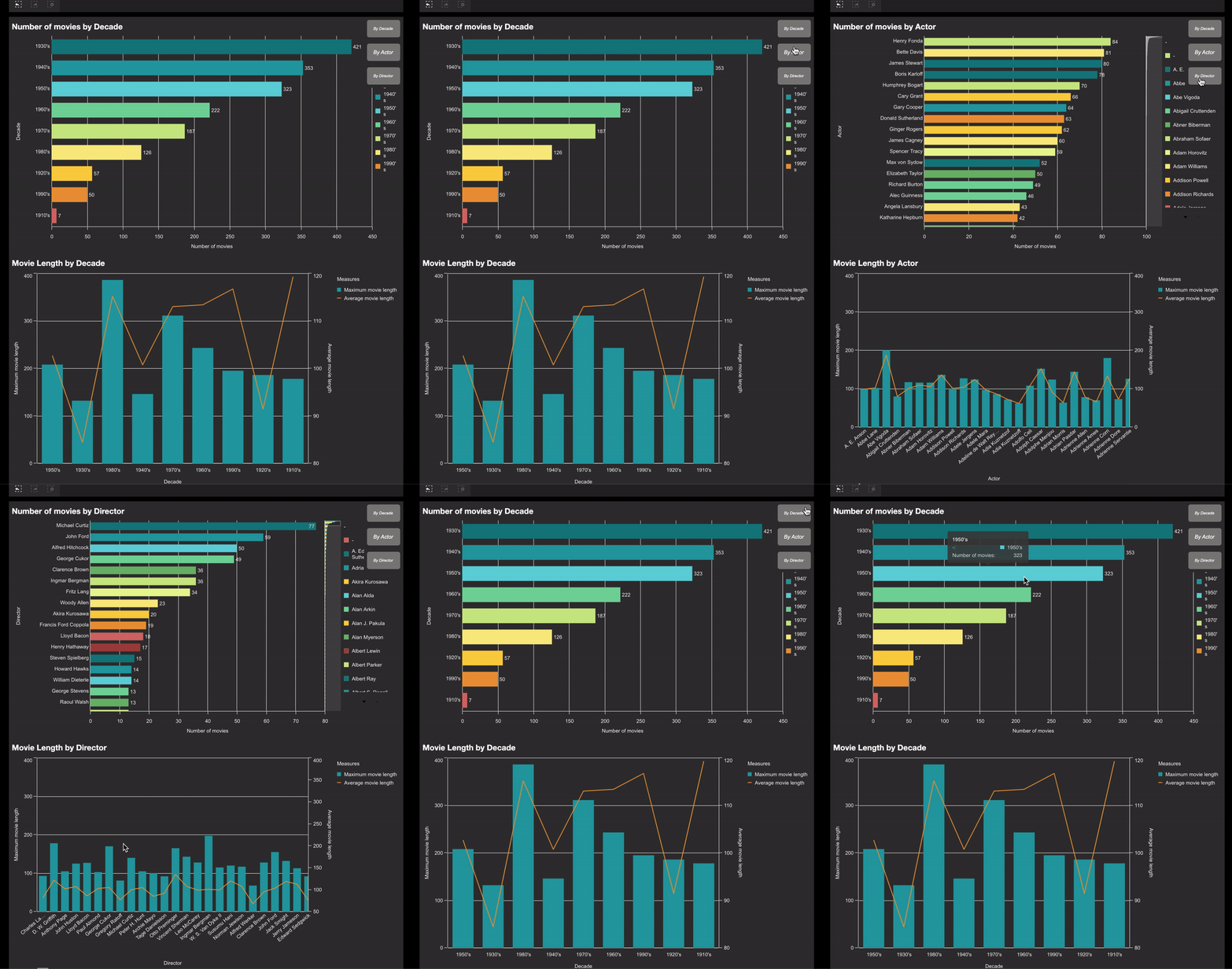
As we can see, the rendering of the charts changes on the basis of the ‘button’ we click. The button leverages the ‘variable’ defined in our Qlik Sense application. This tutorial presents an alternative to the Variable API used inherently for performing CRUD operations with variables. It also demonstrates the usefulness of Nebula and Enigma.js frameworks for developing modern embedded analytic solutions.
The Source code for this mashup can be found here: https://github.com/dipankarqlik/Variable_Enigma
-
Netflix Top 10 Movies and Series
Netflix Top 10 Movies and Series Chris We are curious to find out how shows perform in the top 10 and how many shows actually remain ranked 1 and for how long. To answer this question, we will look at the data in it's globality first. We will then analyze it by movies and by series. The dataset was collected from the Netflix official website. Netflix publishes datasets of their weekly Top 10 most watched movies and series based on their w... Show MoreNetflix Top 10 Movies and SeriesChris We are curious to find out how shows perform in the top 10 and how many shows actually remain ranked 1 and for how long. To answer this question, we will look at the data in it's globality first. We will then analyze it by movies and by series. The dataset was collected from the Netflix official website. Netflix publishes datasets of their weekly Top 10 most watched movies and series based on their weekly hours. The dataset did not requires any cleaning. The dataset contains shows from 07/04/2021 to 12/12/2021.
Discoveries
Insights in a nutshell Although there are almost two times more movies than series in the Top 10, Series seem to be preferred by the audience. Indeed, the number of viewing in movies represents only 28% against the series. Squid Games is the show that performed the best: This series remained in rank 1 for 9 consecutives weeks and was the most viewed content throughout all categories. Most impressive, Squid Game was viewed two times more than Money Heist which sits on the second position of the top 10 most viewed contents. Red Notice remained for 3 consecutive weeks, making it the longest movie to stay rank 1 . The life span of the English language content is short lived compared to other language content shows within the Top 10. Moreover, Series remain for more weeks in the top 10 than movies. About a quarter of the total views of all the top 10 shows is represented within the top 5 series. After a movie or a series has been ranked n°1, it takes a hard drop off the charts. However, very few movies have shown it is always possible to reverse the curve at the end of their life span. Movies and series have a different dynamic: In general, we have only 1 movie at a time present in the top 10 excepted for few exceptions. Meanwhile, Series overlap each other in the top 10. We find multiple series in the top 10 in the same week.
Impact
Recommendations: Based on the dataset, we can make few recommendations: 1. Send out new adverts of Movies to watch one week after their releases through the different Netflix communication channels in order to avoid such a strong fall in the ranking and increase their optimization. 2. Release more series than movies to follow the trend. 3. Continue to release more and more foreign languages series as subscribers seem to enjoy them globally.
Audience
Netflix Marketing Team Netflix Subscribers
Data and advanced analytics
N/A
-
Data Cleaning in Qlik Sense
Ever found yourself stuck with a messy pile of data that seems more like a labyrinth than a pathway to clean insights? You're not alone. Today, we're diving into the world of data cleaning in Qlik Sense to help you uncover the analytical potential hiding behind your data. The Importance of Data Cleaning: Imagine you're baking a cake. Would you eyeball the measurements of your ingredients? Probably not, unless you fancy a disaster cake. Just like ... Show MoreEver found yourself stuck with a messy pile of data that seems more like a labyrinth than a pathway to clean insights? You're not alone. Today, we're diving into the world of data cleaning in Qlik Sense to help you uncover the analytical potential hiding behind your data.
The Importance of Data Cleaning:
Imagine you're baking a cake. Would you eyeball the measurements of your ingredients? Probably not, unless you fancy a disaster cake. Just like one poorly measured cup of flour can ruin your entire recipe, a small data error can throw off your whole analysis. That's why, before you dive into the fun part—data analysis—you've got to make sure your key ingredient (data) is as clean and precise as possible.
Why Data Cleaning is More than Just a Chore:
It's not just about tidying up; it's about quality control. Skipped steps or overlooked errors can lead to inaccurate results that could misinform your business decisions.
Data Accuracy:
The accuracy of your analytics depends heavily on your data's quality. Data cleaning helps to weed out errors and inconsistencies, ensuring your insights are both trustworthy and actionable. Tools like mapping tables or functions like SubField can be invaluable in this stage.Data Consistency:
Inconsistent data formats or naming conventions can be a real roadblock. Qlik Sense offers features like the SubField function and mapping tables to help you standardize data for consistent reporting and visualization.Data Integration:
When you're integrating data from various sources, alignment is crucial. Qlik Sense provides numerous functions that help in aligning these disparate datasets into a cohesive, unified form.Enhanced Visualization and Performance:
Clean data doesn't just make your visualizations more meaningful; it also enhances the performance of your Qlik applications. Expect faster data retrieval and more efficient analysis when your data is in good shape.Data Cleaning techniques in Qlik Sense:
Duplicates removal:
Duplicate records can distort your analysis and reporting. Qlik offers built-in functions like Keep when loading tables or the DISTINCT keyword in your script to load only unique rows.Missing values:
You can address missing values by removing records or filling in gaps based on specific criteria. Functions like IsNull, IsNullCount, and NullAsValue come in handy.Data formatting:
Using the numerous string functions available in Qlik Sense, you can standardize data values to a consistent format. For example, the Upper, Lower, Date, and Num functions can be used to unify text or dates.Data manipulation:
Sometimes the data you import into Qlik Sense doesn’t exactly fit your needs. Qlik offers ways to reshape your data accordingly.
For instance inconsistent field values can often occur when pulling data from multiple tables and this inconsistency can disrupt the connections between data sets. An efficient solution to this is to use Mapping tables.Mapping Tables:
These types of tables behave differently than other tables in that they are stored in a separate area of the memory and are strictly used as mapping tables when the script is run, they are then automatically dropped.
Let’s take a look at how to do this and the different statements and functions that can be used:
- MAPPING prefix
This is used to create a mapping table. For instance:
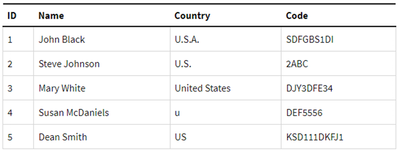
CountryMap:
MAPPING LOAD * INLINE [
Country, NewCountry
U.S.A., US
U.S., US
United States, US
United States of America, US
];
Keep in mind that a mapping table must have two columns, the first containing the comparison values and the second contains the desired mapping values.
- ApplyMap()
The ApplyMap function is used to replace data in a field based on a previously created Mapping Table.
CountryMap:
MAPPING LOAD * INLINE [
    Country, NewCountry
    U.S.A., US
    U.S., US
    United States, US
    United States of America, US
];

Data:
LOAD
    ID,
    Name,
    ApplyMap('CountryMap', Country) as Country,
    Code
FROM [lib://DataFiles/Data.xlsx]
(ooxml, embedded labels, table is Sheet1);
The first parameter in ApplyMap is the Mapping Table name in quotes. The second parameter is the field containing the data that needs to be mapped.
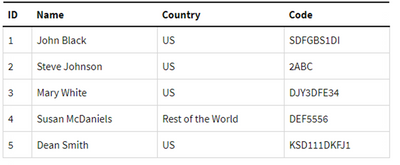
You can add a third parameter to the ApplyMap function that serves as a default to handle cases when the value doesn’t match one in the Mapping Table.
For instance:
ApplyMap('CountryMap', Country, 'Rest of the world') As Countryafter mapping:
- MapSubstring()
The MapSubstring function is used to map parts of a field, this can be used as an alternative to Replace() or PurgeChar() functions.
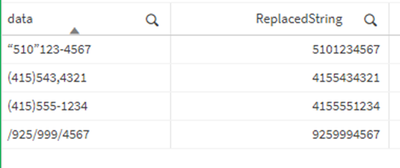
For instance, let’s clean up these phone number values from unwanted characters:
ReplaceMap:
MAPPING LOAD * INLINE [
  char, replace
  ")", ""
  "(", ""
  "\"", ""
  "/", ""
  "-", ""
] (delimiter is ',');

TestData:
LOAD
  DataField as data,
  MapSubString('ReplaceMap', DataField) as ReplacedString
INLINE [
  DataField
  "(415)555-1234",
  "(415)543,4321",
  "“510”123-4567",
  "/925/999/4567"
] (delimiter is ',');
after cleaning:
- MAP … USING
The Map…Using statement works differently than the ApplyMap() function in that ApplyMap does mapping every time the field name is encountered, whereas Map… Using does mapping when the values is stored under the field name in the internal table.
For instance, in the following load script, the Mapping will be applied to the Country field in Data1, however it will not be applied to Country2 field in Data2 table.
That’s because Map… USING statement is only applied to the field named Country. But in Data2, the field is stored as Country2 in the internal table.
Map Country Using CountryMap;
Data1:
LOAD
    ID,
    Name,
    Country
FROM [lib://DataFiles/Data.xlsx]
(ooxml, embedded labels, table is Sheet1);

Data2:
LOAD
    ID,
    Country as Country2
FROM [lib://DataFiles/Data.xlsx]
(ooxml, embedded labels, table is Sheet1);
UNMAP;
Useful functions for data cleaning
- SubField()
Used to extract substrings from a string field that consists of two or more parts separated by a delimeter.
The arguments it takes are a Text (original string), a delimiter (character within the input text that devides the string into parts), and field_no that’s either 1 to return the first substring (left) or 2 to return the second substring (right))
SubField(text, delimiter, field_no)
For instance:
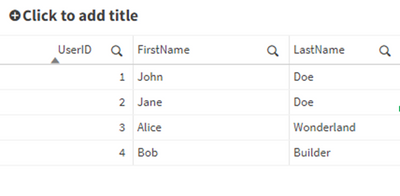
UserData: LOAD * INLINE [ UserID, FullName 1, "John,Doe" 2, "Jane,Doe" 3, "Alice,Wonderland" 4, "Bob,Builder" ]; CleanedData: LOAD UserID, SubField(FullName, ',', 1) as FirstName, SubField(FullName, ',', 2) as LastName RESIDENT UserData; Drop Table UserData;- Len()
Returns the length of the input string - Left()
Returns a string of the first (left) characters of the input string, where the number of characters is determined by the second parameter.
Left(text, count) - Right()
Similar to left, it returns a string of the last (rightmost) characters of the input string. The second parameter determines the number of characters to be returned. - Index()
The index function searches a string and returns the starting position of the nth occurrence of a provided substring.
For instance:
Index(‘qwerty’, ‘ty’) will return 5
Index(‘qwertywy’, ‘w’, 2) will return the second occurrence of ‘w’, i.e: 7
Example 1:
Using a combination of the functions above to clean up a field. Let’s take a more complex field and try to extract the first name and last name.UserData: LOAD * INLINE [ UserID, Object 1, "37642UI101John.Doe" 2, "98322UI101Jane.Doe" 3, "45432UI101Alice.Wonderland" 4, "32642UI101Bob.Builder" ]; CleanedData: LOAD UserID, SubField(Right(Object, Len(Object) - Index(Object, 'UI101') - 4), '.', 1) as FirstName, SubField(Right(Object, Len(Object) - Index(Object, 'UI101') - 4), '.', 2) as LastName RESIDENT UserData; Drop Table UserData;after cleaning:
Example 2:
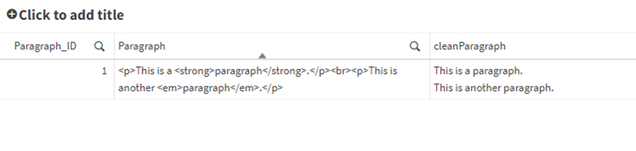
Cleaning HTML in a fieldParagraphs: LOAD * INLINE [ Paragraph_ID, Paragraph 1, "<p>This is a <strong>paragraph</strong>.</p><br><p>This is another <em>paragraph</em>.</p>" ]; // Loop through each paragrpah in the Paragraphs table For vRow = 1 to NoOfRows('Paragraphs') Let vID = Peek('Paragraph_ID', vRow-1, 'Paragraphs'); // Get the ID of the next record to parse Let vtext = Peek('Paragraph', vRow-1, 'Paragraphs'); // Get the original paragraph of the next record // Loop through each paragraph in place Do While len(TextBetween(vtext, '<', '>')) > 0 vtext = Replace(vtext, '<br>', chr(10)); // Replace line breaks with carriage returns - improves legibility vtext = Replace(vtext, '<' & TextBetween(vtext, '<', '>') & '>', ''); // Find groups with <> and replace them with '' Loop; // Store the cleaned paragraphs into a temporary table Temp: Load $(vID) as Paragraph_ID, '$(vtext)' as cleanParagraph AutoGenerate 1; Next vRow; // Join the cleaned paragraphs back into the original Paragraphs table Left Join (Paragraphs) Load * Resident Temp; // Drop the temporary table Drop Table Temp;after cleaning:
I hope you found this post helpful!
Attached you can find a QVD that contains the scripts used in the post.Happy data cleaning!
- MAPPING prefix
-
Migrate an existing Visualization extension to Nebula.js framework
In the past few posts, I have discussed the modern, lightweight framework from Qlik, Nebula.js, and its usage in developing various Qlik Sense objects such as — creating a new visualization chart or building Embedded analytics solutions like Mashups. Nebula.js is a collection of product and framework agnostic JavaScript libraries and APIs that helps developers easily integrate out-of-the-box capabilities on top of the Qlik Associative Engine. So,... Show MoreIn the past few posts, I have discussed the modern, lightweight framework from Qlik, Nebula.js, and its usage in developing various Qlik Sense objects such as — creating a new visualization chart or building Embedded analytics solutions like Mashups. Nebula.js is a collection of product and framework agnostic JavaScript libraries and APIs that helps developers easily integrate out-of-the-box capabilities on top of the Qlik Associative Engine. So, let’s assume you have an already existing extension developed using the Extension API, and you would like to migrate this extension to the Nebula.js framework. How would you do this?
The focus of this post is to understand what resources are required by a Developer to effectively migrate an existing extension developed using Extension API to the Nebula.js framework and its potential benefits.
To demonstrate the overall migration process, I will take an existing visualization extension that I have developed in the past using the Extension API. The extension is a Scatter-Pie plot that allows us to visualize each scatter plot’s bubble as a pie-chart to understand the Sales-Profit correlation for the three categories state-wise as shown below:
Let us try to recreate the exact same visualization by leveraging the novel Nebula.js framework.
Traditional Extension API-based visualizations need JavaScript code (.js), a metadata file (.qext), and stylesheets (.css). The logic of the extension is controlled using the code in the JavaScript file and so that is the entry point for your development activity. In Nebula.js, we try to segregate the various modules of the code to align it to a modular architecture, thus providing greater flexibility to the developers. Let’s deep dive into the steps required to migrate our current extension.
Step 1: Create a Nebula project structure.
The first step is to get all the files required as part of developing the extension. We can use the Nebula.js CLI like below and structure the project.
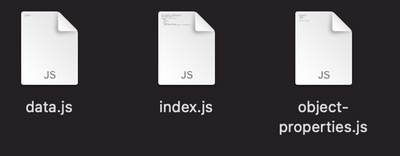
npx @nebula.js/cli create hello --picasso noneExecuting the above command, gives us the three required files.
Step 2: Starting the local development server.
One of the advantages of using the Nebula.js framework is that it comes with a local development server that allows developers to see their output as they code. To start the server, execute the following command.
cd hello
npm run start
Now, we will need to connect to Qlik’s Associative Engine using the WebSocket protocol. Once we establish a connection, we will be presented with the list of apps to test our visualization in the Developer UI.
Step 3: Configuring the data structure.
Next, we need to configure the data structure and define our hypercube as shown in the code snippet below. This is similar to what we have in our current extension (Extension API). However, all this information is saved under one single JavaScript file in the older approach.
const properties = {
showTitles: true,
qHyperCubeDef: {
qInitialDataFetch: [{ qWidth: 6, qHeight: 100 }],
},
definition: {
type: "items",
component: "accordion",
items: {
dimensions: {
uses: "dimensions",
min: 1,
max: 6,
},
measures: {
uses: "measures",
min: 2,
max: 2,
},
sorting: {
uses: "sorting",
},
settings: {
uses: "settings",
},
},
},
};
export default properties;
The only thing that we do differently here in Nebula is to add the /qHyperCubeDef as a data target in data.js like this:
export default {
  targets: [{
  	path: '/qHyperCubeDef'
  }],
};
Step 4: Import packages.
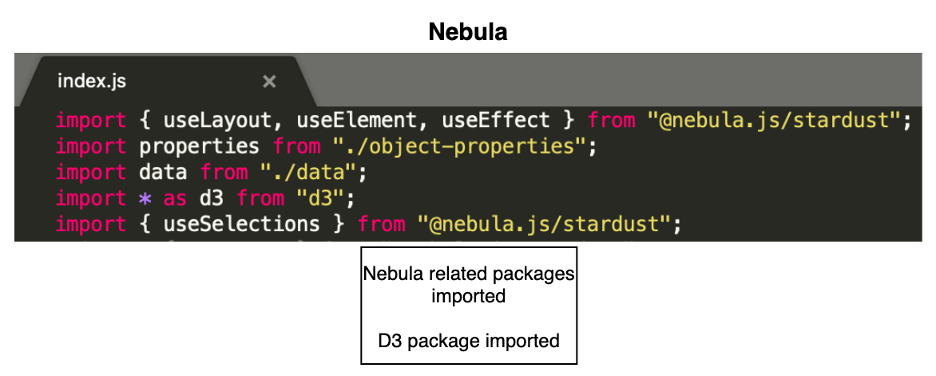
Nebula.js is built on the concept of custom hooks. If you do not know what hooks are, this tutorial will give you a high-level idea of how to leverage them in terms of Nebula. As per the Getting started with Nebula extension tutorial, we will need to import two essential packages to access the Qlik Sense object’s layout and render the data. They are useLayout and useEffect . Also, since our visualization is built using D3.js, we will need to install D3.js in our NodeJS environment and import the package for D3 using the commands below.
- Install D3 by running npm install d3 --save
- Import D3 to index.js by adding import * as d3 from d3
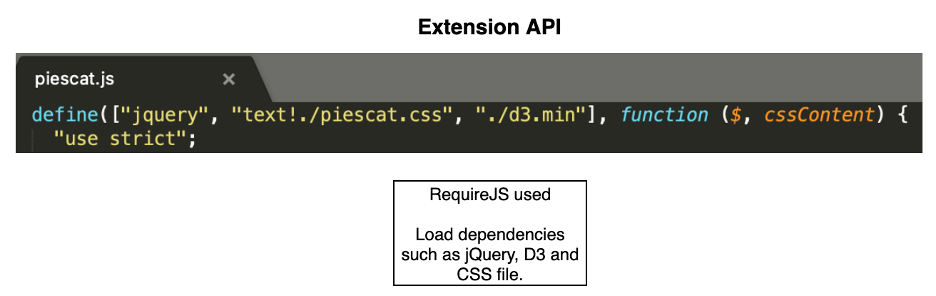
Now, let us understand what we did differently here in the Nebula.js framework as compared to the Extension API.
As we can see from the above comparative analysis, the primary difference is that the Extension API uses RequireJS to load resources asynchronously and has a jQuery wrapper around the HTML element. In the Nebula.js framework, we eliminate all these dependencies, thereby making it framework agnostic and faster.
Step 5: Code Logic.
Our most important goal is to develop the main functionality of the extension. Again, the whole idea here is to replicate the exact visualization developed using Extension API without investing additional time in rewriting the source code. The entry point for the extension’s code is the index.js file, and currently, it looks like below with all the necessary packages.
import { useLayout, useElement, useEffect } from "@nebula.js/stardust";
import properties from './object-properties';
import data from './data';
import * as d3 from "d3";

export default function supernova() {
  return {
    qae: {
      properties,
      data,
    },
    component() {
      const element = useElement();
      element.innerHTML = '<div>Hello!</div>'; // eslint-disable-line
    },
  };
}
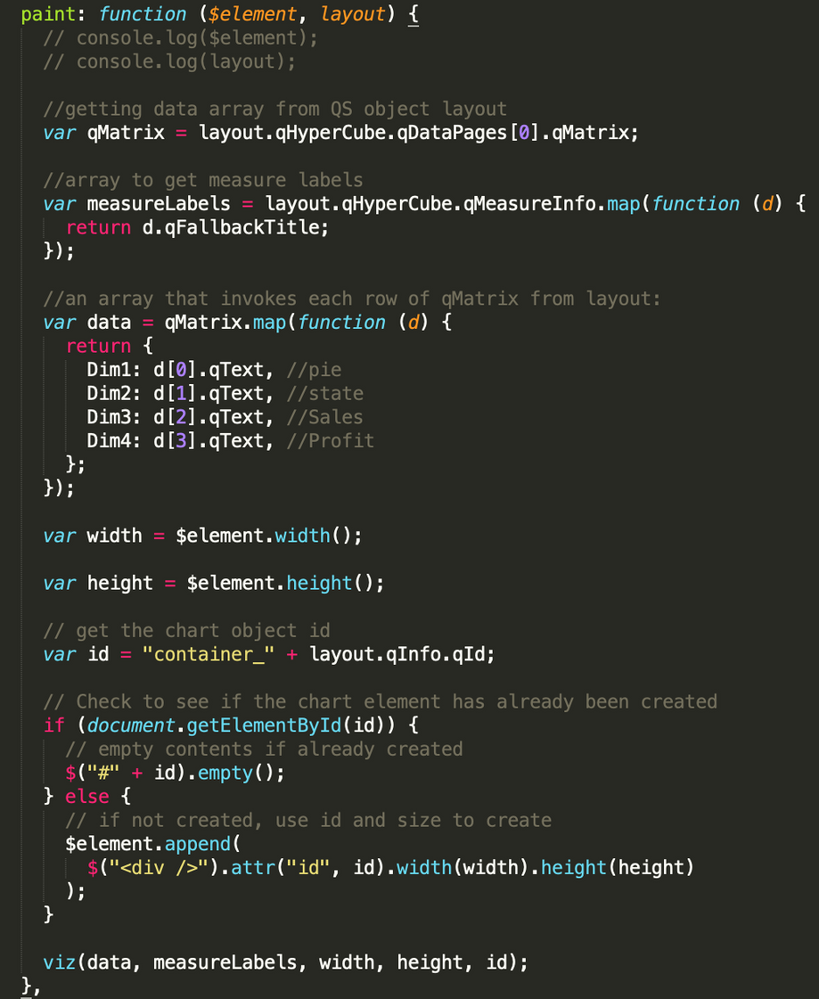
Now, let’s take a look at our current extension’s JS code.
To render the visualization with an HTML element, we take advantage of the paint($element, layout) method where $element is a jQuery wrapper containing the HTML element and layout presents the data and properties for the visualization. This method is called every time the visualization is rendered. So, do we have a similar approach in the Nebula.js framework? The answer is Yes!
If we go back to our index.js file, we notice a function supernova( ) that consists of the component( ) method, which is where all the rendering takes place. To render something, we need to access the DOM element the visualization is assigned to, and to do so, we need to use the useElement method. Also, as I mentioned in Step 4, to access the QS object’s layout and bind the data, we need to use the useLayout and useEffect methods. These three methods are all we need to migrate our current code to the newer framework successfully.
After copying the current code and aligning it to Nebula’s programming standard, this is what we get.
export default function supernova() {
  return {
    qae: {
      properties,
      data,
    },
    component() {
      const element = useElement();
      const layout = useLayout();
      const selections = useSelections();
      console.log(layout)
      //getting data array from QS object layout
      useEffect(() => {
        if (layout.qSelectionInfo.qInSelections) {
          return;
        }
        var qMatrix = layout.qHyperCube.qDataPages[0].qMatrix;

        var measureLabels = layout.qHyperCube.qMeasureInfo.map(function (d) {
          return d.qFallbackTitle;
        });

        //an array that invokes each row of qMatrix from layout:
        var data = qMatrix.map(function (d) {
          return {
            Dim1: d[0].qText,
            Dim2: d[1].qText,
            Dim3: d[2].qText,
            Dim4: d[3].qText,
          };
        });
        var width = 1000;
        var height = 400;

        var id = "container_" + layout.qInfo.qId;

          const elem_new = `<div id=${id}></div>`;
          element.innerHTML = elem_new;

          viz(data, measureLabels, width, height, id);

      }, [element, layout]);
    }
  }
}
We see that most of the code lines are similar to what we had in our Extension API. The only difference lies in the way we interact with the three methods here in Nebula.js. In the end, the viz( ) method is called within the component( ) function, and that is where our D3.js code for the visualization is. Again, this is similar to what we did in the Extension API. That is all we needed to do from a code perspective.
Step 6: Build & Deploy.
The good old extensions developed using Extension API had to be bundled (zipped) together with a .qext file, a JavaScript file, and any other dependency files. Nebula.js presents a modern way of building and preparing the extension to be deployed to the Qlik Sense environment.
Firstly, since Nebula runs in a NodeJS environment, we can easily bundle everything and distribute the visualization as an NPM package using:
npm run build
Secondly, to deploy the extension to a QS environment, we use the command below, which generates all files into the folder /hello-ext that you can then use as an extension in QS.
npm run sense
Now that we know about the resources required to migrate our existing extensions to the Nebula.js framework, let’s recap the potential benefits of the new SDK.
- Nebula.js is modular and allows developers greater flexibility in programming and code maintenance.
- It comes with a local development server to visualize the output as we code.
- Modern framework with no dependency on module loaders such as RequireJS or wrappers like jQuery.
- Available as an NPM package and hence very easy to get started with.
- Faster build and deployment; visualizations can be distributed as NPM packages.
- Way forward — support, etc.
This brings an end to the post, and hopefully, this serves as an initial guide for developers and organizations planning to migrate their existing visualizations to the Nebula.js framework. For folks who want to get started with Nebula or build advanced visual representations using the SDK, here is a list of accumulated resources -
-
Connector Factory – October and November 2023 Releases
Over the past two months, Connector Factory has released more capabilities and connectors for data integration, data analytics and application automation. -
Data Science among high-demand upskilling courses
In today's tough job market, landing the job you want is a challenge. Many have the same degree and some may have better scores. How can you stand you? Is there a way you can enhance your career prospects by doing something more than others? In the competitive job market, standing out requires more than just a degree. Some cutting edge courses for upskilling for engineers to enhance their careers includes data science. To read more on this, vi... Show MoreIn today's tough job market, landing the job you want is a challenge. Many have the same degree and some may have better scores. How can you stand you? Is there a way you can enhance your career prospects by doing something more than others?
In the competitive job market, standing out requires more than just a degree. Some cutting edge courses for upskilling for engineers to enhance their careers includes data science. To read more on this, visit:
http://timesofindia.indiatimes.com/articleshow/102936706.cms?utm_source=contentofinterest&utm_medium=text&utm_campaign=cppstIn order to enhance your data analytics skills, if you are a student or educator, for free training and certifications, visit: qlik.com/academicprogram
-
Developing for the Qlik Sense Mobile for SaaS app
Qlik Sense Mobile for SaaS was recently released to the general public and judging by what I have seen on my social media feeds, it has been well received. Having had the experience of working with the app leading up to the release, I thought it might be helpful to share some of the things that I learned about developing an app for the Mobile SaaS app.
-
Ctrl-Q NR
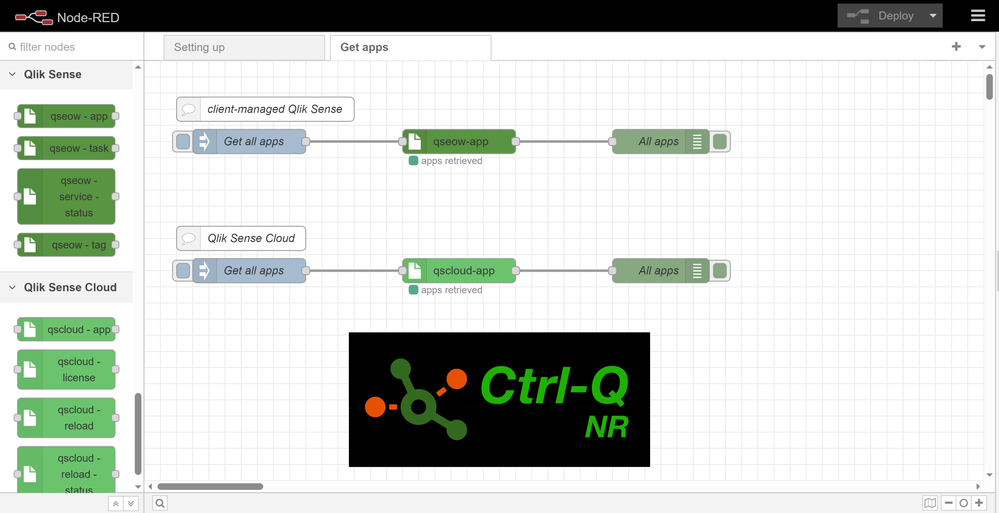
Ctrl-Q NR Ptarmigan Labs Low-code, open source tool for both client-managed and cloud Qlik Sense versions. Built on top of the excellent Node-RED platform, Ctrl-Q NR let you quickly build data integrations, on-prem-to-cloud workflows, set up monitoring of critical app reloads and more. Node-RED itself has more than 4600 modules covering all kinds of source systems, IoT modules, databases etc. All of which can now be integrated with both cli... Show MoreCtrl-Q NRPtarmigan LabsLow-code, open source tool for both client-managed and cloud Qlik Sense versions.
Built on top of the excellent Node-RED platform, Ctrl-Q NR let you quickly build data integrations, on-prem-to-cloud workflows, set up monitoring of critical app reloads and more.
Node-RED itself has more than 4600 modules covering all kinds of source systems, IoT modules, databases etc. All of which can now be integrated with both client-managed and cloud Qlik Sense.
More info at https://ptarmiganlabs.com/ctrl-q-nr-qlik-sense-nodes-for-node-red/
Discoveries
Given Node-REDs rich ecosystem of add-on modules your imagination is the limiting factor of what can be done... One example is hybrid Sense environments where on-premise/client-managed Qlik Sense is used to process data from local systems/sources. Ctrl-Q NR can then act as the hub that orchestrate cloud app reloads starting when on-prem systems have reloaded. A reload fails? That can be detected and alerted upon. Another example is integration of IoT data with Qlik Sense. Use Node-RED to collect the data and feed it to Sense, then Ctrl-Q is used to visually manage the various Qlik Sense resources that are involved (app reloads etc).
Impact
Easy prototyping and deployment of integrations that would otherwise be difficult and/or time consuming to create.
Audience
Qlik Sense admins and developers for both client-managed and cloud Qlik Sense.
Data and advanced analytics
Being able to quickly test and prototype ideas is an important capability in a fast-moving IT landscape. Thanks to the low-code nature of Node-RED (on top of which Ctrl-Q NR runs) integrations between Sense and other systems and tools can often be done in minutes. Node-RED runs on most platforms, including Windows, Linux, macOS and Docker.

-
Global Country Insights
Global Country Insights AnyChart Explore global metrics using the powerful Decomposition Tree tool in Qlik Sense, broken down by countries, continents, and alliances in an intuitive interactive visualization. Discoveries Explore countries, alliances, and continents using a decomposition tree, which brilliantly represents data across multiple dimensions and enables effortless ad hoc analysis. Impact Analyze population, area, debt,... Show MoreGlobal Country InsightsAnyChartExplore global metrics using the powerful Decomposition Tree tool in Qlik Sense, broken down by countries, continents, and alliances in an intuitive interactive visualization.Discoveries
Explore countries, alliances, and continents using a decomposition tree, which brilliantly represents data across multiple dimensions and enables effortless ad hoc analysis.
Impact
Analyze population, area, debt, internet usage, and some other statistics, seamlessly navigating by country, continent, or alliance (APEC, NATO, etc).
Audience
Data analysts and business managers aiming to deconstruct totals and averages across multiple dimensions to empower informed decision-making about optimizing strategies and resource allocation. Anyone interested in exploring global population and other figures.
Data and advanced analytics
This app features a decomposition tree built with AnyChart's extension for Qlik Sense, the only way to add decomposition trees in Qlik Sense, utilizing The World Bank's data.
-
Transform First, or Load First? Comparing ETL and ELT Approaches
Extract, Transform, and Load (ETL) and Extract, Load, and Transform (ELT) are two common approaches for moving data from source systems into a data warehouse or data lake. Both serve the same general purpose, but work in slightly different ways. In this post, we'll review the key differences between ETL and ELT and when you may want to choose one approach or the other. -
【オンデマンド配信】Qlik ハンズオン Web セミナー:明日から使えるノウハウを習得
クリックテック・ジャパンの技術担当者が、Qlik 製品の技術的な内容や操作方法などをご紹介するオンデマンドの Web セミナーシリーズです。操作方法だけでなく、実践的なアプリを作成するためのヒントを習得することができます。 ※ 参加費無料。パソコン・タブレット・スマートフォンで、どこからでもご視聴いただけます。 今すぐ視聴する 今すぐ視聴する -
Qlik Digest - November 2023
Join us 2.5 days of learning, networking, and inspiration at Qlik Connect. Registration is now open for our new annual conference showcasing the latest advancements in data quality, governance, analytics, and AI/ML. Attendees from across the globe will uncover practical insights to maximize their data’s value and harness the power of AI. Discover the opportunities in your data, June 3-5, 2024, in Orlando FL. Register for Qlik Connect Save $500 ... Show MoreJoin us 2.5 days of learning, networking, and inspiration at Qlik Connect. Registration is now open for our new annual conference showcasing the latest advancements in data quality, governance, analytics, and AI/ML. Attendees from across the globe will uncover practical insights to maximize their data’s value and harness the power of AI. Discover the opportunities in your data, June 3-5, 2024, in Orlando FL.Save $500 by registering before December 31 -
Qlik Cloud Government is StateRAMP Authorized
Qlik Cloud Government is now authorized at StateRAMP Moderate and ready to support U.S. State, Local, and Higher Education customers modernize their data strategy with a secure, compliant cloud. -
Maps: About Mercator projection
Like all map projections, the Mercator projection (a cylindrical map projection presented by the Flemish geographer and cartographer Gerardus Mercator in 1569) is attempting to fit a curved surface onto a plane distorting the results. If you look at a map constructed using Mercator projection (see example above) you will get a distorted idea about the size of geographical objects. For instance, take a look at Greenland and compare its extension w... Show More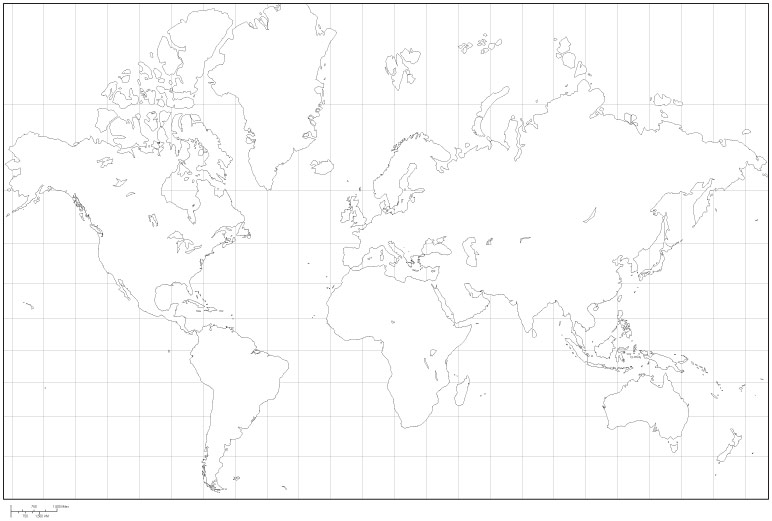
Like all map projections, the Mercator projection (a cylindrical map projection presented by the Flemish geographer and cartographer Gerardus Mercator in 1569) is attempting to fit a curved surface onto a plane distorting the results. If you look at a map constructed using Mercator projection (see example above) you will get a distorted idea about the size of geographical objects. For instance, take a look at Greenland and compare its extension with Australia. It seems to be bigger, isn't it?

If we overlap the shapes of the continent and the island we can see that, in fact Australia is 3+ times bigger than Greenland.
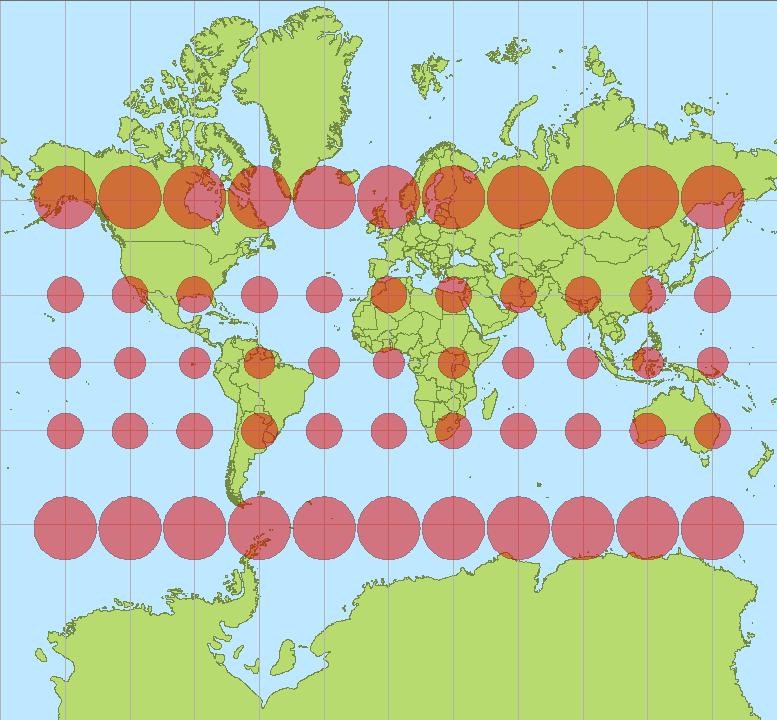
The classic way of showing the distortion inherent in a projection is to use Tissot's indicatrix, as in the picture below you will notice that the size of the red ellipsis representing distortion becomes bigger in areas that are far from equator, in fact by construction, the Mercator projection is perfectly accurate along the equator and nowhere else.
Map projections in Qlik Sense
The current release of Qlik Sense ships with two map projections, Mercator and Unit (1:1 projection). We recently covered the available Geo Functions in a post called Hidden gems in Qlik Sense geospatial functions.
By using some of those functions we could create maps as in the example below where the projection function helps to shrink the Canada shape.
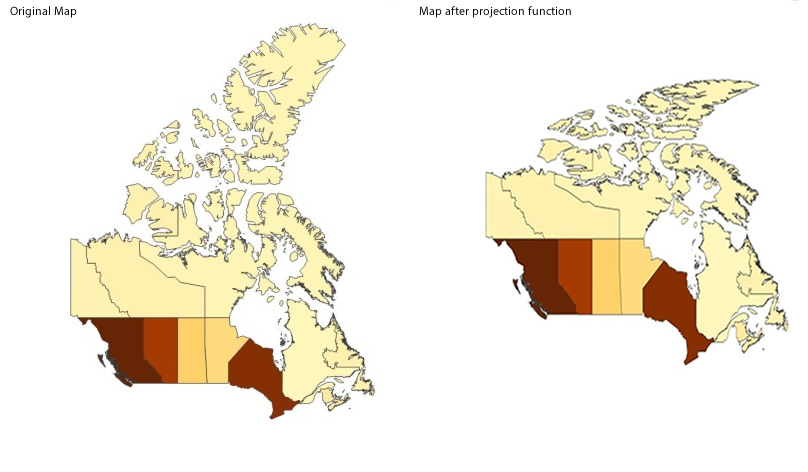
Please note that in many free KML files some sort of projection (usually Mercator) has already been applied. AMZ
Thanks to Jonathan Pole and Yang Yang

-
WoWizer Telemetry and Performance Monitoring(TPM) for Qlik Sense
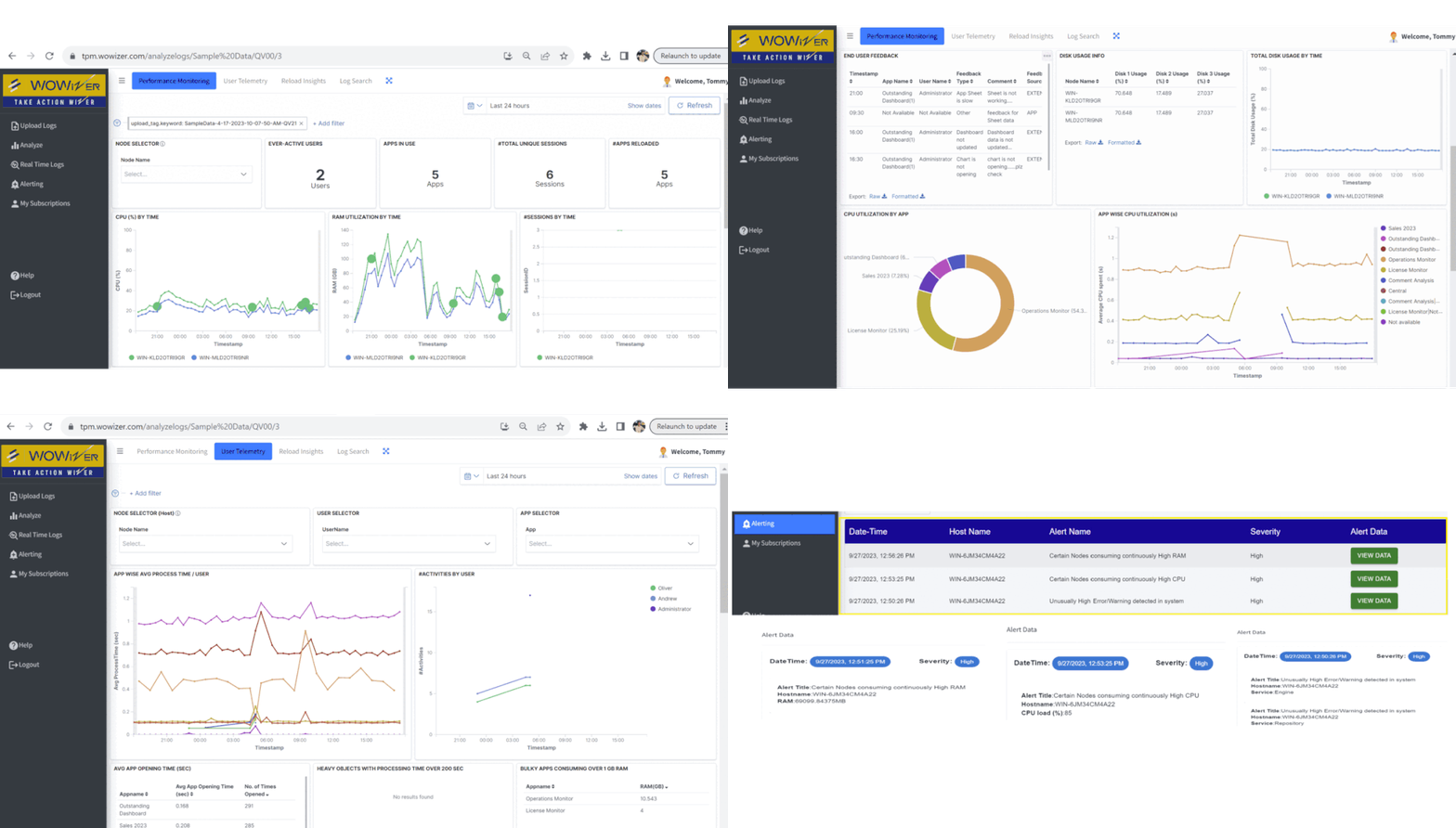
WoWizer Telemetry and Performance Monitoring ensures that you are in control of the Qlik Sense environment with timely alerts for anomalous behaviour so that end user experience stays good even at times of high usage. Discoveries Monitoring via metrics and logs User telemetry, usage, and adoption trends Real-time Alerting End-user feedback Impact Positive end user experience during peak usage Qlik champion freed up from monitoring ... Show MoreWoWizer Telemetry and Performance Monitoring ensures that you are in control of the Qlik Sense environment with timely alerts for anomalous behaviour so that end user experience stays good even at times of high usage.
Discoveries
- Monitoring via metrics and logs
- User telemetry, usage, and adoption trends
- Real-time Alerting
- End-user feedback
Impact
- Positive end user experience during peak usage
- Qlik champion freed up from monitoring support
- Fast Troubleshooting reduces downtime
- Budgeting
- Load balancing
Audience
- Qlik Champion
- Qlik Admin
- Qlik CSM
- Business Users
Data and advanced analytics
- Time-stamped unstructured big data expertise
- Get started in a day with no hardware req.
- Optimal user experience for end users
- Freedom from mundane monitoring and stress for Qlik Champions
WoWizer TPM Useful Links:
-

-
-
Qlik Data Integration Client-Managed Releases in November 2023
November brings us to autumn/fall with darker winter nights approaching, and in some countries there will be bonfires and fireworks that can bring frights and bangs to many an excited crowd, against the cold, dark night air. This release of Qlik Replicate November 2023 helps to minimize the frights and keep the lights on to protect against the dark. Security is always top of mind for IT depts around the globe, and this release sees some serious e... Show MoreNovember brings us to autumn/fall with darker winter nights approaching, and in some countries there will be bonfires and fireworks that can bring frights and bangs to many an excited crowd, against the cold, dark night air.
This release of Qlik Replicate November 2023 helps to minimize the frights and keep the lights on to protect against the dark. Security is always top of mind for IT depts around the globe, and this release sees some serious enhancements across endpoints. -
Techspert Talks - Using Kafka with Qlik Replicate
Hi everyone, Want to stay a step ahead of important Qlik support issues? Then sign up for our monthly webinar series where you can get first-hand insights from Qlik experts. The Techspert Talks session from November looked at Using Kafka with Qlik Replicate. But wait, what is it exactly?Techspert Talks is a free webinar held on a monthly basis, where you can hear directly from Qlik Techsperts on topics that are relevant to Customers and Partners ... Show MoreHi everyone,
Want to stay a step ahead of important Qlik support issues? Then sign up for our monthly webinar series where you can get first-hand insights from Qlik experts.
The Techspert Talks session from November looked at Using Kafka with Qlik Replicate.But wait, what is it exactly?
Techspert Talks is a free webinar held on a monthly basis, where you can hear directly from Qlik Techsperts on topics that are relevant to Customers and Partners today.In this session, we will cover:
- How Replicate works with Kafka
- Kafka terminology
- Configuration best practices
Click on this link to see the presentation