Unlock a world of possibilities! Login now and discover the exclusive benefits awaiting you.

Analytics & AI
Forums for Qlik Analytic solutions. Ask questions, join discussions, find solutions, and access documentation and resources.
Data Integration & Quality
Forums for Qlik Data Integration solutions. Ask questions, join discussions, find solutions, and access documentation and resources
Explore Qlik Gallery
Qlik Gallery is meant to encourage Qlikkies everywhere to share their progress – from a first Qlik app – to a favorite Qlik app – and everything in-between.
Qlik Community
Get started on Qlik Community, find How-To documents, and join general non-product related discussions.
Qlik Resources
Direct links to other resources within the Qlik ecosystem. We suggest you bookmark this page.
Qlik Academic Program
Qlik gives qualified university students, educators, and researchers free Qlik software and resources to prepare students for the data-driven workplace.
Recent Blog Posts
-
The Importance of Nothing
Few things are as important to understand as the concept of nothingness. Or, rather, the fact that there are always many levels of nothingness. In p... Show MoreFew things are as important to understand as the concept of nothingness. Or, rather, the fact that there are always many levels of nothingness.
In physics, vacuum is the word used for nothingness. But whereas the best vacuum on earth contains billions of molecules per cubic meter, vacuum in outer space contains fewer than a dozen. So, these two vacua are completely different. And neither is really empty.
What if we find some space completely void of molecules? Would that represent nothingness? No, because the space would still be traversed by force fields, e.g., gravitation from distant stars. But space void of force fields, then? No, you would still have vacuum fluctuations, a quantum mechanical effect that can create particles from nothing. True nothingness may perhaps not exist. But one thing we know for sure is that there are levels of nothingness; one vacuum is not the same as the other.
In Lund there is a statue of Nothingness (Swedish: “Intighet”). There is nothing there, except the void of statue. But the statue’s existence is shown by a small plaque in the ground.

To complicate matters, there is a second plaque some centimeters away that announces that the statue has been stolen. The two plaques illustrate both the sense of humor in the student city of Lund and the universal existence of different levels of nothingness.
In databases and in QlikView, NULL is the word used for nothingness. But this is not the only type of nothingness. Also here you have different levels:
- The simplest representation of nothingness is the 0 (zero). But this is not true nothingness, since there is a numeric value in the field. The value will be used for calculations, e.g., it will affect both Count() and Avg(). So it is certainly not NULL.
- Another level of nothingness is the empty string. This may not be as obvious, but also this is a field value that affects the calculation of Count(). Hence still not NULL.
- The next level is the true NULL. This is when you have a record in the database, but there is no value for the specific field. This cell in the table is marked as NULL, meaning “a value is missing here.”
- The final level is when the entire record is missing. An example is if you have a customer table and an order table and a specific customer has not placed any orders. Then the customer is not represented in the order table and there is no table cell that can be marked as NULL. These are called Missing values and are treated the same as NULL values – when possible.
If you want to present data in a correct way and at the same time enable the user to search for missing values, e.g., customers that have not bought a specific product, you need to understand the different cases of nothingness. Nothing could be more important.
More on nothingness:
Excluding values in Set Analysis
Also, see more about this topic in this Technical Brief: NULL and Nothingness

-
Visualization API
The Visualization API is a cool new API introduced in Qlik Sense 2.2 that allows you to create visualizations right in javascript, removing the need ... Show MoreThe Visualization API is a cool new API introduced in Qlik Sense 2.2 that allows you to create visualizations right in javascript, removing the need to create visualizations in the Qlik Sense client before they can be used in a mashup.
Here's a simple example, using the "Consumer Goods Sales" app.
app.visualization.create('linechart',['Month', '=Sum([Sales Margin Amount])'])
.then(function(vis){
vis.show("QV01");
});
This will create a line chart with the one dimension, the "Month" field, and one measure, the expression "=Sum([Sales Margin Amount])". If you try this though, you'll notice that the y-axis label is equal to the expression, and you may want to name the label instead. In this case, we need to use the third, optional, parameter to the Visualization API create() method, which is an options object.
In the options object we can specify a qHyperCubeDef instead of using the second, optional, column parameter to the create() method. We also have to do it this way if we wish to use a custom Dimension or Measure created in the Qlik Sense client, as the column parameter will only accept field names and expressions. Here's an example
app.visualization.create('linechart',[],
{
qHyperCubeDef: {
qDimensions: [
{
qDef: {
qFieldDefs: [
"Month"
]
}
}
],
qMeasures: [
{
qDef: {
qDef: "Sum([Sales Margin Amount])",
qLabel: "Sales Margin"
}
}
],
qInitialDataFetch: [
{
qHeight: 12,
qWidth: 2
}
]
}
})
.then(function(vis){
vis.show("QV01");
});
Notice, we left the column parameter as a blank array. If you try to enter text into the column parameter array in addition to the including the qHyperCubeDef option, you may end up with an error.
You can set quite a few options like above, or you can use the Visualization API setOptions() method, which lets you change options on an already existing object. For instance, if we wanted the chart above to display sales over time instead of sales margin over time, we could update the hypercube with the setOptions() method, like below.
visRef.setOptions({
qHyperCubeDef: {
qDimensions: [
{
qDef: {
qFieldDefs: [
"Month"
]
}
}
],
qMeasures: [
{
qDef: {
qDef: "Sum([Sales Margin Amount])",
qLabel: "Sales Marginffff"
}
}
],
qInitialDataFetch: [
{
qHeight: 12,
qWidth: 2
}
]
}
})
Notice we called the setOptions() method on visRef, which is a reference to the vis object returned in the create() method callback.
This is really just scratching the surface of the possibilities of the Visualization API. Be sure to check it out!
-
A Closer Look at the Comparative Analysis
One of QlikView’s key differentiators is the associative experience, the ability for business users to easily navigate through data sets to not only f... Show MoreOne of QlikView’s key differentiators is the associative experience, the ability for business users to easily navigate through data sets to not only find answers to their questions, but to also discover new insights, and spot hidden trends. Only QlikView provides business users with this level of flexibility and insight.
Once the business users find a key insight or trend though, they might want to compare that with a slightly different view. For example, if they find that bike and accessory sales in Europe have flattened out over the last few quarters, they might wonder how that compares with the rest of Europe. Of course with QlikView they could immediately select the other European countries instead of France and immediately get the answer. But what if they wanted to see those two or more different views side by side?
One of the approaches that are used in those situations is using set analysis. With set analysis, it is possible to create data groups in charts and use them for visual comparison. The limitation of set analysis is the person creating set analysis should know about the type of groups that the other users would like to compare and set it up in advance accordingly.
QlikView 11 Comparative Analysis (Alternate State is the technical name of the feature) overcomes this challenge. The goal of Comparative Analysis is to make it easier and flexible for business users to see two or more data sets in the same application, alongside each other in the same graph, in graphs next to each other, or even as reference points for calculations and comparisons.
Comparative Analysis is a developer enabled capability, meaning developers need to set up the basic framework for comparison in an application. But it is a user-driven feature; meaning business users can then define the selections they want to compare. This video shows how to create alternate states, assign QlikView objects to them, and the concept of inheritance of alternate states. I will post about more creative ways of using alternate states in a couple of weeks, stay tuned!

-
String Operators
There are two string operators that can be used in Qlik Sense and QlikView. They are & (ampersand) and like. While I use the ampersand all the time,... Show MoreThere are two string operators that can be used in Qlik Sense and QlikView. They are & (ampersand) and like. While I use the ampersand all the time, I have never used like before but I will start after learning how easy it is to use. The & operator is used to concatenate two strings. I often use this when I want to combine text and the results of a calculation in a chart title or Text and Image object. For example in the bar chart below from the Executive Dashboard demo, this expression is used for the title:
'Total Revenue by Product Group = ' & num(Sum([Sales Quantity]*[Sales Price]), '$#,##0')
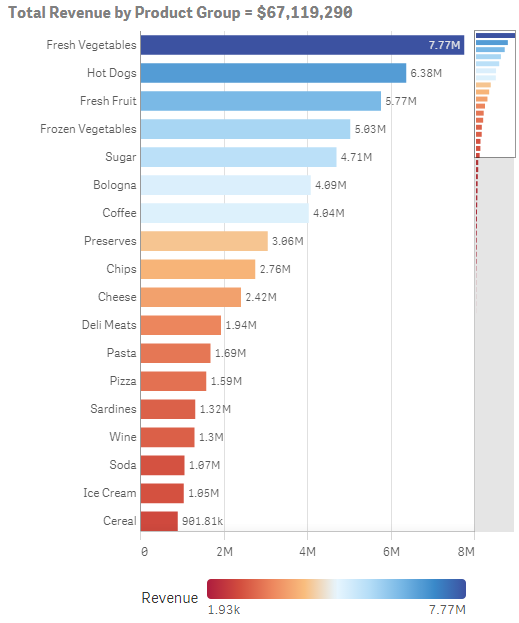
The expression uses the ampersand to concatenate the string 'Total Revenue by Product Group = ' and the results of the total revenue calculation: num(Sum([Sales Quantity]*[Sales Price]), '$#,##0') into one string. It will place the strings right after one another so do not forget to add spacing in between your strings if necessary.
The like operator has another purpose. It compares two strings using wildcard characters and returns the Boolean value of True if the string before the operator matches the string after the operator. The two wildcard characters that can be used in the string after the operator are * and ?. The * represents any number of characters while the ? represents only one character. Take a look at how this works in the examples below.
- ‘Qlik’ like ‘Q?ik’ will return True (-1) - the ? is a wildcard character for the ‘l’
- 'Qlik' like 'Q*' will return True (-1) - the * is the wildcard character for ‘lik’
- 'Qlik' like 'Q?k' will return False (0) – the ? is for a single character therefore it cannot represent the ‘l’ and the ‘i’
- 'Qlik' like 'Q??k' will return True (-1) – the first ? is the wildcard character for the ‘l’ and the second ? is the wildcard character for the ‘I’
The like operator can be used when you need to compare two strings that may vary slightly. Assume you have a full list of products that look like this:
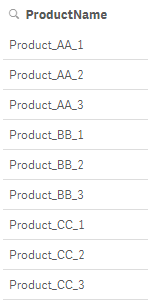
The like operator can be used to display products that start with ‘Product’ and end with the number 1.
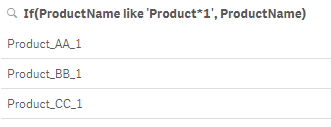
The expression below could also have been used returning all products that end in 1.
If(ProductName like '*1', ProductName)
Ampersand and like are string operators that can be used in charts and in the script to concatenate or compare strings. They are both binary operators meaning they take two operands. When using the & operator, each string on either side of the & is an operand. The same applies to the like operator with the operands being on each side of the like operator. Happy Qliking!
Thanks,
Jennell
-
New Profile Icons for Members
Hello Qlik Community Members,We have just installed some new profile icons to help identify specific members of the community more easily.You can see ... Show MoreHello Qlik Community Members,
We have just installed some new profile icons to help identify specific members of the community more easily.
You can see the icon next to the member’s avatar and on their profile page. If you mouse over the icon a brief descriptor will also display for you.
Here are the new icons and their descriptors.


Visual call outs for specific community members such as our Employee’s and Support team member help give a little more context to the resources they post and their responses to discussion threads. Members who are official Qlik Partners and Luminary program members also have new icons.
It’s always a good idea to follow and friend these types of members so you receive alerts for new content and have more opportunities to collaborate with Qlik experts.
Thanks for your participation in Qlik Community!

-
Autonumber function
Today I decided to blog about the Autonumber function that can be used to create a “compact memory representation of a complex key.” Having recently ... Show MoreToday I decided to blog about the Autonumber function that can be used to create a “compact memory representation of a complex key.” Having recently learned about this function, I realized there have been times in the past when this would have been helpful to use. For instance, when I need to build a link table in my data model, I often create keys that I use to link the tables. Sometime these key fields are lengthy and are a combination of 3 or 4 fields. In this blog, I will show you how you can use the Autonumber function to create a “compact memory representation of a complex key.”
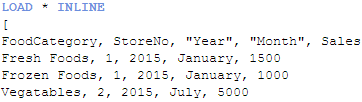
Assume I load a data set that looks like this:
And I want to load another data set that looks like this:
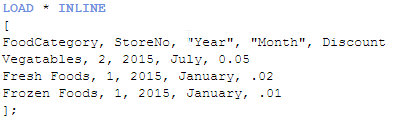
These two data sets have the same first four fields so if I were to load them as is, I would get a synthetic table in my data model. To avoid that I will set up a key field in each of the tables that includes the FoodCategory, StoreNo, Year and Month fields. This key field will be the field that links these two tables. I will do this using a preceding load when I load both of these tables. The script would look like this:
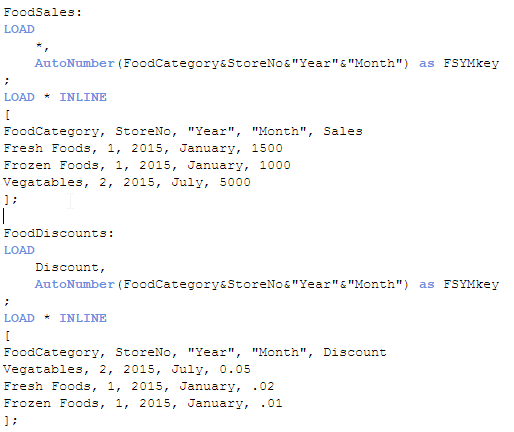
In the first table, I am using a preceding load to load all fields and then I am using the Autonumber function to create a key field that represents the four fields: FoodCategory, StoreNo, Year and Month. I am doing the same thing in the second table I am loading but the difference here is that I am not loading the key fields. By not loading the key fields, I am preventing a synthetic table from being loaded. The end result looks like this:

Notice the FSYMkey field. In this example, it is a unique integer that represents a larger expression. In the past, I would have created the key field like this (see the FSYMkey2 field in the table below):

FSYMkey2 is a more complex field that would have taken up more memory. This example is small but if you had thousands of unique key fields like this, the consumed memory would add up. By using the Autonumber function, I was able to use an integer to represent a long string thus minimizing the memory usage in my app. This is one of many tricks that can be used to reduce the memory usage in your app. Henric Cronstrom has some other ideas in his Symbol Tables and Bit-Stuffed Pointers blog. Check it out.
Thanks,
Jennell
-
Mapping as an Alternative to Joining
Some time ago I wrote a blog on Mapping functions and described how they can be used to replace or modify field values when you run the script. But h... Show MoreSome time ago I wrote a blog on Mapping functions and described how they can be used to replace or modify field values when you run the script. But how do you know when to map versus join the data in your data model? Mapping works well when you need to look up a single value in another table. For instance, you may have a products table with product data like the table below and you want to add the product category name to that table.
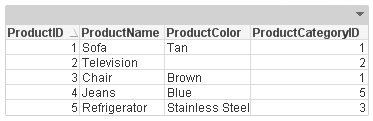
The product category name is in another table that looks like this:
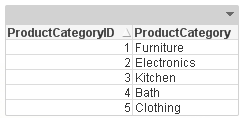
Now you can add the ProductCategory field to the Products table by doing a join and that would work fine but you can also add the ProductCategory field by simply mapping.
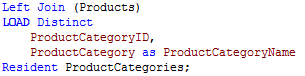
Using a join:
Using a map:
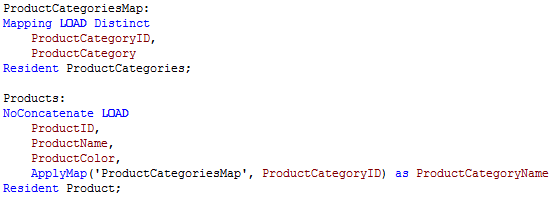
Since we only want to add one value to the Products table, mapping is a safer option. With this small sample data, either will work but sometimes when you have a large data set, you have be cautious when using joins. You need to watch out for new records being added to the table as a result of the join thus potentially changing calculations.
While both a join and a map can work to combine data from two tables, in cases where only one value needs to be added, choose to map. It is an easier approach and it reduces the chance of errors being made in your data model. Now I am not saying that joins are bad and should not be used because that is not the case at all. I am simply stating that mapping should always be used versus a join when you only need one value.
Thanks,
Jennell
-
Angularjs and Capabilities API - Memory management and "qv-collapsed-listbox-del...
In my previous post i explained how to use my template and build a website with Angular js and the Qlik Sense's Capabilities API.Creating a website wi... Show MoreIn my previous post i explained how to use my template and build a website with Angular js and the Qlik Sense's Capabilities API.
Creating a website with Angular and the Capabilities API
When we build controllers with Angular and creating bindings among objects, on navigation, Angular is doing a very good job on managing the controllers, directives, services etc, but it does not handle properly the bindings from Qlik Sense. Thus, how ever many controllers and pages you may have, the objects that you have called with app.getObject(), are still there. That is why when you make a selection in one object and you navigate to another page, you get the "Error: [$compile:ctreq] Controller 'qv-collapsed-listbox-delegated-open', required by directive 'ngClass', can't be found!" error.
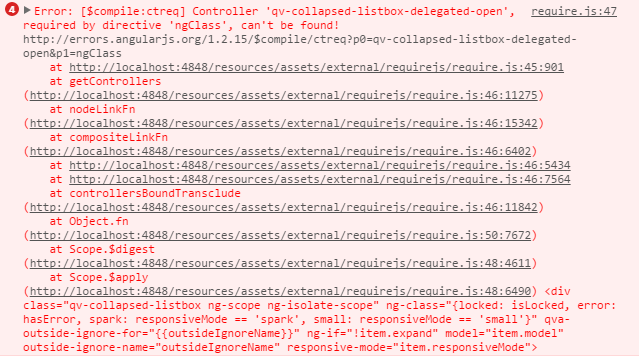
Even though this does not affect the user experience, its still an error. Furthermore, if you have a large website with many object, as we usually do in our Demo and Best Practices Team, then this becomes a problem because there is memory allocation on each of the objects that were created with app.getObject().
Trying to solve it was a trivial process, since there is no documentation on how to destroy the objects. What I have done is, after the app.getObject() put a then(model), put the models into an array of objects and manage them on every page change. So I destroy all of them before I call $location with model.close() and then assign the new ones after the route has completed loading the new template and controller.
Let me explain the code change. I assume that you have already read on how to use the template Creating a website with Angular and the Capabilities API
- Define the object array holder in our app.js
var me = {
  obj: {
       qlik: null,
       app: null,
       angularApp: null,
       model: [],
  }
};
- In the html, put the usual code instead of the directive previously used. In dashboard.html replace L30 with this
<div class="qvobject" data-qvid="a5e0f12c-38f5-4da9-8f3f-0e4566b28398" id="a5e0f12c-38f5-4da9-8f3f-0e4566b28398"></div>
- In our controller dashboard.js, replace L23 with the object array that we will call for binding,
me.objects = ['a5e0f12c-38f5-4da9-8f3f-0e4566b28398'];
- In the same file, under the events, add the new function
me.getObjects = function () {
  api.getObjects(me.objects);
}
- Now lets add the two functions in the API service. We need one function to create the objects and another one to destroy them
  me.getObjects = function (obj) {
       var deferred = $q.defer(),
       promises = [];


       angular.forEach(obj, function(value, key) {
            app.obj.app.getObject(value, value).then(function(model){
                 app.obj.model.push(model);
                 deferred.resolve(value);
            });
            promises.push(deferred.promise);
       });
       return $q.all(promises);
  };


  me.destroyObjects = function () {
       var deferred = $q.defer();
       var promises = [];
       if (app.obj.model.length >= 1) {
            angular.forEach(app.obj.model, function(value, key) {
                 value.close();
                 deferred.resolve();
                 promises.push(deferred.promise);
            });
            app.obj.model = [];
            return $q.all(promises);
       } else {
            deferred.resolve();
            return deferred.promise;
       }
  };
- Finally, on every page change, call destroy objects and then move to the new page
  api.destroyObjects().then(function(){
       $location.url('/' + page);
  });
Make sure to check the latest code on
Git: https://github.com/yianni-ververis/capabilities-api-angular-template
Qlik Branch: http://branch.qlik.com/#/project/56b4a40140a985c431a64b08
-
Are New Technologies Making Us Lazy?
Check out the new blog post by Kevin Hanegan (Qlik VP Knowledge & Learning) where he analysis what the digital revolution, data illiteracy, and cord c... Show More
Check out the new blog post by Kevin Hanegan (Qlik VP Knowledge & Learning) where he analysis what the digital revolution, data illiteracy, and cord cutters have in common.
"This is a debate which has been going on for years. Do advances in technology make us lazy and require less use of our brains? On the surface, you would think so, but after looking a bit deeper, I would argue it just requires us to continuously learn and acquire new knowledge".
To read more visit, Are New Technologies Making Us Lazy? | Qlik

-
One App to rule them all
2 years ago I was certain that the tablet craze would not reach the business world.I was convinced that our smart phones were too small and limited to... Show More2 years ago I was certain that the tablet craze would not reach the business world.
I was convinced that our smart phones were too small and limited to provide any real business value.
I was wrong. Dead wrong.
Since then we have stopped talking about mobile or desktop, instead we talk about software. We expect the software we use to work everywhere, anytime and on any device.
Luckily QlikView makes it easy for us; the AJAX-client works just as well in the browser as it does on a tablet or even on a smartphone.
However every device comes with its own screen real estate so if we optimize our apps for a desktop experience our tablet users will be less than pleased and vice versa. Technically the app would work on all devices but if you were on an iPad perhaps the buttons should be a tad bit bigger, the width and maybe the length of the app smaller and so on.
So how do we achieve this without having to deploy one app optimized for every device/screen?
Not only would that be a maintenance nightmare but it would also scale horrible as we would potentially have to load the same application twice into the working memory.
ClientPlatform() to the rescue!
ClientPlatform() returns a string containing the platform the user is using, see table below.
With this information we could switch between a dashboard optimized for a desktop experience and a tablet experience depending on the device the user is using at the time within the same QlikView application.
For example using WildMatch(ClientPlatform(),'*mobile*') = 1 in a Show Condition would enable the sheet or object for mobile devices but it would be hidden for a desktop user.
Now we can design our apps to cater for a perfect user experience regardless of which device the user is using.
If you own an iPad you can see it in action by visiting our demo site and browse to the Pro Golf app which will change look and feel between a desktop and an iPad.
This is a few examples on what the ClientPlatform() can return.
Browser
ClientPlatform()
Internet Explorer <VersionNumber>
browser.MSIE <VersionNumber>
Google Chrome
browser.chrome
Firefox <VersionNumber>
browser.gecko <VersionNumber>
iPad
browser.safari.mobile
Android Tablet
browser.android

-
Qlik Community MVP Program Launch
Hello Qlik Community Members, We are happy to announce the launch of our Qlik Community MVP (Most Valued Participants) Program where we recognize the ... Show More
Hello Qlik Community Members,
We are happy to announce the launch of our Qlik Community MVP (Most Valued Participants) Program where we recognize the top contributors in Qlik Community.
Our 2015 MVP group
Our MVP are comprised of those who have accumulated the most points over time by posting content, helping other members and reinforcing the positive culture here in Qlik Community.If you’re new to Qlik Community these are the members you want to ‘follow’ in your activity streams so you can see the approach they take when solving problems. You may also bookmark their postings to stay current on Qlik solutions and relevant BI information.
You can visually recognize any Qlik Community MVP member by the green
 icon next to their name on content feeds or when you mouse over their profile. We will be sharing more information in the coming months around the program as well as featuring these members and their expertise.
Please join me in congratulating and recognizing them for all of their contributions and hard work to help make Qlik Community a top resource for Qlik Partners, Customers and BI Researchers.
Best Regards,
Qlik Community Management Team
-
Fan traps and Chasm traps
When designing a data model, connection traps are sometimes built into the data model. It could be that the source data has been misinterpreted, or it... Show MoreWhen designing a data model, connection traps are sometimes built into the data model. It could be that the source data has been misinterpreted, or it could be that some relations are missing in the data. Usually the traps should be avoided. However this is not always possible. But as you will see, it is not a problem.
There are two main types of connection traps: The fan trap and the chasm trap.
Fan Trap:
“Where a model represents a relationship between entity types, but pathway between certain entity occurrences is ambiguous” (1)
Example of a fan trap:

In this model a branch has several sales people. A branch also has several customers. But the above data model says nothing about which sales person is responsible for which customer, although such an assignment may exist. Instead, the data model links all sales people to all customers within the branch.

Joining the three tables will increase the number of records - every combination of sales person and customer will get a record of its own - which means that aggregations will result in incorrect numbers. A single sales person will be counted several times. This is a problem with SQL and many other database tools.
The Qlik engine is however different: Since the three tables are stored as three different tables, the Qlik engine is able to aggregate correctly anyway. A count of a non-key field from the Customers table will count just the records in the Customers table. As long as the aggregation function contains fields from only one table, the aggregation will be correct.
Hence, a Fan trap is not a problem.
However, if you have information about assignments between customers and sales people, you should of course change the data model and load this information, e.g.

But what if a customer is assigned to a branch, but has not yet bought anything? This question takes us to the next trap.
Chasm Trap:
“Where a model suggests the existence of a relationship between entity types, but pathway does not exist between certain entity occurrences” (1)
While a fan trap can be identified by looking at the data model only, a chasm trap can be more difficult to spot. The above data model (Branches - Sales people - Customers) may in fact contain a chasm trap. But the data model looks perfectly fine.
The chasm trap appears only if there is missing data in the middle table, e.g. if you have a customer who belongs to a branch but has not yet been assigned a sales person. Then the link between the customer and the branch will be broken and it will not be possible to see to which branch the customer belongs.

But if you don't need this link, the data model will still work fine. However, if you want this link, you can create it by adding dummy records labelled 'No sales person' to the Sales people table – one record per branch – and link unassigned customers to these. An additional advantage is that these customers will then be easily selectable. If you click on ‘No sales person’, you will immediately find all unassigned customers.
Hence, a Chasm trap can easily be handled.
Bottom line: Connection traps are not a problem in the Qlik engine.
PS On internet you sometimes find incorrect descriptions of Fan trap and Chasm trap where the two are confused with each other. The definitions I use come from the original description of traps:
[1] Thomas Connolly, Carolyn Begg: Database Systems: A Practical Approach to Design, Implementation and Management (Addison-Wesley, 1998).
Further reading on Qlik data modelling:
-
Dislike gauge charts? You may want to give them a second chance
Gauge charts were used widely in dashboards and analytical apps a few years ago, and they still are, but when was the last time you saw a nice looking... Show MoreGauge charts were used widely in dashboards and analytical apps a few years ago, and they still are, but when was the last time you saw a nice looking dashboard using one of those old fashion speedometers?
If you are an experienced QlikView user/dev, you may be familiar with Gauge charts styles as shown in the picture below. Today I would like you to explore with me how QlikView can help you to turn a boring gauge into something different.
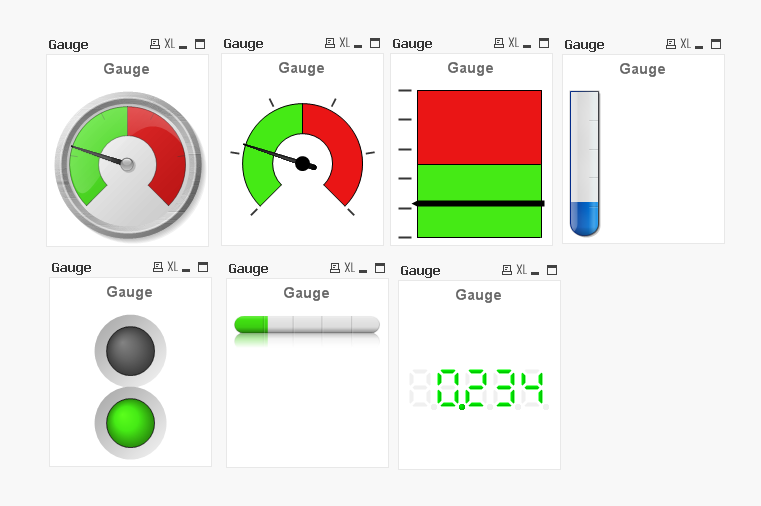
Let´s start with a simple question, what do the following charts have in common?
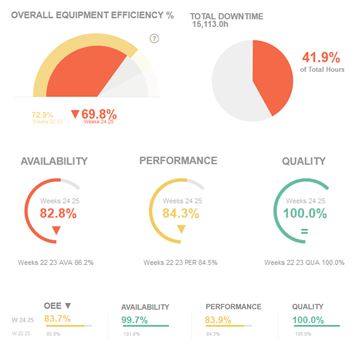
Besides the fact that all of them share the same color palette and style, and even if you haven’t notice it at a first sight, what all have in common is the chart type we picked when we created the charts. We chose a Gauge chart. Actually, all this charts are components of the new demo app called !OEE Analysis. This app is a redesign of an existing app that was created as a demonstration for the manufacturing industry.
The nature of manufacturing, coupled with the industries’ natural inclination to mimic its physical environment, drives developers to extensively use gauges and/or speedometers on dashboards. This rationale is based on the implementation of images that are familiar to engineers and people with experience using industrial machinery.
Since we started to work in the former app redesign, we had one clear goal. We wanted to keep that gauge essence in the new app, but we also needed to modernize the look of the old speedometers. To do so, we spent some time exploring different alternatives until we found how to turn them into a new set of ‘flat’ style gauges.
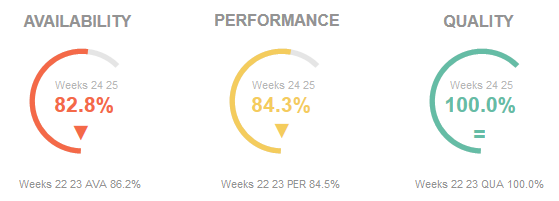
All of the new gauge styles, as in the picture above, are representing just one metric at a time (gauges don’t work well with more than one measure anyway). In addiction we are using color to emphasize the current state for each KPI so the user doesn’t really need to look for needle position to understand the data but she/he only need to identify the color code. If a color code catches the user’s attention, then she/he can spend more time looking at the details. We incorporated adjacent text objects making the whole chart much more interesting and data complete.
The result is a much cleaner data centric app which we managed to keep the gauge spirit on it.
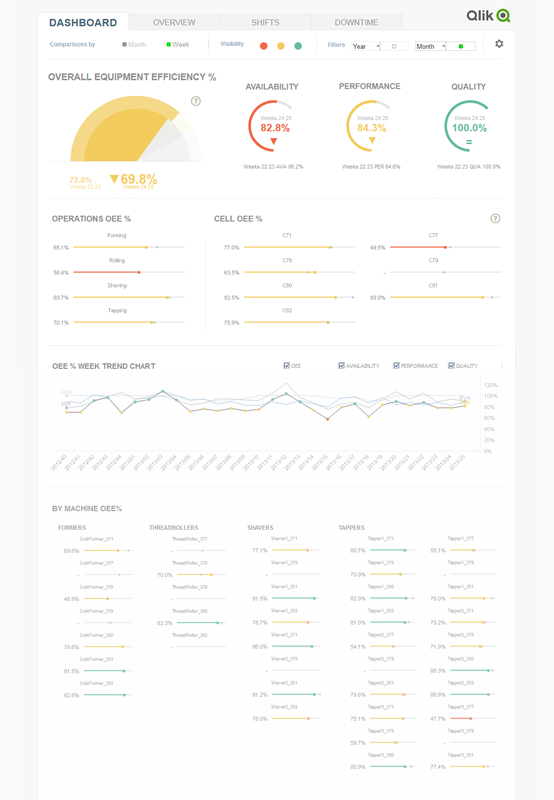
Gauge charts have gained a bad reputation as data visualization objects, sometimes because they give user too little information, at times it’s all about a weak implementation, and most of times it’s because they were designed as a real-life object rather than a data centric object. After seeing the new styles we came up with, you may want to reconsider your position and give gauge charts a second chance, won’t you?
Enjoy Qliking!
AMZ

-
Was Microsoft’s Clippy Years Ahead of its Time?
Today’s software needs just-in-time, context-sensitive knowledge "For years, consumers have been cross-sold to and up-sold to. Online storefronts rec... Show MoreToday’s software needs just-in-time, context-sensitive knowledge

"For years, consumers have been cross-sold to and up-sold to. Online storefronts recommend other products I would like based off my shopping cart. As a consumer of learning, why can’t I have that, and even better, why can’t it be contextual, intelligent, just-in-time and built into the product" written by Kevin Hanegan (Qlik VP, Knowledge and Learning)
To read more from this blog visit Was Microsoft’s Clippy Years Ahead of its Time? | Qlik
-
Capability APIs 2.2 and Angularjs, disabled selections fix
Qlik Sense is getting better and better on every release!I was working on a large website using Qlik Sense 2.1 and the Capability APIs where I used th... Show MoreQlik Sense is getting better and better on every release!
I was working on a large website using Qlik Sense 2.1 and the Capability APIs where I used the template that I had created and blogged about Creating a website with Angular and the Capabilities API. I had almost finished the project, when we decided to upgrade to 2.2. Everything was fine, I was cleaning up my code and I was ready to deliver the project when we realized that most of the charts, had no interactivity!
So, lets fix our template to work properly in 2.2.
One of the two issues was the css. In 2.1 we had to use qlikui.css and client.css. In 2.2 these were replaced by qlik-styles.css. So in index.html replace L17-L18
<link rel="stylesheet" href="http://localhost:4848/resources/autogenerated/qlikui.css">
<link rel="stylesheet" href="http://localhost:4848/resources/assets/client/client.css" media="all">
with
<link rel="stylesheet" href="http://localhost:4848/resources/autogenerated/qlik-styles.css">
Also, remove the icon fix we had in index.less and remove L134-L136. This has been fixed in the new stylesheet.
.sel-toolbar-span-icon {
    top: -10px;
}
Another issue we found is that, we have to make sure that overflow-y: auto; is in both the html and body. We had that from beginning in this template but it seems to break things in 2.2 if it is only on body and not the html.
In the js/lib/main.js I used in the grid-service in order to make angular work. This has also been fixed and you can remove L30
define( "client.services/grid-service", {} );
Now, going to my last and more important issue, on why the interactivity was broken in 2.2. I started the blog by stating that "Qlik Sense is getting better and better on every release!" and this is so true. I spend several days trying to figure out why the interactivity was broken when I was moving from pages to pages and on random times. The issue was that simply the engine got so much faster on delivering the objects, that Angular could not keep up with it! Really, when the Capability App API app.getObject() is looking for the id to replace the html with, is looking for the parent element width and height. In my case, all of the objects, most of the time, had the canvas drawn with 0 height and width due to that! So, in order to fix this, unfortunately, I had to add a 1/2 second delay on getting my objects. So in the js/services/api.js, wrap L18-L24 in a timeout function
  setTimeout(function(){
     angular.forEach(obj, function(value, key) {
        app.obj.app.getObject(value, value).then(function(model){
           app.obj.model.push(model);
           deferred.resolve(value);
        });
        promises.push(deferred.promise);
     });
  }, 500);
I would add this only if you have the interactivity issues like I have described above. In cases that you have small projects like this one and you do not have a lot of dependencies, this may not be needed at all!
Capability APIs documentation: https://help.qlik.com/en-US/sense-developer/2.2/Subsystems/APIs/Content/mashup-api-reference.htm
Happy coding!!
Yianni
-
Qlik Community Mobile App for Apple Devices is Now Available
Hello Qlik Community Members, We are happy to announce the launch of our new Qlik Community Mobile Application for Apple users. With this new mobile a... Show More
Hello Qlik Community Members,
We are happy to announce the launch of our new Qlik Community Mobile Application for Apple users. With this new mobile app you will be able to monitor content that’s the most important to you, post and update content and collaborate with other members when not at your computer. This is particularly helpful when you are travelling, have some free time in between activities or just want to stay informed.
Please access our detailed instructions document titled: Qlik Community Mobile App for Apple Devices FAQ’s for download/installation and best practices.
You can also visit the Qlik Community Mobile App for Apple Devices launch announcement thread to see member’s reviews and feedback and share your own.
Best Regards,
The Qlik Community Management Team
-
The Qlik engine - A Forgiving Engine
Databases are usually not very forgiving. Strict rules apply, defining what’s allowed and what’s not. For example, you are not allowed to enter data... Show MoreDatabases are usually not very forgiving.
Strict rules apply, defining what’s allowed and what’s not. For example, you are not allowed to enter data unless it has the right data type and is formatted the right way. Further, you are often not allowed to enter a value for a foreign key unless this value already exists in the master table. And you are not allowed to enter the same value twice if the field is a primary key.
The reason is of course to ensure data integrity. Without such rules, the database would soon be cluttered with bad quality data and contain a large number of errors.
The fact is that a good system is one that has a large number of rules, but at the same time is easy to use: Equipped with a user interface designed in a way so that the user doesn’t notice the rules – or at least isn’t disturbed by them.
But with the Qlik engine it is a very different situation.
QlikView and Qlik Sense should not make sure that the data is free from errors. Instead, they should do exactly the opposite: Display the source data along with all its errors. This requirement is totally different from the demands you have on a database, and as a result the Qlik engine is built in a different way:
 Data Types
There are no data types in the Qlik engine. The reason is simple: You may have data from different tables or even from different data sources in one single field. Then there is a potential risk that you have different data types in the different sources.
When loaded, all fields are converted into duals (number and text, or just text), and so one field can contain data that originally had different types.
 Formatting
A single field can have a mixed data format. Also here, the reason is simple: Different sources may have different formats. As a result, it doesn’t matter if a date is formatted as 3/31/16, 2016-03-31 or 42460. They will all three represent March 31, 2016.
Each distinct field value has its own format, and a single field may thus be displayed with different formats.
 Referential integrity
The Qlik engine does not enforce referential integrity. For example: You may have a customer ID in your fact table that does not exist in the customer table (which would be an error in the data integrity of the database). But the Qlik engine will accept this and show NULL as customer name.
 Relationship type
Often you know if you have a many-to-one or a many-to-many relationship between two entities. But this information is not loaded from the database. Instead the Qlik engine assumes worst case and is always prepared for a many-to-many relationship.
Links between tables don’t carry information about relationship type. And all calculations involve aggregations, since there is a possibility for multiple values of the referenced field.
The bottom line is that the Qlik engine is a very forgiving engine. It handles errors in all of the above cases gracefully. No matter how many such errors you have in the data, the Qlik engine will always make a best-effort attempt in evaluating and showing the loaded data.
Further reading related to this topic:
-
What is a QlikView session?
This is not easy to answer, so let me walk you through the flow in QlikView and talk about the life of the different sessions in QlikView.Let’s start ... Show MoreThis is not easy to answer, so let me walk you through the flow in QlikView and talk about the life of the different sessions in QlikView.
Let’s start at the browser. The most common way of maintaining a session in the web layer is session cookies. Session cookies is a small set of information that the browser will send with every request in a session. Session cookies is also what QlikView uses to maintain the web layer sessions. So once authenticated, QlikView knows who you are and will assign a random set of characters, stored in a session cookie in the browser, to identify your future requests to QlikView.
The session cookie will identify your requests until you either log out or your session times out from inactivity.
The web session is the first session you will encounter using QlikView. The second session is the QlikView server session.

So what is a QlikView server session? Think of the QlikView server session as the place where QlikView keeps track of what you are doing in a document. The session is identified by a user’s access to one document. As you click in the document, your state will be recorded in the session. Your session is maintained in memory while you are active in the document and a bit longer. When a QlikView server session times out, the state is written to disc. If you come back to the same document later you can continue exploring at the same place you left off.
So when are the different sessions used?
If you use the AJAX client, both sessions are used. If you lose your web session you will have to re-authenticate to get a new session and if the QlikView server session times out you will have to reconnect.
If you use the thick client or the plugin, these talk directly to the QlikView server and therefore only use QlikView Server sessions.
The timeouts can be configured: the timeout configuration you do in the QMC is related to the QlikView Session; whereas the timeout values for the web session only are configurable in the local configuration file for the web server.
So now you know how sessions are used in QlikView. Even though this is not directly related to security, it will help you understand concepts like load balancing, web tickets and authentication in QlikView.
I hope you found this information useful, if you have any other subjects related to security that you like me to write about please leave a comment.
-
QlikView 12 - please stand up
It was back in April at Qonnections, our 10th global partner conference that we unveiled Qlik Sense 2.0 and shared our platform strategy with the worl... Show MoreIt was back in April at Qonnections, our 10th global partner conference that we unveiled Qlik Sense 2.0 and shared our platform strategy with the world. It was also the first time we talked in detail about our plans for QlikView 12. Today I’m delighted to be able to share the news that it’s arrived! QlikView 12 will you please stand up and show yourself to the world!
There is no doubt that this is an eagerly awaited release by many of our 37,000 strong global customer base. But why? QlikView is a very mature product, it's functionally rich, and it’s undoubtedly in my opinion the product that revolutionized business intelligence and ultimately created the global data discovery market as we know it today. So what is so important about QlikView 12?
An investment in QlikView 12 is an investment in Qlik
With QlikView 12, Qlik delivers on its commitment to its proven, market-leading data discovery solution which secures our customers long term investment in the product. It also lays the foundation for our customers to partner with Qlik to build out their business intelligence strategies and meet the expanding needs of their BI consumers by addressing multiple use cases through a unique platform approach to visual analytics.
QlikView 12 now runs on the second generation QIX (Qlik Data Indexing) engine that powers the entire Qlik portfolio. With this improvement, we can more easily help customers address new use cases in Qlik Sense by allowing them to share data models across the platform.
Our investments also benefit the way our customers use QlikView today. QlikView 12 delivers a number of deployment, performance, security and connectivity enhancements along with greater accessibility through enhanced mobile touch-enabled capabilities. In addition QlikView customers will be able to now take advantage of Qlik’s strategy to deliver value added cloud services – such as Qlik’s “Data as a Service” offering, Qlik DataMarket.
(If you want to see some of this in action check out this brief presentation)
QlikView 12 - What's New Presentation
QlikView - REST Connector
QlikView - Qlik Data Market
Put simply, QlikView is a business intelligence solution with an unrivaled pedigree, functional richness and delivers the lowest cost of ownership in the market. Many customers have already delivered robust guided analytics and dashboards to knowledge workers across their organizations, and with QlikView 12, that investment is secured.
Regards,
Michael Tarallo
Senior Product Marketing Manager
Qlik
@mtarallo - follow me

-
Scaling Visual Analytics with Qlik Sense
Hello Qlik Community, in this post our resident guest blogger and Principal Enterprise Architect, Marcus Spitzmiller, introduces us to visual analyitc... Show More
Hello Qlik Community, in this post our resident guest blogger and Principal Enterprise Architect, Marcus Spitzmiller, introduces us to visual analyitcs scaling. Marcus is a member of the Qlik Enterprise Architecture team focusing on enterprise deployments and best practices. His areas of expertise include scalability and performance, deployment best practices, integration, and security.Scaling Visual Analytics
When we talk about scalability, it is often centered around data volumes, users, and the technology behind a given product. However, one should also consider the capabilities that a product provides which enable broad deployment and governance within an organization. It is within this context that we will look at Qlik Sense. Of course, data volumes and users matter too, so if you have a few moments, check out the Qlik Sense Performance Benchmark for that.
Instead of detailing everything in this blog I created a video presentation on this topic. In this video, we will look at Qlik Sense from the standpoint of four main topics that allow you to scale your visual analytics initiatives:
- Delivery – Qlik Sense’s platform approach to visual analytics enables authoring, self-service, and consumption with the patterns that fit to your organization, not the other way around.
- Security - Qlik Sense’s “attribute based access control” (ABAC) security model enables role and attribute based administration of the resources and content within Qlik Sense.
- Administration – Qlik Sense’s default, customizable, and delegated roles and out of the box monitoring enable simple and scalable administration.
- Infrastructure – Qlik Sense’s powerful In-Memory, Associative Data Indexing Engine and distributed architecture enables physical, virtual, and cloud based deployments with best in class performance.
Organizations are continually faced with market pressures to make decisions more quickly. The Qlik Sense platform enables visual analytics to be widely deployed within an organization so people have access to their data, with security and governance, and at scale.
Watch or download (.mp4) this video to learn more:





