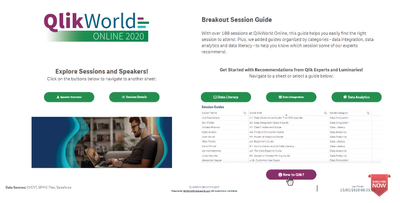
QlikWorld Online is approaching fast so we created a Session Guide to keep you informed about the many sessions that are staff and partners and customers will be providing.Check out the Guide here:https://showcase3.qlik.com/sense/app/b8c838ac-38b8-4064-9b41-0d22b056ce6dLet me know if you have any questions.
...View More
Let's check out how we can build an animated rank chart with picasso.js! You can check out an example in the History of the Fortune 500 app that we built for Fortune athttps://qlik.fortune.com/.In this post I'm going to review the picasso.js settings for building an animated rank chart. For the chart to be animated, you'll also need to implement something like I covered in my last blog post about animating picasso.js athttps://community.qlik.com/t5/Qlik-Design-Blog/Animations-with-picasso-js/ba-p/1686543.DataFor this example I'm going to use dimensions and measures like we were using the q picasso plugin. You'll want to have 1 dimension and 2 measures. The first measure should be the value you are ranking, and the second measure should be a rank expression.SettingsThe general idea here is that we need to calculate the position of the bars along the y-axis such that as we interpolate the change in the rank the position will change. We also use a labels component in place of an axis component for the y axis labels, since the labels component will attach to the bars and move along with the bars, as opposed to the y-axis, which would be a band scale axis that has discrete positions. Here's what the settings are, with some comments to explain.{
scales: {
y: {
data: {
extract: {
field: 'qDimensionInfo/0',
props: {
rank: { field: 'qMeasureInfo/1' }
}
},
sort: (a, b) => a.rank.value - b.rank.value, // sort values in scale (in case we use brushing or something
},
padding: 0.2,
},
x: {
data: { field: 'qMeasureInfo/0' },
include: [0],
expand: 0.5, // you need to use expand so the labels fit, may need to adjust based on length of your labels
},
},
components: [
// this is the main box component
{
type: 'box',
key: 'bars',
displayOrder: 1,
data: {
extract: {
field: 'qDimensionInfo/0',
props: {
start: 0,
end: { field: 'qMeasureInfo/0' },
rank: { field: 'qMeasureInfo/1' }
}
}
},
settings: {
major: {
scale: 'y',
// this is what positions the bars on the y-axis
// the reason we calculate the position manually is so that as we interpolate the change in rank it will animate
fn: (d) => (d.datum.rank.value * d.scale.step()) - (d.scale.paddingOuter() * d.scale.bandwidth()) - (0.5 * d.scale.bandwidth()),
},
minor: { scale: 'x', ref: 'end' },
orientation: 'horizontal',
},
},
// we use these labels instead of an axis component for animation reasons.
// we can attach the labels to the bars so they animate along with the position of the bars
{
type: 'labels',
displayOrder: 2,
settings: {
sources: [{
component: 'bars',
selector: 'rect',
strategy: {
type: 'bar',
settings: {
align: 0.5,
justify: 0,
fontSize: 14,
direction: 'left',
labels: [{
placements: [{ position: 'outside', fill: '#666' }],
label: (node) => node.data.label,
}],
padding: {
top: 0, right: 8, bottom: 0, left: 0,
},
},
},
}],
},
},
// these are the value labels
{
type: 'labels',
displayOrder: 2,
settings: {
sources: [{
component: 'bars',
selector: 'rect',
strategy: {
type: 'bar',
settings: {
align: 0.5,
justify: 0,
fontSize: 11,
direction: 'right',
labels: [{
placements: [{ position: 'outside', fill: '#666' }],
label: (node) => node.data.end.value,
}],
padding: {
top: 0, right: 0, bottom: 0, left: 6,
},
},
},
}],
},
},
],
}Now you need to do is interpolate the change in the rank value when updating the chart, and you'll have an animating rank chart. You can also check out these settings athttps://observablehq.com/@fkabinoff/rank-chart-that-can-be-animated-by-interpolating-rank-chang.
...View More
Sample App attached below - unzip and import using QMC (Windows) or Upload via SaaS and cloud-based Qlik Sense deployments - using the Add New button.Did you know that all versions of Qlik Sense allow you to designate specific selections and visualizations to interact with one another - independently of the default selection state. Therefore you can make different value selections on the same dimension and compare those results in two or more visualizations side by side. Check out this 60 second video and links below to learn more and start adding comparative analysis do your analytics.How to: https://www.youtube.com/watch?v=LMMGAFgrnc8 Learn more:https://help.qlik.com/en-US/qlikview/April2020/Subsystems/Client/Content/QV_QlikView/Alternate%20States.htm
...View More
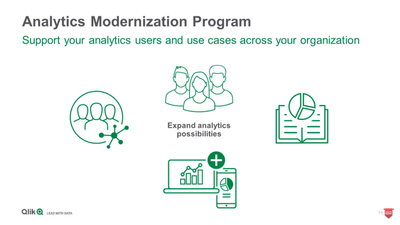
Today Nicole Tamms from Qlik introduces you to our new Analytics Modernization Program. The Analytics Modernization Program increases choice and lowers friction for new and existing customers. The Analytics Modernization Program enables customers to deploy exclusively in Qlik's cloud, providing ease of management and a lower TCO. You can also deploy on premise or within private cloud-based based on your governance needs and data requirements, with the option of adding our SaaS to benefit from Qlik's unique multi-cloud architecture.Watch this brief video where Nicole will tell you more.
...View More
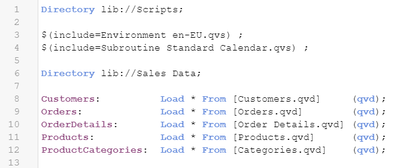
When creating a load script, you often use data from files, e.g. xls, csv, txt, or qvd. By default, absolute paths to the folders are generated when the library is created. But what if you want to use relative paths? What do you do then?
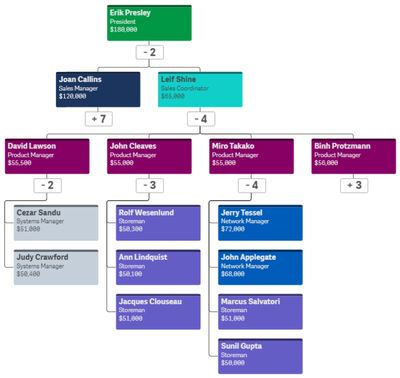
With the Qlik Sense April 2020 release, the Org Chart was added to the Qlik Visualization bundle. The Org chart provides a way to visualize hierarchies in your data. In this blog post, I will review how easy it is to create an Org chart provided you have the hierarchical data structure in your data model. Below is a snapshot from an Excel file that was loaded. It has the employees within a company and who each person reports to.The things to note in this file are:Every employee has a unique Employee ID.The Manager ID is the Employee ID of the employee’s manager.This spreadsheet is designed to go 5 levels deep (EmpName 1 through EmpName5) but additional columns can be added or removed as needed. Other supporting employee data can also be added to the data model to use in the org chart or in other charts in the app.To begin, add the Org chart to a sheet. The Org chart takes 2 dimensions and 1 measure. The first dimension added is EmployeeID. In the Org chart, each employee will have their own card. In the properties for the EmployeeID dimension, other information that you would like to show on the card for each employee can be added.In this example, the card title has been set to EmployeeName, the sub-title to the employee’s title and the card description to the employee’s salary. There are some colors loaded in the data model so the field, Color2, was selected coloring the cards by the employee’s title. The second dimension added to the Org chart is the Reports To field. This field stores the EmployeeID of the employee’s manager like the ManagerID field. There is also the option to add a measure. In this example, a measure was not added. If a measure is added, it will be visible when you hover over a card. That’s it – that is all that needs to be done to add an Org chart to your Qlik Sense app.Now, let’s take a look at the Org chart. By default, the Org chart will show 2 levels when you come to the sheet.If an employee is a manager, there will be a number under their card indicating the number of employees that report directly to them. Clicking on that number will open the cards of their direct report(s). When there is a plus sign (+) that means that there are cards that are not visible. Once the cards of a manager are opened, it will turn into a minus sign (-) to indicate that the card is opened. This is visible in the image below.The Org chart provides an easy way to see the hierarchical structure within an organization. Users can zoom in and out in the chart as needed and Qlik Sense will handle closing cards if newly opened cards may overlap or get in the way. Check out this chart and other new features of the Qlik Sense April 2020 release in the resources listed below.Demo: What's New - Qlik Sense April 2020Video: What’s New – Qlik Sense April 2020Video: April 2020 Feature DemonstrationBlog: Qlik Data Analytics Product Release - April 2020 Thanks,Jennell
...View More
With the design work to introduce Spaces, available in Qlik Sense cloud deployments discussed in Part 1 and Part 2 of this series, todayFredrik Lautrup is back with Part 3 - sharinghow his team added the ability to secure Qlik Sense data connections within the Spaces apps are created in.With the introduction of spaces and the content life-cycle we have created a number of concepts and a way of working with content that we think a lot of our customers will be happy with. But not all customers are alike, we will always have customers that want to do more. Luckily the spaces concept with some of its more advanced space functionality allow for this flexibility to adapt to customers’ needs to work with and protect their data. If we start with the movements of apps and its relations to data, we have introduced the concept of space aware data files and data connections. This means that data files and data connections can be stored in spaces and referenced in different ways to its location. The permissions are always applying to the current user, but this might be used to build out some interesting structures.So first let’s go through how this works in the data load editor......Download the PDF attachment to learn more.Want to experience Qlik Sense now - start your free trial here:https://www.qlik.com/us/trial/qlik-sense-business
...View More
Calculated fields are often created in the script and stored under new aliases. But you can also create them in the user interface. What are the pros and cons with the two methods? And how are the user interface fields calculated?
I cannot count the times that I had a custom webpage with visualizations from the Qlik Sense engine open, to find out that my charts where not responding due to the websocket connection being lost.
SPOILER ALERT: I know is hard to believe, but this is NOT a blog post about the VIRUS (I won't even mention it). I figured we all needed to detox a little bit with some fun.We all know that a raw string or table with numbers isn't it the easiest thing to digest, that's why companies like Qlik exists in the first place, and that's why people need charts to help individuals to understand the numbers better.The same principle is also true about words, the old "apicture is worth a thousand words" reflects that fact. Emojis are a special set of images that can surelyhelp you to say more with less. The use of pictographs can help to reduce the time a user needs to understand a chart and for sure they canincrease the user experience among all demographics.Use case for emojisEmojis are particularly useful to be used as icons, to represent concepts that otherwise would require a number of words.Last September we launched a new app to celebrate the 2019 Rugby WorldCup in Japan. We used some emojis to improve the experience of two charts.Teams Ranking distribution chart includes medal emojis as replacement for labels for the reference lines. Each line helps to identify team's final position in the tournament history.The Tournament Medals table includes only the top 3 teams for each tournament year and the medal pictogram helps to visually understand the final position within each tournament.Check it live here:https://webapps.qlik.com/rugby-world-championship/index.html#/historicalWhere can emojis be used in Qlik Sense?Everywhere, they are just as any other character, so you can use it on labels but also as part of the load script, expressions and virtually anywhere where you can use text.Load script implementation example:Table:LOADTeamFinalPlacement,if(TeamFinalPlacement=1,'🥇', if(TeamFinalPlacement=2, '🥈', if(TeamFinalPlacement=3,'🥉',''))) as Medal,TournamentFrom somewhere;What are the emoji limitations?Limitations depends in the device used to explore the Qlik Sense app. Windows supports emoji with some limitations starting with Windows 7, check the complete list here: http://caniemoji.com/Also please be aware that the emoji you are using might not look like exactly as you see it for all the users depending on the device used to explore the Qlik Sense app. Full emoji list here: https://www.unicode.org/emoji/charts/full-emoji-list.htmlI hope you enjoy it, and please share with us how (if) are you using emojis in your apps.Arturo (@arturoqv)Related topics:https://community.qlik.com/t5/Qlik-Design-Blog/Replacing-images-with-Geometric-Shapes-as-visual-cues/ba-p/1475169
...View More