In my continuing effort to highlight our valuable Qlik Community members, our partner network and their awesome solutions - I have the pleasure of introducing you to a brand new capability available within the Write! extension by Inform.Section Access Management with Write!Managing Section Access (Dynamic Data Reduction) in Qlik requires some manual effort via Qlik scripting within a Qlik Sense app. The overall concept can involve the use of inline tables to maintain the security, user data or externally defined security tables which can be accessed by various data connectors. Once implemented, section access requires that you reload the app as necessary.Inform's extension, Write! (https://en.write.bi), now has an application directly in Qlik Sense that allows you to define, simulate and deploy your section access rules visually, with just a few clicks. You can create new Section Access rules, manage existing rules, deactivate invalid ones, automatically deploy them to an app - increasing speed and efficiency when managing Section Access on Qlik Sense apps.Watch this brief video created by Thomas Gorr, Product Manager of Write! at Inform to learn more and see it in action:For more information on this new capability please reach out to the Inform teaminfo@write.bi.Thank you Thomas for your contribution.Do you have a valuable Qlik product contribution or solution?Contact meand I will share it on the Qlik Design Blog.RegardsMike Tarallo -followSenior Product Marketing ManagerQlik
...View More
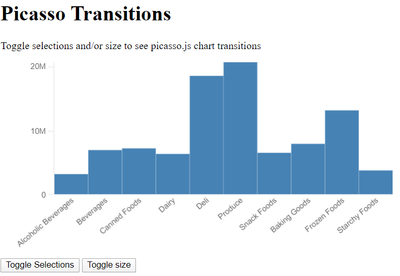
picasso.js is an awesome open source charting library from Qlik for building beautiful data visualizations quickly and easily. It’s super flexible, easy to use with hypercube data, renders in svg or canvas, and includes a lot of other great features already. But one thing it doesn’t have built in (yet) which I need when building visualizations is transitions so I developed a method for adding transitions to any picasso.js visualization (which is built into the upcoming new version of qdt-components). Let me take you through it.Check out an example at https://webapps.qlik.com/picasso-transitions/index.htmlStep 1: Create hypercube and chartThe first step is to create a hypercube, get the layout, and create a picasso.js chart./* Create a hypercube */
const object = await doc.createSessionObject({
qInfo: { qType: 'data' },
qHyperCubeDef: {
qDimensions: [{
qDef: { qFieldDefs: ['[Product Group Desc]'] },
qOtherTotalSpec: {
qOtherMode: "OTHER_COUNTED",
qOtherCounted: { qv: "10" },
qSuppressOther: true,
},
}],
qMeasures: [{
qDef: { qDef: 'Sum([Sales Amount])' },
}],
qInitialDataFetch: [{
qWidth: 2,
qHeight: 10,
}],
},
});
/* Get hypercube layout */
let layout = await object.getLayout();
/* Create chart */
const chart = picasso({
renderer: {
prio: ['canvas'],
},
}).chart({
element: document.querySelector('#chart'),
data: [
{
type: 'q',
key: 'qHyperCube',
data: layout.qHyperCube,
},
],
settings: {
scales: {
y: {
data: { field: 'qMeasureInfo/0' },
include: [0],
invert: true,
},
x: { data: { extract: { field: 'qDimensionInfo/0' } } },
},
components: [
{
type: 'axis',
dock: 'left',
scale: 'y',
},
{
type: 'axis',
dock: 'bottom',
scale: 'x',
},
{
type: 'box',
key: 'bars',
data: {
extract: {
field: 'qDimensionInfo/0',
props: {
start: 0,
end: { field: 'qMeasureInfo/0' },
},
},
},
settings: {
minor: { scale: 'y' },
major: { scale: 'x' },
box: {
fill: 'steelblue',
},
},
},
],
},
});Step 2: Animate changes to layoutNow that there's a hypercube and a chart, the next step is to animate the chart when the hypercube changes. To do this, subscribe to changes in the hypercube, and in the callback get the new layout, setup a timer, and interpolate between the previous layout and the new layout and pass the tween hypercubes to the chart's update function. It looks like this.object.on('changed', async () => { // subscribe to changes on the object
const nextLayout = await object.getLayout(); // get the next layout
const duration = 1500;
const ease = easeCubic; // easeCubic is d3-ease easeCubic function
const transitionTimer = timer((elapsed) => { // create a timer using d3-timer
// compute how far through the animation we are (0 to 1)
const t = Math.min(1, ease(elapsed / duration));
// calculate the tween layout at time t
const tweenLayout = interpolate(layout, nextLayout)(t); // interpolate function is from d3-interpolate
// update chart
chart.update({
data: [{
type: 'q',
key: 'qHyperCube',
data: tweenLayout.qHyperCube,
}],
});
// if this animation is over
if (t === 1) {
// stop this timer since we are done animating.
transitionTimer.stop();
layout = nextLayout;
}
});
});Step 3: Animate size changesNow the picasso.js chart will animate when the layout of the object changes, but it should also animate in response to CSS animations on it's parent container. A ResizeObserver can be used for that. ResizeObservers are relatively new, and should be polyfilled using the resize-observer-polyfill library. It's as simple as this.const ro = new ResizeObserver(() => {
chart.update();
});
ro.observe(document.querySelector('#chart'));Don't forget to check out the example athttps://webapps.qlik.com/picasso-transitions/index.html. The code for this example is attached.This is a rudimentary example of this approach, and does not handle things such as canceling transitions if another transition is started before the previous transition is finished. If you go through this example and want to check out my work to date on this, check out the QdtPicasso component on the working branch for the next version of qdt-components athttps://github.com/qlik-demo-team/qdt-components/blob/3.0/src/components/QdtPicasso/QdtPicasso.jsx.
...View More
Hi guys - I hope this message finds you all well and you are taking the necessary precautions to protect yourselves and others from the Coronoavirus (COVID-19). During this time of uncertainty you might ask, what can I do as a Qlik Community member to possibly help? In short - information is power and can be valuable in the fight and prevention of COVID-19. Therefore, I'd like to share some resources and offers our Qlik partners are making available that might be useful to you.#1 - The COVID-19 Community GroupThis group was formed to bring together people and resources in response to the pandemic of Coronavirus, aka COVID-19, aka SARS-CoV-2. All are welcome to share insights and sources of factual data. Currently there are a number of articles linking to various bits of information created by Qlik's own@Dalton_Ruer@JulieKae and VizLib's@joe_warbington- as well as many responses / solutions from our Qlik Community members and partners.#2 - INFORM DataLab - Free Qlik sense Write! extension licensesTo support the real heroes during the COVID-19 crisis, INFORM DataLab is giving FREE licenses of their Write! extension for Qlik Sense customers inhospitals and the healthcare industry! Write! allows you to edit data directly in Qlik with ease. Visithttps://en.write.bi/for more information. You can also contact Boris Michel at Inform directly.#3 - Inphinity 6 months free product offer to healthcare and non-profit organizationsA note from Inphinity:As COVID-19 spreads all around the globe and affects our personal lives, businesses, colleagues, families, and friends, we would like to express our SINCERE GRATITUDE to all of you who are helping us through your services in the following way:✨For any healthcare and non-profit organization, we will deliver any product from our portfolio for free for 6 months.✨You can utilize our advanced Qlik write-back solution– Inphinity #Forms (already used in healthcare in NHS, Rob O'Neill) or load your unstructured data to the #Qlik environment through our #Mole Unstructured Data Connector.You can download the products here and we will issue you the license:Inphinity Forms: https://lnkd.in/dHJ5g6nMole UDC: https://lnkd.in/eurn5HQWe can assist you to ensure patient safety and the best possible treatment in combination with Qlik and our solutions.We want to tackle this worldwide challenge with you and help you to handle this situation.If you would like to share a product, solution or service in response to this outbreak, please post in the comments below.Thank you and stay well
...View More
Congratulations to Ajay Kakar and Maria Sandorova on winning the #QlikHighlights2019 Giveaway.Thank you for sharing what made Qlik memorable during 2019 - thanks to everyone for participating.Previous post:https://community.qlik.com/t5/Qlik-Design-Blog/The-QlikHighlights-100-Gift-Card-Giveaway-Starts-Today/ba-p/1663495
...View More
IntroductionWe've covered on this blog about how to get started with the Qlik APIs and some of the associated tools like Enigma.js.But what if you're completely new to Qlik Sense and feel more comfortable developing websites and building visualizations? You're probably thinking: "Do I really have to learn something else? Just get me started!" Well this is what we'll try to do here - give web developers familiar with modern web development (e.g. React, Webpack, ES6+) an approachable tutorial to connect to Qlik Sense, understand the layout of the app, and get some data within 20 minutes!Before we get started, we will assume that you have some knowledge of web development as well as access to a Qlik Sense server and a pre-existing app. To follow along, take a look at this repo on GitHub and download the Consumer Goods Sales app from our Demo Site.Project SetupOur first step will be to clone the example repo for the basic setup of the project. In this tutorial, we have already installed the development dependencies (Webpack, Webpack Dev Server, Babel) as well as the dependencies for the app (React, ReactDOM, Enigma.js). You are probably familiar with React and ReactDOM but probably not Enigma.js which is what we'll use to connect to and interact with the Qlik Engine JSON API. Enigma.js allows us to easily use all the methods that we need in simple JavaScript.To get started, simply clone the repo, install the dependencies, and then we'll get going.git clone https://github.com/qlik-demo-team/qlik-engine-tutorial my-qlik-app
cd my-qlik-app
npm install
npm run devGo to http://localhost:8080 to see "My Amazing Qlik Sense Mashup!" on your screen. Note: to see the final result of any one section, you can switch to one of five branches in the repo: start (setup), connection (connecting to Qlik Sense), hypercube (getting data), list-object (making a selection), finished (completed project).Connecting to Qlik SenseOne of the first steps in building a web app with access to Qlik Sense is to get the domain for your Qlik Sense server as well as your app ID. Going to your Qlik Sense Hub is an easy way to get the domain. You can ignore the "https://" and just get the url of the Qlik Server (e.g. qlik-server.example.com) or if just running locally (localhost).Next you'll need the app ID of the app that you wantto access from your website. A simple way to do that is to just open the app and then look at theURL - the app ID is right in that url after "/sense/app/[appID]/" (your URL will probably not have the "windows" before "sense").Now that we have the domain and app ID, we can connect to Qlik Sense. We'll show the code first and then explain what we're doing. Copy and paste the code below into the Home.js file and update it with the domain of your Qlik server and app ID.const enigma = require('enigma.js');
const schema = require('enigma.js/schemas/12.170.2.json');
const SenseUtilities = require('enigma.js/sense-utilities');
const config = {
host: '', // <== Qlik server domain here
secure: true,
port: 443,
prefix: '',
appId: '', // <== app ID here
};
const url = SenseUtilities.buildUrl(config);
const qDocPromise = enigma.create({ schema, url }).open().then(global => global.openDoc(config.appId));
console.log(qDocPromise)Enigma.js is a Promise-based library so as you'll notice, in your console, it says Promise {<pending>} meaning it has just logged the Promise itself, not the object. Establishing the connection is a great first step in understanding how Enigma works and how we'll be communicating with our Qlik server.Because everything is Promise-based, to actually see the returned value, we'll need an extra bit of code:qDocPromise.then((doc) => {
console.log(doc);
})The resulting object is what we'll use to do most of the talking to the Qlik Sense server. Without going into much further detail, this object is called the "Doc" (in older versions, it was called the App but is now usually just called the Doc).Listing the Available FieldsNow that we have made our connection to the Qlik server and opened the correct app, let's get a better understanding of the data by listing out the fields:qDocPromise.then((doc) => {
console.log(doc);
doc.createSessionObject({ qInfo: { qType: 'fields' }, qFieldListDef: {}}).then((fields) => fields.getLayout().then((layout) => {
const { qItems } = layout.qFieldList;
const sorted = qItems.sort((a,b) => a.qName > b.qName ? 1 : -1)
console.log(sorted)
}))
})If you open your console, you can see that the resulting array has of over 200 fields. Building a mashup without understanding anything about the data is difficult but the above snippet does a good job of just listing all the fieldsavailable to you. But because this is an introductory exercise, we're going to pick a couple fields that we know beforehand and see if we can get some data!Source: List fields in an appGetting DataGetting started with the Qlik APIs is difficult if you are not familiar with the jargon. In the Qlik Engine JSON API documentation, you'll see terms like "hypercube", "dimension", and "measure" thrown around a good bit. A hypercube is just the code that requests the data you want. Some Qlik apps can be quite large with hundreds of fields and we obviously won't use ALL of that data in every visualization. A hypercube allows us to pick only what we want. A hypercube is comprised of dimensions (typically a category in your data, e.g. "customer", "product", etc.) and measures (typically some value on which you can make calculations, e.g. sum, count, average, etc.). Copy the code below into a new file called hypercube.js:// hypercube.js
const hypercube = {
qInfo: { qId: 'Consumer Sales', qType: 'data' },
qHyperCubeDef: {
qDimensions: [
{ qDef: { qFieldDefs: ['[Product Group Desc]']}, qFieldLabels: ['Product Group'] }
],
qMeasures: [
{ qDef: { qDef: '=SUM([Sales Margin Amount])/SUM([Sales Amount])', qLabel: 'Margin' }},
],
qInitialDataFetch: [{
qTop: 0, qLeft: 0, qWidth: 10, qHeight: 1000,
}],
qInterColumnSortOrder: [],
qSuppressZero: true,
qSuppressMissing: true,
}
}
export default hypercube;Now that we have our hypercube, let's use our doc object to get the data. First import the hypercube at the top of the file, just below your Enigma imports, and then add the following code:// Enigma.js imports
import hypercube from './hypercube';
// CODE
qDocPromise.then((doc) => {
// new code
doc.createSessionObject(hypercube).then((obj) => obj.getLayout().then(layout => {
console.log(layout);
const dataPages = layout.qHyperCube.qDataPages[0].qMatrix
console.log(dataPages)
}))
})Boom! And just like that, we now have some data! In your console, you'll be able to see both the layout object as well as the data. For some users, this is good enough - if you know the fields you want, you can make as many hypercubes as you'd like to get the data you're looking for. From here, you can use vanilla JavaScript to clean-upthe array to feed into a visualization library like D3 or use Picasso.js which has a plugin that can work with hypercubes.Making a SelectionBy this point, we have made our connection to Qlik Sense, we've written our first hypercube, and we've actually gotten some data. But how do we make selections? One of Qlik's key selling points is being able to interact with the data and make selections. To do that, we'll use another important object in the Qlik Engine called a List Object. List Objects, unlike hypercubes, only have one dimension and no measures. They aren't designed to give you data but rather give you information on a particular dimension. Let's dig into the example. First, create a new file called listObject.js:// listObject.js
const listObject = {
title: "A list object",
description: "Description of the list object",
qInfo: { qId: 'Consumer Sales List Object', qType: 'List Object'},
qListObjectDef: {
qStateName: "$",
qDef: { qFieldDefs: ['[Product Group Desc]'], qFieldLabels: ["Product Description"], qSortCriterias: [{qSortByLoadOrder: 1}]},
qInitialDataFetch: [{
qTop: 0, qLeft: 0, qWidth: 10, qHeight: 1000,
}],
},
}
export default listObject;Import your list object at the top of the page. Then, inside the qDocPromise, right below the code to fetch the hypercube data, copy and paste the following:// top of page, below other import statements
import listObject from './listObject';
// CODE
qDocPromise.then((doc) => {
// Getting data from hypercube
doc.createSessionObject(hypercube).then((obj) => obj.getLayout().then(layout => {
console.log(layout);
const dataPages = layout.qHyperCube.qDataPages[0].qMatrix
console.log(dataPages)
}))
// NEW CODE: List Object
doc.createSessionObject(listObject).then((obj) => {
obj.getListObjectData('/qListObjectDef',[ {qLeft: 0, qTop: 0, qWidth: 10, qHeight: 100}]).then(objectData => {
console.log(objectData);
})
})
})If we open our console and peak inside objectData, we see that inside the qMatrix property, there is an array with 17 items. Each item is an array with a single object that represents a possible value for the field of "Product Group Desc". There is a descriptor/title/name for that field (qText), a numeric value (qNum), an element number (qElemNumber), and it's selection state (qState). Let's try making a selection. Just for fun, let's pick "Beverages", which as we can see in the picture below has a qElemNumber of 2.Now, update the code like this:qDocPromise.then((doc) => {
// Getting data from hypercube
doc.createSessionObject(hypercube).then((obj) => obj.getLayout().then(layout => {
console.log(layout);
const dataPages = layout.qHyperCube.qDataPages[0].qMatrix
console.log(dataPages)
}))
// UPDATED CODE: List Object
doc.createSessionObject(listObject).then((obj) => {
obj.getListObjectData('/qListObjectDef',[ {qLeft: 0, qTop: 0, qWidth: 10, qHeight: 100}]).then(objectData => {
console.log(objectData);
obj.selectListObjectValues('/qListObjectDef', [2], true, false).then((res) => {
console.log(res);
obj.getListObjectData('/qListObjectDef',[ {qLeft: 0, qTop: 0, qWidth: 10, qHeight: 100}]).then(objectData2 => {
console.log(objectData2)
})
})
})
})
})Here is a quick rundown of what's happening. The doc.createSessionObject() creates our list object. We then use the resulting list object (which I've called `obj`) to call obj.getListObjectData(). When we logged that to the console, we saw that there was an array of 17 items, all of them with the name of the field and a qState of "O". We then called obj.selectListObjectValues() and selected "Beverages" which had a qElemNumber of 2 (we need to use qElemNumbers to tell the Qlik Engine which item to select). The log of "true" tells us that it was successful. We then call obj.getListObjectData() again to see that the list has been updated. There are still 17 items in the array but now we see that everything except "Beverages" has a qState of "X" while Beverages has a qState of "S". Selecting a value in this way is akin to clicking on a particular bar in a Qlik bar chart - you are selecting "Beverages" and now all the charts in Qlik Sense will, if they are connected to the column "Product Group Desc", show only the data for "Beverages". Here is the console output just to confirm our selections:ConclusionSo there it is, you've done it! You've learned the three most fundamental tasks in creating a Qlik Sense mashup:Connecting to Qlik SenseCreating a Hypercube and Getting DataCreating a List Object and Making a SelectionWith those three skills, you'll be able to make an interactive web app with your Qlik Data. In this tutorial, we scraped the surface of all that you can do with the Qlik Engine JSON API but we hope that you can now feel free to explore a bit. Here are a few resources that we think will help you get up-to-speed with the Qlik APIs:Qlik Sense for Developers HelpQlik Engine JSON API ReferenceBlog Post: Getting Started with Qlik APIs
...View More
Dimension limitations offer a quick and easy way to measure performance of your metrics by assigning user defined limitations, that respect fixed, exact, relative and calculated values. As a result, your visualization will display a reduced set of values according to the definition of the limitation.Regards,Mike TaralloQlik
...View More
The Qlik Community currently has 97,142 register members from around the world. In which over 2,000 could be online almost at any time! We are seeking answers to questions, helping others find solutions, informing the Qlik team of product issues, or simply browsing the extensive library in search of valuable content. Qlik Community members have varying skills that range from newbies to “Jedi Masters” 😀 . BUT – our members are not just limited to posting questions and providing answers to one another, they also post solutions and helpful tutorials about various Qlik products, deployment scenarios and situations.Which brings me to introducing@rohitk1609 (Rohit Kumar). Rohit has reached out to me in an effort to highlight and share some of the fantastic information he has created when working with the Qlik Analytics Platform.Rohit is a Sr. Business Intelligence Administrator in New Delhi, India and is ranked as a Contributor III in the Qlik Community. His 8+ years of experience with Qlik products, consulting and implementing BI solutions has prompted him to create and share what he has learned when deploying many instances of Qlik Sense. Currently, his primary role is to deploy and manage Qlik multi-node sites - which are robust, scalable and highly reliable. Rohit did not find a particular document that explained everything he needed to know when it came to deploying a Mulit-node Qlik Sense site and thus made an effort to publish the steps he followed, including consolidating many of the Qlik Help materials to help guide you towards a successful multi-node deployment. He also has answered many questions posted to his document thread and will be happy to answer any of yours.• Best Practices of Qlik Sense Multi-Node Setup, Load Balancing & MaintenanceI'd like to thank Rohit for his contribution and I encourage all of you to share what you have learned when working with Qlik so others may also benefit from it.The Qlik Community – works together to achieve successful outcomes through conversation and collaboration.Do you have a valuable Qlik product contribution or solution? Contact me and I will share it on the Qlik Design Blog.RegardsMike Tarallo - followSenior Product Marketing ManagerQlik
...View More
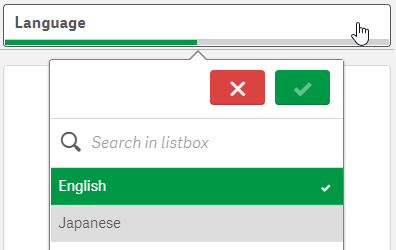
A colleague of mine had translated two demos from the Demo Site to Japanese and wanted to know if we could post them on the Demo Site alongside the English versions. We decided that it would be best to combine the English and Japanese versions into one multilingual Qlik Sense app making it easier for us to add additional languages to the app as needed. It was an easy process and required only a few steps:Create a translation sheet with all the languages that will be available in the appUpdate the script to add a table of the translations and a list of the languages available in the appAdd a Language filter pane to every sheet in the app that allows only one selected valueUpdate sheet names, chart titles, subtitles and labels with an expression that will display the text in the selected languageCreate Translation SheetTo begin the process of making a demo multilingual, I created an Excel file with all the languages that are to be included in the app. Below is a snippet of the worksheet. The first column, Index, has a unique value which will be used in the charts and expressions to indicate what data should be displayed. The second and third columns are the languages to be used in the app. An additional column can be added for additional languages that need to be added to the app. In this scenario, I entered all the English text (sheet names, chart titles and subtitles, labels and text) and then using the Japanese version of the app, I entered the respective Japanese text. If I did not have the Japanese version of the app, I would have shared the Excel file with someone who could enter the Japanese translations for me. Preparing the Excel file in this format makes it easy to add additional languages to the app without having to update the QVF.Snippet of Excel translation sheetUpdate the ScriptOnce the translation sheet was created, it needed to be loaded into the data model. The script below is what I added to the demo.On line 1, the HidePrefix system variable is used to hide all fields that begin with “#.” Starting on line 3, the Excel file is loaded. Once it is loaded, the vLanguage variable is set to the expression “=Minstring(#LANGUAGE).” This is an important step and we will take a closer look at this when we update the front-end. On line 13, the languages from the Excel file are loaded - users can select the language they would like to view from this list. These languages are then stored in the #LANGUAGE field which will be hidden from the user (since it starts with “#”).Add Language FilterOne each sheet in the app, I added a Language filter pane using the dimension #LANGUAGE that was created in the script. Once the script is reloaded with the HidePrefix variable, the #LANGUAGE field will not be visible, but you can still use it as the dimension in the Language filter pane. I needed to see the field temporarily so I commented out the HidePrefix line in the script and reloaded so I could change a setting on the field. I only want the user to be able to select one Language at a time, so I needed to check the “Always one selected value” checkbox in the Field settings of the #LANGUAGE field. (Right click on the #LANGUAGE field and select Field settings to see the window below).Field settings dialog windowOnce my settings are saved, I uncommented the HidePrefix line and reloaded the app to hide the #LANGUAGE field again. The filter pane will look like this (image below) and only one language can be selected at any given time. When a language is selected, the vLanguage variable (that was created in the script) will store the language. This variable is used later when updating the text in the UI.Language filter paneUpdate Front-EndNow the last step is to update everything in the app that should be translated. In this scenario, I updated sheet names, chart titles and subtitles, chart labels, KPI text and text on the sheets. Here is an example of how I updated the title of the Language filter pane. In the title field, I entered:In the snippet below from the Excel translation sheet, the Index is 64 for the text “Language” which is why I used it in the expression above for the title of the Language filter pane. This expression will return either the English or Japanese translation for Language depending on the value of the variable vLanguage.Snippet from Excel translation sheetAnother piece of information I would like to share is how I handled Text & image objects that needed to be translated. In the screenshot below, there is heading text and body text that have 2 different formats (font size and font color).To handle this, I created two variables, one for the heading and one for the body and in the variables, I stored the translation expression.This way, I was able to not only translate the text but format the text in a single Text & image chart two different ways.As you can see, it is easy to make a Qlik Sense app multilingual and it is easy to update the app with additional languages as needed. Sales, Customer Experience & Churn and Supply Chain – Inventory & Product Availability are the two demos that were made multilingual. Check them out and switch between the languages to see the final results. If you are interested in doing this in QlikView, check out Chuck Bannon’s blog on this topic as well as making the data multilingual in a QlikView app.Thanks,Jennell
...View More
Hi Guys -
A little feature that sometimes can be overlooked, can make a world of difference. Many know that the Master Items Library is a great way to store your reusable data visualizations, as well as expressions defined for your measures and dimensions. BUT did you know that you can quickly add your already defined expression to the Master Item Library without having to cut and paste and switch screens? Since the September 2019 release we have made it even easier to develop and encourage reuse - you can now quickly add those expressions to the Master Items Library with a click of a button. Check out this 60 second video to learn how.
Learn more in 60:https://www.youtube.com/watch?v=DruqV98s_xk&list=PLW1uf5CQ_gSpuFutN7IbRfzWeI1kgGZrH
Regards,
Mike TaralloQlik
...View More