Unlock a world of possibilities! Login now and discover the exclusive benefits awaiting you.

Featured Content
-
How to contact Qlik Support
Qlik offers a wide range of channels to assist you in troubleshooting, answering frequently asked questions, and getting in touch with our technical e... Show MoreQlik offers a wide range of channels to assist you in troubleshooting, answering frequently asked questions, and getting in touch with our technical experts. In this article, we guide you through all available avenues to secure your best possible experience.
For details on our terms and conditions, review the Qlik Support Policy.
Index:
- Support and Professional Services; who to contact when.
- Qlik Support: How to access the support you need
- 1. Qlik Community, Forums & Knowledge Base
- The Knowledge Base
- Blogs
- Our Support programs:
- The Qlik Forums
- Ideation
- How to create a Qlik ID
- 2. Chat
- 3. Qlik Support Case Portal
- Escalate a Support Case
- Phone Numbers
- Resources
Support and Professional Services; who to contact when.
We're happy to help! Here's a breakdown of resources for each type of need.
Support Professional Services (*) Reactively fixes technical issues as well as answers narrowly defined specific questions. Handles administrative issues to keep the product up-to-date and functioning. Proactively accelerates projects, reduces risk, and achieves optimal configurations. Delivers expert help for training, planning, implementation, and performance improvement. - Error messages
- Task crashes
- Latency issues (due to errors or 1-1 mode)
- Performance degradation without config changes
- Specific questions
- Licensing requests
- Bug Report / Hotfixes
- Not functioning as designed or documented
- Software regression
- Deployment Implementation
- Setting up new endpoints
- Performance Tuning
- Architecture design or optimization
- Automation
- Customization
- Environment Migration
- Health Check
- New functionality walkthrough
- Realtime upgrade assistance
(*) reach out to your Account Manager or Customer Success Manager
Qlik Support: How to access the support you need
1. Qlik Community, Forums & Knowledge Base
Your first line of support: https://community.qlik.com/
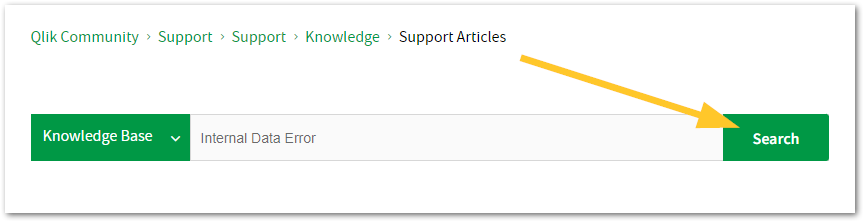
Looking for content? Type your question into our global search bar:
The Knowledge Base
Leverage the enhanced and continuously updated Knowledge Base to find solutions to your questions and best practice guides. Bookmark this page for quick access!
- Go to the Official Support Articles Knowledge base
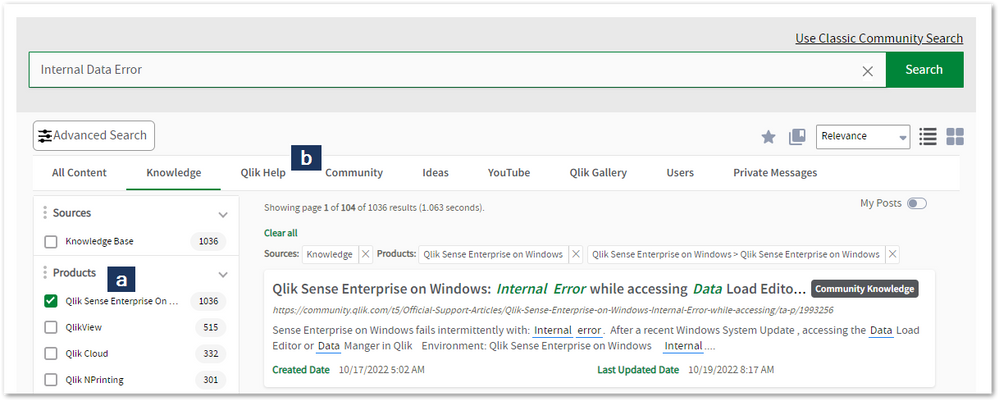
- Type your question into our Search Engine
- Need more filters?
- Filter by Product
- Or switch tabs to browse content in the global community, on our Help Site, or even on our Youtube channel
Blogs
Subscribe to maximize your Qlik experience!
The Support Updates Blog
The Support Updates blog delivers important and useful Qlik Support information about end-of-product support, new service releases, and general support topics. (click)The Qlik Design Blog
The Design blog is all about product and Qlik solutions, such as scripting, data modelling, visual design, extensions, best practices, and more! (click)The Product Innovation Blog
By reading the Product Innovation blog, you will learn about what's new across all of the products in our growing Qlik product portfolio. (click)Our Support programs:
Q&A with Qlik
Live sessions with Qlik Experts in which we focus on your questions.Techspert Talks
Techspert Talks is a free webinar to facilitate knowledge sharing held on a monthly basis.Technical Adoption Workshops
Our in depth, hands-on workshops allow new Qlik Cloud Admins to build alongside Qlik Experts.Qlik Fix
Qlik Fix is a series of short video with helpful solutions for Qlik customers and partners.The Qlik Forums
- Quick, convenient, 24/7 availability
- Monitored by Qlik Experts
- New releases publicly announced within Qlik Community forums (click)
- Local language groups available (click)
Ideation
Suggest an idea, and influence the next generation of Qlik features!
Search & Submit Ideas
Ideation GuidelinesHow to create a Qlik ID
Get the full value of the community.
Register a Qlik ID:
- Go to register.myqlik.qlik.com
If you already have an account, please see How To Reset The Password of a Qlik Account for help using your existing account. - You must enter your company name exactly as it appears on your license or there will be significant delays in getting access.
- You will receive a system-generated email with an activation link for your new account. NOTE, this link will expire after 24 hours.
If you need additional details, see: Additional guidance on registering for a Qlik account
If you encounter problems with your Qlik ID, contact us through Live Chat!
2. Chat
Incidents are supported through our Chat, by clicking Chat Now on any Support Page across Qlik Community.
To raise a new issue, all you need to do is chat with us. With this, we can:
- Answer common questions instantly through our chatbot
- Have a live agent troubleshoot in real time
- With items that will take further investigating, we will create a case on your behalf with step-by-step intake questions.
3. Qlik Support Case Portal
Log in to manage and track your active cases in the Case Portal. (click)
Before you can access the Support Portal, please complete your Community account setup. See First time access to the Qlik Customer Support Portal fails with: Unauthorized Access Please try signing out and sign in again.
Please note: to create a new case, it is easiest to do so via our chat (see above). Our chat will log your case through a series of guided intake questions.
Your advantages:
- Self-service access to all incidents so that you can track progress
- Option to upload documentation and troubleshooting files
- Option to include additional stakeholders and watchers to view active cases
- Follow-up conversations
When creating a case, you will be prompted to enter problem type and issue level. Definitions shared below:
Problem Type
Select Account Related for issues with your account, licenses, downloads, or payment.
Select Product Related for technical issues with Qlik products and platforms.
Priority
If your issue is account related, you will be asked to select a Priority level:
Select Medium/Low if the system is accessible, but there are some functional limitations that are not critical in the daily operation.
Select High if there are significant impacts on normal work or performance.
Select Urgent if there are major impacts on business-critical work or performance.
Severity
If your issue is product related, you will be asked to select a Severity level:
Severity 1: Qlik production software is down or not available, but not because of scheduled maintenance and/or upgrades.
Severity 2: Major functionality is not working in accordance with the technical specifications in documentation or significant performance degradation is experienced so that critical business operations cannot be performed.
Severity 3: Any error that is not Severity 1 Error or Severity 2 Issue. For more information, visit our Qlik Support Policy.
Escalate a Support Case
If you require a support case escalation, you have two options:
- Request to escalate within the case, mentioning the business reasons.
To escalate a support incident successfully, mention your intention to escalate in the open support case. This will begin the escalation process. - Contact your Regional Support Manager
If more attention is required, contact your regional support manager. You can find a full list of regional support managers in the How to escalate a support case article.
Phone Numbers
When other Support Channels are down for maintenance, please contact us via phone for high severity production-down concerns.
- Qlik Data Analytics: 1-877-754-5843
- Qlik Data Integration: 1-781-730-4060
- Talend AMER Region: 1-800-810-3065
- Talend UK Region: 44-800-098-8473
- Talend APAC Region: 65-800-492-2269
Resources
A collection of useful links.
Qlik Cloud Status Page
Keep up to date with Qlik Cloud's status.
Support Policy
Review our Service Level Agreements and License Agreements.
Live Chat and Case Portal
Your one stop to contact us.




Recent Documents
-
Introducing new permissions for Qlik Automate
This article provides details about the new permissions available for Private automations, which will replace the previous Automation Creator role. ... Show MoreThis article provides details about the new permissions available for Private automations, which will replace the previous Automation Creator role.
You can assign these permissions to a custom role or the User Default. More information about creating & managing custom roles is available here.
The existing Automation Creator role will be deprecated later in 2026.
Private automations
These permissions allow users to run and create automations in their personal space.
Shared automations
Earlier in 2025, we introduced the shared automation permission that allows users to run, create, and manage automations in shared spaces in which they have the correct permissions. More information about which space roles are required for the various automation actions is available here:
-
Top 10 Viz tips - part XI
More tips for app development in Qlik Analytics. Content as follows, full descriptions and demos in the app below. Table templatesBuild your own tab... Show MoreMore tips for app development in Qlik Analytics. Content as follows, full descriptions and demos in the app below.
- Table templates
Build your own table styles with header color and zebra stripes. Just copy style to apply. - KPI Card templates
Card examples, combine charts with the layout container. - Straight table custom report
Tailor custom reports with the table and bookmarks. - Filter the filter pane
Custom filter pane with aggr, here excluding values starting with 'Ba'. - Show variance
Use line chart shapes to show increase or decrease. - Pivot with interactive sort and totals
Extend the Pivot with interactive sort and totals toggle. - Highlight forecast
Use color and reference line to highlight forecast. - Map transparent background
Copy style to set the map background to transparent. - Selection and interaction off
Transparent Text on top of the chart turns off interaction and selections. - Scatter plot with pie charts
Why not do a scatter pie next time. Map chart plus the chart layer. - Custom waterfalls revisited
Combo chart waterfalls with subtotals and KPIs. - Sunburst revisited
This time with pie charts and the layout container. - Flow chart
Made easy with Line and Text. - Table transpose
Want to transpose the Straight table? Use the Pivot instead. - Activity gauge revisited
Made with pie charts and the layout container.
If you liked it, here's more in the same style:
- 24 days of visualization Season III, II, I
- Top 10 Tips Part X, IX, VIII, VII, VI, V, IV, III, II , I
- Let's make new charts with Qlik Sense
- FT Visual Vocabulary Qlik Sense version
- Similar but for Qlik GeoAnalytics : Part III, II, I
Thanks,
Patric - Table templates
-
AI Best Practices with Qlik Cloud
This Techspert Talks session covers: AI in Qlik Cloud Data prep best practices How Answers works Upcoming improvements Chapters: 02:21 - Qlik... Show More
-
Adding Qlik MCP to Snowflake CoWork
This article explains how to connect the Qlik MCP (Model Context Protocol) server to Snowflake CoWork, enabling Snowflake Cortex Agents to query and i... Show MoreThis article explains how to connect the Qlik MCP (Model Context Protocol) server to Snowflake CoWork, enabling Snowflake Cortex Agents to query and interact with Qlik Cloud resources, such as apps, data assets, and analytics, directly from the Snowflake AI interface.
Content
- Prerequisites
- Setup Steps
- Create an OAuth2 Client in Qlik Cloud
- Register the Qlik MCP Server in Snowflake
- Connect to Qlik MCP in Snowflake CoWork
- Test with a Cortex Agent
- Troubleshooting
- Related Content
Prerequisites
- Qlik Cloud: Tenant Administrator access to create OAuth clients in the Administration activity center
- Snowflake: ACCOUNTADMIN role (or a role with CREATE INTEGRATION and CREATE MCP SERVER privileges)
- Snowflake CoWork access (Cortex Agents) enabled on your Snowflake account
- Your Qlik Cloud tenant hostname (example: your-tenant.us.qlikcloud.com)
Setup Steps
Create an OAuth2 Client in Qlik Cloud
The OAuth2 client provides Snowflake with the credentials it needs to authenticate against the Qlik MCP server on behalf of users. For details on creating OAuth clients, see Creating and managing OAuth clients.
Copy the Client ID and Client Secret immediately after creation. The secret cannot be retrieved later — if lost, you must generate a new one.
- Log in to your Qlik Cloud tenant and navigate to the Administration activity center, or go directly to https://<your-tenant>/console.
- Go to OAuth
- Click Create New
- Fill in the following fields:
- Name: A descriptive name
- Client type: Web
- Authentication method: Client secret
- Redirect URL: https://identity.snowflake.com/oauth2/callback
- Allowed origins (optional): https://identity.snowflake.com
- Scopes: user_default, mcp:execute, offline_access
The mcp:execute scope is required to allow Snowflake to invoke tools on the Qlik MCP server. The user_default scope grants access to resources the authenticated user can already access in Qlik Cloud.
The offline_access scope is required for Snowflake to persist refresh tokens. Without it, the OAuth flow appears to succeed but the agent cannot discover the MCP tool. See Qlik MCP Server Connection Setup for Snowflake Cortex Agent.
- Click Create.
- A dialog will display the Client ID and Client Secret.
Copy both values immediately and store them securely. The Client Secret will not be shown again.
Register the Qlik MCP Server in Snowflake
For details on the Qlik MCP server endpoint and supported tools, see Connecting to the Qlik MCP server.
Using the OAuth client credentials previously retrieved, run the create-mcp-agent.sql accessible on GitHub (link), to:- Create an API Integration with OAuth2 client credentials
- Create an External MCP Server pointing to the Qlik MCP endpoint
- Grant access to the specified role
- Create a Cortex Agent wired to the MCP server
- Register the agent with Snowflake Intelligence
The SYSTEM$START_USER_OAUTH_FLOW call at the end generates a URL you can open in a browser to validate the OAuth handshake with Qlik Cloud before proceeding to Snowflake CoWork.
Connect to Qlik MCP in Snowflake CoWork
Once the MCP server is registered in Snowflake, you can authorize and use it directly from the Snowflake CoWork UI.
- Open Snowflake CoWork. The URL follows the pattern https://ai.snowflake.com/<orgname>/<accountname>.
For example, https://ai.snowflake.com/myorg/myaccount. If you are unsure of your URL, contact your Snowflake account administrator. - Click your profile icon (bottom left corner) to open your personal settings.
- Navigate to the Connectors section. You will see Qlik MCP Server listed, pointing to your configured Qlik Cloud tenant.
- Click the Connect button next to the Qlik MCP entry.
- You will be redirected to Qlik Cloud to complete the OAuth2 authorization flow. Log in with your Qlik Cloud credentials if prompted, then approve the requested permissions (user_default, mcp:execute).
- After authorization, you are returned to Snowflake CoWork. The Qlik MCP connector will show a Connected status.
- You can now ask Snowflake CoWork questions that involve Qlik Cloud resources. The Cortex Agent will automatically invoke the appropriate Qlik MCP tools to retrieve data, apps, or analytics content.
Test with a Cortex Agent
To validate the full integration, create a test Cortex Agent that uses the Qlik MCP server.
Before running: Replace CORTEX_APP.PUBLIC with the database and schema where you want to create the agent in your Snowflake environment. The database must already exist.
-- Replace <YOUR_DATABASE> and <YOUR_SCHEMA> with your target database and schema
CREATE OR REPLACE AGENT <YOUR_DATABASE>.<YOUR_SCHEMA>.qlik_mcp_test_agent
  FROM SPECIFICATION $$
models:
  orchestration: auto
instructions:
  response: >
    You are a test agent that verifies connectivity to the Qlik MCP server.
    Use the available Qlik tools to answer the user's question.
  orchestration: "Use the Qlik MCP tools to answer questions about Qlik Cloud."
mcp_servers:
  - server_spec:
      name: "<YOUR_DATABASE>.<YOUR_SCHEMA>.QLIK_MCP_SERVER"
$$;
Once created, invoke the agent with a test prompt such as: What Qlik apps are available in my tenant?
A successful response confirms end-to-end connectivity between Snowflake Cortex and the Qlik MCP server.
Troubleshooting
OAuth redirect fails
Typically caused by a Redirect URL mismatch. Verify https://identity.snowflake.com/oauth2/callback is set in the Qlik OAuth client
mcp:execute scope error
The scope not enabled on OAuth client. Edit the OAuth client in Qlik Cloud Administration activity center and add the mcp:execute scope
Client Secret rejected
Secret was rotated or lost. Generate a new client secret and update $CLIENT_SECRET in the script
MCP Server not visible in Snowflake CoWork
The correct role was not granted. Confirm GRANT USAGE ON MCP SERVER was executed for the user's active role.
Agent returns no results
The OAuth flow was not completed. Complete the steps in Connect to Qlik MCP in Snowflake CoWork.
Related Content
- Connecting to the Qlik MCP server | Qlik Cloud Help
- Creating and managing OAuth clients | Qlik Cloud Help
- Snowflake External MCP Server documentation
Environment
- Qlik MCP
- Qlik Cloud
The information in this article is provided as-is and to be used at your own discretion. Depending on the tools used, customizations, and/or other factors, ongoing support on the solution described may not be provided by Qlik Support.
-
How to extract changes from the change store (Write table) and store them in a Q...
This article is currently under review. This article explains how to extract changes from a Change Store and store them in a QVD by using a load scrip... Show MoreThis article is currently under review.
This article explains how to extract changes from a Change Store and store them in a QVD by using a load script in Qlik Analytics.
The article also includes
- An app example with an incremental load script that will store new changes in a QVD
- Configuration instructions for the examples
Scenario
This example will create an analytics app for Vendor Reviews. The idea is that you, as a company, are working with multiple vendors. Once a quarter, you want to review these vendors.
The example is simplified, but it can be extended with additional data for real-world examples or for other “review” use cases like employee reviews, budget reviews, and so on.
The data model
The app’s data model is a single table “Vendors” that contains a Vendor ID, Vendor Name, and City:
Vendors:
Load * inline [
"Vendor ID","Vendor Name","City"
1,Dunder Mifflin,Ghent
2,Nuka Cola,Leuven
3,Octan, Brussels
4,Kitchen Table International,Antwerp
];
The Write Table
The Write Table contains two data model fields: Vendor ID and Vendor Name. They are both configured as primary keys to demonstrate how this can work for composite keys.
The Write Table is then extended with three editable columns:
- Quarter (Single select)
- Action required? (Single select)
- Comment (Manual user input)
Prerequisites
- A shared space
- A managed space (optional but advised for the tutorial)
- A connection to the Change-stores API to the Analytics REST connector in the shared space. A step-by-step guide on creating this connection is available in Extracting write table changes with the REST connector in Qlik Cloud.
Steps
- Upload the attached .QVF file to a shared space
- Open the private sheet Vendor Reviews
- Click the Reload App (A) button and make sure data appears (B) in the top table
- Go to Edit sheet (A) mode
- Drag a Write Table Chart (B) on the top table, and choose the option Convert to: Write Table (C).
This transforms the table into a Write Table with two data model columns Vendor ID and Vendor Name.
- Go to the Data section in the Write Table’s Properties menu and add an editable column
- This prompts you to define a primary key inside the table. Click Define (A) in the table and use both Vendor ID and Vendor Name as primary keys (B).
You can also just use Vendor ID, but we want to show that this also supports composite primary keys. - Configure the editable column:
- Title: Quarter
- Show content: Single selection
- Add options for Q1Y26 through Q4Y26.
Tip! Also add an empty option by clicking the Add button without specifying a value.
- Add another Editable column with the below configuration
- Title: Action required
- Type: Single select
- Options: Yes and No
- Add another Editable column with the below configuration
- Title: Review
- Type: Single select
- Options: Yes and No
- The Write Table is now set up.
Go to the Write Table’s properties and locate the Change store (A) section. Copy the Change store ID (B).
- Leave the Edit sheet mode. Then add changes for at least two records. Save those changes.
- Go to the app’s load script editor and uncomment the second script section by first selecting all lines in the script section (CTRL+A or CMD+A) (A) and then clicking the comment button (B) in the toolbar.
- Configure the settings in the CONFIGURATION part at the end of the load script
- Update the load script with the IDs of the editable columns.
The easiest solution to get these IDs is to test your connection. Make sure the connection URL is configured to use the /changes/tabular-views endpoint and uses the correct change store ID.
- Copy and paste the example load script (for the editable columns only) and paste it in the app’s load script SQL Select statement that starts on line 159:
- Replace the corresponding * symbols in the LOAD statement that starts on line 176:
- Choose which records you want to track in your table by configuring the Exists Key on line 216.
This key will be used to filter the “granularity” on which we want to store changes in the QVD and data model, as the load script will only load unique existing keys (line 235).
- $(vExistsKeyFormula) is a pipe-separated list of the primary keys.
- In this example, Quarter is added as an additional part of the exists key to keep track of changes by Quarter.
- Optionally, this can be extended with createdBy and updatedAt to extend the granularity to every change made:
- Reload the app and verify that the correct change store table is created in your data model. The second table in the sheet should also successfully show vendors and their reviews.
Environment
- Qlik Cloud Analytics
-
Unable to uninstall Qlik Sense Patches
Unable to uninstall Qlik Sense Patches during Qlik Sense patch process . Unable to uninstall Qlik Sense Patches through "Control Panel > Program > Pro... Show MoreUnable to uninstall Qlik Sense Patches during Qlik Sense patch process .
Unable to uninstall Qlik Sense Patches through "Control Panel > Program > Program and Features >Installed Updates".
For example:
- The customer has Qlik Sense (any version) with Patch X (any patch) then upgraded the environment to a Qlik Sense upper version.
The Qlik Sense upgrade was successful. - Then Customer tried to install a Qlik Sense new patch, but It failed during uninstalling patches.
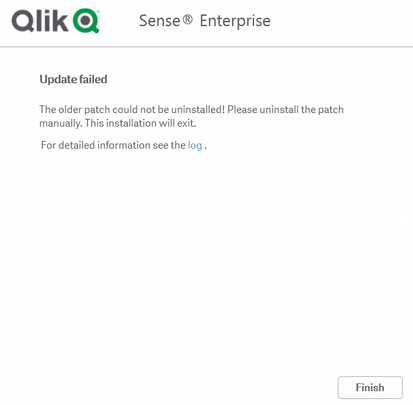
Update failed "Ensure that Qlik Sense is installed with version x before you install Qlik Sense Patch x" or "The older patch could not be uninstalled! Please uninstall the patch manually" - There is error when uninstalling patches :
11/26/2021 11:24:42 AM - Uninstalling old Patch 'Qlik Sense June 2020 Patch 11' with version '13.82.19'.
11/26/2021 11:24:42 AM - Uninstalling 'C:\ProgramData\Package Cache\90ba0dc4-52ee-42d7-b5fa-e1867bd5481c\Qlik_Sense_update.exe' with uninstallcommand 'uninstall'.
11/26/2021 11:24:42 AM - Uninstall process started.
11/26/2021 11:24:42 AM - Waiting for exit on uninstall process 'Qlik_Sense_update' with PID '1320'.
11/26/2021 11:24:44 AM - Uninstall process exited with exit code '-1'.
11/26/2021 11:24:44 AM - Error! Uninstall of old Patch 'Qlik Sense June 2020 Patch 11' with version '13.82.19' failed.
11/26/2021 11:24:44 AM - Update failed
11/26/2021 11:24:44 AM - The older patch could not be uninstalled! Please uninstall the patch manually. This installation will exit.
11/26/2021 11:26:13 AM - Exit code: -1
Or :
Error! Could not uninstall patch: QlikSenseEnterprisePatch with uninstall command - Unable to uninstall Qlik Sense Patches through "Control Panel > Program > Program and Features >Installed Updates" as well.
Resolution
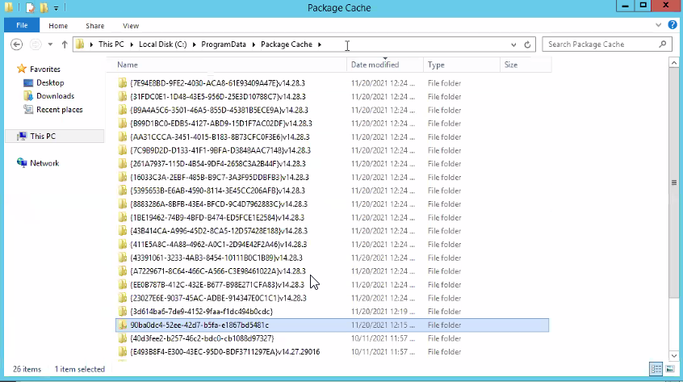
- Check the problematic "Package Cache folder" in the installation log
e.g 'C:\ProgramData\Package Cache\90ba0dc4-52ee-42d7-b5fa-e1867bd5481c\Qlik_Sense_update.exe' - Rename the "Package Cache folder"
e.g From: C:\ProgramData\Package Cache\90ba0dc4-52ee-42d7-b5fa-e1867bd5481c\
To: C:\ProgramData\Package Cache\90ba0dc4-52ee-42d7-b5fa-e1867bd5481c_AAA\
Note:
- Usually the Patch package is the only folder not starting with the "{" sign.
- Do only change the folder name and then uninstall the patch (step 3). - Go to "Control Panel > Program > Program and Features > Installed Updates
- Uninstall the old Qlik Sense patch
Cause
- Old patch has been broken during the Qlik Sense upgrade
- Old Qlik Sense patch should be uninstalled before upgrading Qlik Sense version
- The customer has Qlik Sense (any version) with Patch X (any patch) then upgraded the environment to a Qlik Sense upper version.
-
Qlik Replicate 2026.5 on Linux with a DB2 source to a Snowflake target loads inv...
This issue occurs when replicating data from an IBM DB2 source to a Snowflake target using Linux Qlik Replicate 2026.5. The data arrives at the target... Show MoreThis issue occurs when replicating data from an IBM DB2 source to a Snowflake target using Linux Qlik Replicate 2026.5. The data arrives at the target but is invalid or corrupted. The source table in DB2 uses VARCHAR and CHAR columns defined with the OCTETS length semantics.
Resolution
Verify and correct the IBM DB2 ODBC driver configuration:
- Open the file /etc/odbcinst.ini in a text editor.
- Locate the [IBM DB2 ODBC DRIVER] section.
- Verify that the Driver parameter points to /home/<user>/sqllib/lib/libdb2o.so (note the o suffix).
- Ensure the section matches the following format:
Replace <user> with the actual system user account under which the DB2 client libraries are installed.[IBM DB2 ODBC DRIVER] Driver = /home/<user>/sqllib/lib/libdb2o.so fileusage=1 dontdlclose=1 - If the Driver parameter pointed to libdb2.so (without the o), update it to libdb2o.so.
- Save the file.
- Recreate the Qlik Replicate task without any existing transformations.
- Enable verbose logging for source_unload, target_load, and metadata_manager.
- Run the task and verify that data is loaded correctly into Snowflake.
- If data is still invalid, collect the verbose logs and contact Qlik Support.
Cause
The IBM DB2 ODBC driver configuration is pointing to the wrong library file. When the /etc/odbcinst.ini configuration file references libdb2.so instead of the correct libdb2o.so, the ODBC driver does not properly handle character encoding and column width semantics during the unload operation. This causes data to be extracted or loaded incorrectly.
Environment
- Qlik Replicate
-
Version Control Solution Suggestions for Qlik Sense
The information in this article is provided as-is and to be used at own discretion. Depending on tool(s) used, customization(s), and/or other factors ... Show MoreThe information in this article is provided as-is and to be used at own discretion. Depending on tool(s) used, customization(s), and/or other factors ongoing support on the solution below may not be provided by Qlik Support.
Support has collected a number of resources helpful for the implementation of Qlik Sense Version Control functionality.
- QS event driven cross site app promoter: https://github.com/eapowertools/qs-event-driven-cross-site-app-promoter
- EAPowertools - QMCU- SCLite: https://github.com/eapowertools/qmcu-sclite
- Qlik Sense Developers Help
- C# .NET Example: https://github.com/StevenJDH/Qlik-Sense-.NET-Example
- QRS API Endpoints (subset)
- Qlik Branch (Garden) https://developer.qlik.com/garden
Qlik Partner Solutions:
- Gitoqlok: A Chrome Extension that adds source versioning control to Qlik, Gitoqlok
For more information from the vendor, see How to use git with Qlik Sense - EBIExperts Solution: WIP: https://www.ebiexperts.com/products/
- In4BI Solution: Platform Manager: https://in4bi
-
Qlik Replicate 2024.5 GA Build 144: Store Changes using the new use_manipulation...
With Store Changes (see Change Processing) turned on for CDC tasks, Qlik Replicate tasks may crash or stop unexpectedly with the new feature use_manip... Show MoreWith Store Changes (see Change Processing) turned on for CDC tasks, Qlik Replicate tasks may crash or stop unexpectedly with the new feature use_manipulation_pk_for_apply enabled.
The following errors may be logged in the task log:
2024-07-30T09:53:22:497564 [AT_GLOBAL ]E: An exception occurred!!! (win32_exception_handler.c:109)
2024-07-30T09:53:22:499561 [AT_GLOBAL ]E: Backtrace at exception: !{C:\Program Files\Attunity\Replicate\bin\at_base.dll!4537ab...
2024-07-30T09:53:22:499561 [AT_GLOBAL ]E: exception code is 3221225477 (win32_exception_handler.c:112)
2024-07-30T09:53:22:499561 [AT_GLOBAL ]E: tid=22112 (win32_exception_handler.c:115)
2024-07-30T09:53:22:499561 [AT_GLOBAL ]E: exception as string is EXCEPTION_ACCESS_VIOLATION (win32_exception_handler.c:118)
Environment
- Qlik Replicate 2024.5.144 GA & 2024.5.247 PR1
Resolution
Fix Version
Upgrade to 2024.5 SP02 (for Windows and Linux) when available.
Workaround
To work around the issue:
- Go to Task Settings...
- Open the Full Load tab
- In Full Load Settings set If target table already exists: DROP and CREATE table
- Back in Task Settings... open the More Options tab
- Add the following feature:
use_manipulation_pk_for_apply
value: Off
Cause
Product Defect ID: QB-28312
Information provided on this defect is given as is at the time of documenting. For up to date information, please review the most recent Release Notes, or contact support with the ID QB-28312 for reference.
-
Kerberos authentication with Qlik Sense Enterprise on Windows
This article explains the steps to configure Kerberos with Qlik Sense Enterprise on Windows. Note that the actual setup, implementation, and configura... Show MoreThis article explains the steps to configure Kerberos with Qlik Sense Enterprise on Windows.
Note that the actual setup, implementation, and configuration of Kerberos for use with Qlik Sense Enterprise on Windows is the responsibility of the local IT administrator.
The following requires appropriate permissions in Active Directory to add Service Principal Names to the account running the Qlik Sense services.
A Service Principal Name may be registered using the following command:setspn -A http/HOST serviceaccount
Where:
- HOST is the name of the server hosting Qlik Sense Enterprise on Windows
- serviceaccount is the account running the services
Once the SPN has been registered:
- Open a command prompt with administrative privileges and type:
setspn -U -S http/QlikServer1 COMPANYX\serviceAccount
Review the command for your respective Windows version.
setspn -U -S http/QlikServer1.companyx.local COMPANYX\serviceAccount - Go to the Qlik Sense Management Console (QMC) > Proxy > Edit the proxy you wish to use
- Tick the Enable Kerberos checkbox.
An SPN must be set for both the short hostname and FQDN for the target Qlik Sense server for Kerberos to work correctly. This is not related to URLs configured in the Web Client allowlist under the Virtual Proxy configuration.
For more information about Service Principal Names, see: Service principal names | learn.microsoft.com.
Important note for Monitoring Apps: If Kerberos is enabled on the proxy service, Windows authentication will fail as the REST connector does not support Kerberos. See Qlik Sense: Modify REST connections for Monitoring Apps to use JWT authentication.
-
Qlik Sense Enterprise on Windows Engine fails to start with Failed to connect ( ...
The Qlik Sense Enterprise on Windows Engine fails to start with the following error in the Windows Application Event log: Startup failed: Engine GetQr... Show MoreThe Qlik Sense Enterprise on Windows Engine fails to start with the following error in the Windows Application Event log:
Startup failed: Engine GetQrsSettings GET settings: Exception=SimpleHttpClient::SnedRequest: Failed to connect ( GET /qrs/engineservice/local?xrfkey=ichBinEinBerlinR ) (87) error
Environment
- Qlik Sense Enterprise on Windows May 2026 IR and later (TLS 1.3)
- Microsoft Windows Server 2019 or 2016 (no TLS 1.3 support)
Resolution
Align with your IT team to disable TLS 1.3 in the Windows Registry and confirm whether any Domain Policies or automation are set to enable it automatically.
The following PowerShell script is an example of how to disable TLS 1.3 in the Windows Registry:
 # Disable TLS 1.3
If (-Not (Test-Path 'HKLM:\SYSTEM\CurrentControlSet\Control\SecurityProviders\SCHANNEL\Protocols\TLS 1.3\Server')) {
    New-Item 'HKLM:\SYSTEM\CurrentControlSet\Control\SecurityProviders\SCHANNEL\Protocols\TLS 1.3\Server' -Force | Out-Null
}
New-ItemProperty -Path 'HKLM:\SYSTEM\CurrentControlSet\Control\SecurityProviders\SCHANNEL\Protocols\TLS 1.3\Server' -Name 'Enabled' -value '0' -PropertyType 'DWord' -Force | Out-Null
New-ItemProperty -Path 'HKLM:\SYSTEM\CurrentControlSet\Control\SecurityProviders\SCHANNEL\Protocols\TLS 1.3\Server' -Name 'DisabledByDefault' -value 1 -PropertyType 'DWord' -Force | Out-Null

If (-Not (Test-Path 'HKLM:\SYSTEM\CurrentControlSet\Control\SecurityProviders\SCHANNEL\Protocols\TLS 1.3\Client')) {
    New-Item 'HKLM:\SYSTEM\CurrentControlSet\Control\SecurityProviders\SCHANNEL\Protocols\TLS 1.3\Client' -Force | Out-Null
}
New-ItemProperty -Path 'HKLM:\SYSTEM\CurrentControlSet\Control\SecurityProviders\SCHANNEL\Protocols\TLS 1.3\Client' -Name 'Enabled' -value '0' -PropertyType 'DWord' -Force | Out-Null
New-ItemProperty -Path 'HKLM:\SYSTEM\CurrentControlSet\Control\SecurityProviders\SCHANNEL\Protocols\TLS 1.3\Client' -Name 'DisabledByDefault' -value 1 -PropertyType 'DWord' -Force | Out-Null
Write-Host 'TLS 1.3 has been disabled.' -ForegroundColor Cyan
Write-Host 'You must restart the Windows Server for the changes to take effect.' -ForegroundColor Cyan
Cause
TLS 1.3 was enabled in the Windows Registry Settings while otherwise not supported by the operating system. See Protocols in TLS/SSL (Schannel SSP) | learn.microsoft.com for details.
Internal Investigation ID(s)
SUPPORT-12386
-
IntervalMatch and Slowly Changing Dimensions in Qlik Analytics
What techniques are there to match a number with an interval? How does the IntervalMatch prefix work? Should I join the interval match table with the... Show More- What techniques are there to match a number with an interval?
- How does the IntervalMatch prefix work?
- Should I join the interval match table with the event table?
- How do I generate an interval from a single change date?
- What is a Slowly Changing Dimension?
- How do I model a multi-level Slowly Changing Dimension?
These questions and others are answered in the attached Technical Brief.
See also the following blog posts:
- IntervalMatch
- Creating a Date Interval from a Single Date
- Creating Reference Dates for Intervals
- Slowly Changing Dimensions

-
Qlik Replicate and Synapse target: failed to drop scoped credential
A Qlik Replicate Full-load replication task to a Synapse target fails with: [TARGET_LOAD ]E: Failed (retcode -1) to execute statement: ‘DROP DATA... Show MoreA Qlik Replicate Full-load replication task to a Synapse target fails with:
[TARGET_LOAD ]E: Failed (retcode -1) to execute statement: ‘DROP DATABASE SCOPED CREDENTIAL [ATTREP_Table]’
[TARGET_LOAD ]E: Failed to create and execute: ‘DROP EXTERNAL DATA SOURCE [ATTREP_table]’
[TARGET_LOAD ]E: Failed to handle drop external data source: ‘ATTREP_table]’Affected version
- Qlik Replicate version: 2025.11.0.634
Resolution
This defect was reproduced when previous tables were not cleaned up properly.
Workaround:
No workaround available.
Fix Version:
2025.11.838
Cause
Product Defect ID: SUPPORT-12176
Information provided on this defect is given as is at the time of documenting. For up-to-date information, please review the most recent Release Notes, or contact support with the ID SUPPORT-12176 for reference.
-
Qlik Talend Cloud and SQL server source: "Start from Timestamp" run fails with e...
When running a Qlik Talend Cloud replication task with a SQL Server source, using the Advanced Run Options to start from a timestamp, the task fails w... Show MoreWhen running a Qlik Talend Cloud replication task with a SQL Server source, using the Advanced Run Options to start from a timestamp, the task fails with the following error:
SqlStat: 42000 NativeError:9005 [Microsoft][ODBC Driver 18 for SQL Server][SQL Server]Invalid parameter passed to OpenRowset(DBLog, ...).
Resolution
Instead of starting from the timestamp, get the corresponding LSN (Log Sequence Number) from the SQL Server backup history, and start the task from that LSN.
- Instead of starting the task from the raw timestamp, identify the LSN (Log Sequence Number) that corresponds to the intended point in time.
- Run the following query against the SQL Server source database to find the backup set that contains the target LSN, and confirm its first and last LSN values (in hexadecimal). Replace '00330E09:002FA850:0006' with the target LSN value:
- In the Advanced Run Options for the replication task, use the LSN returned by the query as the starting point, instead of the timestamp.
Example query:SELECT
[dbo].[attrep_fn_NumericLsnToHexa](bs.first_lsn),
[dbo].[attrep_fn_NumericLsnToHexa](bs.last_lsn),
bmf.*,
bs.*
FROM msdb.dbo.backupmediafamily bmf, msdb.dbo.backupset bs
WHERE bmf.media_set_id = bs.media_set_id
AND bs.database_name = db_name()
AND bs.type = 'L'
AND CAST([dbo].[attrep_fn_NumericLsnToHexa](bs.first_lsn) COLLATE SQL_Latin1_General_CP1_CI_AS AS VARCHAR(24))
<= CAST('00330E09:002FA850:0006' COLLATE SQL_Latin1_General_CP1_CI_AS AS VARCHAR(24))
AND CAST('00330E09:002FA850:0006' COLLATE SQL_Latin1_General_CP1_CI_AS AS VARCHAR(24))
< CAST([dbo].[attrep_fn_NumericLsnToHexa](bs.last_lsn) COLLATE SQL_Latin1_General_CP1_CI_AS AS VARCHAR(24));
Cause
When a replication task is started from a timestamp against a SQL Server source, the timestamp value returned by SQL Server is in UTC time, not the local time zone. Using that timestamp directly with the Start from timestamp option is what causes this error.
Environment
- Qlik Talend Cloud
-
Point Qlik Replicate at an AG Secondary Replica instead of the primary (High Ava...
To point Qlik Replicate at an AG Secondary Replicate instead of the primary, follow these steps; Create the publication/articles/filters the same way... Show MoreTo point Qlik Replicate at an AG Secondary Replicate instead of the primary, follow these steps;
- Create the publication/articles/filters the same way Replicate would or enable MS-CDC per the User's Guide for all the tables in the task.
- Set the SQL Server Source Endpoint internal parameter ignoreMsReplicationEnablement so that Replicate will not check for publication/articles.
- Set the SQL Server Source Endpoint internal parameter safeguardPolicyDesignator to ‘None’ so that Replicate will not try to create a transaction on the source.
- Set the SQL Server Source Endpoint internal parameter AlwaysOnSharedSynchedBackupIsEnabled so that Replicate will not try to connect to all the AG Replicas to read the MSDB.
- Set the SQL Server Source Endpoint ‘Change processing mode (read changes from):’ to ‘Backup Logs Only’
- As part of their transaction log backup maintenance plan, it's needed to run a script to merge the MSDB entries across all the Replicas. This may not be necessary if the backup is done on the secondary Replica that we will be attached to. The backups should also be placed on a share the Replicate can get access to. Optionally use 'Replicate has file-level access' if the backups are not encrypted and Replicate has direct access to them.
- It is needed to create the LSN/Numeric conversion scalar functions on the source database on the secondary.
Limitations include:
- Can read from backups only.
- Manual setup of publications/articles or MS CDC.
- Manual creation of supporting LSN conversion functions
The information in this article is provided as-is and to be used at own discretion. Depending on tool(s) used, customization(s), and/or other factors ongoing support on the solution below may not be provided by Qlik Support.
-
Configuring Qlik Data Movement Gateway High Availability on Linux with Pacemaker...
This article is provided as is. For assistance, contact Qlik's Professional Services. Qlik Data Movement gateway supports a Linux failover cluster in ... Show MoreThis article is provided as is. For assistance, contact Qlik's Professional Services.
Qlik Data Movement gateway supports a Linux failover cluster in an active-passive configuration. Only one Data Movement gateway service instance should be active against the shared gateway data folder at any time.
This article provides an example implementation using:
- Two Linux nodes
- Pacemaker/Corosync
- Shared block storage, such as iSCSI or a SAN (storage area network)
- A shared filesystem mounted at /opt/qlik/gateway/movement/data
The Pacemaker/Corosync commands in this article are implementation examples. Cluster, storage, fencing, and networking should follow the operating system and infrastructure vendor documentation.
Important: Qlik documents active-passive failover as a hard requirement, because only one Data Movement gateway instance can access the shared data folder at a time.
At the time of writing, Qlik lists RHEL 8.x, RHEL 9.x, and Amazon Linux 2023 as certified platforms, with corresponding compatible distributions also supported. Always check current system requirements before deployment. See Data Movement gateway system requirements.
Architecture
                         Qlik Cloud
                             |
                    Outbound HTTPS/443
                             |
                    Data Movement Gateway
                             |
                    Pacemaker / Corosync
                             |
              +--------------+--------------+
              |                             |
           Node 1                         Node 2
        Gateway ACTIVE               Gateway PASSIVE
              \                             /
               \                           /
                   Shared Block Storage
                          |
                      XFS / ext4
                          |
             /opt/qlik/gateway/movement/data
Pacemaker group:
DataMovement_HA
- Gateway_Filesystem
- Gateway_Service
A floating virtual IP (VIP) is not normally required for the Data Movement gateway, because communication with Qlik Cloud is outbound.
Prerequisites
Verify the following before deployment:
- Two supported Linux nodes
- Pacemaker, Corosync, and PCS installed
- Shared block storage visible to both nodes
- The same LUN (logical unit number) serial or WWID (World Wide Identifier) visible from both nodes
- The same Data Movement gateway version installed on both nodes
- Outbound HTTPS/TCP 443 connectivity to Qlik Cloud
- Fencing/STONITH available for production
- Qlik Replicate is not installed on the same server
Prepare the Linux cluster
Install the typical RHEL packages:
dnf install -y pcs pacemaker fence-agents-all resource-agent
systemctl enable --now pcsd
Set the same hacluster password on both nodes:
passwd hacluster
Authenticate and create the cluster:
pcs host auth node1 node2
pcs cluster setup datamovement_cluster --start node1 node2
pcs cluster enable --all
Verify:
pcs status
pcs cluster status
For production, configure appropriate fencing/STONITH.
Prepare shared block storage
Qlik requires /opt/qlik/gateway/movement/data to be mounted on shared block storage. NFS-based mounts are not supported for this use case.
Verify that both nodes see the same LUN:
lsblk -o NAME,SIZE,TYPE,FSTYPE,MOUNTPOINTS,MODEL,SERIAL
For iSCSI:
dnf install -y iscsi-initiator-utils
systemctl enable --now iscsid
cat /etc/iscsi/initiatorname.iscsi
Discover and log in:
iscsiadm -m discovery -t sendtargets -p <ISCSI_TARGET_IP>
iscsiadm -m node -T <TARGET_IQN>  -p <ISCSI_TARGET_IP>:3260  --login
Make the login persistent:
iscsiadm -m node -T <TARGET_IQN> -p <ISCSI_TARGET_IP>:3260 --op update -n node.startup -v automatic
Use a stable device ID:
ls -l /dev/disk/by-id/ | grep <device>
Do not use /dev/sdb directly in the Pacemaker resource.
Create the filesystem once, on one node only. Example:
wipefs -n /dev/sdb
mkfs.xfs /dev/sdb
Do not add the shared filesystem to /etc/fstab; Pacemaker should control it.
Install Data Movement gateway on both nodes
Install the same gateway build on both nodes, using the normal Qlik installation procedure.
Verify:
rpm -qa | grep -i qlik
systemctl status repagent --no-pager
Default locations:
- Install path: /opt/qlik/gateway/movement
- Data path: /opt/qlik/gateway/movement/data
- Service: repagent.service
Convert the gateway data directory to shared storage
On each participating node, follow the Qlik HA preparation sequence.
Stop the service:
systemctl stop repagent
Verify that it's inactive:
systemctl status repagent --no-pager
Preserve the local data directory:
cd /opt/qlik/gateway/movement
mv data data-save
mkdir data
chown qlik:qlik data
Mount the shared block device at /opt/qlik/gateway/movement/data. Example:
mount /dev/disk/by-id/<stable-device-id> /opt/qlik/gateway/movement/data
Copy the preserved data-save contents into the mounted shared data directory, according to the Qlik HA setup procedure.
Disable normal OS startup:
systemctl disable repagent
The intended model is:
systemd boot  -> does not independently start repagent
Pacemaker     -> starts repagent only on the active node
Create the Pacemaker filesystem resource
pcs resource create Gateway_Filesystem ocf:heartbeat:Filesystem device="/dev/disk/by-id/<stable-device-id>" directory="/opt/qlik/gateway/movement/data" fstype="xfs" op monitor interval=20s
Verify:
pcs status
df -hT /opt/qlik/gateway/movement/data
The passive node should not have the shared filesystem mounted.
Create the gateway service resource
pcs resource create Gateway_Service systemd:repagent op monitor interval=10s timeout=30s
Group the resources:
pcs resource group add DataMovement_HA Gateway_Filesystem Gateway_Service
Expected:
Resource Group: DataMovement_HA:
  Gateway_Filesystem  Started node1
  Gateway_Service     Started node1
systemctl status repagent may show Cluster Controlled repagent.service, which is expected when Pacemaker owns the service.
Validate normal operation
Check:
pcs status
df -hT /opt/qlik/gateway/movement/data
systemctl status repagent --no-pager
ps -ef | egrep '[a]gentctl|[r]epctl'
The gateway processes should reference:
-d /opt/qlik/gateway/movement/data
Also verify the gateway status in Qlik Cloud Administration after initialization completes.
Test failover
Test a manual resource move
pcs resource move DataMovement_HA node2
watch -n 2 pcs status
Verify on Node 2:
df -hT /opt/qlik/gateway/movement/data
systemctl status repagent --no-pager
ps -ef | egrep '[a]gentctl|[r]epctl'
Verify that Node 1 no longer owns the service or mount:
systemctl is-active repagent
mount | grep /opt/qlik/gateway/movement/data
Clear the temporary move preference:
pcs resource clear DataMovement_HA
Test node standby
pcs node standby node1
watch -n 2 pcs status
pcs node unstandby node1
Test a normal reboot
reboot
From the surviving node:
watch -n 2 pcs status
After the rebooted node rejoins:
pcs status
iscsiadm -m session
Allow for application startup time
Pacemaker showing Gateway_Service Started does not necessarily mean every gateway component is immediately ready.
Data Movement gateway starts multiple components, including agentctl, Replicate-based data movement processes, endpoint services, and Java services. After failover, application readiness can take longer than the cluster resource relocation itself.
Validate:
systemctl status repagent --no-pager
ps -ef | egrep '[a]gentctl|[r]epctl'
Then confirm that the gateway returns to the expected state in Qlik Cloud Administration.
Perform planned maintenance
pcs node standby <active-node>
pcs status
Wait until the full DataMovement_HA group is active on the other node, perform maintenance, then return the node:
pcs node unstandby <node>
Troubleshooting
Gateway does not start
pcs status
systemctl status repagent --no-pager
journalctl -u repagent --since "-30 min"
df -hT /opt/qlik/gateway/movement/data
Gateway takes time to stop
The service has several child processes. Allow systemd and Pacemaker to complete the graceful stop before manually killing child processes.
systemctl status repagent --no-pager -l
journalctl -u repagent --since "-5 min" --no-pager
SQLite recovery messages after failover
The shared data directory contains SQLite-backed state. Startup can log WAL (write-ahead log) recovery notices after a service move. If the service becomes active (running) and the gateway returns healthy in Qlik Cloud, review these messages as startup diagnostics rather than assuming failure.
Gateway is active on both nodes
Treat this as a serious HA configuration problem:
pcs status
ps -ef | egrep '[a]gentctl|[r]epctl'
Only one gateway instance should access the shared data folder.
Fencing and STONITH
Production clusters using shared block storage should configure fencing appropriate for the infrastructure, such as STONITH:
- VMware/hypervisor fencing
- Cloud fencing agents
- IPMI (Intelligent Platform Management Interface)
- SAN/storage fencing
Manual moves, node standby, and normal reboot tests don't validate protection against hard host failure, network partition, split brain, or a node that remains alive while losing cluster communication.
Key operational rules
- Qlik Data Movement gateway HA is active-passive.
- Only one gateway instance should access the shared data directory at a time.
- Install the same gateway version on all participating nodes.
- Use shared block storage for /opt/qlik/gateway/movement/data.
- NFS-based mounts are not supported for the shared gateway data directory.
- Use a stable /dev/disk/by-id/... path.
- Do not independently mount the shared filesystem on both nodes.
- Do not allow repagent.service to start independently on both nodes.
- Let Pacemaker control the filesystem and gateway service.
- Use node standby for planned maintenance.
- Expect application readiness to take longer than resource relocation.
- Validate gateway health in Qlik Cloud after failover.
- Configure fencing/STONITH for production shared-storage environments.
References
- Qlik Cloud Help | Setting up Data Movement gateway in a Linux cluster
- Qlik Cloud Help | Data Movement gateway system requirements
- Qlik Cloud Help | Setting up Data Movement gateway
Environment
- Qlik Data Movement gateway
- Pacemaker, Corosync, and PCS (the Pacemaker/Corosync configuration system)
-
NPrinting connection issue with QlikView related to incompatible version of Qlli...
There could be certain situations when creating a connection with a QlikView application in NPrinting, the connection verification would fail the comp... Show MoreThere could be certain situations when creating a connection with a QlikView application in NPrinting, the connection verification would fail the compatibility check.
The system will display a verification error message as below: "QlikView Server version is compatible with installed QlikView Desktop" as screenshot below:Environment:
Qlik NPrinting , all versions
Resolution:
To resolve this do the following:
Option 1:
Completely uninstall QV desktop on NP server then re-install fresh version that exactly matches the QlikView server version, then fully restart the NP server( Once you uninstall make sure that there are no installation folders left over and manually remove them before installing the correct version )
Create a new connection in NPrinting after the new installation
Option 2:
- Uninstall QlikView desktop client- Remove Qliktech folder registry;
HKEY_CURRENT_USER > Software > QlikTech
- Remove QlikTech folder from Application Data;
Windows Server 2008 : C:\Users\ <user>\AppData\Roaming\QlikTech
- Reboot machine
- Install QlikView Desktop
Option 3:
For the Cluster connection, under the cluster tab, make sure that the "Address" is entered as HTTP and not HTTPS in the address URL.
If there is no certificate setup, the address should be http and it could cause this same error ( know issue in the product )
-
How to determine a bookmark ID in Qlik Cloud
Looking for the bookmark ID in Qlik Cloud? Follow the below steps to obtain the ID using Chrome developer tools: Open Chrome Developer Tools and clic... Show MoreLooking for the bookmark ID in Qlik Cloud? Follow the below steps to obtain the ID using Chrome developer tools:
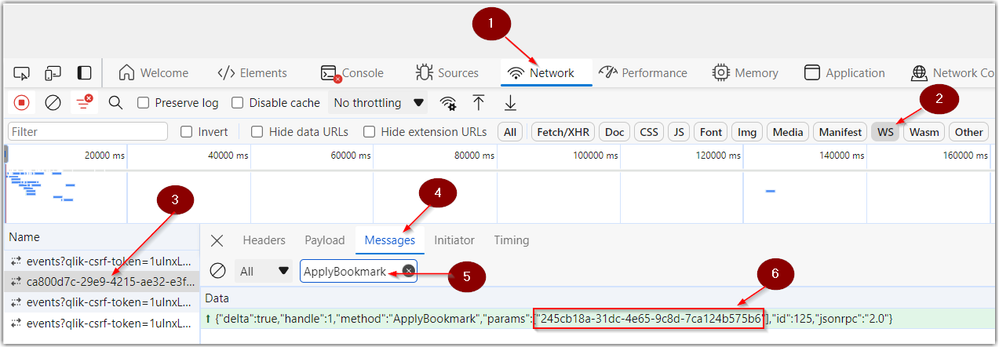
- Open Chrome Developer Tools and click on the Network tab
- Click on the filter WS (for WebSockets)
- Reload the page to make sure you see your connection in the Name column
- Click on Messages
- Enter ApplyBookmark in the messages filter pane
- Locate the bookmark ID in the highlighted message
Environment

-
Talend Studio tRest tHttpClient SSLHandshakeException: handshake_failure caused ...
A Talend Data Integration job that retrieves exchange rates from an external government REST API fails at runtime. The failure occurs in the REST call... Show MoreA Talend Data Integration job that retrieves exchange rates from an external government REST API fails at runtime. The failure occurs in the REST call component, and the job doesn't complete. The following exception is logged:
Exception in component tREST_1 (mJob_FT_EXCHANGE_RATE)
com.sun.jersey.api.client.ClientHandlerException:
javax.net.ssl.SSLHandshakeException: Received fatal alert: handshake_failureResolution
First, we will verify that the correct certificates have been imported, then outline the appropriate solution.
Verify that the required certificates are imported
Confirm that every certificate the API server needs is imported into the truststore of the JVM used by Talend. Download every certificate in the chain, saving each one as a separate file:
echo "" | openssl s_client -showcerts -connect <api-hostname>:443 | \
  awk '/BEGIN/ { i++; } /BEGIN/, /END/ { print > "a-cert-" i ".crt" }'
Then import each certificate into the truststore. There may be several certificates in the chain. Import all of them:
keytool -import -trustcacerts -alias a-cert-1 -file /tmp/a-cert-1.crt \
  -keystore <jvm>/lib/security/cacerts -storepass <truststore-password>
keytool -import -trustcacerts -alias a-cert-2 -file /tmp/a-cert-2.crt \
  -keystore <jvm>/lib/security/cacerts -storepass <truststore-password>
Check for a cipher suite conflict
If the required certificates are already imported and the error persists, check whether the client and server support a common cipher suite.
Server side: scan the endpoint to see which cipher suites it supports.
sudo dnf install nmap
nmap --script ssl-enum-ciphers -p 443 <api-hostname>
In this case, the scan listed only TLS_RSA_* ciphers.
Client side: check the JDK's java.security file for disabled algorithms.
jdk.tls.disabledAlgorithms=..., TLS_RSA_*, ...
Since the JDK 11 release of January 2026, TLS_RSA_* is disabled by default here, which is why the handshake fails.
Any of the following tools can be used to check which cipher suites a server supports:
nmap (most detailed):
nmap --script ssl-enum-ciphers -p 443 <hostname>
Lists every supported TLS version and cipher suite, with a strength grade (A–F) for each. This is the method used in this case.
testssl.sh (full report, no install needed beyond download):
git clone https://github.com/drwetter/testssl.sh.git
cd testssl.sh
./testssl.sh --cipher-per-proto <hostname>:443
Gives a per-protocol breakdown, and flags weak or deprecated ciphers (no forward secrecy, CBC, and so on).
sslscan:
sudo dnf install sslscan
sslscan <hostname>:443
Quick output showing accepted and rejected ciphers, certificate information, and protocol support.
Apply the fix on the JDK 11 client
If the external server can't be upgraded to support newer cipher suites, apply the fix on the JDK 11 client side. To avoid modifying the JDK installation itself, use a separate, customized security file:
- Copy <java_home>/conf/java.security to a neutral location, for example <install_dir>/TalendRemoteEngine/custom.security.
- Edit the copy, and remove TLS_RSA_* from the jdk.tls.disabledAlgorithms property.
- Create a dedicated run profile for this job that points to the custom file:
-Djava.security.properties=<install_dir>/TalendRemoteEngine/custom.security
Re-enabling TLS_RSA_* weakens transport security, because these cipher suites lack forward secrecy. Scoping the change to this one job's run profile, rather than changing the global JDK settings, limits the exposure. It's also worth asking the API provider whether they plan to support modern cipher suites.
Cause
An SSLHandshakeException with a handshake_failure generally has one of two causes: a certificate in the server's chain isn't trusted by the JVM's truststore, or the client and server can't agree on a cipher suite. In this case, investigation confirmed a cipher suite conflict between the client and the API server:
- Server side: the external API server supports only TLS_RSA_* cipher suites.
- Client side: since the JDK 11 release of January 2026, TLS_RSA_* is disabled by default in the JDK's java.security file, through the jdk.tls.disabledAlgorithms property.
Because the client refuses the only cipher family the server offers, no common cipher suite can be negotiated, which produces the SSLHandshakeException: Received fatal alert: handshake_failure error.
Environment
- Talend Studio
-
SAP OData services and retrieving data in Qlik Sense Client Managed and Qlik Clo...
This article explains how to retrieve data using Qlik Sense Analytics (on-premises and Cloud) from SAP OData services, taking into account the 2026 SA... Show MoreThis article explains how to retrieve data using Qlik Sense Analytics (on-premises and Cloud) from SAP OData services, taking into account the 2026 SAP security patches.
Background
An SAP security patch released in June 2026 technically blocks third-party use of the ODP framework over RFC (SAP Note 3255746). This is the interface most dedicated SAP connectors used. Only ODP via RFC is affected, not RFC in general, and SAP names ODP via OData as the compliant fallback for data access outside SAP systems. A time-limited revert option exists but expires in December 2026 (SAP Note 3731818).
Only Qlik's SAP ODP connector (Qlik Cloud) is affected. Depending on the access level you have in your SAP environment, you can also use our SAP connectors to extract data from SAP NetWeaver SAP connectors in Qlik Sense Client Managed, Qlik Cloud and QlikView (these are not affected by SAP restrictions).
But if data extraction only relies on OData services, Qlik's OData connector or REST connector are the only alternative.Requirements
What is needed on the SAP side (macro level):
- AP Gateway as the OData layer. Every OData service is served by SAP Gateway (NetWeaver Gateway), either embedded in the ABAP system or as a separate hub. In S/4HANA, it's built in. This is the component that turns backend objects into OData endpoints.
- Service activation. A service must be registered and activated in /IWFND/MAINT_SERVICE (plus the underlying ICF node in SICF). SAP ships thousands of standard services inactive by default. Activation per service is a deliberate admin step, not automatic.
- A user and authorizations. A dedicated communication/service user with S_SERVICE for the endpoint plus the application-level authorizations for the data behind it. Gateway auth doesn't bypass application auth — if the user can't see the plant in SAP, the OData service won't return it either.
- Network and authentication. HTTPS with a trusted certificate and an auth method. The consumer supports:
- Basic Auth (the simple on-prem case)
- OAuth2/SAML for cloud scenarios
In S/4HANA Cloud (public edition), the connection runs through communication scenarios/arrangements rather than manual Gateway configuration. For Qlik Cloud Analytics reaching an on-prem Gateway, either the endpoint is reachable from the cloud, or you go through Qlik Data Gateway – Direct Access.
- For ODP-based services, additionally, the Operational Delta Queue (ODQ) must be active, and the source object must be released for ODP extraction. Delta then works via the OData subscription/delta-link mechanism backed by ODQ.
What can be exposed as OData
Two families
Family A: ODP-based OData services. SAP Gateway can generate an OData service on
top of the ODP framework, and then the answer is essentially yes — anything ODP
supports:- DataSources/Extractors. SAPI context: the classic 2LIS_* logistics extractors, FI
extractors, etc., released via RSA5 - ABAP CDS views annotated with @Analytics.dataExtraction.enabled: true (ABAP_CDS
context), delta-capable when the change-data annotations are set - BW/BW4HANA InfoProviders. BW context
- SLT-based table replication. SLT context
- HANA information views
These services are generated in the Gateway Service Builder (SEGW) via the ODP-
extraction wizard. They support full load plus genuine delta — the extractor's delta logic
is preserved and exposed through OData delta tokens.Family B: regular (non-ODP) OData services. Anything the ABAP stack can model:
- A CDS view with @odata.publish: true (one annotation, auto-generated service)
- Hand-built services in SEGW (mapping DDIC tables, CDS as reference data source,
BAPIs/RFCs, or custom code) - RAP service bindings (OData V2/V4). The modern S/4HANA way
- The standard APIs delivered from the SAP Business Accelerator Hub
These have no delta mechanism by default. Incremental loads are your problem as the
consumer. Typically $filter on a change date or timestamp field, which only works if the
underlying object carries one reliably.Limitation with the generic OData connector in Qlik Sense Client Managed
The generic OData connector speaks plain OData, which is fine for Family B and for full loads only from Family A. (delta load can only be managed with a REST connector).
OData is a chatty protocol. While paging, $select to trim width, and gzip help, nobody should plan a nightly full load of BSEG-scale tables over it.
Options to retrieve data from SAP ODATA services
In Qlik Cloud Analytics
- How to connect to data from SAP OData services and retrieve data with Qlik Cloud Analytics REST connector
- How to connect to data from SAP OData services and retrieve data with Qlik Cloud Analytics ODATA connector
In Qlik Sense Enterprise on Windows
- How to connect to data from SAP OData services and retrieve data with Qlik Sense Enterprise on Windows REST connector
- How to connect to data from SAP OData services and retrieve data with Qlik Sense Enterprise on Windows ODATA connector
Environment
- Qlik Cloud
- Qlik Sense Enterprise on Windows
- QlikView