Unlock a world of possibilities! Login now and discover the exclusive benefits awaiting you.

Featured Content
-
How to contact Qlik Support
Qlik offers a wide range of channels to assist you in troubleshooting, answering frequently asked questions, and getting in touch with our technical e... Show MoreQlik offers a wide range of channels to assist you in troubleshooting, answering frequently asked questions, and getting in touch with our technical experts. In this article, we guide you through all available avenues to secure your best possible experience.
For details on our terms and conditions, review the Qlik Support Policy.
Index:
- Support and Professional Services; who to contact when.
- Qlik Support: How to access the support you need
- 1. Qlik Community, Forums & Knowledge Base
- The Knowledge Base
- Blogs
- Our Support programs:
- The Qlik Forums
- Ideation
- How to create a Qlik ID
- 2. Chat
- 3. Qlik Support Case Portal
- Escalate a Support Case
- Phone Numbers
- Resources
Support and Professional Services; who to contact when.
We're happy to help! Here's a breakdown of resources for each type of need.
Support Professional Services (*) Reactively fixes technical issues as well as answers narrowly defined specific questions. Handles administrative issues to keep the product up-to-date and functioning. Proactively accelerates projects, reduces risk, and achieves optimal configurations. Delivers expert help for training, planning, implementation, and performance improvement. - Error messages
- Task crashes
- Latency issues (due to errors or 1-1 mode)
- Performance degradation without config changes
- Specific questions
- Licensing requests
- Bug Report / Hotfixes
- Not functioning as designed or documented
- Software regression
- Deployment Implementation
- Setting up new endpoints
- Performance Tuning
- Architecture design or optimization
- Automation
- Customization
- Environment Migration
- Health Check
- New functionality walkthrough
- Realtime upgrade assistance
(*) reach out to your Account Manager or Customer Success Manager
Qlik Support: How to access the support you need
1. Qlik Community, Forums & Knowledge Base
Your first line of support: https://community.qlik.com/
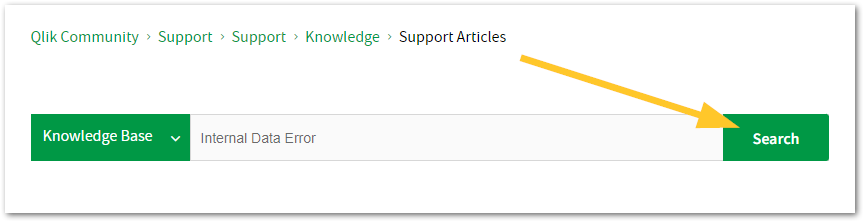
Looking for content? Type your question into our global search bar:
The Knowledge Base
Leverage the enhanced and continuously updated Knowledge Base to find solutions to your questions and best practice guides. Bookmark this page for quick access!
- Go to the Official Support Articles Knowledge base
- Type your question into our Search Engine
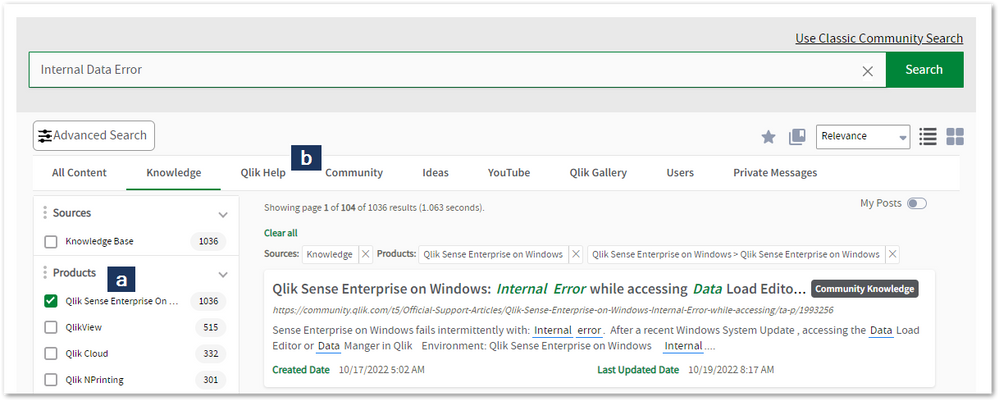
- Need more filters?
- Filter by Product
- Or switch tabs to browse content in the global community, on our Help Site, or even on our Youtube channel
Blogs
Subscribe to maximize your Qlik experience!
The Support Updates Blog
The Support Updates blog delivers important and useful Qlik Support information about end-of-product support, new service releases, and general support topics. (click)The Qlik Design Blog
The Design blog is all about product and Qlik solutions, such as scripting, data modelling, visual design, extensions, best practices, and more! (click)The Product Innovation Blog
By reading the Product Innovation blog, you will learn about what's new across all of the products in our growing Qlik product portfolio. (click)Our Support programs:
Q&A with Qlik
Live sessions with Qlik Experts in which we focus on your questions.Techspert Talks
Techspert Talks is a free webinar to facilitate knowledge sharing held on a monthly basis.Technical Adoption Workshops
Our in depth, hands-on workshops allow new Qlik Cloud Admins to build alongside Qlik Experts.Qlik Fix
Qlik Fix is a series of short video with helpful solutions for Qlik customers and partners.The Qlik Forums
- Quick, convenient, 24/7 availability
- Monitored by Qlik Experts
- New releases publicly announced within Qlik Community forums (click)
- Local language groups available (click)
Ideation
Suggest an idea, and influence the next generation of Qlik features!
Search & Submit Ideas
Ideation GuidelinesHow to create a Qlik ID
Get the full value of the community.
Register a Qlik ID:
- Go to register.myqlik.qlik.com
If you already have an account, please see How To Reset The Password of a Qlik Account for help using your existing account. - You must enter your company name exactly as it appears on your license or there will be significant delays in getting access.
- You will receive a system-generated email with an activation link for your new account. NOTE, this link will expire after 24 hours.
If you need additional details, see: Additional guidance on registering for a Qlik account
If you encounter problems with your Qlik ID, contact us through Live Chat!
2. Chat
Incidents are supported through our Chat, by clicking Chat Now on any Support Page across Qlik Community.
To raise a new issue, all you need to do is chat with us. With this, we can:
- Answer common questions instantly through our chatbot
- Have a live agent troubleshoot in real time
- With items that will take further investigating, we will create a case on your behalf with step-by-step intake questions.
3. Qlik Support Case Portal
Log in to manage and track your active cases in the Case Portal. (click)
Please note: to create a new case, it is easiest to do so via our chat (see above). Our chat will log your case through a series of guided intake questions.
Your advantages:
- Self-service access to all incidents so that you can track progress
- Option to upload documentation and troubleshooting files
- Option to include additional stakeholders and watchers to view active cases
- Follow-up conversations
When creating a case, you will be prompted to enter problem type and issue level. Definitions shared below:
Problem Type
Select Account Related for issues with your account, licenses, downloads, or payment.
Select Product Related for technical issues with Qlik products and platforms.
Priority
If your issue is account related, you will be asked to select a Priority level:
Select Medium/Low if the system is accessible, but there are some functional limitations that are not critical in the daily operation.
Select High if there are significant impacts on normal work or performance.
Select Urgent if there are major impacts on business-critical work or performance.
Severity
If your issue is product related, you will be asked to select a Severity level:
Severity 1: Qlik production software is down or not available, but not because of scheduled maintenance and/or upgrades.
Severity 2: Major functionality is not working in accordance with the technical specifications in documentation or significant performance degradation is experienced so that critical business operations cannot be performed.
Severity 3: Any error that is not Severity 1 Error or Severity 2 Issue. For more information, visit our Qlik Support Policy.
Escalate a Support Case
If you require a support case escalation, you have two options:
- Request to escalate within the case, mentioning the business reasons.
To escalate a support incident successfully, mention your intention to escalate in the open support case. This will begin the escalation process. - Contact your Regional Support Manager
If more attention is required, contact your regional support manager. You can find a full list of regional support managers in the How to escalate a support case article.
Phone Numbers
When other Support Channels are down for maintenance, please contact us via phone for high severity production-down concerns.
- Qlik Data Analytics: 1-877-754-5843
- Qlik Data Integration: 1-781-730-4060
- Talend AMER Region: 1-800-810-3065
- Talend UK Region: 44-800-098-8473
- Talend APAC Region: 65-800-492-2269
Resources
A collection of useful links.
Qlik Cloud Status Page
Keep up to date with Qlik Cloud's status.
Support Policy
Review our Service Level Agreements and License Agreements.
Live Chat and Case Portal
Your one stop to contact us.




Recent Documents
-
How to extract changes from the change store (Write Table) and store them in an ...
This article explains how to extract changes from a Change Store by using the Qlik Cloud Services connector in Qlik Automate and how to sync them to a... Show MoreThis article explains how to extract changes from a Change Store by using the Qlik Cloud Services connector in Qlik Automate and how to sync them to an Excel file.
While the example uses a Microsoft Excel file, it can easily be modified to create a CSV as well.
The article also includes:
- An automation example you can download and import (see Qlik Automate: How to import and export automations): Automation Example To Extract Change Store Data and Store in Microsoft Excel.json
- A Qlik app example with an inline load script with example data: Write Table Purchase Order Demo.qvf
- Example purchase order template Excel file: Purchase order template.xlsx
- Configuration instructions for the example
Content
- Prerequisites
- Installing the example app
- Create the automation and get the SharePoint metadata
- Configure the automation
- Running the automation from the sheet
- Bonus: overwriting an existing Excel file
- Bonus: Sending the Excel file as an email attachment
Prerequisites
You will need the following:
- A working Write Table with a set of editable columns and some example values already stored in it.
For more information on the Write Table chart, see Write Table | help.qlik.com.
Here is an example of the Write Table that will be used in this article. It has the following configuration:
-
Week start is included in the primary key because the purchasing process (making the changes) happens on a weekly basis.
-
Product Name is included in the primary key to make sure it is always returned when retrieving changes through the Get Current Changes From Change Store block in Qlik Automate.
Below is an example of the table in an app:
-
- An Excel file that will be the template for purchase orders.
- This must be stored in SharePoint or OneDrive.
- This file must contain a sheet with an empty table on the sheet. Take note of the sheet name/id and the table name and id.
An example template file is attached to this article.
- This must be stored in SharePoint or OneDrive.
- A destination folder in Microsoft SharePoint or OneDrive where the new purchase order files should be created.
Example of the SharePoint structure:
Installing the example app
Optionally, you can use the app that is included in this article. Follow these steps to install the app and configure the Write Table:
- Import the app into your Qlik Cloud tenant.
- Go to the Data Load Editor and do a manual reload.
- Open the Inventory management sheet and go to edit mode.
- Drag a Write Table Chart (A) on top of the Straight Table.
- Select Convert to: Write Table (B).
- Go to the Change store section in the Write Table's configuration panel and define a new primary key.
- Select Product ID, Product Name, and Order Date as columns for the primary key, then click Save.
- Add the following editable columns to the Write Table:
- To purchase: Manual user input
- Priority: Single selection: High, Low
Tip! Add an empty option by clicking the + button without providing a value. - Note: Manual user input
- To purchase: Manual user input
- Leave the edit sheet mode and take note of the change store id for the change store that is linked to the Write Table.
- First, make a selection in the app, then provide some example changes in the Write Table to use as example data to configure the automation:
Create the automation and get the SharePoint metadata
- Create a new automation. See Qlik Automate for details.
- Before the automation can be configured, SharePoint metadata is required that cannot be retrieved dynamically in the automation.
- Get the SharePoint Drive Id. You need access to the Drive in the SharePoint Site on which the Excel template file is stored. To do this, add the List Drives From Site block from the Microsoft SharePoint connector. Connect your SharePoint account to this block.
- Click the input field for the Site Id in the Inputs tab (A) on the List Drives From Site block and use the do lookup functionality (B) to search for the site (C).
- Right-click the List Drives From Site block (A) to perform a Test Run (B) of the automation.
Once completed, review the automation’s run history to retrieve the correct Drive Id from the List Drives From Site block to find the Drive Id of the drive you want to use.
Store this id for later use.
- Add a List Items On Drive block from the Microsoft SharePoint connector to the automation.
This block will be used to retrieve the folder id for the destination folder in which the purchase orders should be created. Configure the block with the Drive Id from step 5.
Specify root as the Item Id. - Run the automation manually to review the automation run’s history and retrieve the correct Item Id for your destination folder from the output of the List Items On Drive block.
Tip! If your destination folder is nested in other folders, you will need to repeat this step until you have the item Id of the destination folder. Start with root as the Item Id and then replace it with each folder’s item id as you go towards the destination folder. - Right-click both SharePoint blocks and collapse (A) their loops.
Then right-click them again to disable (B) them as they are no longer needed for the regular automation runs.
But you might want to keep them inside the automation if you want to take this automation to a different SharePoint team or folder structure in the future. If you are certain you will not need another drive id or folder id for this automation, you can delete the blocks.
Configure the automation
- Add an Inputs block and configure it with one required parameter weekStart.
This will be used to capture the weekStart date from the app when a user triggers the automation from the app. - Add six Variable blocks to the automation and add the following variables of type String:
- driveId: store the Drive Id from step 5 in the previous section
- folderId: store the folder’s item id of step 7 in the previous section
- templateFileName: name of the Excel file template
- destinationFileName: name of the purchase order file to create
- sheetName: name of the sheet that contains the table
- tableName: name of the table
- Set values for the variables that correspond with your Excel file template. If you are using the example template from this article, you can supply the following values:
- driveId: store the Drive Id from step 5 in the previous section
- folderId: store the folder’s item id of step 7 in the previous section
- templateFileName: Purchase order template.xlsx
- destinationFileName: Purchase order_{$.inputs.weekStart}.xlsx
Tip! if your date format uses slashes, it will not work for the Excel file name, as Excel will create directories. Instead, use a different date format, such as MM-DD-YYYY or MM_DD_YYYY. - sheetName: Purchase order
- tableName: Products
- Add an Open File block from the Cloud Storage connector and configure it as follows:
- Connector: Microsoft SharePoint
- Path: templateFileName variable
- Drive Id: driveId variable.
- Add a Copy File block from the Cloud Storage connector.
This block will copy the template Excel File and create a new empty Excel file to create the purchase order.
Configure the block as follows:
- Source File: select the “Open File on Microsoft SharePoint …” block
- Destination connector: Microsoft SharePoint
- Destination Path: folder path + / + destinationFileName variable
- Drive Id: driveId variable
- Add a List Items On Drive block from the Microsoft SharePoint connector.
This block will be used to get the Item Id for the file created by the Copy File block.
Configure it as follows:
- Drive Id: driveId variable
- Item Id: folderId variable
Tip! Right-click on the List Items On Drive block and choose Collapse loop. This saves space in the automation and makes it more readable.
- Perform a manual run of the automation to verify that the destination Excel file is created and is returned by the List Items On Drive block.
- Add a Lookup Item In List block from the Lists blocks section.
This block will be used to retrieve the item id of the file created by the Copy File block (because this id is not returned by the Copy File block).
Configure the block as follows:
- List: full output from List Items On Drive 2 (A)
- Conditions:
- Click the first input box (Property from) in the Condition parameter (B) and select the name parameter (C).
- Set the next input field (operator) to equals (D).
-
Set the third one (Value) to the destinationFileName (E) variable.
- Click the first input box (Property from) in the Condition parameter (B) and select the name parameter (C).
- Add a Create Workbook Session block from the Microsoft Excel connector and configure it with the output from the Lookup Item In List block.
- Add a List Current Changes From Change Store block from the Qlik Cloud Services connector.
This block will return all saved changes from the change store.
Configure the Store Id parameter with the write table’s change store id.
- Add a Filter List block. This block will be used to filter orders for the correct week.
Configure it as follows:
- List: output of the List Current Changes From Change Store block
- Conditions:
- Property from: the Order Date (A) returned by the List Current Changes From Change Store block.
Tip! Make sure this field is part of your primary key so it is included in the change data from the change store.
-
Operator: equals
- Value: the weekStart input from the Inputs block
- Property from: the Order Date (A) returned by the List Current Changes From Change Store block.
- Add an Update Rows In Worksheet block from the Microsoft Excel connector.
This block will only be used to update a single cell in the Excel template with the date of the Week Start.
If your Order form does not have such a value, you can ignore this step.
If it has multiple of these values, then you can repeat it for each of them.
Configure the block as follows:
- Drive Id: Drive Id from the “Parent Reference” from the Lookup Item In List block
- Item Id: Id from the Lookup Item In List block
- Worksheet Name: Sheet Name variable
- Start Cell: Coordinate of the Excel cell that needs to be updated. In the example template, this is G2.
- End Cell: Same coordinate as the Start Cell since we are only updating a single cell.
- Values: The weekStart input from the Inputs block. Since it will only update a single cell, there is no need to create an array as described in the help text.
- Add a Loop Batch block.
This block will divide the output from the Filter List block across multiple batches that can be added to Excel batch by batch.
Configure the block as follows:
- Loop over items of list: Filter List block
- Amount of items per batch: 100
- Add a Variable block inside the Batch Loop block.
Create a new variable RowsString of type string.
This variable will be used to build a string containing the changes in a format that is accepted by the Microsoft Excel connector.
Add the following operations in the variable block:
- Empty RowsString: this makes sure that on every new batch, the variable is emptied.
- Append to RowsString: this will add the first text value to the string. Configure this to a single square bracket [.
- Add a Loop block.
This block will iterate over all the changes in the current batch.
Configure it as follows:
Loop over items of list: Loop Batch > Batch
Tip! Perform a manual run of the automation to make sure there are example values in the Loop block. - Add a Get User block from the Qlik Cloud Services connector inside the loop of the Loop block.
This block will be used to retrieve the user information for the updatedBy parameter in each change.
Configure it to use the updatedBy parameter as input for the User Id parameter. - Add a Variable block to the Get User block and configure it to use the RowsString variable.
Add an Append to RowsString operation and configure the Value to be of this format [“value1”,“value2”,…] where every item in this list corresponds with a value from the change that should be stored in the Excel file.
- This string should be built value by value.
Start by typing [“ and then click to add the first value Product ID (A)
- Add another double quote, a comma, and a new double quote (",") for the next value:
- Repeat steps a and b to add all the values.
Finally, add the user’s name from the Get User block as the final value.
Optionally, this can also be another indicator, such as an email address. Finish the operation with another square bracket and a trailing comma ("],).
- This string should be built value by value.
- Add an Add Rows To Table (Batch) block from the Microsoft Excel connector after the loop from the Loop block.
This block will be used to update the Excel file with the generated string that represents the current batch of changes.
Configure the block as follows:
- Drive Id: Drive Id from the “Parent Reference” from the Lookup Item In List block
- Item Id: Id from the Lookup Item In List block
- Worksheet: Sheet Name variable
- Table Id: Table Name variable
- Rows: This will be the Rows String variable, but it is not fully ready yet and needs some modifications:
- Add the Rows String variable
- Click the field mapping to the variable and choose Add formula. This will open the formula picker.
-
Search for the Right trim formula.
-
Configure the Character to trim parameter to a single comma.
-
Type a single square bracket after the field mapping in the Rows input field:
- Add the Rows String variable
- Add a Close Workbook Session block from the Microsoft Excel connector at the end of the automation after the loop from the Loop Batch block.
Configure the block as follows:
- Drive Id: Drive Id from the Parent Reference from the Lookup Item In List block
- Item Id: Id from the Lookup Item In List block
- Session Id: Id from the output of the Create Workbook Session block
- Run the automation manually and review the generated Excel file to make sure the table in the order form is correctly populated.
Running the automation from the sheet
The automation is now configured and can be run manually. But ideally, a user can run it from within the Qlik Sense app whenever they are finished with creating orders through the Write Table.
This article will only cover the button’s configuration in a sheet. A step-by-step guide on configuring the button object to run automations is available in How to run an automation with custom parameters through the Qlik Sense button.
- Add a Button object to the sheet that contains the Write Table, set the button's action to 'Execute automation', and configure the automation.
Tip! The automation selector in the button object only returns the first 100 automations. If your automation is not shown, you might need to manually copy and paste the automation id from the automation URL. - Add a parameter for the weekStart input from the automation's Inputs block.
Then configure it to use the GetFieldSelections formula for the [Order Date] field (this is used as Week start in the Write Table).
- Select a date in the app and click the button to run the automation and ensure that the correct date is received by the Inputs block:
Bonus: overwriting an existing Excel file
The Copy File block will fail when there already exists an Excel file with the same name. Depending on the use case, that might be the right behavior or you might want to overwrite the file.
The overwrite process explained below will delete the existing file and then create a new file.- Go to the automation and disconnect the Open File on Microsoft SharePoint block from the Variable - tableName block.
- Search for the Check If File Exists block from the Cloud Storage connector and connect it to the Variable - tableName block.
Configure the block as follows:
- Connector: Microsoft SharePoint
- Path: folder path + / + destinationFileName variable (this should be the same path as the one configured in the Copy File block)
- Drive Id: driveId variable
-
Add a Condition block to the automation and configure it to evaluate the output from the Check If File Exists block.
This block will return a Boolean (true or false) result. If it is true, the file exists.
Configure the Condition block to evaluate that output using the Boolean 'is true' operator: - Add a Delete File block from the Cloud Storage connector to the 'Yes' part of the Condition block. This will then only be executed when a file already exists, and will then delete the file. Configure the block as follows:
- Connector: Microsoft SharePoint
- Path: folder path + / + destinationFileName variable (this should be the same path as the one configured in the Copy File block)
- Drive Id: driveId variable
- Collapse the 'No' part of the Condition block as this will not be used (when there is no file, the automation can continue and copy the template to create a new file). Right-click on the Condition block and select the 'Hide NO Condition' option.
- Reconnect the Open File block (and the other attached blocks) to the Condition block.
- Perform two runs of the automation for the same date (weekStart) and ensure the original file is deleted and then recreated.
Bonus: Sending the Excel file as an email attachment
Qlik Automate can also be used to share the purchase order with your purchasing team. This can be built in the same automation or in a separate automation. Below are the steps to add this to the same automation.
- Add an Open File block from the Cloud Storage connector at the end of the automation.
Configure it as follows:
- Connector: Microsoft SharePoint
- Path: folder path + / + destinationFileName variable
- Drive Id: driveId variable
- Add a Send Mail With Attachments block from the Microsoft Outlook 365 connector.
This block will be used to send the Excel file as an email attachment to one or more recipients.
Configure the block as follows:
- To: one or more email addresses for the recipients of the purchase order
- Subject: Purchase order { $.inputs.weekStart }
- Type: text
- Content Body: <your email body>
- Attachments:
- Click the 'Add attachment' button
- Specify the output from the Open File 2 block
Tip! Update the button label to make it clear to users of your app that clicking it will also send the purchase order.
As an alternative, it is also possible to add these blocks to a new automation that is triggered from a second button.
-
Qlik Cloud Monitoring Apps Workflow Guide
This template was updated on December 4th, 2025 to replace the original installer and API key rotator with a new, unified deployer automation. Please... Show MoreThis template was updated on December 4th, 2025 to replace the original installer and API key rotator with a new, unified deployer automation. Please disable or delete any existing installers, and create a new automation, picking the Qlik Cloud monitoring app deployer template from the App installers category.
Installing, upgrading, and managing the Qlik Cloud Monitoring Apps has just gotten a whole lot easier! With a single Qlik Automate template, you can now install and update the apps on a schedule with a set-and-forget installer using an out-of-the-box Qlik Automate template. It can also handle API key rotation required for the data connection, ensuring the data connection is always operational.
Some monitoring apps are designed for specific Qlik Cloud subscription types. Refer to the compatibility matrix within the Qlik Cloud Monitoring Apps repository.
'Qlik Cloud Monitoring Apps deployer' template overview
This automation template is a set-and-forget template for managing the Qlik Cloud Monitoring Applications, including but not limited to the App Analyzer, Entitlement Analyzer, Reload Analyzer, and Access Evaluator applications. Leverage this automation template to quickly and easily install and update these or a subset of these applications with all their dependencies. The applications themselves are community-supported; and, they are provided through Qlik's Open-Source Software (OSS) GitHub and thus are subject to Qlik's open-source guidelines and policies.
For more information, refer to the GitHub repository.
Features
- Can install/upgrade all or select apps.
- Can create or leverage existing spaces.
- Programmatically verified prerequisite settings, roles, and entitlements, notifying the user during the process if changes in configuration are required, and why.
- Installs latest versions of specified applications from Qlik’s OSS GitHub.
- Creates required API key.
- Creates required analytics data connection.
- Creates a daily reload schedule.
- Reload applications post-install.
- Tags apps appropriately to track which are installed and their respective versions.
- Supports both user and capacity-based subscriptions.
Configuration:
Update just the configuration area to define how the automation runs, then test run, and set it on a weekly or monthly schedule as desired.
Configure the run mode of the template using 7 variable blocks
Users should review the following variables:
- configuredMonitoringApps: contains the list of the monitoring applications which will be installed and maintained. Delete any applications not required before running (default: all apps listed).
- refreshConnectorCredentials: determines whether the monitoring application REST connection and associated API key will be regenerated every run (default: true).
- reloadNow: determines whether apps are reloaded immediately following updates (default: true).
- reloadScheduleHour: determines at which hour of the day the apps reload at for the daily schedule in UTC timezone (default: 06)
- sharedSpaceName: defines the name of the shared space used to import the apps into prior to publishing. If the space doesn't exist, it'll be created. If the space exists, the user will be added to it with the required permissions (default: Monitoring - staging).
- managedSpaceName: defines the name of the managed space the apps are published into for consumption/ alerts/ subscription use.If the space doesn't exist, it'll be created. If the space exists, the user will be added to it with the required permissions (default: Monitoring).
- versionsToKeep: determines how many versions of each staged app is kept in the shared space. If set to 0, apps are deleted after publishing. If a positive integer value other than 0, that many apps will be kept for each monitoring app deployed (default: 0).
App management:
If the monitoring applications have been installed manually (i.e., not through this automation), then they will not be detected as existing. The automation will install new copies side-by-side. Any subsequent executions of the automation will detect the newly installed monitoring applications and check their versions, etc. This is due to the fact that the applications are tagged with "QCMA - {appName}" and "QCMA - {version}" during the installation process through the automation. Manually installed applications will not have these tags and therefore will not be detected.
FAQ
Q: Can I re-run the installer to check if any of the monitoring applications are able to be upgraded to a later version?
A: Yes. The automation will update any managed apps that don't match the repository's manifest version.
Q: What if multiple people install monitoring applications in different spaces?
A: The template scopes the application's installation process to a managed space. It will scope the API key name to `QCMA – {spaceId}` of that managed space. This allows the template to install/update the monitoring applications across spaces and across users. If one user installs an application to “Space A” and then another user installs a different monitoring application to “Space A”, the template will see that a data connection and associated API key (in this case from another user) exists for that space already. It will install the application leveraging those pre-existing assets.
Q: What if a new monitoring application is released? Will the template provide the ability to install that application as well?
A: Yes, but an update of the template from the template picker will be required, since the applications are hard coded into the template. The automation will begin to fail with a notification an update is needed once a new version is available.
Q:I have updated my application, but I noticed that it did not preserve the history. Why is that?
A: Each upgrade may generate a new set of QVDs if the data models for the applications have changed due to bug fixes, updates, new features, etc. The history is preserved in the prior versions of the application’s QVDs, so the data is never deleted and can be loaded into the older version.
-
Qlik Talend Cloud Data Integration: SAP Extractor Initialization Timeout Due to ...
A replication task fails with a start_job_timeout error, and the task logs showthe following messages: [SOURCE_UNLOAD ]E: An FATAL_ERROR error occu... Show MoreA replication task fails with a start_job_timeout error, and the task logs showthe following messages:
[SOURCE_UNLOAD ]E: An FATAL_ERROR error occurred unloading dataset: .0FI_ACDOCA_20 (custom_endpoint_util.c:1155)
[SOURCE_UNLOAD ]E: Timout: exceeded the Start Job Timeout limit of 2400 sec. [1024720] (custom_endpoint_unload.c:258)
[SOURCE_UNLOAD ]E: Failed during unload [1024720] (custom_endpoint_unload.c:442)Resolution
We recommend running the extractor directly in RSA3 in SAP to measure how long it takes to start.
Based on the measured time, adjust the value of the internal parameter start_job_timeout.
The value should be at least 20% higher than the time SAP takes to start.
Cause
Reviewing the endpoint server logs (/data/endpoint_server/data/logs directory) reveals that the job timeout is configured as 2400 seconds: [sourceunload ] [INFO ] [] start_job_timeout=2400
The error occurrs because the job did not start within the configured timeout.
When the task attempted to start the SAP Extractor, SAP did not return the “start data extraction” response within 2400 seconds (40 minutes), causing the timeout.
This may happen for extractors with large datasets, such as 0FI_ACDOCA_20, where the initialization on the SAP side will take a long while.
Environment
- Qlik Talend Cloud Data Integration
-
Qlik Talend Cloud Data Integration: Handling Delete Operations from SAP HANA in ...
The following issue is observed in a replication from a SAP Hana source to a Snowflake target: In the source table, all columns are defined as NOT NUL... Show MoreThe following issue is observed in a replication from a SAP Hana source to a Snowflake target:
In the source table, all columns are defined as NOT NULL with default values.
However, in the replication project, specifically during Change Data Capture, Null Values are sent to the CT table created as part of Store changes. This is observed when Delete Operations are performed in the source.
In this example, the Register task of the Pipeline Project reads data from the Replication Task Target [The data available in Snowflake storage]. When the Storage task is run, the task fails with NULL result in a non-nullable column.
Resolution
When a DELETE operation is performed in SAP HANA, it removes the entire row from the table and stores only the Primary Key values in the transaction logs.
Operation type = DELETE
Default values are not available and not applied.As a result, we can only see values for the primary key columns, and the remaining columns contain the null value in the Snowflake Target (__ct table).
To overcome this issue, please try the following workaround:
-
In the Replicate Project, apply a Global Rule Transformation to handle Null Value being populated in Snowflake.
This is done through Add Transformation > Replace Column Value-
In the Transformation scope step:
- Source schema: %
- Source datasets: %
- Column name is like: %
- Where data is: UNSPECIFIED
- Where column key attribute is: Not a key
- Where column nullability is: Not nullable
- In the Transformation action step
- Replace target value with: $IFNULL(${Q_D_COLUMN_DATA},0)
- Replace target value with: $IFNULL(${Q_D_COLUMN_DATA},0)
-
-
Prepare and run the job
-
Go to Snowflake and check the __CT table entry to verify that there are no more null values for non-primary key columns
-
In the Pipeline Project, use the Register task to load data from the Replication Task
- Data will now successfully replicate in the storage without NULL values
Environment
- Qlik Talend Cloud Data Integration
-
-
Qlik Replicate task using SAP OData as source endpoint fails http 500
A Qlik Replicate task using the SAP OData source endpoint fails with the error: Error: Http Connection failed with status 500 Internal Server Error ... Show MoreA Qlik Replicate task using the SAP OData source endpoint fails with the error:
Error: Http Connection failed with status 500 Internal Server Error
Resolution
Change the SAP OData endpoint by setting Max records per request (records) to 25000.
- Open your SAP OData endpoint
- Switch to the Advanced tab
- Set Max records per request (records) to 25000
Internal Investigation ID
SUPPORT-7127
Environment
- Qlik Replicate
-
How to view Active & Expired Licenses in Support Portal
The Legacy Support portal has been discontinued as per Decommissioning the legacy support portal (support.qlik.com) January 23rd, 2026 . How can I see... Show MoreThe Legacy Support portal has been discontinued as per Decommissioning the legacy support portal (support.qlik.com) January 23rd, 2026 .
How can I see all my legacy Qlik serial numbers or licenses?
To get an overview of your legacy serial number, contact Qlik Support by starting a chat.
-
Qlik Talend Data Stewardship R2025-02 keeps on loading status On AWS EC2 instanc...
Qlik Talend Data Stewardship R2025-02 keeps on loading and does not open up in Talend Management Console. Resolution Patch fix Apply the latest Patc... Show MoreQlik Talend Data Stewardship R2025-02 keeps on loading and does not open up in Talend Management Console.
Resolution
Patch fix
Apply the latest Patch_20260105_TPS-6013_v2-8.0.1-.zip or latter version of patch
TCP stack tunning
##sysctl
sudo vi /etc/sysctl.conf
#add the following lines
net.ipv4.tcp_keepalive_time=200
net.ipv4.tcp_keepalive_intvl=75
net.ipv4.tcp_keepalive_probes=5
net.ipv4.tcp_retries2=5sudo sysctl -p #activate
MTU change (avoid TCP traffic re-transmission)
temp change without rebooting :
sudo ip link set dev eth0 mtu 1280
Persist on os:
sudo vi /etc/sysconfig/network-scripts/ifcfg-eth0
MTU=1280network_mtu.html | docs.aws.amazon.com
Explanation on the Linux tcp tunning parameters
These sysctl settings are primarily used to make your server more aggressive at detecting and closing "dead" or "hung" network connections. By default, Linux settings are very conservative, which can lead to resources being tied up by connections that are no longer active.
Here is a breakdown of what these specific changes do and why they are beneficial.
TCP Keepalive Settings
The first three parameters control how the system checks if a connection is still alive when no data is being sent (the "idle" state).
net.ipv4.tcp_keepalive_time=200 This triggers the first "keepalive" probe after 200 seconds of inactivity. The Linux default is 7,200 seconds (2 hours). net.ipv4.tcp_keepalive_intvl=75 Once probing starts, this sends subsequent probes every 75 seconds. The default is 75 seconds. net.ipv4.tcp_keepalive_probes=5 This determines how many probes to send before giving up and closing the connection. The default is 9.
The Benefit: In a standard Linux setup, it can take over 2 hours to realize a peer has crashed. With your settings, a dead connection will be detected and cleared in roughly 20 minutes (200 + (75* 5) = 575 seconds). This prevents "ghost" connections from filling up your connection tables and wasting memory.
TCP Retries
net.ipv4.tcp_retries2=5 This controls how many times the system retransmits a data packet that hasn't been acknowledged before killing the connection. The Benefit: The default value is usually 15, which can lead to a connection hanging for 13 to 30 minutes during a network partition or server failure because the "backoff" timer doubles with each retry. By dropping this to 5, the connection will "fail fast" (usually within a few minutes).
This is excellent for high-availability systems where you want the application to realize there is a network issue quickly so it can failover to a backup or return an error to the user immediately rather than leaving them in a loading state.
Summary Table Default Your Values Parameter Default (Approx) Your Value (Impact) Detection Start ~2 Hours ~3.3 Minutes ( Much faster initial check) Total Cleanup Time ~2.2 Hours ~20 Minutes (Frees up resources significantly faster) Data Timeout ~15+ Minutes ~2-3 Minutes(Stops "hanging" on broken paths) Use Cases for These Settings
Microservices: To ensure fast failover and prevent a "cascade" of waiting services in a distributed system.If These changes are not permanent until you add them to /etc/sysctl.conf. Running the command with -w only applies them until the next reboot.
Cause
There are 2 major factors contributing to this issue
- invalid_grant error caused by current design defects
ERROR [http-nio-19999-exec-2] g.c.s.Oauth2RestClientRequestInterceptor : #1# Message: '[invalid_grant] ', CauseMessage: '[invalid_grant] ', LocalizedMessage: '[invalid_grant] '
- EC2 Linux sysctl tcp stack default setting not ideal for clean the hang connections.
Environment
- invalid_grant error caused by current design defects
-
How to Replace the Operations Monitor App
Take a backup of the app and data associated with the app: Export the existing Operations Monitor app via the QMC (Apps > More actions > Export). Ba... Show More- Take a backup of the app and data associated with the app:
- Export the existing Operations Monitor app via the QMC (Apps > More actions > Export). Backup to a safe location.
- Backup the QVD files in the Central Node Log directory (C:\ProgramData\Qlik\Sense\Log by default)
- Verify you have an Operations Monitor QVF file in the DefaultApps section of the Qlik installation directory (C:\ProgramData\Qlik\Sense\Repository\DefaultApps by default). Ask support for a copy for your version of Qlik Sense if you cannot locate the file.
- Write down any reload tasks associated with the app so that you can restore them later
- Write down the original owner of the app (should be the internal repository user, INTERNAL\sa_repository)
- Remove the Operations Monitor App and associated data files:
- Delete the Operations Monitor app via the QMC (Apps > Delete). This removes both the app and associated reload tasks.
- Delete the QVD files associated with the Operations Monitor App (governance*.qvd) in the Central Node Log directory (C:\ProgramData\Qlik\Sense\Log by default)
- Restart all Qlik Sense services.
- Re-import the Operations Monitor App from the installation directory:
- Locate the default Operations Monitor app in the DefaultApps section of the Qlik installation directory (C:\ProgramData\Qlik\Sense\Repository\DefaultApps by default)
- Import the app via the QMC (Apps > Import)
- Change ownership of the app to the same user as before (should have been the internal repository user, INTERNAL\sa_repository)
- Recreate any reload tasks noted from step 1
- Reload the app, and verify the app works as expected.
- Take a backup of the app and data associated with the app:
-
Qlik Sense Cloud and multiple IdPs
Is it possible to create more than one IdP for Qlik Sense Enterprise SaaS? Multiple IdPs can be configured, but only one can be active simultaneous... Show More -
Point Qlik Replicate at an AG Secondary Replica instead of the primary (High Ava...
To point Qlik Replicate at an AG Secondary Replicate instead of the primary, follow these steps; Create the publication/articles/filters the same way... Show MoreTo point Qlik Replicate at an AG Secondary Replicate instead of the primary, follow these steps;
- Create the publication/articles/filters the same way Replicate would or enable MS-CDC per the User's Guide for all the tables in the task.
- Set the SQL Server Source Endpoint internal parameter ignoreMsReplicationEnablement so that Replicate will not check for publication/articles.
- Set the SQL Server Source Endpoint internal parameter safeguardPolicyDesignator to ‘None’ so that Replicate will not try to create a transaction on the source.
- Set the SQL Server Source Endpoint internal parameter AlwaysOnSharedSynchedBackupIsEnabled so that Replicate will not try to connect to all the AG Replicas to read the MSDB.
- Set the SQL Server Source Endpoint ‘Change processing mode (read changes from):’ to ‘Backup Logs Only’
- As part of their transaction log backup maintenance plan, it's needed to run a script to merge the MSDB entries across all the Replicas. This may not be necessary if the backup is done on the secondary Replica that we will be attached to. The backups should also be placed on a share the Replicate can get access to. Optionally use 'Replicate has file-level access' if the backups are not encrypted and Replicate has direct access to them.
- It is needed to create the LSN/Numeric conversion scalar functions on the source database on the secondary.
Limitations include:
- Can read from backups only.
- Manual setup of publications/articles or MS CDC.
- Manual creation of supporting LSN conversion functions
The information in this article is provided as-is and to be used at own discretion. Depending on tool(s) used, customization(s), and/or other factors ongoing support on the solution below may not be provided by Qlik Support.
-
How To Submit an Idea or Propose and Improvement for Qlik Products
If you want to submit a new idea or improvement request for Qlik's products, our Ideas section in the Qlik Community is open to all registered custome... Show MoreIf you want to submit a new idea or improvement request for Qlik's products, our Ideas section in the Qlik Community is open to all registered customers. The Ideation portal covers ideas and suggestions for all Qlik Products, such as Qlik Cloud Analytics, Qlik Sense Enterprise on Windows, Qlik Talend, Qlik Stitch, and more.
Content:
Ideas are qualified and prioritized based on their value to improving and enhancing the Qlik product. For a successful request, please consider including a strong business case on why you think the change would be beneficial, including:
- Functionality: How does the product work now? How would you like it to work in the future?
- Motivation: Why is the change important for your business?
- Importance: What is the impact if the feature request is not approved?
- Benefits: What is the impact if the feature request is implemented?
Where to find Qlik Ideation
- Go to the Qlik Community
- Log in!
- After logging in, navigate to Ideation
A valid Qlik ID (log in to the Community) is required.
- You can navigate there manually from (a) Ideation
- And (b) Browse and Suggest
- Scroll down to locate the Ideation Landing Page / App
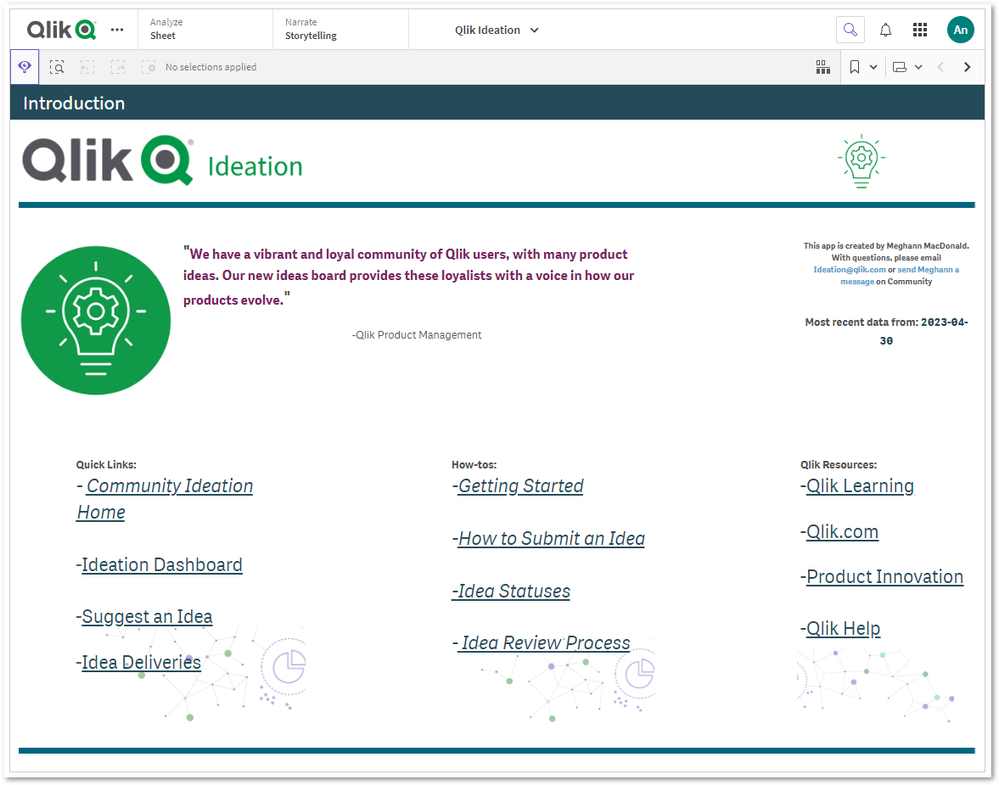
For more information on the Ideation Dashboard and its functionalities, see About Ideation.
How to submit an Idea on the Ideation
Before you get started, review Ideation Guidelines: How to Submit an Idea for submission guidelines and eligibility information.
- Go to the Ideas Site
A valid Qlik ID (log in to the Community) is required.
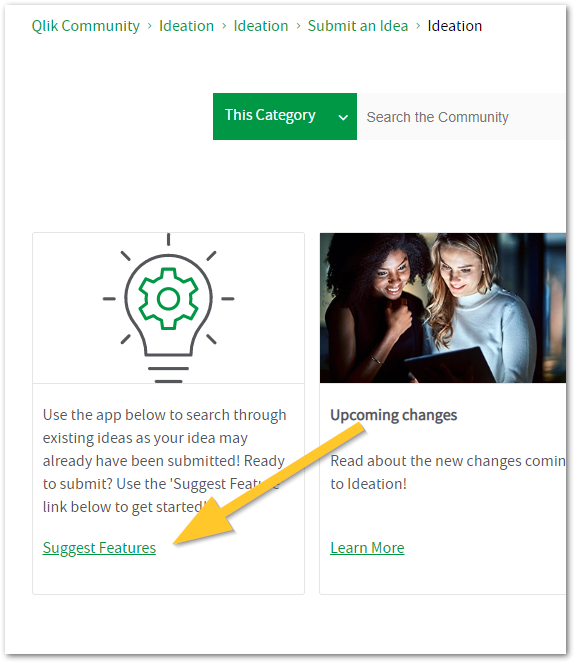
- Click the Suggest Features card
- Provide us with as much detail as possible, including a descriptive subject and description.
- Choose the appropriate Product Area.
- And click Submit request.
Ideas and Improvement requests are reviewed by our product teams. While we strive to provide answers, we cannot guarantee a specific response time.
Related Content:
Ideation on Community
Ideation Platform Updates
Ideation Guidelines: How to Submit an Idea -
Qlik Talend Studio: Unable to see the metric information while executing Job wit...
When you run a Job from Talend Studio (any version) to a remote engine (all versions), the metric (flow) information, like n Row(s), does not transfer... Show MoreWhen you run a Job from Talend Studio (any version) to a remote engine (all versions), the metric (flow) information, like n Row(s), does not transfer back to Talend Studio.
Cause
The remote run/debug from Studio feature uses direct TCP communication on JobServer ports. If you do not open port 8558, the information will not transfer back to Talend Studio.
To check whether port 8558 is open, look in the <RemoteEngineInstallationDirectory>/etc/org.talend.remote.jobserver.server.cfg configuration file.# used to launch talend commands org.talend.remote.jobserver.server.TalendJobServer.COMMAND_SERVER_PORT=8003 # used for the file transfer org.talend.remote.jobserver.server.TalendJobServer.FILE_SERVER_PORT=8004 # used for monitoring the servers state org.talend.remote.jobserver.server.TalendJobServer.MONITORING_PORT=8891 # used for the execution of process messages publisher, 8558 by default org.talend.remote.jobserver.server.TalendJobServer.PROCESS_MESSAGE_PORT=8558
Resolution
Ensure port 8558 is open. This transfers the state and trace of the run from the Talend Remote Engine for Jobs being executed remotely.
-
Qlik Sense Enterprise on Windows: Securing and Hardening Server
Security of Qlik Sense Enterprise on Windows can be approached in the below discrete areas. All these areas provide different options for increasing s... Show MoreSecurity of Qlik Sense Enterprise on Windows can be approached in the below discrete areas. All these areas provide different options for increasing security in a deployment, and thereby mitigating vulnerabilities and protecting against attackers.
Content:
- 1. Authentication
- 2. Authorization
- Security Rules
- Section Access
- 3. Operating System Hardening
- Step 1: Disabling protocols and ciphers
- Step 2: Firewalls
- Step 3: Service Account Permission
- Step 4: Anti-Virus
- Step 5 (Optional): FIPS
- 4. PostgreSQL Hardening
- 5. Generalized Web Server best practices
- Apply a trusted certificate
- Optional: Additional HTTP Response Headers
Be aware that a high level of server hardening can lead to failure in your deployment. Be mindful of always having a backup to restore to in case your configuration leads to irreversible failure.
1. Authentication
Qlik Sense Enterprise on Windows supports multiple different Authentication Solutions;
- Windows (NTLM)
- Kerberos
- Ticketing
- SAML
- JWT
- Header
- Anonymous
Qlik can not specify which authentication method is appropriate for each deployment. It is advisable to review currently supported alternatives within your organization and/or Identity Provider (IdP) to implement the most suitable solution for your use case.
2. Authorization
Qlik Sense Enterprise on Windows provides two levels of native authorization in the product.
Security Rules
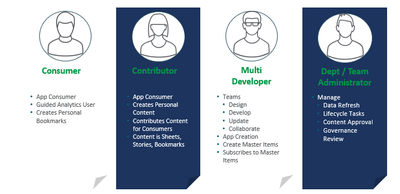
Attribute based access control (ABAC), which is configured through Qlik Sense security rules. This article will not go in depth on how to best implement security rules for your requirements, but it is highly recommended to think of your users based on the capabilities that you intend to provide them. For example different roles and capabilities as shown in image below, allows for a security rule framework to be designed and implemented. This can be done either by yourself by referencing Qlik Sense Help for Administrators and available assets or by engaging with a Qlik Consultant or Qlik Partner.
Section Access
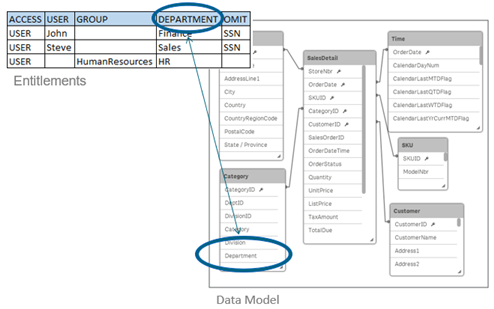
Row level data reduction, which is configured through Section Access at Qlik Sense app level. This article will not go in depth on Section Access implementation, but with this reduction a single file can be used to hold the data for a number of users or user groups. Qlik Sense uses the information in the section access for authentication and authorization, and dynamically reduces the data, so that users only see their own data.
3. Operating System Hardening
Qlik Sense Enterprise on Windows inherits the available protocols, cipher suites, key exchanges and other security hardening which are enabled on the Windows Server operating Qlik Sense.
Step 1: Disabling protocols and ciphers
Windows Server has a lot of protocols enabled by default; however protocols, ciphers, hashes and key exchanges that are considered deprecated or not secure enough should be disabled. There are many ways of doing this, and the Windows administrator and security experts should be consulted so that local policies are accurately applied. For simplicity, understanding and a good overview IIS Crypto 3.0 can be a good tool for evaluating current Windows configuration and applying changes.
Keep in mind that "Best Practice" today might not be recommended in the near future, what was considered "safe" a while ago is not necessarily considered so today. For this reason, it is also important to regularly scan servers for potential vulnerabilities and revisit configurations as required.The Windows Server needs to be restarted for these settings changes to take effect. It is also important to ensure that all components running on the server still operate as expected after hardening is applied, for example, older non-Qlik software might not be compliant with the latest options and standards.
Step 2: Firewalls
Firewalls typically should be closed, with required ports only opened for intended purposes.
See Qlik Sense Enterprise on Windows ports overview for details on required port based on the deployed architecture.Step 3: Service Account Permission
For most organizations, local administrator rights allow for an easier deployment, but Qlik Sense Enterprise on Windows does not require local administrator rights in order to function. This can be an attractive option inside some organizations. This will require additional configuration of boot strap mode as described in Qlik Sense Enterprise on Windows Services.
For a brief overview of the rights needed by a Qlik Sense Enterprise service account:- Full control over the share used by Qlik Sense Enterprise
- Full control over the installation directory (default: C:\Program Files\Qlik)
- Full control over %ProgramData%\Qlik
- Full control over any folders used as data connections
Qlik Sense Enterprise for Windows does not officially support Group Managed Service Accounts (gMSA), but it can operate using one. The initial barrier is that the installer requires a service account and password to be entered during installation. A domain or local account could be substituted for the install stages only to be swapped out in the Windows Services applet (services.msc) after installation. Some functionality may require workarounds (e.g. A User Directory Connection to Active Directory).
Step 4: Anti-Virus
Qlik Sense Enterprise on Windows does require exceptions from anti-virus scan to avoid potential disk I/O conflicts. Refer to Qlik Sense Folder And Files To Exclude From AntiVirus Scanning for more details.
Step 5 (Optional): FIPS
Qlik Sense Enterprise on Windows can run with Federal Information Processing Standards (FIPS) enabled on the Windows Server. This does require a few adjustments of configuration files due to Qlik using non-FIPS compliant algorithms for minor tasks like hash checks. See Running Qlik Sense on Windows systems with FIPS compliance enabled for more details on Qlik Sense and FIPS.
4. PostgreSQL Hardening
Qlik Sense Enterprise on Windows uses PostgreSQL to store meta-data relating to a Qlik Sense site. In multi-node sites or sites where PostgreSQL is isolated from Qlik Sense Enterprise for Windows additional security can be applied;
- Database Traffic Encryption
- Hardening what endpoints are allowed to connect to PostgreSQL as described in PostgreSQL: postgresql.conf and pg_hba.conf explained
5. Generalized Web Server best practices
Qlik Sense Proxy service bundled with Qlik Sense Enterprise on Windows is simply a web-service. This means applying general practice guidance but in the context of Qlik Sense as described below.
Apply a trusted certificate
Qlik Sense Enterprise on Windows acts as a Certificate Authority (CA) during initial installation and signs a certificate that is applied on all encrypted traffic between Qlik Sense services. The same Qlik Sense signed certificate is applied as default certificate also for incoming connections from users accessing Qlik Sense Hub and QMC. This default certificate is not intended for production use, unless user access to Qlik Sense comes through a network load balancer or reverse proxy that trusts the Qlik Sense certificate. For direct user access to Qlik Sense Proxy, a fully trusted certificate can typically be acquired from your local IT and then applied on the Qlik Sense Proxy service.
As of July 2019, Qlik Sense Enterprise on Windows support SHA1 and SHA2 certificates. If SHA384 or SHA512 certificates are needed, then a network load balancer or reverse proxy can be configured in front of Qlik Sense which offloads to Qlik Sense.
Optional: Additional HTTP Response Headers
There are numerous HTTP response headers that can be used in attempting to secure a server. Below are a couple of the most common ones, but as always it is recommended to consult local IT and web security expert on what the recommendations are.
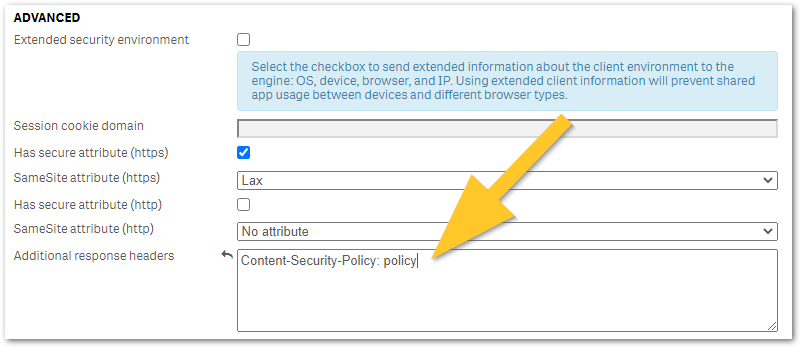
Any additional HTTP response header values can be configured in Qlik Sense Virtual Proxy settings under Additional response headers as shown in the below image and described in Qlik Sense for Administrators: Virtual Proxies. It is recommended to trial any header changes in a new virtual proxy, as poor configuration may accidentally lock you out from Qlik Sense access.
- HTTP Strict Transport Security (HSTS) HTTP Strict Transport Security (HSTS) is an opt-in security enhancement which any web application can support through the use of a special response header. When a supported browser receives this header that browser will prevent any communication sent over HTTP in the future and will redirect all traffic over HTTPS instead. Caution is advised when implementing HSTS, as it might block HTTP access to certain pages that actually requires it or needs to be excluded from HSTS. See MDN Web Docs: Strict-Transport-Security for more details on configuration options.
- Optional: X-Content-Type-Options X-Content-Type-Options response HTTP header is a marker used by the server to indicate that the MIME types advertised in the Content-Type headers should not be changed and be followed. This allows to opt-out of MIME type sniffing.
- X-Frame-Options will prevent the site to be embedded in an iFrame, which can effective mitigate against ClickJacking attacks
- Content-Security-Policy: policy (old: X-XSS-Protection) improves security against some types of XSS (cross-site scripting) attacks.
Policy is a placeholder for your policy of choice and cannot be used as a value. See Writing a Policy (Mozilla) for examples.

-
Qlik Sense and the JIRA Connector and JIRA Server: Error when displaying "Projec...
The following error (C) is shown after successfully creating a Jira Connection string and selecting a Project/key (B) from select data to load (A) : F... Show MoreThe following error (C) is shown after successfully creating a Jira Connection string and selecting a Project/key (B) from select data to load (A) :
Failed on attempt 1 to GET. (The remote server returned an error; (404).)
The error occurs when connecting to JIRA server, but not to JIRA Cloud.
Resolution
Qlik Cloud Analytics
Tick the Use legacy search API checkbox. This is switched off by default.
Qlik Sense Enterprise on Windows
This option is available since:
- Qlik Sense Enterprise on Windows May 2025 patch 3 and above,
- Qlik Sense Enterprise on Windows November 2025 IR (Initial Release) and above.
This is required when using both Issues and CustomFieldsForIssues tables.
Cause
Connections to JIRA Server use the legacy API.
Internal Investigation ID(s)
SUPPORT-3600 and SUPPORT-7241
Environment
- Qlik Cloud Analytics
- Qlik Sense Enterprise on Windows

-
Qlik Talend Cloud: An error Interceptor for PairingService has thrown exception,...
GOAWAY is received regularly in the karaf.log. Full error example: | WARN | pool-31-thread-1 | PhaseInterceptorChain | 165 - org.apache.cxf.cxf-core ... Show MoreGOAWAY is received regularly in the karaf.log.
Full error example:
| WARN | pool-31-thread-1 | PhaseInterceptorChain | 165 - org.apache.cxf.cxf-core - 3.6.2 | | Interceptor for {http://pairing.rt.ipaas.talend.org/}PairingService has thrown exception, unwinding now
Caused by: javax.ws.rs.ProcessingException: Problem with writing the data, class org.talend.ipaas.rt.engine.model.HeartbeatInfo, ContentType: application/json
at org.apache.cxf.jaxrs.client.AbstractClient.reportMessageHandlerProblem(AbstractClient.java:853) ~[bundleFile:3.6.2]
... 17 more
Caused by: java.io.IOException: IOException invoking https://pair.eu.cloud.talend.com/v2/engine/3787d7b2-2da7-43be-b6fc-39adab83d51a/heartbeat: GOAWAY receiveResolution
The issue has been mitigated in version 2.13.11 of the Remote Engine. See Talend Remote Engine v2.13.11:
TMC-5486 The engine has been enhanced to retry heartbeat connections when receiving a GOAWAY message. This improves its overall stability. To mitigate the issue, use Java 17 Update 17, released on the 21st of October 2025.
This update includes the fix for the bug JDK-8301255.For example: https://www.azul.com/downloads/?version=java-17-lts&package=jdk#zulu
Cause
This is caused by a defect in JDK 17 (JDK-8301255). See Http2Connection may send too many GOAWAY frames.
Environment
- Qlik Talend Cloud
-
Your Qlik Customer Portal My Account features
This article outlines all features available in the Qlik Customer Portal's My Account section, where you can view your personal information, team memb... Show MoreThis article outlines all features available in the Qlik Customer Portal's My Account section, where you can view your personal information, team members, trials, and contacts at Qlik.
How to access My Account on the Qlik Customer Portal
- Log in to Customer Portal: customerportal.qlik.com
- Click your profile icon
- Open My Account
Available User Roles and access control
The Customer Support Portal comes with four roles:
- Customer Admin: has full access and the ability to change team member roles
- Business Admin: has full access to view all features
- Support Admin: has full access to view all current features
- Default User: can view Personal Information, Trials, and the My Team section
Feature Customer Admin Business Admin Support Admin Default User Personal Information Yes Yes Yes Yes Trials Yes Yes Yes Yes My Team Yes Yes Yes Yes Qlik Contacts Yes Yes Yes No Overview of the My Account features
The Qlik Customer Portal Account section lets you access your Personal Information, your Trials, Team members, and Qlik Contacts.
Personal Information
Head there to view your personal profile details and to review your assigned roles.
The Role field determines access to other features in the Customer Portal. To change your role, find a colleague with the role Customer Admin in the My Team section. They can change your role if needed.
Trials
See active trials linked to your account and track evaluation periods.
My Team
This is where you can view and manage your colleagues registered in the Qlik Customer Portal, including their assigned roles.
A Customer Admin can update role assignments:
- Go to My Team and search for the team member you want to edit
- Click the pencil icon next to their role
- Choose the new role from the drop down
- Click Save
Qlik Contacts
This is where you can view all your contacts with Qlik, such as:
- Your Account Manager
- Your Customer Success Manager
- Your assigned Engineer (if applicable)
Troubleshooting
The following error is displayed if you do not have the correct role assigned to access a specific feature:
You are not authorized to view this detail. Please contact a colleague with a Customer Admin "Role" (see "My Team" tab using your company's internal channels. Communication is not possible within the Qlik Customer Portal environment.
Speak to a team member with the Customer Admin role to have your access updated.
-
Qlik Cloud detailed consumption report app fails to reload with error
After distributing the Consumption Report app from Qlik Cloud Administration > Settings, scheduled reloads of the app fail with the following error: ... Show MoreAfter distributing the Consumption Report app from Qlik Cloud Administration > Settings, scheduled reloads of the app fail with the following error:
Error: $(MUST_INCLUDE= [lib://snowflake_external_share:DataFiles/Capacity_Usage_Script_PROD.txt] cannot access the local file system in current script mode. Try including with LIB path.
Environment
- Qlik Cloud Analytics
- Qlik Talend Cloud
Resolution
The Consumption Report app isn't meant to be reloaded. The app should be distributed from Qlik Cloud Administration > Settings each day. Refer to Distributing detailed consumption reports for details:
Redistribute the app to obtain the most recent data. Apps stored on your tenant exist as separate instances and are not replaced by newer ones.
On the Talend side, refer to Distributing Data Capacity Reporting App for Talend Management Console for details on how to set up capacity reporting.
To automatically redistribute the app, see Automate deployment of the Capacity consumption app with Qlik Automate.
Cause
The Report Consumption app is meant to be distributed from Qlik Cloud Administration > Settings and not updated by a scheduled reload of the app.

-
Qlik Replicate and SAP Hana: bad event rowid and operation error
SAP Hana used as a source endpoint in Qlik Replicate may encounter errors processing null values for the SAP Hana ‘Application User’ field: [SOURCE_CA... Show MoreSAP Hana used as a source endpoint in Qlik Replicate may encounter errors processing null values for the SAP Hana ‘Application User’ field:
[SOURCE_CAPTURE ]E: Bad event rowid and operation [1020454] (saphana_trigger_based_cdc_log.c:534)
[SOURCE_CAPTURE ]E: Error handling events for db table id 525063, in the interval (552426485 - 552426767) [1020454] (saphana_trigger_based_cdc_log.c:1725)Resolution
This behavior will be fixed in the Qlik Replicate May 2025 SP04 release. If you need access to a patch before the expected release, contact Qlik Support.
Once fixed, the endpoint identifies the ‘null’ values and handles the data records with a missing “Application User” value.
Cause
Functionality added to Qlik Replicate 2025.5.0 captures the ‘Application User' to populate the USER_ID information in the data records. In particular situations, SAP HANA does not provide an ‘Application User’ value and instead provides a 'null’ value, which causes inconsistency in the fetch data parsing and therefore throws an error as a result of the missing value.
Internal Investigation ID(s)
SUPPORT-5926
Environment
- Qlik Replicate
-
Tasks in the Qlik Sense Management Console don't update to show the correct stat...
Executing tasks or modifying tasks (changing owner, renaming an app) in the Qlik Sense Management Console and refreshing the page does not update the ... Show MoreExecuting tasks or modifying tasks (changing owner, renaming an app) in the Qlik Sense Management Console and refreshing the page does not update the correct task status. Issue affects Content Admin and Deployment Admin roles.
The behaviour began after an upgrade of Qlik Sense Enterprise on Windows.
Fix version:
This issue can be mitigated beginning with August 2021 by enabling the QMCCachingSupport Security Rule.
Solution for August 2023 and above:
Enable QmcTaskTableCacheDisabled.
To do so:
- Navigate to C:\Program Files\Qlik\Sense\CapabilityService\
- Locate and open the capabilities.json
- Modify or add the QmcTaskTableCacheDisabled flag for these values to true
{"contentHash":"CONTENTHASHHERE","originalClassName":"FeatureToggle","flag":"QmcTaskTableCacheDisabled","enabled":true}
Where CONTENTHASHHERE matches the number in all other features listed in the capabilities.json.
Example:
This will disable the caching on the tasks table only, leaving the overall QMC Cache intact to gain performance. If you had previously set QmcCacheEnabled, QmcDirtyChecking, QmcExtendedCaching to false, please set it to true again. - Restart the Qlik Sense services
Workaround for earlier versions:
Upgrade to the latest Service Release and disable the caching functionality:
To do so:
- Navigate to C:\Program Files\Qlik\Sense\CapabilityService\
- Locate and open the capabilities.json
- Modify the flag for these values to false
- QmcCacheEnabled
- QmcDirtyChecking
- QmcExtendedCaching
- Restart the Qlik Sense services
NOTE: Make sure to use lower case when setting values to true or false as capabilities.json file is case sensitive.
Should the issue persist after applying the workaround/fix, contact Qlik Support.
Internal Investigation ID(s):
Environment
-
Qlik Talend Data Integration: SQLite general error "Code <14>, Message <UNABLE to="" open="" database="" file="">"</UNABLE>
Qlik Talend Data Integration task was unable to resume with the following error: [SORTER_STORAGE ]E: The Transaction Storage Swap cannot write Event (... Show MoreQlik Talend Data Integration task was unable to resume with the following error:
[SORTER_STORAGE ]E: The Transaction Storage Swap cannot write Event (transaction_storage.c:3321) [DATA_STRUCTURE ]E: SQLite general error. Code <14>, Message <unable to open database file>. [1000505] (at_sqlite.c:525) [DATA_STRUCTURE ]E: SQLite general error. Code <14>, Message <unable to open database file>. [1000506] (at_sqlite.c:475)
Resolution
Freeing up disk space or increase the data directory size usually solves the issue.
Cause
It indicates that Qlik Talend Data Integration was no longer able to access its internal SQLite database (used for the sorter, metadata, and task state management).
When the disk space in the Sorter directory becomes full, SQLite can no longer write to the database, which invariably results in Code 14.
After checking the disk space on the Linux server, it was found that it had indeed reached 100% usage, leaving no free space available which caused the issue.
Environment