Unlock a world of possibilities! Login now and discover the exclusive benefits awaiting you.

Featured Content
-
How to contact Qlik Support
Qlik offers a wide range of channels to assist you in troubleshooting, answering frequently asked questions, and getting in touch with our technical e... Show MoreQlik offers a wide range of channels to assist you in troubleshooting, answering frequently asked questions, and getting in touch with our technical experts. In this article, we guide you through all available avenues to secure your best possible experience.
For details on our terms and conditions, review the Qlik Support Policy.
Index:
- Support and Professional Services; who to contact when.
- Qlik Support: How to access the support you need
- 1. Qlik Community, Forums & Knowledge Base
- The Knowledge Base
- Blogs
- Our Support programs:
- The Qlik Forums
- Ideation
- How to create a Qlik ID
- 2. Chat
- 3. Qlik Support Case Portal
- Escalate a Support Case
- Phone Numbers
- Resources
Support and Professional Services; who to contact when.
We're happy to help! Here's a breakdown of resources for each type of need.
Support Professional Services (*) Reactively fixes technical issues as well as answers narrowly defined specific questions. Handles administrative issues to keep the product up-to-date and functioning. Proactively accelerates projects, reduces risk, and achieves optimal configurations. Delivers expert help for training, planning, implementation, and performance improvement. - Error messages
- Task crashes
- Latency issues (due to errors or 1-1 mode)
- Performance degradation without config changes
- Specific questions
- Licensing requests
- Bug Report / Hotfixes
- Not functioning as designed or documented
- Software regression
- Deployment Implementation
- Setting up new endpoints
- Performance Tuning
- Architecture design or optimization
- Automation
- Customization
- Environment Migration
- Health Check
- New functionality walkthrough
- Realtime upgrade assistance
(*) reach out to your Account Manager or Customer Success Manager
Qlik Support: How to access the support you need
1. Qlik Community, Forums & Knowledge Base
Your first line of support: https://community.qlik.com/
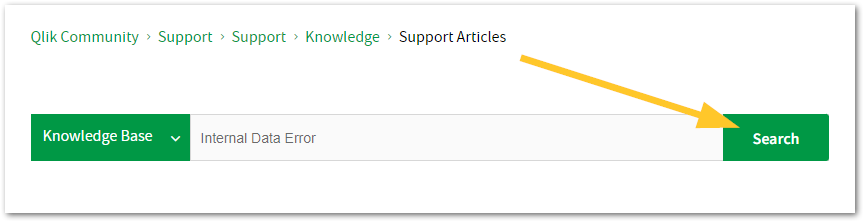
Looking for content? Type your question into our global search bar:
The Knowledge Base
Leverage the enhanced and continuously updated Knowledge Base to find solutions to your questions and best practice guides. Bookmark this page for quick access!
- Go to the Official Support Articles Knowledge base
- Type your question into our Search Engine
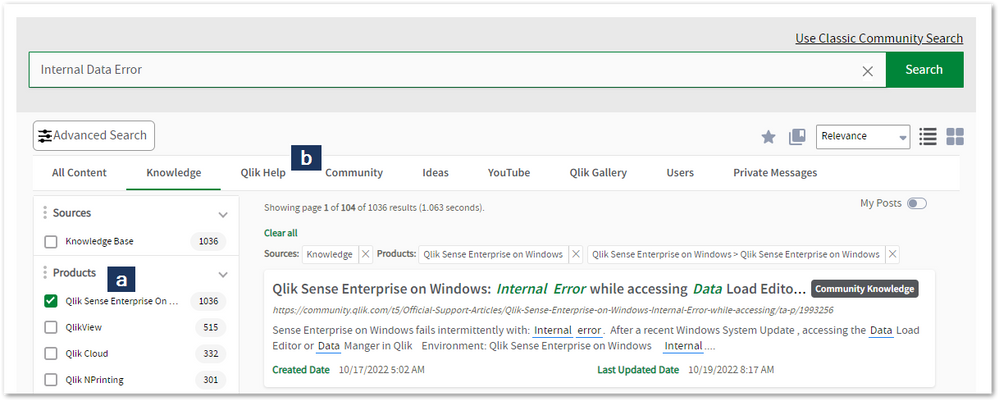
- Need more filters?
- Filter by Product
- Or switch tabs to browse content in the global community, on our Help Site, or even on our Youtube channel
Blogs
Subscribe to maximize your Qlik experience!
The Support Updates Blog
The Support Updates blog delivers important and useful Qlik Support information about end-of-product support, new service releases, and general support topics. (click)The Qlik Design Blog
The Design blog is all about product and Qlik solutions, such as scripting, data modelling, visual design, extensions, best practices, and more! (click)The Product Innovation Blog
By reading the Product Innovation blog, you will learn about what's new across all of the products in our growing Qlik product portfolio. (click)Our Support programs:
Q&A with Qlik
Live sessions with Qlik Experts in which we focus on your questions.Techspert Talks
Techspert Talks is a free webinar to facilitate knowledge sharing held on a monthly basis.Technical Adoption Workshops
Our in depth, hands-on workshops allow new Qlik Cloud Admins to build alongside Qlik Experts.Qlik Fix
Qlik Fix is a series of short video with helpful solutions for Qlik customers and partners.The Qlik Forums
- Quick, convenient, 24/7 availability
- Monitored by Qlik Experts
- New releases publicly announced within Qlik Community forums (click)
- Local language groups available (click)
Ideation
Suggest an idea, and influence the next generation of Qlik features!
Search & Submit Ideas
Ideation GuidelinesHow to create a Qlik ID
Get the full value of the community.
Register a Qlik ID:
- Go to register.myqlik.qlik.com
If you already have an account, please see How To Reset The Password of a Qlik Account for help using your existing account. - You must enter your company name exactly as it appears on your license or there will be significant delays in getting access.
- You will receive a system-generated email with an activation link for your new account. NOTE, this link will expire after 24 hours.
If you need additional details, see: Additional guidance on registering for a Qlik account
If you encounter problems with your Qlik ID, contact us through Live Chat!
2. Chat
Incidents are supported through our Chat, by clicking Chat Now on any Support Page across Qlik Community.
To raise a new issue, all you need to do is chat with us. With this, we can:
- Answer common questions instantly through our chatbot
- Have a live agent troubleshoot in real time
- With items that will take further investigating, we will create a case on your behalf with step-by-step intake questions.
3. Qlik Support Case Portal
Log in to manage and track your active cases in the Case Portal. (click)
Before you can access the Support Portal, please complete your Community account setup. See First time access to the Qlik Customer Support Portal fails with: Unauthorized Access Please try signing out and sign in again.
Please note: to create a new case, it is easiest to do so via our chat (see above). Our chat will log your case through a series of guided intake questions.
Your advantages:
- Self-service access to all incidents so that you can track progress
- Option to upload documentation and troubleshooting files
- Option to include additional stakeholders and watchers to view active cases
- Follow-up conversations
When creating a case, you will be prompted to enter problem type and issue level. Definitions shared below:
Problem Type
Select Account Related for issues with your account, licenses, downloads, or payment.
Select Product Related for technical issues with Qlik products and platforms.
Priority
If your issue is account related, you will be asked to select a Priority level:
Select Medium/Low if the system is accessible, but there are some functional limitations that are not critical in the daily operation.
Select High if there are significant impacts on normal work or performance.
Select Urgent if there are major impacts on business-critical work or performance.
Severity
If your issue is product related, you will be asked to select a Severity level:
Severity 1: Qlik production software is down or not available, but not because of scheduled maintenance and/or upgrades.
Severity 2: Major functionality is not working in accordance with the technical specifications in documentation or significant performance degradation is experienced so that critical business operations cannot be performed.
Severity 3: Any error that is not Severity 1 Error or Severity 2 Issue. For more information, visit our Qlik Support Policy.
Escalate a Support Case
If you require a support case escalation, you have two options:
- Request to escalate within the case, mentioning the business reasons.
To escalate a support incident successfully, mention your intention to escalate in the open support case. This will begin the escalation process. - Contact your Regional Support Manager
If more attention is required, contact your regional support manager. You can find a full list of regional support managers in the How to escalate a support case article.
Phone Numbers
When other Support Channels are down for maintenance, please contact us via phone for high severity production-down concerns.
- Qlik Data Analytics: 1-877-754-5843
- Qlik Data Integration: 1-781-730-4060
- Talend AMER Region: 1-800-810-3065
- Talend UK Region: 44-800-098-8473
- Talend APAC Region: 65-800-492-2269
Resources
A collection of useful links.
Qlik Cloud Status Page
Keep up to date with Qlik Cloud's status.
Support Policy
Review our Service Level Agreements and License Agreements.
Live Chat and Case Portal
Your one stop to contact us.




Recent Documents
-
Qlik Cloud Monitoring Apps Workflow Guide
This template was updated on December 4th, 2025 to replace the original installer and API key rotator with a new, unified deployer automation. Please... Show MoreThis template was updated on December 4th, 2025 to replace the original installer and API key rotator with a new, unified deployer automation. Please disable or delete any existing installers, and create a new automation, picking the Qlik Cloud monitoring app deployer template from the App installers category.
Installing, upgrading, and managing the Qlik Cloud Monitoring Apps has just gotten a whole lot easier! With a single Qlik Automate template, you can now install and update the apps on a schedule with a set-and-forget installer using an out-of-the-box Qlik Automate template. It can also handle API key rotation required for the data connection, ensuring the data connection is always operational.
Some monitoring apps are designed for specific Qlik Cloud subscription types. Refer to the compatibility matrix within the Qlik Cloud Monitoring Apps repository.
'Qlik Cloud Monitoring Apps deployer' template overview
This automation template is a set-and-forget template for managing the Qlik Cloud Monitoring Applications, including but not limited to the App Analyzer, Entitlement Analyzer, Reload Analyzer, and Access Evaluator applications. Leverage this automation template to quickly and easily install and update these or a subset of these applications with all their dependencies. The applications themselves are community-supported; and, they are provided through Qlik's Open-Source Software (OSS) GitHub and thus are subject to Qlik's open-source guidelines and policies.
For more information, refer to the GitHub repository.
Features
- Can install/upgrade all or select apps.
- Can create or leverage existing spaces.
- Programmatically verified prerequisite settings, roles, and entitlements, notifying the user during the process if changes in configuration are required, and why.
- Installs latest versions of specified applications from Qlik’s OSS GitHub.
- Creates required API key.
- Creates required analytics data connection.
- Creates a daily reload schedule.
- Reload applications post-install.
- Tags apps appropriately to track which are installed and their respective versions.
- Supports both user and capacity-based subscriptions.
Configuration:
Update just the configuration area to define how the automation runs, then test run, and set it on a weekly or monthly schedule as desired.
Configure the run mode of the template using 7 variable blocks
Users should review the following variables:
- configuredMonitoringApps: contains the list of the monitoring applications which will be installed and maintained. Delete any applications not required before running (default: all apps listed).
- refreshConnectorCredentials: determines whether the monitoring application REST connection and associated API key will be regenerated every run (default: true).
- reloadNow: determines whether apps are reloaded immediately following updates (default: true).
- reloadScheduleHour: determines at which hour of the day the apps reload at for the daily schedule in UTC timezone (default: 06)
- sharedSpaceName: defines the name of the shared space used to import the apps into prior to publishing. If the space doesn't exist, it'll be created. If the space exists, the user will be added to it with the required permissions (default: Monitoring - staging).
- managedSpaceName: defines the name of the managed space the apps are published into for consumption/ alerts/ subscription use.If the space doesn't exist, it'll be created. If the space exists, the user will be added to it with the required permissions (default: Monitoring).
- versionsToKeep: determines how many versions of each staged app is kept in the shared space. If set to 0, apps are deleted after publishing. If a positive integer value other than 0, that many apps will be kept for each monitoring app deployed (default: 0).
App management:
If the monitoring applications have been installed manually (i.e., not through this automation), then they will not be detected as existing. The automation will install new copies side-by-side. Any subsequent executions of the automation will detect the newly installed monitoring applications and check their versions, etc. This is due to the fact that the applications are tagged with "QCMA - {appName}" and "QCMA - {version}" during the installation process through the automation. Manually installed applications will not have these tags and therefore will not be detected.
FAQ
Q: Can I re-run the installer to check if any of the monitoring applications are able to be upgraded to a later version?
A: Yes. The automation will update any managed apps that don't match the repository's manifest version.
Q: What if multiple people install monitoring applications in different spaces?
A: The template scopes the application's installation process to a managed space. It will scope the API key name to `QCMA – {spaceId}` of that managed space. This allows the template to install/update the monitoring applications across spaces and across users. If one user installs an application to “Space A” and then another user installs a different monitoring application to “Space A”, the template will see that a data connection and associated API key (in this case from another user) exists for that space already. It will install the application leveraging those pre-existing assets.
Q: What if a new monitoring application is released? Will the template provide the ability to install that application as well?
A: Yes, but an update of the template from the template picker will be required, since the applications are hard coded into the template. The automation will begin to fail with a notification an update is needed once a new version is available.
Q:I have updated my application, but I noticed that it did not preserve the history. Why is that?
A: Each upgrade may generate a new set of QVDs if the data models for the applications have changed due to bug fixes, updates, new features, etc. The history is preserved in the prior versions of the application’s QVDs, so the data is never deleted and can be loaded into the older version.
-
Customizing Qlik Sense Enterprise on Windows Forms Login Page
Ever wanted to brand or customize the default Qlik Sense Login page? The functionality exists, and it's really as simple as just designing your HTML p... Show MoreEver wanted to brand or customize the default Qlik Sense Login page?
The functionality exists, and it's really as simple as just designing your HTML page and 'POSTing' it into your environment.
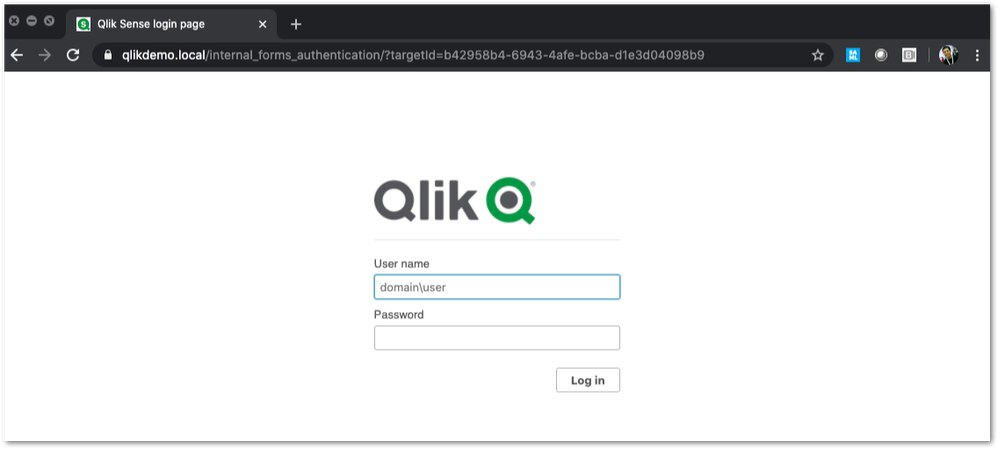
We've all seen the standard Qlik Sense Login page, this article is all about customizing this page.
This customization is provided as is. Qlik Support cannot provide continued support of the solution. For assistance, reach out to our Professional Services or engage in our active Integrations forum.
To customize the page:
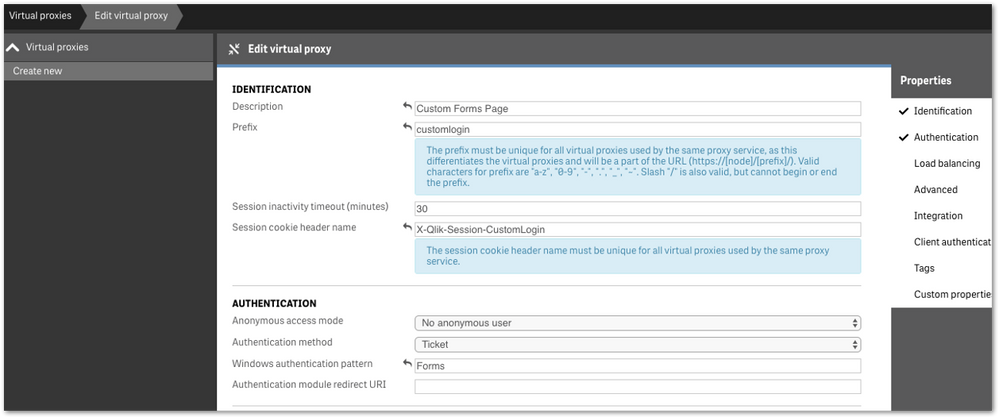
- We highly recommend setting up a new virtual proxy with Forms so you don't impact any users that are using auto-login Windows auth.
Example setup:
Description: Custom Forms Page
Prefix: customlogin
Session cookie header-name: X-Qlik-Session-CustomLogin
Windows authentication pattern: Forms - Once this is done, a good starting point is to download the default login page.
You can open up your web developer tool of choice, go to the login page, and download the HTML response from the GET http://<server>/customlogin/internal_forms_authentication request. It should be roughly a 273 line .html file. - Once you have this file, you can more or less customize it as much as you'd like.
Image files can be inlined as you'll see in the qlik default file, or can be referenced as long as they are publicly accessible. The only thing that needs to exist are the input boxes with appropriate classes and attributes, and the 'Log In' button. - After building out your custom HTML page and it looks great, it needs to be converted to Base64. There are online tools to do this, openssl also has this functionality.
Once you have your Base64 encoded HTML file, then you will want to PUT it into your sense environment. - First, do a GET request on /qrs/proxyservice and find the ID of the proxy service you want this login page to be shown for.
- You will then do a GET request on /qrs/proxyservice/<id> and copy the body of that response. Below is an example of that response.
{ "id": "8817d7ab-e9b2-4816-8332-f8cb869b27c2", "createdDate": "2020-03-23T15:39:33.540Z", "modifiedDate": "2020-05-20T18:46:13.995Z", "modifiedByUserName": "INTERNAL\\sa_api", "customProperties": [], "settings": { "id": "8817d7ab-e9b2-4816-8332-f8cb869b27c2", "createdDate": "2020-03-23T15:39:33.540Z", "modifiedDate": "2020-05-20T18:46:13.995Z", "modifiedByUserName": "INTERNAL\\sa_api", "listenPort": 443, "allowHttp": true, "unencryptedListenPort": 80, "authenticationListenPort": 4244, "kerberosAuthentication": false, "unencryptedAuthenticationListenPort": 4248, "sslBrowserCertificateThumbprint": "e6ee6df78f9afb22db8252cbeb8ad1646fa14142", "keepAliveTimeoutSeconds": 10, "maxHeaderSizeBytes": 16384, "maxHeaderLines": 100, "logVerbosity": { "id": "8817d7ab-e9b2-4816-8332-f8cb869b27c2", "createdDate": "2020-03-23T15:39:33.540Z", "modifiedDate": "2020-05-20T18:46:13.995Z", "modifiedByUserName": "INTERNAL\\sa_api", "logVerbosityAuditActivity": 4, "logVerbosityAuditSecurity": 4, "logVerbosityService": 4, "logVerbosityAudit": 4, "logVerbosityPerformance": 4, "logVerbositySecurity": 4, "logVerbositySystem": 4, "schemaPath": "ProxyService.Settings.LogVerbosity" }, "useWsTrace": false, "performanceLoggingInterval": 5, "restListenPort": 4243, "virtualProxies": [ { "id": "58d03102-656f-4075-a436-056d81144c1f", "prefix": "", "description": "Central Proxy (Default)", "authenticationModuleRedirectUri": "", "sessionModuleBaseUri": "", "loadBalancingModuleBaseUri": "", "useStickyLoadBalancing": false, "loadBalancingServerNodes": [ { "id": "f1d26a45-b0dd-4be1-91d0-34c698e18047", "name": "Central", "hostName": "qlikdemo", "temporaryfilepath": "C:\\Users\\qservice\\AppData\\Local\\Temp\\", "roles": [ { "id": "2a6a0d52-9bb4-4e74-b2b2-b597fa4e4470", "definition": 0, "privileges": null }, { "id": "d2c56b7b-43fd-44ad-a12f-59e778ce575a", "definition": 1, "privileges": null }, { "id": "37244424-96ae-4fe5-9522-088a0e9679e3", "definition": 2, "privileges": null }, { "id": "b770516e-fe8a-43a8-a7a4-318984ee4bd6", "definition": 3, "privileges": null }, { "id": "998b7df8-195f-4382-af18-4e0c023e7f1c", "definition": 4, "privileges": null }, { "id": "2a5325f4-649b-4147-b0b1-f568be1988aa", "definition": 5, "privileges": null } ], "serviceCluster": { "id": "b07fc5f2-f09e-4676-9de6-7d73f637b962", "name": "ServiceCluster", "privileges": null }, "privileges": null } ], "authenticationMethod": 0, "headerAuthenticationMode": 0, "headerAuthenticationHeaderName": "", "headerAuthenticationStaticUserDirectory": "", "headerAuthenticationDynamicUserDirectory": "", "anonymousAccessMode": 0, "windowsAuthenticationEnabledDevicePattern": "Windows", "sessionCookieHeaderName": "X-Qlik-Session", "sessionCookieDomain": "", "additionalResponseHeaders": "", "sessionInactivityTimeout": 30, "extendedSecurityEnvironment": false, "websocketCrossOriginWhiteList": [ "qlikdemo", "qlikdemo.local", "qlikdemo.paris.lan" ], "defaultVirtualProxy": true, "tags": [], "samlMetadataIdP": "", "samlHostUri": "", "samlEntityId": "", "samlAttributeUserId": "", "samlAttributeUserDirectory": "", "samlAttributeSigningAlgorithm": 0, "samlAttributeMap": [], "jwtAttributeUserId": "", "jwtAttributeUserDirectory": "", "jwtAudience": "", "jwtPublicKeyCertificate": "", "jwtAttributeMap": [], "magicLinkHostUri": "", "magicLinkFriendlyName": "", "samlSlo": false, "privileges": null }, { "id": "a8b561ec-f4dc-48a1-8bf1-94772d9aa6cc", "prefix": "header", "description": "header", "authenticationModuleRedirectUri": "", "sessionModuleBaseUri": "", "loadBalancingModuleBaseUri": "", "useStickyLoadBalancing": false, "loadBalancingServerNodes": [ { "id": "f1d26a45-b0dd-4be1-91d0-34c698e18047", "name": "Central", "hostName": "qlikdemo", "temporaryfilepath": "C:\\Users\\qservice\\AppData\\Local\\Temp\\", "roles": [ { "id": "2a6a0d52-9bb4-4e74-b2b2-b597fa4e4470", "definition": 0, "privileges": null }, { "id": "d2c56b7b-43fd-44ad-a12f-59e778ce575a", "definition": 1, "privileges": null }, { "id": "37244424-96ae-4fe5-9522-088a0e9679e3", "definition": 2, "privileges": null }, { "id": "b770516e-fe8a-43a8-a7a4-318984ee4bd6", "definition": 3, "privileges": null }, { "id": "998b7df8-195f-4382-af18-4e0c023e7f1c", "definition": 4, "privileges": null }, { "id": "2a5325f4-649b-4147-b0b1-f568be1988aa", "definition": 5, "privileges": null } ], "serviceCluster": { "id": "b07fc5f2-f09e-4676-9de6-7d73f637b962", "name": "ServiceCluster", "privileges": null }, "privileges": null } ], "authenticationMethod": 1, "headerAuthenticationMode": 1, "headerAuthenticationHeaderName": "userid", "headerAuthenticationStaticUserDirectory": "QLIKDEMO", "headerAuthenticationDynamicUserDirectory": "", "anonymousAccessMode": 0, "windowsAuthenticationEnabledDevicePattern": "Windows", "sessionCookieHeaderName": "X-Qlik-Session-Header", "sessionCookieDomain": "", "additionalResponseHeaders": "", "sessionInactivityTimeout": 30, "extendedSecurityEnvironment": false, "websocketCrossOriginWhiteList": [ "qlikdemo", "qlikdemo.local" ], "defaultVirtualProxy": false, "tags": [], "samlMetadataIdP": "", "samlHostUri": "", "samlEntityId": "", "samlAttributeUserId": "", "samlAttributeUserDirectory": "", "samlAttributeSigningAlgorithm": 0, "samlAttributeMap": [], "jwtAttributeUserId": "", "jwtAttributeUserDirectory": "", "jwtAudience": "", "jwtPublicKeyCertificate": "", "jwtAttributeMap": [], "magicLinkHostUri": "", "magicLinkFriendlyName": "", "samlSlo": false, "privileges": null } ], "formAuthenticationPageTemplate": "", "loggedOutPageTemplate": "", "errorPageTemplate": "", "schemaPath": "ProxyService.Settings" }, "serverNodeConfiguration": { "id": "f1d26a45-b0dd-4be1-91d0-34c698e18047", "name": "Central", "hostName": "qlikdemo", "temporaryfilepath": "C:\\Users\\qservice\\AppData\\Local\\Temp\\", "roles": [ { "id": "2a6a0d52-9bb4-4e74-b2b2-b597fa4e4470", "definition": 0, "privileges": null }, { "id": "d2c56b7b-43fd-44ad-a12f-59e778ce575a", "definition": 1, "privileges": null }, { "id": "37244424-96ae-4fe5-9522-088a0e9679e3", "definition": 2, "privileges": null }, { "id": "b770516e-fe8a-43a8-a7a4-318984ee4bd6", "definition": 3, "privileges": null }, { "id": "998b7df8-195f-4382-af18-4e0c023e7f1c", "definition": 4, "privileges": null }, { "id": "2a5325f4-649b-4147-b0b1-f568be1988aa", "definition": 5, "privileges": null } ], "serviceCluster": { "id": "b07fc5f2-f09e-4676-9de6-7d73f637b962", "name": "ServiceCluster", "privileges": null }, "privileges": null }, "tags": [], "privileges": null, "schemaPath": "ProxyService" } - In the response, locate the formAuthenticationPageTemplate field
- You can then take your base64 encoded HTML file, paste the value into the formAuthenticationPageTemplate field.
Example:
"formAuthenticationPageTemplate": "BASE 64 ENCODED HTML HERE",
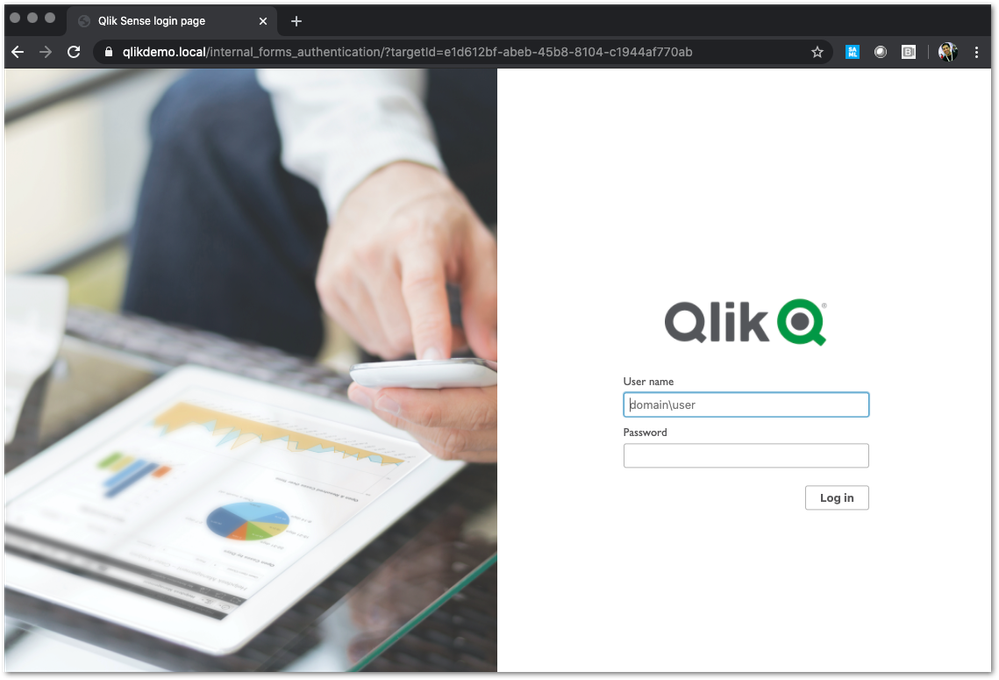
Once you have an updated body, you can use the PUT verb (with an updated modifiedDate) to PUT this body back into the repository. Once this is done, you should be able to goto your virtual proxy and you should see your new login page (very Qlik branded in this example):
If your login page does not work and you need to revert back to the default, simply do a GET call on your proxy service, and set formAuthenticationPageTemplate back to an empty string:
formAuthenticationPageTemplate": ""Environment:
- We highly recommend setting up a new virtual proxy with Forms so you don't impact any users that are using auto-login Windows auth.
-
Qlik Write Table FAQ
This document contains frequently asked questions for the Qlik Write Table. Content Data and metadataQ: What happens to changes after 90 days?Q: Whic... Show More -
REST connection fails with error "Timeout when waiting for HTTP response from se...
After loading for a while, Qlik REST connector fails with the following error messages: QVX_UNEXPECTED_END_OF_DATA: Timeout when waiting for HTTP res... Show MoreAfter loading for a while, Qlik REST connector fails with the following error messages:
- QVX_UNEXPECTED_END_OF_DATA: Timeout when waiting for HTTP response from server
- QVX_UNEXPECTED_END_OF_DATA: Failed to receive complete HTTP response from server
This happens even when Timeout parameter of the REST connector is already set to a high value (longer than the actual timeout)
Environment
Qlik Sense Enterprise on Windows
Timeout parameter in Qlik REST connector is for the connection establishment, i.e connection statement will fail if the connection request takes longer than the timeout value set. This is documented in the product help site at https://help.qlik.com/en-US/connectors/Subsystems/REST_connector_help/Content/Connectors_REST/Create-REST-connection/Create-REST-connection.htm
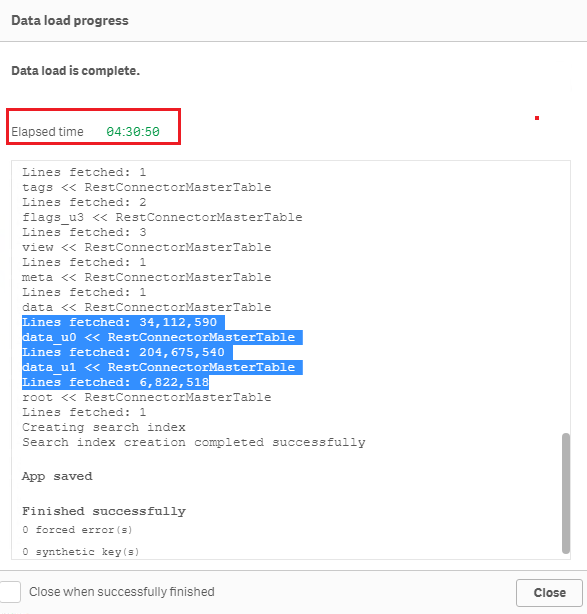
When connection establishment is done, Qlik REST connector does not have any time limit for the actual data load. For example, below is a test of loading the sample dataset "Crimes - 2001 to present" (245 million rows, ~5GB on disk) from https://catalog.data.gov/dataset?res_format=JSON. Reload finished successfully with default REST connector configuration:Therefore, errors like QVX_UNEXPECTED_END_OF_DATA: Timeout when waiting for HTTP response from server and QVX_UNEXPECTED_END_OF_DATA: Failed to receive complete HTTP response from server are most likely triggered by the API source or an element in the network (such as proxy or firewall) rather than Qlik REST connector.
To resolve the issue, please review the API source and network connectivity to see if such timeout is in place. -
Setting Up Knowledge Marts for AI
This Techspert Talks session addresses: Synchronizing data in real time Connecting to Structured and Unstructured data Demonstration of chatbot appl... Show More
-
First time access to the Qlik Customer Support Portal fails with: Unauthorized A...
Accessing the Qlik Customer Support Portal for the first time may fail with the error: Unauthorized access. Please try signing out and sign in again. ... Show MoreAccessing the Qlik Customer Support Portal for the first time may fail with the error:
Unauthorized access. Please try signing out and sign in again.
Resolution
This error typically means the required Community profile was not yet completed.
To resolve it:
- Go to Qlik Community
- Log in
- Complete the Profile setup by choosing a Username
- Click Submit
-
Critical Security fix for the Qlik Talend JobServer and Talend Runtime (CVE-2026...
Executive Summary A critical security issue in the Talend JobServer and Talend Runtime has been identified. This issue was resolved in later patches, ... Show MoreExecutive Summary
A critical security issue in the Talend JobServer and Talend Runtime has been identified. This issue was resolved in later patches, which are already available. If the vulnerability is successfully exploited, an attacker could gain full remote code execution on the Talend JobServer and Talend Runtime servers.
This issue was discovered by Harpreet Singh (@TheCyb3rAlphaProfession), Security Researcher.
Affected Software
- All versions of Talend JobServer before TPS-6017 (8.0) or TPS-6018 (7.3).
- All versions of Talend Runtime before 8.0.1.R2026-01-RT or 7.3.1-R2026-01
Severity Rating
Using the CVSS V3.1 scoring system (https://nvd.nist.gov/vuln-metrics/cvss), this issue is rated CRITICAL.
Vulnerability Details
CVE-2026-XXXX – A CVE is pending.
Severity: CVSS:3.1/AV:N/AC:L/PR:N/UI:N/S:U/C:H/I:H/A:H (9.8 Critical)
A critical vulnerability has been found in the Talend JobServer and Talend Runtime that allows unauthenticated remote code execution
The attack vector for this vulnerability is the JMX monitoring port of the Talend JobServer. The vulnerability can be mitigated for the Talend Jobserver by requiring TLS client authentication for the monitoring port. However, the patch will need to be applied to fully mitigate the vulnerability.
For Talend Runtime, the vulnerability can be mitigated by disabling the JobServer JMX monitoring port, which is disabled by default from the 8.0 R2024-07-RT patch.Resolution
Recommendation
Upgrade at the earliest. The following table lists the patch versions addressing the vulnerability (CVE-2026-pending).
Always update to the latest version. Before you upgrade, check if a more recent release is available.
Product Patch Release Date Talend JobServer 8.0 TPS-6017 January 16, 2026 Talend Jobserver 7.3 TPS-6018 January 16, 2026 Talend Runtime 8.0 8.0.1.R2026-01-RT January 24, 2026 Talend Runtime 7.3 7.3.1-R2026-01 January 24, 2026 -
Stream are not visible or available on the hub in Qlik Sense May 2022
After upgrading or installing Qlik Sense Enterprise on Windows May 2022, users may not see all of their streams. The streams appear only after an inte... Show MoreAfter upgrading or installing Qlik Sense Enterprise on Windows May 2022, users may not see all of their streams.
The streams appear only after an interaction or a click anywhere on the Hub.
This is caused by defect QB-10693, resolved in May 2022 Patch 4.
Environment
Qlik Sense Enterprise on Windows May 2022
Workaround
To work around the issue without a patch:
- Locate and open the file: C:\Program Files\Qlik\Sense\CapabilityService\capabilities.json
- Modify the following line:
{"contentHash":"2ae4a99c9f17ab76e1eeb27bc4211874","originalClassName":"FeatureToggle","flag":"HUB_HIDE_EMPTY_STREAMS","enabled":true}
Set it from true to false:
{"contentHash":"2ae4a99c9f17ab76e1eeb27bc4211874","originalClassName":"FeatureToggle","flag":"HUB_HIDE_EMPTY_STREAMS","enabled":false} - Save the file.
If you have a multi node, these changes need to be applied on all nodes.
Note 2: As these are changes to a configuration file, they will be reverted to default when upgrading. The changes will need to be redone after patching or upgrading Qlik Sense. - Restart the Qlik Sense Dispatcher service AND the Qlik Sense Proxy Service
Note: If you have a multi node, all nodes need to be restarted.
Fix
A fix is available in May 2022, patch 4.
Streams will show up (after a few seconds) without the need to click or interact with the hub.
Important NOTE about feature HUB_HIDE_EMPTY_STREAMS:
When you activate HUB_HIDE_EMPTY_STREAMS, you will have an expected delay before all streams appear.
To improve this delay, from Patch 4, you can add HUB_OPTIMIZED_SEARCH (needs to be added manually as a new flag). As of now, HUB_OPTIMIZED_SEARCH tag will be available in the upcoming August 2022 release and is not planned for any patches (yet)
If this delay (seconds) is not acceptable, you will need to disable this HUB_HIDE_EMPTY_STREAMS capability.Cause
This defect was introduced by a new capability service.
Internal Investigation ID(s)
QB-10693
- Locate and open the file: C:\Program Files\Qlik\Sense\CapabilityService\capabilities.json
-
Configure Qlik Sense Mobile for iOS and Android
The Qlik Sense Mobile app allows you to securely connect to your Qlik Sense Enterprise deployment from your supported mobile device. This is the proce... Show MoreThe Qlik Sense Mobile app allows you to securely connect to your Qlik Sense Enterprise deployment from your supported mobile device. This is the process of configuring Qlik Sense to function with the mobile app on iPad / iPhone.
This article applies to the Qlik Sense Mobile app used with Qlik Sense Enterprise on Windows. For information regarding the Qlik Cloud Mobile app, see Setting up Qlik Sense Mobile SaaS.
Content:
- Pre-requirements (Client-side)
- Configuration (Server-side)
- Update the Host White List in the proxy
- Configuration (Client side)
Pre-requirements (Client-side)
See the requirements for your mobile app version on the official Qlik Online Help > Planning your Qlik Sense Enterprise deployment > System requirements for Qlik Sense Enterprise > Qlik Sense Mobile app
Configuration (Server-side)
Acquire a signed and trusted Certificate.
Out of the box, Qlik Sense is installed with HTTPS enabled on the hub and HTTP disabled. Due to iOS specific certificate requirements, a signed and trusted certificate is required when connecting from an iOS device. If using HTTPS, make sure to use a certificate issued by an Apple-approved Certification Authority.
Also check Qlik Sense Mobile on iOS: cannot open apps on the HUB for issues related to Qlik Sense Mobile on iOS and certificates.
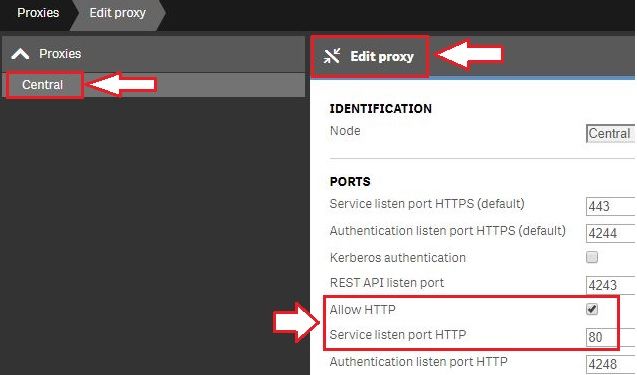
For testing purposes, it is possible to enable port 80.(Optional) Enable HTTP (port 80).
- Open the Qlik Sense Management Console and navigate to Proxies.
- Select the Proxy you wish to use and click Edit Proxy.
- Check Allow HTTP
Update the Host White List in the proxy
If not already done, add an address to the White List:
- In Qlik Management Console, go to CONFIGURE SYSTEM -> Virtual Proxies
- Select the proxy and click Edit
- Select Advanced in Properties list on the right pane
- Scroll to Advanced section in the middle pane
- Locate "Allow list"
- Click "Add new value" and add the addresses being used when connecting to the Qlik Sense Hub from a client. See How to configure the WebSocket origin allow list and best practices for details.
Generate the authentication link:
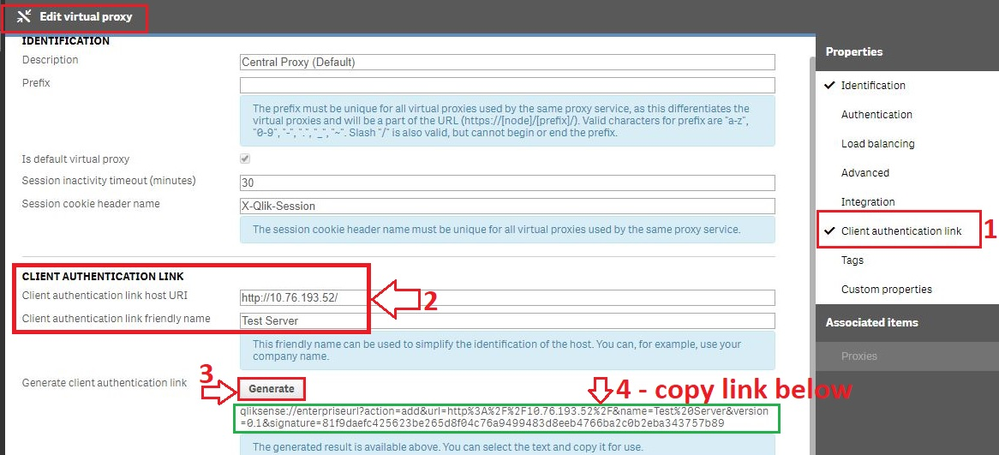
An authentication link is required for the Qlik Sense Mobile App.
- Navigate to Virtual Proxies in the Qlik Sense Management Console and edit the proxy used for mobile App access
- Enable the Client authentication link menu in the far right menu.
- Generate the link.
NOTE: In the client authentication link host URI, you may need to remove the "/" from the end of the URL, such as http://10.76.193.52/ would be http://10.76.193.52
Associate User access pass
Users connecting to Qlik Sense Enterprise need a valid license available. See the Qlik Sense Online Help for more information on how to assign available access types.
Qlik Sense Enterprise on Windows > Administer Qlik Sense Enterprise on Windows > Managing a Qlik Sense Enterprise on Windows site > Managing QMC resource > Managing licenses- Managing professional access
- Managing analyzer access
- Managing user access
- Creating login access rules
Configuration (Client side)
- Install Qlik Sense mobile app from AppStore.
- Provide authentication link generated in QMC
- Open the link from your device (this can be also done by going to the Hub, clicking on the menu icon at the top right and selecting "Client Authentication"), the installed application will be triggered automatically, and the configuration parameters will be applied.
- Enter user credentials for QS server
-
Qlik Talend Data Integration: tDBConnection adaption for MSSQL Availability Grou...
When setting up a Microsoft SQL Server Always On Availability Group (AG) along with a Windows Failover Cluster, are there any additional SQL Server–si... Show MoreWhen setting up a Microsoft SQL Server Always On Availability Group (AG) along with a Windows Failover Cluster, are there any additional SQL Server–side configurations or Talend-specific database settings required to run Talend Job against a MSSQL Always On database?
Answer
Talend Job need be adapted at the JDBC connection level to ensure proper failover handling and connection resiliency, by setting relevant parameters in the Additional JDBC Parameters field.
Talend JDBC Configuration Requirement
Talend should connect to SQL Server using either the Availability Group Listener (AG Listener) DNS name or the Failover Cluster Instance (FCI) virtual network name, and include specific JDBC connection parameters.
Sample JDBC Connection URL:
jdbc:sqlserver://<AG_Listener_DNS_Name>:1433;
databaseName=<Database_Name>;
multiSubnetFailover=true;
loginTimeout=60
Replace and with your actual values. Unless otherwise configured, Port 1433 is the default SQL Server port.
Key Parameter Explanations
multiSubnetFailover=true
Enables fast reconnection after AG failover and is mandatory for multi-subnet or DR-enabled AG environments.
applicationIntent=ReadWrite (optional, usage-dependent)
Ensures write operations are always routed to the primary replica.
Valid values:
ReadWrite
ReadOnly
loginTimeout=60
Prevents premature Talend Job failures during transient failover or brief network interruptions.Best Practice Recommendation
Before promoting any changes to the Production environment, it is essential to perform failover and reconnection stress tests in the DEV/QA environment. This will help to validate the behavior of Talend Job during:
- AG role switchovers
- Network interruptions
- Planned and unplanned failover scenarios
Related Content
Talend JDBC connection parameters | Qlik Talend Help Center
Microsoft JDBC driver support for Always On / HA-DR | learn.microsoft.com
SQL Server JDBC connection properties | learn.microsoft.com
Environment
-
Qlik Talend Administration Center Software Update page shows error: Unexpected H...
Navigating to the Software Update page of the Qlik Talend Administration Center UI leads to the following error: Unexpected HTTP status 302' when acce... Show MoreNavigating to the Software Update page of the Qlik Talend Administration Center UI leads to the following error:
Unexpected HTTP status 302' when accessing (https://talend-update.talend.com/nexus/service/local/status) redirect to (https://talend-update.talend.com/)").
This can affect any Patch Release of Qlik Talend Administration Center (TAC).
SoftwareUpdate
The Configuration page will reflect the error:
Resolution
To resolve, change the Talend update URL (https://talend-update.talend.com/nexus) to https://talend-update.talend.com, removing /nexus from the path.
This is done in the Configuration page.
UpdateURLwithoutNexus
Cause
This issue began to appear after January 26th, 2026, at which point the URL backend was updated.
The URL needs to be changed in the Qlik Talend Administration Center backend.
Environment
-
How to extract changes from the change store (Write table) and store them in a Q...
This article explains how to extract changes from a Change Store and store them in a QVD by using a load script in Qlik Analytics. The article also i... Show MoreThis article explains how to extract changes from a Change Store and store them in a QVD by using a load script in Qlik Analytics.
The article also includes
- An app example with an incremental load script that will store new changes in a QVD
- Configuration instructions for the examples
Scenario
This example will create an analytics app for Vendor Reviews. The idea is that you, as a company, are working with multiple vendors. Once a quarter, you want to review these vendors.
The example is simplified, but it can be extended with additional data for real-world examples or for other “review” use cases like employee reviews, budget reviews, and so on.
The data model
The app’s data model is a single table “Vendors” that contains a Vendor ID, Vendor Name, and City:
Vendors:
Load * inline [
"Vendor ID","Vendor Name","City"
1,Dunder Mifflin,Ghent
2,Nuka Cola,Leuven
3,Octan, Brussels
4,Kitchen Table International,Antwerp
];
The Write Table
The Write Table contains two data model fields: Vendor ID and Vendor Name. They are both configured as primary keys to demonstrate how this can work for composite keys.
The Write Table is then extended with three editable columns:
- Quarter (Single select)
- Action required? (Single select)
- Comment (Manual user input)
Prerequisites
- A shared space
- A managed space (optional but advised for the tutorial)
- A connection to the Change-stores API to the Analytics REST connector in the shared space. A step-by-step guide on creating this connection is available in Extracting write table changes with the REST connector in Qlik Cloud.
Steps
- Upload the attached .QVF file to a shared space
- Open the private sheet Vendor Reviews
- Click the Reload App (A) button and make sure data appears (B) in the top table
- Go to Edit sheet (A) mode
- Drag a Write Table Chart (B) on the top table, and choose the option Convert to: Write Table (C).
This transforms the table into a Write Table with two data model columns Vendor ID and Vendor Name.
- Go to the Data section in the Write Table’s Properties menu and add an editable column
- This prompts you to define a primary key inside the table. Click Define (A) in the table and use both Vendor ID and Vendor Name as primary keys (B).
You can also just use Vendor ID, but we want to show that this also supports composite primary keys. - Configure the editable column:
- Title: Quarter
- Show content: Single selection
- Add options for Q1Y26 through Q4Y26.
Tip! Also add an empty option by clicking the Add button without specifying a value.
- Add another Editable column with the below configuration
- Title: Action required
- Type: Single select
- Options: Yes and No
- Add another Editable column with the below configuration
- Title: Review
- Type: Single select
- Options: Yes and No
- The Write Table is now set up.
Go to the Write Table’s properties and locate the Change store (A) section. Copy the Change store ID (B).
- Leave the Edit sheet mode. Then add changes for at least two records. Save those changes.
- Go to the app’s load script editor and uncomment the second script section by first selecting all lines in the script section (CTRL+A or CMD+A) (A) and then clicking the comment button (B) in the toolbar.
- Configure the settings in the CONFIGURATION part at the end of the load script
- Update the load script with the IDs of the editable columns.
The easiest solution to get these IDs is to test your connection. Make sure the connection URL is configured to use the /changes/tabular-views endpoint and uses the correct change store ID.
- Copy and paste the example load script (for the editable columns only) and paste it in the app’s load script SQL Select statement that starts on line 159:
- Replace the corresponding * symbols in the LOAD statement that starts on line 176:
- Choose which records you want to track in your table by configuring the Exists Key on line 216.
This key will be used to filter the “granularity” on which we want to store changes in the QVD and data model, as the load script will only load unique existing keys (line 235).
- $(vExistsKeyFormula) is a pipe-separated list of the primary keys.
- In this example, Quarter is added as an additional part of the exists key to keep track of changes by Quarter.
- Optionally, this can be extended with createdBy and updatedAt to extend the granularity to every change made:
- Reload the app and verify that the correct change store table is created in your data model. The second table in the sheet should also successfully show vendors and their reviews.
Environment
- Qlik Cloud Analytics
-
How to extract changes from the change store (Write Table) and store them in an ...
This article explains how to extract changes from a Change Store by using the Qlik Cloud Services connector in Qlik Automate and how to sync them to a... Show MoreThis article explains how to extract changes from a Change Store by using the Qlik Cloud Services connector in Qlik Automate and how to sync them to an Excel file.
While the example uses a Microsoft Excel file, it can easily be modified to create a CSV as well.
The article also includes:
- An automation example you can download and import (see Qlik Automate: How to import and export automations): Automation Example To Extract Change Store Data and Store in Microsoft Excel.json
- A Qlik app example with an inline load script with example data: Write Table Purchase Order Demo.qvf
- Example purchase order template Excel file: Purchase order template.xlsx
- Configuration instructions for the example
Content
- Prerequisites
- Installing the example app
- Create the automation and get the SharePoint metadata
- Configure the automation
- Running the automation from the sheet
- Bonus: overwriting an existing Excel file
- Bonus: Sending the Excel file as an email attachment
Prerequisites
You will need the following:
- A working Write Table with a set of editable columns and some example values already stored in it.
For more information on the Write Table chart, see Write Table | help.qlik.com.
Here is an example of the Write Table that will be used in this article. It has the following configuration:
-
Week start is included in the primary key because the purchasing process (making the changes) happens on a weekly basis.
-
Product Name is included in the primary key to make sure it is always returned when retrieving changes through the Get Current Changes From Change Store block in Qlik Automate.
Below is an example of the table in an app:
-
- An Excel file that will be the template for purchase orders.
- This must be stored in SharePoint or OneDrive.
- This file must contain a sheet with an empty table on the sheet. Take note of the sheet name/id and the table name and id.
An example template file is attached to this article.
- This must be stored in SharePoint or OneDrive.
- A destination folder in Microsoft SharePoint or OneDrive where the new purchase order files should be created.
Example of the SharePoint structure:
Installing the example app
Optionally, you can use the app that is included in this article. Follow these steps to install the app and configure the Write Table:
- Import the app into your Qlik Cloud tenant.
- Go to the Data Load Editor and do a manual reload.
- Open the Inventory management sheet and go to edit mode.
- Drag a Write Table Chart (A) on top of the Straight Table.
- Select Convert to: Write Table (B).
- Go to the Change store section in the Write Table's configuration panel and define a new primary key.
- Select Product ID, Product Name, and Order Date as columns for the primary key, then click Save.
- Add the following editable columns to the Write Table:
- To purchase: Manual user input
- Priority: Single selection: High, Low
Tip! Add an empty option by clicking the + button without providing a value. - Note: Manual user input
- To purchase: Manual user input
- Leave the edit sheet mode and take note of the change store id for the change store that is linked to the Write Table.
- First, make a selection in the app, then provide some example changes in the Write Table to use as example data to configure the automation:
Create the automation and get the SharePoint metadata
- Create a new automation. See Qlik Automate for details.
- Before the automation can be configured, SharePoint metadata is required that cannot be retrieved dynamically in the automation.
- Get the SharePoint Drive Id. You need access to the Drive in the SharePoint Site on which the Excel template file is stored. To do this, add the List Drives From Site block from the Microsoft SharePoint connector. Connect your SharePoint account to this block.
- Click the input field for the Site Id in the Inputs tab (A) on the List Drives From Site block and use the do lookup functionality (B) to search for the site (C).
- Right-click the List Drives From Site block (A) to perform a Test Run (B) of the automation.
Once completed, review the automation’s run history to retrieve the correct Drive Id from the List Drives From Site block to find the Drive Id of the drive you want to use.
Store this id for later use.
- Add a List Items On Drive block from the Microsoft SharePoint connector to the automation.
This block will be used to retrieve the folder id for the destination folder in which the purchase orders should be created. Configure the block with the Drive Id from step 5.
Specify root as the Item Id. - Run the automation manually to review the automation run’s history and retrieve the correct Item Id for your destination folder from the output of the List Items On Drive block.
Tip! If your destination folder is nested in other folders, you will need to repeat this step until you have the item Id of the destination folder. Start with root as the Item Id and then replace it with each folder’s item id as you go towards the destination folder. - Right-click both SharePoint blocks and collapse (A) their loops.
Then right-click them again to disable (B) them as they are no longer needed for the regular automation runs.
But you might want to keep them inside the automation if you want to take this automation to a different SharePoint team or folder structure in the future. If you are certain you will not need another drive id or folder id for this automation, you can delete the blocks.
Configure the automation
- Add an Inputs block and configure it with one required parameter weekStart.
This will be used to capture the weekStart date from the app when a user triggers the automation from the app. - Add six Variable blocks to the automation and add the following variables of type String:
- driveId: store the Drive Id from step 5 in the previous section
- folderId: store the folder’s item id of step 7 in the previous section
- templateFileName: name of the Excel file template
- destinationFileName: name of the purchase order file to create
- sheetName: name of the sheet that contains the table
- tableName: name of the table
- Set values for the variables that correspond with your Excel file template. If you are using the example template from this article, you can supply the following values:
- driveId: store the Drive Id from step 5 in the previous section
- folderId: store the folder’s item id of step 7 in the previous section
- templateFileName: Purchase order template.xlsx
- destinationFileName: Purchase order_{$.inputs.weekStart}.xlsx
Tip! if your date format uses slashes, it will not work for the Excel file name, as Excel will create directories. Instead, use a different date format, such as MM-DD-YYYY or MM_DD_YYYY. - sheetName: Purchase order
- tableName: Products
- Add an Open File block from the Cloud Storage connector and configure it as follows:
- Connector: Microsoft SharePoint
- Path: templateFileName variable
- Drive Id: driveId variable.
- Add a Copy File block from the Cloud Storage connector.
This block will copy the template Excel File and create a new empty Excel file to create the purchase order.
Configure the block as follows:
- Source File: select the “Open File on Microsoft SharePoint …” block
- Destination connector: Microsoft SharePoint
- Destination Path: folder path + / + destinationFileName variable
- Drive Id: driveId variable
- Add a List Items On Drive block from the Microsoft SharePoint connector.
This block will be used to get the Item Id for the file created by the Copy File block.
Configure it as follows:
- Drive Id: driveId variable
- Item Id: folderId variable
Tip! Right-click on the List Items On Drive block and choose Collapse loop. This saves space in the automation and makes it more readable.
- Perform a manual run of the automation to verify that the destination Excel file is created and is returned by the List Items On Drive block.
- Add a Lookup Item In List block from the Lists blocks section.
This block will be used to retrieve the item id of the file created by the Copy File block (because this id is not returned by the Copy File block).
Configure the block as follows:
- List: full output from List Items On Drive 2 (A)
- Conditions:
- Click the first input box (Property from) in the Condition parameter (B) and select the name parameter (C).
- Set the next input field (operator) to equals (D).
-
Set the third one (Value) to the destinationFileName (E) variable.
- Click the first input box (Property from) in the Condition parameter (B) and select the name parameter (C).
- Add a Create Workbook Session block from the Microsoft Excel connector and configure it with the output from the Lookup Item In List block.
- Add a List Current Changes From Change Store block from the Qlik Cloud Services connector.
This block will return all saved changes from the change store.
Configure the Store Id parameter with the write table’s change store id.
- Add a Filter List block. This block will be used to filter orders for the correct week.
Configure it as follows:
- List: output of the List Current Changes From Change Store block
- Conditions:
- Property from: the Order Date (A) returned by the List Current Changes From Change Store block.
Tip! Make sure this field is part of your primary key so it is included in the change data from the change store.
-
Operator: equals
- Value: the weekStart input from the Inputs block
- Property from: the Order Date (A) returned by the List Current Changes From Change Store block.
- Add an Update Rows In Worksheet block from the Microsoft Excel connector.
This block will only be used to update a single cell in the Excel template with the date of the Week Start.
If your Order form does not have such a value, you can ignore this step.
If it has multiple of these values, then you can repeat it for each of them.
Configure the block as follows:
- Drive Id: Drive Id from the “Parent Reference” from the Lookup Item In List block
- Item Id: Id from the Lookup Item In List block
- Worksheet Name: Sheet Name variable
- Start Cell: Coordinate of the Excel cell that needs to be updated. In the example template, this is G2.
- End Cell: Same coordinate as the Start Cell since we are only updating a single cell.
- Values: The weekStart input from the Inputs block. Since it will only update a single cell, there is no need to create an array as described in the help text.
- Add a Loop Batch block.
This block will divide the output from the Filter List block across multiple batches that can be added to Excel batch by batch.
Configure the block as follows:
- Loop over items of list: Filter List block
- Amount of items per batch: 100
- Add a Variable block inside the Batch Loop block.
Create a new variable RowsString of type string.
This variable will be used to build a string containing the changes in a format that is accepted by the Microsoft Excel connector.
Add the following operations in the variable block:
- Empty RowsString: this makes sure that on every new batch, the variable is emptied.
- Append to RowsString: this will add the first text value to the string. Configure this to a single square bracket [.
- Add a Loop block.
This block will iterate over all the changes in the current batch.
Configure it as follows:
Loop over items of list: Loop Batch > Batch
Tip! Perform a manual run of the automation to make sure there are example values in the Loop block. - Add a Get User block from the Qlik Cloud Services connector inside the loop of the Loop block.
This block will be used to retrieve the user information for the updatedBy parameter in each change.
Configure it to use the updatedBy parameter as input for the User Id parameter. - Add a Variable block to the Get User block and configure it to use the RowsString variable.
Add an Append to RowsString operation and configure the Value to be of this format [“value1”,“value2”,…] where every item in this list corresponds with a value from the change that should be stored in the Excel file.
- This string should be built value by value.
Start by typing [“ and then click to add the first value Product ID (A)
- Add another double quote, a comma, and a new double quote (",") for the next value:
- Repeat steps a and b to add all the values.
Finally, add the user’s name from the Get User block as the final value.
Optionally, this can also be another indicator, such as an email address. Finish the operation with another square bracket and a trailing comma ("],).
- This string should be built value by value.
- Add an Add Rows To Table (Batch) block from the Microsoft Excel connector after the loop from the Loop block.
This block will be used to update the Excel file with the generated string that represents the current batch of changes.
Configure the block as follows:
- Drive Id: Drive Id from the “Parent Reference” from the Lookup Item In List block
- Item Id: Id from the Lookup Item In List block
- Worksheet: Sheet Name variable
- Table Id: Table Name variable
- Rows: This will be the Rows String variable, but it is not fully ready yet and needs some modifications:
- Add the Rows String variable
- Click the field mapping to the variable and choose Add formula. This will open the formula picker.
-
Search for the Right trim formula.
-
Configure the Character to trim parameter to a single comma.
-
Type a single square bracket after the field mapping in the Rows input field:
- Add the Rows String variable
- Add a Close Workbook Session block from the Microsoft Excel connector at the end of the automation after the loop from the Loop Batch block.
Configure the block as follows:
- Drive Id: Drive Id from the Parent Reference from the Lookup Item In List block
- Item Id: Id from the Lookup Item In List block
- Session Id: Id from the output of the Create Workbook Session block
- Run the automation manually and review the generated Excel file to make sure the table in the order form is correctly populated.
Running the automation from the sheet
The automation is now configured and can be run manually. But ideally, a user can run it from within the Qlik Sense app whenever they are finished with creating orders through the Write Table.
This article will only cover the button’s configuration in a sheet. A step-by-step guide on configuring the button object to run automations is available in How to run an automation with custom parameters through the Qlik Sense button.
- Add a Button object to the sheet that contains the Write Table, set the button's action to 'Execute automation', and configure the automation.
Tip! The automation selector in the button object only returns the first 100 automations. If your automation is not shown, you might need to manually copy and paste the automation id from the automation URL. - Add a parameter for the weekStart input from the automation's Inputs block.
Then configure it to use the GetFieldSelections formula for the [Order Date] field (this is used as Week start in the Write Table).
- Select a date in the app and click the button to run the automation and ensure that the correct date is received by the Inputs block:
Bonus: overwriting an existing Excel file
The Copy File block will fail when there already exists an Excel file with the same name. Depending on the use case, that might be the right behavior or you might want to overwrite the file.
The overwrite process explained below will delete the existing file and then create a new file.- Go to the automation and disconnect the Open File on Microsoft SharePoint block from the Variable - tableName block.
- Search for the Check If File Exists block from the Cloud Storage connector and connect it to the Variable - tableName block.
Configure the block as follows:
- Connector: Microsoft SharePoint
- Path: folder path + / + destinationFileName variable (this should be the same path as the one configured in the Copy File block)
- Drive Id: driveId variable
-
Add a Condition block to the automation and configure it to evaluate the output from the Check If File Exists block.
This block will return a Boolean (true or false) result. If it is true, the file exists.
Configure the Condition block to evaluate that output using the Boolean 'is true' operator: - Add a Delete File block from the Cloud Storage connector to the 'Yes' part of the Condition block. This will then only be executed when a file already exists, and will then delete the file. Configure the block as follows:
- Connector: Microsoft SharePoint
- Path: folder path + / + destinationFileName variable (this should be the same path as the one configured in the Copy File block)
- Drive Id: driveId variable
- Collapse the 'No' part of the Condition block as this will not be used (when there is no file, the automation can continue and copy the template to create a new file). Right-click on the Condition block and select the 'Hide NO Condition' option.
- Reconnect the Open File block (and the other attached blocks) to the Condition block.
- Perform two runs of the automation for the same date (weekStart) and ensure the original file is deleted and then recreated.
Bonus: Sending the Excel file as an email attachment
Qlik Automate can also be used to share the purchase order with your purchasing team. This can be built in the same automation or in a separate automation. Below are the steps to add this to the same automation.
- Add an Open File block from the Cloud Storage connector at the end of the automation.
Configure it as follows:
- Connector: Microsoft SharePoint
- Path: folder path + / + destinationFileName variable
- Drive Id: driveId variable
- Add a Send Mail With Attachments block from the Microsoft Outlook 365 connector.
This block will be used to send the Excel file as an email attachment to one or more recipients.
Configure the block as follows:
- To: one or more email addresses for the recipients of the purchase order
- Subject: Purchase order { $.inputs.weekStart }
- Type: text
- Content Body: <your email body>
- Attachments:
- Click the 'Add attachment' button
- Specify the output from the Open File 2 block
Tip! Update the button label to make it clear to users of your app that clicking it will also send the purchase order.
As an alternative, it is also possible to add these blocks to a new automation that is triggered from a second button.
-
Qlik Talend Cloud Data Integration: SAP Extractor Initialization Timeout Due to ...
A replication task fails with a start_job_timeout error, and the task logs showthe following messages: [SOURCE_UNLOAD ]E: An FATAL_ERROR error occu... Show MoreA replication task fails with a start_job_timeout error, and the task logs showthe following messages:
[SOURCE_UNLOAD ]E: An FATAL_ERROR error occurred unloading dataset: .0FI_ACDOCA_20 (custom_endpoint_util.c:1155)
[SOURCE_UNLOAD ]E: Timout: exceeded the Start Job Timeout limit of 2400 sec. [1024720] (custom_endpoint_unload.c:258)
[SOURCE_UNLOAD ]E: Failed during unload [1024720] (custom_endpoint_unload.c:442)Resolution
We recommend running the extractor directly in RSA3 in SAP to measure how long it takes to start.
Based on the measured time, adjust the value of the internal parameter start_job_timeout.
The value should be at least 20% higher than the time SAP takes to start.
Cause
Reviewing the endpoint server logs (/data/endpoint_server/data/logs directory) reveals that the job timeout is configured as 2400 seconds: [sourceunload ] [INFO ] [] start_job_timeout=2400
The error occurrs because the job did not start within the configured timeout.
When the task attempted to start the SAP Extractor, SAP did not return the “start data extraction” response within 2400 seconds (40 minutes), causing the timeout.
This may happen for extractors with large datasets, such as 0FI_ACDOCA_20, where the initialization on the SAP side will take a long while.
Environment
- Qlik Talend Cloud Data Integration
-
Qlik Talend Cloud Data Integration: Handling Delete Operations from SAP HANA in ...
The following issue is observed in a replication from a SAP Hana source to a Snowflake target: In the source table, all columns are defined as NOT NUL... Show MoreThe following issue is observed in a replication from a SAP Hana source to a Snowflake target:
In the source table, all columns are defined as NOT NULL with default values.
However, in the replication project, specifically during Change Data Capture, Null Values are sent to the CT table created as part of Store changes. This is observed when Delete Operations are performed in the source.
In this example, the Register task of the Pipeline Project reads data from the Replication Task Target [The data available in Snowflake storage]. When the Storage task is run, the task fails with NULL result in a non-nullable column.
Resolution
When a DELETE operation is performed in SAP HANA, it removes the entire row from the table and stores only the Primary Key values in the transaction logs.
Operation type = DELETE
Default values are not available and not applied.As a result, we can only see values for the primary key columns, and the remaining columns contain the null value in the Snowflake Target (__ct table).
To overcome this issue, please try the following workaround:
-
In the Replicate Project, apply a Global Rule Transformation to handle Null Value being populated in Snowflake.
This is done through Add Transformation > Replace Column Value-
In the Transformation scope step:
- Source schema: %
- Source datasets: %
- Column name is like: %
- Where data is: UNSPECIFIED
- Where column key attribute is: Not a key
- Where column nullability is: Not nullable
- In the Transformation action step
- Replace target value with: $IFNULL(${Q_D_COLUMN_DATA},0)
- Replace target value with: $IFNULL(${Q_D_COLUMN_DATA},0)
-
-
Prepare and run the job
-
Go to Snowflake and check the __CT table entry to verify that there are no more null values for non-primary key columns
-
In the Pipeline Project, use the Register task to load data from the Replication Task
- Data will now successfully replicate in the storage without NULL values
Environment
- Qlik Talend Cloud Data Integration
-
-
Qlik Replicate task using SAP OData as source endpoint fails http 500
A Qlik Replicate task using the SAP OData source endpoint fails with the error: Error: Http Connection failed with status 500 Internal Server Error ... Show MoreA Qlik Replicate task using the SAP OData source endpoint fails with the error:
Error: Http Connection failed with status 500 Internal Server Error
Resolution
Change the SAP OData endpoint by setting Max records per request (records) to 25000.
- Open your SAP OData endpoint
- Switch to the Advanced tab
- Set Max records per request (records) to 25000
Internal Investigation ID
SUPPORT-7127
Environment
- Qlik Replicate
-
How to view Active & Expired Licenses in Support Portal
The Legacy Support portal has been discontinued as per Decommissioning the legacy support portal (support.qlik.com) January 23rd, 2026 . How can I see... Show MoreThe Legacy Support portal has been discontinued as per Decommissioning the legacy support portal (support.qlik.com) January 23rd, 2026 .
How can I see all my legacy Qlik serial numbers or licenses?
To get an overview of your legacy serial number, contact Qlik Support by starting a chat.
-
Qlik Talend Data Stewardship R2025-02 keeps on loading status On AWS EC2 instanc...
Qlik Talend Data Stewardship R2025-02 keeps on loading and does not open up in Talend Management Console. Resolution Patch fix Apply the latest Patc... Show MoreQlik Talend Data Stewardship R2025-02 keeps on loading and does not open up in Talend Management Console.
Resolution
Patch fix
Apply the latest Patch_20260105_TPS-6013_v2-8.0.1-.zip or latter version of patch
TCP stack tunning
##sysctl
sudo vi /etc/sysctl.conf
#add the following lines
net.ipv4.tcp_keepalive_time=200
net.ipv4.tcp_keepalive_intvl=75
net.ipv4.tcp_keepalive_probes=5
net.ipv4.tcp_retries2=5sudo sysctl -p #activate
MTU change (avoid TCP traffic re-transmission)
temp change without rebooting :
sudo ip link set dev eth0 mtu 1280
Persist on os:
sudo vi /etc/sysconfig/network-scripts/ifcfg-eth0
MTU=1280network_mtu.html | docs.aws.amazon.com
Explanation on the Linux tcp tunning parameters
These sysctl settings are primarily used to make your server more aggressive at detecting and closing "dead" or "hung" network connections. By default, Linux settings are very conservative, which can lead to resources being tied up by connections that are no longer active.
Here is a breakdown of what these specific changes do and why they are beneficial.
TCP Keepalive Settings
The first three parameters control how the system checks if a connection is still alive when no data is being sent (the "idle" state).
net.ipv4.tcp_keepalive_time=200 This triggers the first "keepalive" probe after 200 seconds of inactivity. The Linux default is 7,200 seconds (2 hours). net.ipv4.tcp_keepalive_intvl=75 Once probing starts, this sends subsequent probes every 75 seconds. The default is 75 seconds. net.ipv4.tcp_keepalive_probes=5 This determines how many probes to send before giving up and closing the connection. The default is 9.
The Benefit: In a standard Linux setup, it can take over 2 hours to realize a peer has crashed. With your settings, a dead connection will be detected and cleared in roughly 20 minutes (200 + (75* 5) = 575 seconds). This prevents "ghost" connections from filling up your connection tables and wasting memory.
TCP Retries
net.ipv4.tcp_retries2=5 This controls how many times the system retransmits a data packet that hasn't been acknowledged before killing the connection. The Benefit: The default value is usually 15, which can lead to a connection hanging for 13 to 30 minutes during a network partition or server failure because the "backoff" timer doubles with each retry. By dropping this to 5, the connection will "fail fast" (usually within a few minutes).
This is excellent for high-availability systems where you want the application to realize there is a network issue quickly so it can failover to a backup or return an error to the user immediately rather than leaving them in a loading state.
Summary Table Default Your Values Parameter Default (Approx) Your Value (Impact) Detection Start ~2 Hours ~3.3 Minutes ( Much faster initial check) Total Cleanup Time ~2.2 Hours ~20 Minutes (Frees up resources significantly faster) Data Timeout ~15+ Minutes ~2-3 Minutes(Stops "hanging" on broken paths) Use Cases for These Settings
Microservices: To ensure fast failover and prevent a "cascade" of waiting services in a distributed system.If These changes are not permanent until you add them to /etc/sysctl.conf. Running the command with -w only applies them until the next reboot.
Cause
There are 2 major factors contributing to this issue
- invalid_grant error caused by current design defects
ERROR [http-nio-19999-exec-2] g.c.s.Oauth2RestClientRequestInterceptor : #1# Message: '[invalid_grant] ', CauseMessage: '[invalid_grant] ', LocalizedMessage: '[invalid_grant] '
- EC2 Linux sysctl tcp stack default setting not ideal for clean the hang connections.
Environment
- invalid_grant error caused by current design defects
-
How to Replace the Operations Monitor App
Take a backup of the app and data associated with the app: Export the existing Operations Monitor app via the QMC (Apps > More actions > Export). Ba... Show More- Take a backup of the app and data associated with the app:
- Export the existing Operations Monitor app via the QMC (Apps > More actions > Export). Backup to a safe location.
- Backup the QVD files in the Central Node Log directory (C:\ProgramData\Qlik\Sense\Log by default)
- Verify you have an Operations Monitor QVF file in the DefaultApps section of the Qlik installation directory (C:\ProgramData\Qlik\Sense\Repository\DefaultApps by default). Ask support for a copy for your version of Qlik Sense if you cannot locate the file.
- Write down any reload tasks associated with the app so that you can restore them later
- Write down the original owner of the app (should be the internal repository user, INTERNAL\sa_repository)
- Remove the Operations Monitor App and associated data files:
- Delete the Operations Monitor app via the QMC (Apps > Delete). This removes both the app and associated reload tasks.
- Delete the QVD files associated with the Operations Monitor App (governance*.qvd) in the Central Node Log directory (C:\ProgramData\Qlik\Sense\Log by default)
- Restart all Qlik Sense services.
- Re-import the Operations Monitor App from the installation directory:
- Locate the default Operations Monitor app in the DefaultApps section of the Qlik installation directory (C:\ProgramData\Qlik\Sense\Repository\DefaultApps by default)
- Import the app via the QMC (Apps > Import)
- Change ownership of the app to the same user as before (should have been the internal repository user, INTERNAL\sa_repository)
- Recreate any reload tasks noted from step 1
- Reload the app, and verify the app works as expected.
- Take a backup of the app and data associated with the app:
-
Qlik Sense Cloud and multiple IdPs
Is it possible to create more than one IdP for Qlik Sense Enterprise SaaS? Multiple IdPs can be configured, but only one can be active simultaneous... Show More