Unlock a world of possibilities! Login now and discover the exclusive benefits awaiting you.

Featured Content
-
How to contact Qlik Support
Qlik offers a wide range of channels to assist you in troubleshooting, answering frequently asked questions, and getting in touch with our technical e... Show MoreQlik offers a wide range of channels to assist you in troubleshooting, answering frequently asked questions, and getting in touch with our technical experts. In this article, we guide you through all available avenues to secure your best possible experience.
For details on our terms and conditions, review the Qlik Support Policy.
Index:
- Support and Professional Services; who to contact when.
- Qlik Support: How to access the support you need
- 1. Qlik Community, Forums & Knowledge Base
- The Knowledge Base
- Blogs
- Our Support programs:
- The Qlik Forums
- Ideation
- How to create a Qlik ID
- 2. Chat
- 3. Qlik Support Case Portal
- Escalate a Support Case
- Phone Numbers
- Resources
Support and Professional Services; who to contact when.
We're happy to help! Here's a breakdown of resources for each type of need.
Support Professional Services (*) Reactively fixes technical issues as well as answers narrowly defined specific questions. Handles administrative issues to keep the product up-to-date and functioning. Proactively accelerates projects, reduces risk, and achieves optimal configurations. Delivers expert help for training, planning, implementation, and performance improvement. - Error messages
- Task crashes
- Latency issues (due to errors or 1-1 mode)
- Performance degradation without config changes
- Specific questions
- Licensing requests
- Bug Report / Hotfixes
- Not functioning as designed or documented
- Software regression
- Deployment Implementation
- Setting up new endpoints
- Performance Tuning
- Architecture design or optimization
- Automation
- Customization
- Environment Migration
- Health Check
- New functionality walkthrough
- Realtime upgrade assistance
(*) reach out to your Account Manager or Customer Success Manager
Qlik Support: How to access the support you need
1. Qlik Community, Forums & Knowledge Base
Your first line of support: https://community.qlik.com/
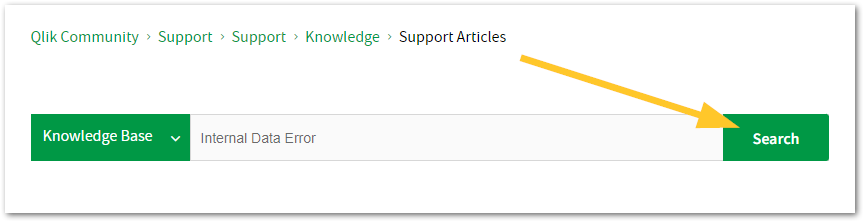
Looking for content? Type your question into our global search bar:
The Knowledge Base
Leverage the enhanced and continuously updated Knowledge Base to find solutions to your questions and best practice guides. Bookmark this page for quick access!
- Go to the Official Support Articles Knowledge base
- Type your question into our Search Engine
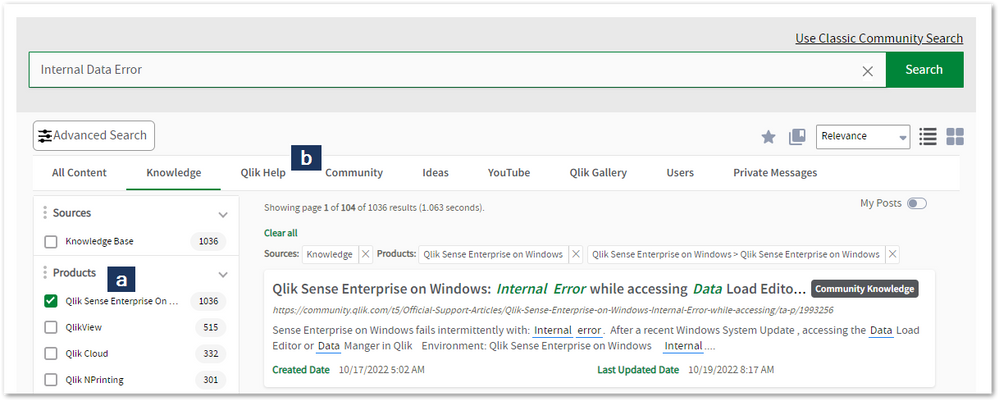
- Need more filters?
- Filter by Product
- Or switch tabs to browse content in the global community, on our Help Site, or even on our Youtube channel
Blogs
Subscribe to maximize your Qlik experience!
The Support Updates Blog
The Support Updates blog delivers important and useful Qlik Support information about end-of-product support, new service releases, and general support topics. (click)The Qlik Design Blog
The Design blog is all about product and Qlik solutions, such as scripting, data modelling, visual design, extensions, best practices, and more! (click)The Product Innovation Blog
By reading the Product Innovation blog, you will learn about what's new across all of the products in our growing Qlik product portfolio. (click)Our Support programs:
Q&A with Qlik
Live sessions with Qlik Experts in which we focus on your questions.Techspert Talks
Techspert Talks is a free webinar to facilitate knowledge sharing held on a monthly basis.Technical Adoption Workshops
Our in depth, hands-on workshops allow new Qlik Cloud Admins to build alongside Qlik Experts.Qlik Fix
Qlik Fix is a series of short video with helpful solutions for Qlik customers and partners.The Qlik Forums
- Quick, convenient, 24/7 availability
- Monitored by Qlik Experts
- New releases publicly announced within Qlik Community forums (click)
- Local language groups available (click)
Ideation
Suggest an idea, and influence the next generation of Qlik features!
Search & Submit Ideas
Ideation GuidelinesHow to create a Qlik ID
Get the full value of the community.
Register a Qlik ID:
- Go to register.myqlik.qlik.com
If you already have an account, please see How To Reset The Password of a Qlik Account for help using your existing account. - You must enter your company name exactly as it appears on your license or there will be significant delays in getting access.
- You will receive a system-generated email with an activation link for your new account. NOTE, this link will expire after 24 hours.
If you need additional details, see: Additional guidance on registering for a Qlik account
If you encounter problems with your Qlik ID, contact us through Live Chat!
2. Chat
Incidents are supported through our Chat, by clicking Chat Now on any Support Page across Qlik Community.
To raise a new issue, all you need to do is chat with us. With this, we can:
- Answer common questions instantly through our chatbot
- Have a live agent troubleshoot in real time
- With items that will take further investigating, we will create a case on your behalf with step-by-step intake questions.
3. Qlik Support Case Portal
Log in to manage and track your active cases in the Case Portal. (click)
Please note: to create a new case, it is easiest to do so via our chat (see above). Our chat will log your case through a series of guided intake questions.
Your advantages:
- Self-service access to all incidents so that you can track progress
- Option to upload documentation and troubleshooting files
- Option to include additional stakeholders and watchers to view active cases
- Follow-up conversations
When creating a case, you will be prompted to enter problem type and issue level. Definitions shared below:
Problem Type
Select Account Related for issues with your account, licenses, downloads, or payment.
Select Product Related for technical issues with Qlik products and platforms.
Priority
If your issue is account related, you will be asked to select a Priority level:
Select Medium/Low if the system is accessible, but there are some functional limitations that are not critical in the daily operation.
Select High if there are significant impacts on normal work or performance.
Select Urgent if there are major impacts on business-critical work or performance.
Severity
If your issue is product related, you will be asked to select a Severity level:
Severity 1: Qlik production software is down or not available, but not because of scheduled maintenance and/or upgrades.
Severity 2: Major functionality is not working in accordance with the technical specifications in documentation or significant performance degradation is experienced so that critical business operations cannot be performed.
Severity 3: Any error that is not Severity 1 Error or Severity 2 Issue. For more information, visit our Qlik Support Policy.
Escalate a Support Case
If you require a support case escalation, you have two options:
- Request to escalate within the case, mentioning the business reasons.
To escalate a support incident successfully, mention your intention to escalate in the open support case. This will begin the escalation process. - Contact your Regional Support Manager
If more attention is required, contact your regional support manager. You can find a full list of regional support managers in the How to escalate a support case article.
Phone Numbers
When other Support Channels are down for maintenance, please contact us via phone for high severity production-down concerns.
- Qlik Data Analytics: 1-877-754-5843
- Qlik Data Integration: 1-781-730-4060
- Talend AMER Region: 1-800-810-3065
- Talend UK Region: 44-800-098-8473
- Talend APAC Region: 65-800-492-2269
Resources
A collection of useful links.
Qlik Cloud Status Page
Keep up to date with Qlik Cloud's status.
Support Policy
Review our Service Level Agreements and License Agreements.
Live Chat and Case Portal
Your one stop to contact us.




Recent Documents
-
Qlik Talend ESB: How to intercept and customize logging for API call details wit...
How to intercept and customize logging for API call details (like response time) within Talend Data Integration (DI) jobs, specifically for components... Show MoreHow to intercept and customize logging for API call details (like response time) within Talend Data Integration (DI) jobs, specifically for components like tRestRequest and tRestResponse.
The goal is to route these specific, detailed logs directly to talend esb.log file or an ELK stack.
How To
- Analysis and Conclusion
Existing Functionality: The required interception logic (logging details before/after a request) is already handled by the Service Activity Monitoring (SAM) module inside the ESB Karaf container. Documentation on SAM: introduction-to-service-activity-monitoring | Qlik Talend Help
Recommendation: Because of the existing SAM functionality, there is no need to re-implement this low-level interception logic within the design of the DI job itself.
- Action Plan
It will proceed with creating own automatic log routing system that will ingest event data directly from the existing SAM event database and send it to their ELK stack.
- Next Steps for Detailed Customization
For more detailed or advanced log customization regarding service request interception it should submit a formal feature request via the official platform: Feature Request Link | Qlik Ideation
The Qlik Talend Professional Services team can provide custom solutions.
Environment
- Analysis and Conclusion
-
Qlik Replicate and Google Cloud Storage: Failed to convert file from csv to parq...
When using Google Cloud Storage as a target in Qlik Replicate, and the target File Format is set to Parquet, an error may occur if the incoming data c... Show MoreWhen using Google Cloud Storage as a target in Qlik Replicate, and the target File Format is set to Parquet, an error may occur if the incoming data contains invalid values.
This happens because the Parquet writer validates data during the CSV-to-Parquet conversion. A typical error looks like:
[TARGET_LOAD ]E: Failed to convert file from csv to parquet
Error:: failed to read csv temp file
Error:: std::exception [1024902] (file_utils.c:899)Environment
- Qlik Replicate all versions
- Google Cloud Storage all versions
Resolution
There are two possible solutions:
- Clean up or remove the incorrect records in the source databases
- Or add a transformation to correct or replace invalid dates before they reach the target.
Cause
In this case, the source is SAP Oracle, and a few rare rows contained invalid date values. Example: 2023-11-31.
By enabling the internal parameters keepCSVFiles and keepErrorFiles in the target endpoint (both set to TRUE), you can inspect the generated CSV files to identify which rows contain invalid data.
Internal Investigation ID(s)
00417320
-
Qlik Talend Data Integration: tRest configuration for a mutual TLS (mTLS) connec...
This article guides you through configuring the tRest component to connect to a RESTful service that requires an SSL client certificate issued by an N... Show MoreThis article guides you through configuring the tRest component to connect to a RESTful service that requires an SSL client certificate issued by an NPE (Non-Person Entity).
tRest does not have its own GUI for certificate management; instead, it primarily routes HTTP calls to the underlying Java HttpClient or CXF client. Therefore, the certificate setup must be completed at the Java keystore level before the component can run.
Here's how to set it up:
1. Convert your certificate to a Java keystore
If you have your certificate in .pfx or .p12 format:
keytool -importkeystore \
-srckeystore mycert.p12 \
-srcstoretype PKCS12 \
-destkeystore mykeystore.jks \
-deststoretype JKS
You will be asked to enter a password; make sure to remember it as you will need it in Step 2.
2. Tell Talend Job (Java) to use your cert
In Talend Studio, go to Run → Advanced settings for your job.
In the JVM Setting, select the 'Use specific JVM arguments' option, and add:
-Djavax.net.ssl.keyStore="C:/path/to/mykeystore.jks"
-Djavax.net.ssl.keyStorePassword=yourpassword
-Djavax.net.ssl.trustStore="C:/path/to/mytruststore.jks"
-Djavax.net.ssl.trustStorePassword=trustpassword
The truststore contains the Certificate Authority (CA) that issued the server’s certificate. If you don’t have one, you can generate it by using keytool -import from their public certificate.
3. Use tRest normally
Now, when tRest makes the HTTPS request, Java’s SSL layer will automatically present your client certificate and validate the server cert.
Environment
-
Qlik Talend Administration Center: How to clean up the Talend Administration Cen...
In Talend Administration Center environments with a high number of tasks (700–800) or frequent task cycles (e.g., executions every minute), the task e... Show MoreIn Talend Administration Center environments with a high number of tasks (700–800) or frequent task cycles (e.g., executions every minute), the task execution history table in the Talend Administration Center (TAC) database may grow rapidly.
A large history table can negatively impact overall Talend Administration Center performance, leading administrators to manually truncate the table to maintain stability.
Talend Administration Center provides configuration parameters to automatically purge old execution history and maintain system performance.TaskExecutionHistoryCleanUp
How To
Talend Administration Center includes two configuration parameters in the Talend Administration Center database configuration table that control the cleanup process.
These parameters allow administrators to adjust:
- How often Talend Administaion Center cleans execution history
- How long execution records are retained
Both parameters must be tuned to effectively control table size.
Configuration Parameters
- dashboard.conf.taskExecutionsHistory.frequencyForDeletingAction
Description Interval (in seconds) between cleanup operations Default value 3600(1 hour)Behavior Talend Administration Center performs a cleanup every 3600 seconds. Setting value to 0 disables automatic cleanup The default value is 3600 seconds, which corresponds to 1 hour. After the time defined in this parameter has elapsed, the system cleans up old task execution history and old misfired task execution records. This means the system performs the cleanup action in one hour, rather than immediately.
Lower the value to check more frequently the records that need to be deleted. Set 0 to disable the delete actions.
- dashboard.conf.taskExecutionsHistory.timeBeforeDeletingOldExecutions
Description Maximum retention time (in seconds) before records are purged Default value 1296000seconds (15 days), 15 days × 24 × 60 × 60 = 1,296,000Behavior During each cleanup cycle, Talend Administation Center deletes records older than the retention period.
Related Content
Both parameters are documented below:
improving-task-execution-history-performances | Qlik Talend Help
Environment
-
Qlik Talend Cloud: HTTP 403 Forbidden Error When Executing a Task via Talend Man...
When attempting to execute a Talend Management Console (TMC) task using a Service Account via the Talend Management Console API, users may encounter a... Show MoreWhen attempting to execute a Talend Management Console (TMC) task using a Service Account via the Talend Management Console API, users may encounter an HTTP 403 Forbidden response—even if the Service Account is correctly configured.
When attempting to execute a task using the Processing API endpoint:
POST https://api.<region>.cloud.talend.com/processing/executionsthe API returns:
{ "status": 403, "requestId": "5303a858-8849-4572-ad37-4ce42c077c41", "message": "Forbidden" }This issue typically arises when the necessary permissions for task execution are not granted prior to generating the service account token, or when the service account lacks specific functional permissions pertaining to task execution.
Observed behavior
The token generated via:
POST /security/oauth/token
is valid.The Service Account permissions appear to include:
TMC_ENGINE_USE
TMC_ROLE_MANAGEMENT
TMC_SERVICE_ACCOUNT_MANAGEMENT
AUDIT_LOGS_VIEW
TMC_USER_MANAGEMENT
TMC_CLUSTER_MANAGEMENTAccording to the documentation Using a service account to run tasks | Qlik Help Center, the Service Account must possess either TMCENGINEUSE or TMC_OPERATOR permissions; however, even with these permissions, the execution still fails.
Resolution
Step 1: Assign "Tasks and Plans – Edit" Permission
Navigate to Talend Management Console→ Users & Security → Service Accounts, and ensure the Service Account has the permission: Tasks and Plans – Edit
Step 2: Regenerate the Service Account Token
After updating permissions, regenerate service account Token.
This ensures that the token contains the updated permission set. Subsequently, rerunning the task via the API will work.
Environment
-
Qlik Write Table FAQ
This document contains frequently asked questions for the Qlik Write Table. Content Data and metadataQ: What happens to changes after 90 days?Q: Whic... Show More -
Qlik Connectors: How to import strings longer than 255 characters
Recent versions of Qlik connectors have an out-of-the-box value of 255 for their DefaultStringColumnLength setting. This means that, by default, any ... Show MoreRecent versions of Qlik connectors have an out-of-the-box value of 255 for their DefaultStringColumnLength setting.
This means that, by default, any strings containing more than 255 characters is cut when imported from the database.
To import longer strings, specify a higher value for DefaultStringColumnLength.
This can be done in the connection definition and the Advanced Properties, as shown in the example below.
The maximum value that can be set is 2,147,483,647.
Environment
- Qlik Connectors
- Built-in Connectors Qlik Sense Enterprise on Windows November 2024 and later

-
Qlik Cloud Consumption report: identify file by Data File ID
How do I understand which file the data ID in the capacity consumption report refers to? In the Consumption Report app, we can only view the Data File... Show MoreHow do I understand which file the data ID in the capacity consumption report refers to?
In the Consumption Report app, we can only view the Data File ID of a data set that generated Data for Analysis. The file name is not shown.
Environment
- Qlik Cloud Analytics
There are two possible ways to achieve this. One is to directly leverage the API, the other is to use qlik-cli.
Using the API
- Build a URL in the following format:
https://TENANT.REGION.qlikcloud.com/api/v1/data-files/DATA-FILEID
Where: TENANT.REGION is your tenant name and region, and DATA-FILEID is the Data FileID you wish to retrieve details for.
Example:/api/v1/data-files/59c41e71-e6b1-4d9e-8334-da48fd2f91ba - Enter the URL in a supported browser.
- You can now retrieve the file name and any other details:
- Search the resulting filename in your tenant's Catalog.
Using the qlik-cli
For information on how to get started with Qlik-cli, see: Qlik-cli overview.
- Open Qlik-CLI
- In the command prompt, enter:
qlik data-file get DATA-FILEID
Example:qlik data-file get 59c41e71-e6b1-4d9e-8334-da48fd2f91ba - Search the resulting filename in your tenant's Catalog.
Tip!
To extract all file IDs and related file names, type the following into the Qlik-CLI command prompt:
qlik data-file ls -
How to extract changes from the change store (Write table) and store them in a Q...
This article explains how to extract changes from a Change Store and store them in a QVD by using a load script in Qlik Analytics. The article also i... Show MoreThis article explains how to extract changes from a Change Store and store them in a QVD by using a load script in Qlik Analytics.
The article also includes
- An app example with an incremental load script that will store new changes in a QVD
- Configuration instructions for the examples
Scenario
This example will create an analytics app for Vendor Reviews. The idea is that you, as a company, are working with multiple vendors. Once a quarter, you want to review these vendors.
The example is simplified, but it can be extended with additional data for real-world examples or for other “review” use cases like employee reviews, budget reviews, and so on.
The data model
The app’s data model is a single table “Vendors” that contains a Vendor ID, Vendor Name, and City:
Vendors:
Load * inline [
"Vendor ID","Vendor Name","City"
1,Dunder Mifflin,Ghent
2,Nuka Cola,Leuven
3,Octan, Brussels
4,Kitchen Table International,Antwerp
];
The Write Table
The Write Table contains two data model fields: Vendor ID and Vendor Name. They are both configured as primary keys to demonstrate how this can work for composite keys.
The Write Table is then extended with three editable columns:
- Quarter (Single select)
- Action required? (Single select)
- Comment (Manual user input)
Prerequisites
- A shared space
- A managed space (optional but advised for the tutorial)
- A connection to the Change-stores API to the Analytics REST connector in the shared space. A step-by-step guide on creating this connection is available in Extracting write table changes with the REST connector in Qlik Cloud.
Steps
- Upload the attached .QVF file to a shared space
- Open the private sheet Vendor Reviews
- Click the Reload App (A) button and make sure data appears (B) in the top table
- Go to Edit sheet (A) mode
- Drag a Write Table Chart (B) on the top table, and choose the option Convert to: Write Table (C).
This transforms the table into a Write Table with two data model columns Vendor ID and Vendor Name.
- Go to the Data section in the Write Table’s Properties menu and add an editable column
- This prompts you to define a primary key inside the table. Click Define (A) in the table and use both Vendor ID and Vendor Name as primary keys (B).
You can also just use Vendor ID, but we want to show that this also supports composite primary keys. - Configure the editable column:
- Title: Quarter
- Show content: Single selection
- Add options for Q1Y26 through Q4Y26.
Tip! Also add an empty option by clicking the Add button without specifying a value.
- Add another Editable column with the below configuration
- Title: Action required
- Type: Single select
- Options: Yes and No
- Add another Editable column with the below configuration
- Title: Review
- Type: Single select
- Options: Yes and No
- The Write Table is now set up.
Go to the Write Table’s properties and locate the Change store (A) section. Copy the Change store ID (B).
- Leave the Edit sheet mode. Then use two Write Table inputs to at least add changes for two records. Save those changes.
- Go to the app’s load script editor and uncomment the second script section by first selecting all lines in the script section (CTRL+A or CMD+A) (A) and then clicking the comment button (B) in the toolbar.
- Configure the settings in the CONFIGURATION part at the end of the load script
- Update the load script with the IDs of the editable columns.
The easiest solution to get these IDs is to test your connection. Make sure the connection URL is configured to use the /changes/tabular-views endpoint and uses the correct change store ID.
- Copy and paste the example load script (for the editable columns only) and paste it in the app’s load script SQL Select statement that starts on line 159:
- Replace the corresponding * symbols in the LOAD statement that starts on line 176:
- Choose which records you want to track in your table by configuring the Exists Key on line 216.
This key will be used to filter the “granularity” on which we want to store changes in the QVD and data model, as the load script will only load unique existing keys (line 235).
- $(vExistsKeyFormula) is a pipe-separated list of the primary keys.
- In this example, Quarter is added as an additional part of the exists key to keep track of changes by Quarter.
- Optionally, this can be extended with createdBy and updatedAt to extend the granularity to every change made:
- Reload the app and verify that the correct change store table is created in your data model. The second table in the sheet should also successfully show vendors and their reviews.
Environment
- Qlik Cloud Analytics
-
LogAnalysis App: The Qlik Sense app for troubleshooting Qlik Sense Enterprise on...
It is finally here: The first public iteration of the Log Analysis app. Built with love by Customer First and Support. "With great power comes great r... Show MoreIt is finally here: The first public iteration of the Log Analysis app. Built with love by Customer First and Support.
"With great power comes great responsibility."
Before you get started, a few notes from the author(s):
- It is a work in progress. Since it is primarily used by Support Engineers and other technical staff, usability is not the first priority. Don't judge.
- It is not a Monitoring app. It will scan through every single log file that matches the script criteria and this may be very intensive in a production scenario. The process may also take several hours, depending on how much historical data you load in. Make sure you have enough RAM 🙂
- Not optimised, still very powerful. Feel free to make it faster for your usecase.
- Do not trust chart labels; look at the math/expression if unsure. Most of the chart titles make sense, but some of them won't. This will improve in the future.
- MOD IT! If it doesn't do something you need, build it, then tell us about it! We can add it in.
- Send us your feedback/scenarios!
Chapters:
-
01:23 - Log Collector
-
02:28 - Qlik Sense Services
-
04:17 - How to load data into the app
-
05:42 - Troubleshooting poor response times
-
08:03 - Repository Service Log Level
-
08:35 - Transactions sheet
-
12:44 - Troubleshooting Engine crashes
-
14:00 - Engine Log Level
-
14:47 - QIX Performance sheets
-
17:50 - General Log Investigation
-
20:28 - Where to download the app
-
20:58 - Q&A: Can you see a log message timeline?
-
21:38 - Q&A: Is this app supported?
-
21:51 - Q&A: What apps are there for Cloud?
-
22:25 - Q&A: Are logs collected from all nodes?
-
22:45 - Q&A: Where is the latest version?
-
23:12 - Q&A: Are there NPrinting templates?
-
23:40 - Q&A: Where to download Qlik Sense Desktop?
-
24:20 - Q&A: Are log from Archived folder collected?
-
25:53 - Q&A: User app activity logging?
-
26:07 - Q&A: How to lower log file size?
-
26:42 - Q&A: How does the QRS communicate?
-
28:14 - Q&A: Can this identify a problem chart?
-
28:52 - Q&A: Will this app be in-product?
-
29:28 - Q&A: Do you have to use Desktop?
Environment
Qlik Sense Enterprise on Windows (all modern versions post-Nov 2019)
How to use the app:
- Go to the QMC and download a LogCollector archive or grab one with the LogCollector tool
- Unzip the archive in a location visible to your user profile
- Download the attached QVF file
- Import/open it in Qlik Sense
- Go to "Data Load Editor" and edit the existing "Logs" folder connection, and point to the extracted Log Collector archive path
- If you are using a Qlik Sense server, remember to change the Data Connection name back to default "Logs". Editing via Hub will add your username to the data connection when saved.
- Go to the "Initialize" script section and configure:
- Your desired date range or days to load
- Whether you want the data stored in a QVD
- Which Service logs to load (Repository, Engine, Proxy and Scheduler services are built-in right now, adding other Qlik Sense Enterprise services may cause data load errors).
- LOAD the data!
My workflow:
- I'm looking for a specific point in time where a problem was registered
- I use the time-based bar charts to find problem areas, get a general sense of workload over time
- I use the same time-based charts to narrow in on the problem timestamp
- Use the different dimensions to zoom in and out of time periods, down to a per-call granularity
- Log Details sheets to inspect activity between services and filter until the failure/error is captured
- Create and customise new charts to reveal interesting data points
- Bookmarks for everything!
Notable Sheets & requirements:
- Anything "Thread"-related for analysing Repository Service API call performance, which touches all aspects of the user and governance experience
- Requirement: Repository Trace Performance logs in DEBUG level. Otherwise, some objects may be empty or broken.
- Commands: great for visualizing Repository operations and trends between objects, users, and requests
- Transactions: Repository Service API call performance analysis.
- Requirement: Repository Trace Performance logs in DEBUG level. Otherwise, some objects may be empty or broken.
- Task Transactions: very powerful task scheduling analysis with time-based filters for exclusion.
- Log Details sheets: excellent filtering and searching through massive amounts of logs.
- Repo + Engine data: resource consumption and Thread charts for Repository and Engine services, great for correlating workloads.
*It is best used in an isolated environment or via Qlik Sense Desktop. It can be very RAM and CPU intensive.
The information in this article is provided as-is and to be used at own discretion. Depending on tool(s) used, customization(s), and/or other factors ongoing support on the solution below may not be provided by Qlik Support.
Related Content
Optimizing Performance for Qlik Sense Enterprise - Qlik Community - 1858594
-
Unleashing the Qlik Talend Cloud Dynamic Engine
This Techspert Talks session addresses: the Qlik Talend Cloud Dynamic Engine Chapters: 00:45 - What the Dynamic Engine is 01:57 - How to enab... Show More
-
How does Qlik Replicate convert DB2 commit timestamp to Kafka message payload?
How does Qlik Replicate convert DB2 commit timestamps to Kafka message payload, and why are we seeing a lag of several hours? When Qlik Replicate rea... Show MoreHow does Qlik Replicate convert DB2 commit timestamps to Kafka message payload, and why are we seeing a lag of several hours?
- When Qlik Replicate reads change events from the DB2 iSeries journal, each journal entry includes both:
- Entry timestamp: when the individual operation was logged; from JOENTTST. Qlik Replicate does not use it.
- Commit timestamp: when the transaction was committed; from JOCTIM. This is what Qlik Replicate uses as the payload timestamp field.
- Then Qlik Replicate converts DB2 iSeries journal commit timestamps to UTC
- Qlik Replicate normalizes all internal event timestamps to UTC before serializing the payload, regardless of the source system’s local timezone.
- This guarantees downstream consumers (Kafka / Schema Registry / Avro) have a single consistent time base.
- Qlik Replicate then populates the data.timestamp field in the Kafka message payload.
- The timestamp field in the Kafka message payload represents the commit timestamp of the transaction as recorded in the DB2i journal in UTC timezone. This does not use the Kafka broker's or source DB2 i system's local timezone.
- An offset of several hours here is due to timezone normalization, not replication lag.
- Note that some operations (DDL, full-load, or deletes) may omit data.timestamp because no valid source commit time exists. This is also expected behavior.
- DDL: Not tied to a commit
- Full Load: No CDC commit time yet
- Delete: DB2 journals don’t always include a valid commit timestamp for the before-image
Environment
- Qlik Replicate
- When Qlik Replicate reads change events from the DB2 iSeries journal, each journal entry includes both:
-
Qlik Talend Management Console log for the job is blank when using Talend Remote...
Qlik Talend Management Console logs do not show anything for the job, even though the job is finished. Resolution Potential Checklist If the remote... Show MoreQlik Talend Management Console logs do not show anything for the job, even though the job is finished.
Resolution
Potential Checklist
- If the remote engine may be facing issues, please try restarting the remote engine and seeing if the Talend Management Console logs will appear after re-executing the task.
- This may be due to high usage of memory, so check the statistics.csv file located in the following directory:
<Talend Remote Engine Installation>/data/log - Check the following columns and compare the usage for both the usage in the remote engine and disk.
- memory-used and memory-max
- disk-used and disk-max
- Ensure the <Remote Engine>/etc/org.ops4j.pax.logging.cfg file is not corrupted by comparing with a fresh Remote Engine container.
- Check for these parameters as well:
- log4j2.appender.minjson
- log4j2.rootLogger.appenderRef.RoutingCloudStorage.ref = RoutingCloudStorage
- And inside the <Remote Engine>/etc/org.talend.ipaas.rt.logs.cfg, ensure this parameter is NOT set to:
active = false
Cause
The Remote Engine will be the one to handle sending the logs to Talend Management Console to show in the Talend Management Console logs.
There may be problems with the remote engine that affected it to not handle the logs appropriately.
For example, there may be a high usage of memory for the remote engine or in the environment where the remote engine is being used.Related Content
For more information about how to prevent sending logs to Talend Management Console, please refer to
Preventing the engines from sending logs to Talend Cloud | Qlik Talend Help
Environment
-
How to migrate to the Microsoft Outlook connector in Qlik Automate
The Microsoft Outlook connector in Qlik Automate has been updated to support file attachments. This article describes how you can migrate your automa... Show More -
Qlik Talend Studio: Not able to open a Job after upgrading to Java 17
After upgrading from Java 8 to Java 17, encountered the following error messages when attempting to open a Job in Talend Studio 8.0.1; however, the sa... Show MoreAfter upgrading from Java 8 to Java 17, encountered the following error messages when attempting to open a Job in Talend Studio 8.0.1; however, the same Job could be opened normally prior to the upgrade.
JsonIoException setting field 'flags' on target: Property: null with value: {}
Resolution
To resolve the issue, install Java 11 or upgrade Talend Studio to version 8.0.1-R2023-10 or later.
Cause
The version of Talend Studio you are currently using is prior to 8.0.1-R2023-10, and Java 17 is not a supported Java environment for versions earlier than Talend Studio 8.0.1-R2023-10, please refer to Supported Java versions for launching Talend Studio | Qlik Help Documentation.
Environment
-
Qlik GeoAnalytics Enterprise Server or GeoCoding Connector
Qlik Geocoding operates using two QlikGeoAnalytics operations: AddressPointLookup and PointToAddressLookup. Two frequently asked questions are: Does ... Show MoreQlik Geocoding operates using two QlikGeoAnalytics operations: AddressPointLookup and PointToAddressLookup.
Two frequently asked questions are:
- Does Qlik Geocoding work with a custom GeoAnalytics Server, or does it require a connector type "Cloud"?
- Do you need an online connection for Qlik Geocoding?
The Qlik Geocoding add-on option requires an Internet connection. It is, by design, an online service. You will be using Qlik Cloud (https://ga.qlikcloud.com), rather than your local GeoAnalytics Enterprise Server.
See the online documentation for details: Configuring Qlik Geocoding.
Environment
- Qlik Cloud
- Qlik GeoAnalytics

-
Qlik Talend API: How to get the task whose status is "Misfired" via API
To retrieve the task with the status "Misfired" via API, you can use the API "/monitoring/observability/executions/search" mentioned below: #type_sear... Show MoreTo retrieve the task with the status "Misfired" via API, you can use the API "/monitoring/observability/executions/search" mentioned below:
#type_searchrequest | talend.qlik.dev .
However, EXECUTION_MISFIRED status returned only if "exclude=TASK_EXECUTIONS_TRIGGERED_BY_PLAN"
So if you want to return any plans or tasks that are misfired, you should send this filter request:
"filters": [ { "field": "status", "operator": "in", "value": [ "DEPLOY_FAILED", "EXECUTION_MISFIRED"Example
URL: https://api.<region>.cloud.talend.com/monitoring/observability/executions/search
{
    "environmentId": "123456......",
    "category": "ETL",
    "filters": [
        {
            "field": "status",
            "operator": "in",
            "value": [
                "DEPLOY_FAILED",
                "EXECUTION_MISFIRED"
            ]
        }
    ],
    "limit": 50,
    "offset": 0,
    "exclude": "TASK_EXECUTIONS_TRIGGERED_BY_PLAN"
}
Internal Investigation ID(s)
Jira ID: SUPPORT-7251
Environment
- Talend ESB
- #Talend Cloud API
-
Qlik Replicate: When are DDL changes needed on an SQL Server source?
This article outlines how to handle DDL changes on a SQL Server table as part of the publication. Resolution The steps in this article assume you u... Show MoreThis article outlines how to handle DDL changes on a SQL Server table as part of the publication.
Resolution
The steps in this article assume you use the task's default settings: full load and apply changes are enabled, full load is set to drop and recreate target tables, and DDL Handling Policy is set to apply alter statements to the target.
To achieve something simple, such as increasing the length of a column (without changing the data type), run an
ALTER TABLEcommand on the source while the task is running, and it will be pushed to the target.For example:
alter table dbo.address alter column city varchar(70)To make more complicated changes to the table, such as:
- Changing the Allow Nulls setting for a column
- Reordering columns in the table
- Changing the column data type
- Adding a new column
- Changing the filegroup of a table or its text/image data
Follow this procedure:
- Stop the task
- Remove the table from the task
- Remove the table from the publication.
Some changes do not require this, and some do. Removing it from the publication will work in all cases.- Right-click the publication (starts with AR_) and select Properties
- Click to select the Articles tab
- Uncheck the box next to the table and click OK
- Copy all the data to a temp table
- Recreate the table with the needed modifications
- Copy the data back into the table
- Add the table back to the task and resume. This will automatically add the table back to the publication and reload the table on the target. Reference: Saving changes is not permitted error message in SSMS
Environment
- Qlik Replicate
-
Qlik Sense Analytics: Microsoft OneDrive connection fail to list shared files
When connecting to Microsoft OneDrive using either Qlik Cloud Analytics or Qlik Sense Enterprise on Windows, shared files and folders are no longer vi... Show MoreWhen connecting to Microsoft OneDrive using either Qlik Cloud Analytics or Qlik Sense Enterprise on Windows, shared files and folders are no longer visible.
Resolution
While the endpoint may intermittently work as expected, it is in a degraded state until November 2026. See drive: sharedWithMe (deprecated) | learn.microsoft.com. In most cases, the API endpoint is no longer accessible due to the publicly documented degraded state.
Qlik is actively reviewing the situation internally (SUPPORT-7182).
However, given that the MS API endpoint has been deprecated by Microsoft, a Qlik workaround or solution is not certain or guaranteed.
Suggested Workaround
Use a different type of shared storage, such as mapped network drives, Dropbox, or SharePoint, to name a few.
Cause
Microsoft deprecated the
/me/drive/sharedWithMeAPI endpoint.Internal Investigation ID(s)
SUPPORT-7182
Environment
- Qlik Cloud
- Qlik Sense Enterprise on Windows
-
Qlik Talend Cloud: How to find out what execution server my tasks are running on...
To check the location where your tasks are running on, access your task and refer to the right-hand side where artifact details can be found under Con... Show MoreTo check the location where your tasks are running on, access your task and refer to the right-hand side where artifact details can be found under Configuration.
In this instance, the Binary type is displayed as "Talend Runtime" because it is a REST type artifact, indicating that it will be deployed and executed on Talend Runtime.
If you are using Remote Engine to execute your task, it will be displayed in the "Processor" section under Configuration. In this instance, it demonstrates that Remote Engine version 2.13.13 will be employed to run the task.
Environment