Today I am going to blog about inner and outer set expressions. If you have ever used set analysis in your measure expressions, then you will like this new capability. Set analysis is a very powerful feature often used to define a scope that may differ from the scope that is defined by making selections in an app. For example, in the set expression below the sales are summed where the product line is camping equipment. This is considered an inner set expression and probably familiar to those who use set analysis. The set expression is in the aggregate function which is sum in this case.If this expression was written as an outer set expression, the set expression would be outside of the aggregate function as seen below. When using an outer set expression, it must be before the scope. In this example, both the inner and outer expressions return the same result.Now, where the outer set expression is helpful is when you have more than one aggregate function in your expression. For example, in the inner set expression below, there are three sum aggregate functions and in each one, set analysis is being used to set the scope to camping equipment.Using an outer set expression, this expression can be written like this:Notice that the set expression sits outside of the expression and at the beginning of the scope. Written this way, [Product Line]={'Camping Equipment'} is applied to all the aggregate functions. This is a cleaner way to write the expression and ensures that it is applied to all the aggregate functions. The outer set expression can also be used with a master measure. Assume I have master measures named Sales and Margin %. I can use outer set expressions like the ones below.A set expression, like the outer set expressions above, are applied to the entire expression. If the set expressions were in brackets, then the set expression applies only to the aggregate functions within the brackets. For example, the set expression below is in parentheses which means that it only applies to the aggregate functions within the parentheses and not to the aggregate function that sits outside of the parentheses. Written this way, the resulting value will differ from the set expression without any brackets/parentheses.A few things to remember about set expressions. Inner set expressions have precedence over outer set expressions and if the inner set expression has a set identifier, it replaces the context. Otherwise, the inner set expression is merged with the outer set expression. Check out Qlik Help for more examples and rules around inner and outer set expressions and try it for yourself in your next app.Thanks,Jennell
...View More
On Part 1 of this blog post, we went through Generic Objects, learned about definitions of the ListObject and Hypercube structures, and explored some of the settings that they offer in order to interact with data when communicating with the Qlik Associative Engine through Enigma.js.In this second part, we will see actual implementations of ListObjects and Hypercubes and learn how they can be used as part of your next web application to create filters and charts.Creating Filters with ListObjectsFirst, let’s create a filter that corresponds to a single field in our data model that we can use to make selections and filter in.The ListObject structure is best suited in this case since it contains one dimension. It lists all the values in a single field and provides metadata about the current state of each field value (either selected, excluded, or possible)In order to create a ListObject, we create a dynamic property for it in a generic object, we then add the appropriate JSON definition for a list object via the “qListObjectDef” property. The engine will know how to properly parse this definiton in order to produce a ListObject.In our case, we define a list object for our “Region” field by using the dimension definition based on the field name via the “qDef/qFieldDefs” property.All is left if to fetch the data, we do that by defining the “qInitialDataFetch” property to grab the initial data set. In our case, we have 1 column and we know that the number of rows to be pulled is less than 10. So, we define it with “qWidth” 1 and “qHeight” 10.{
"qInfo": {
"qType": "filter"
},
"qListObjectDef": {
"qDef": {
"qFieldDefs": ["Region"]
},
"qInitialDataFetch": [
{
"qLeft": 0,
"qWidth": 1,
"qTop": 0,
"qHeight": 10
}
]
}
}After connecting to enigma and getting our app object, we create a session object and pass it the ListObject definition above. A session object is a generic object that is only active for the current session and is not persisted in the model.const regionObj = await enigmaApp.createSessionObject(regionListDef);
const regionLayout = await regionObj.getLayout();
renderFilter(regionListElem, regionLayout, regionObj)After getting the ListObject layout, we call the function below that takes care of retrieving the data we want to display on our filter via the “layout.qListObject.qDataPages[0].qMatrix” which consists of an array of arrays, each corresponding to 1 row of data.The JSON object we get by looping through the "qMatrix" includes the following properties:qText: a text representation of the cell valueqNum: a numeric representation of the cell valueqElemNumber: a rank number of the cell value.qState: the selection state of the field value.We use both qText and qState in our front end. First to display the value name, and to add a CSS class that will allows to differentiate between different states:S for selectedX for excludedO for possibleWe also listen to click events on the list and call “genericObject.selectListObjectValues("/qListObjectDef", [e[0].qElemNumber], true)” which is a Generic Object method. It takes the path that describes where our ListObject is defined in our Generic Object as a 1st parameter, and the Element Number that we want to select as the 2nd parameter. The 3rd argument is the toggle mode (whether a selection is added to an already existing set of selections or overrides them).const renderFilter = (element, layout, genericObject) => {
var titleDiv = element.querySelector(".filter-title");
var ul = element.querySelector("ul");
ul.innerHTML = "";
// Get the data from the List Object
var data = layout.qListObject.qDataPages[0].qMatrix;
// Loop through the data and create the filter list
data.forEach(function(e) {
var li = document.createElement("li");
li.innerHTML = e[0].qText;
li.setAttribute("class", e[0].qState);
// Click function to select
li.addEventListener("click", function(evt) {
genericObject.selectListObjectValues("/qListObjectDef", [e[0].qElemNumber], true);
});
ul.appendChild(li);
});
};Creating Charts with HyperCubesWhen creating visualizations, we make use of Hypercubes which allow us to define a combination of both dimensions and measures in order to get a calculated data set.Let’s create a Pie Chart that shows the Sum of Revenues by Region.The Generic Object definition for this includes 1 Dimension and 1 Measure that we define via the “qHyperCubeDef” propertyWe then define the initial data fetch, in this case we need 2 columns (one for the Region, and one for the calculated Revenue) and we don’t expect to have more than 1000 rows. Thus we set “qWidth” 2 and “qHeight” 1000.{
"qInfo": {
"qType": "chart"
},
"qHyperCubeDef": {
"qDimensions": [
{
"qDef": {
"qFieldDefs": ["Region"],
"qSortCriterias": [
{
"qSortByNumeric": 1
}
]
},
"qNullSuppression": true
}
],
"qMeasures": [
{
"qDef":{
"qDef": "=Sum([Sales Quantity]*[Sales Price])"
}
}
],
"qInitialDataFetch": [
{
"qLeft": 0,
"qWidth": 2,
"qTop": 0,
"qHeight": 1000
}
]
}
}Similar to what we have done on the ListObject, we create a Generic Object (session object), and then get its layout. Next we call the “renderChart” method to create the Pie chart visualization.const chartObj = await enigmaApp.createSessionObject(chartDef);
const chartLayout = await chartObj.getLayout();
renderChart(chartLayout);Our function is simple, we start by accessing the qMatrix array which contains all of our rows which in turn contain a group of cells.We refine this array using the map function to only grab a pair of values consisting of the Region (via the qText property of the 1st cell) and the Revenue (via the qNum property of the 2nd cell).You can then render the chart using your visualization tool of choice. In this case, we use C3.js.const renderChart = (layout) => {
var qMatrix = layout.qHyperCube.qDataPages[0].qMatrix;
// Map through qMatrix to format it as array of arrays: [[region1, revenue1], [region2, revenue2] ...]
const columnsArray = qMatrix.map((arr) => [arr[0].qText, arr[1].qNum]);
c3.generate({
bindTo: "#chart",
data: {
columns: columnsArray,
type: 'donut'
},
donut: {
title: "Revenue by Region"
}
});
}I hope this post helps you further understand the notion of Generic Objects in the form of ListObjects and HyperCubes. Let me know how you are leveraging these concepts to build your custom solutions!The full code can be found on my Github Repo.
...View More
Set analysis is one of the more powerful tools you can use in Qlik Sense and QlikView. Its syntax is sometimes perceived as complicated, but once you learn it, you can achieve fantastic things. There is now an additional way of writing the Set expression, that may simplify your code.
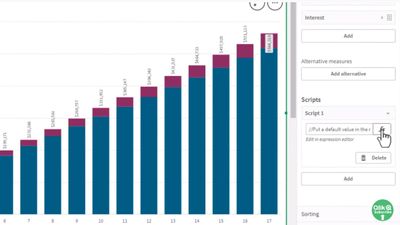
I love this new capability - Chart Level Scripting! This takes generating insights to a whole new level. No longer am I required to write complex reporting frameworks or move complex logic to the backend data model. Read on!
Can't see the video? Watch on the Qlik video sitehere.Missed Tip #1? - View it here.Tip #2 covers the data you should be using with Qlik AutoML. When creating new ML experiments with Qlik AutoML – you are prompted to select data from the Qlik Catalog. Though you will see data that has been registered in the catalog, it is important to note that not just any data can be used with Qlik AutoML. Historical data ( data you normally use for analytics and reporting with dimensions, measures, time periods, etc. ) is generally not suitable for machine learning. Why? Data you’re accustomed to using in analytics apps is captured all at the same point in time (current, end of day, end of month, etc.). With machine learning and predictive analytics, the dataset needs to contain an outcome we care about and a set of attributes we call features (typically your dimension fields / values) that existed prior to that outcome. That way, a machine learning model can learn the patterns that led to that outcome and therefore identify them in advance when we apply the model to live or current data. That being said – you must select data from the catalog that has been prepared with the main ingredients needed to train machine learning models.Stay tuned for Tip #3 where I will briefly coverarchitecting the data set and the needed ingredients.Qlik AutoML Helpful Resources:Sample Data Page with basic creation of a Qlk Sense predictive application - walkthroughQlik AutoML Playlist (on YouTube)Qlik Help Documents - (will go live 8/16 this week)Qlik Continuous Classroom Learning ModulesQlik AutoML in the Qlik Community
...View More
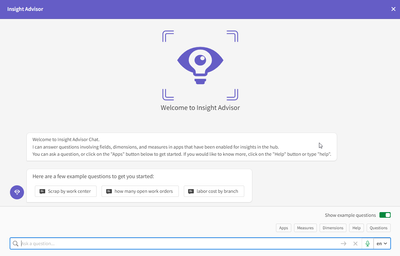
Insight Advisor helps a user explore their data, generate visualizations, and analyze their data through Qlik Sense features such as Insight Advisor Search, Insight Advisor Analysis Types, and Insight Advisor Chat. In this blog, I am going to review how example questions can be added to Insight Advisor to help users when they start their analysis. Example questions are added at the app level and a developer can add example questions to any of their apps. When using Insight Advisor Search, users will see the example questions when they click in the “Ask Insight Advisor” search box (see image below). From there, users can select one of the example questions or enter a question of their own.When using Insight Advisor Chat, users will see example questions from all apps that have example questions provided they have access to those apps. Below is an example from Insight Advisor Chat. Notice that the “Show example questions” is toggled on. This needs to be on for the example questions to be presented.When Insight Advisor Chat is opened, the example questions are presented. If a user would like to see the example questions again later in a chat thread, all they need to do is click on the Questions button to view them. As with Insight Advisor Search, a user can select one of the example questions or enter a question of their own. If you find that the example questions are not showing up in Insight Advisor Chat, be sure to check the app options and make sure “Insight Advisor in hub” is toggled on. This setting can be accessed from within an app by clicking on the app name in the navigation bar and then selecting the app options icon.Now, let’s take a look at how to add example questions to an app. From within an app, click on Prepare and then select Vocabulary.Click on the Example questions tab and click on the + Add question button. In the Add Example Question pop-up window, select the language for the question and then enter the question. Once you hit enter, a preview of a generated visualization will be displayed. If you would like to add an example question in multiple languages, click the + Add language button, select the language, and enter the example question in the respective language. Once you are done adding the question, in their respective languages, click the Add button to add the example question.Repeat this process until all example questions have been added to the app. Here is what it will look like once all the example questions have been added.Example questions for Insight Advisor allow developers to provide hints and help when using Insight Advisor. They can be used to get the user started with using Insight Advisor and guide them on how to ask their questions about an app. Check out Michael Tarallo's SaaS in 60video and if you need more information, check outQlik Help. If you are interested in Insight Advisor Analysis Types, check out my blog.Thanks,Jennell
...View More
Can't see the video? Watch on the Qlik video site here.Tip #1 – covers knowing the outcomes you wish to predict, as well as the questions you want to ask based off your current findings from your historical analytical data. Let’s say when analyzing your sales and order data you have noticed a number of orders that have been cancelled. Further investigation shows those cancelled orders have gone unfulfilled for a specific period of time since being placed. This may be due to the sheer volume of orders and the number employees you have available to process them. You may want to get a better handle on understanding the pattern of cancellation and create some predictions to answer questions like:Will a customer cancel their order before it is fulfilled? - Or -How many days pass before a customer cancels their unfulfilled order?Answering these questions will enable you to be proactive with certain customer orders and possibly direct your employees to give those order priority and fulfill them sooner to avoid cancellation. Now that we have our predictive question, we need to architect a data set that will support it so Qlik AutoML can use it effectively. Stay tuned for Tip #2 where I will cover the data you should be using to train machine learning models with Qlik AutoML.See Tip #2 Available NowQlik AutoML Helpful Resources:Sample Data Page with basic creation of a Qlk Sense predictive application - walkthroughQlik AutoML Playlist (on YouTube)Qlik Help Documents - (will go live 8/16 this week)Qlik Continuous Classroom Learning ModulesQlik AutoML in the Qlik Community
...View More