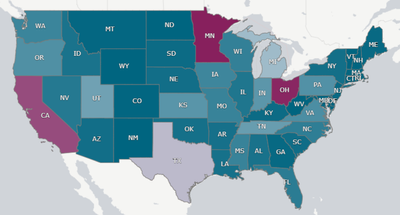
Since my previous blog titled Additional Styling Options for the Bar Chart, there have been more font styling enhancements worth mentioning. The General styling tab is now available for the pie chart, table, and pivot table, allowing users to customize the heading, subtitle, and footnotes in their visualizations. The emphasis for the text can also be set to bold, italic or underlined. Here is another quick look at the General tab options in case you missed it in my previous blog.Here is what a table looks like with these settings:A similar enhancement was made to the map. App developers have more flexibility in styling the labels on a map, as well as the title, subtitle, and footnote. In the layer properties of the map in the Options section, labels can be toggled on. If labels are on, developer can set the label font family, label font size, and the label font color.Sometimes maps can be busy, so being able to customize the labels is very helpful. In the map below, I was able to adjust the color and size of the labels to compliment the color scheme I was using, maximizing the clarity of the labels on a map with so many labels.Here is another example of custom labels from the What’s New App – November 2022. This is a totally different look and shows how different the labels can be styled.While these changes may seem small, they greatly impact the look and feel of an app. Developers have more options to easily customize visualizations to match their style or company brand.Thanks,Jennell
...View More
In order to go beyond the default charts and custom object bundles that ship with Qlik Sense, you need to develop custom visualization extensions which will allow you to extend the capabilities of Qlik Sense using standard web technologies. In this post, we will cover how to leverage Qlik’s open source solution, Nebula.js, a collection of JavaScript libraries and APIs that make this task easy!Once the visualization is developed using Nebula.js, you can then bring it to Qlik Sense to be used in your Apps.Pre-requisites and project creationFirst things first, let’s make sure you have all you need to get started.Access to a terminal (we will need this to run nebula.js CLI commands)Node.js installed in your computer (v10 or higher)A text editor (VS code or similar)Web Integration ID (you can get this from the Management Console under “Web” on your Qlik Cloud Tenant. Make sure to put http://localhost:8000 in the Allowed Origins)Once you have the pre-requisites covered. Fire up your terminal and write the following command.npx @nebula.js/cli create streamchart --picasso minimalThis command uses Nebula.js CLI, a handy command line program that let’s us bootstrap our project easily.Notice that we added the –picasso flag after the project name with option minimal. This will add the necessary files to our project for Picasso.js, Qlik’s open source charting library that we will use to build the chart.Speaking of the chart, we are going to build a Stream Chart in this post to visualize Yearly sales by month.Once the cli command is finished running and the project is successfully created, change your directory into it using “cd streamchart” and then run it using “yarn run start”. Then open the folder in your text editor.Below is the folder structure of the project. All the work is done under src.Notice that the package.json file has the scripts we will be using to develop and build the project as well a script to generate the Qlik Sense ready files for the extension. It also lists all the libraries needed in our project, including Picasso.js, Nebula.js/stardust./srcindex.js - Main entry point of the visualizationobject-properties.js - Object properties stored in the apppic-definition.js – Picasso components definitiondata.js - Data configurationThe Development ServerAfter running the “yarn run start” command, the project will open in your browser at localhost:8000. This is the Local Development Server that we will use to test the visualization extension as we develop it.First step is to connect to the Qlik Engine. To do this, you need to plug in the Websocket URL in the following format:wss://yourtenant.us.qlikcloud.com?qlik-web-integration-id=yourwebintegrationidAfter we enter the WebSocket URL, we’re prompted to pick our Qlik Sense App that contains our data. Once the app picked, we move to the main edit screen of the local development server.The center section is where our visualization is rendered, and the right sidebar allows us to build up our qHyperCubeDef by selecting Dimensions and Measures.Remember:edits to the src/index.js that are related to the output, will lead to an auto refresh of the visualization allowing you see live changes in the center sectionConfiguring the Data StructureIn previous posts, I have covered details about building HyperCubes and configuring qHyperCubeDef, if you’re new to the concept, don’t hesitate to go through those posts first.PT 1 and PT2For the purposes of our Stream Chart visualization, we will rely on the automatic generation of the qHyperCubeDef once we choose our Dimensions and Measure on the right side bar.But if you wanted to make further changes to it, click on the Gear icon on the top-left of the center section to open the qHyperCubeDef object edit popup.Adding the Picasso.js components definitionSo far, nothing is rendered on the Dev Server UI. So, let’s go ahead and configure the Picasso.js Definition to create the necessary components.Under pic-definition.js, enter the following code:export default function ({
layout, // eslint-disable-line no-unused-vars
context, // eslint-disable-line no-unused-vars
}) {
return {
collections: [{
key: 'stacked',
data: {
extract: {
field: 'qDimensionInfo/0',
props: {
line: { field: 'qDimensionInfo/1' },
end: { field: 'qMeasureInfo/0' },
},
},
stack: {
stackKey: (d) => d.value,
value: (d) => d.end.value,
offset: 'silhouette',
order: 'insideout',
},
},
}],
scales: {
y: {
data: {
collection: {
key: 'stacked',
},
},
invert: false,
expand: 0.5,
},
t: {
data: {
extract: {
field: 'qDimensionInfo/0',
},
},
padding: 0.5,
},
l: {
data: {
extract: {
field: 'qMeasureInfo/0',
},
},
},
color: {
data: {
extract: {
field: 'qDimensionInfo/1',
},
},
type: 'color',
},
},
components: [
{
type: 'axis',
dock: 'bottom',
scale: 't',
},
{
type: 'axis',
dock: 'left',
scale: 'l',
},
{
key: 'lines',
type: 'line',
data: {
collection: 'stacked',
},
settings: {
coordinates: {
major: { scale: 't' },
minor0: { scale: 'y', ref: 'start' },
minor: { scale: 'y', ref: 'end' },
layerId: { ref: 'line' },
},
layers: {
curve: 'monotone',
line: {
show: false,
},
area: {
fill: { scale: 'color', ref: 'line' },
opacity: 1,
},
},
},
},
{
type: 'legend-cat',
scale: 'color',
key: 'legend',
dock: 'top',
settings: {
title: {
show: false,
},
layout: {
size: 2,
},
},
},
],
};
}Notice that the object contains:Collections: to stack our dataScalesComponents:Bottom axisLeft axisLines componentLegendFor more information about how to build charts with Picasso.js, visit https://qlik.dev/libraries-and-tools/picassojs and check out some of the previous blog posts.Go back to the Dev Server UI on the browser, and you should see the chart displayed.Package the Visualization Extension, and upload to Qlik SenseSo far, we’ve been working on our local dev environment. We need to generate the necessary files to build the project.In your terminal run: “yarn run build”. This will generate a “dist” folder containing our extension’s bundled files. You can use this to distribute the extension as an npm package.However, in order to use this visualization extension in Qlik Sense, we need additional files. Run “yarn run sense” which will create a new folder called “streamchart-ext”.Make sure to Zip this file in order to get it ready to be uploaded into your Qlik Cloud tenant.And there you go; you now have a visualization extension that you can use in your Qlik Sense apps!The full code is on github:https://github.com/ouadie-limouni/qlik-nebula-stream-chart-viz-extension
...View More
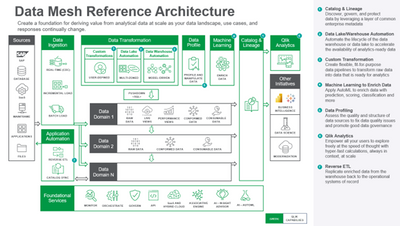
Derive value from analytical data at scale while the data landscape, use cases, and responses constantly change.
Data Mesh creates a foundation for deriving value from analytical data at scale while the data landscape, use cases, and responses are constantly changing. This is achieved by adhering to four underpinning principles.
The first is a domain-oriented, decentralized data ownership and architecture that allows the autonomous nodes on the mesh to grow.
Next, data-as-a-product is a unit of architecture that is built, deployed, and maintained.
Third, self-service data infrastructure to enable domain teams to autonomously create and consume data products.
Last, is federated governance and interoperability standards to aggregate and correlate independent data products within the mesh.
These principles combine to form a decentralized and distributed data mesh where domain data product owners leverage common data infrastructure via self-service, to develop pipelines that share data in a governed and open manner.
Invest in less expensive hardware and solve multi-layered, Lambda architecture redundancy by replaying data instead of maintaining two code bases (batch and speed layers) to process unique events continuously in real-time while meeting standard quality of service.
The Kappa architecture solves the redundant part of the Lambda architecture. It is designed with the idea of replaying data. Kappa architecture avoids maintaining two different code bases for the batch and speed layers. The key idea is to handle real-time data processing, and continuous data reprocessing using a single stream processing engine and avoid a multi-layered Lambda architecture while meeting the standard quality of service. The Kappa architecture is used with less expensive hardware to process unique events occurring continuously in real-time.
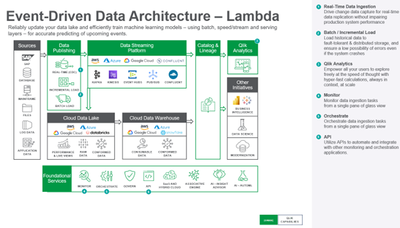
The Lambda architecture is used to reliably update the data lake as well as efficiently train machine learning models to predict upcoming events accurately. The architecture comprises a Batch Layer, Speed Layer (also known as the Stream layer), and Serving Layer. The batch layer operates on the complete data and thus allows the system to produce the most accurate results. However, the results come at the cost of high latency due to high computation time. The speed layer generates results in a low latency, near real-time fashion. The speed layer is used to compute the real-time views to complement the batch views. The Serving layer enables various queries of the results sent from the batch and speed layers.
Unify both data lake and data warehouse automation in one user interface to plan and execute either with ease.
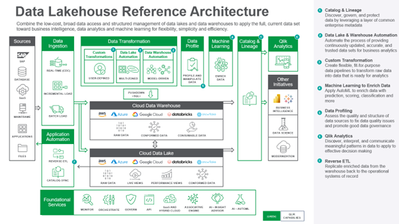
The separation of storage and compute allows for each to be scaled up or down independently, blurring the lines between traditional data warehouses and data lakes. The separation also enables companies to architect a multi-modal lakehouse platform, which provides a single source of truth for all analytic initiatives – AI, BI, machine learning, streaming analytics, data science, and more. Qlik Compose facilitates both data lake and data warehouse automation in one unified user interface, enabling you to plan and execute either project with ease.
Realize faster return on data lake investments while confidently meeting growing demands for analytics-ready data sets in real time.
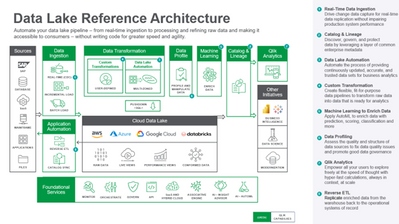
Qlik Data Integration (QDI) for Data Lake Creation helps enterprises realize a faster return on their data lake investment by continuously providing accurate, timely, and trusted transactional data sets for business analytics. Unlike other solutions, QDI for Data Lakes automates the entire data pipeline from real-time data ingestion to the creation and provisioning of analytics-ready datasets, eliminating the need for manual scripting. Data engineers can now meet growing demands for analytics-ready data sets in real-time with confidence.
Meet or exceed the demands for analytics-ready data marts that enable data-driven insights at the speed of change.
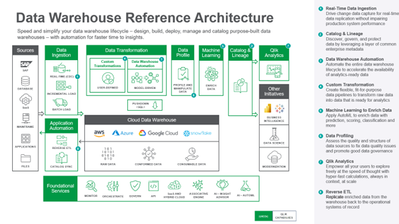
Qlik Data Integration (QDI) delivers on the promise of agile data warehousing with automation that allows users to quickly design, build, deploy, manage and catalog purpose-built data warehouses (especially cloud-based) faster than traditional solutions. Consequently, data engineers can meet or exceed the demands for analytics-ready data marts that enable data-driven insights at the speed of change.