Unlock a world of possibilities! Login now and discover the exclusive benefits awaiting you.

Product Innovation
By reading the Product Innovation blog, you will learn about what's new across all of the products in our growing Qlik product portfolio.
Support Updates
The Support Updates blog delivers important and useful Qlik Support information about end-of-product support, new service releases, and general support topics.
Qlik Academic Program
This blog was created for professors and students using Qlik within academia.
Community News
Hear it from your Community Managers! The Community News blog provides updates about the Qlik Community Platform and other news and important announcements.
Qlik Digest
The Qlik Digest is your essential monthly low-down of the need-to-know product updates, events, and resources from Qlik.
Qlik Learning
The Qlik Learning blog offers information about the latest updates to our courses and programs, as well as insights from the Qlik Learning team.
Recent Blog Posts
-
School Information
School Information JBTCYH Provide information on Schools in Singapore (eg Secondary Schools) Discoveries Information for Sec 1 posting Impact Allow parents to access to such information Audience For Parents/Students Data and advanced analytics Easy reference for School information in SG
-

-
Introducing Qlik Answers
Informing workers with knowledge from unstructured content. A plug-and-play, Generative AI powered RAG solution. -
Cyclic Dimension
Today I am going to blog about cyclic dimensions. A cyclic dimension is a group of dimensions that can be cycled through in a visualization. The dimensions do not have to be related or have a hierarchical relationship. The dimensions only have to make sense with the measures used in the visualizations. Cyclic dimensions can be very useful when it is valuable to view a visualization across many dimensions. It becomes even more valuable if there ar... Show MoreToday I am going to blog about cyclic dimensions. A cyclic dimension is a group of dimensions that can be cycled through in a visualization. The dimensions do not have to be related or have a hierarchical relationship. The dimensions only have to make sense with the measures used in the visualizations. Cyclic dimensions can be very useful when it is valuable to view a visualization across many dimensions. It becomes even more valuable if there are multiple visualizations on a sheet, or in an app, that use the same cyclic dimension. When a cyclic dimension is switched to the next field, all visualizations that use the cyclic dimension will be changed to the same field. This is a time saver. You may wonder if alternate dimensions can do the same thing. Alternate dimensions allow a user to change the dimension in a chart, but it only changes it for the specified chart whereas a cyclic dimension can change the dimension for multiple charts. Alternate dimensions can also be used in a visualization with a cyclic dimension.
Building a cyclic dimension is very easy and there are few ways to use them. You create a cyclic dimension the same as you do a single or drill-down dimension. From the Master items, create a new dimension. At the top select Cyclic dimension type, then add the fields to include. Give the cyclic dimension a name and save. Labels can be added to give the fields a different name and description. At least two fields need to be added to a cyclic dimension.
A cyclic dimension can be added to a visualization the same way a single dimension is added. Once they are added to a visualization a cycle icon will appear next to the field name as well as an arrow. By default, the first field in the cyclic dimension will be displayed. To change the dimension in the visualization, a user can click on the cycle icon or click on the label or down arrow and select another dimension.
Another way a user can cycle through the dimensions is to use a button. In the What’s New app, buttons have been created to cycle through the cyclic dimensions.
In all three buttons, the action is set to Step cyclic dimension and the Step is set to backward for the left arrow and forward for the right arrow and the cycle button in the middle.
Left arrow button
Right arrow & cycle buttons
In the What’s New app, you can also see how changing the cyclic dimension in one visualization, updates all the visualizations using the cyclic dimension. In the screenshot below, Category Name is the current cyclic dimension.
If I switch the dimension, using any of the ways I have described above, Country Code is the dimension. Notice that the dimension in all the visualizations have been updated to Country Code in the screenshot below.
Check out Qlik Help to learn more about cyclic dimensions and to be aware of the limitations. Also watch Michael Tarallo’s SaaS in 60 video on Cyclic Group Dimensions. Try them out in your next app.
Thanks,
Jennell
-
Celebrating Summer Solstice with Streamlined Scripting
As we embrace the longest day of the year, the summer solstice, I am reminded of the importance of making the most of every moment. While the sun shines brightly, we want our dedicated Qlik developers, consultants, and "Qlik script rock-stars" to enjoy the weather rather than spend countless hours in the script editor interface. That’s why we are excited to introduce our latest improvements, designed to enhance your scripting experience and give ... Show MoreAs we embrace the longest day of the year, the summer solstice, I am reminded of the importance of making the most of every moment. While the sun shines brightly, we want our dedicated Qlik developers, consultants, and "Qlik script rock-stars" to enjoy the weather rather than spend countless hours in the script editor interface. That’s why we are excited to introduce our latest improvements, designed to enhance your scripting experience and give you more time to bask in the summer glow.
Keep reading to explore the enhancements we've made to the script and data load editors, ensuring a more efficient, consistent, and enjoyable user experience. Whether you're tackling data prep or loading data into a Qlik Sense app, these updates will streamline your workflow and promote best practices, allowing you to spend less time on scripts and more time soaking up the sunshine.
Fixing pain points in autocomplete
Autocomplete has been a persistent issue for many of you, often causing more frustration than convenience. Recognizing this, we released an update on February 15th, to make autocomplete less aggressive in both script and expression editors. This seemingly small bug fix has had a significant impact, earning praise from our developer community.
A few days ago on June 18th, we released an enhancement that allows you to enable or disable autocomplete according to your preference. This flexibility addresses one of the biggest pain points raised by our script writers, empowering you to work more efficiently.
For more details, check out the community discussion by Partner Ambassador – Ometis.
Consistent user experience across script editors
We are committed to providing a consistent user experience across our platforms. In November 2023, we released a standalone script editor for data prep use cases. This year, we’ve ensured that the functionality in the standalone script editor is mirrored in the Data Load Editor used by over 11k users for loading data into Qlik Sense apps.
Promoting good practices with reusable and modular code
We’ve also made strides in promoting good coding practices. We introduced QVS file support, allowing you to upload, preview, and include QVS files in your scripts. This feature, released on April 31st in the script editor and on May 21st in the Data Load Editor, supports the reuse of script parts and encourages modularity.
Stay tuned for future updates… because we are planning to take the current functionality of read only to the next level and include editable scripts within Qlik Cloud!
This enhancement not only promotes best practices but also helps with a smoother transition to Qlik Cloud for those heavily utilizing QVS files in client-managed deployments.
Explore community feedback:
Enhanced Data Load EditorThe Enhanced Data Load Editor, released on May 21st, brings a host of new functionalities aimed at improving usability. These include the ability to preview loaded data directly from the editor, the introduction of a STORE command wizard, and resizable panels. With these improvements the script coding experience is more intuitive and efficient, aligning it with the capabilities of the enhanced script editor in Qlik Cloud.
Key features include:
- Data preview with limited loading and table/profile previews for troubleshooting during development without switching between app sheets or data model viewer, allowing quick checks on script effects on a limited number of rows.
- Resizable panels for a customizable workspace
Note: These enhancements were previously introduced in the standalone script editor in November 2023 for data prep use cases. If you missed that update, catch up here:
Community reactions
The release of these improvements in the Data Load Editor has inspired positive reactions across the Qlik community. Here’s what some of our Partner Ambassadors and consultants had to say:
- Partner Ambassador Alex Walker - Ometis
- Partner Ambassador Cristof Schwarz - Databridge
- Consultant Paul Verkooijen - BZTRS Agency
Embracing a 'Cloud-First' approach
While we emphasize a cloud-first strategy, we understand the importance of supporting both cloud and client-managed environments. The standalone script editor and script object improvements are currently supported in Qlik Cloud. However, enhancements to the Data Load Editor and expression editor are also included in Qlik Sense client-managed, with major updates planned for the November 2024 release.
These updates, including enhanced Data Load Editor features and QVS file support, not only improve the current experience but also encourage a gradual move to Qlik Cloud.
Looking forward
As we continue to innovate and improve the Qlik scripting experience, your feedback remains invaluable. Be on the lookout for more updates, and let’s make the most of these long summer days together!
To learn more:
- What’s New in Qlik Cloud | Qlik Help
- Creating reusable load script with QVS files | Qlik Help
- Scripting to load or export data | Qlik Help
-
-
This is How You Enable Your Sales Team with Qlik Answers
Let’s take a look at how Qlik’s new generative-AI powered knowledge assistant, Qlik Answers, is helping our own salesforce better serve customers.
-
The Document Locale
The locale defines a number of regional settings. Here is how it is done in Qlik Sense.
-
Natural Language Insights – Powerful AI on Dashboards
We have recently introduced a new, natural language object in Qlik Sense SaaS that can be added directly to dashboards and applications to deliver AI-generated insights. This capability extends our NLG capabilities beyond the Insight Advisor experience, allowing a much broader audience of Qlik Sense users to benefit from narrative interpretations and readouts when exploring in dashboards, boosting data literacy and delivering improved data story... Show MoreWe have recently introduced a new, natural language object in Qlik Sense SaaS that can be added directly to dashboards and applications to deliver AI-generated insights. This capability extends our NLG capabilities beyond the Insight Advisor experience, allowing a much broader audience of Qlik Sense users to benefit from narrative interpretations and readouts when exploring in dashboards, boosting data literacy and delivering improved data storytelling.
-
Qlik Sense Enterprise on Windows: New Patches available for May 2024, February 2...
Hello all, The following patches for Qlik Sense Enterprise on Windows have been released today: May 2024 Patch 4 (Release Notes) February 2024 Patch 8 (Release Notes) and November 2023 Patch 11 (Release Notes) All installation files are available on our Download site. Log in with your Qlik ID, apply your version's relevant filter, and download the new patch release. Looking for product lifecycle information? See Qlik Sense Enterprise on Win... Show MoreHello all,
The following patches for Qlik Sense Enterprise on Windows have been released today:
- May 2024 Patch 4 (Release Notes)
- February 2024 Patch 8 (Release Notes)
- and November 2023 Patch 11 (Release Notes)
All installation files are available on our Download site. Log in with your Qlik ID, apply your version's relevant filter, and download the new patch release.
Looking for product lifecycle information? See Qlik Sense Enterprise on Windows Product Lifecycle.
Wondering why we have not seen an August 2024 major release? See Release Cadence Update: Qlik Sense Enterprise Client-Managed.Thank you for choosing Qlik,
Qlik Support -
A Summer of Learning with the Qlik Academic Program
In EMEA our Academic Program activities continue into the summer, even with many schools off, we've still been busy! -
Australia is the new hub for a data analytics career
The demand for business analytics skills is surging globally, particularly in India and Australia, driven by the rise in digital transformation across various industries. -
Conditional Show/Hide Dimensions and Measures in a Chart
Conditional show or hide is available in line and bar charts giving the user the ability to toggle dimensions or measures on or off in a single chart. This allows developers to customize line and bar charts and save space by using one chart to show various metrics and dimensions. Let’s look at a simple way of using this feature to show or hide lines in a line chart. In the Overall Equipment Efficiency demo found on the Demo Site, there is a line ... Show MoreConditional show or hide is available in line and bar charts giving the user the ability to toggle dimensions or measures on or off in a single chart. This allows developers to customize line and bar charts and save space by using one chart to show various metrics and dimensions. Let’s look at a simple way of using this feature to show or hide lines in a line chart. In the Overall Equipment Efficiency demo found on the Demo Site, there is a line chart accompanied by buttons that are used to toggle the lines on and off in the line chart.
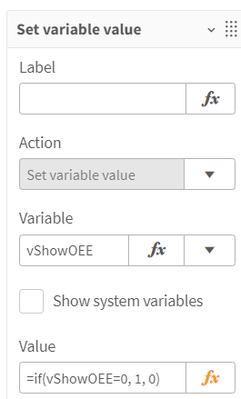
This is done by using variables. When each button is clicked, the respective variable is toggled from 0 to 1 or 1 to 0 depending on its current value. See the value expression in the image below.
In the measure expression in the line chart, this variable is checked to determine if the expression should be evaluated and displayed or if the measure should be set to null.
This is a perfectly good way to toggle the lines, but with the ability to use conditional show and hide in line and bar charts, this process can be simplified. First, in the measure expression, we no longer need to use an if statement which can help reduce calculation time. We can simply use our normal expression and the “Show measure if” setting, with the respective variable, to evaluate if a line should be shown in the visualization or not.
The “Show measure if” and “Show dimension if” settings evaluate the expression and will show the line if the expression evaluates to true. In my example, vShowOEE will be either 1 or 0. If it is 1, the line will be displayed. If it is 0, then it will not be displayed. We can continue to use the buttons to toggle the respective variable (from 1 to 0 and vice versa) for each line.
My example is basic, but more complex expressions can be used as well. For example, you may want to show/hide lines based on a selection or a calculated value or you may want to use some business logic to determine which dimension or measure should be displayed. The expression can be as simple or complex as needed, as long as it returns a true or false value. Keep in mind, that this show setting is optional and can be left blank. When no expression is entered, the line (or bar) is displayed.
There are a few limitations of this new feature to be aware of: 1) Custom tooltips are disabled when using a conditional dimension, 2) Time series forecasting is not available when using conditional dimensions or measures. While the “Show measure if” and the “Show dimension if” can both be used in the same chart, it is recommended that you use only one at a time. Check out Qlik Help to learn more and test this new feature out in your next line or bar chart.
Thanks,
Jennell
-
Social Media Report
Social Media Report Clay TechSystems Consulting Private Limited You can gather information on the reach, impressions, and visitors of your social media posts with this app. It provides analysis on a monthly and yearly basis, allowing you to prioritize your marketing efforts. Discoveries We obtained more in-depth analysis of the data, allowing us to concentrate on areas that are currently not being targeted. Impact Data-driven ins... Show MoreSocial Media ReportClay TechSystems Consulting Private Limited You can gather information on the reach, impressions, and visitors of your social media posts with this app. It provides analysis on a monthly and yearly basis, allowing you to prioritize your marketing efforts.
Discoveries
We obtained more in-depth analysis of the data, allowing us to concentrate on areas that are currently not being targeted.
Impact
Data-driven insights can assist organizations in adopting a customer-centric approach by expanding the scope of targeted areas and enabling a focus on content preferred by audiences.
Audience
This social media post app is intended for business stakeholders, marketing teams, and business owners as its target audience.
Data and advanced analytics
By utilizing user-friendly dashboards, businesses can easily monitor their social media performance, enabling them to identify trends, patterns, and areas that need improvement. This valuable insight allows companies to personalize their marketing campaigns to better appeal to their target audience, resulting in increased engagement and heightened brand recognition.
-
LinkedIn Personal Data
LinkedIn Personal Data BriefCam LinkedIn provides data about your profile, such as your connections, post reactions, messages and a huge list of other files you can analyze and get quick insights. Using Qlik I created an app that monitors my LinkedIn activity. Discoveries Analyze personal usage in LinkedIn network Impact Get insights about your LinkedIn profile Audience LinkedIn users who want to explore their activity on ... Show MoreLinkedIn Personal DataBriefCamLinkedIn provides data about your profile, such as your connections, post reactions, messages and a huge list of other files you can analyze and get quick insights. Using Qlik I created an app that monitors my LinkedIn activity.Discoveries
Analyze personal usage in LinkedIn network
Impact
Get insights about your LinkedIn profile
Audience
LinkedIn users who want to explore their activity on LinkedIn
Data and advanced analytics
It encourages other LinkedIn users to request their own data and create a personal dashboard
-
Date# Function vs. Date Function
What is the difference between the Date# function and the Date function? These two functions seem quite similar, but they have different purposes. It took me a while to understand when to use one over the other. Now that I have a handle on it, I thought I would share what I have learned. The Date# function is an interpretation function. According to Qlik Help, “Date# evaluates an expression as a date in the format specified in the second argument... Show MoreWhat is the difference between the Date# function and the Date function? These two functions seem quite similar, but they have different purposes. It took me a while to understand when to use one over the other. Now that I have a handle on it, I thought I would share what I have learned. The Date# function is an interpretation function. According to Qlik Help, “Date# evaluates an expression as a date in the format specified in the second argument, if supplied.” I use the Date# function when I am loading a value that I want to be perceived as a date. For example, in the partial script below, I loaded “YR” from an Excel file and to ensure that the value was evaluated as a date with the year format ‘YYYY’, I used the Date# function.
The syntax of the Date# function is as follows:
Date#(text[, format])
The format parameter of the Date# and Date functions is optional. If it is not included in the expression, it uses the date format set in the system variables in the script. Using Date#() is an important step if the “Year” field is used later in the script to join data or to compare to data that has a date value. When evaluating 2 values, you want to ensure that they are formatted the same and that you are comparing apples to apples.
The Date function is a formatting function. According to Qlik Help, “Date() formats an expression as a date using the format set in the system variables in the data load script, or the operating system, or a format string, if supplied.” I use the Date function to format a date a specific way. For example, I may format a date as ‘YYYY’ if I only am interested in seeing the year. I could also format the date like this ‘M/D/YYYY’ to see the month, day and year.
The syntax for the Date function is as follows:
Date(text[, format])
In the example below, I am formatting the “Yr” field as a 4-digit year (i.e. 2021).
I can also format a date as seen below. This expression will return 09/17/2021.
On occasion, I have used both the Date# and the Date functions in the same expression. For example, if I am loading text with the format YYYYMM and I want to format it as MMM-YYYY, I cannot simply use the expression Date(text, ‘MMM-YYYY’) because it does not pick up that the text is a date. So, I need to first interpret the text as a date and then I can format it. This expression works:
Date(Date#(text, ‘YYYYMM’), ‘MMM-YYYY’)
The Date# function first identifies the text as a date and indicates the format the date is in (‘YYYYMM’). Then the Date function formats the text like this ‘MMM-YYYY’.
Both the Date# and Date functions can be used in script and chart functions. Date#() interprets the data as a date and Date() formats the date as specified. I hope this was helpful.
Thanks,
Jennell
-
JOINS
JOINSBredenmasterVisually show and explain the main join that can be used in scriptDiscoverieseasily explain to people how relations between tables should be done, and what it means for dataImpactpeople easily can get and cross the right and confidence data, without thinking that you are affecting developmentAudiencedevelopers and analysts, during trainings and workshopsData and advanced analyticsreliable data and optimal resources consumption -
Qlik Datathon in India's Silicon Valley is a big success!
On August 8th, Kristu Jayanti College, Bangalore organised a datathon for its students in association with Qlik. Kristu Jayanti College is one of the leading colleges in Bangalore, also known as India's Silicon Valley. The college has multiple courses in engineering, business studies, arts, science, social sciences etc. More than 15,000 students study on the campus each year. This was the first datathon organised by Kristu Jayanti and it wa... Show MoreOn August 8th, Kristu Jayanti College, Bangalore organised a datathon for its students in association with Qlik.
Kristu Jayanti College is one of the leading colleges in Bangalore, also known as India's Silicon Valley. The college has multiple courses in engineering, business studies, arts, science, social sciences etc. More than 15,000 students study on the campus each year.
This was the first datathon organised by Kristu Jayanti and it was led by Dr. Kalaiselvi who is also the Qlik Educator Ambassador for 2024. She was supported by her staff members including Dr. Sasikumar, Dr. Sevuga Pandian, other faculties and students. A day prior, a bootcamp was led by Manikant Roy, Ph.d candidate from IIT Delhi, also an ex Professor.
More than 130 students participated in this day long event from 9 am to 7 pm. Students were given data sets with diverse topics such as Sales data, E Commerce data and data on Health. Most students were familiar with Qlik Sense since they had registered for the Qlik Academic Program previously and knew how to build dashboards and create visualisations. This event culminated into presentations by students and based on their output, three teams were selected as the winners.
Kristu Jayanti and the Qlik Academic Program will embark on many such initiatives to get students enabled in data analytics. To learn about how you can engage with us, if you are a student or a professor, visit qlik.com/academicprogram and benefit from a world class analytics training, software and qualifications!
-
KC Tech Checkpoint
KC Tech CheckpointPomerol PartnersAccess data surrounding the most in-demand Kansas City tech positions Explore the most common tech skills listed on active KC tech job listings Review Kansas City versus U.S. tech workforce data Navigate the distribution of new, active and closed Kansas City tech jobs Compare Kansas City tech median wages in correlation with occupations, employers, certificates, industries, job titles and locations Browse Kansas ... Show MoreKC Tech CheckpointPomerol PartnersAccess data surrounding the most in-demand Kansas City tech positions Explore the most common tech skills listed on active KC tech job listings Review Kansas City versus U.S. tech workforce data Navigate the distribution of new, active and closed Kansas City tech jobs Compare Kansas City tech median wages in correlation with occupations, employers, certificates, industries, job titles and locations Browse Kansas City tech trend graphs featuring job listings and median wages by month Export custom reportsDiscoveries
In 2022, Pomerol transformed Kansas City Tech Council's monthly jobs report (previously a PDF report) into an interactive web mashup and mobile app that empowers business professionals to easily explore local tech workforce trends.
Impact
The transformation boosted engagement and increased email open rates by 11%.
Audience
Public, available to download here: https://www.kctechcouncil.com/kc-tech-checkpoint-app/
Data and advanced analytics
The delivery mechanism and data capturing (GPS, multi-media) offers extension opportunities. Getting users to update data on a device they use exponentially more frequently, can turn the usage tide (or make it more difficult to ignore/de-prioritize).
-
Summer may be winding down, but we are not!
Read to learn about the Qlik Community enhancements for August 2024.