Unlock a world of possibilities! Login now and discover the exclusive benefits awaiting you.

Analytics & AI
Forums for Qlik Analytic solutions. Ask questions, join discussions, find solutions, and access documentation and resources.
Data Integration & Quality
Forums for Qlik Data Integration solutions. Ask questions, join discussions, find solutions, and access documentation and resources
Explore Qlik Gallery
Qlik Gallery is meant to encourage Qlikkies everywhere to share their progress – from a first Qlik app – to a favorite Qlik app – and everything in-between.
Qlik Community
Get started on Qlik Community, find How-To documents, and join general non-product related discussions.
Qlik Resources
Direct links to other resources within the Qlik ecosystem. We suggest you bookmark this page.
Qlik Academic Program
Qlik gives qualified university students, educators, and researchers free Qlik software and resources to prepare students for the data-driven workplace.
Recent Blog Posts
-
Five Qlik Sense extensions you should check today
It’s been a little bit over a year since last time I posted about extensions here so I thought it would be nice to update this topic with fresh extens... Show MoreIt’s been a little bit over a year since last time I posted about extensions here so I thought it would be nice to update this topic with fresh extensions submitted to our developer community Qlik Branch. Remember you can submit, contribute to others, and download extensions from Qlik Branch.
My favorite 5 extensions (as of April, 2016)
1. qsVariable by erikwett
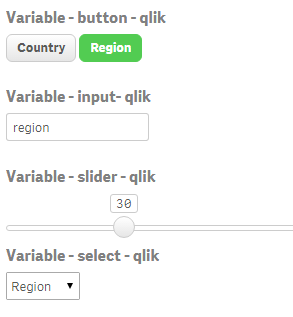
qsVariable is a super useful UI variable handler. The extension will let you not only create a variable while you set it up but also it will let you add a UI layer (buttons, selectors, input fields and sliders) so users can interact with your variable(s).
2. Qlik Sense Trellis Chart by agilos.mla
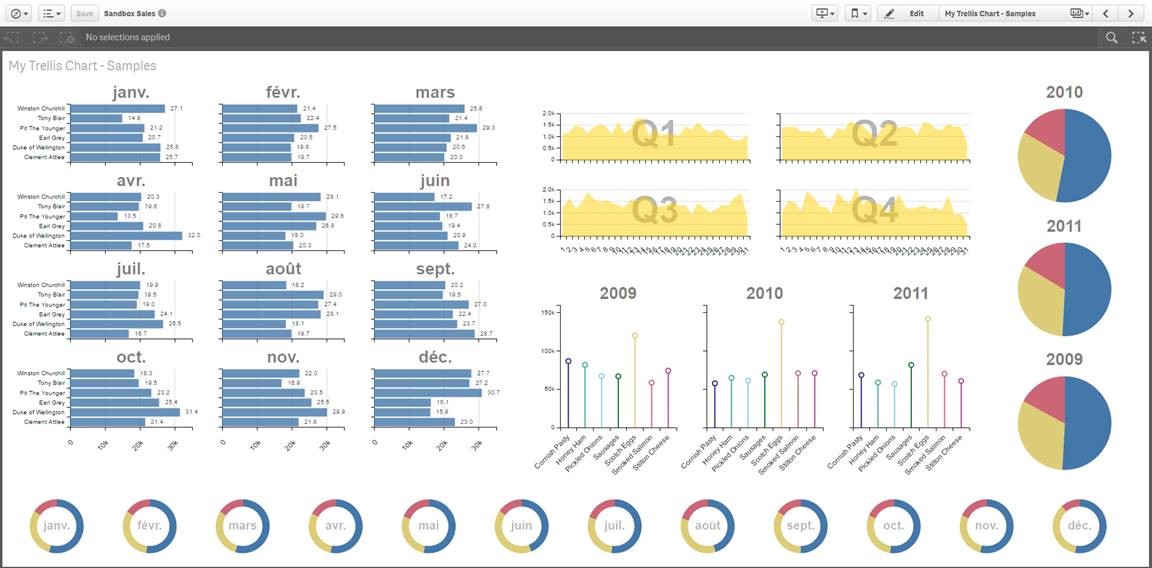
Trellis or more commonly known as Small Multiples (by Edward Tufte) is one of the well-known techniques available to represent the same measure across two dimensions. It’s especially useful when it comes to compare values in across charts using the same scale.
The extension uses the power of D3 to represent the data letting you to pick from pie, bar, or line chart. At this point the extension still needs some work to make it mobile friendly but it's a very promising starting point.
3 Simple KPI by alex.nerush
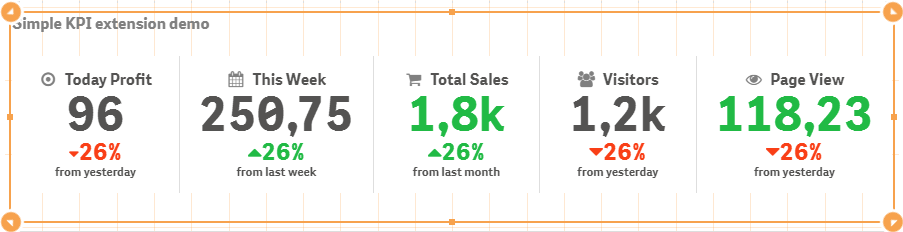
Simple KPI is all about flexibility and options, it's a great example of how customizable an extension can be. Simple KPI will let you create your very own style KPI object adding dimensions, setting up conditional colors and fonts and many more options. Give it a try
4 Measure Builder by LorisLombardo87
Creating complex expressions is sometimes a bit tricky, especially for new users so any help can make a difference. Measure Builder is a wizard style editor extension that will let users to create expressions easily by just simple completing a step by step form in a very visual way. It's really helpful to understand and learn set analysis syntax so if you are new to Qlik I would always recommend you to get this one installed on your computer.
5 Circular KPI by JSN
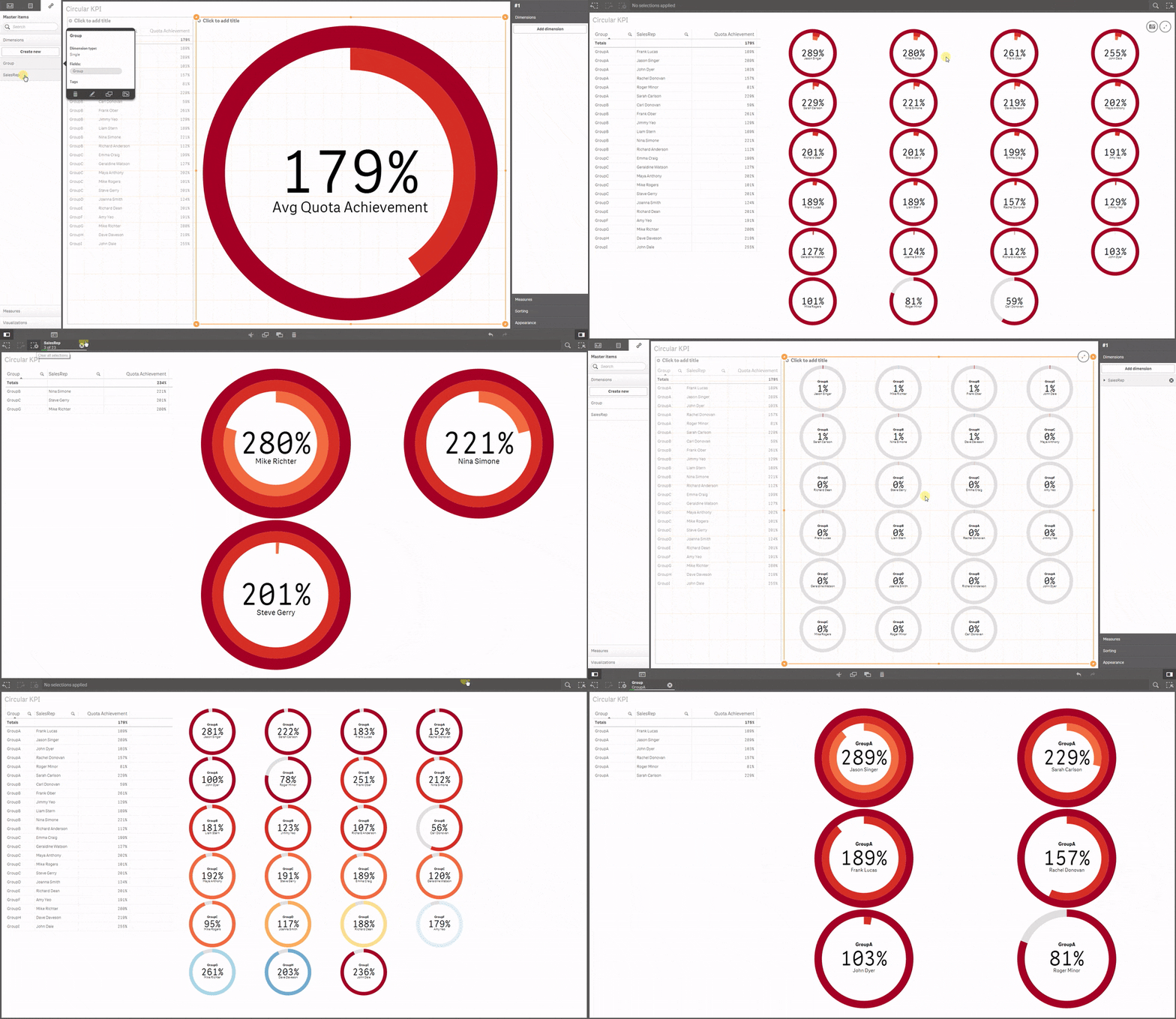
Would you like to use KPI to show target achievements but your values typically are over 100% making classic progress bar useless? Well, then you may want to try Circular KPIs, it supports percentage (%) KPIs up to 300% in a very smart way. Simple but fun extension.If you are using any other extension that you think may be worth it to share with the community please let us all know in the comment section!
Enjoy Qliking!
AMZ

-
Year in review. 2016 Top Posts
2016 is almost over, we've made it this far; we can make it through one more day. To help you to reduce the end-of-year stress nothing better than our... Show More2016 is almost over, we've made it this far; we can make it through one more day. To help you to reduce the end-of-year stress nothing better than our very own top blog posts of the year. Let's start by sharing some numbers.
7 author posted 77 articles (not including this one) during the year, and a total of 34,876 words (6.693 distinct words) were written. Last year we wrote the Q-word 323 times while this year the word “Qlik” appears 366 times in our articles, 4.75 times per post. You helped us to improve our content by commenting in average almost 7 times per post, a total of 531 comments were written.
Most popular posts in 2016
Most read/visited posts
Top selling posts.
Set Analysis in the Aggr function.
The sortable Aggr function is finally here.
Five Qlik Sense extensions you should check out today.
Creating a KPI object in QlikView.
Most commented posts of the year
Something is going on in these posts.
The sortable Aggr function is finally here.
Qlik Sense 2.2 – It just keeps getting better and better.
Creating a KPI object in QlikView.
The underdogs 2016
They worth a second read.
Recipe for a Pareto Analysis – Revisited
When I first wrote about the new sortable aggr function I was really curious to see what uses were unlocked by the new functionality. HIC found one.Implicit Set Operators
Quite popular post that didn't make it to our top 5. It's a good lecture to improve your set analysis skills.Use case for ValueList Chart function
Real life use case for a no-so-common functionQlik Lars Mashup project template
If you are considering creating a mashup page with Qlik charts in it, you may want to check out this template.Hope you all have a great end of the year!
AMZ
-
Community created highlights 2016
It's almost the end of 2016, so I figured I'd look back at some of the stuff the Qlik developer community has created this year. This list does not at... Show MoreIt's almost the end of 2016, so I figured I'd look back at some of the stuff the Qlik developer community has created this year. This list does not attempt to be a "best of 2016" list, there were so many great things created this year that I wouldn't even know where to begin ranking them. Rather, this is just a few highlights I selected. Hope you enjoy!
Qlik Playground
Qlik Playground lets you quickly test out all kinds of stuff with the Qlik Engine and APIs. It gives you a sandbox to play in, and also has some cool showcase projects you can play around in, as well as learning resources. It's very cool.
RxQAP
RxQAP is a reactive JS wrapper that currently supports the Qlik Engine API. Observables are super awesome, and while I haven't had a chance to build a project with this yet, it's very high on my to-do list.
Sense Search Components
Sense Search Components lets you easily embed search in a web app. And it works with the App API or the Engine API!
Lars Mashup Template
Full disclosure, I built this one. It's the template I've been using for most of the year to quickly spin up boilerplate for any App API projects.
qSocks snippets extension for VSCode
Adds snippets for qSocks to VSCode. If you're not using VSCode, you should. If you haven't tried qSocks, check it out. And if you're already using both, this project is for you.
Google Annotation Chart for Qlik Sense
Google annotation charts are sharp. This is an integration of google annotation charts for Qlik Sense.
Climber Selection bar
An extension that allows you to add selection capabilities to your app that look sharp and have some cool functionality.
Dynamic Table with Sparklines
This extension allows you to create tables that include sparklines. It looks really good.
sxBlockRain
This. Is. Necessary.
You can check out Qlik Branch for even more awesome Qlik developer community created projects, and check out the comments to see recommendations by others and add your own!
-
A Look at the Lookup Function
The Lookup function is a script function that allows you to look up and return the first occurrence of a value in a field that has already been loaded... Show MoreThe Lookup function is a script function that allows you to look up and return the first occurrence of a value in a field that has already been loaded in the script. The lookup can occur in the current table or a previously loaded table. Here is the syntax:
lookup(field_name, match_field_name, match_field_value [, table_name])
The first parameter field_name is the field from which the returned value will come from. The field_name must be entered as a string so enclose the field name in single quotes.
The second parameter match_field_name is the field where you will be looking up the value. This parameter also needs to be entered as a string. This parameter and the first parameter, field_name, must be fields in the same table in order for the Lookup function to work.
The third parameter match_field_value is the value that you are looking for in the match_field_name field.
The fourth and last parameter is the table_name. This is an optional parameter. If the lookup is occurring in the current table that is being loaded, then this parameter can be omitted. If the lookup is in another previously loaded table, then this parameter should be the table name enclosed in single quotes.
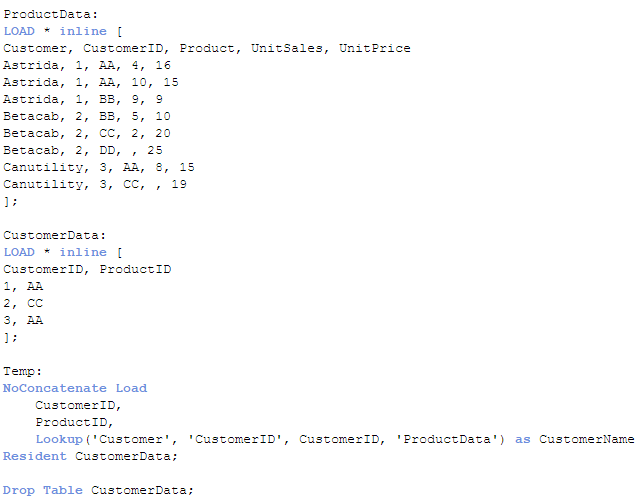
So, let’s take a look at a small example of the Lookup function. In the script below, the first two inline load scripts load a ProductData and a CustomerData table. The loading of the Temp table is where we can see the Lookup function in action. In this example, I am looking up the customer name with a specified customer ID. The Lookup function will return the value of the Customer field (first occurrence) from the ProductData table where the loaded CustomerID matches the value in the CustomerID field in the ProductData table.
Once this script is run, the Temp table looks like this:
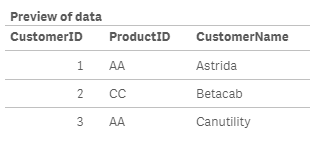
The field CustomerName has the customer name that corresponded to the first occurrence of the CustomerID being loaded in the Temp table. This value was captured by looking it up in the ProductData table.
If the Lookup function does not find a match, null will be returned. The Lookup function is one line of code that is fairly easy to add to your script to look up a value in a field but it has some limitations. First, the order of the search is the load order. You are not able to sort the data so the first occurrence will be based on the load order of the value. Second, the Lookup function is not as fast as the ApplyMap function. While the Lookup function is flexible and easy to use once you know the parameters, ApplyMap should be your first choice when you need to look up a value based on the content of a field. You can read more about the ApplyMap function in the blogs listed below:
Mapping … and not the geographical kind
Don't join - use Applymap instead
Thanks,
Jennell
-
The Aggregation Scope
This seems like a simple question, but there are in fact quite a few things that could be said about it. Normally, there are two different restricti... Show MoreThis seems like a simple question, but there are in fact quite a few things that could be said about it.
Normally, there are two different restrictions that together determine which records are relevant: The Selection, and – if the formula is found in a chart – the Dimensional value. The aggregation scope is what remains after both these restrictions have been taken into consideration.
But not always…
There are ways to define your own aggregation scope: This is needed in advanced calculations where you want the aggregation to disregard one of the two restrictions. A very common case is when you want to calculate a ratio between a chosen number and the corresponding total number, i.e. a relative share of something.

In other words: If you use the total qualifier inside your aggregation function, you have redefined the aggregation scope. The denominator will disregard the dimensional value and calculate the sum of all possible values. So, the above formula will sum up to 100% in the chart.

However, there is a second way to calculate percentages. Instead, you may want to disregard the the selection in order to make a comparison with all data before any selection. Then you should not use the total qualifier; you should instead use Set analysis:

Using Set analysis, you will redefine the Selection scope. The set definition {1} denotes the set of all records in the document; hence the calculated percentages will be the ratio between the current selection and all data in the document, split up for the different dimensional values.

In other words: by using the total qualifier and set analysis inside an aggregation function, you can re-define the aggregation scope.
- To disregard the dimensional grouping – Use the Total qualifier
- To disregard the selection – Use Set Analysis
The above cases are just the basic examples. The total qualifier can be qualified further to define a subset based on any combination of existing dimensions, and the Set analysis can be extended to specify not just “Current selection” and “All data”, but any possible selection.
And, of course the total qualifier can be combined with Set analysis.

A final comment: If an aggregation is made in a place where there is no dimension (a gauge, text box, show condition, etc.), only the restriction by selection is made. But if it is made inside a chart or an Aggr() function, both restrictions are made. So in these places it could be relevant to use the total qualifier.
Further reading related to this topic:

-
Data Cleansing
When building business intelligence solutions one problem is that data usually contains errors, e.g. attributes are written in different ways so tha... Show MoreWhen building business intelligence solutions one problem is that data usually contains errors, e.g. attributes are written in different ways so that data cannot be grouped correctly. The attribute could be written in upper case or not; it could be abbreviated or not; and sometimes several synonyms exist for the same thing.
For instance, ‘United Kingdom’ could be referred to as ‘UNITED KINGDOM’, ‘United Kingdom’, ‘Great Britain’, or just ‘UK’.
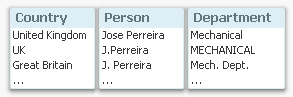
As a consequence, what the users really think of as the same instance will appear on several rows in a list box, or be displayed in several bars in a bar chart. This will cause problems in the data analysis, since selections and numbers displaying totals often will be incomplete.
But there are ways to solve this. The best way, is of course to correct it in the source data. But this is not always possible, so it may be that the correction must be made elsewhere.
In QlikView and Qlik Sense there are several ways to do this. The most obvious (but not the best), is to use a hard-coded, conditional expression in the script:

Similar constructions can be made using Replace() or Pick(). These all work and will do the job.
But they are not manageable.
Should you want to add more cases or change some previous ones, you will soon realize that this isn’t a good method. The expressions will become too long and they will be error-prone. So I strongly recommend not doing this.
There is however a solution which is both manageable and simple: Mapping Load. The first step is to create a mapping table with all changes you want to make:

Then you load this table using the Mapping prefix:
MapTable:
Mapping Load ChangeFrom, ChangeTo
From MapTable.xlsx (...) ;Now you can use this table in the script to correct all field values. The simplest way to use the Map statement: Declare the mapping early in the script before any of the relevant fields are loaded, and the corrections will be made automatically:
Map Country, Department, Person Using MapTable ;
Alternatively, you can use either ApplyMap() or MapSubstring() when you load the field, which both will make a lookup in the mapping table and if necessary make the appropriate replacement, e.g.:
ApplyMap( 'MapTable', Country ) as Country ,
The mapping table will be discarded at the end of the script run and not use any memory in the final application.
Using a mapping table is by far the best way to manage this type of data cleansing in QlikView and Qlik Sense:
- It is easy to add new corrections and to change the old ones
- The mapping table can be stored separately from the script; in an Excel sheet or even in a database
Good Luck!
Further reading related to this topic:
-
Big Data with Qlik - One method does not fit all!
2 min read - 4 min videoIn this week's Qlik Design Blog I have the pleasure of introducing our newest guest blogger, Michael Distler. Michael is a Dir... Show More2 min read - 4 min video

In this week's Qlik Design Blog I have the pleasure of introducing our newest guest blogger, Michael Distler. Michael is a Director of Product Marketing responsible for developing content, positioning, and messaging for Qlik products. His major focus is on data related topics such as Qlik Connectors and Big Data. Today Michael presents a number of approaches that Qlik offers when it comes to handling Big Data.
Qlik's Approaches with Big Data
Just like the term Big Data doesn’t equate to one technology, Big Data also doesn’t relate to one scenario, use case or infrastructure. There can be many differences from one organization to the next. Since every situation is different, Qlik offers multiple techniques which can be used individually or in combination to best meet the Big Data needs of a particular customer.
These approaches include but are not limited to:
- Our default in-memory architecture (QIX)
- Segmentation
- Chaining
- A Hybrid in-memory / direct access approach using Direct Discovery
- On Demand App Generation
Rather than write about these, I created a brief (4 min) video presentation that reviews the different Qlik methods that can be utilized with Big Data including a brief demo of Qlik’s newest technique On demand app generation (ODAG).
To learn more about these approaches and how Qlik works with Big Data you can also download this whitepaper.
Regards,
Michael Distler (@michaeldistler) | Twitter
Director, Product Marketing
Qlik

-
Qlik Sense – Date & Time
One of the new features release on Monday with Qlik Sense 1.1 is the ability to generate date and time fields. Now, you may be thinking that you alwa... Show MoreOne of the new features release on Monday with Qlik Sense 1.1 is the ability to generate date and time fields. Now, you may be thinking that you always generate date fields in your applications – I know that I do – but in Qlik Sense 1.1, we have introduced the Declare and Derive statements that make it easier for you to create a calendar definition that you can use for all date fields in your application. This is brilliant and easy to do.
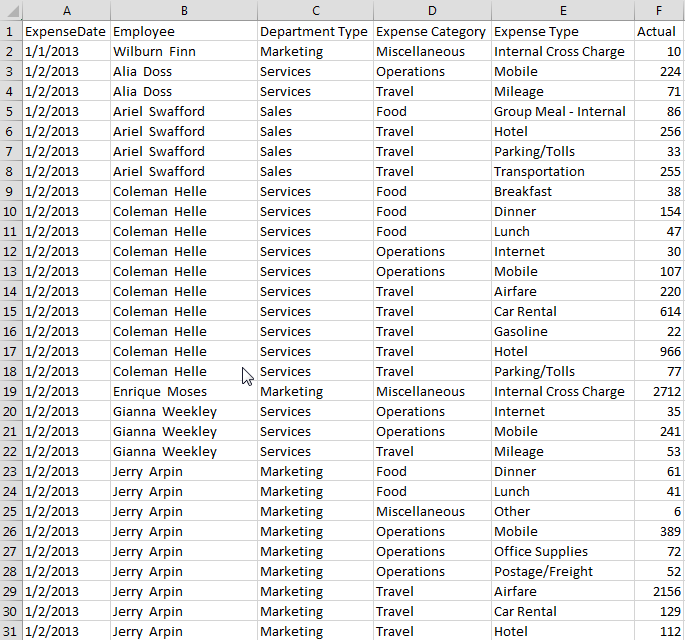
I tested it out by loading some employee expense data that looks something like this:
I then used the Declare statement to create a calendar definition.
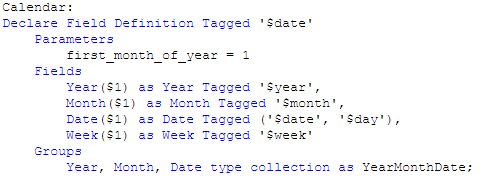
I named the definition Calendar and tagged it as $date. I indicate what the first month of the year should be and then I list the fields that I want generated by the definition. In this example, I entered Year, Month, Date and Week. I could enter others if I want here like Day and Time.
Last, I entered one group that will create a drill down for Year, Month and Date and I named it YearMonthDate. I could list other groups here as well if I need them. In this definition $1 represents the data field from which the date fields will be generated. In this example, that will be the ExpenseDate field.
Now that the calendar definition is created, I just need to use the Derive statement to apply the calendar to the date field that I have already loaded. In this example, the field is named ExpenseDate and my Derive statement looks like this:

If I had more date fields that I had loaded in my data model, I could apply the calendar definition to all of them in the Derive statement by separating the field names with commas. In my Derive statement I used specific data fields but there are alternatives as well. You can also derive fields for all fields with a specific tag or for all fields with the field definition tag. You can find examples of these in Qlik Sense Help.
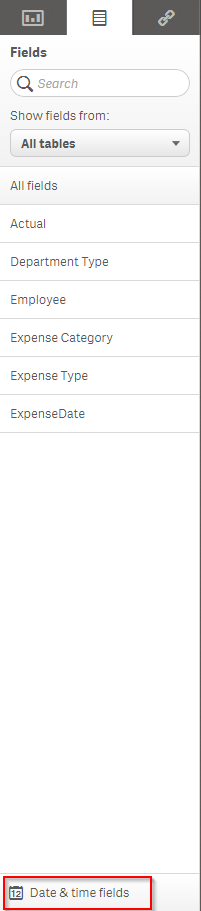
Once this is complete, simply reload the app. Now when you go into the Fields tab in the Assets panel, you will see a tab for Date & time fields and when you expand it, you will see the date fields that were generated by the calendar definition.
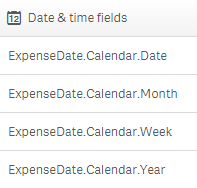
These date fields can be used like you usually use them in your applications – as filters, in visualizations and so on.
I recommend you try it out and refer to Qlik Sense Help for details if you need help. It will save you time especially if you have an application with a lot of date fields that you would like to build out into a calendar. You create the calendar definition one time and in one statement (the Derive statement), you can list all the fields that the definition should be applied to (that you want to generate date fields for). Reload and the calendar is done. Did I already say that this is brilliant!
Thanks,
Jennell
-
Now we're cooking with Class()
Late last week I was working with a Qlik Sense client who wanted to classify a certain range of numeric data. Basically they described it as putting c... Show MoreLate last week I was working with a Qlik Sense client who wanted to classify a certain range of numeric data. Basically they described it as putting certain values into their own respective "buckets" defined by high and low values. Now when I hear "range of data" along with "classify" and "buckets" or even "grouping of data" I think of a histogram.
For the most part we know that a histogram is really nothing more than a bar chart that shows the distribution of numeric data. For example, say you want to know who your strongest customers are and you want to see how many and which customer orders have sales that fall in between a certain monetary range. We can make a bar chart act like a histogram by simply defining the bar chart’s dimension using the Class() function. Simply stated, Class() can be used to classify or group, a measure into bins defined with upper and lower limits.
The Class() function takes in a few arguments. The first argument is the actual "measure field name" you would like to count and the second argument is the interval you would like to bin by. For example, let’s see how many customers have sales that fall within 0 and $1000. In my bar chart I define my dimension as class(Sales,1000), and for my measure I count the number of sales transaction using Count(Sales). In the final result you can see most of my sales consist of transactions that fell between 0 and $1000.
To see this in action watch this 60 second video on the topic.

Dimension - class(Sales,1000)
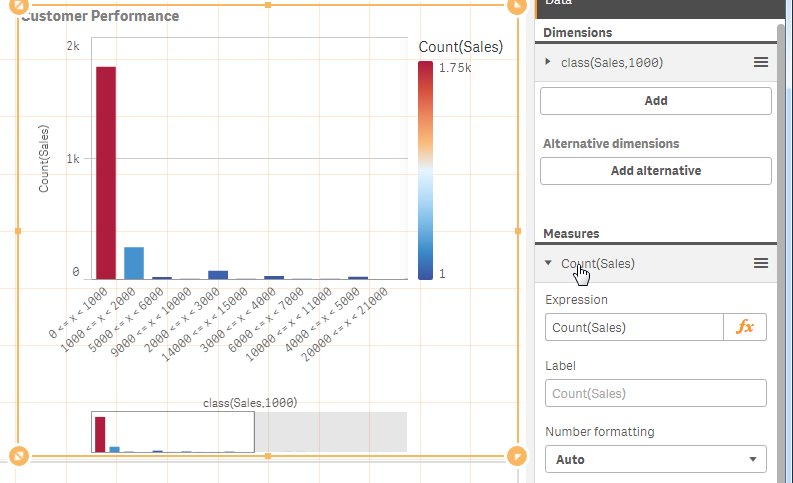
Measure - count(Sales)
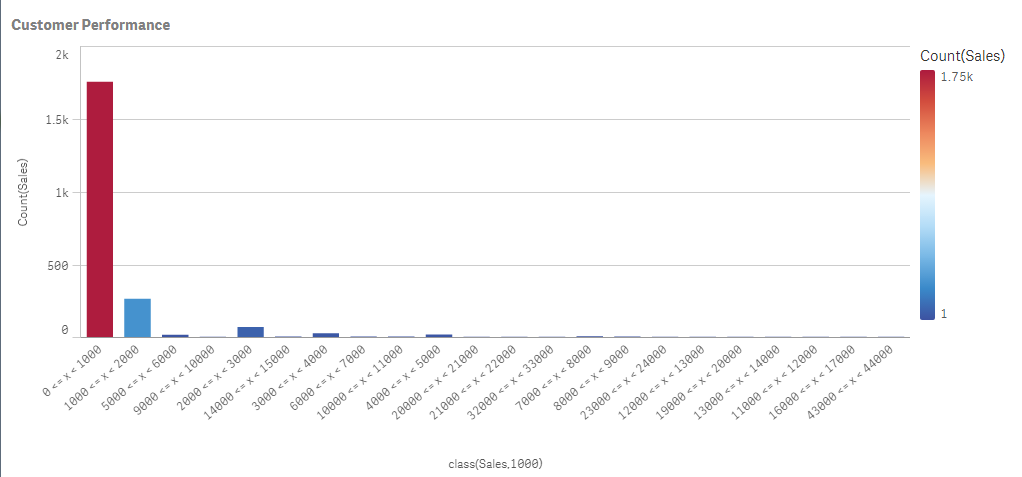 Final Result
For more chart functions like Class() be sure to visit our online help.
See the Qlik Sense sample provided in this post.
If using Qlik Sense Desktop please copy .qvf file to your C:\Users\<user profile>\Documents\Qlik\Sense\Apps and refresh Qlik Sense Desktop with F5. If using Qlik Sense Enterprise Server please import .qvf into your apps using the QMC - Qlik Management Console.
Regards,
Michael Tarallo (@mtarallo) | Twitter
Senior Product Marketing Manager
Qlik
-
Only connect! Qlik and ODBC
It’s a simple but profound statement to say that QlikView has worked with ODBC connectors for many years. Even our new product, Qlik Sense, has worked... Show More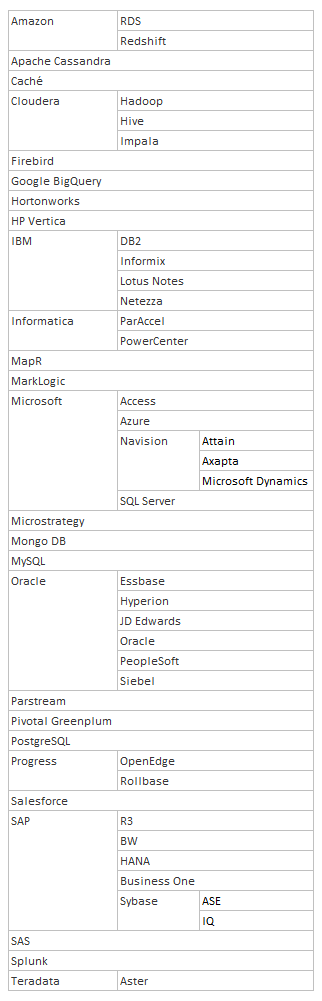
It’s a simple but profound statement to say that QlikView has worked with ODBC connectors for many years. Even our new product, Qlik Sense, has worked with ODBC connectors since its creation. But what are the implications of working with ODBC connectors?
ODBC was created to solve a simple problem: how to extract data from different databases in a fast and standardized way? Nowadays, most database vendors supply ODBC drivers or OLE DB providers and there’s even a thriving market of driver providers. If your application supports ODBC, you have a huge range of databases to connect to. This means that there are many, many databases you can connect QlikView and Qlik Sense to.
I got bored one day and started to list the ODBC databases QlikView and Qlik Sense connect to. You can see my list to the right, not including different versions of the same driver.
Now if you need something more, then you can always use an existing 3rd party custom connector or create one using the Qlik QVX SDK. So there are always options and ways that your data can be loaded into a QlikView or Qlik Sense application. The options are endless.
Do you know of more databases you can connect to with the Qlik ODBC connectors?
-
Mapping … and not the geographical kind
I often use some sort of mapping in the QlikView applications I create to manipulate the data. Mapping functions and statements provide developers wi... Show MoreI often use some sort of mapping in the QlikView applications I create to manipulate the data. Mapping functions and statements provide developers with a way to replace or modify field values when the script is run. By simply adding a mapping table to the script, field values can be modified when the script is run using functions and statements such as the ApplyMap() function, the MapSubstring() function and the Map … using statement.
Let’s take a look at how easy it is to use mapping in a QlikView application. Assume our raw data looks like this:
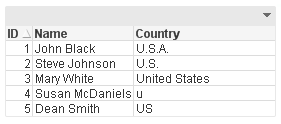
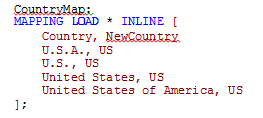
You can see the country United States of America was entered in various ways. If I wanted to modify the country values so that US was used to indicate the United States of America, I could add a mapping table like this to map all the variations of the United States of America to be US.
Once I have a mapping table, I can start using it. I usually use the ApplyMap() function when I am mapping. The script below will map the Country field when this table is loaded.
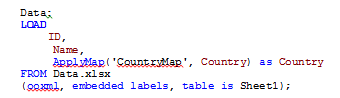
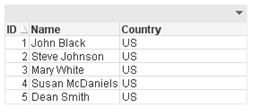
The results are a table like the one below where all the Country values are consistent, even the one that was misspelled (Country field for ID 4). The mapping handled all the variations that were entered in the data source and when the mapping value was not found the default ‘US’ was used.
Now I could have also used the Map … using statement to handle the mapping. Personally, I have never used this statement but if you had many tables that loaded the Country field and you wanted to map each of them, Map … using provides an easier way of doing it with fewer changes to the script. After loading the mapping table, you can say:

...
load data
...

This will map the Country field using the CountryMap until it reached the Unmap statement or the end of the script. The main difference between this and the ApplyMap() function is with the Map … using statement, the map is applied when the field is stored to the internal table versus when the field is encountered.
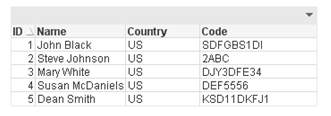
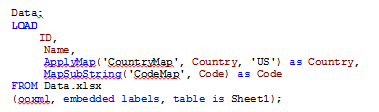
One last mapping function that is available in QlikView is the MapSubstring() function that allow you to map parts of a field. Using the mapping table below, the numeric data in the Code field is replace with the text value.
Before MapSubstring() function is used:
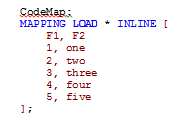
After MapSubstring() function is used:
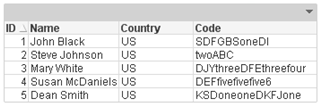
The numeric values in the Code field were replaced with the text values.
Mapping is a powerful feature of QlikView that I use in just about every application. It allows me to “clean up” the data and format it in a consistent manner. I often use it to help scramble data when I have many values that I need to replace with dummy data. So the next time you are editing or “fixing” the data in your data source, consider mapping. Check out the technical brief I wrote on this topic.
Thanks,
Jennell
-
Managing Qlik Sense Streams - Security Rules and Exception Management
Hello Qlik Community, in this post I have the pleasure of introducing Marcus Spitzmiller. Marcus is a member of the Qlik Enterprise Architecture team ... Show More
Hello Qlik Community, in this post I have the pleasure of introducing Marcus Spitzmiller. Marcus is a member of the Qlik Enterprise Architecture team focusing on enterprise deployments and best practices. His areas of expertise include scalability and performance, deployment best practices, integration, and security. Marcus has been with Qlik for 6.5 years. In this post he will introduce you to Qlik Sense Stream management, covering security rules and exception management.Managing Qlik Sense Streams
At the center of Qlik Sense’s security is an attribute based access control component called the Security Rules Engine. Qlk’s Product Manager for security, Fredrik Lautrup, ( flp ) does a great job of explaining just what that means here (https://community.qlik.com/blogs/qlikviewdesignblog/2015/03/10/why-security-rules-in-qlik-sense).
Administrators of Qlik Sense can leverage attributes about users, applications, streams, data connections and much more to govern user authorization (that is, who can do what) via the Security Rules Engine.
Qlik’s Michael Tarallo (@mto) has produced a number of great videos that describe the Qlik Management Console and the functions available within it here (https://community.qlik.com/docs/DOC-7144), and I would encourage you to review those videos in the “Management Console (QMC) Series” if you don’t yet have an understanding of concepts like Streams, Custom Properties, and User Directory Connectors.
In this video I show how you can effectively use the power of the Security Rules Engine to manage multiple groups of users, multiple streams, and do so with as little administrative maintenance as possible.
Be on the lookout for the following best practices leveraged within this video:
- - Build “Many to Many” Security rules to enable one stream security rule to govern many streams and many users at once.
- - Use Custom Properties to avoid hard coding of values into Security Rules.
- - Avoid changing the out of the box rules. If you need to change a rule’s default behavior, disable the rule and make a copy of it.
- - Finally, manage collections of things before you manage the thing itself. With the concepts I detail in this video, you can manage many streams, many groups, (and by extension many data connections, and more) with little administrative overhead, and manage individual things (like applications) as an exception.
The Security Rules Engine is a tremendously powerful component of the Qlik Sense architecture, and your deployment requires planning. As a general guideline, if you find yourself thinking “there has got to be a better way”, there probably is! That is your cue to reach out to the many Qlik resources you have available to you through QlikCommunity, Qlik Education, Qlik Partners, Qlik Consulting, and Qlik Sales teams.
Enjoy the video!
Marcus
-
Qlik Community Survey
Hello Qlik Community Visitors and Members, We are running a survey to learn more about what you like about Qlik Community, what works and what could b... Show MoreHello Qlik Community Visitors and Members,
We are running a survey to learn more about what you like about Qlik Community, what works and what could be better.
Please take a minute to fill out this quick survey so we can learn more about how to meet your needs in 2017 with Qlik Community offerings.
Best Regards,
Qlik Community Team

-
Cardifi...what?
“Cardification” might not be one of the shiniest new features in Qlik Sense 3.1 but it’s an important step towards something bigger*. For me, and I gu... Show More“Cardification” might not be one of the shiniest new features in Qlik Sense 3.1 but it’s an important step towards something bigger*.
For me, and I guess for some of you as well, one of the challenges when it comes to create a nice looking new app appears when composing a multi-object sheet in Qlik Sense. My struggles are related with the fact that the objects have no borders (thank you nordic minimalism) making it hard to distinguish where an object ends and the following starts.
To overcome that challenge some of us opted for leaving empty columns and/or rows to separate the app contents. For example to make a "cut" between the filters and the main charts.
Sales Discovery app is a good example of this. As you can see in the example below, we are leaving some breathing space to separate some areas within the app.
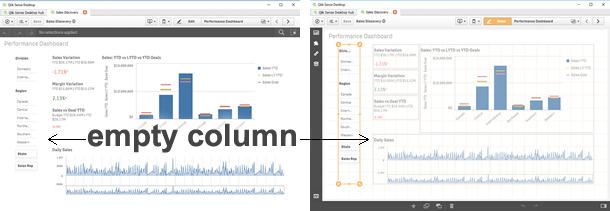
This method works just fine for me most of the time, and it has let me to compose complex layouts without any further issues. However, one of the most obvious disadvantages of leaving empty columns or/and rows is that we are losing precious pixels that in some cases could have made a great difference to display data properly.
Another approach commonly used to separate content consists in using a Text & Image object and then a background image containing a single line, making it look like a divider. It works OK when in a desktop-like device but it will force me to keep an unnecessary object when in a mobile device plus it doesn't solve any of the issues described before.
To ease our pains Qlik Sense 3.1 includes the so-called “cardification” feature. It's a theme (yes a *theme) called Qlik-Standard. It changes the aspect of your app by adding a nice light gray background, a border, and a lovely subtle padding to the objects. Although I’m not completely abandoning the idea of eventually using white space in my apps, or even the Qlik-Classic theme, this new theme will streamline the process of making my apps look nicer and to be more readable and digestible.
Please see the example below to discover how to activate it.
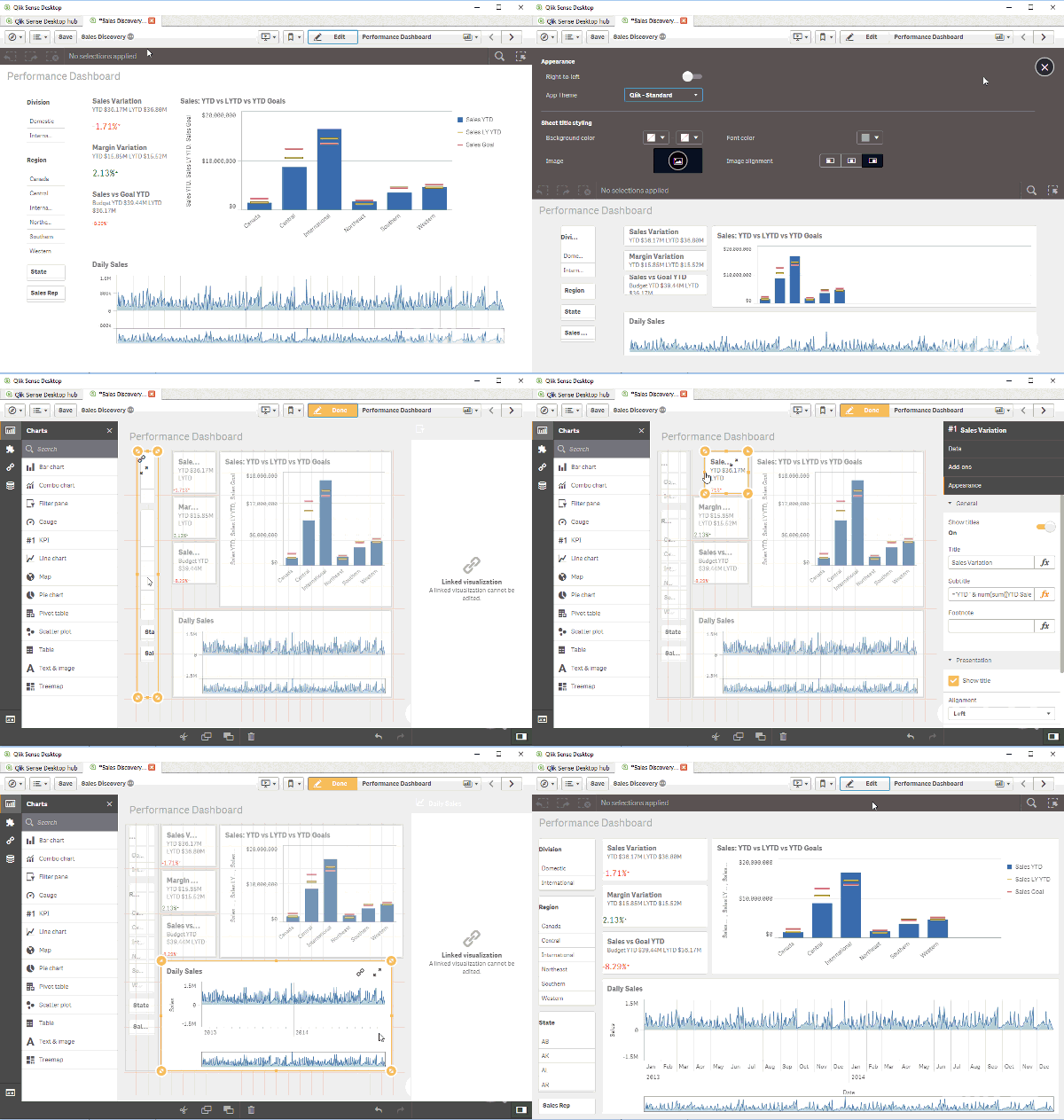
Extra tip: Once you have expanded the app options panel at the very top of your screen you may want to check out the color picker under sheet title styling section

So, do you think you will be using this new theme in your apps?
AMZ
-
Is a picture still worth a thousand words?
Narrative Science, creators of Quill a natural language generation (NLG) platform, reached out to me recently and asked if I could create a short vide... Show More Narrative Science, creators of Quill a natural language generation (NLG) platform, reached out to me recently and asked if I could create a short video introducing its extension for Qlik Sense, Narratives for Qlik. Always willing to play with a "shiny new toy" and willingness to please our valued partners, of course I agreed. I have heard about this extension a few months back, but never got a chance to actually work with it until now. Since it is created as a Qlik Sense extension, it integrates very easily into Qlik Sense. I just had to unzip the file to Extensions directory under my Qlik Sense Desktop installation: C:\Users\<user account>\Documents\Qlik\Sense\Extensions and refresh. (Qlik Sense Enterprise users will want to use the Qlik Management Console and the Extensions import utility.)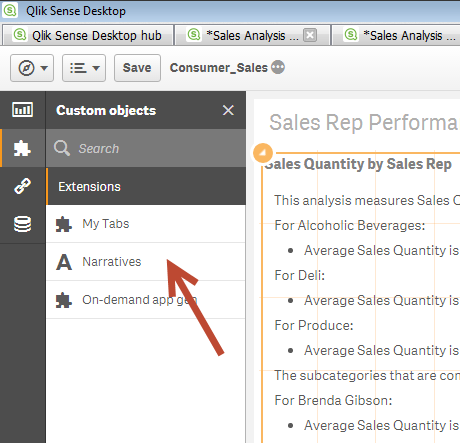
The free extension is available as a "hosted" version. I assume the NLG algorithm is processed over the network on one of their servers and then results are sent back to the client object. However, I just found out they have an on-premise version as well where you can use their NLG platform locally in your environment. Regardless of where the operations run from, I have one thing to say - this stuff is Qool.
So is a picture worth a 1000 words? Yes sir, especially if those words are automatically generated, contain valuable insights and reduce any misconception or interpretation that is usually performed when analyzing visualizations. Narratives for Qlik is the perfect compliment to the Qlik data visualization platform. You may ask, "In a world where we try to use visuals to reduce the amount of text one has to read, why in the world would we want to revert our visualizations back to text?" I think this below example will answer that question. Look at the below example using a Treemap (right) and the complimentary, bullet-ed narrative (left) - automatically created by Narrative Science - which one provides the most accurate insights without interpretation?
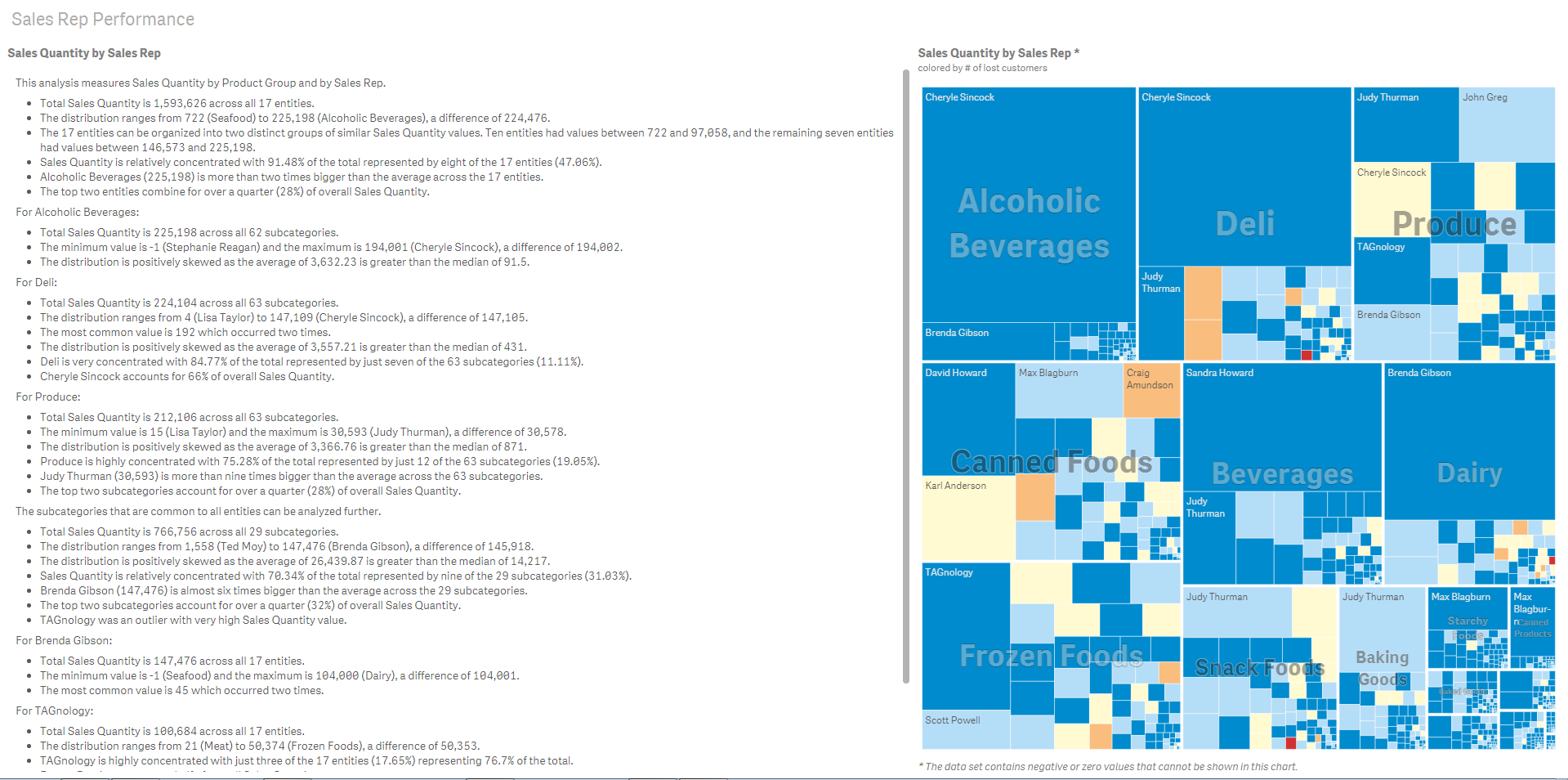 (click to enlarge)
The automatic narrative is just the beginning. There are also settings to control text formatting, how much or how little information is displayed, and analytical options that leverage predictive and statistical capabilities.
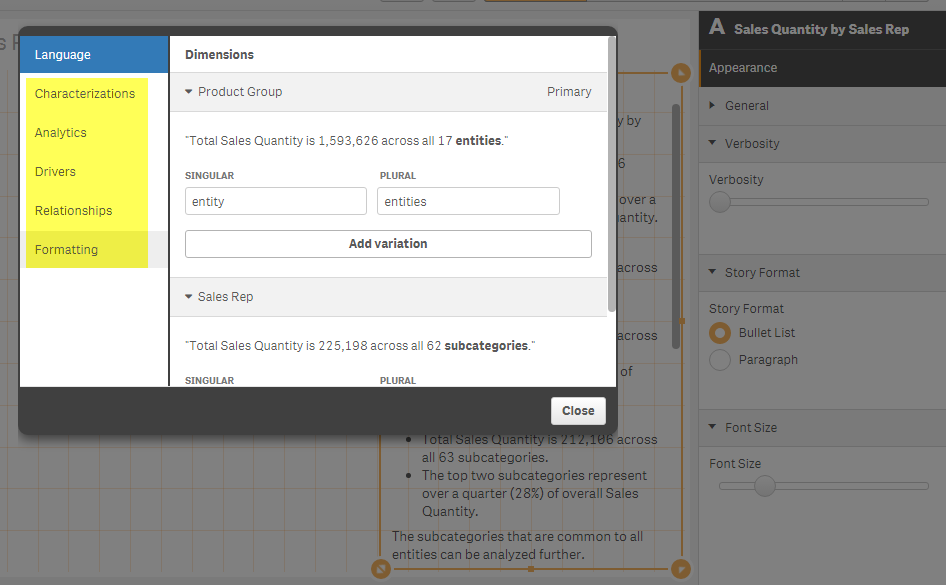
If you would like to see this in action check out the below video that briefly introduces Narratives for Qlik. Be sure to download the extension and visit their website to learn more.
Narratives for Qlik is an extension created by Narrative Science. It integrates seamlessly into Qlik Sense and leverages advanced natural language generation, a subset of artificial intelligence that translates structured data to text, which automatically transforms your visualizations into powerful narratives that explain the most interesting and important facts.
NOTE: To increase resolution or size of the video, select the YouTube logo at the bottom right of the player. You will be brought directly to YouTube where you can increase the resolution and size of the player window. Look for the 'settings' gears icon in the lower right of the player once at YouTube.
Can't see the video? - You can download the attached copy to play on your machine.
Michael Tarallo (@mtarallo) | Twitter
Senior Product Marketing Manager
Qlik
-
How to custom color a stacked bar chart
Stacked bar charts are perfect to represent the contribution of particular elements to the total, the classic example is Sales by Year and by Quarter.... Show MoreStacked bar charts are perfect to represent the contribution of particular elements to the total, the classic example is Sales by Year and by Quarter.
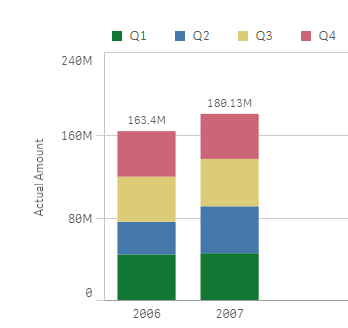
Just by observing the chart a few seconds we can conclude that Actual Amount was higher in 2007 than 2006, and it seems clear that Q2 rise in 2007 contributed significantly to the 2007 total increase in Actual Amount.
To create a simple stacked bar chart like the one in our example we've needed 2 dimensions (Year and Quarter) and one measure. Alternatively, we could recreate the chart using one single dimension "Year" and 4 expressions one per each one of the quarters. The procedure to customize the colors will depend of what type of chart you have, bi-dimensional chart or multi-expression chart, let’s start with bi-dimensional chart coloring.
Bi-dimensional stacked bar chart
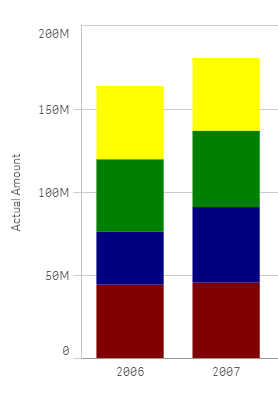
This is the simplest case, you just need to target each one of the segments (Quarters in our example) by name, you could just use an if statement to target them, something like:
if(Quarter='Q1',red(),if(Quarter='Q2',blue(), if(Quarter='Q3', green(), yellow())))
Alternatively, you could use conditional functions for a more elegant approach:
pick(match(Quarter,'Q1','Q2','Q3','Q4'),red(),blue(),green(),yellow())
Multi-expression stacked bar chart
In this scenario our data table contains one column per quarter as in the image below but we still want to represent them in one stacked chart using custom colors.

We could get a stacked bar chart using one single dimension "Year", and 4 expressions Q1,Q2, Q3 and Q4. The problem comes when trying to color the segments, at this point we can’t target specific segments anymore because each one of our segments is made of an expression.
To solve this situation, we need to work-around our chart to make it again bi-dimensional. In order to do that we’ll add a new table to our data model. Our table will contain the name of the segments for our chart, I called it [segment names] in my example.
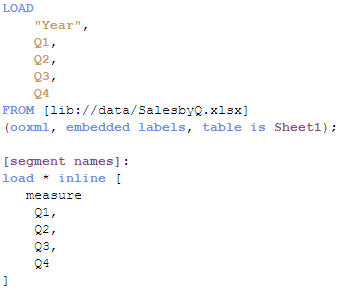
Once the data has been loaded then it’s time to create our chart. The dimensions will be “Year” and the recently created “measure”. To complete our chart, we’ll need to add a simple if statement (or the more elegant pick&match combo) in our measure expression, similar to this one:
if(measure='Q1', sum(Q1),
if(measure='Q2', sum(Q2),
if(measure='Q3', sum(Q3),
if(measure='Q4', sum(Q4)))))
Now that our chart is standard bi-dimensional bar chart, all we need to do is to apply custom colors as described earlier in this post. So again we could use the good old if statement or pick&match to end up having customized segment colors in our stacked bar chart.
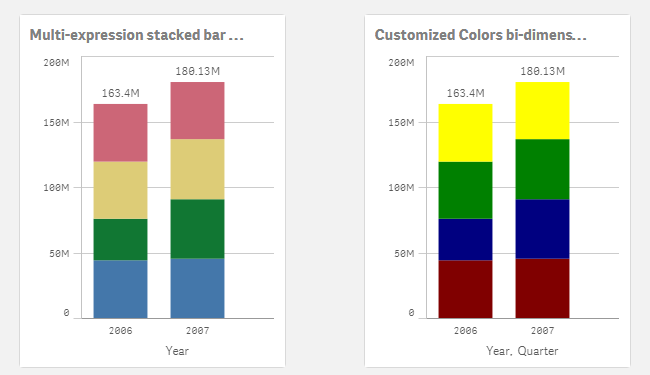
I'm attaching an example app so you can check how it's done.
I want to give credits to all the contributors to How to use custom colours in a stacked bar chart, please check that community thread if you have questions or just to learn more about custom colors in stacked bar charts.
AMZ
-
Qlik Sense Certifications Coming Soon!
Qlik Sense Certification Exams are in development and coming soon! By March 31, the first two Qlik Sense certifications will be released: Qlik Sense A... Show More
Qlik Sense Certification Exams are in development and coming soon! By March 31, the first
two Qlik Sense certifications will be released: Qlik Sense Administrator and Qlik Sense Data Architect. These exams will be available through our test delivery partner, Pearson VUE. Look for all the details about the exams at Qlik Certification.com in March.
To better prepare yourself, make sure to register for Qlik Sense training! Classes are filling up fast so don't miss out. For a list of Qlik Sense courses visit Qlik Sense.com.

-
Ditching the Old Print Manuals
Online training manuals provide much more than just a digitized version of what’s in print.Learn more about how Qlik is innovating the future of train... Show MoreOnline training manuals provide much more than just a digitized version of what’s in print.

Learn more about how Qlik is innovating the future of training by moving away from traditional, stagnant books in favor of online manuals, Ditching the Old Print Manuals | Qlik
Benefits of an online manual:
- Searchability so you can do a full text search and quickly find what you are looking for.
- Content integration so you can access everything you need in one place. Whether it’s all the class files, job aids, exercise files, quizzes, or even links to additional related learning content and resources, like blogs, YouTube videos, or forums.
- Ability to handle multiple use cases, for example so you can check the new features in the latest software release, or the activities from the class, additional follow up activities, or even toggle from content to one product version to another, all from one location.
- 24/7 access, anytime and anywhere without having to actually carry anything with you – besides your smartphone, tablet or laptop.
- Notes and annotations tools so you can take notes just as you would do on printed books.
-
Mashup Editor - Toggle charts with jquery
There were numerous times that I was asked to show more than one chart in the same page. This tutorial will show you how to place two buttons which wi... Show MoreThere were numerous times that I was asked to show more than one chart in the same page. This tutorial will show you how to place two buttons which will toggle the visibility of certain graphs.
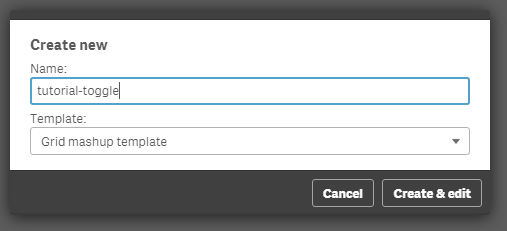
- From the Mashup Editor create a new mashup and select the "Grid mashup template". This will add in your page Bootstrap which we will need for the buttons that will handle the toggling.
- Then, select the "Helpdesk Management" and place the charts that you want to toggle onto the grid. I selected "Avg Case Resolution Time" and "Open Cases by Age".
- If you want to preview your files in another tab outside of the Mashup editor, the url would be something like "http://localhost:4848/extensions/tutorial-toggle/tutorial-toggle.html".
- You will see in your html the grid with rows and columns and your visualizations.
<div class="row">
  <div class="col-sm-6 qvplaceholder" id="QV01">
  </div>
  <div class="col-sm-6 qvplaceholder" id="QV02">
  </div>
  </div>
  <div class="row">
  <div class="col-sm-6 qvobject" id="QV03">
  </div>
  <div class="col-sm-6 qvobject" id="QV04">
  </div>
</div>
- Make sure you remove the "qvplaceholder" from QV01 and QV02, otherwise you will have a lot of extra space between your buttons and the chart.
- In your js file you will see the code that places the objects into the html grid. Just for now, we will place both of the objects. We only need their ids, so later on we will remove the second chart.
  //callbacks -- inserted here --
  //open apps -- inserted here --
  var app = qlik.openApp('Helpdesk Management.qvf', config);

  //get objects -- inserted here --
  app.getObject('QV04','a5e0f12c-38f5-4da9-8f3f-0e4566b28398');
  app.getObject('QV03','PAppmU');
- Now, we will create 2 radio buttons that handle the toggling of the charts. In row 1 and column 1 we will add the following:
<div class="btn-group" data-toggle="buttons">
  <label class="btn btn-default active">
  Avg Case Resolution Time
  <input type="radio" id="chart" name="chart" value="PAppmU" checked="checked"/>
  </label>
  <label class="btn btn-default">
  Relative to Population
  <input type="radio" id="chart" name="chart" value="a5e0f12c-38f5-4da9-8f3f-0e4566b28398"/>
  </label>
  </div>
- Now we can remove the second chart, 'QV04' from the JS file.
- The final page should look like this

- If you have time and you want to make this more visual appealing, you can add some transition effects like fading.
- We will add the "$('#QV03').fadeOut" in the JS file. Once this is completely faded out, we will then replace the object and fade it back in.
$( document ).ready(function() {
  $("input[name='chart']").change(function(obj){
      $('#QV03').fadeOut('fast', function(){
      app.getObject('QV03',obj.target.value);
      $('#QV03').fadeIn('fast');
    });
  });
});
- If for any reason the object does not show after hiding the first element, try to add qlik.resize and the id of the new object.
qlik.resize(obj.target.value)
Attached you will find all of the files. Just unzip and place into your "Documents\Qlik\Sense\Extensions" folder.
-
Performance of Conditional Aggregations
In my previous post I compared different methods for making Conditional Aggregations. In it, I claimed that Set Analysis often is faster than other me... Show MoreIn my previous post I compared different methods for making Conditional Aggregations. In it, I claimed that Set Analysis often is faster than other methods, like an If()-function or a multiplication with a flag.
Also, in a recent discussion on the forum performance benefits of the different methods are discussed, and the multiplication method is favored by some.
So I decided to make my own test.
The main conclusion from my test is that Set Analysis is by far the most performant way to make a conditional aggregation – in the cases when you need performance. The chart below shows the average chart calculation time for the five different ways to make a conditional aggregation in a situation where you have a large amount of data.
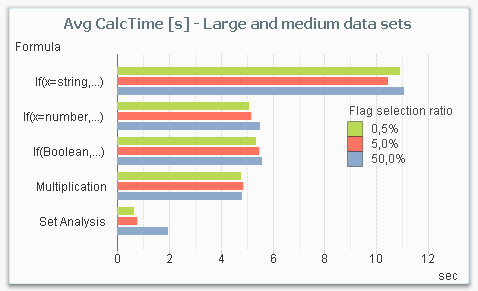
From this chart, you can draw several conclusions:
- Set Analysis is the fastest alternative for large data sets.
- Set Analysis is relatively better if the selection ratio is small (the sub-set of data that the condition picks out), since the following aggregation runs over a much smaller number of rows. This is in sharp contrast to the other methods where the selection ratio hardly affects the result.
- The three methods in the middle (numeric comparison as condition, Boolean flag as condition and multiplication) are roughly the same from a performance perspective.
- An If()-function with a string comparison is by far the worst choice.
But it is not a clear-cut case: If you instead make the same measurements with a smaller data set, Set Analysis is not the most efficient method. The chart below shows the result for a smaller data amount. Note that even though the data amount still is considerable (1M records), it is small enough for all response times to be under a second, whereas they in most cases are an order of magnitude larger in the above graph.
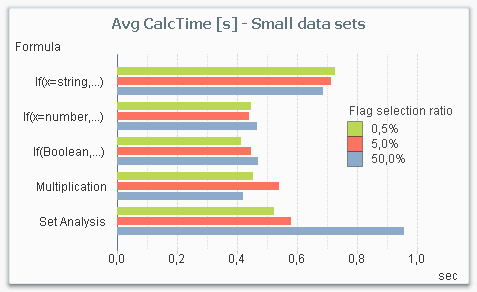
The reason is that there is an overhead in Set Analysis, that has to be performed independently of whether the data amount is large or not. So for small data amounts, the performance gain in the aggregation is not large enough to cover the overhead.
The bottom line is that Set Analysis is the method you should use for large data amounts. For smaller data amounts, it doesn’t really matter which method you choose: They are all fast enough.
About the test:
The test was made on my dual-core laptop with 16GB of memory. The data model consisted of three tables; one fact table and two dimension tables. The fact table contained 100 million records.

The calculation time of a pivot table with the field Dim as dimension and the sum of Amount as expression was measured, using the different ways to code the condition. The field Condition was used as flag in the condition.
The measurement was repeated for different user selections in Dim (99M records, 10M records and 1M records), for different selection ratios in the condition (0.5%, 5% and 50%), and for different cardinality in the Condition Dimension (1000 records, 1M records).
The measurements were made starting with a cleared cache, then making a series of different selections in the field Dim of which the last three were recorded. This way the cache was populated with basic calculations and indexes, but not with the specific chart calculation.
Further reading related to this topic:




