Unlock a world of possibilities! Login now and discover the exclusive benefits awaiting you.

Analytics & AI
Forums for Qlik Analytic solutions. Ask questions, join discussions, find solutions, and access documentation and resources.
Data Integration & Quality
Forums for Qlik Data Integration solutions. Ask questions, join discussions, find solutions, and access documentation and resources
Explore Qlik Gallery
Qlik Gallery is meant to encourage Qlikkies everywhere to share their progress – from a first Qlik app – to a favorite Qlik app – and everything in-between.
Qlik Community
Get started on Qlik Community, find How-To documents, and join general non-product related discussions.
Qlik Resources
Direct links to other resources within the Qlik ecosystem. We suggest you bookmark this page.
Qlik Academic Program
Qlik gives qualified university students, educators, and researchers free Qlik software and resources to prepare students for the data-driven workplace.
Recent Blog Posts
-
Qlik geospatial and visual analytics
Qlik GeoAnalytics not only extends Qlik’s current mapping capabilities but also moves its offerings beyond geo-visualization with support for a broa... Show MoreQlik GeoAnalytics not only extends Qlik’s current mapping capabilities but also moves its offerings beyond geo-visualization with support for a broader range of advanced geoanalytic use cases. Users can now easily add maps to their apps with automatic geo-data lookup to reveal spatial information and then overlay it with different visualizations.
You can drill down into information dense maps that contain millions of points, and with a local or cloud-based service, analyze geo-data in combination with non-geo data for use cases such as determining potential store locations, understanding customer distribution of sales by postal code, or calculating supply chain delivery times.
With Qlik GeoAnalytics - along with our unique associative engine, you can uncover hidden relationships between geo data and non-geo data in addition to providing powerful map visualizations for Qlik. This allows you to:
- Make better location-related decisions. Many important organizational decisions such as site selection, resource allocations, or delivery times depend on location information. Maps provide visual context that help you make the correct, informed decisions.
- Improve understanding. Quickly show cartographic information to gain insight into patterns not easily interpreted through tables or charts.
- Increase productivity. Anyone can now easily add rich, interactive geo visualizations to their Qlik apps since Qlik GeoAnalytics instantly supplements location data such as cities and countries with the necessary geo information
-
What's to come in 2017
In 2016 the Academic Program program opened up to both professors and students, allowing us to reach hundreds of students around the world. The prog... Show More
In 2016 the Academic Program program opened up to both professors and students, allowing us to reach hundreds of students around the world. The program also proudly announced the launch of its first Data Visualization course within the Data Analytics Curriculum for professors and FREE subscriptions to training for one year to every professor and student that is accepted into the program!
As a result of these new offerings, the program gained over 700 new members since July!
To build upon this success, the team is hard at work creating the following additions to the curriculum:
- A second course is coming soon! Our second course will focus on Data Analytics and will again include slide decks, lecture notes, activities, apps and data, and more!
- Adding to the Data Visualization course. The team is also updating the Data Visualization course by turning each lesson in the slide deck into mini videos for faster, easier consumption. As a professor you can choose to use both the slide deck and the videos, or skip right to the videos!
- Offering a business case for students. The business case will present students with a real world scenario in which they will need to use Qlik Sense to analyze data and determine how best to approach the scenario. This will show students how Qlik Sense can be used once they graduate and begin their careers.
To receive these teaching materials or access to free training visit The Qlik Academic Program and fill out a student or professor application today!

-
AND-Mode
Have you ever wished the QlikView list box used a logical AND instead of a logical OR when you made selections? Well, AND-Mode is a hidden QlikView g... Show MoreHave you ever wished the QlikView list box used a logical AND instead of a logical OR when you made selections? Well, AND-Mode is a hidden QlikView gem that allows a list box to be changed from the default logical OR to a logical AND. By default, if one or more items are selected from a list box, the other fields will display data that is associated with any of the selections. When using AND-Mode, the other fields will display data associated with all the selections.
In order to add AND-Mode functionality to your QlikView application, you need to:
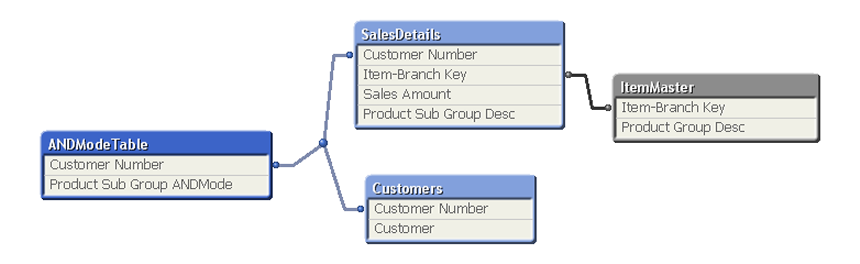
- First, include a table in the data model that stores the field that will be used in the AND-Mode list box. The records in this table must be distinct and the table can only have two fields, one of which is a key field and the other which is the field used in the AND-Mode list box. Here is an example of what this data model may look like:
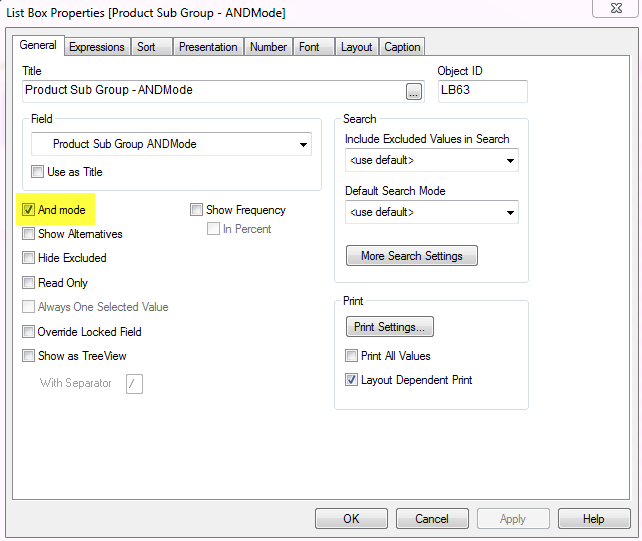
- Second, in the user interface, add a list box and check the And mode checkbox on the General tab of the Properties window to enable the AND-Mode functionality.
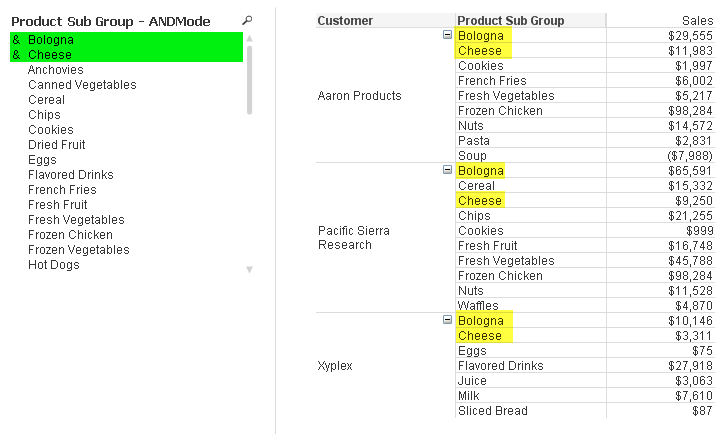
Now the list box will use AND logic versus OR logic. In the screenshot below, I can use the AND-Mode list box to view customers who purchased both Bologna and Cheese. Notice the amperstand (&) in front of the selected values indicating that we are using AND-Mode.
You can go one step further with the AND-Mode functionality and make NOT selections. For instance, I can see which customers purchased Bologna and Cheese and not Sliced Bread by also selecting Sliced Bread from the AND-Mode list box. To make a NOT selection, you need to click and hold the selection a moment until it turns red as seen in the image below.
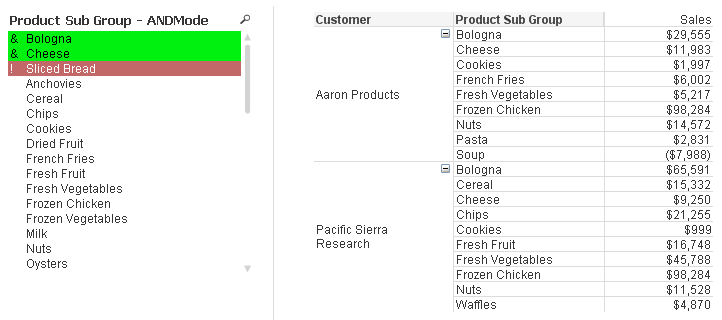
Now I can see customers who purchased Bologna and Cheese but did not purchase Sliced Bread. AND-Mode is quite powerful and can be added to any list box as long as the data model criteria are met.
Check out this technical brief for step-by-step details of how to implement AND-Mode functionality into your QlikView application.
Jennell
-
When should the Aggr() function NOT be used?
Last week Adam wrote a post about the Aggr() function and a Technical Brief about how to use it (Explaining the Aggr function). If you haven’t read it... Show MoreLast week Adam wrote a post about the Aggr() function and a Technical Brief about how to use it (Explaining the Aggr function). If you haven’t read it, I strongly recommend that you do. It is an excellent paper describing a function that can be used for nested aggregations - complex calculations where you need to make a second aggregation based on the result of a first aggregation.
However, I have noticed in the discussion forum that Aggr() often is used when it isn’t necessary. And since you get a performance penalty when you use the function, today’s post is about discouraging you from using it when you don't need to.
So, when should you not use it?
1. Standard Aggregations
Standard, non-nested aggregations, e.g. “=Sum(Sales)” or “=Count(distinct OrderID)” can be used almost anywhere in QlikView, in charts, in text boxes and as labels in any object. They will work directly as they are. Here you do not need any Aggr() function.
If you want to calculate the aggregation several times, e.g. once per customer, just use the aggregation function in a chart and use Customer as dimension. Nothing else.
This seems obvious, but I have on multiple occasions seen developers use the Aggr() function in such situations. Totally unnecessary - and it will just increase response times.
Bottom line: You should not use Aggr() for standard non-nested aggregations.
2. Calculation of a subtotal within the same chart
In some cases you need to use a subtotal from the same chart in your calculation. Then you should use the total qualifier inside your Sum() function (or other aggregation function). It will perform the given calculation disregarding one or several dimensions of the chart. It will however respect the selection.
For instance, the sales in percent can be calculated using
Sum( Sales ) / Sum( total Sales )
This expression will return the sum of sales for each possible dimensional value, as a fraction of all possible sales. In other words; "Sum( total Sales )" disregards all dimensions of the chart.
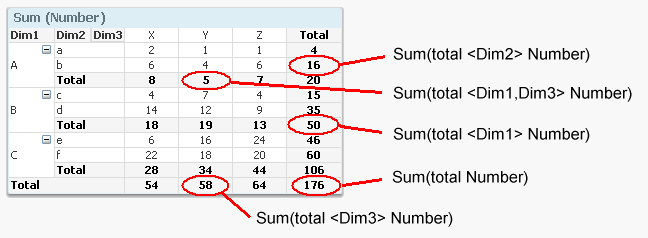
Bottom line: You should not use Aggr() for calculating subtotals that you can calculate with the total qualifier.
3. Calculation of an Average
If you can avoid the Aggr() function by writing your expression smarter, you should. One specific case is a standard average.
For example, say that you want to calculate the average order value. This is a nested aggregation: First you need to sum the sales value per order (an order can have several order lines), and then you need to average over the resulting set of sales values per order. In other words: You can calculate it using:
Avg( Aggr( Sum( Sales ), OrderID ) )
But since it is a linear calculation, you can also calculate the same number just by dividing with the number of orders:
Sum( Sales ) / Count( distinct OrderID )
… which in most cases is evaluated faster. Also, the latter expression is easier to understand for the person responsible for the application maintenance.
Bottom line: You should usually not use Aggr() for calculating an average that is a ratio of two separate aggregations.
4. Static aggregations
Sometimes you want to classify a dimensional value (customers, products, suppliers, etc.) using static aggregations, e.g. “Customers that only placed one order” or “Customers that bought goods at a total value higher than X”. “Static” meaning that you do not want the classification to change as you make a selection.
In such a case, the aggregation should not be made in the UI, but rather when creating the data model and stored as a separate field.
Bottom line: Aggregations for classification of dimensional values should often be made by creating an attribute field in the script using a “Group By”.

-
Using Qlik Sense to Analyze Insurance Claims Data
In this week's design blog I have the pleasure of introducing our newest guest blogger, Simon Kirby. Simon is a Director of SI Industry Solutions with... Show More
In this week's design blog I have the pleasure of introducing our newest guest blogger, Simon Kirby. Simon is a Director of SI Industry Solutions with our Financial Services group out of the UK and has prepared an introduction and video that shows you how Qlik Sense can be used to analyze car insurance claims data.Insurance Whiplash Fraud
It was recently announced in the UK that car insurance premiums are at their highest ever levels (The Actuary Magazine) and one of the key factors for this is an increase in whiplash injury claims. In addition to legitimate whiplash injury claims, insurance companies are struggling to cope with an increasing trend in fraudulent whiplash claims. These claims occur when a third party deliberately creates an accident by causing another car to crash into the back of them. They then feign a whiplash injury and receive thousands in compensation. It’s been discovered that these people repeat these accidents regularly and effectively earn a living from scamming the insurance industry.
How Qlik Sense can help
A key weapon for insurers in identifying these fraud perpetrators is the analysis of data. Insurers need to be able to search for associations in data between similar types of claims, in similar locations, including something unique like a mobile phone number. These associations between the data can lead to a significant increase in identifying the groups of people that commit these types of fraud. This is exactly where Qlik Sense can play an important role in this activity. The QIX Associative engine, at the heart of Qlik Sense, is designed to make the discovery of these associations easy and intuitive. Together with the ability to quickly create drag and drop visualizations, Qlik Sense can help Insurance Fraud Analysts identify trends, patterns and examples of fraudulent Whiplash claims. (view more about Qlik's Associative Model: Qlik Snippets - The Qlik Associative Model - YouTube and Qlik's Associative Model - Part I - YouTube)
See and try it for yourself
The next step for insurers would be to combine the power of Qlik Sense with their fraud detection models. The result would be a Qlik Sense visualization embedded into the claims system that showed the claims handler the real-time results of the fraud model at the time of the Notification of Loss. This would allow the insurer to push suspicious claims to a dedicated fraud management team for further investigation which could potentially save the company millions.
If you would like to see how Qlik Sense can be used to identify claims fraud, take a look at our video on YouTube and the attached Qlik Sense app. For more details on this app, please visit this link available on the Qlik Financial Services Community site: Insurance Claims App
Regards,
Simon Kirby
Director, SI Industry Solutions - Financial Services
Qlik
NOTE: To increase resolution or size of the video, select the YouTube logo at the bottom right of the player. You will be brought directly to YouTube where you can increase the resolution and size of the player window. Look for the 'settings' gears icon in the lower right of the player once at YouTube.
Can't see the video, YouTube blocked? Download the attached .mp4.
If using Qlik Sense Desktop please copy .qvf file to your C:\Users\<user profile>\Documents\Qlik\Sense\Apps and refresh Qlik Sense Desktop with F5. If using Qlik Sense Enterprise Server please import .qvf into your apps using the QMC - Qlik Management Console.

-
How to create a “clear selections” HTML button for your next mashup project
I recently wrote about How to embed a Qlik Sense chart on your website using the single configurator tool that comes with Sense. Single Configurator i... Show MoreI recently wrote about How to embed a Qlik Sense chart on your website using the single configurator tool that comes with Sense. Single Configurator is a fantastic tool to share charts and it also helps a lot when it comes to create super-simple iframe mashups.
On that post, Cristina Messana asked the following:
How can I create a button to clear selections? I'm trying to embed objects from an app but I can't embed clear selections.
That’s a fair question, Single Configurator will let us to share or embed a chart or an entire sheet. We can choose to include the selections bar into our chart which will get us the clear selections button and much more, it's a great option but sometimes we just need a simple button to help users to undo a selection in a single chart mashup.
How to create an HTML button to Clear Selections, step by step guide:
1 Open Qlik Sense Desktop, open your browser and type in: http://localhost:4848/workbench
If you don’t know what Workbench is for, please check this blog post.
2 Create a new Mashup, name it and pick a default template. “Basic Mashup Template with Absolute Positioning”. Click on the new created mashup and edit it.
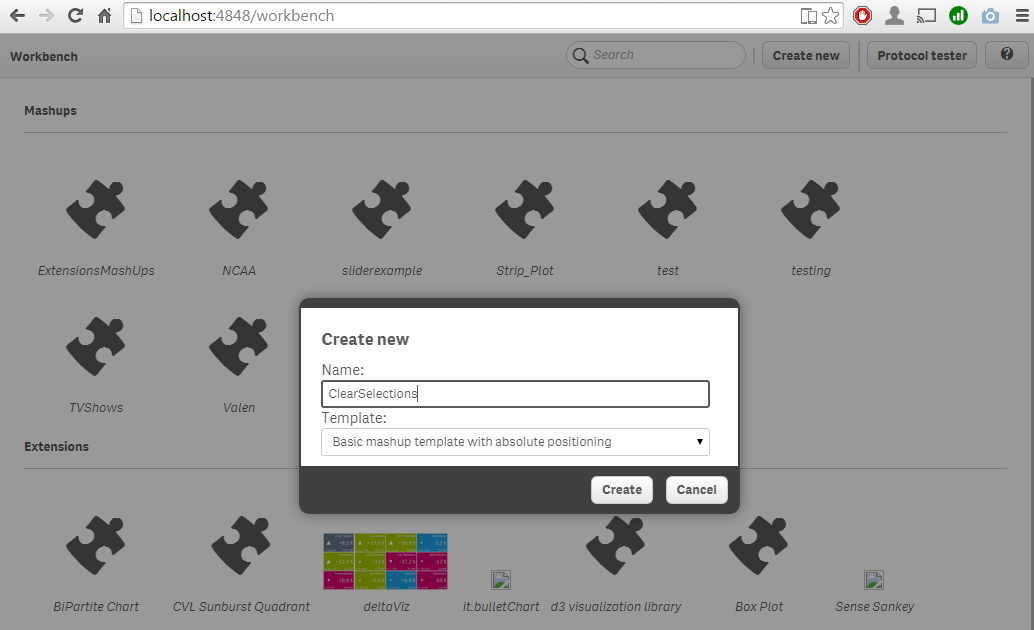
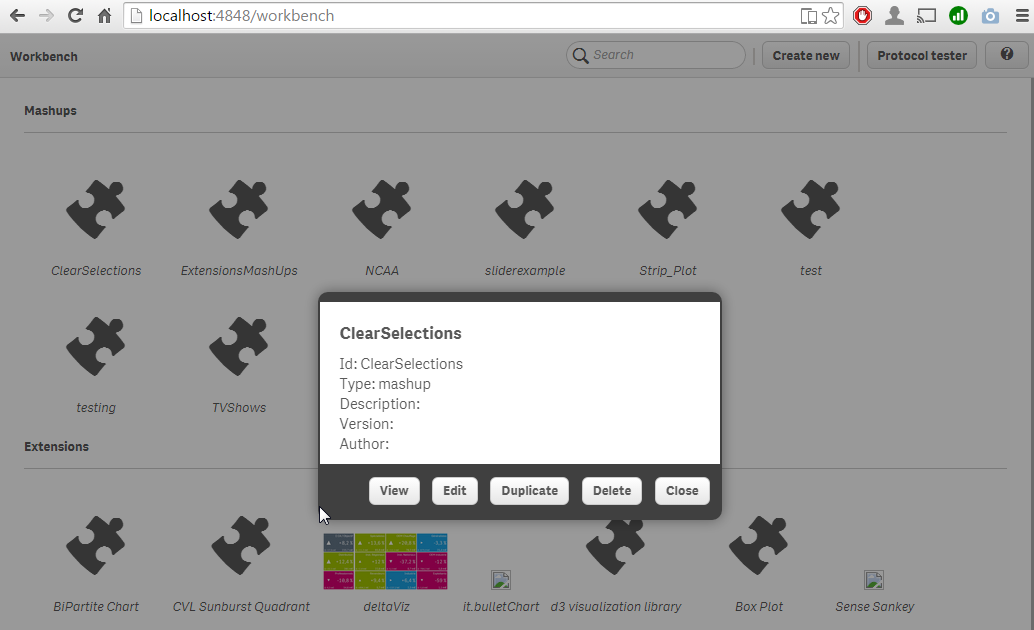
3 Select one apps from the drop down list on the left hand side of the screen.
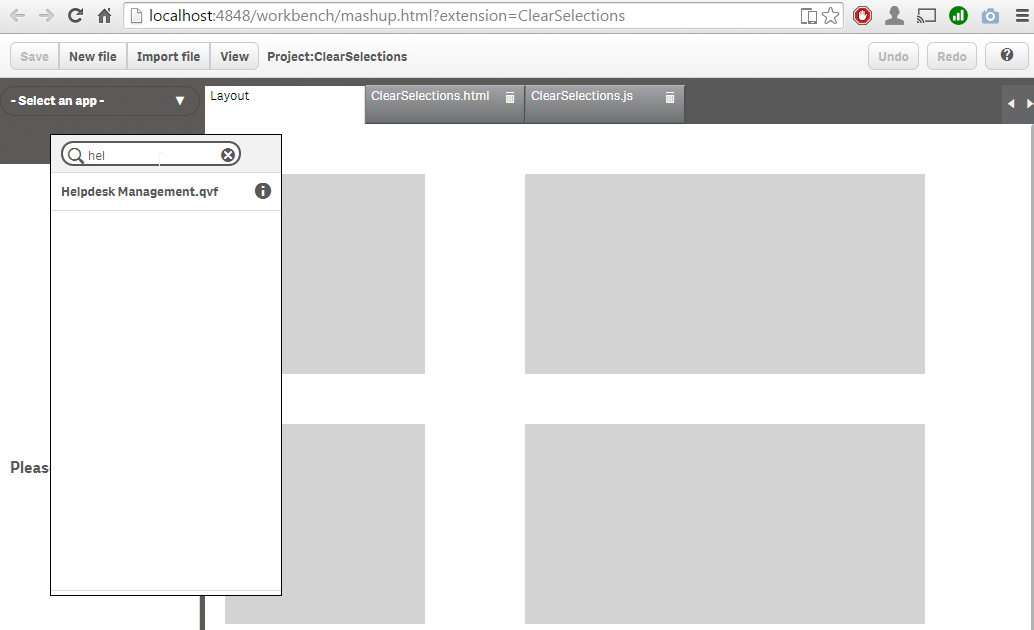
4 Drag and drop one of the charts into one of the six gray placeholders.
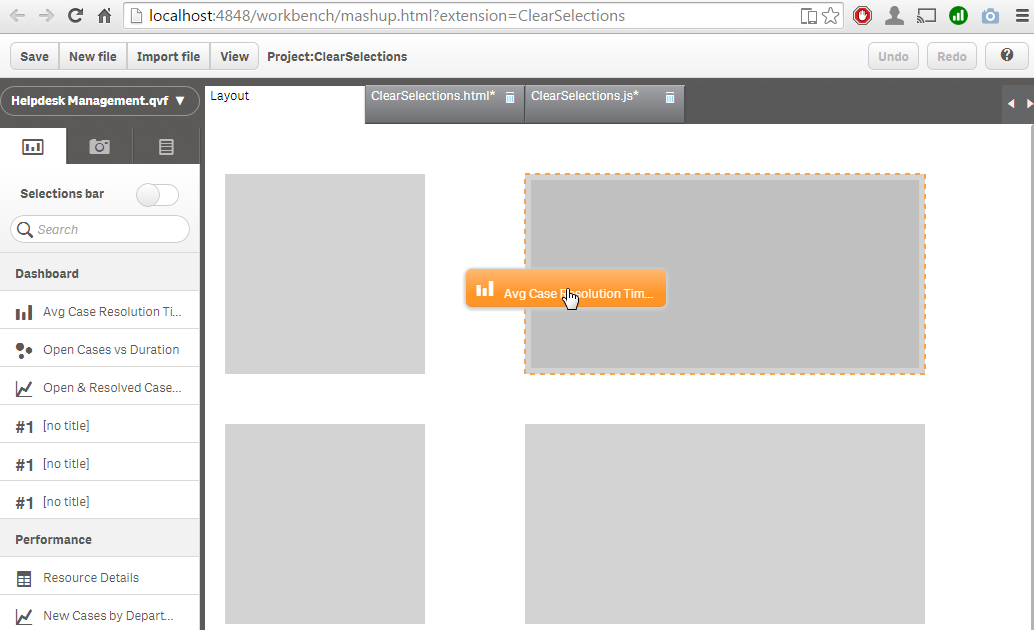
5 Go to the HTML tab and add the html code for the button to one of the empty placeholders so your button gets properly situated in the page. In the example I'm adding the button to the first placeholder QV01
<div id="QV01" style="position: absolute; top: 50px; left: 20px; width: 200px; height: 200px;" class="qvplaceholder">
  <button class="clear_selections" href="#">Clear Selections</button>
</div>
Please note that it’s important to add a class or an ID to the button.
6 Add the following code to the js file at the line 28:
$('.clear_selections').on('click',function(){
    app.clearAll();
})
We are targeting all the elements in the HTML file that have a class called clear_selections, our button belongs to that class so on click it will execute the API method clearAll(). Please check Qlik Sense Developers Help site for complete API reference.
7 Click on View button on the Workbench top bar to open a new browser tab and check the generated site.
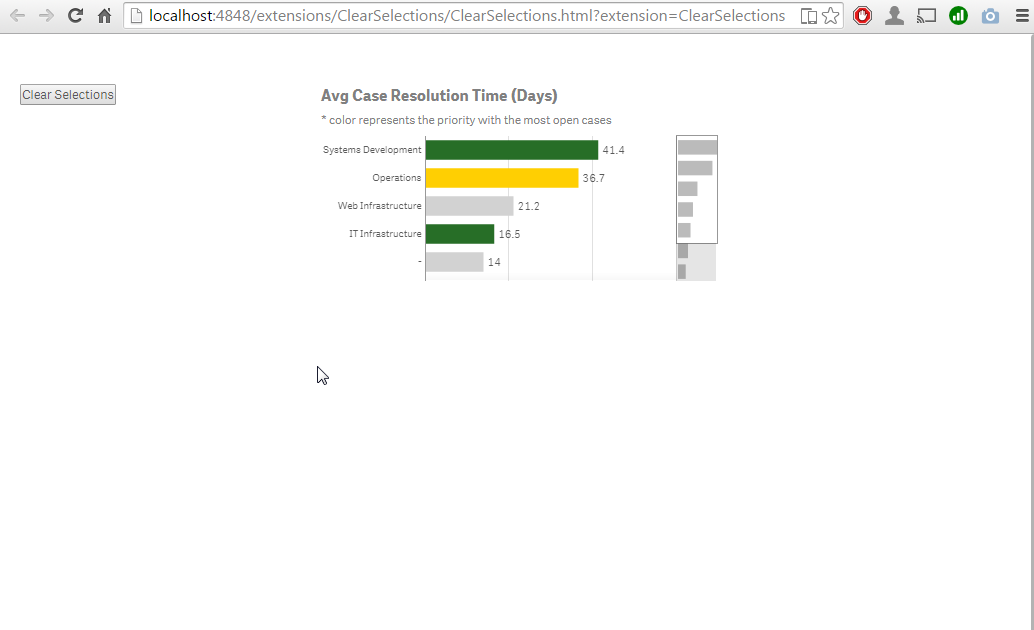
You should be able to get the source files at: C:\Users\YOURUSER\Documents\Qlik\Sense\Extensions
Now is the time for you to create your own mashup project, toy with the CSS properties, add HTML headers, text paragraphs and more Qlik Sense objects to compose a complete data web site.
Enjoy!

-
Binary Statement
Have you ever used a Binary statement in your script or done a “binary load” as folks familiar with Qlik scripting may say? The Binary statement can ... Show MoreHave you ever used a Binary statement in your script or done a “binary load” as folks familiar with Qlik scripting may say? The Binary statement can be used in both QlikView and Qlik Sense scripts to load data from another QlikView document or Qlik Sense app. When using QlikView, the Binary statement can only be used to load another QlikView document. When using Qlik Sense, the Binary statement can be used to load another Qlik Sense app or a QlikView 11.2 or earlier document. Note that you cannot use a Binary statement in a QlikView script to load a Qlik Sense app. The Binary statement will load not only the data but the section access data as well. It does not load variables or any layout information such as charts, sheets or stories from the app or document.
The Binary statement is helpful when you want to use the data model from an existing app or document in a new app or document. Instead of copying the app/document and then deleting the sheets, stories, etc., you can create a new app/document and load just the data using the Binary statement. Then you have a fresh slate to build out the sheets and visualizations. Chuck Bannon wrote a blog on ways you can extract data from a document which you may find useful. In his blog, he uses the Binary statement to get the data from another document and then he stores the data into QVDs. I personally prefer the second option he discusses that uses a for loop to create the QVDs. Storing the data into QVDs is useful if you need to manipulate the data when loading it.
There is one thing you must remember to do when using the Binary statement in order for it to work – you must make the Binary statement the first statement in the script. This means adding it before the Set statements. The syntax varies for QlikView and Qlik Sense so let’s take a look at both.
In QlikView, either statement below can be used. In the first example, the MyApp document will need to be in the working directory otherwise the absolute file path will need to be included as seen in the second example.


In Qlik Sense, you will need to create a folder connection to the app you would like the use. In the example below Demo Apps is the folder connection I created to access the MyApp QVF.

Simple, right? The Binary statement when loaded as the first statement in the script will load the data from another QlikView document or Qlik Sense app providing you with the same data model as the original app and a clean slate to build out your visualizations. Good luck scripting!
Jennell
-
Most Important BI Trends in 2017
Data discovery, self-service BI and master data/data quality management are currently the top business intelligence trends. While self-service BI and ... Show MoreData discovery, self-service BI and master data/data quality management are currently the top business intelligence trends. While self-service BI and data discovery increased moderately in importance, master data and data quality management decreased slightly.
Self-service BI has been on organizations’ wish lists for a long time as IT departments struggle to satisfy steadily growing demand from end-users for faster changes and new developments to meet their BI needs. Enabling the business user community through ‘self-service BI’ is a good idea. Data discovery and visualization, as well as predictive analytics, are among the typical functions users want to consume in a self-service mode. However, an agreed data and tool governance framework is paramount to avoid losing control over data.
End-users recognize the need for data quality and master data management and initiatives in this area are often announced with a fanfare before quickly moving down the list of priorities for a variety of reasons. But at least organizations seem to be aware that the best-looking dashboard is worth nothing if there are flaws in the data it is based on. Business intelligence will not work without comprehensive data integration and data quality initiatives, but these have to be backed up with the right level of attention, resources and funding.
Source: Top Business Intelligence Trends 2017 | What 2,800 BI Professionals Think
-
Making QlikView Part of the Story: Embedding Objects into Web Pages
More and more, blog posts, news articles, and various other online media are incorporating data visualization. A well placed chart or graph can drive... Show MoreMore and more, blog posts, news articles, and various other online media are incorporating data visualization. A well placed chart or graph can drive home the point of the story being told. While print has been doing this for a long time, unique to the web experience is the arrival of interactive visualizations which allow users to explore and experience the data in a new way.
Not to be left out, there are several options for easily embedding QlikView into websites. While integrating QlikView into the web can be tricky (cross domain scripting, security concerns, etc.) there are some terrific posts on the web by Stefan Walther and Alexander Karlsson (amongst others) describing various ways a person can add some slight code to embed objects into a web page.
Using these same principles, I’ve also developed a tool which should make things as easy as possible for web novices to get QlikView visualizations into their site. Once this tool is implemented, a blog writer who is desperate for some visual aids on their post
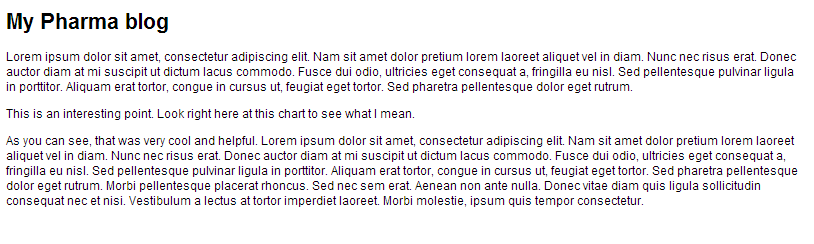
could go to their QlikView app
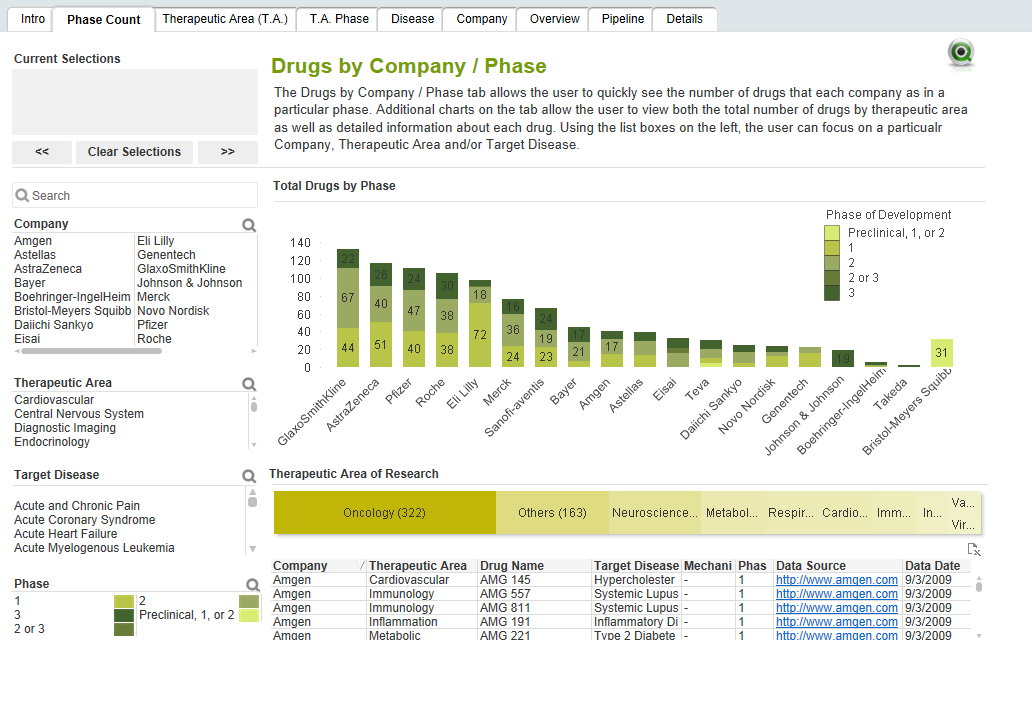
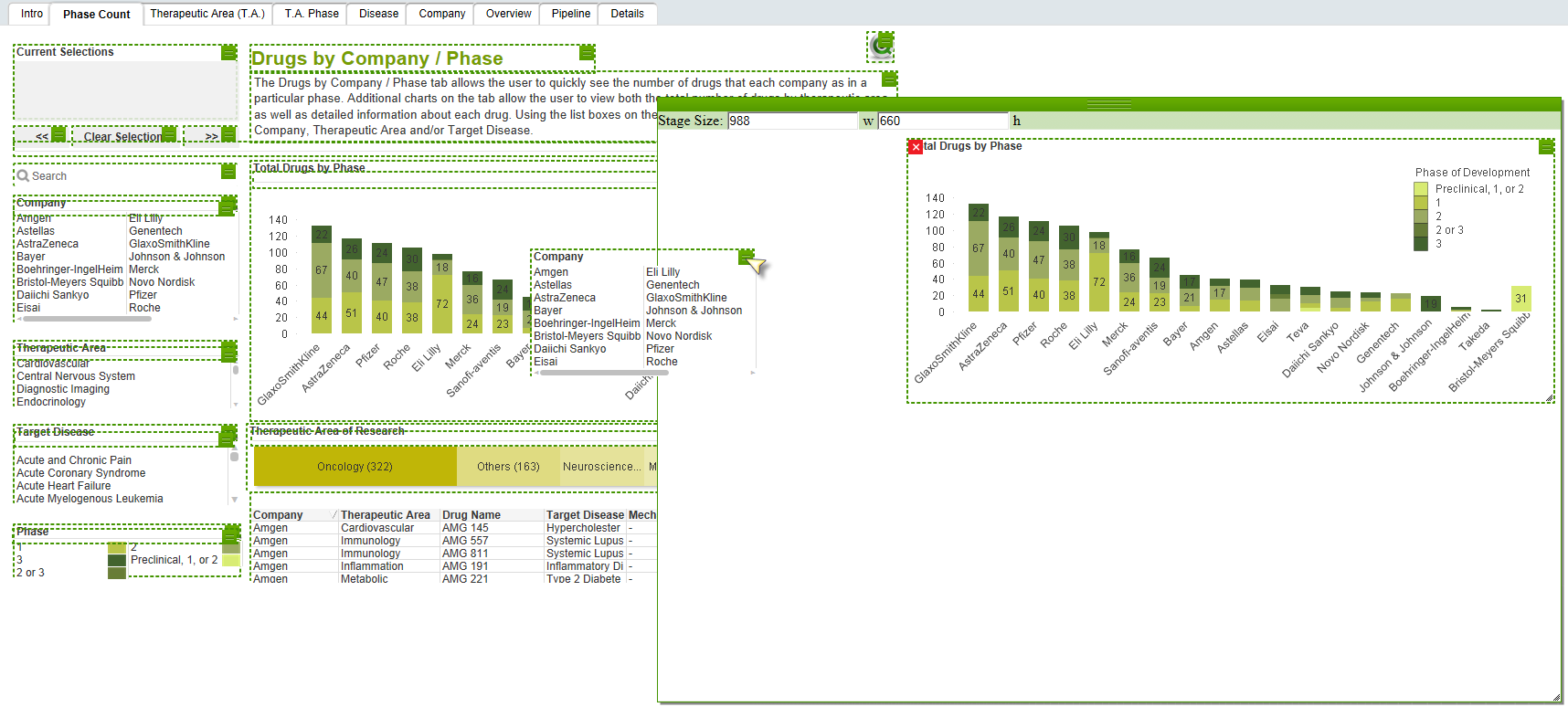
use the tool in an app to add QliKView objects to a staging area where they arrange them how they want
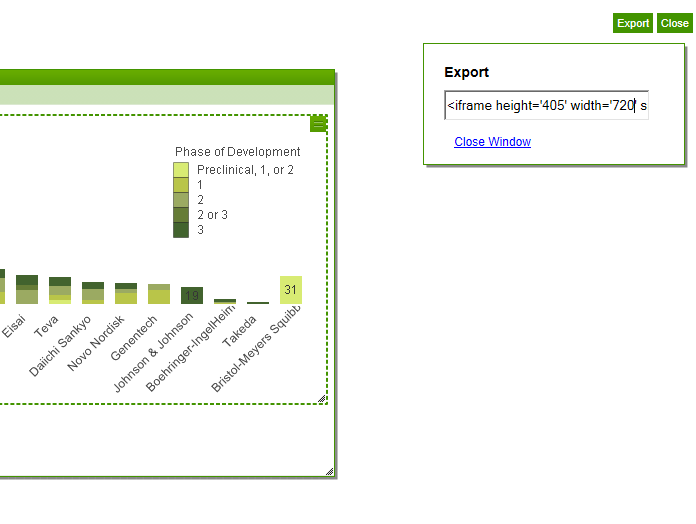
click the “export” button to get the iframe code
paste the iframe code into the html

and check out the new visualization on your site
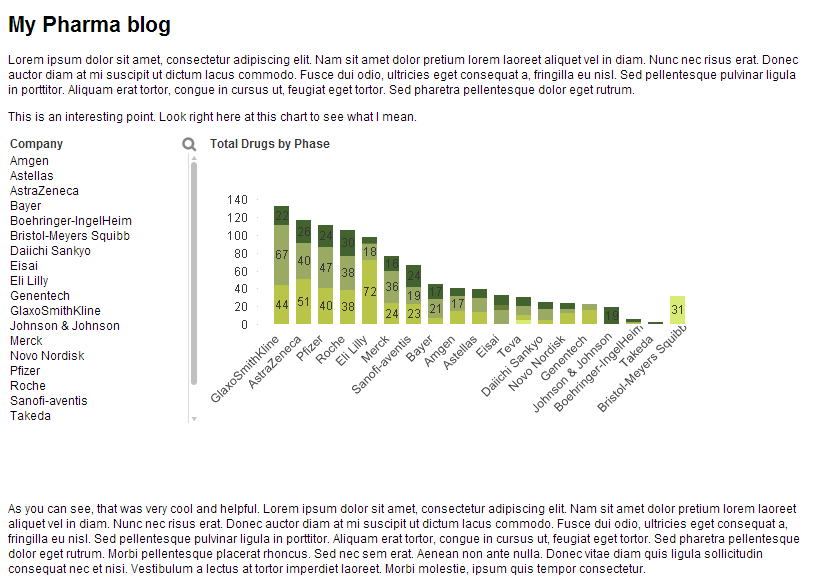
This is very simple for the blogger, and by using iFrames, we are able to avoid cross domain scripting issues and also allow the objects within the frame to communicate with each other, making them interactive.
This solution is an example of how several different types of customizations can be used to create a helpful tool. Click here to download the solution and documentation. To see embedding in action, visit the Image Gallery on the demo site. The “Pinterest-style” image gallery is embedded into the site using these same techniques.

-
Qlik Explorer for Developers
Qlik Explorer for Developers (QEfD) is a tool that will let you to explore Qlik Sense content and obtain some valuable info. You can connect to a Qlik... Show MoreQlik Explorer for Developers (QEfD) is a tool that will let you to explore Qlik Sense content and obtain some valuable info. You can connect to a Qlik Sense server and drag and drop code snippets and IDs into whichever IDE you are using to build mashups or similar solutions.
You can learn more about QEfD here:
Qlik Explorer for Developers is here!
I mainly use QEfD for two tasks, to obtain objects ID so I can inject them into my webpage, and eventually to poke around object properties.
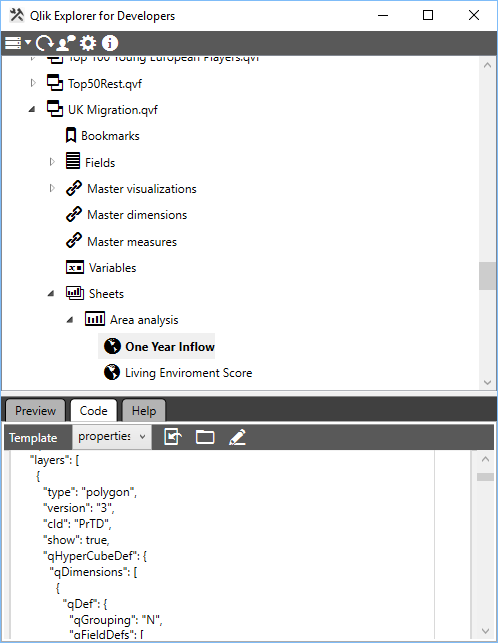
To copy an object ID I just connect it to my server (you can also try it with your localhost:4848 or just try out the default connection to PlayGround) and then QEfD will show me a tree-list with all the apps available on that server. From there it gets pretty simple, navigate to the object I want to incorporate into my webpage, the preview tab gets very helpful to double check you are where you want to be, and then using a template* called "id" I can copy the object’s ID.
*What’s a template: is a set of code snippets which are bound to different nodes in Qlik Sense. A node is for instance a Qlik Sense application, a sheet or an object. Since the introduction of the Visualization API a developer can create her own charts on-the-fly, this way we become independent from the Qlik Sense client and from the visualization layer within the qvf (you don’t have to create a chart first on Sense client).
To create your own charts, you are supposed to construct the object by yourself. QEfD can be super handy here. I use it to learn, and let’s face it, to copy all JSON properties from existing objects. It makes it super easy to create some pretty advanced on-the-fly charts. It almost feels like cheating, in a good way.
If you want to download now Qlik Explorer for Developers, please do it here:
Download Qlik Explorer for Developers
Built by Developers for Developers
If you want to see QEfD in action, please check out this video:
Qlik Analytics plugin for Visual Studio - YouTube
Please note that this stand alone tool works exactly as the Qlik Analytics for Visual Studio plugin.
Enjoy it!
AMZ
-
Most Important BI Trends in 2017
Data discovery, self-service BI and master data/data quality management are currently the top business intelligence trends. While self-service BI and ... Show MoreData discovery, self-service BI and master data/data quality management are currently the top business intelligence trends. While self-service BI and data discovery increased moderately in importance, master data and data quality management decreased slightly.
Self-service BI has been on organizations’ wish lists for a long time as IT departments struggle to satisfy steadily growing demand from end-users for faster changes and new developments to meet their BI needs. Enabling the business user community through ‘self-service BI’ is a good idea. Data discovery and visualization, as well as predictive analytics, are among the typical functions users want to consume in a self-service mode. However, an agreed data and tool governance framework is paramount to avoid losing control over data.
End-users recognize the need for data quality and master data management and initiatives in this area are often announced with a fanfare before quickly moving down the list of priorities for a variety of reasons. But at least organizations seem to be aware that the best-looking dashboard is worth nothing if there are flaws in the data it is based on. Business intelligence will not work without comprehensive data integration and data quality initiatives, but these have to be backed up with the right level of attention, resources and funding.
Source: Top Business Intelligence Trends 2017 | What 2,800 BI Professionals Think
-
Bournemouth University cements leadership in Applied Data Analytics with Qlik Se...
Bournemouth University is a further education provider in the south of England, home to 18,000 students and 2,000 staff. It was one of the first UK u... Show MoreBournemouth University is a further education provider in the south of England, home to 18,000 students and 2,000 staff. It was one of the first UK universities to offer a Masters degree in Applied Data Analytics; course applications have grown by more than 300% over the last four years.

Bournemouth wanted to cement its leadership position in Applied Data Analytics. And, with data visualisation as an important tool of every data analyst, Bournemouth was looking for a partner who could help arm its students with best-in-class visualisation and analytics knowledge and tools.
“Even though it remains important that our MSc Applied Data Analytics students gain advanced knowledge of tools like Microsoft Excel, to appreciate the inner workings of data transformation and visualisation, it’s equally as important they realise that what might take 10 hours to achieve in Excel can be done better, and in 30 minutes, using Qlik Sense.” Dr Marcin Budka, Principal Academic in Data Science and Programme Leader for the MSc Applied Data Analytics, Bournemouth University
Read the full story in the attachment.

-
Time-Aware feature has made it to the bar and the combo charts
Not that long ago, with the release of Qlik Sense 3.0, Qlik Sense introduced the Time-aware charts. Line charts are now able to intelligently zoom in ... Show MoreNot that long ago, with the release of Qlik Sense 3.0, Qlik Sense introduced the Time-aware charts. Line charts are now able to intelligently zoom in and out when used in conjunction with a date/time dimension letting us explore the data in a very smart way.
Please check this post for further details: https://community.qlik.com/blogs/qlikviewdesignblog/2016/07/15/what-s-new-in-qlik-sense-30-time-aware-charts
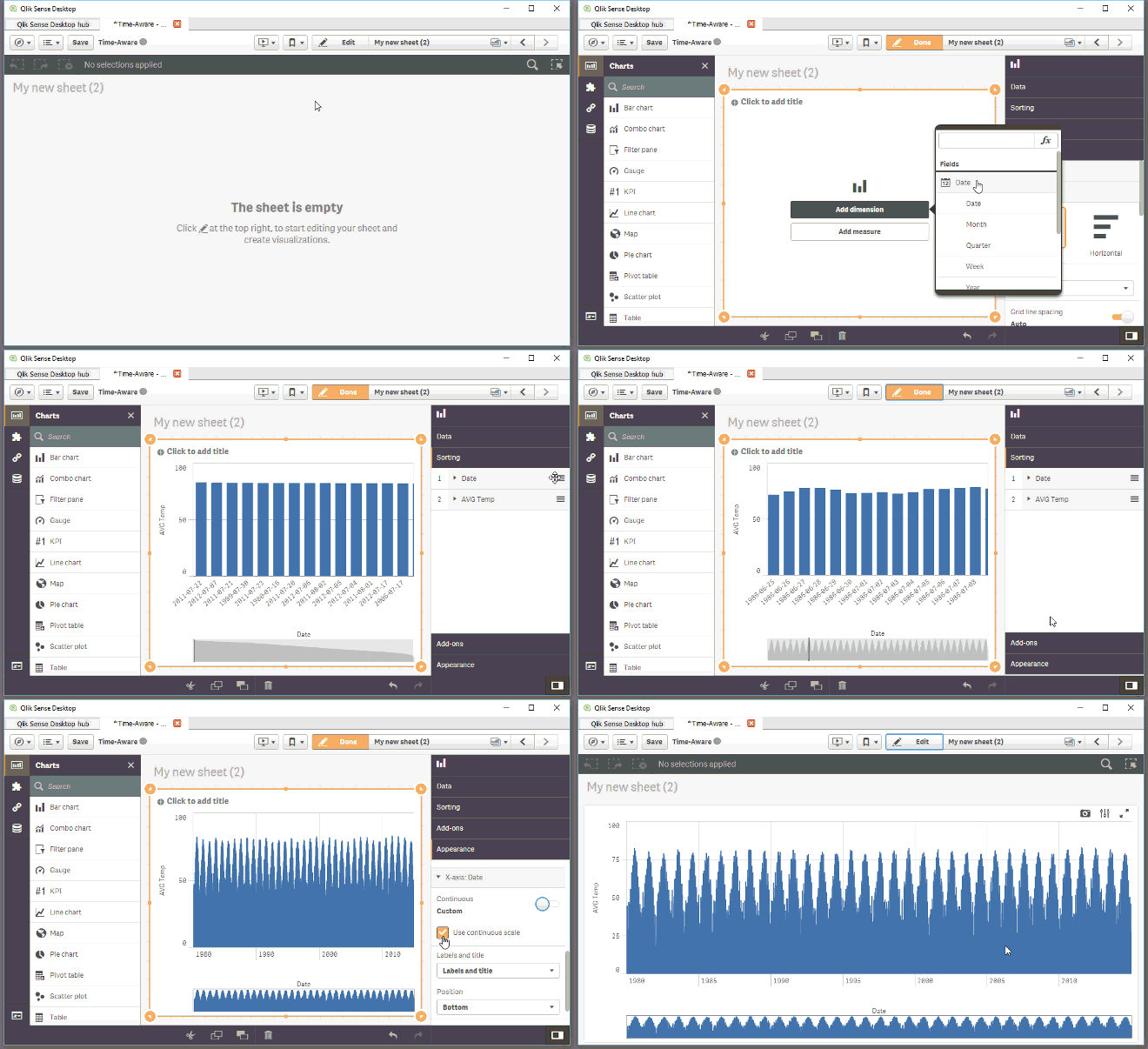
Now with the release of Qlik Sense 3.1 SR2 (Qlik Sense 3.1 Service Release 3 now available, Information on Sense Desktop 3.1.1 expiry) the Time-aware feature has made it to the bar and the combo charts as well. This new feature will expand the capabilities of two of the most common charts in our library.
To get a working time-aware bar or combo chart in your app you just need to make sure you are running Qlik Sense 3.1 SR2 or higher, then modify an existing bar (combo) chart or create a new one, remember you should be using a time field as the dimension for your chart. Finally you need to activate the continuous axis in the chart properties panel as shown in the animation below.
AMZ
-
The Pitfalls Of Learning On YouTube
When we need to know something right now, our first instinct these days is to grab our phone and look it up. Google breaks this type of behavior out ... Show More
When we need to know something right now, our first instinct these days is to grab our phone and look it up. Google breaks this type of behavior out into micro-moments: I-want-to-know, I-want-to-go, I-want-to-do, and I-want-to-buy moments.
And when we “want-to-do”, what do we do? We turn to YouTube. Searches related to “how-to” on YouTube are growing 70% year over year. YouTube is not supplementing traditional learning methods anymore, it’s replacing them altogether. And that’s not necessarily a good thing....
To read more visit the newest blog posted by the V.P of Education Services, Kevin Hanegans
http://global.qlik.com/us/blog/posts/kevin-hanegan/the-pitfalls-of-learning-on-youtube
-
QlikView Quoteology
When creating the script or an expression in QlikView, you need to reference fields, explicit values and variables. To do this correctly, you sometime... Show MoreWhen creating the script or an expression in QlikView, you need to reference fields, explicit values and variables. To do this correctly, you sometimes need to write the string inside a pair of quotation marks. One common case is when a field name contains a symbol that prevents QlikView from parsing it correctly, like a space or a minus sign.
For example, if you have a field called “Unit Cost”, then
Load Unit Cost
will cause a syntax error since QlikView expects an "as" or a comma after the word "Unit".If you instead write
Load [Unit Cost]
QlikView will load the field “Unit Cost”. Finally, if you write
Load 'Unit Cost'
QlikView will load the text string "Unit Cost" as field value. Hence, it is important that you choose the correct quotation mark.So, what are the rules? Which quote should I use? Single? Double? Square brackets?
There are three basic rules:
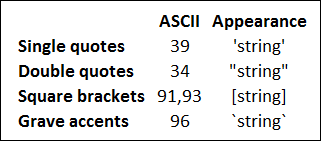
- Single quotes are used to quote literals, e.g. strings that should be used as field values.
- Double quotes are used to quote source field references, i.e. names of fields. (In formulae, or to the left of the “as” inside a Load statement.)
- Double quotes can always be substituted by square brackets or by grave accents.
With these three rules, most cases are covered. However, they don’t cover everything, so I'll continue:
- In the script, but outside a Load statement, double quotes denote a variable reference and not a field reference. If double quotes are used, the enclosed string will be interpreted as a variable and the value of the variable will be used.
A general rule in QlikView is that field references inside a Load must refer to the fields in the input table – the source of the Load statement. They are source field references or in-context field references. Aliases and fields that are created in the Load cannot be referred since they do not exist in the source. There are however a couple of exceptions: the functions Peek() and Exists(). The first parameters of these functions refer to fields that either have already been created or are in the output of the Load. These are out-of-context field references.
- Out-of-context field references and table references, e.g. the parameters in NoOfRows() and Peek(), should be regarded as literals and therefore need single quotes.
- Finally, in many places you are free to use any of the four quotation methods, e.g.
- Inside a Load statement, to the right of the “as”
- In places where QlikView expects a file name, a URL or a table name
- Defining the beginning and end of an inline table
- For the first parameter of Peek() or Exists() when used inside a Load
I have deliberately chosen not to say anything about SELECT statements. The reason is that the rules depend on which database and which ODBC/OLEDB you have. But usually, rules 1-3 apply there also.
With this, I hope that the QlikView quoteology is a little clearer.
Further reading related to this topic:
-
Why You sometimes should Load a Master Table several times
How normalized should the QlikView data model be? To what extent should you have the data in several tables so that you avoid having the same informat... Show MoreHow normalized should the QlikView data model be? To what extent should you have the data in several tables so that you avoid having the same information expressed on multiple rows?
Usually as much as possible. The more normalized, the better. A normalized data model is easier to manage and minimizes the risk of incorrect calculations.
This said, there are occasions where you need to de-normalize. A common case is when the source database contains a generic master table, i.e. a master table that is used for several purposes. For example: you have a common lookup table for customers, suppliers, and shippers. Or you have a master calendar table that is used for several different date fields, e.g. order date and shipping date (see image below).
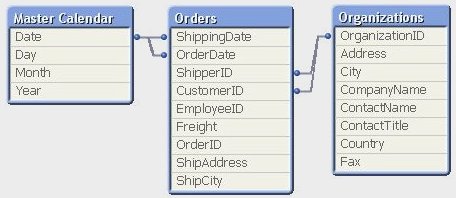
A typical sign for this situation is that the primary key of the master table links to several foreign keys, sometimes in different parts of the data model. The OrganizationID links to both CustomerID and ShipperID and the Date field links to both OrderDate and ShippingDate. The master table has several roles.
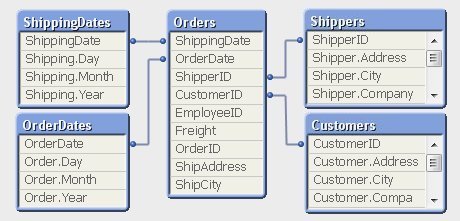
The necessary de-normalization in QlikView is easy. You should simply load the master table several times using different field names, once for every role. (See image below).
However, loading the same data twice is something many database professionals are reluctant to do; they think that it creates an unnecessary redundancy of data and hence is a bad solution. So they sometimes seek a solution where they can use a generic master table also in the QlikView data model. This is especially true for the master calendar table.
If you belong to this group, I can tell you that loading the same table several times is not a bad solution. Au contraire – in my opinion it is the best solution. Here's why:
- From the user’s perspective it is confusing to have an unspecified “Date” field if there are several dates in the data model. For example, the user will not understand whether the date refers to order date or shipping date.
- Without loading the master calendar several times, it will not be possible for the user to make selections that place simultaneous restrictions on several date fields, e.g. “show transactions where the order was placed in September and the items were shipped in November”.
In fact, loading the same table several times in QlikView is no stranger than doing it in SELECT statements using aliases, e.g.,
SELECT OrderID FROM Orders
INNER JOIN MasterCalendar AS OrderCalendar ON Orders.OrderDate=OrderCalendar.Date
INNER JOIN MasterCalendar AS ShippingCalendar ON Orders.ShippingDate=ShippingCalendar.Date
WHERE OrderCalendar.Month=9 AND ShippingCalendar.Month=11In SQL you would never try to solve such a problem without joining the master table twice. And you should do the same in QlikView.
So, if you have several dates in your data model – load the master calendar several times!
PS. But if you still want one common date field, you should create a Canonical Date.
-
Case Study UN: Hierarchical selections and dropdown field generation
UN was one of my most challenging projects in many aspects. This was not just a simple mashup or a simple webpage that uses the Capabilities Api and a... Show MoreUN was one of my most challenging projects in many aspects. This was not just a simple mashup or a simple webpage that uses the Capabilities Api and app.getObject() to display Qlik Sense objects. It was an entire solution that required many teams to be involved and share their expertise.
One of the most interesting problems I faced, was the structure of the qvf. In order for most of the charts to work, there had to be a group of selections made and in some cases, in a specific order.
For this example, I will talk about the chart on the Indicators page.
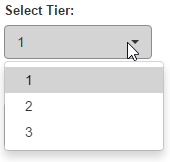
First we have to select the field "domain" and then get all of the available "Tier" in order to populate the drop down.

app.obj.app.field('DomainName').select([value], false, false)
.then(function(){
     me.getTier();
});
Then to get the HyperCube for the Field "Tier"
  me.getTier = function () {
       api.getFieldDataQ('Tier').then(function (data) {
          $scope.Tier = _.filter(data, function(obj){
          return (obj[0].qState!=='X' && obj[0].qState!=='L')?true:false;
     });
       $scope.selectTier($scope.Tier[0][0].qNum);
  });
  }
and populate the drop down with Angular's ng-repeat
<div class="dropdown" id="dropdownTier">
  <label>Select Tier:</label>
  <button class="btn btn-default dropdown-toggle btn-block text-left" type="button" data-toggle="dropdown" aria-haspopup="true" aria-expanded="true">
  {{selection.Tier}}
  <span class="caret pull-right"></span>
  </button>
  <ul class="dropdown-menu scrollable-menu" aria-labelledby="dropdownTier">
  <li ng-repeat="item in Tier" ng-class="(selection.Tier==item[0].qNum) ? 'active' : ''"><a ng-click="selectTier(item[0].qNum)">{{ item[0].qText }}</a></li>
  </ul>
  </div>
Like this
Then we select the first one so get the the data from the field "seriesName" as indicators for only that tier
$scope.selectTier = function (value) {
  $scope.selection['Tier'] = value;
  app.obj.app.field('Tier').selectValues([value], false, false)
  .then(function(){
  me.getIndicator();
  })
  }
me.getIndicator = function () {
  api.getHyperCubeQ(['IndicatorID','SeriesName'],[]).then(function(data3){
  $scope.SeriesName = _.filter(data3, function(obj3){
  return (obj3[1].qState!=='X' && obj3[1].qState!=='L')?true:false;
  });
  if (!$scope.SeriesName.length) {
  $scope.selectionDisplay.SeriesName = "No Data";
  $scope.selection.SeriesName = null;
  } else {
                        $scope.selectIndicator($scope.SeriesName[0][0].qNum, $scope.SeriesName[0][1].qText);
  }
  })
  }
and populate the indicator drop down
  <div class="dropdown" id="dropdownSeriesName">
  <label>Select Indicator:</label>
  <button class="btn btn-default dropdown-toggle btn-block text-left" type="button" data-toggle="dropdown" aria-haspopup="true" aria-expanded="true">
  {{ selectionDisplay.SeriesName }}
  <span class="caret pull-right"></span>
  </button>
  <ul class="dropdown-menu scrollable-menu" aria-labelledby="dropdownSeriesName">
  <li ng-repeat="item in SeriesName" ng-class="(selection.SeriesName===item[1].qText) ? 'active' : ''"><a ng-click="selectIndicator(item[0].qNum, item[1].qText)"> {{ item[0].qText }}-{{ item[1].qText }}</a></li>
  </ul>
  </div>
Like this

Last, select the indicator to get the final chart
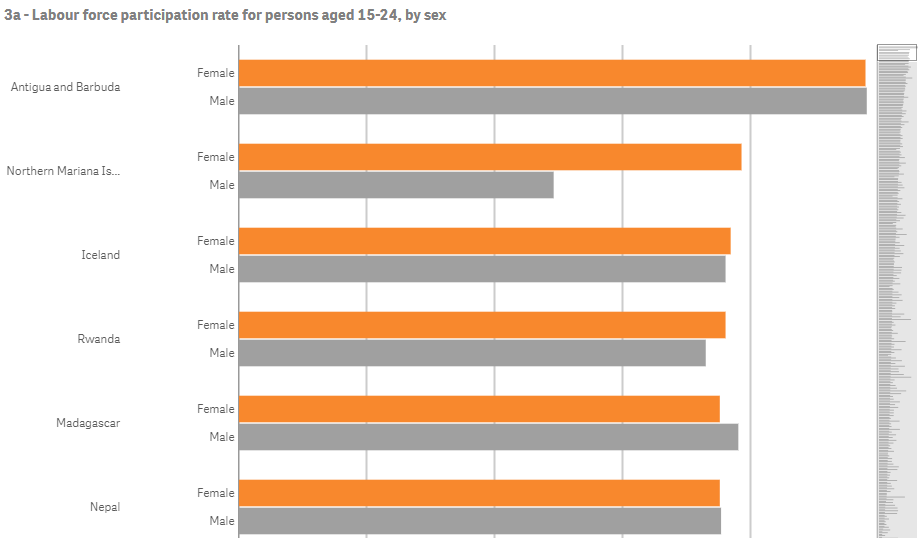
The entire thing takes about 3 seconds to load but there is no delay to the common user because while the selections are made the object is loading and the canvas is drawn.
The Angular Service Api that I use for HyperCubes is here
URL: https://genderstats.un.org/#/indicators
Yianni
-
Technology trends for 2017
Interesting read on the drivers for 2017 in the technology space especially with the proliferation of new technologies and devices:Technology Trends ... Show MoreInteresting read on the drivers for 2017 in the technology space especially with the proliferation of new technologies and devices:
Technology Trends and Market Growth Predictions for 2017 | Enterprise It World | Page 5
-
2017 Data Visualization Trends
The Rise of the Visualization PackageKeeping It MovingNarrative FocusIncreasingly Complex Data SourcesKeep It TidyFear of Scale Is Over To read the fu... Show More
- The Rise of the Visualization Package
- Keeping It Moving
- Narrative Focus
- Increasingly Complex Data Sources
- Keep It Tidy
- Fear of Scale Is Over
To read the full article visit http://visualmatters.com/data-visualization-trends-2017/
-
Mashup Api - Exporting Qlik Sense Table to CSV
I am sure that I am not the only one that at some point a Qlik Sense table was needed to be exported into a spreadsheet. While working with the APIs l... Show MoreI am sure that I am not the only one that at some point a Qlik Sense table was needed to be exported into a spreadsheet. While working with the APIs like Mashup and Engine API, this may get a little trivial, especially when we have so many solutions on the the web but not one that works in all major browsers and especially on our Qlik Sense table Object.
Even though this sound very simple and a simple copy and paste would do, here is a proper way of getting only the relevant fields displayed onto our webpage. This works on a simple html table as well as with a Qlik Sense Table Object.
In my previous posts I have showed you on how to create a webpage with Mashup API Creating a webpage based on the Qlik Sense Desktop Mashup API and for styling purposes, how to beautify your page with bootstrap Aligning objects and making a mashup responsive using Twitter’s Bootstrap and jquery
For this project I used an existing app for College Football Rankings Preseason College Football Rankings vs. Final Rankings Over The Years May Surprise You - RantSports
- Now, lets start by connecting to our app and getting the table object.
var me = {
    config: {
        host: window.location.host,
        prefix: "/",
        port: 443,
        isSecure: true,
    },

    vars: {
        id: '1b4194fd-0ace-4934-80ff-2c679b19624e'
    },

    data: {},

    obj: {
        qlik: null,
        app: null
    },

    init: function () {
        require.config( {
            baseUrl: ( me.config.isSecure ? "https://" : "http://" ) + me.config.host + (me.config.port ? ":" + me.config.port: "") + me.config.prefix + "resources"
        });
    },

    boot: function () {
        me.init();

        me.log('Boot', 'Success!');

        require(['js/qlik'], function (qlik) {
            me.obj.qlik = qlik;
            qlik.setOnError( function ( error ) {
                alert( error.message );
            } );

            // Get the Qlik Sense Object Table
            me.obj.app = qlik.openApp(me.vars.id, me.config);
        } );
    },
- Now lets put the html code that will host the object.
        <div class="row">
            <div class="col-md-12">
                <article style="height: 250px" class="qvobject" data-qvid="DBujmm" id="DBujmm"></article>
            </div>
        </div>
- Now place the object with our code
        // Get the Qlik Sense Table Object
        me.obj.app.getObject(document.getElementById('DBujmm'), 'DBujmm');
- Lets try and get the raw data now from a HyperQube so we can create our custom html table. I have also created here a function that refactors data since I like to be working with more meaningful objects.
  // Get raw data with HyperQube to create the Table
    getData: function (callback) {
        me.obj.app.createCube({
            qDimensions : [{
                qDef : {
                    qFieldDefs : ["School"]
                }
            },{
                qDef : {
                    qFieldDefs : ["Conference"]
                }
            }
            ],
            qMeasures : [
            {
                "qLabel": "# Preseason Top 10",
                "qLibraryId": "HdsZnjL",
                "qSortBy": {
                    "qSortByState": 0,
                    "qSortByFrequency": 0,
                    "qSortByNumeric": 0,
                    "qSortByAscii": 1,
                    "qSortByLoadOrder": 0,
                    "qSortByExpression": 0,
                    "qExpression": {
                        "qv": " "
                    }
                }
            },
            {
                "qLabel": "# Postseason Top 10",
                "qLibraryId": "tEknwb",
                "qSortBy": {
                    "qSortByState": 0,
                    "qSortByFrequency": 0,
                    "qSortByNumeric": 0,
                    "qSortByAscii": 1,
                    "qSortByLoadOrder": 0,
                    "qSortByExpression": 0,
                    "qExpression": {
                        "qv": " "
                    }
                }
            }
            ],
            qInitialDataFetch : [{
                qTop : 0,
                qLeft : 0,
                qHeight : 20,
                qWidth : 5
            }]
        }, function(reply) {
            me.log('getData', 'Success!');
            me.data.hq = reply.qHyperCube.qDataPages[0].qMatrix;
            me.refactorData();
            callback(true);
        });
    },


    // Refactor Data to a more readable format rather than qText etc.
    refactorData: function () {
        var data = [];
        $.each(me.data.hq, function(key, value) {
            data[key] = {};
            data[key].school = value[0].qText;
            data[key].conference = value[1].qText;
            data[key].pre10 = value[2].qText;
            data[key].post10 = value[3].qText;
        });
        me.data.rf = data;
    },
- Now lets create the html holder for this table including the column headers.
      <div class="row">
            <div class="col-md-12">
                <table id="tableData">
                    <tr>
                        <th>Team Name</th>
                        <th>Times in Preseason Top 10</th>
                        <th>Times in Postseason Top 10</th>
                        <th>Times in Pre & Postseason Top 10s</th>
                        <th></th>
                        <th>Conference</th>
                    </tr>
                </table>
            </div>
        </div>
- Here is the code that will generate the table
    // Prepare Data for Display
    displayData: function () {
        $.each(me.data.rf, function(key, value) {
            var html = '<tr>\
                <td>' + value.school + '</td>\
                <td>' + value.pre10 + '</td>\
                <td>' + value.post10 + '</td>\
                <td></td>\
                <td></td>\
                <td>' + value.conference + '</td>\
            </tr>';

            $('#tableData').append(html);
        });

        // After everything is rendered, enable the buttons for export
        $('#export').removeClass('disabled');
        $('#exportSense').removeClass('disabled');
    },
- OK. So far we have the code that connects to the Qlik Sense App, gets the table as an object and as row data and displays both for us to use. Lets now put the buttons that will export these two tables. The first one is for the Html Table and the second one is for the Qlik Sense Object Table
        <div class="row">
            <div class="col-md-12">
                <a href="#" class="btn btn-default disabled" id="export">Export Html Table to CSV</a>
            </div>
        </div>
        <div class="row">
            <div class="col-md-12">
                <a href="#" class="btn btn-default disabled" id="exportSense">Export Sense Table to CSV</a>
            </div>
        </div>
- As you can see I a gave them 2 different classes so I can control the on click events. I can definitely have more efficient way of handling the script execution but for this example it is better if I keep them separate.
- Here is the code that handles the events. We are passing to the exportTableToCSV methis
            $(".export").on('click', function (event) {
                me.exportTableToCSV.apply(this, [$('#tableData'), 'QlikSenseExport.csv']);
            });

            $(".exportSense").on('click', function (event) {
                me.exportTableToCSV.apply(this, [$('.qv-object-table'), 'QlikSenseExport.csv']);
            });
- Finally, here is the code that handles the csv generation and downloading.
  exportTableToCSV: function ($table, filename) {
        var $rows = $table.find('tr:has(th), tr:has(td)'),

            // Temporary delimiter characters unlikely to be typed by keyboard
            // This is to avoid accidentally splitting the actual contents
            tmpColDelim = String.fromCharCode(11), // vertical tab character
            tmpRowDelim = String.fromCharCode(0), // null character

            // actual delimiter characters for CSV format
            colDelim = '","',
            rowDelim = '"\r\n"';

            // Grab text from table into CSV formatted string
            var csv = '"' + $rows.map(function (i, row) {
                var $row = $(row),
                    // Select all of the TH and TD tags
                    // If its a Sense Object, remove the search column
                    $cols = $row.find('th:not(.qv-st-header-cell-search), td');

                return $cols.map(function (j, col) {
                    var $col = $(col),
                        text = $col[0].outerText;

                    text.replace(/"/g, '""'); // escape double quotes

                    return text;

                }).get().join(tmpColDelim);

            }).get().join(tmpRowDelim)
                .replace(/\r?\n|\r/g, '')
                .split(tmpRowDelim).join(rowDelim)
                .split(tmpColDelim).join(colDelim) + '"',

            // Data URI
            csvData = 'data:application/csv;charset=utf-8,' + encodeURIComponent(csv);

        // Check if browser is IE
        if ( window.navigator.msSaveOrOpenBlob && window.Blob ) {
            var blob = new Blob( [ csv ], { type: "text/csv" } );
            navigator.msSaveOrOpenBlob( blob, filename );
        } else {
            $(this)
                .attr({
                'download': filename,
                    'href': csvData,
                    'target': '_blank'
            });
        }
        me.log('exportTableToCSV', 'Success!');
    },
That's it. I hope this will help you to export your tables to a format for your favorite spreadsheet.
The Files and the entire working project is at
https://github.com/yianni-ververis/Export-Table-to-Csv
Also, you can view it live at
Yianni




