Unlock a world of possibilities! Login now and discover the exclusive benefits awaiting you.

- Qlik Community
- :
- Forums
- :
- Archive
- :
- Archived Groups
- :
- Re: Configuring the Governance Dashboard 2.0 (Imag...
- Subscribe to RSS Feed
- Mark Topic as New
- Mark Topic as Read
- Float this Topic for Current User
- Bookmark
- Subscribe
- Mute
- Printer Friendly Page

 Tyler_Waterfall
- Mark as New
- Bookmark
- Subscribe
- Mute
- Subscribe to RSS Feed
- Permalink
- Report Inappropriate Content
Configuring the Governance Dashboard 2.0 (Image)
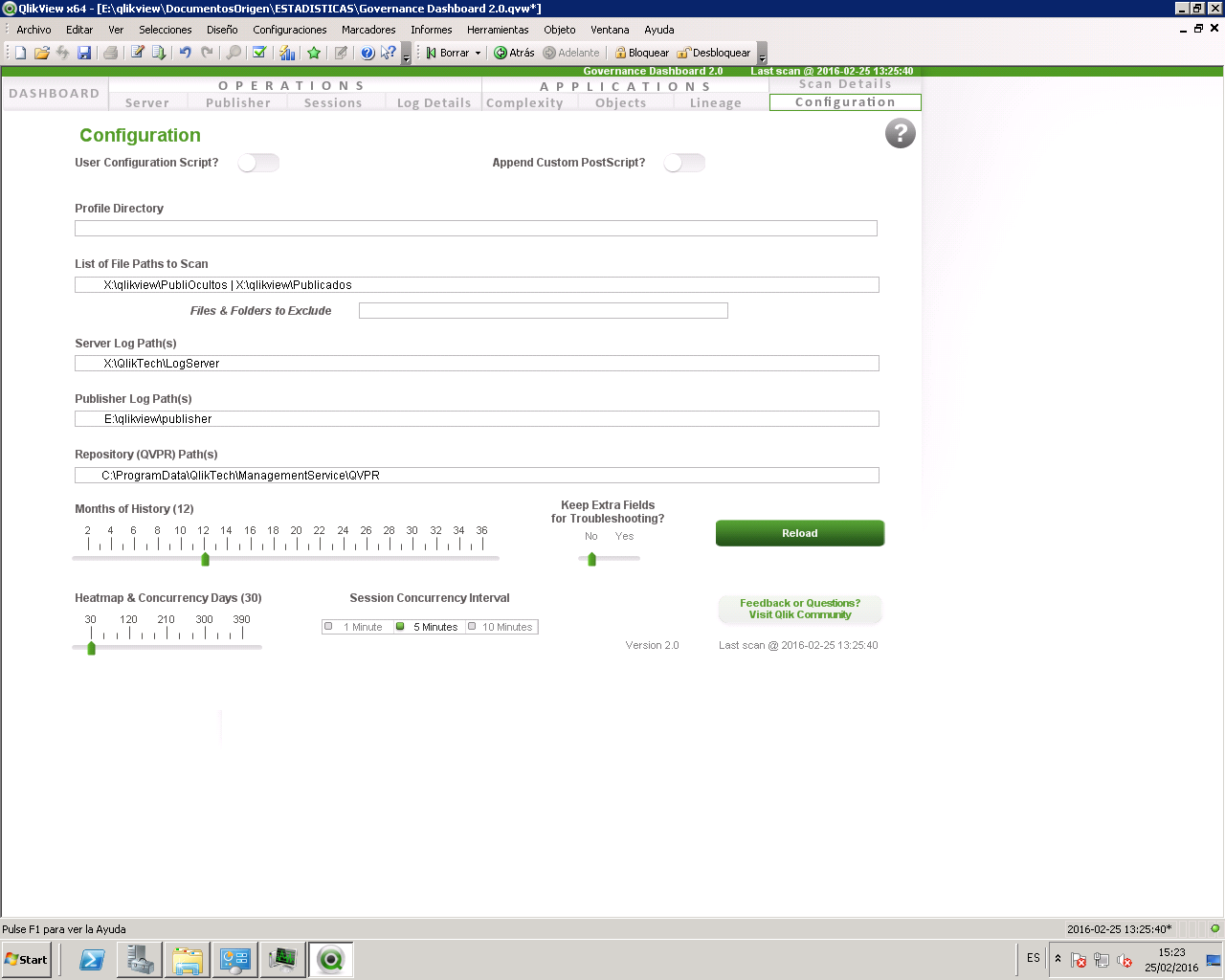
Here is a basic information about configuring the Governance Dashboard 2.0. These tool tips are available in the app itself by hovering over the titles above the input boxes.
If you have questions about the configuration, please post them here or even better to the main beta homepage.

- Profile Directory
- Filepath where output QVDs from the Governance Dashboard will be stored. If left blank, files will be stored in the same folder as the Governance Dashboard.qvw.
- List of Files Paths to Scan
- List here the filepaths which include QVWs and QVDs to scan. Separate multiple filepaths with vertical pipe | .
- Files & Folders to Exclude
List here the filenames (of QVWs and QVDs) and filepaths to EXCLUDE in the scan. Separate multiple exclusion patterns with vertical pipe | . For example, exclusion "govern" would exclude all files and folders containing the text "govern". This can be useful when this Governance Dashboard app is stored in a folder with other QVWs and QVDs that are to be scanned.
- Server Log Path(s)
- List here the filepaths which include Server Logs scan.
- Separate multiple log filepaths with vertical pipe | .
- Publisher Log Path(s)
- List here the filepaths which include Publisher Logs scan.
- Separate multiple log filepaths with vertical pipe | .
- Repository (QVPR) Path(s)
- List here the filepaths which include QVPR files to scan.
- Separate multiple filepaths with vertical pipe | .
- Months of History
- Select how many months of history to load in the Governance Dashboard.
- This will exclude any log files or QVWs and QVDs with filetimes older than the selected number of months back.
- Heatmap & Concurrency Days
- Select how many days of session history to load for the Session Heatmap and Session Concurrency.
- This will determine the range of history presented in both the Heatmap and Session Concurrency charts.
- Note that the more days of history chosen here, the longer initial reload is expected.
- ** To change the session concurrency interval from a previously-selected interval, the following actions must be taken:
1 - Remove the QVGD_SessionHeatmap_2.x.qvd
2 - Remove the QVGD_SessionConcurrency_2.x.qvd
3 - Reload the Governance Dashboard
- Session Concurrency Interval
- Select the interval (minutes) for which to calculate session concurrency. Options are 1-Minute, 5-Minute, or 10-Minute interval.
- Note that the shorter the interval, the more time the reload will take to generate the associated concurrency data, but the more accurate the concurrency calculations will be.
- ** To change the session concurrency interval from a previously-selected interval, the following actions must be taken:
1 - Remove the QVGD_Session*_2.x.Qvds: SessionHeatmap, SessionConcurrency, and Sessions.
2 - Remove the QVGD_SessionConcurrency_2.x.qvd
3 - Reload the Governance Dashboard
- Keep extra fields for troubleshooting?
- Selecting "Yes" will retain certain fields for troubleshooting purposes. These are not needed for regular use of the Governance Dashboard.
- User Configuration Script?
- Use the UserConfig text file to manage all configuration settings.
- Type the filename (and path) of the userconfig script.
- For example: UserConfig.txt or c:\ProgramData\QlikTech\Documents\UserConfigScript.txt
- The UserConfig script expects the following variables: (* = required)
- vInputProfilePath * (Profile directory)
- vInputFilePath (File Paths to Scan)
- vInputServerPath (Server Log paths)
- vInputPublisherPath (Publisher Log paths)
- vInputQVPRPath (QVPR paths)
- vInputMonthsOfHistory (Months of History: default = 12)
- vInputDaysOfHeatmapHistory (Heatmap & Concurrency Days: default = 30)
- QMC Note: If you want to use the UserConfig option in QMC without opening and modifying the Governance Dashboard.qvw, set the task Reload Script Parameter name to vInputUserConfigFromQMC and the Parameter Value to the filename (path included) of the User Config .txt file.
- Append custom PostScript?
- Use the PostScript option to append custom load script to the end of the Governance Dashboard script.
- Note that custom load script included here is not included in standard QlikTech support but would require Qlik Expert Services.
- Proceed with caution and enthusiasm.
- Reload
- Reload the Governance Dashboard.

 davidmc1
- Mark as New
- Bookmark
- Subscribe
- Mute
- Subscribe to RSS Feed
- Permalink
- Report Inappropriate Content
Great stuff Tyker, thank you very much!
I have an issue with publisher tasks execution date/time.
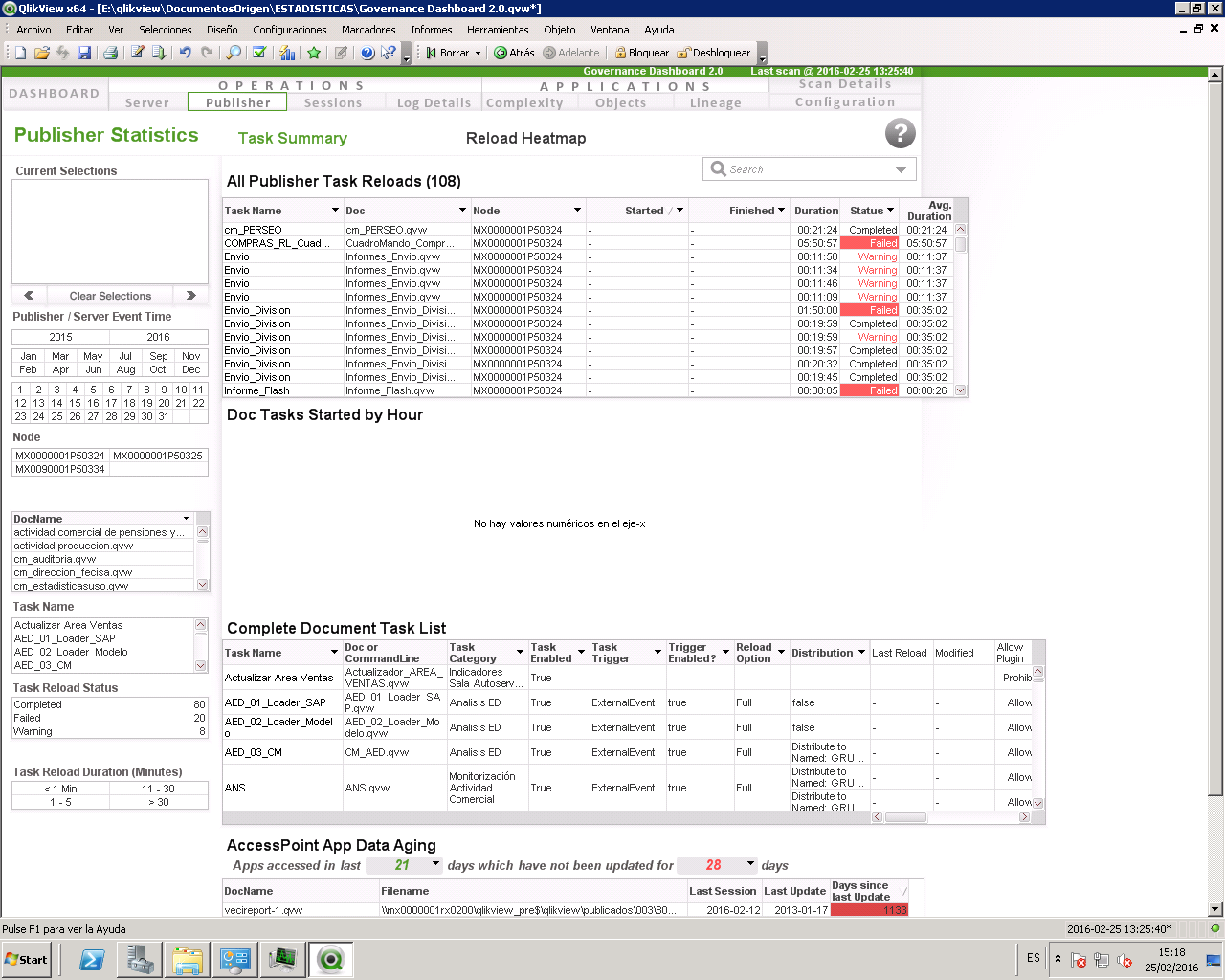

Any suggestions?
Thanks!
Tyler_Waterfall
- Mark as New
- Bookmark
- Subscribe
- Mute
- Subscribe to RSS Feed
- Permalink
- Report Inappropriate Content
Thank you David.
Concerning Publisher timestamp format, can you open one of the TaskExecutionHistory.xml files in E:\QlikView\Publisher\TaskExecutionHistory\ folder and copy one of the lines of the xml? (Mainly interested in the timestamp format used).
Also, tell me - are you reloading the Governance dashboard on a machine set with the same locale settings (like windows datetime format) as the server running QV Publisher?
davidmc1
- Mark as New
- Bookmark
- Subscribe
- Mute
- Subscribe to RSS Feed
- Permalink
- Report Inappropriate Content
Hi Tyler;
<TaskExecutionHistoryItem Duration="00:00:06.0528388" EndTimeStamp="30/01/2016 1:00:06" StartTimeStamp="30/01/2016 1:00:00" TaskStatus="Completed" TaskLogId="600bbc4a-a8ef-4683-94d6-7368a541b9d6" TaskId="42470b4f-629d-423b-aacc-84b6d97e7b0e"/>
Same locale settings, same windows datetime format:
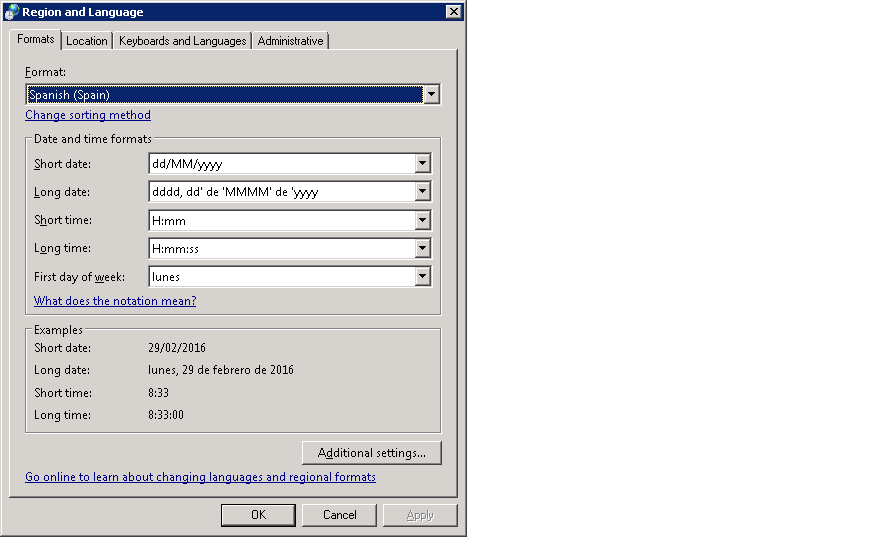
Thank you!
Tyler_Waterfall
- Mark as New
- Bookmark
- Subscribe
- Mute
- Subscribe to RSS Feed
- Permalink
- Report Inappropriate Content
David -
Gracias por la información. Yo pensé que eso no sucedería si la applicación fuera updated en un servidor o ordenador que usara la misma config de fecha y hora. Pero parece que esto no es el caso. 
Voy a escribir algo sobre este tema pronto y te avisaré cuando ya esté listo.
David - thanks for the info. I though this wouldn't happen if the app were reloaded on a server or computer with the same datetime settings. But it looks like that's not the case.
I will be posting something about this shortly.
Tyler_Waterfall
- Mark as New
- Bookmark
- Subscribe
- Mute
- Subscribe to RSS Feed
- Permalink
- Report Inappropriate Content
Tyler_Waterfall
- Mark as New
- Bookmark
- Subscribe
- Mute
- Subscribe to RSS Feed
- Permalink
- Report Inappropriate Content
All -
The Governance Dashboard 2.0.1 is now available! This SR1 fixes the Complexity Analysis issue present in v 2.0.
Find it on Qlik Market: QlikView Governance Dashboard
Or on the main Qlik download site.
No other changes here - so you can just copy the values from your current 2.0 app into the configuration and run with it.
Thanks!
Tyler

- Mark as New
- Bookmark
- Subscribe
- Mute
- Subscribe to RSS Feed
- Permalink
- Report Inappropriate Content
Hello Tyler,
I also received the error about hidden files.
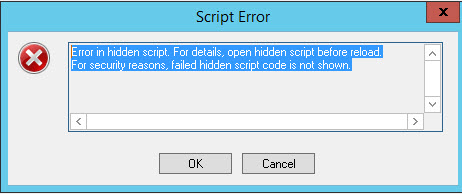
Mine shows
| 17 | 2016-03-29 12:56:28 | "86 errors encountered during this reload: General Error |
This is loaded on a terminal server pointing to our production box.
The directory the Governance Dashboard is in is not located within the scanned path.
Thank you.
Tyler_Waterfall
- Mark as New
- Bookmark
- Subscribe
- Mute
- Subscribe to RSS Feed
- Permalink
- Report Inappropriate Content
Darrin -
We would need more information to troubleshoot. Can you unhide the script (open the script editor, File > Edit Hidden Script > put in the password as it states in the load script) and then reload the app. Capture the error message.
Note that the 86 errors encountered ... might be due to improperly formed metadata in apps - will not cause a reload failure (in majority of cases).
But send a screen capture of the error message when the script is unhidden. Thanks!
- Mark as New
- Bookmark
- Subscribe
- Mute
- Subscribe to RSS Feed
- Permalink
- Report Inappropriate Content
Looks like it was a typo on one of the paths for the log files. All is working properly.
Thank you.
Tyler_Waterfall
- Mark as New
- Bookmark
- Subscribe
- Mute
- Subscribe to RSS Feed
- Permalink
- Report Inappropriate Content
That was easy!  Glad it's working now.