Unlock a world of possibilities! Login now and discover the exclusive benefits awaiting you.

Featured Content
-
How to contact Qlik Support
Qlik offers a wide range of channels to assist you in troubleshooting, answering frequently asked questions, and getting in touch with our technical e... Show MoreQlik offers a wide range of channels to assist you in troubleshooting, answering frequently asked questions, and getting in touch with our technical experts. In this article, we guide you through all available avenues to secure your best possible experience.
For details on our terms and conditions, review the Qlik Support Policy.
Index:
- Support and Professional Services; who to contact when.
- Qlik Support: How to access the support you need
- 1. Qlik Community, Forums & Knowledge Base
- The Knowledge Base
- Blogs
- Our Support programs:
- The Qlik Forums
- Ideation
- How to create a Qlik ID
- 2. Chat
- 3. Qlik Support Case Portal
- Escalate a Support Case
- Phone Numbers
- Resources
Support and Professional Services; who to contact when.
We're happy to help! Here's a breakdown of resources for each type of need.
Support Professional Services (*) Reactively fixes technical issues as well as answers narrowly defined specific questions. Handles administrative issues to keep the product up-to-date and functioning. Proactively accelerates projects, reduces risk, and achieves optimal configurations. Delivers expert help for training, planning, implementation, and performance improvement. - Error messages
- Task crashes
- Latency issues (due to errors or 1-1 mode)
- Performance degradation without config changes
- Specific questions
- Licensing requests
- Bug Report / Hotfixes
- Not functioning as designed or documented
- Software regression
- Deployment Implementation
- Setting up new endpoints
- Performance Tuning
- Architecture design or optimization
- Automation
- Customization
- Environment Migration
- Health Check
- New functionality walkthrough
- Realtime upgrade assistance
(*) reach out to your Account Manager or Customer Success Manager
Qlik Support: How to access the support you need
1. Qlik Community, Forums & Knowledge Base
Your first line of support: https://community.qlik.com/
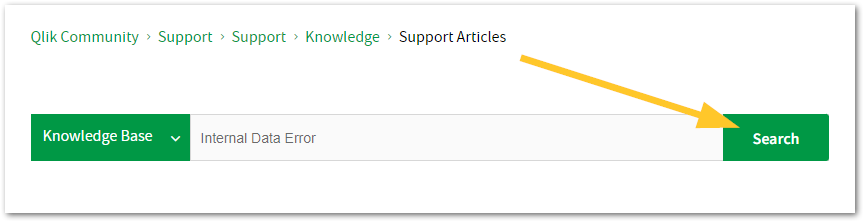
Looking for content? Type your question into our global search bar:
The Knowledge Base
Leverage the enhanced and continuously updated Knowledge Base to find solutions to your questions and best practice guides. Bookmark this page for quick access!
- Go to the Official Support Articles Knowledge base
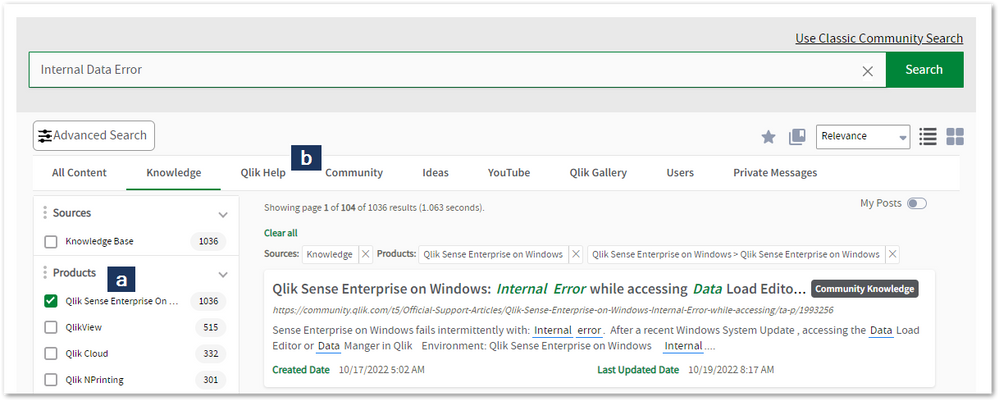
- Type your question into our Search Engine
- Need more filters?
- Filter by Product
- Or switch tabs to browse content in the global community, on our Help Site, or even on our Youtube channel
Blogs
Subscribe to maximize your Qlik experience!
The Support Updates Blog
The Support Updates blog delivers important and useful Qlik Support information about end-of-product support, new service releases, and general support topics. (click)The Qlik Design Blog
The Design blog is all about product and Qlik solutions, such as scripting, data modelling, visual design, extensions, best practices, and more! (click)The Product Innovation Blog
By reading the Product Innovation blog, you will learn about what's new across all of the products in our growing Qlik product portfolio. (click)Our Support programs:
Q&A with Qlik
Live sessions with Qlik Experts in which we focus on your questions.Techspert Talks
Techspert Talks is a free webinar to facilitate knowledge sharing held on a monthly basis.Technical Adoption Workshops
Our in depth, hands-on workshops allow new Qlik Cloud Admins to build alongside Qlik Experts.Qlik Fix
Qlik Fix is a series of short video with helpful solutions for Qlik customers and partners.The Qlik Forums
- Quick, convenient, 24/7 availability
- Monitored by Qlik Experts
- New releases publicly announced within Qlik Community forums (click)
- Local language groups available (click)
Ideation
Suggest an idea, and influence the next generation of Qlik features!
Search & Submit Ideas
Ideation GuidelinesHow to create a Qlik ID
Get the full value of the community.
Register a Qlik ID:
- Go to register.myqlik.qlik.com
If you already have an account, please see How To Reset The Password of a Qlik Account for help using your existing account. - You must enter your company name exactly as it appears on your license or there will be significant delays in getting access.
- You will receive a system-generated email with an activation link for your new account. NOTE, this link will expire after 24 hours.
If you need additional details, see: Additional guidance on registering for a Qlik account
If you encounter problems with your Qlik ID, contact us through Live Chat!
2. Chat
Incidents are supported through our Chat, by clicking Chat Now on any Support Page across Qlik Community.
To raise a new issue, all you need to do is chat with us. With this, we can:
- Answer common questions instantly through our chatbot
- Have a live agent troubleshoot in real time
- With items that will take further investigating, we will create a case on your behalf with step-by-step intake questions.
3. Qlik Support Case Portal
Log in to manage and track your active cases in the Case Portal. (click)
Before you can access the Support Portal, please complete your Community account setup. See First time access to the Qlik Customer Support Portal fails with: Unauthorized Access Please try signing out and sign in again.
Please note: to create a new case, it is easiest to do so via our chat (see above). Our chat will log your case through a series of guided intake questions.
Your advantages:
- Self-service access to all incidents so that you can track progress
- Option to upload documentation and troubleshooting files
- Option to include additional stakeholders and watchers to view active cases
- Follow-up conversations
When creating a case, you will be prompted to enter problem type and issue level. Definitions shared below:
Problem Type
Select Account Related for issues with your account, licenses, downloads, or payment.
Select Product Related for technical issues with Qlik products and platforms.
Priority
If your issue is account related, you will be asked to select a Priority level:
Select Medium/Low if the system is accessible, but there are some functional limitations that are not critical in the daily operation.
Select High if there are significant impacts on normal work or performance.
Select Urgent if there are major impacts on business-critical work or performance.
Severity
If your issue is product related, you will be asked to select a Severity level:
Severity 1: Qlik production software is down or not available, but not because of scheduled maintenance and/or upgrades.
Severity 2: Major functionality is not working in accordance with the technical specifications in documentation or significant performance degradation is experienced so that critical business operations cannot be performed.
Severity 3: Any error that is not Severity 1 Error or Severity 2 Issue. For more information, visit our Qlik Support Policy.
Escalate a Support Case
If you require a support case escalation, you have two options:
- Request to escalate within the case, mentioning the business reasons.
To escalate a support incident successfully, mention your intention to escalate in the open support case. This will begin the escalation process. - Contact your Regional Support Manager
If more attention is required, contact your regional support manager. You can find a full list of regional support managers in the How to escalate a support case article.
Phone Numbers
When other Support Channels are down for maintenance, please contact us via phone for high severity production-down concerns.
- Qlik Data Analytics: 1-877-754-5843
- Qlik Data Integration: 1-781-730-4060
- Talend AMER Region: 1-800-810-3065
- Talend UK Region: 44-800-098-8473
- Talend APAC Region: 65-800-492-2269
Resources
A collection of useful links.
Qlik Cloud Status Page
Keep up to date with Qlik Cloud's status.
Support Policy
Review our Service Level Agreements and License Agreements.
Live Chat and Case Portal
Your one stop to contact us.




Recent Documents
-
Qlik Cloud Monitoring Apps Workflow Guide
This template was updated on December 4th, 2025 to replace the original installer and API key rotator with a new, unified deployer automation. Please... Show MoreThis template was updated on December 4th, 2025 to replace the original installer and API key rotator with a new, unified deployer automation. Please disable or delete any existing installers, and create a new automation, picking the Qlik Cloud monitoring app deployer template from the App installers category.
Installing, upgrading, and managing the Qlik Cloud Monitoring Apps has just gotten a whole lot easier! With a single Qlik Automate template, you can now install and update the apps on a schedule with a set-and-forget installer using an out-of-the-box Qlik Automate template. It can also handle API key rotation required for the data connection, ensuring the data connection is always operational.
Some monitoring apps are designed for specific Qlik Cloud subscription types. Refer to the compatibility matrix within the Qlik Cloud Monitoring Apps repository.
'Qlik Cloud Monitoring Apps deployer' template overview
This automation template is a set-and-forget template for managing the Qlik Cloud Monitoring Applications, including but not limited to the App Analyzer, Entitlement Analyzer, Reload Analyzer, and Access Evaluator applications. Leverage this automation template to quickly and easily install and update these or a subset of these applications with all their dependencies. The applications themselves are community-supported; and, they are provided through Qlik's Open-Source Software (OSS) GitHub and thus are subject to Qlik's open-source guidelines and policies.
For more information, refer to the GitHub repository.
Features
- Can install/upgrade all or select apps.
- Can create or leverage existing spaces.
- Programmatically verified prerequisite settings, roles, and entitlements, notifying the user during the process if changes in configuration are required, and why.
- Installs latest versions of specified applications from Qlik’s OSS GitHub.
- Creates required API key.
- Creates required analytics data connection.
- Creates a daily reload schedule.
- Reload applications post-install.
- Tags apps appropriately to track which are installed and their respective versions.
- Supports both user and capacity-based subscriptions.
Configuration:
Update just the configuration area to define how the automation runs, then test run, and set it on a weekly or monthly schedule as desired.
Configure the run mode of the template using 7 variable blocks
Users should review the following variables:
- configuredMonitoringApps: contains the list of the monitoring applications which will be installed and maintained. Delete any applications not required before running (default: all apps listed).
- refreshConnectorCredentials: determines whether the monitoring application REST connection and associated API key will be regenerated every run (default: true).
- reloadNow: determines whether apps are reloaded immediately following updates (default: true).
- reloadScheduleHour: determines at which hour of the day the apps reload at for the daily schedule in UTC timezone (default: 06)
- sharedSpaceName: defines the name of the shared space used to import the apps into prior to publishing. If the space doesn't exist, it'll be created. If the space exists, the user will be added to it with the required permissions (default: Monitoring - staging).
- managedSpaceName: defines the name of the managed space the apps are published into for consumption/ alerts/ subscription use.If the space doesn't exist, it'll be created. If the space exists, the user will be added to it with the required permissions (default: Monitoring).
- versionsToKeep: determines how many versions of each staged app is kept in the shared space. If set to 0, apps are deleted after publishing. If a positive integer value other than 0, that many apps will be kept for each monitoring app deployed (default: 0).
App management:
If the monitoring applications have been installed manually (i.e., not through this automation), then they will not be detected as existing. The automation will install new copies side-by-side. Any subsequent executions of the automation will detect the newly installed monitoring applications and check their versions, etc. This is due to the fact that the applications are tagged with "QCMA - {appName}" and "QCMA - {version}" during the installation process through the automation. Manually installed applications will not have these tags and therefore will not be detected.
FAQ
Q: Can I re-run the installer to check if any of the monitoring applications are able to be upgraded to a later version?
A: Yes. The automation will update any managed apps that don't match the repository's manifest version.
Q: What if multiple people install monitoring applications in different spaces?
A: The template scopes the application's installation process to a managed space. It will scope the API key name to `QCMA – {spaceId}` of that managed space. This allows the template to install/update the monitoring applications across spaces and across users. If one user installs an application to “Space A” and then another user installs a different monitoring application to “Space A”, the template will see that a data connection and associated API key (in this case from another user) exists for that space already. It will install the application leveraging those pre-existing assets.
Q: What if a new monitoring application is released? Will the template provide the ability to install that application as well?
A: Yes, but an update of the template from the template picker will be required, since the applications are hard coded into the template. The automation will begin to fail with a notification an update is needed once a new version is available.
Q:I have updated my application, but I noticed that it did not preserve the history. Why is that?
A: Each upgrade may generate a new set of QVDs if the data models for the applications have changed due to bug fixes, updates, new features, etc. The history is preserved in the prior versions of the application’s QVDs, so the data is never deleted and can be loaded into the older version.
-
How to find a Qlik Cloud user's user ID
Every Qlik Cloud user is assigned a unique User ID. A tenant admin can locate the User ID in the Administration Center. Log in to Qlik Cloud Click t... Show MoreEvery Qlik Cloud user is assigned a unique User ID. A tenant admin can locate the User ID in the Administration Center.
- Log in to Qlik Cloud
- Click the tile menu (a), select the Administration Center (b), then navigate to Manager Users (c)
Alternatively, go directly to the allusers URL: https:// tenant-name .xx.qlikcloud.com/admin/users/allusers - Hover over the user's profile icon (a); a pop-up will show the user's information, including the User ID. All data can be easily copied (b) to your clipboard.
Related Content
-
How to create NPrinting GET and POST REST connections
NPrinting has a library of APIs that can be used to customize many native NPrinting functions outside the NPrinting Web Console. Environment: Qlik N... Show MoreNPrinting has a library of APIs that can be used to customize many native NPrinting functions outside the NPrinting Web Console.
Environment:
An example of two of the more common capabilities available via NPrinting APIs are as follows
- Connection reloads
- Publish Task executions
These and many other public NPrinting APIs can be found here: Qlik NPrinting API
In the Qlik Sense data load editor of your Qlik Sense app, two REST connections are required (These two REST Connectors must also be configured in the QlikView Desktop application>load where the API's are used. See Nprinting Rest API Connection through QlikView desktop)
- GET
- POST
Requirements of REST user account:
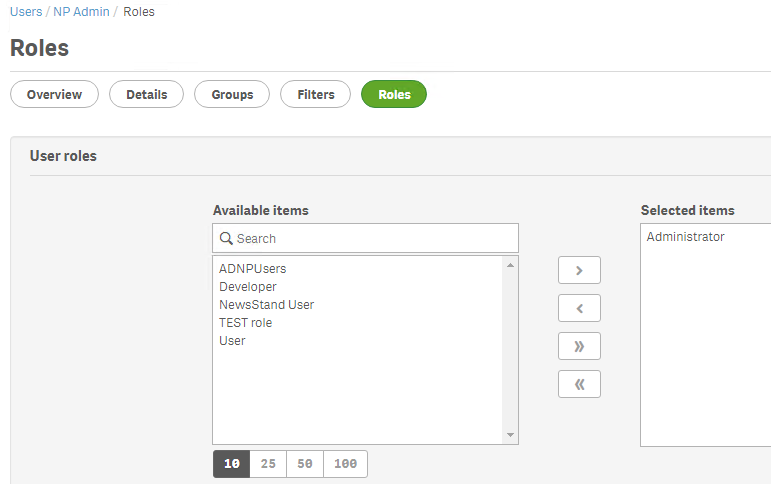
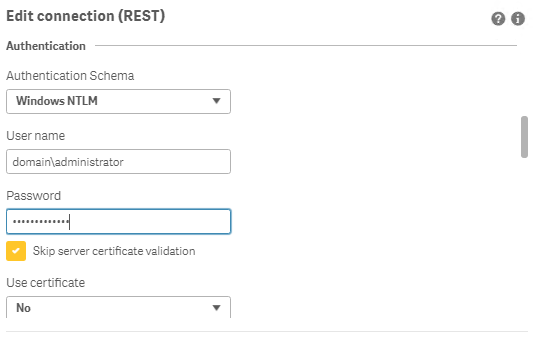
- Windows Authentication is required in both these connectors. The required user account is the NPrinting service account (which is also ROOTADMIN on the Qlik Sense server)
- This user account must also be a member of the NPrinting 'Administrators' Security Role on the NPrinting Server.
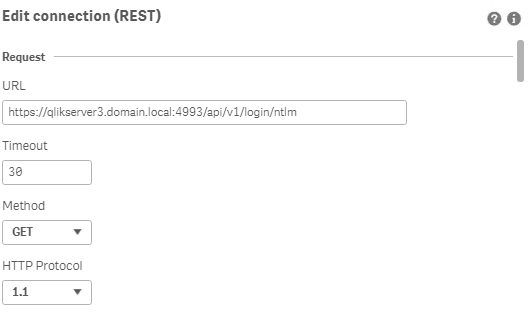
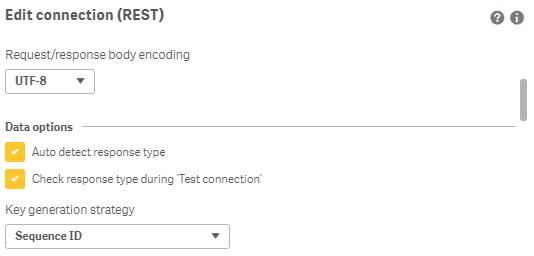
Creating REST "GET" connections
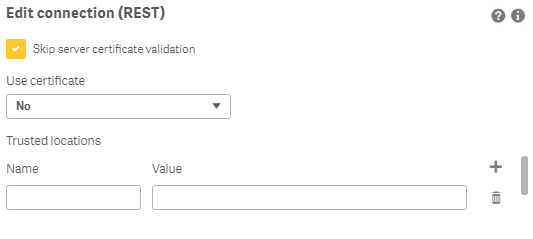
Note: Replace QlikServer3.domain.local with the name and port of your NPrinting Server
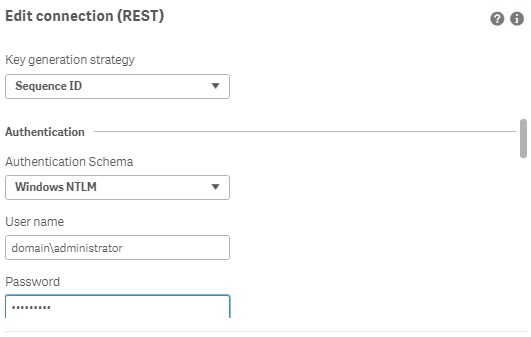
NOTE: replace domain\administrator with the domain and user name of your NPrinting service user account
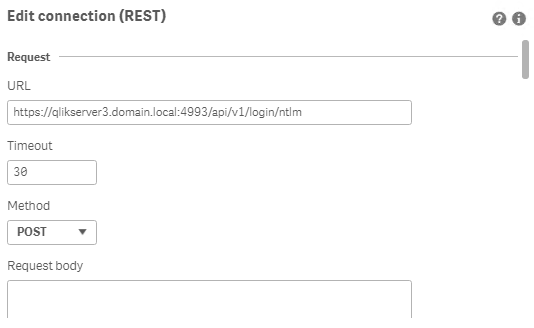
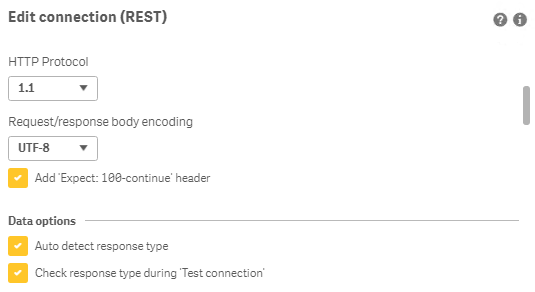
Creating REST "POST" connections
Note: Replace QlikServer3.domain.local with the name and port of your NPrinting Server
NOTE: replace domain\administrator with the domain and user name of your NPrinting service user account
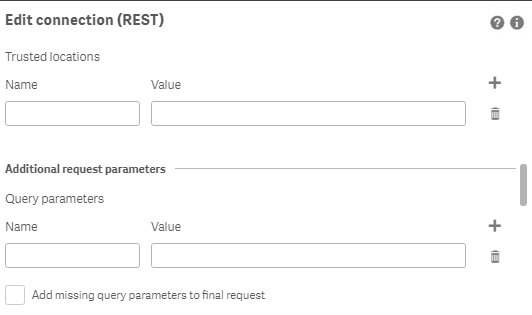
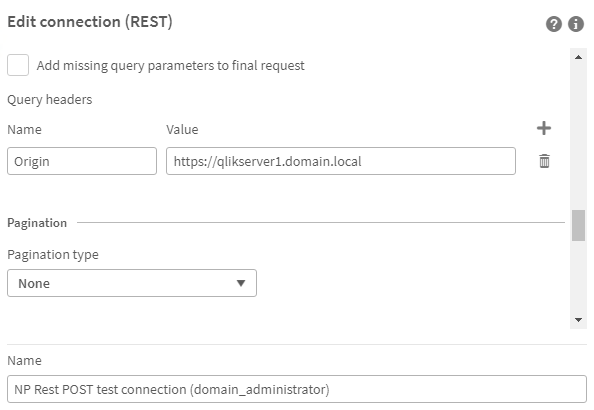
Ensure to enter the 'Name' Origin and 'Value' of the Qlik Sense (or QlikView) server address in your POST REST connection only.
Replace https://qlikserver1.domain.local with your Qlik sense (or QlikView) server address.
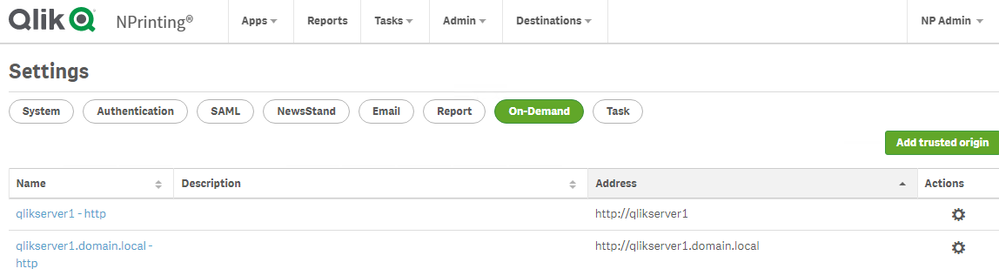
Ensure that the 'Origin' Qlik Sense or QlikView server is added as a 'Trusted Origin' on the NPrinting Server computer
Related Content
- Distribute NPrinting reports after reloading a Qlik App
- Extending Qlik NPrinting
- Run a Qlik NPrinting API POST command via QlikView reload script
- Troubleshooting Common NPrinting API Errors
NOTE: The information in this article is provided as-is and to be used at own discretion. NPrinting API usage requires developer expertise and usage therein is significant customization outside the turnkey NPrinting Web Console functionality. Depending on tool(s) used, customization(s), and/or other factors ongoing, support on the solution below may not be provided by Qlik Support.
-
How to audit how a Talend Remote Engines was unassigned from a cluster
Can a Talend Remote Engine be automatically unassigned from a cluster after a license change to convert it to a standalone Remote Engine? No. Licensin... Show MoreCan a Talend Remote Engine be automatically unassigned from a cluster after a license change to convert it to a standalone Remote Engine?
No. Licensing and engine configurations operate on separate layers within Qlik Talend Cloud. A change in licensing terms, conditions, or token balances will not automatically convert or modify a Talend Remote Engine Cluster into a single standalone Remote Engine.
The Remote Engine may have been removed following a user's action, which can be audited using the Talend Cloud Audit Logs.
Review the logs for the EventCategory - Remote Engine Cluster and the removeRemoteEngine operator. See Talend Cloud audit log contents | EventCategory - Remote Engine Cluster for details.
Environment
- Qlik Talend Cloud
-
Qlik Talend Studio SnowFlake JDBC URL for PrivateLink Connections
When connecting to Snowflake through PrivateLink, use the PrivateLink hostname returned by SYSTEM$GET_PRIVATELINK_COFIG() instead of the public Snowfl... Show MoreWhen connecting to Snowflake through PrivateLink, use the PrivateLink hostname returned by SYSTEM$GET_PRIVATELINK_COFIG() instead of the public Snowflake hostname.
If the Snowflake account was configured for PrivateLink with a different hostname, the following error will be logged:
Snowflake connection failed:-(java.lang.RuntimeException) net.snowflake.client.jdbc.SnowflakeSQLException: JDBC driver encountered communication error. Message: HTTP status=404.
The error is observed specifically after upgrading Qlik Talend Studio to patch R2026-01/02/03.
Cause
This is due to Enforcement of privatelink-only access, as documented in Enforcement of privatelink-only access | docs.snowflake.com.
Snowflake JDBC URLs require the region and privatelink components when connecting to a Snowflake account configured with PrivateLink (a private connectivity feature across AWS, Azure, or GCP), as this setup routes traffic through a secure, private endpoint through a proxy instead of the public internet.
Example:
jdbc:snowflake://<account>,<region>.privatelink.snowflakecomputing.com/?warehouse=WH1&db=DB1&role=ROLE1
Talend Studio Metadata connection:
The PrivateLink URL: https://<account>.<region>.privatelink.snowflakecomputing.com resolved to a private endpoint IP via VPC DNS.
Snowflake changed PrivateLink endpoint-discovery behaviour in the 2023_04 behaviour change release by expanding the SYSTEM$GET_PRIVATELINK_CONFIG and SYSTEM$ALLOWLIST_PRIVATELINK output, and later highlighted simplified DNS management for AWS PrivateLink in the 8.3 release notes.
Refer to January 22-23, 2024 — 8.3 Release Notes | docs.snowflake.com for details.
Environment
- Qlik Talend Studio
-
Qlik Sense Desktop custom installation shows only three connectors in the Novemb...
Qlik Sense Desktop version November 2025 does not list all expected connectors when installed using the custom installation option. Only ODBC, OLE DB,... Show MoreQlik Sense Desktop version November 2025 does not list all expected connectors when installed using the custom installation option.
Only ODBC, OLE DB, and Web file are listed:
Resolution
This is caused by SUPPORT-8669. Upgrade to Qlik Sense Desktop May 2026.
Workaround
Use the standard install option.
Internal Investigation ID(s)
- SUPPORT-8669
Environment
- Qlik Sense Desktop
-
Customizing Qlik Sense Enterprise on Windows Forms Login Page
Ever wanted to brand or customize the default Qlik Sense Login page? The functionality exists, and it's really as simple as just designing your HTML p... Show MoreEver wanted to brand or customize the default Qlik Sense Login page?
The functionality exists, and it's really as simple as just designing your HTML page and 'POSTing' it into your environment.
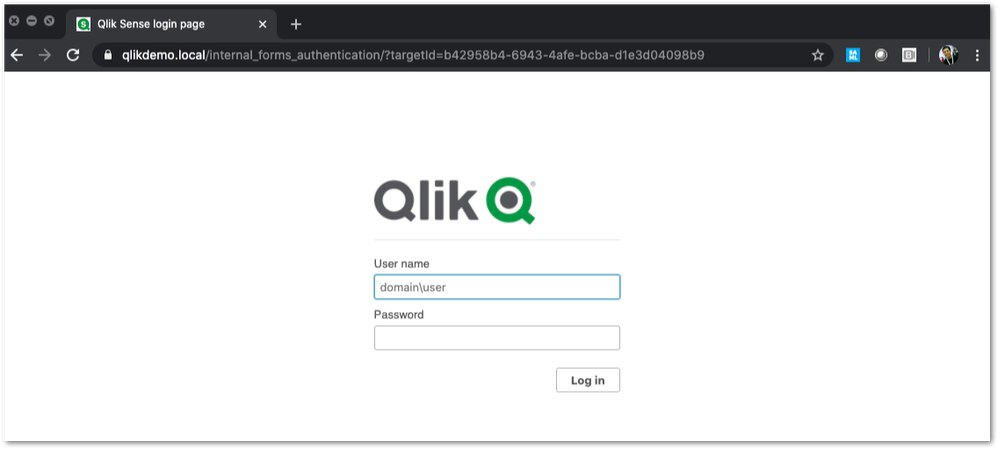
We've all seen the standard Qlik Sense Login page, this article is all about customizing this page.
This customization is provided as is. Qlik Support cannot provide continued support of the solution. For assistance, reach out to our Professional Services or engage in our active Integrations forum.
To customize the page:
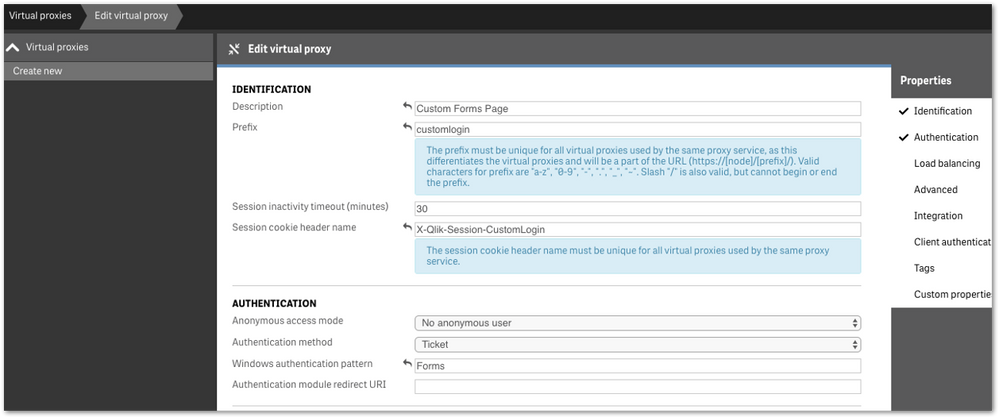
- We highly recommend setting up a new virtual proxy with Forms so you don't impact any users that are using auto-login Windows auth.
Example setup:
Description: Custom Forms Page
Prefix: customlogin
Session cookie header-name: X-Qlik-Session-CustomLogin
Windows authentication pattern: Forms - Once this is done, a good starting point is to download the default login page.
You can open up your web developer tool of choice, go to the login page, and download the HTML response from the GET http://<server>/customlogin/internal_forms_authentication request. It should be roughly a 273 line .html file. - Once you have this file, you can more or less customize it as much as you'd like.
Image files can be inlined as you'll see in the qlik default file, or can be referenced as long as they are publicly accessible. The only thing that needs to exist are the input boxes with appropriate classes and attributes, and the 'Log In' button. - After building out your custom HTML page and it looks great, it needs to be converted to Base64. There are online tools to do this, openssl also has this functionality.
Once you have your Base64 encoded HTML file, then you will want to PUT it into your sense environment. - First, do a GET request on /qrs/proxyservice and find the ID of the proxy service you want this login page to be shown for.
- You will then do a GET request on /qrs/proxyservice/<id> and copy the body of that response. Below is an example of that response.
{ "id": "8817d7ab-e9b2-4816-8332-f8cb869b27c2", "createdDate": "2020-03-23T15:39:33.540Z", "modifiedDate": "2020-05-20T18:46:13.995Z", "modifiedByUserName": "INTERNAL\\sa_api", "customProperties": [], "settings": { "id": "8817d7ab-e9b2-4816-8332-f8cb869b27c2", "createdDate": "2020-03-23T15:39:33.540Z", "modifiedDate": "2020-05-20T18:46:13.995Z", "modifiedByUserName": "INTERNAL\\sa_api", "listenPort": 443, "allowHttp": true, "unencryptedListenPort": 80, "authenticationListenPort": 4244, "kerberosAuthentication": false, "unencryptedAuthenticationListenPort": 4248, "sslBrowserCertificateThumbprint": "e6ee6df78f9afb22db8252cbeb8ad1646fa14142", "keepAliveTimeoutSeconds": 10, "maxHeaderSizeBytes": 16384, "maxHeaderLines": 100, "logVerbosity": { "id": "8817d7ab-e9b2-4816-8332-f8cb869b27c2", "createdDate": "2020-03-23T15:39:33.540Z", "modifiedDate": "2020-05-20T18:46:13.995Z", "modifiedByUserName": "INTERNAL\\sa_api", "logVerbosityAuditActivity": 4, "logVerbosityAuditSecurity": 4, "logVerbosityService": 4, "logVerbosityAudit": 4, "logVerbosityPerformance": 4, "logVerbositySecurity": 4, "logVerbositySystem": 4, "schemaPath": "ProxyService.Settings.LogVerbosity" }, "useWsTrace": false, "performanceLoggingInterval": 5, "restListenPort": 4243, "virtualProxies": [ { "id": "58d03102-656f-4075-a436-056d81144c1f", "prefix": "", "description": "Central Proxy (Default)", "authenticationModuleRedirectUri": "", "sessionModuleBaseUri": "", "loadBalancingModuleBaseUri": "", "useStickyLoadBalancing": false, "loadBalancingServerNodes": [ { "id": "f1d26a45-b0dd-4be1-91d0-34c698e18047", "name": "Central", "hostName": "qlikdemo", "temporaryfilepath": "C:\\Users\\qservice\\AppData\\Local\\Temp\\", "roles": [ { "id": "2a6a0d52-9bb4-4e74-b2b2-b597fa4e4470", "definition": 0, "privileges": null }, { "id": "d2c56b7b-43fd-44ad-a12f-59e778ce575a", "definition": 1, "privileges": null }, { "id": "37244424-96ae-4fe5-9522-088a0e9679e3", "definition": 2, "privileges": null }, { "id": "b770516e-fe8a-43a8-a7a4-318984ee4bd6", "definition": 3, "privileges": null }, { "id": "998b7df8-195f-4382-af18-4e0c023e7f1c", "definition": 4, "privileges": null }, { "id": "2a5325f4-649b-4147-b0b1-f568be1988aa", "definition": 5, "privileges": null } ], "serviceCluster": { "id": "b07fc5f2-f09e-4676-9de6-7d73f637b962", "name": "ServiceCluster", "privileges": null }, "privileges": null } ], "authenticationMethod": 0, "headerAuthenticationMode": 0, "headerAuthenticationHeaderName": "", "headerAuthenticationStaticUserDirectory": "", "headerAuthenticationDynamicUserDirectory": "", "anonymousAccessMode": 0, "windowsAuthenticationEnabledDevicePattern": "Windows", "sessionCookieHeaderName": "X-Qlik-Session", "sessionCookieDomain": "", "additionalResponseHeaders": "", "sessionInactivityTimeout": 30, "extendedSecurityEnvironment": false, "websocketCrossOriginWhiteList": [ "qlikdemo", "qlikdemo.local", "qlikdemo.paris.lan" ], "defaultVirtualProxy": true, "tags": [], "samlMetadataIdP": "", "samlHostUri": "", "samlEntityId": "", "samlAttributeUserId": "", "samlAttributeUserDirectory": "", "samlAttributeSigningAlgorithm": 0, "samlAttributeMap": [], "jwtAttributeUserId": "", "jwtAttributeUserDirectory": "", "jwtAudience": "", "jwtPublicKeyCertificate": "", "jwtAttributeMap": [], "magicLinkHostUri": "", "magicLinkFriendlyName": "", "samlSlo": false, "privileges": null }, { "id": "a8b561ec-f4dc-48a1-8bf1-94772d9aa6cc", "prefix": "header", "description": "header", "authenticationModuleRedirectUri": "", "sessionModuleBaseUri": "", "loadBalancingModuleBaseUri": "", "useStickyLoadBalancing": false, "loadBalancingServerNodes": [ { "id": "f1d26a45-b0dd-4be1-91d0-34c698e18047", "name": "Central", "hostName": "qlikdemo", "temporaryfilepath": "C:\\Users\\qservice\\AppData\\Local\\Temp\\", "roles": [ { "id": "2a6a0d52-9bb4-4e74-b2b2-b597fa4e4470", "definition": 0, "privileges": null }, { "id": "d2c56b7b-43fd-44ad-a12f-59e778ce575a", "definition": 1, "privileges": null }, { "id": "37244424-96ae-4fe5-9522-088a0e9679e3", "definition": 2, "privileges": null }, { "id": "b770516e-fe8a-43a8-a7a4-318984ee4bd6", "definition": 3, "privileges": null }, { "id": "998b7df8-195f-4382-af18-4e0c023e7f1c", "definition": 4, "privileges": null }, { "id": "2a5325f4-649b-4147-b0b1-f568be1988aa", "definition": 5, "privileges": null } ], "serviceCluster": { "id": "b07fc5f2-f09e-4676-9de6-7d73f637b962", "name": "ServiceCluster", "privileges": null }, "privileges": null } ], "authenticationMethod": 1, "headerAuthenticationMode": 1, "headerAuthenticationHeaderName": "userid", "headerAuthenticationStaticUserDirectory": "QLIKDEMO", "headerAuthenticationDynamicUserDirectory": "", "anonymousAccessMode": 0, "windowsAuthenticationEnabledDevicePattern": "Windows", "sessionCookieHeaderName": "X-Qlik-Session-Header", "sessionCookieDomain": "", "additionalResponseHeaders": "", "sessionInactivityTimeout": 30, "extendedSecurityEnvironment": false, "websocketCrossOriginWhiteList": [ "qlikdemo", "qlikdemo.local" ], "defaultVirtualProxy": false, "tags": [], "samlMetadataIdP": "", "samlHostUri": "", "samlEntityId": "", "samlAttributeUserId": "", "samlAttributeUserDirectory": "", "samlAttributeSigningAlgorithm": 0, "samlAttributeMap": [], "jwtAttributeUserId": "", "jwtAttributeUserDirectory": "", "jwtAudience": "", "jwtPublicKeyCertificate": "", "jwtAttributeMap": [], "magicLinkHostUri": "", "magicLinkFriendlyName": "", "samlSlo": false, "privileges": null } ], "formAuthenticationPageTemplate": "", "loggedOutPageTemplate": "", "errorPageTemplate": "", "schemaPath": "ProxyService.Settings" }, "serverNodeConfiguration": { "id": "f1d26a45-b0dd-4be1-91d0-34c698e18047", "name": "Central", "hostName": "qlikdemo", "temporaryfilepath": "C:\\Users\\qservice\\AppData\\Local\\Temp\\", "roles": [ { "id": "2a6a0d52-9bb4-4e74-b2b2-b597fa4e4470", "definition": 0, "privileges": null }, { "id": "d2c56b7b-43fd-44ad-a12f-59e778ce575a", "definition": 1, "privileges": null }, { "id": "37244424-96ae-4fe5-9522-088a0e9679e3", "definition": 2, "privileges": null }, { "id": "b770516e-fe8a-43a8-a7a4-318984ee4bd6", "definition": 3, "privileges": null }, { "id": "998b7df8-195f-4382-af18-4e0c023e7f1c", "definition": 4, "privileges": null }, { "id": "2a5325f4-649b-4147-b0b1-f568be1988aa", "definition": 5, "privileges": null } ], "serviceCluster": { "id": "b07fc5f2-f09e-4676-9de6-7d73f637b962", "name": "ServiceCluster", "privileges": null }, "privileges": null }, "tags": [], "privileges": null, "schemaPath": "ProxyService" } - In the response, locate the formAuthenticationPageTemplate field
- You can then take your base64 encoded HTML file, paste the value into the formAuthenticationPageTemplate field.
Example:
"formAuthenticationPageTemplate": "BASE 64 ENCODED HTML HERE",
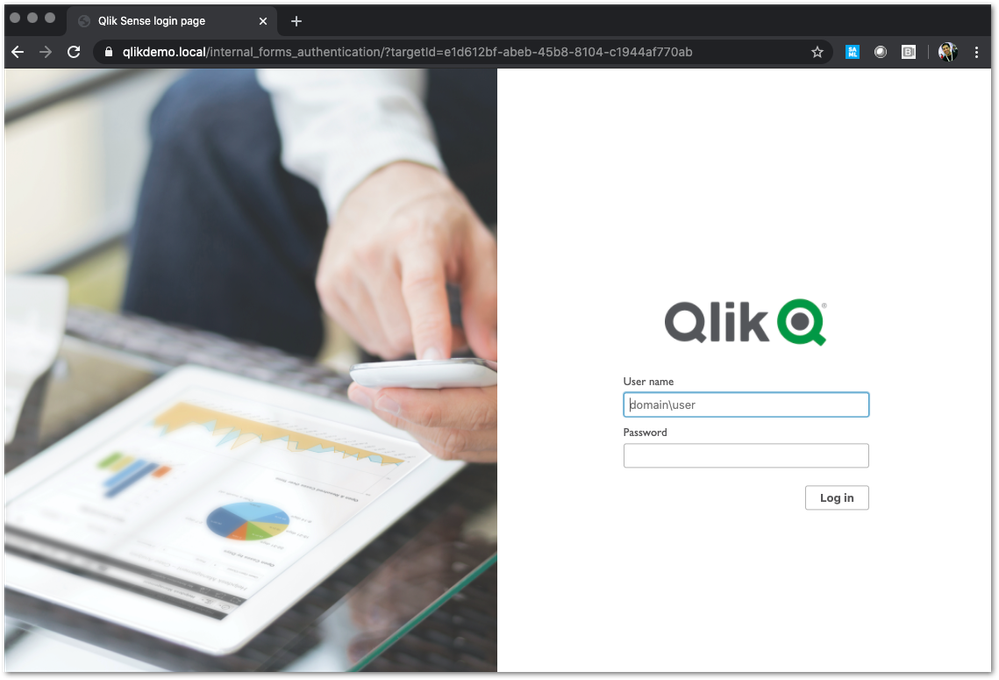
Once you have an updated body, you can use the PUT verb (with an updated modifiedDate) to PUT this body back into the repository. Once this is done, you should be able to goto your virtual proxy and you should see your new login page (very Qlik branded in this example):
If your login page does not work and you need to revert back to the default, simply do a GET call on your proxy service, and set formAuthenticationPageTemplate back to an empty string:
formAuthenticationPageTemplate": ""Environment:
- We highly recommend setting up a new virtual proxy with Forms so you don't impact any users that are using auto-login Windows auth.
-
QlikView distribution to Qlik Cloud fails with "TestCloudLicense: Failed - Unaut...
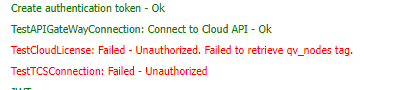
The distribution of QlikView apps from QlikView Distribution Service to Qlik Cloud fails with the error "TestCloudLicense: Failed - Unauthorized. Fail... Show MoreThe distribution of QlikView apps from QlikView Distribution Service to Qlik Cloud fails with the error "TestCloudLicense: Failed - Unauthorized. Failed to retrieve qv_nodes tag."
Environment
Resolution
- The license used in Qlik Cloud is missing the QV_NODES tag, which allows the access to QlikView apps from Sense Deployments. For QlikView to distribute to a Qlik Cloud tenant, the tag must be present in the tenant license.
Please, reach out to your account manager to have that fixed.
- This issue could also occur if there are missing configuration entries in he QVDistributionService.exe.config file, refer to the following article QlikView Distribute to cloud fails: The type initializer for System.IdentityModel.Tokens.Jwt.JsonExtensions threw an exception.
-
Diagnose failed app reloads with AI and notify your team on Slack using Qlik Aut...
This article gives an overview of how to analyse failed app reloads with OpenAI using Qlik Automate, which is now available as a template. This templ... Show MoreThis article gives an overview of how to analyse failed app reloads with OpenAI using Qlik Automate, which is now available as a template.
This template is triggered when a Qlik Cloud app reload fails. It then analyzes the reload error with OpenAI and sends a Slack message with the app, space, reload details, and AI diagnosis. Session app and data preparation reloads are filtered out to focus on user-created script issues, keeping your alerts relevant and actionable.
This template is a good starting point if you want to:
- Automatically detect when an analytics app reload fails
- Get an instant AI-powered analysis of the likely root cause
- Notify your team in Slack with all the context they need
- Keep noise low by filtering out session app and data preparation reloads
- Maintain a clear automation run history through readable run titles
The template is available on the template picker. You can find it by navigating to Add new -> New automation -> Search templates, searching for Diagnose failed app reloads with AI and notify your team on Slack in the search bar, and clicking the Use template option.
You will find a version of this automation attached to this article: "Diagnose-failed-app-reloads-with -AI-and-notify-your-team-on-Slack.json".
Content
- What this template does
- Before you start
- Step-by-step walkthrough
- Step 1: App Reload Finished (Webhook event)
- Step 2: Condition: skip session apps
- Step 3: Get Current Tenant Info
- Step 4: Condition: check if a space exists
- Step 5: Get User
- Step 6: OpenAI: Chat Completion Message (prompt builder)
- Step 7: Variable: chatList (message formatter)
- Step 8: OpenAI Chat Completion (AI call)
- Step 9: Condition 3, check if the AI response is too long
- Step 10: Send the Slack Message
- Step 11: Output 3 (run output display)
- Step 12: Update Run Title and Update Run Title 2
- Customization ideas
- Tips for new users
- Troubleshooting
- Summary
What this template does
When an analytics app reload fails, the automation:
- Triggers on the App Reload Finished webhook event, filtered to analytics app reload errors only
- Ignores session app reloads
- Looks up tenant, user, and space details
- Sends the reload error details to OpenAI for analysis
- Posts the result to Slack
- Updates the run title so the automation run history is easier to scan
The Slack message includes:
- The app name with a direct link to the app
- The app reload ID for reference
- Space name and space type
- The time the reload failed
- Reload duration
- An Error code or codes
- The AI-generated diagnosis and suggested next steps
Before you start
Before using this template, make sure you have access to:
- Qlik Cloud Tenant with permission to create and run automations
- The OpenAI connection configured in your tenant
- The Slack connection configured in your tenant
Step-by-step walkthrough
Step 1: App Reload Finished (Webhook event)
This is the first block in the automation. It acts as the listener that starts the entire workflow.
How it works:
The block runs in webhook mode and listens for the App Reload Finished webhook event from the Qlik Cloud Services connector. The template uses an App ID guard in the event filter to prevent unnecessary webhook triggers: (App Ids eq "Specify_Your_App_Id_Here")
What you need to configure:
Event Filter: Pre-set to Reload status (A) as Failed (error) and Usage (B) as Analytics. Replace Specify_Your_App_Id_Here in the App Ids (C) parameter with your actual app Id during development.
When moving to production, either:
- Keep the App Ids filter to monitor only selected critical app(s)
- Keep the Space Ids filter to monitor apps that reside in specific space(s)
- Remove the App Ids and Space Ids clause to monitor all analytics apps in scope
Step 2: Condition: skip session apps
This block provides a second layer of filtering, specifically for session apps.
How it works:
Even though the App Reload Finished webhook event filter only includes analytics app reloads, session apps can still slip through because they share the Analytics usage type. This condition checks the app ID for the SessionApp_ prefix.
Session apps are temporary apps, primarily used by background system processes rather than front-end user consumption, so including them usually adds noise and low-value alerts.
Only include session app events if you intentionally create session apps through Qlik Cloud APIs. In that case, you should filter on the actor so that only your own generated events are processed.
Yes branch:
If the app is a session app, the automation stops early. The run title is updated to Analysis skipped (SessionApp) so the automation history clearly shows why no alert was sent.
No branch:
If the app is not a session app, the automation continues to the next blocks, where it gathers tenant, space, and user details before sending the failure analysis to OpenAI and posting the result to Slack.
What you need to configure:
- Nothing. This condition is pre-configured and requires no changes.
- Optional: If your use case depends on API-generated session apps, remove this exclusion and add an actor-based filter to avoid unrelated system events.
Step 3: Get Current Tenant Info
This block retrieves the hostname and other details about your Qlik Cloud tenant.
How it works:
The tenant hostname is later used to build a direct link to the failed app in the Slack message. Without this step, the link would be incomplete.
Step 4: Condition: check if a space exists
This block checks whether the failed analytics app reload came from an app that belongs to a space.
How it works:
It checks whether the space ID in the event payload is empty.
Yes branch:
If a space exists, the automation continues to the Get Space block. This block retrieves the name and type of the space where the analytics app lives. It uses the space ID from the App Reload Finished webhook event to look up the full space details, and it's stored in an object variable. The space name and type are included in the Slack message so your team immediately knows where the failed app is located.
No branch:
If no space exists, which means the app resides in the user's personal space, the automation creates a default object with the name Personal and type personal. This ensures the Slack message still has a space value to display, even when the app is in the user’s personal space.
What you need to configure:
Nothing. This condition is pre-configured and requires no changes.
Step 5: Get User
This block retrieves details about the user whose app reload failed.
How it works:
It uses the user ID from the App Reload Finished webhook event to look up user details. This information can be referenced in the Slack message and is useful if you want to escalate directly to the app owner or expand the notification with owner's contact information later.
Step 6: OpenAI: Chat Completion Message (prompt builder)
This block constructs the prompt that is sent to OpenAI.
How it works:
It formats the app reload error details from the App Reload Finished webhook event payload into a structured message and passes it to the OpenAI Chat Completion block.
The pre-written prompt instructs OpenAI to act as a senior Qlik Cloud Analytics engineer, identify the root cause of the app load script error, explain why it happened, and suggest the exact changes needed to fix it. Responses are capped at 800 characters and formatted as plain numbered paragraphs so they fit cleanly into a Slack message.
What you need to configure:
- Connection: Connect this block to your OpenAI connection.
- Content: The prompt is pre-written and ready to use. You can edit it if you want a different tone, more or less detail, or a different response format.
- Role (required parameter): Set the role value (for example, assistant). This is required for a valid chat message payload.
The role field is empty by default. The automation will fail at this step if you do not provide a role before running.
- Other optional parameters: Leave the optional fields (Name, Functional Call Arguments, Function Call Name) empty unless you have a specific advanced use case.
Step 7: Variable: chatList (message formatter)
This block bridges the prompt builder and the OpenAI Chat Completion block.
How it works:
The OpenAI Chat Completion block expects messages to be passed as a list, not a single object. This block first empties the chatList variable to make sure there is no leftover data from a previous run, then adds the response from the Chat Completion Message block as a new item in the list. The result is a properly formatted list that can be sent directly to the Chat Completion block.
What you need to configure:
Nothing. This block is pre-configured and works automatically based on the output of the previous step.
Step 8: OpenAI Chat Completion (AI call)
This block sends the prompt to OpenAI and receives the analysis response.
How it works:
It calls the OpenAI Chat Completion API using the message built in the previous step.
The token limit is pre-set to 300 to keep responses concise. It prevents the model from rambling, helps cap output length to reduce cost, and remains bounded by the selected model's own architectural limits. The model field is intentionally left blank so you can choose the model that suits your subscription.
We tested this template with the gpt-5.4-mini model, and it performed very well for reload-failure diagnosis. In most cases, lower-cost models are generally very effective at diagnosing.
What you need to configure:
- Connection: Make sure this block is connected to your OpenAI connection.
- Model (required parameter): Use the do lookup functionality to select the model from the options available for you, or enter the name of the model you want to use.
The model field is empty by default. The automation will fail at this step if you do not provide a model name before running.
- Other optional parameters: Keep defaults unless you need specific tuning.
Step 9: Condition 3, check if the AI response is too long
This block checks whether the AI response fits within the Slack message size limit before sending.
How it works:
It measures the character length of the OpenAI response. If the response is 2800 characters or more, the message is too long to be posted cleanly in Slack, so the automation takes a fallback path.
Yes branch, response is too long (≥ 2800 characters):
The output variable is set to a fallback message: "Generated message was too long. Refer to [link] for full response."
The link points directly to this automation run in the history page so the team can still access the full AI diagnosis.
No branch, response fits (< 2800 characters):
The output variable is set to the full AI response from OpenAI. This value is then used in the Slack message in the next step.
What you need to configure:
Nothing. This condition is pre-configured. You can adjust the 2800-character threshold if needed.
Step 10: Send the Slack Message
This block posts the App Reload failure notification along with AI diagnosis to your Slack channel.
How it works:
It formats all collected details into a single Slack message. The message contains:
- A red circle emoji as a visual alert indicator
- The app name as a clickable link to the app in Qlik Cloud
- The app reload ID
- The space name, space type, and space ID
- The time the reload failed
- The reload duration in seconds
- The error code or codes
- The AI diagnosis from the output variable — either the full response or the fallback link, depending on which branch was taken in Step 9
What you need to configure:
- Connection: Connect this block to your Slack connection.
- Channel (required parameter): Use the do lookup functionality to find the ID of the Slack channel or directly enter the ID of the Slack channel where alerts should be posted.
The channel field is empty by default. The automation will fail at this step if you do not provide a channel before running.
Step 11: Output 3 (run output display)
This block writes the full Slack message content to the automation run output so it is visible directly in the Output section of the automation run history.
How it works:
It captures and displays the exact same formatted message that was sent to Slack — including the app link, reload ID, space details, error code, and AI diagnosis. This means you can review what was sent without opening Slack, which is useful when debugging or auditing past runs.
Step 12: Update Run Title and Update Run Title 2
These two blocks make automation run history easy to scan without opening every run.
How it works:
- Update Run Title is used on the main processing path (non-session apps). It sets a clear run title like:
Assessed {app name} ({app id})
This tells you the reload failure was analyzed and an alert flow was executed. - Update Run Title 2 is used on the session-app skip path. It sets:
Analysis skipped (SessionApp)
This tells you the run intentionally exited early and did not send the full analysis flow.
Why this matters:
- Improves observability in run history
- Makes triage faster for support teams
- Distinguishes successful analysis runs from intentionally skipped runs
What you need to configure:
- Nothing. Both blocks are pre-configured.
- Optional: You can customize the title text to include the app owner or severity labels.
Customization ideas
You can modify this automation to match your specific requirement:
- Change the destination channel: send alerts to a different communication channel, like Microsoft Teams
- Add escalation steps: end email or Microsoft Teams alerts for critical apps or production spaces
- Adjust the AI prompt: make the response shorter, more technical, or tailored to your load script conventions
- Filter by app or space: extend the App Reload Finished webhook event filter to only alert for specific production apps or managed spaces
- Connect to a ticketing system: automatically create incidents in ServiceNow or Jira for severe app reload failures
Tips for new users
- Test the automation on a non-production analytics app first.
- Keep the AI prompt concise and specific so responses stay focused.
- Make sure all connectors are authenticated before running the template.
- Check the automation run history if the Slack message is missing or incomplete.
- Review the AI response for accuracy. It is designed to start the investigation, not replace your own validation.
Troubleshooting
The automation does not send a Slack message:
- Confirm the reload event had Reload status eq "Failed (error)" and Usage eq "Analytics".
- Verify the Slack and OpenAI connections are authenticated and valid.
- Check that the user running the automation has access to the app and space.
The AI response is too long:
- The template falls back to a run history link, which is expected behavior and avoids message truncation.
A reload you expected to see was not processed:
- Check whether the app is a session app. It will be skipped.
- Verify the reload was an analytics app reload and not a data preparation reload. Data preparation reloads are excluded at the webhook level.
- Confirm the event filter on the webhook block is correct.
Summary
This template gives you a focused, low-noise starting point for AI-assisted analytics app reload failure handling in Qlik Cloud. By filtering to analytics app errors only and excluding both session apps and data preparation reloads, it keeps alerts relevant and actionable. Teams can respond faster to app load script issues by receiving a clear Slack notification with context and an AI diagnosis the moment something goes wrong. You can modify the automation by adjusting the AI prompt, changing the destination channel, or adding escalation steps such as email or Microsoft Teams alerts.
-
How to configure Qlik Sense to use a dedicated PostgreSQL database
This article is provided as-is and to be used at own discretion. Depending on tool(s) used, customization(s), and/or other factors ongoing support on ... Show MoreThis article is provided as-is and to be used at own discretion. Depending on tool(s) used, customization(s), and/or other factors ongoing support on the solution below may not be provided by Qlik Support.
The Qlik Sense Repository Database (QSR) can be moved to a dedicated standalone PostgreSQL instance not hosted on the same machine as other Qlik Sense Services. It is also possible to move an already existing QSR from a local Sense install, to a dedicated PostgresSQL database.
Content:
- Set up a postgresSQL database
- Simplified checklist of steps:
- Moving the Qlik Sense Share Folders as well?
- Backup
- Restore
- Changing the Connection String to QSR and QSMQ Database
- Changing the Connection Stringto SenseServices Databases.
- Changing the Connection String to Licenses Database ( April 2019 and up )
- Remove Database Service dependency and Postgres Server
- Finalize
Set up a postgresSQL database
Instructions for this might vary slightly. Please refer to the Qlik Online Help for details. We recommend watching this video.
Qlik Sense Enterprise server has a set of five databases. For more details visit Installing and configuring PostgreSQL on help.qlik.com.
1. The Qlik Sense repository database (QSR):
The QSR is the primary database in your Qlik Sense deployment.
2. The Qlik Sense services database (SenseServices):
The SenseServices database contains schemas for each of the Qlik Sense services and allows growth independently of the Qlik Sense Repository Database, while still sharing the same PostgreSQL instance and login role.
3. The Qlik Sense message queue database (QSMQ):
The QSMQ database provides a light-weight method of passing messages internally between services in Qlik Sense Enterprise. The NOTIFY and LISTEN functionality in PostgreSQL allows services to be notified about new messages that have been written to the messaging table.
4. The Qlik Sense logging database (QLogs): No longer supported after May 2021
The QLogs database centralizes logging by collecting log messages from all Qlik Sense nodes in your deployment and stores them in a PostgreSQL database.
5. The Qlik Sense license service database (Licenses):
The Licenses database is used to sync the assignments between the Qlik license backend and the local installation.
Simplified checklist of steps:
- Download a valid version of postgresSQL. For Sense June 2017 and up, 9.6.x is required, from November 2019 version 11.5.x as well. From May 2021 version 12.5 can be used. Review the system requirements of your version before proceeding.
- Install based on instructions found on the Qlik Online Help for Qlik Sense; select the version you are running on then select from Menu , Deploy - Qlik Sense installation - Installing and configuring PostgreSQL.
Moving the Qlik Sense Share Folders as well?
Follow How to change the shared path in Qlik Sense
Backup
Depending on the version, you need to backup different databases, on the current Qlik Sense central node hosting the Qlik Sense Repository Database service, follow the backup instructions to obtain a database copy of each Qlik Sense Database Present .
Example for February 2021 you need to backup the databases reported in section "Installing and configuring PostgreSQL"; referring to the Help site these are :
QSR , QSMQ , SenseServices , Licenses , if configured QLogsRestore
On the dedicated remote postgresSQL host, perform a restore of the backed up Databases of previous point.
Changing the Connection String to QSR and QSMQ Database
- On the Qlik Sense central node, all services but the Qlik Sense Repository Service are shut down.
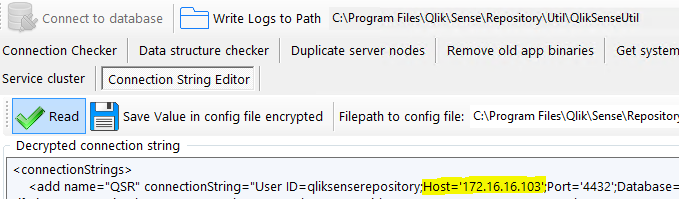
- Open QlikSenseUtil. By default, this will be installed in: C:\Program Files\Qlik\Sense\Repository\Util\QlikSenseUtil\QlikSenseUtil.exe
- Open the Connection String Editor and Read the current configuration, decrypting the current data.
- Replace all mentions of the current database hostname. In our example, the new database resides on 172.16.16.103. Instead of an IP you can also use the FQDN of the db server.
- You need to repeat this step for the sections <add name="QSMQ" and <add name="postgres"
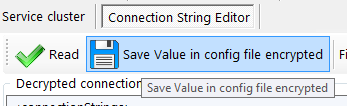
- Hit Save Value in config file encrypted, committing any changes.
Changing the Connection String to SenseServices Databases.
Execute steps in Moved Postgress database to new host, but some qliksense is still accessing the SenseServices old database; check if different version of article are present for different Qlik Sense version .
Changing the Connection String to Licenses Database ( April 2019 and up )
Starting from April 2019 new License Service implementation is using this database.
- Open an elevated Powershell and change directory to C:\Program Files\Qlik\Sense\Licenses
- Run the script .\Configure-Service.ps1 and provide:
- new Hostname or IP
- database port default is 4432
- database user qliksenserepository
- databasepassword is the qliksenserepository password used during configuration of the new database.
- example:
- cd 'C:\Program Files\Qlik\Sense\Licenses'
- .\Configure-Service.ps1 172.16.16.102 4432 qliksenserepository Password123!
It will look like this:
Windows PowerShell
Copyright (C) 2014 Microsoft Corporation. All rights reserved.
PS C:\Windows\system32> cd \
PS C:\> cd 'C:\Program Files\Qlik\Sense\Licenses'
PS C:\Program Files\Qlik\Sense\Licenses> .\Configure-Service.ps1 172.16.16.102 4432 qliksenserepository Password123!
Licenses configuration started.
WARNING: Skipping the database initialization. No superuser or password specified.
Reading the settings file.
Saving the modified settings.
Licenses configuration successful.
PS C:\Program Files\Qlik\Sense\Licenses>
repeat this for:C:\Program Files\Qlik\Sense\NotifierService\install\Configure-Service.ps1
C:\Program Files\Qlik\Sense\AppDistributionService\Configure-Service.ps1
C:\Program Files\Qlik\Sense\HybridDeploymentService\Configure-Service.ps1
C:\Program Files\Qlik\Sense\MobilityRegistrarService\install\Configure-Service.ps1
C:\Program Files\Qlik\Sense\PrecedentsService\install\Configure-Service.ps1
C:\Program Files\Qlik\Sense\NLAppSearch\install\Configure-Service.ps1there might come new services or disappear with new releases, please check in the C:\Program Files\Qlik\Sense\ folder for "Configure-Service.ps1" to find additional one in your version of Qlik Sense.
Note: If you have installed Qlik Sense in a different directory the Configure-Service.ps1 would have to be updated as in this example:
File: Configure-Service.ps1 Folders: Various (9 microservices)
Before:
11 | [string] $senseInstallPath
"$env:ProgramFiles\Qlik Sense",
After:
11
[string] $senseInstallPath = "D:\Qlik",Remove Database Service dependency and Postgres Server
After successfully verifying your new setup, remove the Qlik Sense Repository service dependencies and the old Postgres database. This is done to avoid issues with future Upgrade of Environment.
- In an elevated command prompt, execute the following on prompt:
c:\sc config "QlikSenseRepositoryService" depend= ""
c:\sc config "QlikLoggingService" depend= ""
This will return:
[SC] ChangeServiceConfig SUCCESS - Restart the Qlik Sense Repository Service.
Check that Qlik Sense Repository Database doesn't start (confirms [SC] ChangeServiceConfig SUCCESS ). - Remove the (local) Qlik Sense Repository Database
Find the most recent PostgreSQL.msi in C:\ProgramData\Package Cache\ and remove it. This removes the service but no old local database data. This is needed to prevent issues on future upgrades of Environment.
You can find the precise folder with this command depending on the Postgresql Version you used installing the inital release.
9.6:
c:\cd ProgramData\Package Cache
c:\ProgramData\Package Cache\dir /s PostgreSQL.msi
The folder containing PostgreSQL.msi will be revealed. Right click on the PostgreSQL.msi file and select uninstall from the menu.
12.5:
c:\cd ProgramData\Package Cache
c:\ProgramData\Package Cache\dir /s PostgreSQL125.msi
The folder containing PostgreSQL.msi will be revealed. Right click on the PostgreSQL.msi file and select uninstall from the menu.
Finalize
- Restart the Qlik Sense Repository Service and verify that Qlik Sense Repository Database Service doesn't exist when followed the previous steps.
- Start all remaining Sense Services
- Progress on the startup sequence (including the connection to the new database) can be tracked in the _System_Repository log files located in C:\ProgramData\Qlik\Sense\Log\Repository\Trace
- Verify functionality.
-
In Multi-node scenario you need to repeat steps "Changing the Connection Strings to Databases" on all Rim nodes (QlikSenseUtil for Repository.exe.config and Configure-Service.ps1 for the micro services), and if required configure "Update the Qlik Logging Service Connection String" (note that is EOL with Qlik Sense Enterprise on Windows February 2022) .
Environment
-
Talend Remote Engine logs filled with message: org.apache.karaf.main.lock.Simple...
After the Talend Remote Engine goes down, the Remote Engine logs repeatedly show the same message in TalendRemoteEngine/data/log/karaf.log: org.apache... Show MoreAfter the Talend Remote Engine goes down, the Remote Engine logs repeatedly show the same message in TalendRemoteEngine/data/log/karaf.log:
org.apache.karaf.main.lock.SimpleFileLock lock INFO: Lock failed
Resolution
To resolve this, verify ownership and permissions of the application files, remove stale lock files, and restart the Talend Remote Engine:
- Ensure that the dedicated Talend user and group have full recursive ownership over the application files to prevent any permission-related runtime errors:
sudo chown talenduser:talendgroup /opt/talend/TalendRemoteEngine -R
Adjust the absolute path `/opt/talend/` if your installation directory differs. - Stop the Talend Remote Engine Service:
sudo systemctl stop talend-remote-engine.service
- Manually purge the stale or unsynced lock file that is blocking the engine startup:
rm /opt/talend/TalendRemoteEngine/lock
- Restart the Talend Remote Engine Service. The engine will automatically generate a fresh, synced lock file upon a successful boot.
sudo systemctl start talend-remote-engine.service
Cause
An unexpected downtime or sudden disconnection of the Talend Remote Engine (RE) left the application's file lock (TalendRemoteEngine/lock) in an unsynced or stale state. Because the container detected this pre-existing lock file upon recovery, it assumed another process was already running, subsequently blocking all other dependent modules and services from initializing.
Environment
- Talend Remote Engine
- Ensure that the dedicated Talend user and group have full recursive ownership over the application files to prevent any permission-related runtime errors:
-
High Security fix for Qlik NPrinting (CVE-pending)
Executive Summary A security issue has been identified in Qlik NPrinting, and patches have been made available. If the vulnerability is successfully ... Show MoreExecutive Summary
A security issue has been identified in Qlik NPrinting, and patches have been made available. If the vulnerability is successfully exploited, the issue could lead to a compromise of the server running the Qlik NPrinting software, including unauthenticated remote code execution (RCE).
Affected Software
All versions of Qlik NPrinting prior to and including these releases are impacted:
- Qlik NPrinting February 2025 SR5
Severity Rating
Using the CVSS V3.1 scoring system (https://nvd.nist.gov/vuln-metrics/cvss), these issues are rated HIGH.
Vulnerability Details
(CVE-pending) OP-1018, Remote Code Execution (RCE) via Insecure Deserialization (TypeNameHandling.Auto)
Severity: CVSS:3.1/AV:N/AC:H/PR:H/UI:N/S:C/C:H/I:H/A:N 7.7(High)
Authenticated developers and administrators with network access may be able to execute arbitrary OS commands in Qlik NPrinting.
Resolution
Recommendation
Customers should upgrade Qlik NPrintings to a version containing the necessary fix. The fix is available for the following versions:
- Qlik NPrinting May 2026 IR
- Qlik NPrinting February 2025 SR 6
All Qlik software can be downloaded from our official Qlik Download page (customer login required).
-
Qlik Talend Studio: Resolve Git Lock File Conflict GitBaseRepositoryFactory.upda...
Qlik Talend Studio was successfully set up on a virtual machine (VM). After cloning the VM, opening Qlik Talend Studio fails to open projects, instead... Show MoreQlik Talend Studio was successfully set up on a virtual machine (VM). After cloning the VM, opening Qlik Talend Studio fails to open projects, instead erroring out with:
An error occured:
'void org.talend.repository.gitprovider.core.GitBaseRepositoryFactory.updateLockStatus()'
Resolution
To fix the error, shut down Qlik Talend Studio first, then delete all .lock files found inside the .git directories.
The git lock files are found in the workspace for Qlik Talend Studio:
- <talend_workspace>/.git/index.lock
- <talend_workspace>/.git/refs/heads/<branch>.lock
- <talend_workspace>/.git/HEAD.lock
- <talend_workspace>/.git/config.lock
- Check nested project repositories for additional files
Cause
The GitBaseRepositoryFactory.updateLockStatus() error commonly occurs due to stale Git lock files that were copied along with the VM snapshot.
When the VM was snapshotted or copied, Qlik Talend (or its embedded Git) was likely mid-operation or simply had lock files present. These .lock Files are now orphaned on the cloned VM, and Git thinks a process is holding a lock, but no such process exists.
Related Content [can be removed if not necessary]
[Paragraph format. Link to related content, such as articles, community posts, Help articles, etc...]
Internal Investigation ID(s) [can be removed if not necessary]
[Paragraph format with internal investigation IDs (e.g Jira case ID(s)) ]
Environment
- Qlik Talend Studio
-
Qlik Replicate Endpoint Server fails to start with Curl Status 3 Error due to /t...
The Qlik Replicate Endpoint Server fails to start. The error may occur after an upgrade or initial installation and presents with the following error:... Show MoreThe Qlik Replicate Endpoint Server fails to start. The error may occur after an upgrade or initial installation and presents with the following error:
Failed to curl_easy_perform: curl status = 3, URL using bad/illegal format or missing URL ()
Resolution
To resolve this issue, redirect the Java temporary directory to an alternative location that allows execution:
- Create a new temporary directory and ensure the Qlik Replicate user has full read/write/execute permissions:
-
mkdir -p /att_tmp
-
chmod 755 /att_tmp
-
chown attunity:attunity /att_tmp
-
- Navigate to the Qlik Replicate bin directory:
cd /opt/attunity/replicate/endpoint_srv/bin
- Back up the original script before editing:
cp rependctl.sh rependctl.sh.bak
- Open the script with a text editor:
vi rependctl.sh
- Locate the Java execution line at the end of the file (starts with "${AT_JAVA}").
- Add the -Djava.io.tmpdir=/<your_new_tmp_directory> parameter into the statement.
Example after modification:
"${AT_JAVA}" -XX:+UseG1GC -Djava.io.tmpdir=/att_tmp -Dfile.encoding=UTF-8 ${AT_JVM_OPT} -cp "${AT_CP}" "${AT_MAIN}" -d "${AT_DATA}" -plugins "${AT_PLUGIN_LIST}" "${@:1}" - Save the changes, exit the editor, and restart the Qlik Replicate services.
Cause
The Qlik Replicate Endpoint Server utilizes the default system /tmp directory to unpack and execute temporary binary files or scripts during startup. If the /tmp filesystem is mounted with the noexec parameter (typically for security hardening in /etc/fstab), or if there are restrictive permissions on the /tmp folder, the application will be blocked from executing these files, causing the initialization to fail.
Internal Investigation ID(s)
00397473
Environment
- Qlik Replicate
- Create a new temporary directory and ensure the Qlik Replicate user has full read/write/execute permissions:
-
Qlik Replicate: CDC not picking up specific numeric primary keys
Qlik Replicate tasks fail to capture primary keys with a numeric value in a string datatype. The problem occurs if the following criteria are met: Lo... Show MoreQlik Replicate tasks fail to capture primary keys with a numeric value in a string datatype.
The problem occurs if the following criteria are met:
- Log based SAP Hana replication
- The column is part of the Primary Key with a CHAR datatype
- The column contains both alphanumeric and numeric records
This leads to numeric records missing inserts during CDC replication. An upgrade to a later patch is required to resolve this issue.
Environment
- Qlik Replicate 2024.11.0.641
- SAP Hana Source endpoint
Resolution
Patch Qlik Replicate to (at least) 2025.11 SP04. Download the patch from the Qlik download page.
Qlik Replicate patches can be made available before their official release. Contact Qlik Support for details.
Environment
- Qlik Replicate 2024.11.0.641
- SAP Hana Source endpoint
-
How to update the Qlik Talend Data Catalog repository database password
This article documents how to update the Qlik Talend Data Catalog repository password, which can be achieved either through the Talend Data Catalog us... Show MoreThis article documents how to update the Qlik Talend Data Catalog repository password, which can be achieved either through the Talend Data Catalog user interface or the configuration files.
Changing the password in the user interface
- Log in to Qlik Talend Data Catalog with a user assigned the global role Application Administration.
- Navigate to Manage
- Go to System
- Click Configure
- Set the new database credentials, then click SAVE
- Restart the Qlik Talend Data Catalog service
Changing the password in the configuration files
- Stop the Talend Data Catalog Application Server
The application must be stopped completely before making changes to configuration files.
- Linux: Navigate to the software home directory and run the RestartServerApplication.sh script as follows:
cd /opt/<TDC_HOME>/TalendDataCatalog sudo ./RestartServerApplication.sh exit
- Windows: Go to the software home directory and run the RestartServerApplication.bat file to start the Talend Data Catalog Application Server. Alternatively, use the Windows Services applet.
- Linux: Navigate to the software home directory and run the RestartServerApplication.sh script as follows:
- Navigate to the Talend Data Catalog configuration directory: <TDC_INSTALLATION_DIR>/conf
- Locate the mm.conf.properties file
- Open mm.conf.properties using a text editor and identify the database connection password parameter:
db.connection.password=
- Update this value with the new password
Avoid extra spaces when updating the value.
- Save the changes
- Restart the Talend Data Catalog application to apply the updated configuration
Validation Steps
- Verify the Database Connection
After the application is up and running, validate that Talend Data Catalog successfully connects to the repository database. You can do this by checking the application logs or accessing the Talend Data Catalog interface. - Password Encryption Confirmation
After a successful restart, the password in the mm.conf.properties file should automatically be encrypted by the application. This confirms that the configuration has been applied correctly.
Environment
- Qlik Talend Data Catalog
-
Qlik Talend Data Catalog: General error during service initialization The Schedu...
Qlik Talend Data Catalog login fails with the following error written to the logs: General error during service initialization: The Scheduler has been... Show MoreQlik Talend Data Catalog login fails with the following error written to the logs:
General error during service initialization: The Scheduler has been shut down.
A complete error stack trace:
(System) MIRWEB_F0004 General error during service initialization: The Scheduler has been shutdown.
(System) MIRWEB_E0115 Application Exception for request: MITI.web.mm.actions.auth.InitLicense.
Browser URL:
Parameters:
username: Administrator
password: ********
MITI.web.common.exceptions.CommandFaultException: The Scheduler has been shutdown.
at MITI.web.mm.actions.auth.InitLicense.runJsonCommand(InitLicense.java:81) ~[1-MM.war:?]
at MITI.web.mm.actions.AbstractJsonAction.doExecute(AbstractJsonAction.java:27) ~[1-MM.war:?]Resolution
Restart the Qlik Talend Data Catalog application server using the RestartServerApplication script.
Linux:
Navigate to the software home directory and run the RestartServerApplication.sh script:
cd /opt/<TDC_HOME>/TalendDataCatalog sudo ./RestartServerApplication.sh exit
Windows:
Go to the software home directory and run the RestartServerApplication.bat file to start the Talend Data Catalog Application Server.
Alternatively, restart the service using the Windows Services applet.
Cause
The error indicates that the internal scheduler service (Quartz scheduler) is not running or has already been terminated when the web service tries to initialize. Because the application attempted to use the scheduler service, which had already been stopped when the server shut down due to license expiration. When the InitLicense request was executed, it attempted to access scheduled events, but the scheduler was not running or properly initialized.
Common root causes are:
- An expired license, leading to the scheduler service failing to start due to license expiration
- The Talend Data Catalog Tomcat server did not shut down correctly
Environment
- Qlik Talend Data Catalog
-
How To Submit an Idea or Propose and Improvement for Qlik Products
If you want to submit a new idea or improvement request for Qlik's products, our Ideas section in the Qlik Community is open to all registered custome... Show MoreIf you want to submit a new idea or improvement request for Qlik's products, our Ideas section in the Qlik Community is open to all registered customers. The Ideation portal covers ideas and suggestions for all Qlik Products, such as Qlik Cloud Analytics, Qlik Sense Enterprise on Windows, Qlik Talend, Qlik Stitch, and more.
Content:
Ideas are qualified and prioritized based on their value to improving and enhancing the Qlik product. For a successful request, please consider including a strong business case on why you think the change would be beneficial, including:
- Functionality: How does the product work now? How would you like it to work in the future?
- Motivation: Why is the change important for your business?
- Importance: What is the impact if the feature request is not approved?
- Benefits: What is the impact if the feature request is implemented?
Where to find Qlik Ideation
- Go to the Qlik Community
- Log in!
- After logging in, navigate to Ideation
A valid Qlik ID (log in to the Community) is required.
- You can navigate there manually from (a) Ideation
- And (b) Browse and Suggest
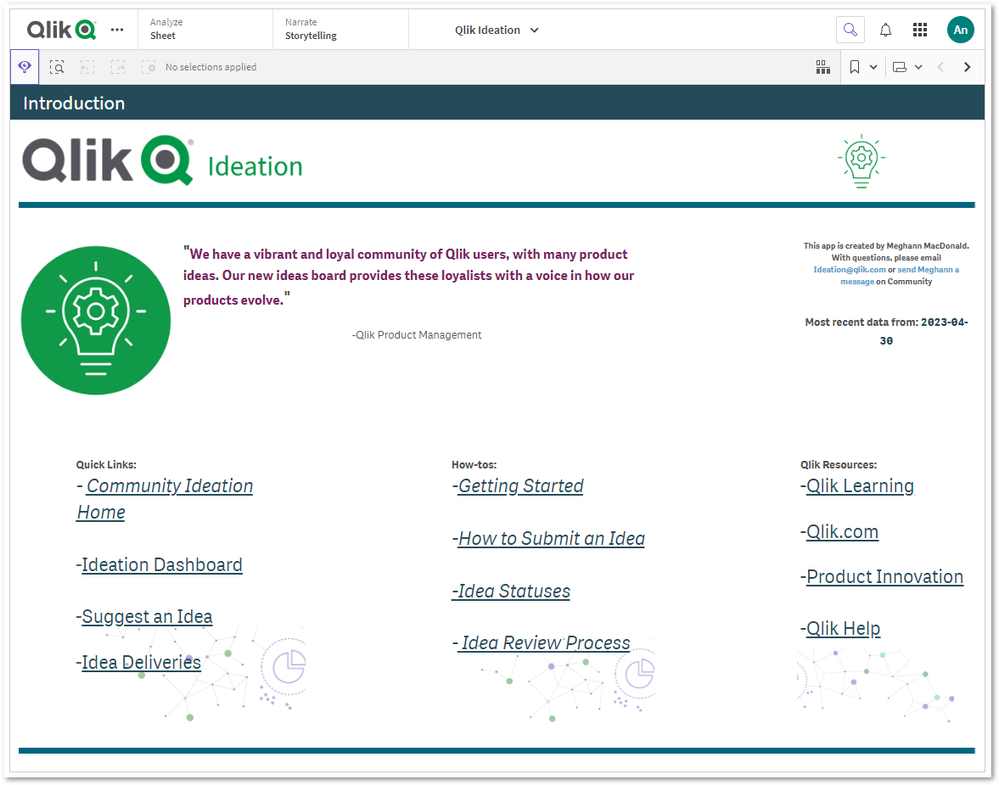
- Scroll down to locate the Ideation Landing Page / App
For more information on the Ideation Dashboard and its functionalities, see About Ideation.
How to submit an Idea on the Ideation
Before you get started, review Ideation Guidelines: How to Submit an Idea for submission guidelines and eligibility information.
- Go to the Ideas Site
A valid Qlik ID (log in to the Community) is required.
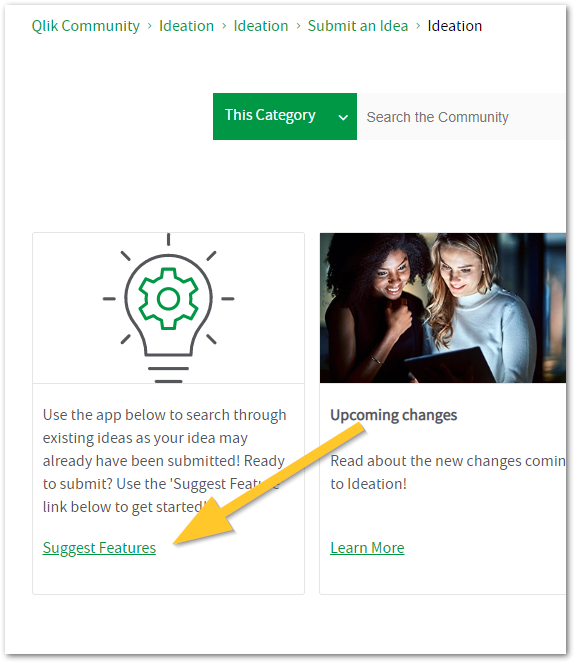
- Click the Suggest Features card
- Provide us with as much detail as possible, including a descriptive subject and description.
- Choose the appropriate Product Area.
- And click Submit request.
Ideas and Improvement requests are reviewed by our product teams. While we strive to provide answers, we cannot guarantee a specific response time.
Related Content:
Ideation on Community
Ideation Platform Updates
Ideation Guidelines: How to Submit an Idea -
MAM configuration for Qlik Analytics mobile app with Intune
This article documents an example of how to configure MAM control of the Qlik Analytics Mobile app. The example is provided as is. Qlik does not offe... Show MoreThis article documents an example of how to configure MAM control of the Qlik Analytics Mobile app.
The example is provided as is. Qlik does not offer guidance on configuring Entra Conditional Access policies or broader Intune deployments. For those details, see Learn about Conditional Access and Intune in the Microsoft documentation.
As per Securing and configuring the Qlik Analytics mobile app with Microsoft Intune and the section titled Conditional Access scope considerations, the authentication flow for the mobile app follows the Qlik Cloud IDP OIDC progression.
The pattern and steps outlined in this article are the working example Qlik used in verification testing of the Conditional Access control for the Qlik Analytics mobile app policy deployment. Your own policy and configuration definitions may vary, and Microsoft documentation or support should be contacted for further help that is specific to your Entra and Intune environments.
- Identify the IDP App Registration:
- Navigate to Entra ID → App registrations
- Locate the OIDC IDP app registration and note the Application (client) ID
- Confirm this is the client ID presenting itself during the OIDC browser redirect
- Modify Existing All Cloud Apps Policy
- Navigate to Protection → Conditional Access → Policies
- Open the existing All Cloud Apps policy
- Go to Cloud apps or actions → Exclude and add the IDP app registration client ID
- In Conditions → Device platforms: Any device
- In Conditions → Client apps: Browser + Mobile apps and desktop clients
- Grant access: Require device to be marked as compliant
- Save and set to Report-only at first
- Create a new Targeted Policy for IDP Registration
- Create a new CA policy
- Set Users to the same scope as the existing policy
- Set Cloud apps to include IDP app registration only
- In Conditions → Device platforms: iOS, Android, macOS, Linux
- In Conditions → Client apps: Browser + Mobile apps and desktop clients
- Grant access: Require multifactor authentication (MFA)
- Set to Report-only at first
- Validate in Report-Only before enabling
- Navigate to Sign-in logs
- Attempt the auth flow on a test device
- Check the sign-in log entry for the OIDC redirect leg
- Confirm report-only shows that the existing policy (Step 2) would have passed for a compliant device excluded
- Confirm report-only shows that the new policy (Step 3) would have passed for MFA on Authentication via Authenticator
- Once both are confirmed, switch both policies to enabled
On the test device:
- Clear app session state and OIDC tokens
- Re-attempt the full auth flow end-to-end
- Confirm OIDC leg completes → local token issued -> on Authentication via Authenticator
- Confirm MSAL leg completes → MAM policy on device confirmed
- Confirm Qlik Analytics loads successfully
Environment
- Qlik Cloud
- Qlik Analytics mobile with Intune
- Identify the IDP App Registration:
-
Qlik Replicate: ADLS Target High Target Latency
High target latency is observed when replicating to an Azure Data Lake Storage (ADLS) target. Because ADLS is a file-based storage system rather than ... Show MoreHigh target latency is observed when replicating to an Azure Data Lake Storage (ADLS) target.
Because ADLS is a file-based storage system rather than a traditional relational database, such high latency is unexpected.
Additionally, even though the File size reaches (KB) and Elapsed time reaches (Sec) thresholds are properly configured under the ADLS endpoint's Change Processing settings, Qlik Replicate fails to upload or transfer any CSV files to the target.
This behavior makes the replication task appear completely stuck or frozen.
Resolution
To resolve this issue, enable the internal parameter splitTransactionOverFiles on the endpoint. This forces Qlik Replicate to split large single transactions across multiple smaller files, allowing your file size and elapsed time thresholds to trigger properly and restoring normal file delivery.
- Open the ADLS endpoint settings and switch to the Advanced tab
- Click Internal Parameters
- Enter the parameter splitTransactionOverFiles
The field is case-sensitive.
- Enable the parameter
- Save
Cause
By default, Qlik Replicate writes an entire source transaction into a single target file.
If the source system executes a massive transaction (for example, updating 1 million records in a single commit), Qlik Replicate must process and write all 1 million records into the same CSV file and upload it.
This causes the file transfer to hold indefinitely until the entire transaction is written, resulting in high latency.
Environment
- Qlik Replicate