Unlock a world of possibilities! Login now and discover the exclusive benefits awaiting you.

Analytics & AI
Forums for Qlik Analytic solutions. Ask questions, join discussions, find solutions, and access documentation and resources.
Data Integration & Quality
Forums for Qlik Data Integration solutions. Ask questions, join discussions, find solutions, and access documentation and resources
Explore Qlik Gallery
Qlik Gallery is meant to encourage Qlikkies everywhere to share their progress – from a first Qlik app – to a favorite Qlik app – and everything in-between.
Qlik Community
Get started on Qlik Community, find How-To documents, and join general non-product related discussions.
Qlik Resources
Direct links to other resources within the Qlik ecosystem. We suggest you bookmark this page.
Qlik Academic Program
Qlik gives qualified university students, educators, and researchers free Qlik software and resources to prepare students for the data-driven workplace.
Recent Blog Posts
-
Renaming Fields with a Mapping Table
Is there a way to rename several field names in table all at once? This is a question I recently asked myself while building a data model. I was build... Show MoreIs there a way to rename several field names in table all at once? This is a question I recently asked myself while building a data model. I was building an app to explore various datasets and one of the source files included a CSV file that had over 300 fields. Most of the fields were codes used to describe a metric. I also had a key or definition table that provided a description for all the codes. Below is a small fictional example of the type of data included in the files.
Data Dictionary file example:
Data file example:
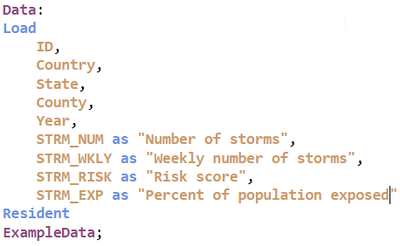
The data file was the file that had over 300 codes for the field names. Of course, I can rename fields in the script using “as” in my load script like this:
This is what I would normally do to rename fields in my data model, but when I have over 300 fields in a single table, this can be cumbersome. I use mapping tables all the time to normalize/update/scramble data in a field, but I did not know mapping tables could be used to also rename fields in a table. Here is the syntax to do this (Qlik Help).
Rename Field (using mapname | oldname to newname{ , oldname to newname })
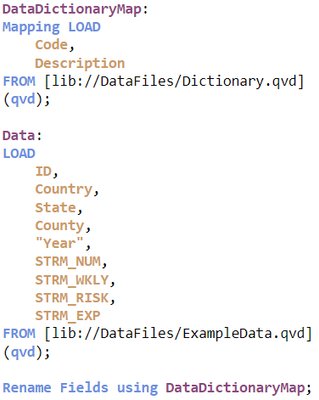
Rename Fields (using mapname | oldname to newname{ , oldname to newname })Depending on how many fields you are renaming, you use Rename Field or Rename Fields. One option is to use a map that was previously loaded using the Mapping Load syntax. The other option is to list the old name and new name as parameters in the script function. Since I have a file with all the codes and descriptions, I will use a mapping table in this function. In the script below, I load the data dictionary mapping table named DataDictionaryMap and then I load the Data table. To keep things simple in this example, the Data table only has 4 fields with code field names, but imagine there are over 300 fields with code field names. The last step is to rename the fields using the Rename Fields function using the DataDictionaryMap I created.
A preview of the Data table, as shown below, displays the new field names that use the code description. Instead of renaming each field individually, I used the Rename Fields script function along with a mapping table, to rename all the field names that were included in the map. Fields that are not in the map, remain the same with no change. Note that whenever you rename fields, you want to make sure there are no fields with the same name.
It is funny how I have used mapping tables and the rename table function all these years without coming across the rename fields function using a mapping table. Nonetheless, I love it when I learn something new so hopefully, you find this helpful.
Thanks,
Jennell
-
【オンデマンド配信】サプライチェーンの混乱とリアルタイムデータの融合
新型コロナウイルスの世界的流行やウクライナ紛争は、世界的なサプライチェーンに悪影響を及ぼし続けています。企業や個人消費者も、在庫不足・出荷遅延・価格高騰に絶え間ないストレスを感じています。 リアルタイムのデータを処理するインフラは以前からありますが、サプライチェーンの障壁を早期に特定し、障害が発生... Show More新型コロナウイルスの世界的流行やウクライナ紛争は、世界的なサプライチェーンに悪影響を及ぼし続けています。企業や個人消費者も、在庫不足・出荷遅延・価格高騰に絶え間ないストレスを感じています。
リアルタイムのデータを処理するインフラは以前からありますが、サプライチェーンの障壁を早期に特定し、障害が発生する前にリソースを補てん・移行することが、これまで以上に求められています。Qlik は、企業がデータを提供するパイプラインの可能性を最大化するソリューションで、課題の解決を支援します。
サプライチェーンの重要な課題にスマートかつタイムリーに対応するには?Qlik グローバルマーケットインテリジェンス シニアディレクターの Dan Sommer と、SDI 社 デジタルサプライチェーン変革部門 ディレクターの John Delligatti 氏が議論します。アラート機能で潜在的な課題に先手を打ち、不測の事態に対する強力な対応計画を実行してビジネスチャンスを捉える方法をご紹介します。
※ 参加費無料。パソコン・タブレット・スマートフォンで、どこからでもご視聴いただけます。日本語字幕付きでお届けします。
- デジタルコントロールチームの構築とデータ主導の業務改善
- リアルタイムの通知で、データを行動につながるインサイトヘ変換
- 自動化による業務の効率化とベテラン労働者不足の緩和
- データストーリーの共有で、説得力を強化
-
QlikWorld 2023 is Carbon Neutral!!
QlikWorld 2023 is Sustainable! This year QlikWorld will be a sustainable and carbon-neutral event!! Qlik has partnered with Climate Vault to include C... Show MoreQlikWorld 2023 is Sustainable!
This year QlikWorld will be a sustainable and carbon-neutral event!! Qlik has partnered with Climate Vault to include CO2e emissions from the QlikWorld 2023 event in overall reduction strategies as a leader in the fight against climate change. Qlik is committed to reducing water, energy, and waste to support our path to Net Zero CO2e emissions. Following this commitment, QlikWorld will be zero waste, donate all leftover food, focus on using reusable materials, and more! See more details in this blog.
One of the brightest areas of progress and an exciting trend is what’s happening with venues, who are taking their local footprint/impact and need to be more sustainable seriously. The QlikWorld team is partnering with our venue host Mandalay Bay so we can partner in designing an event with the goal of being carbon neutral. MGM Resorts has opened a Mega Solar array and announced to source 100% of renewable electricity in the US by 2030!
-
Connector Factory – March 2023 Releases
Connector Factory March Release Update: Enhanced connectors: Google BigQuery and MongoDB Qlik has expanded the capabilities of our Google BigQuery and... Show MoreConnector Factory March Release Update:
Enhanced connectors: Google BigQuery and MongoDB
Qlik has expanded the capabilities of our Google BigQuery and MongoDB connectors by providing the option for personal connections when accessing these repositories. Similar to our other enterprise connectors within Qlik Cloud Analytic (ex. Snowflake, Salesforce, Oracle, etc.), customers can now define user-specific credentials instead of the generic company identifications when connecting to Google BigQuery and MongoDB. Users can also save these credentials so they can be reused across multiple connection definitions to the same source.New connector: SFTP
Qlik Cloud Analytics now includes a SFTP connector that will enable you to download files from, or upload to, secure FTP locations. SFTP (SSH File Transfer Protocol) is a secure file transfer protocol that runs over the SSH protocol and can help enterprises meet HIPAA, GDPR and other regulatory rulings for file transfer compliance. Similar to other Qlik Cloud Analytics file-related connectors (SharePoint, Google Drive, Dropbox, etc.), users can also use this SFTP connector to browse and drill into any folder the user has access to on the SFTP server.Enhanced connectors: Azure SQL database and Azure Synapse Analytics
The Azure SQL database and Azure Synapse Analytics connectors now support two new authentication methods to enable a more secure authorization technique when accessing these repositories:
• The Azure OAuth method allows for single sign-on (SSO) when using the OAuth token-based authentication process
• The Azure Active Directory can be used to protect user identity and simplify the sign-in experience -
Using Nebula.js & D3.js to build a visualization extension for Qlik Sense: Bar C...
In my previous blog post, I talked about how custom visualization extensions enable you to go beyond the default visualization capabilities of Qlik Se... Show MoreIn my previous blog post, I talked about how custom visualization extensions enable you to go beyond the default visualization capabilities of Qlik Sense and we took a look at how to create a custom Stream Chart using Qlik’s Nebula.js and Picasso.js.
Sometimes however, you might find yourself wanting to build more complex charts that can be difficult to do using only what the Picasso.js library has to offer.
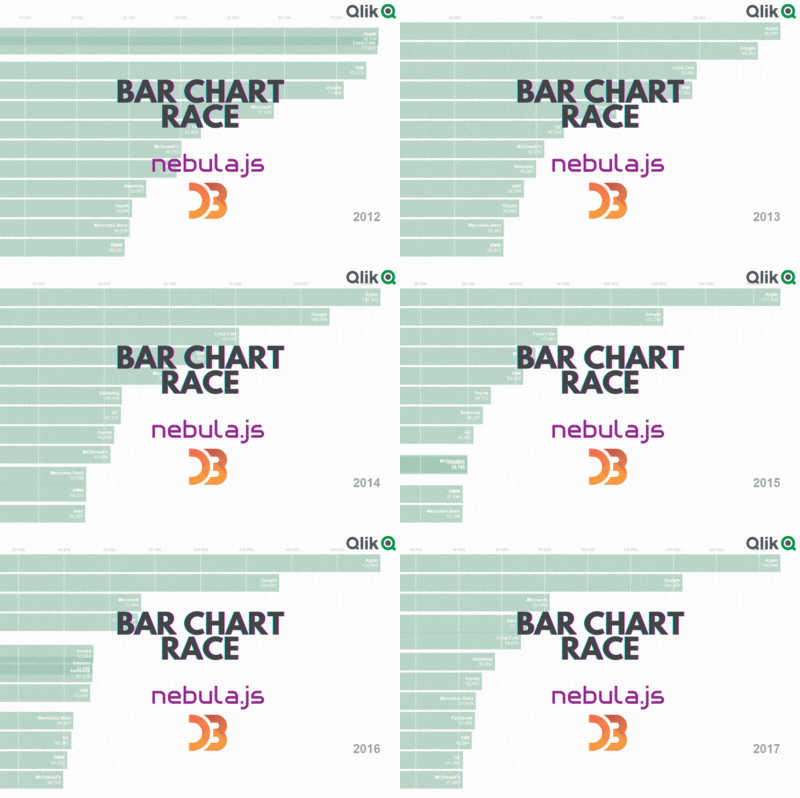
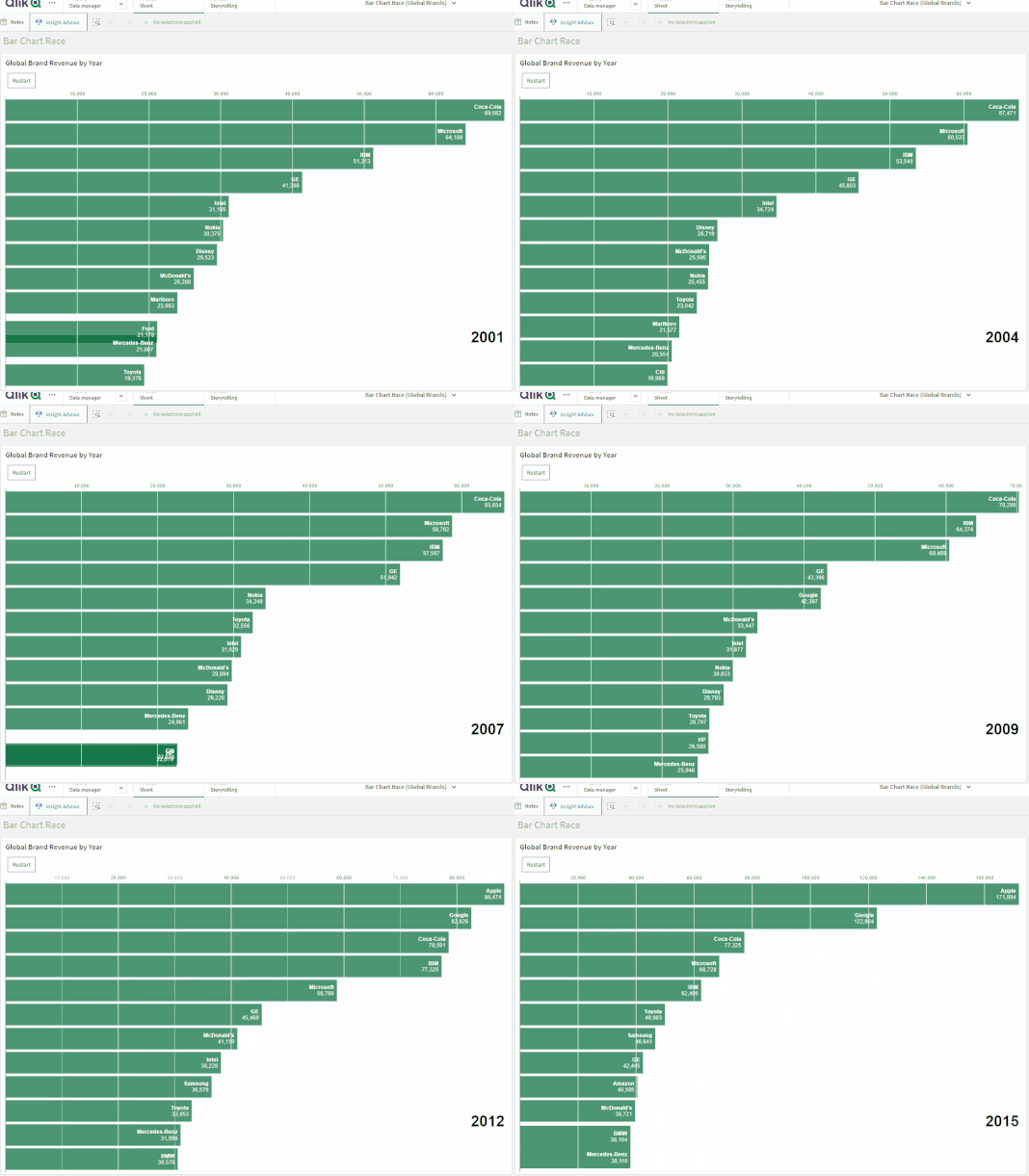
In this blog post, we will do just that as we build a cool Racing Bar Chart visualization using D3.js that we will then package and upload to our Qlik Cloud tenant.
First, let’s talk about what a Bar Chart Race visualization is and where you can use it to enhance your data storytelling:
A bar chart race is a type of data visualization that displays changes in data over time using dynamic animated bars. It’s often used to show the ranking or position of different groups or categories over a period of time.
In a bar chart race, the bars representing each group/category move horizontally or vertically to show the changes in their values over time. The length of the bars represents the magnitude of the data being visualized.
This type of chart is particularly effective in visualizing data that is dynamic and changes frequently. It can be used to compare different categories or groups in terms of their performance, popularity, or other factors over time. Bar chart races are also visually engaging, making them a popular tool for sharing data on social media and other platforms.
Some examples of usage include:
- Comparing sales data for different products or services
- Showing the distribution of income levels across a population
- Visualizing the frequency of different types of crimes in a city or region
- Monitoring the spread of a virus across countries
- Comparing the popularity of different social media platforms over time
Project setup
If you are new to creating visualization extensions in Qlik Sense, you might want to go through my previous blog post or check out these resources as I’m not going to cover all the details here.
- Run the following command to bootstrap the codebase (notice that we used the “—picasso none” to prevent the generation of a picasso.js template)'
npx @nebula.js/cli create racing-bar-chart --picasso none - Next, move into the newly created project directory and run the following commands (1st one to install D3.js, and 2nd one to run our project)
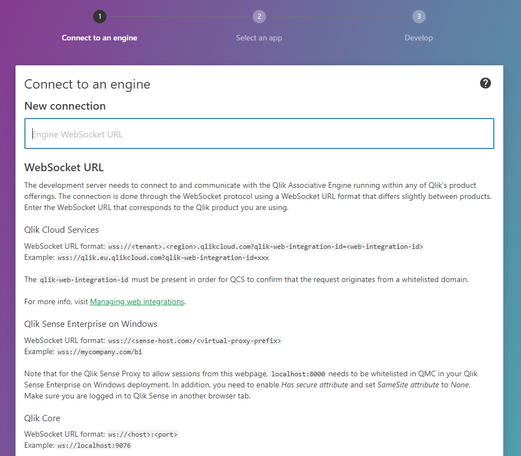
This will open the Nebula.js dev UI, follow the instructions to connect to your Qlik Cloud tenant:npm i d3@6.0.0 --save npm run start - Enter the websocket URL which includes the “web integration id” and is formatted like this:
wss://YOUR_TENANT.us.qlikcloud.com/&qlik-web-integration-id=YOUR_WEBINTEGRATION_ID
P.S: to get your web integration id, go to your Qlik Management Console, click on “Web” on the left sidebar, then click on “Create new"
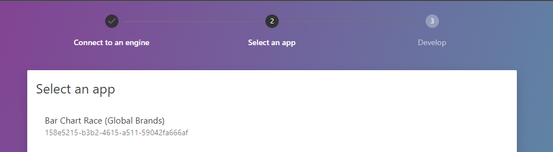
- Next, select the Qlik Sense App from the list (The QVF with data is attached to this post)
- Back to the code base, we need to edit the configuration files to define the data structure as follow:
- object-properties.js:
const properties = { showTitles: true, title: "", subtitle: "", footnote: "", qHyperCubeDef: { qDimensions: [], qMeasures: [], qInitialDataFetch: [ { qWidth: 3, qHeight: 3300, }, ], }, }; export default properties; - data.js:
export default {
  targets: [
    {
      path: "/qHyperCubeDef",
      dimensions: {
        min: 1,
      },
      measures: {
        min: 1,
      },
    },
  ],
};
- object-properties.js:
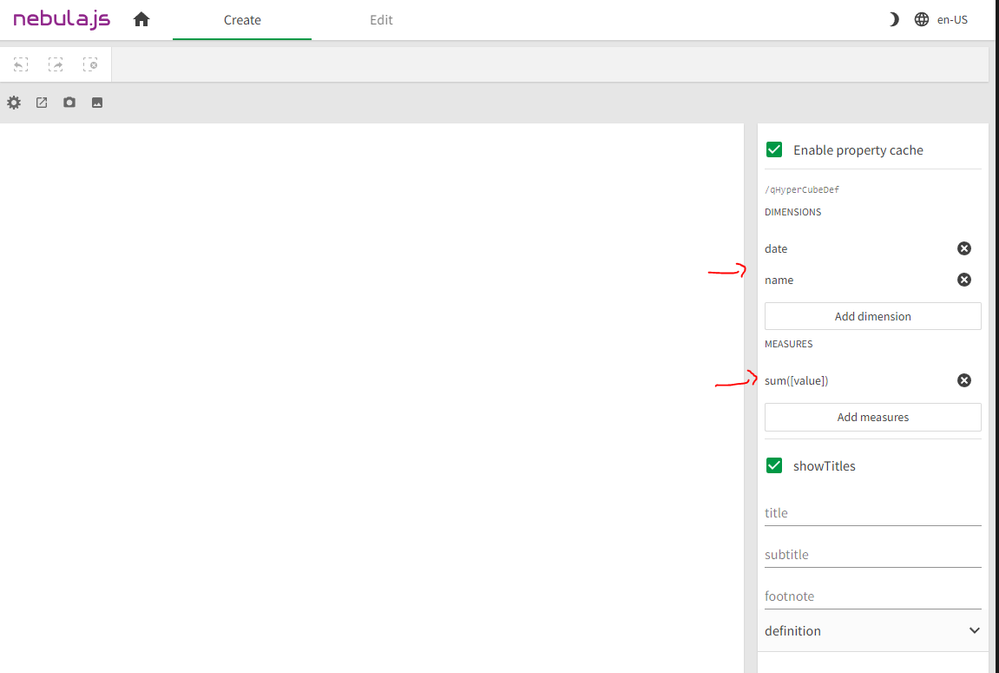
Since we’re going to view Brand Value over time for Companies, we need 1 measure (sum(value)) and 2 dimensions (Date and Name).
- You can now select these 2 dimensions and 1 measure in the Nebula.js dev UI on your browser:
Developing the visualization in Nebula.js and D3.js:
For the purposes of keeping this post short, we’re not going to dive deep into the details of the D3.js code. You can visit this comprehensive post by the co-creator of Observable and main developer of this library, that explains in detail the implementation of this chart.
- index.js:
This is the main entry of our extension and contains our Nebula.js code.
Note that we’re using a few hooks from the imported @nebula.js/stardust package which should be familiar if you’re used to developing React.js applications.
- useElement provides the HTML element where we attach our visualization.
- useLayout is used to get the layout of our generic object (hypercube).
- useEffect is used to run the callback function we pass it when certain values change.
- useState helps keep track of state within the application. In this case we use it to replay the animation.
- vis.js:
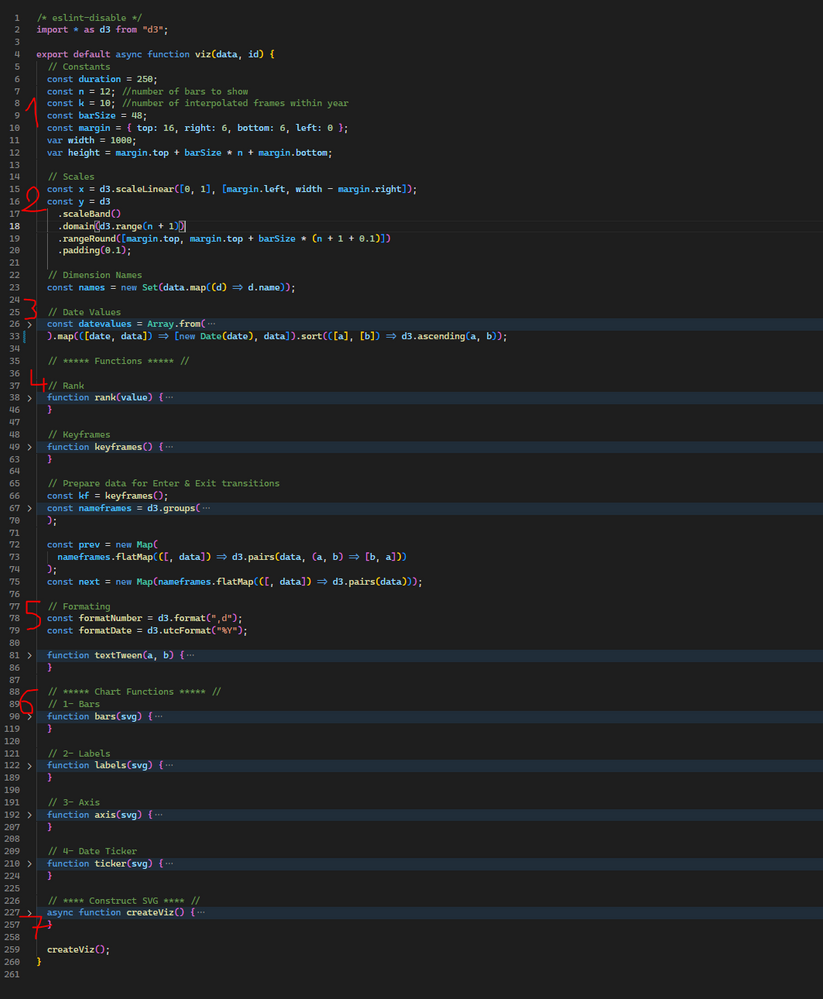
This is where all the magic happens and where the D3.js specific code lives. For brevity, I will highlight the important parts of this file:
1: constants needed in calculating d3 scales and positionning.
2: D3 scales with x being a linear scale and y being a band scale
3: Data derived from the source data (gets passed on index.js)
4: Helper functions including rank() function to compute brand ranks, and keyframes() to compute interpolate values within each year for a smooth animation.
5: D3 formatting functions
6: D3 drawing functions for the components that make up the visualization:
- Bars
- x-axis
- labels (on each bar)
- ticker (Date)
7: D3 animation that iterates over each keyframe and updates the components above.
Finally, to build the extension, run:
npm run buildAnd in order to package the extension for Qlik Sense, run: (make sure to zip the folder in /dist before uploading it to your tenant)
npm run sense-------------------------------
Source Code on Github: https://github.com/ouadie-limouni/Qlik-Nebula-Bar-Chart-Race-Viz-Extension
Zipped Extension: Attached
QVF: Attached
-
Qlik Data Integration Client Managed Releases in February 2023
February is traditionally the month to show you care about somebody you love, and this month we continue to give some love to our Qlik Data Integratio... Show MoreFebruary is traditionally the month to show you care about somebody you love, and this month we continue to give some love to our Qlik Data Integration Client-Managed portfolio with a round of several releases, mainly through our regular scheduled Service Releases. As a reminder for our client-managed portfolio, we currently have an annual release cadence of two main GA releases, and generally two Service Releases, and in between patches can be released on an as-needed basis.
Here is a round-up of some of the highlights of what's new.
Qlik Replicate November 2022 Service Release 1
In this release of Qlik Replicate, we have made some improvements and enhancements around source and target endpoints.
Support 4-byte Replication into Cloud targets from Oracle source
We have removed a previous limitation by adding support for replicating data with 4-byte emoji characters, from an Oracle source into various cloud targets:
- Snowflake
- Databricks
- Azure Synapse
- Google Big Query
Databricks as a Target
Continuing with our strong working partnership with Databricks we have added support for Databricks (Cloud Storage) and Databricks Lakehouse (Delta) 11.3 LTS
Qlik Compose May 2022 Service Release 2
Databricks Unity Catalog integration
Until now Qlik Compose did not integrate with Databricks’ Unity Catalog. With this release, you can define and configure a Unity Catalog as the target for Qlik Compose tasks. Qlik Compose users can utilize a three-part naming convention to register generated Delta tables and Live views. Qlik users then get the benefits of the Unity Catalog, such as role-based access control, lineage, and more, as they consume the registered data.
Engineers using Qlik Replicate to write non-Delta formats would require the hive_metastore catalog as a target. Qlik Compose reads metadata and data from the hive_metastore catalog and then creates and processes data to delta tables in the target Unity Catalog. Qlik Compose users can streamline this multi-step process once Unity Catalog supports partitioned external tables in non-Delta formats.
Performance and cost improvement
Before, Qlik Compose did not skip the subsequent SQL execution steps that used a table with no rows loaded into it as part of data movement or transformation. Now, with this release, Qlik Compose culls groups of hundreds of SQL execution steps when not required, based on run time metadata. This helps to reduce execution time and further improves the suitability for low-latency use cases. This capability is available in both Snowflake and Microsoft Synapse.
Enhanced security and governance
In the past, Qlik Compose Synapse projects created all dimension and fact tables within a single schema as part of the data mart configuration, with dependent views created in different schemas. With this release, you can configure physical data mart tables in different schemas with Qlik Compose – you can have the finance data mart in the finance schema, the revenue data mart in the revenue schema, and so on.
This fine-grained control will allow the data warehouse administrators to separate the different artifacts, leading to higher security. Also, administrators can provide user permissions at the schema level rather than an at an individual table or view level, simplifying administration.
This capability was previously available for Snowflake and Microsoft SQL Server and is now available for Microsoft Synapse.
Command Line interface improvements
Based on customer feedback, we have improved how Qlik Compose users can update custom-SQL within pre-load, intermediate and post-load steps for data warehouse and data mart automation. With this release, you can now revise these steps using the command line interface rather than having to rely on the user interface, which customers have informed us was not as time efficient as it could be. Custom-SQL can be written in files to update multiple development and CI/CD environments helping to reduce time to production.
Qlik Catalog February 2023 Client-managed
Schedule load jobs via properties - This release for Qlik Catalog builds upon the data load scheduling capability that was introduced in the November 2022 release. Users can now define these schedules via properties in the source connector object.
Modify publish job datasets - Previously, once a dataset was defined during the publishing job creation process, it could not be changed. The user now has the ability to subsequently modify the dataset.
Expanded support for PowerBI - Qlik Catalog already supports the publishing of data to Microsoft PowerBI Pro and Premium. In this release, we have added support for Microsoft GCC (Government Community Cloud).
We hope you enjoy using Qlik Data Integration products and would love to hear your feedback and success stories, especially in any improvement gains you achieve.
To learn more, please visit the Downloads and Release Notes section on Qlik Community
Release notes are available here
To obtain any of these releases, go to Qlik Downloads in the community and filter “Category” by “Qlik Data Integration”, and then select the product and the versions you would like to download.
Note: For most products, selecting “Latest release and patch” under the “Release Assets” by should be enough.
If required you can filter further by selecting the latest Service Release (SR) version under “Release Number”.
For additional help in using the downloads site - watch this handy video guide here:
How-to-download-Qlik-Products -
Start with a New User Learning Plan for Free!
Are you a NEW USER looking for a place to start learning or an experienced user needing guidance on the NEXT STEPS in your learning journey, our learn... Show MoreAre you a NEW USER looking for a place to start learning or an experienced user needing guidance on the NEXT STEPS in your learning journey, our learning plans will get you where you need to go.
Our targeted, prescriptive learning plans are perfect way to get started. The New user plans are free! Access learning Plans and take the guesswork out of what to do next in your learning journey.
Once you complete all courses in one of the New User Learning Plans, Earn your Achievements Badge. Happy Learning!

-
Attending QlikWorld? Register for your 1st Certification Exam for Free!
Every QlikWorld attendee can register for 1 (one) exam for free! Any additional certification exams are discounted to $100. To receive your free cert... Show MoreEvery QlikWorld attendee can register for 1 (one) exam for free! Any additional certification exams are discounted to $100. To receive your free certification exam or to register for additional exams, please complete the steps below:
- Refer to the Free Certification section on the QlikWorld site for the free exam voucher code
- Visit https://home.pearsonvue.com/qlik/qlikworld (QlikWorld discounts are only available via this link)
- Click ‘Register for your exam’
- Select which Qlik certification exam you wish to register for
- When asked where you want to take your exam, select ‘At a test center’
- Select your date and time from the available appointments
- On the check-out page, click ‘Add Voucher or Promo Code’ and enter the voucher code found on the QlikWorld site.
- Additional exams are discounted to $100, no voucher code needed.
Appointments are limited. All exams must be taken on-site during QlikWorld April 17-20 to receive the discounts.
Contact certification@qlik.com for questions!
-
Databricks and Google BigQuery available for Direct Query in Qlik Sense SaaS!
Now users can connect to Google BigQuery and Databricks databases using Direct Query in Qlik Sense SaaS. Direct Query provides the ability for analyti... Show MoreNow users can connect to Google BigQuery and Databricks databases using Direct Query in Qlik Sense SaaS. Direct Query provides the ability for analytics applications to directly query cloud databases with SQL pushdown as users interact with data through visualizations and easy filtering. Direct Query allows developers to build SQL-centric applications for big data analysis or near real-time scenarios.
Direct Query complements our best-in-class analytics engine and extends the range of consumption techniques for data discovery and analyzing data from cloud databases.
As of the date of this publication, Qlik has released the following connector for Direct Query:
- Snowflake
- Databricks
- Google BigQuery
To learn more about Direct Query, check out this blog and documentation here.
For more in-depth overview, see:
-
Welcome to our new Educator Ambassador, Dorina Kabakchieve!
Dorina is Associated Professor at the Department of Information Technologies and Communication, at the University of National and World Economy (UNWE)... Show MoreDorina is Associated Professor at the Department of Information Technologies and Communication, at the University of National and World Economy (UNWE). Dorina lives in Sofia, Bulgaria, with her husband while her two children study at university in the Netherlands. She has been using Qlik in her teaching for 10 years, in the Business Intelligence and Data Mining fields. She also works on many other projects (European and national) in the ICT field, both managing and doing research.
Dorina was inspired to use Qlik after attending a workshop, “The training was organized by a Bulgarian company – Balkan Services, implementing QlikView software in Bulgarian companies. During the workshop, I spoke with the company representatives about the opportunities for using QlikView at the University and they supported me. That is how our long-term collaboration started and continues.”
“I am using the software and the provided resources in my classes in the Business Intelligence courses for BSc and MSc students. I have defined assignments aimed at teaching the software functionalities, as well as use cases - for creating BI applications based on business data. The students use the software also to develop their bachelor and master theses.”
Using Qlik in the classroom has helped some of Dorina’s students secure jobs after graduation, she says “there are students who have participated in my courses and later on informed me, or I met them at events, that they have taken the position of BI consultants in companies. Some of the students have joined the BI teams of famous international companies, and others work for smaller companies. As the years pass by, some of those people have further developed their careers and took managerial positions related to BI.”
Dorina wanted to become an Educator Ambassador to expand her network and establish new relations with other university colleagues and business professionals.” I would be grateful to exchange ideas and experience, in order to implement new approaches, teaching methods and interesting activities in my classes. The involvement of business professionals in the teaching process and the more active collaboration with the business are also goals that are in my focus.”
When she isn’t teaching Dorina loves to hike in the beautiful Bulgarian mountains, every week she walks in Vitosha mountain which is 15 min away from Sofia. She also likes reading, going to the theatre, practicing yoga and cooking. When she has time off she loves to travel within Bulgaria because of its beautiful nature, as well as visiting some of her favorite countries in Europe - Spain, Italy and Greece. In the past few years she has also made trips to parts of Asia and the USA.
If you'd like to learn more about how you can get access to free software and training resources to use in your teaching, follow this link for more information: qlik.com/academicprogram
-
One Day Left for QlikWorld Super Savings - Register Now!
Register Now - $200 Savings Ends Tomorrow! QlikWorld is a Month Away! Check Out the QlikWorld Speaker Lineup Emcee: Katie Linendoll, Emmy... Show MoreRegister Now - $200 Savings Ends Tomorrow!
QlikWorld is a Month Away! Check Out the QlikWorld Speaker Lineup
100+ Breakout Sessions. 5 Workshops. 8 Certifications. Unlimited knowledge. Check out the online session guide >
Don’t miss out. Register today.
-
【オンデマンド配信】データファブリックで時間短縮とコスト削減を実現
データファブリックは、なぜ重要なのか? 多くの企業が同様の課題に直面しています。膨大なデータが至る所に分散し、異なるアクセスレベルがデータへのアクセスを妨げているため、データから迅速に行動につながる有益なインサイトを獲得することができていません。 この課題を解決するのが「データファブリック」です。... Show Moreデータファブリックは、なぜ重要なのか?
多くの企業が同様の課題に直面しています。膨大なデータが至る所に分散し、異なるアクセスレベルがデータへのアクセスを妨げているため、データから迅速に行動につながる有益なインサイトを獲得することができていません。
この課題を解決するのが「データファブリック」です。俊敏性と拡張性を備えたデータファブリックは、今日のデータ管理の進化にリアルタイムで対応するアーキテクチャの構築を支援します。
GigaOm 社 リサーチディレクターの Andrew Brust 氏と、Qlik 製品マーケティング部門 副社長の Dan Potter が、データファブリックの仕組みや考慮すべき成功要因、導入を成功に導くデータ統合の重要な役割をご説明します。
※ 参加費無料。パソコン・タブレット・スマートフォンで、どこからでもご視聴いただけます。日本語字幕付きでお届けします。
- データファブリックの概要
- データファブリックを使用すべき理由
- 考慮すべきリスク
- ユースケースとシナリオ
- コストと価値創出までの時間
- 30 / 60 / 90日導入計画
-
Register for Hands-on Workshops at QlikWorld Today!
Take Your Career to the Next Level at QlikWorld. Register for Hands-on Workshops Today! 10+ hours of roll up your sleeves, immersive working sessions.... Show MoreTake Your Career to the Next Level at QlikWorld. Register for Hands-on Workshops Today!
10+ hours of roll up your sleeves, immersive working sessions. Learn technical best practices on how to implement and optimize Qlik Products and Solutions.
*A $1000 value included in conference pass!
Space is limited, seats are filling fast! Register now!
How to Register for Workshops at QlikWorld:
- Log in to the breakout catalog
- Filter by Session Type, Hands-on Workshop
- Click the “+” button to register and add them to your customizable schedule
Technical Workshops:
Introduction to Qlik AutoML Hands-On Workshop
Qlik Cloud Data Integration Hands-On Workshop
Qlik Cloud Embedded Analytics Hands-On Workshop
Migrating to Qlik Cloud Hands-On Workshop
Build And Create A Simple Data Pipeline With Talend Studio Hands-On Workshop
SaaS Data Integration And Data Quality Hands-On Workshop
*IMPORTANT - Registration required and participation requires that you bring your own device (BYOD). Laptop recommended.
-
Welcome back Nassir Ibrahim! - Qlik Educator Ambassador Class of 2023
This week we introduce you to one of our returning Educator Ambassadors for 2023, Nassir Ibrahim, a lecturer at Birmingham City University. This is Na... Show MoreThis week we introduce you to one of our returning Educator Ambassadors for 2023, Nassir Ibrahim, a lecturer at Birmingham City University. This is Nassir's second year as an Educator Ambassador. Nassir integrated Qlik Sense and the Academic Program into his teaching in the last year or so, however he immediately saw the benefits to his students and their employability.
Nassir introduced Qlik to his final year undergraduate students on his Data Intelligence module, having heard about Qlik from a colleague and Qlik Educator Ambassador. He explained “what I found from using various tools, is Qlik has an edge over other tools, because of its user friendliness and because of its training and learning materials online.”
Nassir, like many Educators, wanted to incorporate Qlik Sense into his teaching but he had not yet used it himself, “Qlik has excellent training resources, [some] of the best I have ever seen so I had to become familiar with the technology and know how to use it myself. There are the video training materials you have; they are excellent... It’s about becoming a student and learning yourself in order to help others learn.”
Many Educators who join the Academic Program are unsure of how they can incorporate Qlik sense into their teaching, Nassir found that the best way to do this was by utilizing the interactive videos we offer. “Some of your videos are quite long but generally they are 30 to 40 minutes and I think that’s perfect. We would structure our classes with breaking down some of the longer videos. They would have 20 minutes of the tutorial and then the students would do the exercises themselves, because the students benefit more from doing”.
One of Nassir's goals with implementing Qlik Sense into his teaching was to support student employability. “The job market is asking for knowledge of Qlik now and by doing well in this module [students] could show that they have a good understanding of the functionalities of Qlik. There was one student who graduated last summer, and he is now working in a company as a software developer and they use Qlik.”
“This was a proud moment because all of the resources you shared with me, were actually required in the job market. It showed that we were preparing our students for the industry world adequately…all it takes is one student to show that the work we had done was worthwhile”.
Regardless of proud moments such as this, Nassir is still determined to reach those students who still might not be as engaged with Qlik. “In the next Academic Year I think I will they will have to present their work back to us and demonstrate how they’ve used the tool to stretch them a bit more”. Nassir wants to cover the fundamentals but then have the students explore the tool for themselves as well. “What can they discover about the tool that they had not anticipated previously? only when they start to explore and imagine some of the things that they could do with the tool will they be able to say hey, this is actually something which we could use to solve our problem in ways that we didn't think of in the beginning”.
When Nassir isn’t teaching, he likes to spend time working on his own personal development, weight training and trying to beat his best time on the racetrack! Nassir also enjoys developing scientific toolkits for business decision-making and that automate business tasks!
If you are interested in learning how the Academic Program can support your students with their data analytics and employability skills, you can learn more by visiting qlik.com/academicprogram.
-
Breakout Session Agenda Out Now!
NEW: The QlikWorld breakout program schedule is out! Over 100 sessions and 10+ hours of hands-on workshops to choose from! Find the agenda here. Log... Show MoreNEW: The QlikWorld breakout program schedule is out! Over 100 sessions and 10+ hours of hands-on workshops to choose from!
Find the agenda here. Log in and start registering for sessions by clicking the “+” button to build your personal schedule to get the most value from your QlikWorld experience!
You won't want to miss the Qlik Product Roadmap session to hear our strategy for 2023 and beyond from our Product Management and Product Marketing Leadership teams, @Ian_Crosland , @TimGarrod , @Denise_LaForgia , @PietMichielRappelet
-
Welcome back Javier León! - Qlik Educator Ambassador Class of 2023
As well as teaching at Saint Joseph’s University, Vilanova University and Drexel University. This past year Javier joined Rowan University, teaching... Show MoreAs well as teaching at Saint Joseph’s University, Vilanova University and Drexel University. This past year Javier joined Rowan University, teaching Market Research to Undergraduates. The main objective of his new course at Rowan is to help students improve their research abilities using applied statistics and data analysis.
Javier is passionate about data literacy and this drives many of his courses,” I teach several different courses in areas such as Marketing, Business Intelligence, Business Analysis, Business Analytics, R Programming, Management Information Systems, Statistics, and Data Visualization. In all courses, I have started talking to my students about the importance of data literacy and I make it a point for them to see how Artificial Intelligence can be used to augment their capabilities in each area.”
One of Javier’s key aims this year is to continue giving his students the chance to learn on market leading software through the Qlik Academic Program. He has set himself a number of objectives this year, one of which is “Provide students with the necessary tools to help them become data literate I want all my students, regardless of their major, program, or background, to be able to read and communicate with data. One great enabler for this objective is Qlik Continuous Classroom because it offers students multiple tools and courses that allow them to turn their data into information and actionable dashboards using Qlik Sense.”
Javier foresees a great increase in demand for professionals who can work with data visualization, AI and machine learning, data privacy and cybersecurity and cloud computing. He also believes,” Business intelligence is an essential part of analytics, and there is a growing demand for professionals who can use data to help organizations make informed decisions. In higher education, there is a growing demand for programs that teach students about business intelligence and its applications in various industries."
As well as teaching Javier continues to work as a project manager for Amazon Produce Network, where he is working on a tool to connect the capabilities of growers with the needs of customers. Yet he still found the time to apply as an Educator Ambassador for the third time, “I applied once more because I believe in Qlik's Vision of (...)a data-literate world. Where people, businesses, organizations, and governments tackle their most complex challenges with data. Being an ambassador I have the opportunity and privilege to work with multiple different professionals who are passionate about knowledge. Also, thanks to the seminars and meetings we hold, I have the opportunity to keep my knowledge current and to be exposed to new trends and tendencies in the Industry, something much needed by every professional... . I think I will apply for as long as you will have me!”
If you'd like to learn more about the free software and training resources you could be eligible for as part of our program please visit qlik.com/academicprogram.
-
Get excited because QlikWorld is near! Live. In-Person. And reinvented.
QlikWorld is back in person for the first time since 2019, and this year is a year to come join us in Las Vegas to celebrate! We’ve reinvented our big... Show MoreQlikWorld is back in person for the first time since 2019, and this year is a year to come join us in Las Vegas to celebrate!
We’ve reinvented our biggest event, so now you get all of the learning, all of the inspiration and lots of peer connection – but also a thrilling time filled with ways to get you excited about data integration, analytics and everything in between.
We have EXTENDED Early Bird Registration until March 21st! SAVE $200 by registering for QlikWorld now!
SAVE $150 on Certifications. Spots are limited so be sure to snag the time slot you desire most because once they’re gone, they’re gone, and we would hate for you to miss this incredible in-person opportunity. Learn more here.
New! Check out our breakout catalog with 100+ sessions! Attendees will hear customer success stories from companies like Volvo, Lenovo, Intuit, Siemens, Samsung, and Takeuchi as well as partners and industry analysts. Stay tuned for more announcements about our keynote speakers.
For more details including the agenda and FAQs, visit our QlikWorld page.
Feel free to post using #QlikWorld and the photos below once you have registered! We’ll see you in Las Vegas!
-
Welcome back Angelika Klidas - Qlik Educator Ambassador Class of 2023!
This week we would like to introduce Angelika Klidas, who happens to be a returning Educator Ambassador. We are excited to select Angelika as an Amba... Show MoreThis week we would like to introduce Angelika Klidas, who happens to be a returning Educator Ambassador. We are excited to select Angelika as an Ambassador for the 3rd year in a row due to her continued enthusiasm for Qlik’s Academic Program and her efforts in 2022.
Angelika’s journey with Qlik began in 2008 when she started out installing and managing a successful QlikView Competence Center as a team manager of the team for a Governmental Organization in the Netherlands. Since then, she has always been a huge Qlik advocate in both her day job and her university teaching. Angelika works currently as an Operations Manager at Bitmetric BV and is responsible for general management, determining the strategic and tactical direction of the company, sales and account management along with some innovative work! She also teaches Data and Analytics at the University of Applied Sciences in Amsterdam which is her part time role. She is a conceptual thinker who lives by the phrase “think big, act small, and scale fast” which she uses to inspire others to evolve in their use of data and analytics.
In 2022, Angelika began writing a book together with Qlik’s Chief Learning Officer Kevin Hanegan about Data Literacy. The book was formally launched on the 30th of November 2022 and is called “Data Literacy in Practice”. The book is available through Amazon.com and Packt.com.
Angelika applied to become a Professor Ambassador with the Qlik Academic Program as she is passionate about educating students in data analytics and championing the cause of data literacy. Due to the change in situation in the field of education, she included new aspects in her teaching style which include preparing questions in Kahoot and the book “Data Literacy in Practice” is now also a mandatory book for the University. With the help of the techniques from the book and learning to work with Qlik Sense helps her students not only to analyze the data in a better manner but also how to help organizations form a data strategy, develop organizational KPI’s and build amazing dashboards & reports.
Angelika is proud of the fact that she is the Qlik Academic Program Ambassador and has included the Educator Ambassador badge, mentioned it on her resume and highlights it in her presentations! She is keen to present at Qlik World, Qlik’s flagship event, and hopefully that might materialize in the future!
In Angelika’s words, “I love the power of grey, love the academic program and the great benefit that it gives to me and my students. My students can pursue their dreams when they would like to work in data and analytics .” She is excited about the fact that some of her students got a job in the data and analytics world, which is amazing! An interesting fact is that since 2008, 32% of her 275 students are working in the field of data and analytics. Her main goal for 2023 is to work on training for Data Literacy in Dutch and English, based on the book Data Literacy in Practice.
Angelika feels that more and more organizations are now emphasizing the importance of data literacy and putting data management in place. She loves to work with the four pillar system which should be the basis of every organizations journey towards “Active Intelligence” so they will be future ready!
In Angelika’s words, “I love the Qlik Academic Program, it helps the students in gaining analytics knowledge for my students. They can learn at their own pace and look for solutions through the learning platform, but also use the knowledge from the community and demos.qlik.com where they can find all kinds of cool solutions”
We are looking forward to working closely with Angelika during her tenure as an ambassador yet again and creating more links with Universities in the Netherlands.
For more information about our Ambassador Program, please visit: qlik.com/us/company/academic-program/ambassadors
-
【4/4(火)- 6(木)開催】2023 ガートナー データ & アナリティクス サミット
Qlik は、今年も「2023 ガートナー データ & アナリティクス サミット 」に、講演およびブース出展します。Qlik のエンドツーエンドのデータ統合および分析クラウドプラットフォームが、どのようにビジネスの瞬間を捉えるのか。受け身のツールセットから、リアルタイムの情報を提供し、即座に行動を起... Show MoreQlik は、今年も「2023 ガートナー データ & アナリティクス サミット 」に、講演およびブース出展します。
Qlik のエンドツーエンドのデータ統合および分析クラウドプラットフォームが、どのようにビジネスの瞬間を捉えるのか。受け身のツールセットから、リアルタイムの情報を提供し、即座に行動を起こすことができるよう構築された能動的なシステムへ移行する方法をご紹介します。
データとアナリティクスのリーダーが一堂に会する世界で最も重要な IT イベントに、ぜひご参加ください。Qlik 講演および Qlik ブースで、皆さまをお待ちしております。詳細を見る
【開催概要】
日時:2023年 4月 4日(火)– 6日(木)
会場:ウェスティンホテル東京(恵比寿) -
Qlik Digest - March 2023
WHAT’S NEW AT QLIK? Qlik already supports over 250 data sources, but there’s more to come. Introducing the Connector Factory - our strategy to acceler... Show MoreWHAT’S NEW AT QLIK?
Qlik already supports over 250 data sources, but there’s more to come. Introducing the Connector Factory - our strategy to accelerate the delivery of connectors. We’ll be delivering enhanced connectors for Analytics, plus over 100 new connectors in 2023 for Qlik Cloud Data Integration. LEARN MORE
Get the new client-managed releases for Qlik Sense, Qlik Replicate and more. Download here
QlikWorld Session Catalog
The breakout agenda for QlikWorld is now available! Explore hundreds of great sessions, from outside the box thinking on Qlik Sense Tips and Tricks, to Building a “Data Powerhouse” on Snowflake.
Supply Chain Disruption Meets Real-Time Data
Join us on March 14 as we discuss the necessity of smart, timely responses to critical supply chain issues we are all experiencing, both professionally and as individual consumers.
Why Data Needs More Diversity
As a fierce advocate for women’s STEM education, Deborah Berebichez shares her journey to becoming the first Mexican woman to gain a PhD in Physics from Stanford University. Discover her views on the importance of diversity in data and our collective responsibility to empower others.
ADDITIONAL FEATURED CONTENT
- Qlik Data Gateway - Direct Access, now supports SAP Connectivity
- The first release of 2023 for Qlik Application Automation is here
- Join our special webinar on automated machine learning for analytics teams
- Check out our free live instructor webinars
- SodaStream deploys Qlik Sense to optimize consumer-centric marketing