Unlock a world of possibilities! Login now and discover the exclusive benefits awaiting you.

Featured Content
-
How to contact Qlik Support
Qlik offers a wide range of channels to assist you in troubleshooting, answering frequently asked questions, and getting in touch with our technical e... Show MoreQlik offers a wide range of channels to assist you in troubleshooting, answering frequently asked questions, and getting in touch with our technical experts. In this article, we guide you through all available avenues to secure your best possible experience.
For details on our terms and conditions, review the Qlik Support Policy.
Index:
- Support and Professional Services; who to contact when.
- Qlik Support: How to access the support you need
- 1. Qlik Community, Forums & Knowledge Base
- The Knowledge Base
- Blogs
- Our Support programs:
- The Qlik Forums
- Ideation
- How to create a Qlik ID
- 2. Chat
- 3. Qlik Support Case Portal
- Escalate a Support Case
- Phone Numbers
- Resources
Support and Professional Services; who to contact when.
We're happy to help! Here's a breakdown of resources for each type of need.
Support Professional Services (*) Reactively fixes technical issues as well as answers narrowly defined specific questions. Handles administrative issues to keep the product up-to-date and functioning. Proactively accelerates projects, reduces risk, and achieves optimal configurations. Delivers expert help for training, planning, implementation, and performance improvement. - Error messages
- Task crashes
- Latency issues (due to errors or 1-1 mode)
- Performance degradation without config changes
- Specific questions
- Licensing requests
- Bug Report / Hotfixes
- Not functioning as designed or documented
- Software regression
- Deployment Implementation
- Setting up new endpoints
- Performance Tuning
- Architecture design or optimization
- Automation
- Customization
- Environment Migration
- Health Check
- New functionality walkthrough
- Realtime upgrade assistance
(*) reach out to your Account Manager or Customer Success Manager
Qlik Support: How to access the support you need
1. Qlik Community, Forums & Knowledge Base
Your first line of support: https://community.qlik.com/
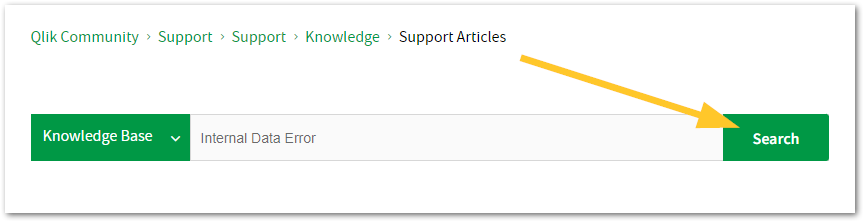
Looking for content? Type your question into our global search bar:
The Knowledge Base
Leverage the enhanced and continuously updated Knowledge Base to find solutions to your questions and best practice guides. Bookmark this page for quick access!
- Go to the Official Support Articles Knowledge base
- Type your question into our Search Engine
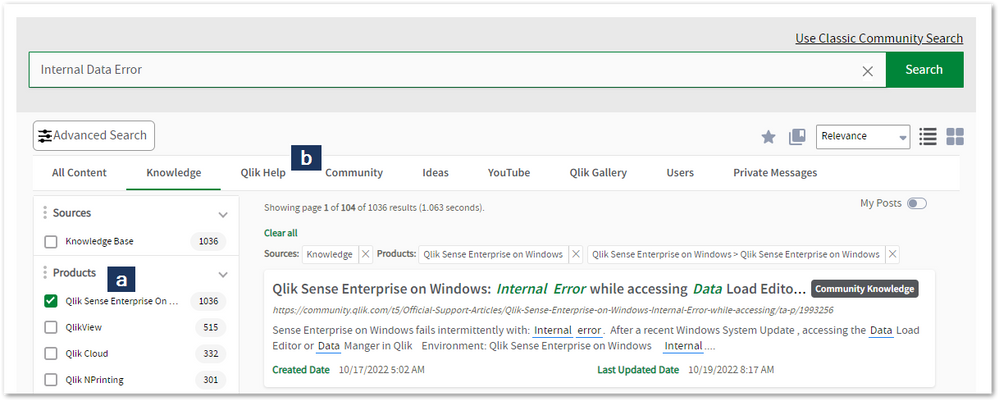
- Need more filters?
- Filter by Product
- Or switch tabs to browse content in the global community, on our Help Site, or even on our Youtube channel
Blogs
Subscribe to maximize your Qlik experience!
The Support Updates Blog
The Support Updates blog delivers important and useful Qlik Support information about end-of-product support, new service releases, and general support topics. (click)The Qlik Design Blog
The Design blog is all about product and Qlik solutions, such as scripting, data modelling, visual design, extensions, best practices, and more! (click)The Product Innovation Blog
By reading the Product Innovation blog, you will learn about what's new across all of the products in our growing Qlik product portfolio. (click)Our Support programs:
Q&A with Qlik
Live sessions with Qlik Experts in which we focus on your questions.Techspert Talks
Techspert Talks is a free webinar to facilitate knowledge sharing held on a monthly basis.Technical Adoption Workshops
Our in depth, hands-on workshops allow new Qlik Cloud Admins to build alongside Qlik Experts.Qlik Fix
Qlik Fix is a series of short video with helpful solutions for Qlik customers and partners.The Qlik Forums
- Quick, convenient, 24/7 availability
- Monitored by Qlik Experts
- New releases publicly announced within Qlik Community forums (click)
- Local language groups available (click)
Ideation
Suggest an idea, and influence the next generation of Qlik features!
Search & Submit Ideas
Ideation GuidelinesHow to create a Qlik ID
Get the full value of the community.
Register a Qlik ID:
- Go to register.myqlik.qlik.com
If you already have an account, please see How To Reset The Password of a Qlik Account for help using your existing account. - You must enter your company name exactly as it appears on your license or there will be significant delays in getting access.
- You will receive a system-generated email with an activation link for your new account. NOTE, this link will expire after 24 hours.
If you need additional details, see: Additional guidance on registering for a Qlik account
If you encounter problems with your Qlik ID, contact us through Live Chat!
2. Chat
Incidents are supported through our Chat, by clicking Chat Now on any Support Page across Qlik Community.
To raise a new issue, all you need to do is chat with us. With this, we can:
- Answer common questions instantly through our chatbot
- Have a live agent troubleshoot in real time
- With items that will take further investigating, we will create a case on your behalf with step-by-step intake questions.
3. Qlik Support Case Portal
Log in to manage and track your active cases in the Case Portal. (click)
Before you can access the Support Portal, please complete your Community account setup. See First time access to the Qlik Customer Support Portal fails with: Unauthorized Access Please try signing out and sign in again.
Please note: to create a new case, it is easiest to do so via our chat (see above). Our chat will log your case through a series of guided intake questions.
Your advantages:
- Self-service access to all incidents so that you can track progress
- Option to upload documentation and troubleshooting files
- Option to include additional stakeholders and watchers to view active cases
- Follow-up conversations
When creating a case, you will be prompted to enter problem type and issue level. Definitions shared below:
Problem Type
Select Account Related for issues with your account, licenses, downloads, or payment.
Select Product Related for technical issues with Qlik products and platforms.
Priority
If your issue is account related, you will be asked to select a Priority level:
Select Medium/Low if the system is accessible, but there are some functional limitations that are not critical in the daily operation.
Select High if there are significant impacts on normal work or performance.
Select Urgent if there are major impacts on business-critical work or performance.
Severity
If your issue is product related, you will be asked to select a Severity level:
Severity 1: Qlik production software is down or not available, but not because of scheduled maintenance and/or upgrades.
Severity 2: Major functionality is not working in accordance with the technical specifications in documentation or significant performance degradation is experienced so that critical business operations cannot be performed.
Severity 3: Any error that is not Severity 1 Error or Severity 2 Issue. For more information, visit our Qlik Support Policy.
Escalate a Support Case
If you require a support case escalation, you have two options:
- Request to escalate within the case, mentioning the business reasons.
To escalate a support incident successfully, mention your intention to escalate in the open support case. This will begin the escalation process. - Contact your Regional Support Manager
If more attention is required, contact your regional support manager. You can find a full list of regional support managers in the How to escalate a support case article.
Phone Numbers
When other Support Channels are down for maintenance, please contact us via phone for high severity production-down concerns.
- Qlik Data Analytics: 1-877-754-5843
- Qlik Data Integration: 1-781-730-4060
- Talend AMER Region: 1-800-810-3065
- Talend UK Region: 44-800-098-8473
- Talend APAC Region: 65-800-492-2269
Resources
A collection of useful links.
Qlik Cloud Status Page
Keep up to date with Qlik Cloud's status.
Support Policy
Review our Service Level Agreements and License Agreements.
Live Chat and Case Portal
Your one stop to contact us.




Recent Documents
-
Qlik Talend Cloud and SQL server source: "Start from Timestamp" run fails with e...
When running a Qlik Talend Cloud replication task with a SQL Server source, using the Advanced Run Options to start from a timestamp, the task fails w... Show MoreWhen running a Qlik Talend Cloud replication task with a SQL Server source, using the Advanced Run Options to start from a timestamp, the task fails with the following error:
SqlStat: 42000 NativeError:9005 [Microsoft][ODBC Driver 18 for SQL Server][SQL Server]Invalid parameter passed to OpenRowset(DBLog, ...).
Resolution
Instead of starting from the timestamp, get the corresponding LSN (Log Sequence Number) from the SQL Server backup history, and start the task from that LSN.
- Instead of starting the task from the raw timestamp, identify the LSN (Log Sequence Number) that corresponds to the intended point in time.
- Run the following query against the SQL Server source database to find the backup set that contains the target LSN, and confirm its first and last LSN values (in hexadecimal). Replace '00330E09:002FA850:0006' with the target LSN value:
- In the Advanced Run Options for the replication task, use the LSN returned by the query as the starting point, instead of the timestamp.
Example query:SELECT
[dbo].[attrep_fn_NumericLsnToHexa](bs.first_lsn),
[dbo].[attrep_fn_NumericLsnToHexa](bs.last_lsn),
bmf.*,
bs.*
FROM msdb.dbo.backupmediafamily bmf, msdb.dbo.backupset bs
WHERE bmf.media_set_id = bs.media_set_id
AND bs.database_name = db_name()
AND bs.type = 'L'
AND CAST([dbo].[attrep_fn_NumericLsnToHexa](bs.first_lsn) COLLATE SQL_Latin1_General_CP1_CI_AS AS VARCHAR(24))
<= CAST('00330E09:002FA850:0006' COLLATE SQL_Latin1_General_CP1_CI_AS AS VARCHAR(24))
AND CAST('00330E09:002FA850:0006' COLLATE SQL_Latin1_General_CP1_CI_AS AS VARCHAR(24))
< CAST([dbo].[attrep_fn_NumericLsnToHexa](bs.last_lsn) COLLATE SQL_Latin1_General_CP1_CI_AS AS VARCHAR(24));
Cause
When a replication task is started from a timestamp against a SQL Server source, the timestamp value returned by SQL Server is in UTC time, not the local time zone. Using that timestamp directly with the Start from timestamp option is what causes this error.
Environment
- Qlik Talend Cloud
-
Point Qlik Replicate at an AG Secondary Replica instead of the primary (High Ava...
To point Qlik Replicate at an AG Secondary Replicate instead of the primary, follow these steps; Create the publication/articles/filters the same way... Show MoreTo point Qlik Replicate at an AG Secondary Replicate instead of the primary, follow these steps;
- Create the publication/articles/filters the same way Replicate would or enable MS-CDC per the User's Guide for all the tables in the task.
- Set the SQL Server Source Endpoint internal parameter ignoreMsReplicationEnablement so that Replicate will not check for publication/articles.
- Set the SQL Server Source Endpoint internal parameter safeguardPolicyDesignator to ‘None’ so that Replicate will not try to create a transaction on the source.
- Set the SQL Server Source Endpoint internal parameter AlwaysOnSharedSynchedBackupIsEnabled so that Replicate will not try to connect to all the AG Replicas to read the MSDB.
- Set the SQL Server Source Endpoint ‘Change processing mode (read changes from):’ to ‘Backup Logs Only’
- As part of their transaction log backup maintenance plan, it's needed to run a script to merge the MSDB entries across all the Replicas. This may not be necessary if the backup is done on the secondary Replica that we will be attached to. The backups should also be placed on a share the Replicate can get access to. Optionally use 'Replicate has file-level access' if the backups are not encrypted and Replicate has direct access to them.
- It is needed to create the LSN/Numeric conversion scalar functions on the source database on the secondary.
Limitations include:
- Can read from backups only.
- Manual setup of publications/articles or MS CDC.
- Manual creation of supporting LSN conversion functions
The information in this article is provided as-is and to be used at own discretion. Depending on tool(s) used, customization(s), and/or other factors ongoing support on the solution below may not be provided by Qlik Support.
-
Configuring Qlik Data Movement Gateway High Availability on Linux with Pacemaker...
This article is provided as is. For assistance, contact Qlik's Professional Services. Qlik Data Movement gateway supports a Linux failover cluster in ... Show MoreThis article is provided as is. For assistance, contact Qlik's Professional Services.
Qlik Data Movement gateway supports a Linux failover cluster in an active-passive configuration. Only one Data Movement gateway service instance should be active against the shared gateway data folder at any time.
This article provides an example implementation using:
- Two Linux nodes
- Pacemaker/Corosync
- Shared block storage, such as iSCSI or a SAN (storage area network)
- A shared filesystem mounted at /opt/qlik/gateway/movement/data
The Pacemaker/Corosync commands in this article are implementation examples. Cluster, storage, fencing, and networking should follow the operating system and infrastructure vendor documentation.
Important: Qlik documents active-passive failover as a hard requirement, because only one Data Movement gateway instance can access the shared data folder at a time.
At the time of writing, Qlik lists RHEL 8.x, RHEL 9.x, and Amazon Linux 2023 as certified platforms, with corresponding compatible distributions also supported. Always check current system requirements before deployment. See Data Movement gateway system requirements.
Architecture
                         Qlik Cloud
                             |
                    Outbound HTTPS/443
                             |
                    Data Movement Gateway
                             |
                    Pacemaker / Corosync
                             |
              +--------------+--------------+
              |                             |
           Node 1                         Node 2
        Gateway ACTIVE               Gateway PASSIVE
              \                             /
               \                           /
                   Shared Block Storage
                          |
                      XFS / ext4
                          |
             /opt/qlik/gateway/movement/data
Pacemaker group:
DataMovement_HA
- Gateway_Filesystem
- Gateway_Service
A floating virtual IP (VIP) is not normally required for the Data Movement gateway, because communication with Qlik Cloud is outbound.
Prerequisites
Verify the following before deployment:
- Two supported Linux nodes
- Pacemaker, Corosync, and PCS installed
- Shared block storage visible to both nodes
- The same LUN (logical unit number) serial or WWID (World Wide Identifier) visible from both nodes
- The same Data Movement gateway version installed on both nodes
- Outbound HTTPS/TCP 443 connectivity to Qlik Cloud
- Fencing/STONITH available for production
- Qlik Replicate is not installed on the same server
Prepare the Linux cluster
Install the typical RHEL packages:
dnf install -y pcs pacemaker fence-agents-all resource-agent
systemctl enable --now pcsd
Set the same hacluster password on both nodes:
passwd hacluster
Authenticate and create the cluster:
pcs host auth node1 node2
pcs cluster setup datamovement_cluster --start node1 node2
pcs cluster enable --all
Verify:
pcs status
pcs cluster status
For production, configure appropriate fencing/STONITH.
Prepare shared block storage
Qlik requires /opt/qlik/gateway/movement/data to be mounted on shared block storage. NFS-based mounts are not supported for this use case.
Verify that both nodes see the same LUN:
lsblk -o NAME,SIZE,TYPE,FSTYPE,MOUNTPOINTS,MODEL,SERIAL
For iSCSI:
dnf install -y iscsi-initiator-utils
systemctl enable --now iscsid
cat /etc/iscsi/initiatorname.iscsi
Discover and log in:
iscsiadm -m discovery -t sendtargets -p <ISCSI_TARGET_IP>
iscsiadm -m node -T <TARGET_IQN>  -p <ISCSI_TARGET_IP>:3260  --login
Make the login persistent:
iscsiadm -m node -T <TARGET_IQN> -p <ISCSI_TARGET_IP>:3260 --op update -n node.startup -v automatic
Use a stable device ID:
ls -l /dev/disk/by-id/ | grep <device>
Do not use /dev/sdb directly in the Pacemaker resource.
Create the filesystem once, on one node only. Example:
wipefs -n /dev/sdb
mkfs.xfs /dev/sdb
Do not add the shared filesystem to /etc/fstab; Pacemaker should control it.
Install Data Movement gateway on both nodes
Install the same gateway build on both nodes, using the normal Qlik installation procedure.
Verify:
rpm -qa | grep -i qlik
systemctl status repagent --no-pager
Default locations:
- Install path: /opt/qlik/gateway/movement
- Data path: /opt/qlik/gateway/movement/data
- Service: repagent.service
Convert the gateway data directory to shared storage
On each participating node, follow the Qlik HA preparation sequence.
Stop the service:
systemctl stop repagent
Verify that it's inactive:
systemctl status repagent --no-pager
Preserve the local data directory:
cd /opt/qlik/gateway/movement
mv data data-save
mkdir data
chown qlik:qlik data
Mount the shared block device at /opt/qlik/gateway/movement/data. Example:
mount /dev/disk/by-id/<stable-device-id> /opt/qlik/gateway/movement/data
Copy the preserved data-save contents into the mounted shared data directory, according to the Qlik HA setup procedure.
Disable normal OS startup:
systemctl disable repagent
The intended model is:
systemd boot  -> does not independently start repagent
Pacemaker     -> starts repagent only on the active node
Create the Pacemaker filesystem resource
pcs resource create Gateway_Filesystem ocf:heartbeat:Filesystem device="/dev/disk/by-id/<stable-device-id>" directory="/opt/qlik/gateway/movement/data" fstype="xfs" op monitor interval=20s
Verify:
pcs status
df -hT /opt/qlik/gateway/movement/data
The passive node should not have the shared filesystem mounted.
Create the gateway service resource
pcs resource create Gateway_Service systemd:repagent op monitor interval=10s timeout=30s
Group the resources:
pcs resource group add DataMovement_HA Gateway_Filesystem Gateway_Service
Expected:
Resource Group: DataMovement_HA:
  Gateway_Filesystem  Started node1
  Gateway_Service     Started node1
systemctl status repagent may show Cluster Controlled repagent.service, which is expected when Pacemaker owns the service.
Validate normal operation
Check:
pcs status
df -hT /opt/qlik/gateway/movement/data
systemctl status repagent --no-pager
ps -ef | egrep '[a]gentctl|[r]epctl'
The gateway processes should reference:
-d /opt/qlik/gateway/movement/data
Also verify the gateway status in Qlik Cloud Administration after initialization completes.
Test failover
Test a manual resource move
pcs resource move DataMovement_HA node2
watch -n 2 pcs status
Verify on Node 2:
df -hT /opt/qlik/gateway/movement/data
systemctl status repagent --no-pager
ps -ef | egrep '[a]gentctl|[r]epctl'
Verify that Node 1 no longer owns the service or mount:
systemctl is-active repagent
mount | grep /opt/qlik/gateway/movement/data
Clear the temporary move preference:
pcs resource clear DataMovement_HA
Test node standby
pcs node standby node1
watch -n 2 pcs status
pcs node unstandby node1
Test a normal reboot
reboot
From the surviving node:
watch -n 2 pcs status
After the rebooted node rejoins:
pcs status
iscsiadm -m session
Allow for application startup time
Pacemaker showing Gateway_Service Started does not necessarily mean every gateway component is immediately ready.
Data Movement gateway starts multiple components, including agentctl, Replicate-based data movement processes, endpoint services, and Java services. After failover, application readiness can take longer than the cluster resource relocation itself.
Validate:
systemctl status repagent --no-pager
ps -ef | egrep '[a]gentctl|[r]epctl'
Then confirm that the gateway returns to the expected state in Qlik Cloud Administration.
Perform planned maintenance
pcs node standby <active-node>
pcs status
Wait until the full DataMovement_HA group is active on the other node, perform maintenance, then return the node:
pcs node unstandby <node>
Troubleshooting
Gateway does not start
pcs status
systemctl status repagent --no-pager
journalctl -u repagent --since "-30 min"
df -hT /opt/qlik/gateway/movement/data
Gateway takes time to stop
The service has several child processes. Allow systemd and Pacemaker to complete the graceful stop before manually killing child processes.
systemctl status repagent --no-pager -l
journalctl -u repagent --since "-5 min" --no-pager
SQLite recovery messages after failover
The shared data directory contains SQLite-backed state. Startup can log WAL (write-ahead log) recovery notices after a service move. If the service becomes active (running) and the gateway returns healthy in Qlik Cloud, review these messages as startup diagnostics rather than assuming failure.
Gateway is active on both nodes
Treat this as a serious HA configuration problem:
pcs status
ps -ef | egrep '[a]gentctl|[r]epctl'
Only one gateway instance should access the shared data folder.
Fencing and STONITH
Production clusters using shared block storage should configure fencing appropriate for the infrastructure, such as STONITH:
- VMware/hypervisor fencing
- Cloud fencing agents
- IPMI (Intelligent Platform Management Interface)
- SAN/storage fencing
Manual moves, node standby, and normal reboot tests don't validate protection against hard host failure, network partition, split brain, or a node that remains alive while losing cluster communication.
Key operational rules
- Qlik Data Movement gateway HA is active-passive.
- Only one gateway instance should access the shared data directory at a time.
- Install the same gateway version on all participating nodes.
- Use shared block storage for /opt/qlik/gateway/movement/data.
- NFS-based mounts are not supported for the shared gateway data directory.
- Use a stable /dev/disk/by-id/... path.
- Do not independently mount the shared filesystem on both nodes.
- Do not allow repagent.service to start independently on both nodes.
- Let Pacemaker control the filesystem and gateway service.
- Use node standby for planned maintenance.
- Expect application readiness to take longer than resource relocation.
- Validate gateway health in Qlik Cloud after failover.
- Configure fencing/STONITH for production shared-storage environments.
References
- Qlik Cloud Help | Setting up Data Movement gateway in a Linux cluster
- Qlik Cloud Help | Data Movement gateway system requirements
- Qlik Cloud Help | Setting up Data Movement gateway
Environment
- Qlik Data Movement gateway
- Pacemaker, Corosync, and PCS (the Pacemaker/Corosync configuration system)
-
NPrinting connection issue with QlikView related to incompatible version of Qlli...
There could be certain situations when creating a connection with a QlikView application in NPrinting, the connection verification would fail the comp... Show MoreThere could be certain situations when creating a connection with a QlikView application in NPrinting, the connection verification would fail the compatibility check.
The system will display a verification error message as below: "QlikView Server version is compatible with installed QlikView Desktop" as screenshot below:Environment:
Qlik NPrinting , all versions
Resolution:
To resolve this do the following:
Option 1:
Completely uninstall QV desktop on NP server then re-install fresh version that exactly matches the QlikView server version, then fully restart the NP server( Once you uninstall make sure that there are no installation folders left over and manually remove them before installing the correct version )
Create a new connection in NPrinting after the new installation
Option 2:
- Uninstall QlikView desktop client- Remove Qliktech folder registry;
HKEY_CURRENT_USER > Software > QlikTech
- Remove QlikTech folder from Application Data;
Windows Server 2008 : C:\Users\ <user>\AppData\Roaming\QlikTech
- Reboot machine
- Install QlikView Desktop
Option 3:
For the Cluster connection, under the cluster tab, make sure that the "Address" is entered as HTTP and not HTTPS in the address URL.
If there is no certificate setup, the address should be http and it could cause this same error ( know issue in the product )
-
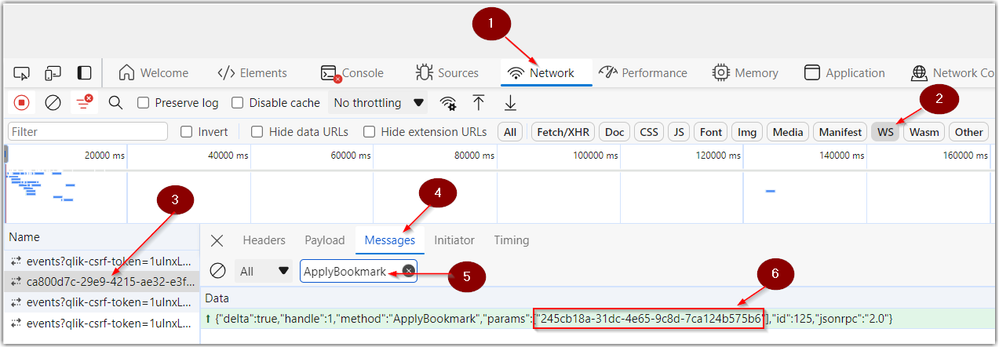
How to determine a bookmark ID in Qlik Cloud
Looking for the bookmark ID in Qlik Cloud? Follow the below steps to obtain the ID using Chrome developer tools: Open Chrome Developer Tools and clic... Show MoreLooking for the bookmark ID in Qlik Cloud? Follow the below steps to obtain the ID using Chrome developer tools:
- Open Chrome Developer Tools and click on the Network tab
- Click on the filter WS (for WebSockets)
- Reload the page to make sure you see your connection in the Name column
- Click on Messages
- Enter ApplyBookmark in the messages filter pane
- Locate the bookmark ID in the highlighted message
Environment

-
Talend Studio tRest tHttpClient SSLHandshakeException: handshake_failure caused ...
A Talend Data Integration job that retrieves exchange rates from an external government REST API fails at runtime. The failure occurs in the REST call... Show MoreA Talend Data Integration job that retrieves exchange rates from an external government REST API fails at runtime. The failure occurs in the REST call component, and the job doesn't complete. The following exception is logged:
Exception in component tREST_1 (mJob_FT_EXCHANGE_RATE)
com.sun.jersey.api.client.ClientHandlerException:
javax.net.ssl.SSLHandshakeException: Received fatal alert: handshake_failureResolution
First, we will verify that the correct certificates have been imported, then outline the appropriate solution.
Verify that the required certificates are imported
Confirm that every certificate the API server needs is imported into the truststore of the JVM used by Talend. Download every certificate in the chain, saving each one as a separate file:
echo "" | openssl s_client -showcerts -connect <api-hostname>:443 | \
  awk '/BEGIN/ { i++; } /BEGIN/, /END/ { print > "a-cert-" i ".crt" }'
Then import each certificate into the truststore. There may be several certificates in the chain. Import all of them:
keytool -import -trustcacerts -alias a-cert-1 -file /tmp/a-cert-1.crt \
  -keystore <jvm>/lib/security/cacerts -storepass <truststore-password>
keytool -import -trustcacerts -alias a-cert-2 -file /tmp/a-cert-2.crt \
  -keystore <jvm>/lib/security/cacerts -storepass <truststore-password>
Check for a cipher suite conflict
If the required certificates are already imported and the error persists, check whether the client and server support a common cipher suite.
Server side: scan the endpoint to see which cipher suites it supports.
sudo dnf install nmap
nmap --script ssl-enum-ciphers -p 443 <api-hostname>
In this case, the scan listed only TLS_RSA_* ciphers.
Client side: check the JDK's java.security file for disabled algorithms.
jdk.tls.disabledAlgorithms=..., TLS_RSA_*, ...
Since the JDK 11 release of January 2026, TLS_RSA_* is disabled by default here, which is why the handshake fails.
Any of the following tools can be used to check which cipher suites a server supports:
nmap (most detailed):
nmap --script ssl-enum-ciphers -p 443 <hostname>
Lists every supported TLS version and cipher suite, with a strength grade (A–F) for each. This is the method used in this case.
testssl.sh (full report, no install needed beyond download):
git clone https://github.com/drwetter/testssl.sh.git
cd testssl.sh
./testssl.sh --cipher-per-proto <hostname>:443
Gives a per-protocol breakdown, and flags weak or deprecated ciphers (no forward secrecy, CBC, and so on).
sslscan:
sudo dnf install sslscan
sslscan <hostname>:443
Quick output showing accepted and rejected ciphers, certificate information, and protocol support.
Apply the fix on the JDK 11 client
If the external server can't be upgraded to support newer cipher suites, apply the fix on the JDK 11 client side. To avoid modifying the JDK installation itself, use a separate, customized security file:
- Copy <java_home>/conf/java.security to a neutral location, for example <install_dir>/TalendRemoteEngine/custom.security.
- Edit the copy, and remove TLS_RSA_* from the jdk.tls.disabledAlgorithms property.
- Create a dedicated run profile for this job that points to the custom file:
-Djava.security.properties=<install_dir>/TalendRemoteEngine/custom.security
Re-enabling TLS_RSA_* weakens transport security, because these cipher suites lack forward secrecy. Scoping the change to this one job's run profile, rather than changing the global JDK settings, limits the exposure. It's also worth asking the API provider whether they plan to support modern cipher suites.
Cause
An SSLHandshakeException with a handshake_failure generally has one of two causes: a certificate in the server's chain isn't trusted by the JVM's truststore, or the client and server can't agree on a cipher suite. In this case, investigation confirmed a cipher suite conflict between the client and the API server:
- Server side: the external API server supports only TLS_RSA_* cipher suites.
- Client side: since the JDK 11 release of January 2026, TLS_RSA_* is disabled by default in the JDK's java.security file, through the jdk.tls.disabledAlgorithms property.
Because the client refuses the only cipher family the server offers, no common cipher suite can be negotiated, which produces the SSLHandshakeException: Received fatal alert: handshake_failure error.
Environment
- Talend Studio
-
SAP OData services and retrieving data in Qlik Sense Client Managed and Qlik Clo...
This article explains how to retrieve data using Qlik Sense Analytics (on-premises and Cloud) from SAP OData services, taking into account the 2026 SA... Show MoreThis article explains how to retrieve data using Qlik Sense Analytics (on-premises and Cloud) from SAP OData services, taking into account the 2026 SAP security patches.
Background
An SAP security patch released in June 2026 technically blocks third-party use of the ODP framework over RFC (SAP Note 3255746). This is the interface most dedicated SAP connectors used. Only ODP via RFC is affected, not RFC in general, and SAP names ODP via OData as the compliant fallback for data access outside SAP systems. A time-limited revert option exists but expires in December 2026 (SAP Note 3731818).
Only Qlik's SAP ODP connector (Qlik Cloud) is affected. Depending on the access level you have in your SAP environment, you can also use our SAP connectors to extract data from SAP NetWeaver SAP connectors in Qlik Sense Client Managed, Qlik Cloud and QlikView (these are not affected by SAP restrictions).
But if data extraction only relies on OData services, Qlik's OData connector or REST connector are the only alternative.Requirements
What is needed on the SAP side (macro level):
- AP Gateway as the OData layer. Every OData service is served by SAP Gateway (NetWeaver Gateway), either embedded in the ABAP system or as a separate hub. In S/4HANA, it's built in. This is the component that turns backend objects into OData endpoints.
- Service activation. A service must be registered and activated in /IWFND/MAINT_SERVICE (plus the underlying ICF node in SICF). SAP ships thousands of standard services inactive by default. Activation per service is a deliberate admin step, not automatic.
- A user and authorizations. A dedicated communication/service user with S_SERVICE for the endpoint plus the application-level authorizations for the data behind it. Gateway auth doesn't bypass application auth — if the user can't see the plant in SAP, the OData service won't return it either.
- Network and authentication. HTTPS with a trusted certificate and an auth method. The consumer supports:
- Basic Auth (the simple on-prem case)
- OAuth2/SAML for cloud scenarios
In S/4HANA Cloud (public edition), the connection runs through communication scenarios/arrangements rather than manual Gateway configuration. For Qlik Cloud Analytics reaching an on-prem Gateway, either the endpoint is reachable from the cloud, or you go through Qlik Data Gateway – Direct Access.
- For ODP-based services, additionally, the Operational Delta Queue (ODQ) must be active, and the source object must be released for ODP extraction. Delta then works via the OData subscription/delta-link mechanism backed by ODQ.
What can be exposed as OData
Two families
Family A: ODP-based OData services. SAP Gateway can generate an OData service on
top of the ODP framework, and then the answer is essentially yes — anything ODP
supports:- DataSources/Extractors. SAPI context: the classic 2LIS_* logistics extractors, FI
extractors, etc., released via RSA5 - ABAP CDS views annotated with @Analytics.dataExtraction.enabled: true (ABAP_CDS
context), delta-capable when the change-data annotations are set - BW/BW4HANA InfoProviders. BW context
- SLT-based table replication. SLT context
- HANA information views
These services are generated in the Gateway Service Builder (SEGW) via the ODP-
extraction wizard. They support full load plus genuine delta — the extractor's delta logic
is preserved and exposed through OData delta tokens.Family B: regular (non-ODP) OData services. Anything the ABAP stack can model:
- A CDS view with @odata.publish: true (one annotation, auto-generated service)
- Hand-built services in SEGW (mapping DDIC tables, CDS as reference data source,
BAPIs/RFCs, or custom code) - RAP service bindings (OData V2/V4). The modern S/4HANA way
- The standard APIs delivered from the SAP Business Accelerator Hub
These have no delta mechanism by default. Incremental loads are your problem as the
consumer. Typically $filter on a change date or timestamp field, which only works if the
underlying object carries one reliably.Limitation with the generic OData connector in Qlik Sense Client Managed
The generic OData connector speaks plain OData, which is fine for Family B and for full loads only from Family A. (delta load can only be managed with a REST connector).
OData is a chatty protocol. While paging, $select to trim width, and gzip help, nobody should plan a nightly full load of BSEG-scale tables over it.
Options to retrieve data from SAP ODATA services
In Qlik Cloud Analytics
- How to connect to data from SAP OData services and retrieve data with Qlik Cloud Analytics REST connector
- How to connect to data from SAP OData services and retrieve data with Qlik Cloud Analytics ODATA connector
In Qlik Sense Enterprise on Windows
- How to connect to data from SAP OData services and retrieve data with Qlik Sense Enterprise on Windows REST connector
- How to connect to data from SAP OData services and retrieve data with Qlik Sense Enterprise on Windows ODATA connector
Environment
- Qlik Cloud
- Qlik Sense Enterprise on Windows
- QlikView
-
How to monitor your tasks executions and system plan in Qlik NPrinting
Qlik NPrinting includes a hidden monitoring link that shows the status of executions within the current system admin plan. It is not possible to acces... Show MoreQlik NPrinting includes a hidden monitoring link that shows the status of executions within the current system admin plan. It is not possible to access it directly from the application because the feature is still in beta, but it can be very helpful for troubleshooting purposes.
This method of monitoring is not supported and provided as-is.
Resolution:
The monitor link can be accessed through:
https://SERVERNAME:4993/#/admin/plan
Task Execution and On-Demand Executions are available since the November 2018 release. Both of these links are available in the Qlik NPrinting web console by clicking the 'Admin' menu option.
https://SERVERNAME:4993/#/tasks/executions
https://SERVERNAME:4993/#/admin/ondemandParameters Definitions for Admin Plan queue:
- WORKLOAD: This is time expected for a single navigator/connection to resolve all the requests still present in the queue. It is expressed in milliseconds.
So, considering the data collected in previous task runs, Qlik NPrinting estimates how long each request will take. Then, it sums all these values.
The estimation is done considering only one navigator working on the requests.
A default value is given if it is the first time the connection runs.
- PRIORITIZED WORKLOAD: It is the same as before, but each request time is multiplied by a coefficient between 1 and 11. The coefficient is assigned by Qlik NPrinting to each request according to its priority.
For example: If it is an On-Demand request, the coefficient is always 11 (the maximum), if there is a cycle in the report, we increase all the coefficient by 1. The coefficient are defined by internal algorithms in Qlik NPrinting.
- CONNECTION WEIGHT: It calculates the 'keep alive' time of a navigator/connection. The value increases exponentially in time when a connection with requests has not a navigator opened for it. As soon as a navigator is opened for the connection, the value starts to decrease.
- WEIGHTED WORKLOAD: It is the CONNECTION WEIGHT multiplied by the PRIORITIZED WORKLOAD. It is the priority assigned to the connection.
- Engine Column (last column of Admin Plan): First 4 Alphanumeric Chars of the Engine GUID appear in this column. The full GUID for the Qlik NPrinting Engine can be found by searching the Qlik NPrinting Engine Log file for “Engine ID”
1st number: number of navigators going to be opened
2nd number: number of navigators open
3rd number: closed navigators
Final number: the number of connections/navigators that will remain open/active once the process is completed
Yellow - indicates moving to closed.
Blue - indicates moving connection/navigator to open.
Black - indicates waiting or working.
Final number: the number of connections/navigators that will remain open/active once the process is completed
NOTE: Navigator Connections are internal processes within a single Qlik NPrintingconnection. For example, a single NPrinting Interface Connection to a QlikView or Qlik Sense document can have multiple internal navigator/connections. These are shown in the admin plan mentioned above. The number of internal navigator connections is limited to the number of cores on the Qlik NPrinting engine computer.
ie: Depending on the complexity of the report (number of requests in play) 8 cores installed on a Qlik NPrinting engine computer may result in up to 8 navigator connections opened in order to process a Qlik NPrinting report or reports.
Environment:
- WORKLOAD: This is time expected for a single navigator/connection to resolve all the requests still present in the queue. It is expressed in milliseconds.
-
Qlik Sense Mobile: Invalid Certificate error after SSL certificate replacement (...
After replacing an expired SSL certificate on a Qlik Sense Client-Managed environment, on-premises / desktop browser access works correctly. However, ... Show MoreAfter replacing an expired SSL certificate on a Qlik Sense Client-Managed environment, on-premises / desktop browser access works correctly. However, the Qlik Sense Mobile app (both iOS and Android) displays an “invalid certificate” or “not secure” error and does not show the login screen.
Invalid certificate / This certificate is not secure
Mobile browsers on the same devices can reach the hub and display the login page without issues.
Environment:
- Qlik Sense Enterprise on Windows (Client Managed)
- Qlik Sense Mobile app (iOS and Android)
- SSL certificate issued by GoDaddy (especially newer R1 intermediate certificates)
Resolution
The Qlik Sense Mobile app is stricter about certificate chain validation than most mobile browsers. An incomplete chain causes the app to reject the connection even when browsers accept it.
- From a machine that can reach the Qlik Sense server, run the following command and review the output: openssl s_client -connect yourserver.domain.com:443 -showcerts
- Look for Verify return code: 20 (unable to get local issuer certificate). This indicates the server is not sending the complete chain.
- Re-download the certificate bundle from GoDaddy, selecting the full chain/bundle option.
- Confirm the downloaded bundle contains three certificates:
- Server (leaf) certificate
- GoDaddy TLS Intermediate CA DV – R1v1
- GoDaddy R1-to-G2 cross-signed certificate
- Install the complete bundle on the reverse proxy / IIS / load balancer that terminates SSL for Qlik Sense and re-bind the certificate.
- Restart the relevant service(s) after binding the new certificate.
- On the affected mobile devices:
- Fully close the Qlik Sense Mobile app (remove it from recent apps/app switcher).
- Restart the mobile device.
- Reopen the app and try logging in again.
Important: Always verify the full chain with openssl s_client -connect ... -showcerts after making changes. The presence of only two certificates in the chain is a common cause of this issue with newer GoDaddy certificates.
Cause
GoDaddy’s newer certificate hierarchy uses an intermediate certificate named “GoDaddy TLS Intermediate CA DV – R1v1”. This intermediate is not yet trusted by all clients. To maintain compatibility, GoDaddy provides an additional R1-to-G2 cross-signed certificate that links the new intermediate back to a widely trusted root.
When only the leaf certificate and the R1 intermediate are installed (a common default when downloading a basic chain), the server does not present the cross-signed certificate during the TLS handshake.
The result is: Verify return code: 20 (unable to get local issuer certificate)
Most modern mobile browsers already trust the new GoDaddy root and can complete the connection. The Qlik Sense Mobile app, however, performs stricter certificate path validation and requires the complete chain, including the cross-signed certificate. This difference causes the “invalid certificate” / “not secure” error exclusively in the mobile app while desktop and mobile browsers continue to work.
-
Qlik Sense Analytics: Response status code does not indicate success: 401 (Unaut...
App distribution automatic reloads fail randomly with this error message in the logs (C:\ProgramData\Qlik\Sense\Log\AppDistributionService\Trace😞 Res... Show MoreApp distribution automatic reloads fail randomly with this error message in the logs (C:\ProgramData\Qlik\Sense\Log\AppDistributionService\Trace😞
Response status code does not indicate success: 401 (Unauthorized).
Some reloads may work correctly, but the error is frequent. The same reloads complete successfully if run manually.
Resolution
Ensure that the time in your Qlik Sense on Windows servers matches the time in Qlik Cloud. This must be verified on every node.
If you are using NTP, please check that it is correctly configured and that the server clock is in sync.
Cause
A common cause for this issue is clock inaccuracy between the Qlik Sense on Windows server and Qlik Cloud. A time difference of even a few seconds can cause token validation to fail intermittently.
This blocks the communication, and the reload fails.
Environment
- Qlik Sense Cloud
- Qlik Sense Enterprise on Windows (on-premise)

-
Qlik Replicate with DB2 iSeries source: excessive access attempts
When using IBM Db2 iSeries as a source endpoint, a Qlik Replicate task can, in rare cases, trigger a large number of access-attempt messages at the da... Show MoreWhen using IBM Db2 iSeries as a source endpoint, a Qlik Replicate task can, in rare cases, trigger a large number of access-attempt messages at the database level. These messages are recorded in the IBM i audit journal, generating several GB of audit data and placing a critical load on the AS/400 system. This results in resource overhead on the database.
The message at the database level may look similar to the following:
Message: The user-defined procedure or function OBJECT_STATISTICS in QSYS2 returned an SQLSTATE warning.
Cause: An SQLSTATE in the 01xxx format was returned by the user-defined procedure or function OBJECT_STATISTICS in QSYS2 (specific name QSQOBSTAT), along with the message text NOT AUTHORIZED TO OBJECT XXX/BBB *FILE.
Environment
- Qlik Replicate
Resolution
Contact the database administrator responsible for the IBM Db2 for i (AS/400) system and verify the library settings in DB2 for the current OBJAUD value. If OBJAUD is set to *ALL instead of *NONE, this is likely the cause of the excessive audit journal entries. Have the administrator adjust the value as appropriate for the environment.
Cause
This behavior is caused by a specific IBM Db2 for i library parameter: OBJAUD. For background, see Object auditing | IBM Documentation.
- If OBJAUD is set to *ALL on a library, or to *USRPRF on an object, an audit record is written every time a user reads or changes that object.
- If OBJAUD is set to *NONE, no auditing occurs.
The extensive object-access auditing on the database is typically the result of OBJAUD being set to *ALL rather than *NONE on the affected library.
-
Qlik Cloud: use qlik-cli to import list of users from a csv file
Using the qlik-cli it is possible to import a list of users to a tenant from a csv file.It will be then possible to assign roles, entitlements and spa... Show MoreUsing the qlik-cli it is possible to import a list of users to a tenant from a csv file.
It will be then possible to assign roles, entitlements and space permissions to the users before they log in to the tenant.
Here's a possible example of how to do that.- Create a csv file called userlist.csv in this format (see attached sample file)
Name,Email Mick Case,Mick.Case@example.com Davide Bironi,Davide.Bironi@example.com Kenny Handsley,Kenny.Handsley@example.com Leigh Kersriver,Leigh.Kersriver@example.com Gerry Vain,Gerry.Vain@example.com Tommy Ioni,Tommy.Ioni@example.com Terence Attendant,Terence.Attendant@example.com John Oughborne,John.Oughborne@example.com William Guard,William.Guard@example.com Renato Padovano,Renato.Padovano@example.com - Save the following shell script and put it in the same folder as the csv file
- Powershell version (note: if the location of the qlik-cli is not added as an Environment Variable Path you will need to modify the script to include the full path in front of the command "qlik")
# Import the csv file as an array of objects $csv = Import-Csv -Path userlist.csv # Initialize a counter for the subject $counter = 1 # Loop through each object in the array foreach ($row in $csv) { # Generate the subject using the counter $subject = "ExampleSubject" + $counter # Execute the qlik-cli command with the column values and the subject qlik user create --name $row.Name --email $row.Email --subject $subject # Increment the counter $counter++ } - Bash version for UNIX systems:
#!/bin/bash # Get the number of lines in the csv file lines=$(wc -l < userlist.csv) # Loop from the second line to the last line (skipping the header row) for ((i=2; i<=lines; i++)) do # Get the name and email values from the ith line using cut name=$(cut -d, -f1 userlist.csv | sed -n "${i}p") email=$(cut -d, -f2 userlist.csv | sed -n "${i}p") # Generate the subject using the counter subject="ExampleSubject$counter" # Execute the qlik-cli command with the column values and the subject qlik user create --name "$name" --email "$email" --subject "$subject" # Increment the counter ((counter++)) done
- Powershell version (note: if the location of the qlik-cli is not added as an Environment Variable Path you will need to modify the script to include the full path in front of the command "qlik")
- Execute the scripts according to your operating system requirements
NOTE: users will be created with a temporary SubjectId like "ExampleSubject1", "ExampleSubject2", and so so on. After the first login, users will get a proper SubjectId.
Roles, entitlements and space permissions will follow the users to the new subject.Alternatives ways of adding users via scripts might be achieved via the an /api/v1/users CALL with the POST method and a payload like:
PAYLOAD:
{
  "email": "name@example.com",
  "name": "First Lastname",
  "subject": "SubjectXYZ"
}
The information and the files in this article are provided as-is and will be used at your discretion. Depending on the tool(s) used, customization(s), and/or other factors, ongoing support on the solution below may not be provided by Qlik Support.
Environment
- Create a csv file called userlist.csv in this format (see attached sample file)
-
The Qlik Sense Monitoring Applications for Cloud and On Premise
Qlik Sense Enterprise Client-Managed offers a range of Monitoring Applications that come pre-installed with the product. Qlik Cloud offers the Data Ca... Show MoreQlik Sense Enterprise Client-Managed offers a range of Monitoring Applications that come pre-installed with the product.
Qlik Cloud offers the Data Capacity Reporting App for customers on a capacity subscription, and additionally customers can opt to leverage the Qlik Cloud Monitoring apps.
This article provides information on available apps for each platform.
Content:
- Qlik Cloud
- Data Capacity Reporting App
- Access Evaluator for Qlik Cloud
- Answers Analyzer for Qlik Cloud
- App Analyzer for Qlik Cloud
- Automation Analyzer for Qlik Cloud
- Entitlement Analyzer for Qlik Cloud
- Reload Analyzer for Qlik Cloud
- Report Analyzer for Qlik Cloud
- How to automate the Qlik Cloud Monitoring Apps
- Other Qlik Cloud Monitoring Apps
- OEM Dashboard for Qlik Cloud
- Monitoring Apps for Qlik Sense Enterprise on Windows
- Operations Monitor, License Monitor, and Content Monitor
- App Metadata Analyzer
- The Monitoring & Administration Topic Group
- Other Apps
Qlik Cloud
Data Capacity Reporting App
The Data Capacity Reporting App is a Qlik Sense application built for Qlik Cloud, which helps you to monitor the capacity consumption for your license at both a consolidated and a detailed level. It is available for deployment via the administration activity center in a tenant with a capacity subscription.
The Data Capacity Reporting App is a fully supported app distributed within the product. For more information, see Qlik Help.
You can automate daily distribution of the latest app using the Capacity consumption app deployer template in Qlik Automate.
Access Evaluator for Qlik Cloud
The Access Evaluator is a Qlik Sense application built for Qlik Cloud, which helps you to analyze user roles, access, and permissions across a tenant.
The app provides:
- User and group access to spaces
- User, group, and share access to apps
- User roles and associated role permissions
- Group assignments to roles
For more information, see Qlik Cloud Access Evaluator.
Answers Analyzer for Qlik Cloud
The Answers Analyzer provides a comprehensive Qlik Sense dashboard to analyze Qlik Answers metadata across a Qlik Cloud tenant.
It provides the ability to:
- Track user questions across knowledgebases, assistants, and source documents
- Analyze user behavior to see what types of questions users are asking about what content
- Optimize knowledgebase sizes and increase answer accuracy by removing inaccurate, unused, and unreferenced documents
- Track and monitor page size to quota
- Ensure that data is kept up to date by monitoring knowledgebase index times
- Tie alerts into metrics, (e.g. a knowledgebase hasn't been updated in over X days)
For more information, see Qlik Cloud Answers Analyzer.
App Analyzer for Qlik Cloud
The App Analyzer is a Qlik Sense application built for Qlik Cloud, which helps you to analyze and monitor Qlik Sense applications in your tenant.
The app provides:
- User sessions by app, sheets viewed
- Large App consumption monitoring
- App, Table and Field memory footprints
- Synthetic keys and island tables to help improve app development
- Threshold analysis for fields, tables, rows and more
- Reload times and peak RAM utilization by app
For more information, see Qlik Cloud App Analyzer.
Automation Analyzer for Qlik Cloud
The Automation Analyzer is a Qlik Sense application built for Qlik Cloud, which helps you to analyze and monitor Qlik Application Automation runs in your tenant.
Some of the benefits of this application are as follows:
- Track number of automations by type and by user
- Analyze concurrent automations
- Compare current month vs prior month runs
- Analyze failed runs - view all schedules and their statuses
- Tie in Qlik Alerting
For more information, see Qlik Cloud Automation Analyzer.
Entitlement Analyzer for Qlik Cloud
The Entitlement Analyzer is a Qlik Sense application built for Qlik Cloud, which provides Entitlement usage overview for your Qlik Cloud tenant for user-based subscriptions.
The app provides:
- Which users are accessing which apps
- Consumption of Professional, Analyzer and Analyzer Capacity entitlements
- Whether you have the correct entitlements assigned to each of your users
- Where your Analyzer Capacity entitlements are being consumed, and forecasted usage
For more information, see The Entitlement Analyzer.
Reload Analyzer for Qlik Cloud
The Reload Analyzer is a Qlik Sense application built for Qlik Cloud, which provides an overview of data refreshes for your Qlik Cloud tenant.
The app provides:
- The number of reloads by type (Scheduled, Hub, In App, API) and by user
- Data connections and used files of each app’s most recent reload
- Reload concurrency and peak reload RAM
- Reload tasks and their respective statuses
For more information, see Qlik Cloud Reload Analyzer.
Report Analyzer for Qlik Cloud
The Report Analyzer provides a comprehensive dashboard to analyze metered report metadata across a Qlik Cloud tenant.
The app provides:
- Current Month Reports Metric
- History of Reports Metric
- Breakdown of Reports Metric by App, Event, Executor (and time periods)
- Failed Reports
- Report Execution Duration
For more information, see Qlik Cloud Report Analyzer.
How to automate the Qlik Cloud Monitoring Apps
Do you want to automate the installation, upgrade, and management of your Qlik Cloud Monitoring apps? With the Qlik Cloud Monitoring Apps Workflow, made possible through Qlik's Application Automation, you can:
- Install/update the apps with a fully guided, click-through installer using an out-of-the-box Qlik Application Automation template.
- Programmatically rotate the API key that is required for the data connection on a schedule using an out-of-the-box Qlik Application Automation template. This ensures that the data connection is always operational.
- Get alerted whenever a new version of a monitoring app is available using Qlik Data Alerts.
For more information and usage instructions, see Qlik Cloud Monitoring Apps Workflow Guide.
Other Qlik Cloud Monitoring Apps
OEM Dashboard for Qlik Cloud
The OEM Dashboard is a Qlik Sense application for Qlik Cloud designed for OEM partners to centrally monitor usage data across their customers’ tenants. It provides a single pane to review numerous dimensions and measures, compare trends, and quickly spot issues across many different areas.
Although this dashboard is designed for OEMs, it can also be used by partners and customers who manage more than one tenant in Qlik Cloud.
For more information and to download the app and usage instructions, see Qlik Cloud OEM Dashboard & Console Settings Collector.
With the exception of the Data Capacity Reporting App, all Qlik Cloud monitoring applications are provided as-is and are not supported by Qlik. Over time, the APIs and metrics used by the apps may change, so it is advised to monitor each repository for updates and to update the apps promptly when new versions are available.
If you have issues while using these apps, support is provided on a best-efforts basis by contributors to the repositories on GitHub.
Monitoring Apps for Qlik Sense Enterprise on Windows
Operations Monitor, License Monitor, and Content Monitor
The Operations Monitor loads service logs to populate charts covering the performance history of hardware utilization, active users, app sessions, results of reload tasks, and errors and warnings. It also tracks changes made in the QMC that affect the Operations Monitor.
- Basic information can be found in Operations Monitor | help.qlik.com
- Detailed descriptions of sheets and visualizations are accessible in the About the Operations Monitor story available from the app overview page under Stories
The License Monitor loads service logs to populate charts and tables covering token allocation, usage of login and user passes, and errors and warnings.
- Basic information can be found in License Monitor | help.qlik.com
- Detailed descriptions of sheets and visualizations are accessible in the About the License Monitor story available from the app overview page under Stories
The Content Monitor loads from the APIs and logs to present key metrics on the content, configuration, and usage of the platform, allowing administrators to understand the evolution and origin of specific behaviors of the platform.
- Basic information can be found in Content Monitor | help.qlik.com
- Each sheet in the Content Monitor includes an About text box to describe its content.
All three apps come pre-installed with Qlik Sense.
If a direct download is required: Sense License Monitor | Sense Operations Monitor | Content Monitor (download page). Note that Support can only be provided for Apps pre-installed with your latest version of Qlik Sense Enterprise on Windows.
App Metadata Analyzer
The App Metadata Analyzer app provides a dashboard to analyze Qlik Sense application metadata across your Qlik Sense Enterprise deployment. It gives you a holistic view of all your Qlik Sense apps, including granular level detail of an app's data model and its resource utilization.
Basic information can be found here:
App Metadata Analyzer (help.qlik.com)
For more details and best practices, see:
App Metadata Analyzer (Admin Playbook)
The app comes pre-installed with Qlik Sense.
The Monitoring & Administration Topic Group
Looking to discuss the Monitoring Applications? Here we share key versions of the Sense Monitor Apps and the latest QV Governance Dashboard as well as discuss best practices, post video tutorials, and ask questions.
Other Apps
LogAnalysis App: The Qlik Sense app for troubleshooting Qlik Sense Enterprise on Windows logs
Sessions Monitor, Reloads-Monitor, Log-Monitor
Connectors Log AnalyzerAll Other Apps are provided as-is and no ongoing support will be provided by Qlik Support.
-
Qlik Sense: Legend will be disabled when 'The expression is a color code' is tur...
When setting charts' appearance with colour by the expression, the legend is hidden and the corresponding options in property manual is disabled.Chart... Show MoreWhen setting charts' appearance with colour by the expression, the legend is hidden and the corresponding options in property manual is disabled.
Charts affected: Bar chart, Combo Chart, Gauge, Line Chart, Pie Chart, Scatter plot
Charts are not applicable: Map, Table, Text&Image, Treemap, extensions with no legend support.
The reason is that 'final calculated colour' of each 'data point' will not be recognized and captured by Qlik Sense. As a result, the legend will never show the correct colour unless an expensive calculation is performed after rendering, which affects user experience of the product.
This is working as designed.
Solutions:
A recommendation to use default color scheme provided instead. Expression can be set to a value among the total range, in order to determine the color in the scheme. For instance:
Give an expression to 'color by expression' like this:
if([Actions.DueDates]='Overdue <5 days', 50,if([Actions.DueDates]='Overdue 5 - 15 days', 100,if([Actions.DueDates]='Overdue >15 days', 200,if([Actions.DueDates]='<15 days remaining', 500,if([Actions.DueDates]='>15 days remaining', 1000,if([Actions.DueDates]='Completed', 2000 ))))))
Then the color can be 'controlled' by given a score in number: 50, 100, 200...
-
Qlik Replicate task notifications don't send after changes to the mail server co...
Qlik Replicate task notifications can stop being delivered after the server-level Mail Settings (for example, the SMTP host) are changed. Since Qlik R... Show MoreQlik Replicate task notifications can stop being delivered after the server-level Mail Settings (for example, the SMTP host) are changed.
Since Qlik Replicate loads server-level settings into memory when a task starts, tasks already running when the change is committed continue to send notifications using the previous mail server configuration and will therefore fail.
Environment
- Qlik Replicate
Resolution
To restore notification delivery for the affected tasks:
- In the Qlik Replicate console, stop all affected tasks
- Restart the Qlik Replicate services
- Resume (start) the previously stopped tasks
- Trigger (or wait for) the next notification condition and confirm that the notification email is received by the configured recipients
To prevent the issue:
Whenever server-level Mail Settings or the SMTP server configuration are changed, restart the affected Qlik Replicate tasks so that they reload the updated configuration. A Qlik Replicate service restart may also be performed as part of the change procedure to ensure the new settings are fully initialized.
Environment
- Qlik Replicate
-
Unable to validate Talend Administration Center license: Data is corrupted: inte...
Using https://www.talend.com/api/get_tis_validation_token_form.php to validate the Talend Administration Center license, the following error is return... Show MoreUsing https://www.talend.com/api/get_tis_validation_token_form.php to validate the Talend Administration Center license, the following error is returned:
Data is corrupted: internal error
Resolution
Ensure the link is being used from the Talend Administration Center License validation page accessible from the UI or the DB configuration page.
A note for Air Gapped / No Internet Access environments:
- Go to the License Validation Page
- Obtain the Validation String, copy to Notepad or similar
- In the same page, right-click the link to the validation string.
- Copy the link and paste it into Notepad or similar
The link must contain some unique value in the URL iv=xxxxxxxxxx - Use the validation string and link in an environment with access to archive.talend.com to validate.
Cause
QTAC-1329 changed the validation URL from TIS Validation Token (www.talend.com) (no parameters) to TIS Validation Token (archive.talend.com). This new feature introduced a random IV that is generated together with the validation message.
Environment
- Talend Administration Center
-
Qlik MCP connection to Claude or other LLMs must be reconnected regularly
Qlik MCP may need to be regularly reconnected to Claude or other LLMs. Resolution Verify that you set offline_access to Allowed during OAuth setup, wh... Show MoreQlik MCP may need to be regularly reconnected to Claude or other LLMs.
Resolution
Verify that you set offline_access to Allowed during OAuth setup, which reduces the need to re-authenticate once every 30 days.
See Creating OAuth clients for LLM clients for details.
Environment
- Qlik MCP
-
Qlik NPrinting May 2026 SR1 HTML rendering error specific argument was out of th...
After upgrading Qlik NPrinting to either May 2026 SR1 or February 2025 SR7, HTML-type reports fail with the following engine log and NPrinting Designe... Show MoreAfter upgrading Qlik NPrinting to either May 2026 SR1 or February 2025 SR7, HTML-type reports fail with the following engine log and NPrinting Designer report preview error:
The preview request failed with message: specific argument was out of the range of valid values
System.ThrowHelper.ThrowArgumentOutOfRangeException()Resolution
This issue is caused by a defect (SUPPORT-11950) in Qlik NPrinting May 2026 SR1 and February 2025 SR7.
Workaround:
Reduce the resolution of images in the report to lower values (example: 1024x768).
Alternatively, downgrade the Qlik NPrinting Engine.
- For Qlik NPrinting February 2025: Keep the Qlik NPrinting February 2025 SR7 Server installed, but uninstall the Qlik NPrinting February 2025 SR7 Engine, then install the February 2025 SR6 Engine.
- For Qlik NPrinting May 2026: Keep the Qlik NPrinting May 2026 SR1 Server installed, but uninstall the Qlik NPrinting May 2026 SR1 Engine, then install the May 2026 IR Engine.
Upgrade all components to the fixed version as soon as possible to address the version mismatch.
Fix Version:
Fixes will be available with:
- Qlik NPrinting May 2026 SR2
- Qlik NPrinting February 2025 SR8
Information provided on this defect is given as is at the time of documenting. For up-to-date information, please review the most recent Release Notes, or contact support with the ID SUPPORT-11950 for reference.
Environment
- Qlik NPrinting May 2026 SR1 and February 2025 SR7
-
Qlik Replicate: Periodically scheduled task not listed in the Executed Jobs tab
A scheduled Qlik Replicate task does not show up in the Executed Jobs list. This is working as intended. The Executed Jobs tab will only show executed... Show MoreA scheduled Qlik Replicate task does not show up in the Executed Jobs list.
This is working as intended. The Executed Jobs tab will only show executed jobs that were scheduled to run once only. In other words, jobs scheduled to run periodically (e.g. Daily, Weekly, Monthly) will not be shown.
See Scheduling jobs.
Environment
-
Qlik Replicate Task Configuration Options
The core object of Qlik Replicate is a Task, which is the instance of a table synchronization activity reading data from the Source endpoint and writi... Show MoreThe core object of Qlik Replicate is a Task, which is the instance of a table synchronization activity reading data from the Source endpoint and writing it to the target endpoint.
Depending on the use case, Qlik Replicate has multiple task types available. In this article, we provide you with an overview of the Task Types, the Options available in your tasks, and how to Migrate/Import tasks between environments.
Content:
- Task Types
- Unidirectional
- Bidirectional
- Log Stream
- Task options
- Full load
- Apply Changes
- Store Changes
- Additional Information on Different Types of Tasks
- Task Setup
- Full Load vs CDC
- Log Stream tasks
- Bidirectional tasks
- Task Migration
- Backing up, Restoring, and moving Qlik Replicate
- Exporting, migrating, and importing tasks
- Step-by-Step Migration
Task Types
Unidirectional
The most commonly used type. It replicates data from Database A to Database B.
Bidirectional
Used when Database A also needs to be updated whenever there is any change in Database B. Consists of two separately created tasks.
Log Stream
Qlik Replicate will save the Data Changes from the Source database locally, and these changes can later be down streamed to multiple Targets in parallel, instead of having multiple tasks reading from the same source and writing to different targets.
Task options
Full load
Essentially a full copy of the Source database, Qlik Replicate will read all columns/rows from the Source DB and create the exact same copy on the Target DB (if there are no filters or transformations setup).
Apply Changes
The CDC part of Qlik Replicate. Having this enabled will make so that Qlik Replicate will read the transaction log from the Source and apply any changes (INSERT, UPDATE, DELETE) to the Target DB.
Store Changes
By default disabled, enabling this will make so that a Change or Audit table is created on the Target side and all changes are Inserted into that Table Before and After images.
A task needs at least one option enabled but it can have all 3 enabled (being a task that will Full Load, Capture Data Changes and Store Changes)
Additional Information on Different Types of Tasks
Task Setup
Before you get started with designing the features that you need for a task, you must first define the task's default behavior.
For general information on setting up tasks in Qlik Replicate, see Adding tasks | Qlik Replicate Help.
Full Load vs CDC
Qlik Replicate tasks can be configured to move data from a source DB to a Target DB. These tasks can be configured in a variety of ways to move data from the source to the target database.
For an in-depth comparison and introduction on the two, see An Introduction to Qlik Replicate Tasks: Full Load vs CDC | Official Qlik Support Article.
Log Stream tasks
Log Stream enables a dedicated Qlik Replicate task to save data changes from the transaction log of a single source database and apply them to multiple targets, thereby eliminating the overhead of reading the logs for each target separately.
For an in-depth explanation on how to use Log Stream, see Using the Log Stream | Qlik Replicate Help.
Bidirectional tasks
For information on how to set up bidirectional tasks, see Setting up Bidirectional replication | Qlik Replicate Help.
Task Migration
Backing up, Restoring, and moving Qlik Replicate
Exporting, migrating, and importing tasks
Step-by-Step Migration
- Before you begin a migration, stop all tasks.
Before stopping the Qlik Replicate services to perform a migration, it’s best to stop all running tasks. If there are Log Stream tasks running, the best practice would be to stop first all child tasks reading from the Log Stream staging folder and then stop the Parent Log Stream task. - Back up the ~/data folder.
See Qlik Replicate Backup and Restore - Export the Qlik Replicate Repository (task/endpoints/server settings).
See Backing up or Exporting Tasks from Qlik Replicate. - Import the Qlik Replicate repository to a test or UAT environment.
See Importing tasks. - Verify all functionality in your test or UAT environment.
- Import the Qlik Replicate repository to your Production environment.
See Importing tasks. - Resume/start tasks to verify all functionality.
We recommend monitoring the tasks on the new server and comparing to old task logs to confirm all tasks were resumed where they should have resumed from.
Environment