Unlock a world of possibilities! Login now and discover the exclusive benefits awaiting you.

All Forums
- Qlik Community
- :
- All Forums
- :
- popularResources
popularResources


How To / Missing Manual
| Header 1 | Header 2 |
|---|---|
1 2 3 4 5 6 7 8 9 10 11 12 13 14 15 16 17 18 19 20 21 22 23 24 | Do you Qualify?- How to use QUALIFY statement MaxString & MinString - How to + examples Missing Manual - Below() and Above() |
How To / Missing Manual
Did You like it?
- Tags:
- above
- after
- before()
- below
- bottom
- chart
- cyclic group
- dimensionionality
- double gauge
- dual
- dynamic background
- dynamic measures
- dynamic picture
- dynamic_color
- fieldindex
- fieldvalue
- functions explained
- gauge chart
- gauge with gaps
- gauge_chart
- getcurrentfield
- getfieldselections()
- help
- look and feel
- lookup()

A question that gets asked regularly is how to calculate a rolling measure over a period of N-months (or weeks or days). For example a 12-month rolling total or a 4-week rolling average. There are several ways to do this. But these approaches have so
...A question that gets asked regularly is how to calculate a rolling measure over a period of N-months (or weeks or days). For example a 12-month rolling total or a 4-week rolling average. There are several ways to do this. But these approaches have some limitations that need to be kept in mind. I'll try to explain these approaches and some of their limitations.
- Accumulation
- RangeXXX functions
- Set analysis
- AsOf tables
First let's load some sample data. The SalesData table below will contain sales amount values for twelve consecutive months.
SalesData:
load * inline [
Month, Amount
1,6
2,4
3,7
4,3
5,4
6,9
7,5
8,7
9,8
10,6
11,9
12,7
];
This is a very simple table with little data, but this enough for demonstration purposes.
Once this data is loaded it's possible to create a straight table chart object to display the amount per month and a running total. As expected Month is used as dimension. The expression sum(Amount) will display the amount per month. Now let's add an expression to calculate a running total over three month periods.
This can be done in two ways. The first uses the Accumulation option for expressions. The same expression sum(Amount) is used, but now the Accumulation option is set to 3 Steps Back:
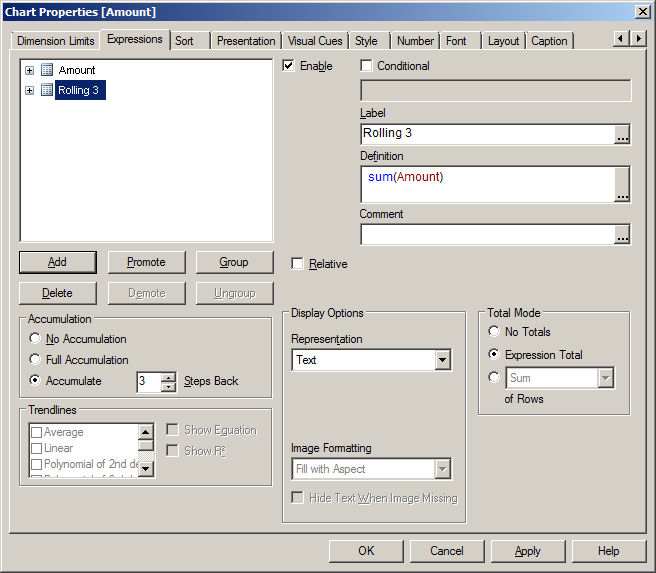
The second option uses the rangesum function. That expression looks like this:
rangesum(above(sum(Amount),0,3))
This sums the Amount value on current row and on the previous two rows. The resulting straight table looks like this:
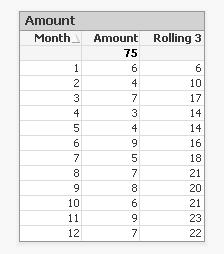
This looks good. The rolling 3 months amount is calculated correctly. But what happens if a selection of months is made?
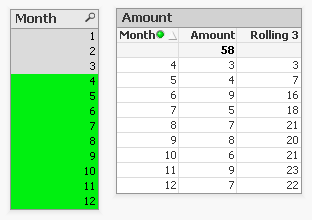
The rolling 3 month amount for month 4 is now 3 instead of 14. This is because month 1,2 and 3 are no longer included in the calculation for the rolling 3 month total.
The accumulation option has another issue. It only works when only one dimension is used in the straight table. The rangesum expression can be modified so it can calculate across dimension borders, but the accumulation option can't. The modified rangesum expression adds the total keyword to the above() function:
rangesum(above(total sum(Amount),0,3))
This goes some way to doing what we want, but the issue of displaying the wrong rolling 3 month amount for month 4 isn't solved yet. Contrary to what I first thought there is a solution for this, as Henric pointed out to me in the comments below. By combining the rangesum with the aggr function it's possible to calculate the correct rolling 3 month amounts for each month. The expression needed for that looks like this:
sum(aggr(rangesum(above(total sum({<Month=>}Amount),0,3)),Month))
Read Elif's blog post Accumulative Sums for a more complete explanation.
How about set analysis expressions?
This expression should calculate the sum of amount for the three month period:
sum({<Month={'>=$(=only(Month)-2)<=$(=only(Month))'}>}Amount)
But notice the only() function. This requires that only one month value is selected. After selecting month 4 the result looks like this:

This shows the selected month, but also the two previous months. And the values are not accumulated.
Ok, but what about the max function instead of only?
sum({<Month={'>=$(=max(Month)-2)<=$(=max(Month))'}>}Amount)
That gives a different result, but still not what we're looking for:
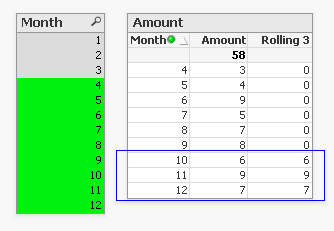
Now only the last three months are shown and again the values are not accumulated.
The 'problem' is that the set is calculated once for the entire chart, not per row. This means that it's not possible here to use Month both as a dimension and in the set modifier in the expression.
There's still an option left to discuss: AsOf tables.
The AsOf table links a period with all the periods in the rolling period. In this example months are used, but it can be applied to any type of period like hours, days or weeks.
For the three month periods needed for a rolling 3 month total this means a month should be linked to itself, the previous month and the month before the previous month. The only exceptions are the first month, which is itself the rolling 3 month period, and the second month that together with the first month is its rolling 3 month period. There are no months before the first month so the first two months cannot run over 3 months.
The AsOf table needed for the rolling 3 month calculations looks like this:
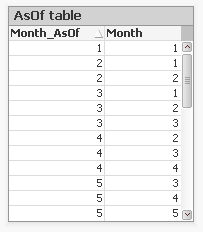
This table can be created like this:
AsOfMonth:
load
Month as Month_AsOf,
Month + 1 - IterNo() as Month
Resident SalesData
while IterNo() <= 3;
right join load Month Resident SalesData;
What this does is create three records for every month using the while statement. But that also creates three records for month 1 and 2. This would create a month 0 and a month -1. The right join is used to remove those incorrect month values.
Now that the AsOfMonth table is created the Month_AsOf field can be used instead of the Month field in the straight table. The expression for the straigh table is simply sum(Amount).
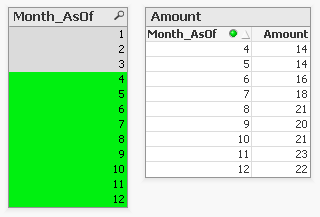
The straight table now shows the correct rolling 3 month total for month 4.
This can be expanded a little so not only the rolling 3 month can be shown, but also the amount for the month itself. To achieve this the AsOf table is modified by adding a field to label the type of period. And records are added to the table so each Month_AsOf value is linked to the matching Month value:
AsOfMonth:
load 'Current' as Type,
Month as Month_AsOf,
Month as Month
Resident SalesData;
Concatenate (AsOfMonth)
load 'Rolling 3' as Type,
Month as Month_AsOf,
Month + 1 - IterNo() as Month
Resident SalesData
while IterNo() <= 3;
right join load Month Resident SalesData;
There are now two types of periods available: Current and Rolling 3. Additional period types can be added for example for Rolling 6, Rolling 12 month and Year-to-Date periods. You can find examples of these types in the attached AsOf Table Examples.qvw document.
The period type can be used in the chart expressions to calculate the amount for the wanted period:
Current amount: sum({<Type={'Current'}>}Amount)
Rolling 3 month amount: sum({<Type={'Rolling 3'}>}Amount)
Concluding, there are two solutions that do what we want:
1. The rangesum-aggr combination
2. The AsOf table
The first has the advantage that no changes to the data model are needed. It's also possible to dynamically change the period to aggregate over by using a variable instead of a hardcoded number of periods. A disadvantage is that that it's a somewhat complicated expression that also comes with a performance cost.
The AsOf needs changes in the data model to create the AsOf table and fill it with the necessary records. The advantage is that it likely performs better on large data sets. It's also quite versatile since you can add several sets of records to meet different scenario's. The expressions you end up with in the charts are also less complicated. That said, it will likely take you some time to fully understand the AsOf table concept and realize all the places where you can put it to good use.
In the end you'll have to decide for yourself which solution is appropriate in your situation. With regards to the performance of one or the other solution, you will simply have to test to discover if the performance is acceptable. But of course such testing is already part of your development process, right?
I'd like to thank John Witherspoon for introducing me to the AsOf tables concept and Henric for pointing out the solution using the rangesum function in combination with the aggr function.
- Tags:
- asof
- creating_analytics
- Labels:
-
Creating Analytics
-
QlikView
Definition:
Returns the number of dimension columns that have non-aggregation content. i.e. do not contain partial sums or collapsed aggregates.
A typical use is in attribute expressions, when you want to apply different cell formatting depending on ag
...Definition:
Returns the number of dimension columns that have non-aggregation content. i.e. do not contain partial sums or collapsed aggregates.
A typical use is in attribute expressions, when you want to apply different cell formatting depending on aggregation level of data.
This function is only available in charts. For all chart types except pivot table it will return the number of dimensions in all rows except the total, which will be 0.
What does it mean?
We have Table with 4 dimensions(columns): Product,Category,Type,Sales
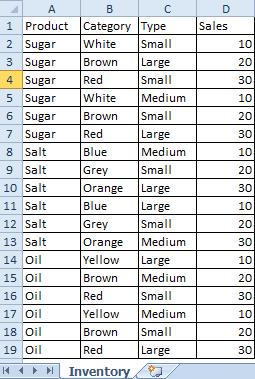 |
Now we want to create Pivot Table by using those Dimensions.
We are going to use only 3 of them(Product,Category,Type) and use 4th(Sales) in our expression.
The result is shown below:
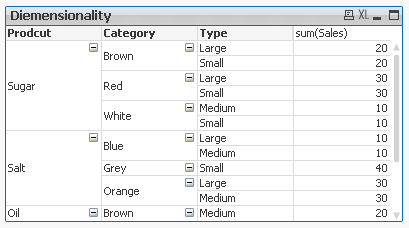
This Pivot Table has 3 dimensions so its maximum dimensionality is 3.
For better understating please see table below.
The function is used to show on which dimensionality level each of the Pivot Table row is:
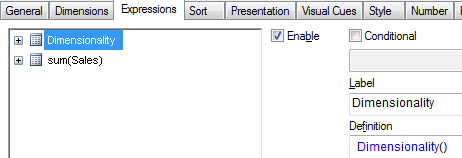 |
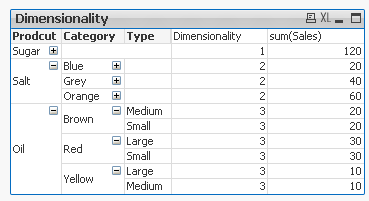
'Sugar' has dimensionality of 1 which is Total for that 'Product'.
'Salt' has dimensionality of 2 which is Total for each 'Category' of that 'Product'.
'Oil' has dimensionality of 3 which is single value for each 'Type' of the 'Product's' 'Category'.
So then more Dimension we use the greater dimensionality of our Pivot Table is.
Practical use:
1) To show the level of dimensionality:
Expression:
if(Dimensionality()=1 ,RGB(151,255,255),if(Dimensionality()=2 ,RGB(0,238,0),if(Dimensionality()=3,RGB(255,130,171))))
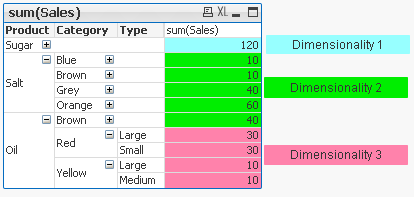 |
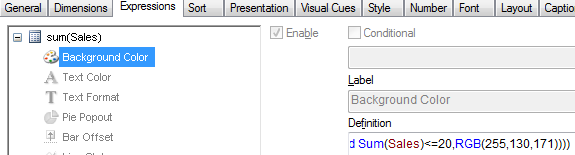
2) Highlight background of rows which on each level fall into certain condition:
Expression:
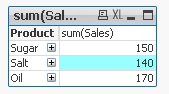
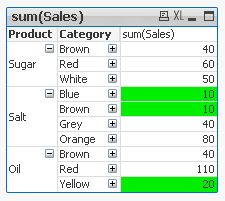
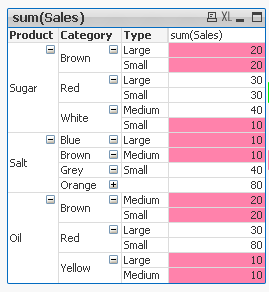
if(Dimensionality()=1 and sum(Sales)<150,RGB(151,255,255),if(Dimensionality()=2 and sum(Sales)<=20,RGB(0,238,0),if(Dimensionality()=3 and Sum(Sales)<=20,RGB(255,130,171))))
| LEVEL1 --> Values <140 | LEVEL 2 --> Values <=20 | LEVEL 3 --> Values <=20 |
|---|---|---|
 |  |  |
Remember 
- To use the script below the Excel file must be saved in the same folder that your qvd file
Otherwise you will need to make changes the this path - [Dimensionality.xlsx]
Directory;
LOAD Product,
Category,
Type,
Sales
FROM
[Dimensionality.xlsx]
(ooxml, embedded labels, table is Sheet1);
Felling Qlingry?
.png "Former Employee")
- What techniques are there to generate “new” tables; tables that don’t exist in the source data?
- How do I loop over one and the same record in source data?
- How do I propagate a value from above record to the current one?
- How do I populate a sparsely popu
- What techniques are there to generate “new” tables; tables that don’t exist in the source data?
- How do I loop over one and the same record in source data?
- How do I propagate a value from above record to the current one?
- How do I populate a sparsely populated field?
- How do I generate all combinations – the Cartesian product – of two or more fields?
- How do I make simulations in QlikView?
These questions and others are answered in this Technical Brief.
- Labels:
-
App Development
-
Scripting
-
Technical Brief
- What is the difference between a NULL and a missing value?
- How are NULLs propagated in expressions?
- How does QlikView display NULLs?
- How do I make NULLs selectable?
- How do I search for NULLs?
- Can NULLs be used in key fieds to link tables?
- What is Te
- What is the difference between a NULL and a missing value?
- How are NULLs propagated in expressions?
- How does QlikView display NULLs?
- How do I make NULLs selectable?
- How do I search for NULLs?
- Can NULLs be used in key fieds to link tables?
- What is Ternary Logic?
These quesions and others are answered in this Technical Brief.
Thank you, mellerbeck and Matthew Fryer for idea and inspiration.
See also
NULL – The Invisible Nothing and
2012-12-18: Fixed an error in the section about NULL propagation pertaining to relational operators. Added examples in the same section. /HIC
2012-12-20: Added information about ideographic space. Changed layout of some truth tables (images). /HIC
2013-04-46: Added section about How QlikView displays NULLs
2016-10-13: Corrected a sentence about the result of <Product = {}>
- Labels:
-
Creating Analytics
How could I make sure that certain data are only for certain users available?
The answer is SECTION ACCESS. Section access is a connection between an authorization table (commonly placed in a hidden script and/or outsourced in an include-variable)
...How could I make sure that certain data are only for certain users available?
The answer is SECTION ACCESS. Section access is a connection between an authorization table (commonly placed in a hidden script and/or outsourced in an include-variable) and the application data (most to a dimension table).
Further you need to enable section access within the document properties in tab open and especially to enable the strict exclusion is important then without this is section access more a comfortable usability function to avoid confusing by the users which needs only a small data-area from the application but not more suitable for real confidential data.
Introduction to Section Access
Data Reduction – Yes, but How?
Section Access: Strict Exclusion
QlikView Section Access Examples
Data Reduction Using Multiple Fields
Section Access (Data Reduction) using Active Directory
In addition to these there are more complex restrictions possible but before you build one think on alternatives like Document chaining whereby those applications then have a specialized and simpler section access.
Basics for complex authorization
Authorization using a Hierarchy
Restrictions based on section access could be applied on sheets and objects.
Sheets Security with Section Access
Sheets Security with Section Access File
Sometimes there is a need to mask or de-identify data for certain users, for this see: Mask or de-identify data for certain users using Section Access.
At least the most important remark: before thinking on section access makes one or more BACKUP's from your applications then there aren't any go backs by mistakes! One exception (which don't nullified the suggestion of having Backup's) could you find here: Bypassing QlikView Section Access – Infinity Insight Blog.
There is some content-overlapping within the above used links but I think the complement to each other is useful and of course you will find many more interesting postings here within the qlik community to these topic - the notes here are a good starting point to go further.
Have fun!
- Labels:
-
Application Development
-
QlikView

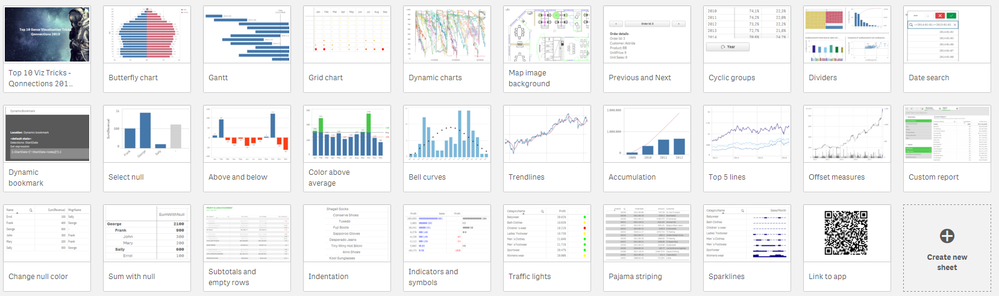
At Qonnections 2019 I hosted a session called "273367 Qlik Sense Visualizations, best practice and top tricks". Here's the app I used with all tips including test data. Tip titles, more details in app:
* Chart and UI *
Butterfly chart
Gantt chart
Grid
At Qonnections 2019 I hosted a session called "273367 Qlik Sense Visualizations, best practice and top tricks". Here's the app I used with all tips including test data. Tip titles, more details in app:
* Chart and UI *
Butterfly chart
Gantt chart
Grid chart
Dynamic charts
Map image background
Previous/next in selection
Cyclic groups
Dividers
Date search filters
Dynamic bookmark
Select null
* Add ons *
Above and below
Color above average
Bell curves
Trendlines
Accumulation
Top 5 lines
Offset measures
* Table *
Custom report
Change null color
Sum with null
Subtotals and empty rows
Indentation
Indicators and symbols
Traffic lights
Pajama striping
Sparklines
Link to app
There is also video available: https://www.youtube.com/watch?v=fIOcb_JGNb4&t=3s
I want to emphasize that many of the tips are discovered by others than me, I tried to credit the original author at all places when possible. Many of the tips have been published before on the Qlik Community, the app below can be viewed as my current top picks.
If you liked it, here's more in the same style:
- 24 days of visualization Season III, II, I
- Top 10 Tips Part X, IX, VIII, VII, VI, V, IV, III, II , I
- Let's make new charts with Qlik Sense
- FT Visual Vocabulary Qlik Sense version
- Similar but for Qlik GeoAnalytics : Part III, II, I
Thanks,
Patric
- Labels:
-
App Development
-
Visualization
This document concerns data modelling and joins
- What is the difference between a join using the join prefix and a join using a SELECT statement?
- When should you join and when shouldn't you? Performance considerations?
- Are there alternatives to joins? (Y
This document concerns data modelling and joins
- What is the difference between a join using the join prefix and a join using a SELECT statement?
- When should you join and when shouldn't you? Performance considerations?
- Are there alternatives to joins? (Yes! Applymap!)
- What does the Keep prefix do?
See also my blog post on the same subject: To Join or not to Join.
- Labels:
-
Scripting
If you have never thought about integrating predictive analytics and QlikView, may this article pique your interest on the topic. If you have thought about the potential, but do not know how to get started, may this be the motivation to start your j
...If you have never thought about integrating predictive analytics and QlikView, may this article pique your interest on the topic. If you have thought about the potential, but do not know how to get started, may this be the motivation to start your journey.
This demo example illustrates the art of the possible around the interoperability of the R statistics engine and QlikView 11 for enabling predictive algorithms within QlikView today.
R (http://www.r-project.org/) is a free software environment for statistical computing and graphics, which supports predictive modeling and scoring. The example also introduces Rattle (Rattle: A Graphical User Interface for Data Mining using R -- http://rattle.togaware.com/). Rattle was used to create the predictive model and generate the R code implemented within the example QlikView application. The use of Rattle is not detailed here. It is left up to you to explore.
The example assumes you understand R and how to create predictive models in R and how scoring works in R. If you understand how to do those things in R and you know how QlikView works, this example should give you an idea of how:
- you could implement a compelling QlikView application for discovering trends in data as you have become used to with QlikView
- while adding the ability to predict outcomes using a proven, trained scoring model you have built in R
- and while showing actionable predicted outcomes at the point of decision
-- all without the end user having to leave QlikView.
As in the previous example posted by Elif Tutuk, "Integrating QV with R example kit.zip" (http://community.qlik.com/docs/DOC-2975), the example utilizes statconnDCOM. A slightly different approach in this example overcomes a break in functionality introduced into that earlier example by the changing in the behavior of one of the COM API methods in the most recent releases of statconnDCOM.
The integration is done using QlikView's built-in VBScript support to interoperate with the DCOM-based API. This is just one way to integrate with R. With a little research you can discover other potential opportunities for R integration (e.g., OpenCPU). Also, note that R is just one such example of a statistical engine being integrated with QlikView. Other solutions, such as commercially available statistical engines or predictive scoring engines may also be integrated in similar ways.
To get started with this example, save the attached file, QlikView-R_Predictive_Demo.zip, to your system. Open the zip file, and copy the enclosed folder (QlikView-R_Predictive_Demo) to a location of your choice. The location is not important as the example is portable and has no dependency on being placed in a particular folder on your system. Now navigate into the folder you just extracted and find the document named “Qlikview-R Integration Demo 20170310.pdf”. Open the document and follow the instructions step-by-step.
UPDATE (May 7, 2014): I updated the installation document (Qlikview-R Integration Demo 20140421.pdf) to eliminate the RAndFriends installer as it has been unavailable for some time. This edition of the document references R 3.1.0. Hopefully the instructions will continue to be a good guide for subsequent versions as well. I will continue to monitor for changes in R, statconnDCOM and other R components which could effect how the demo application works going forward. The example QlikView application itself remains unchanged. It is a Personal Edition version, so you should be able to explore it with a licensed QlikView Desktop or the Personal Edition. Thank you for your continued feedback on this demo.
UPDATE (September 21, 2015): Everyone who has been seeing the message "The license that is embedded in this document is not valid": I attached an updated version of QlikView-R_Predictive_Demo.zip. Ensure you overwrite the old QVW with the new one in this package. That is the only change. Please forgive this looooong overdue update. 
UPDATE (October 9, 2016): Updated the embedded license to work with QlikView Desktop Personal Edition.
UPDATE (February 2, 2017): Updated the embedded license to work with QlikView Desktop Personal Edition.
UPDATE (March 10. 2017): A dependency for this particular example is statconnDCOM from the team at autstat (http://www.autstat.com/). If you wish to utilize statconnDCOM, you will need to contact autstat directly and purchase a license or request an evaluation license for testing.
- Labels:
-
QlikView
Hierarchies are an important part of all business intelligence solutions, used to describe dimensions that naturally contain different levels of granularity. Some are simple and intuitive whereas others are complex and demand a lot of thinking to be
...Hierarchies are an important part of all business intelligence solutions, used to describe dimensions that naturally contain different levels of granularity. Some are simple and intuitive whereas others are complex and demand a lot of thinking to be modeled correctly.
- What is the difference between a balanced and an unbalanced hierarchy?
- How can a hierarchy be loaded into QlikView?
- Which data model should be used?
- How do I create an authorization scheme using a hierarchy?
- How can I check for data integrity problems in the hierarchy data?
These questions and others are answered in this Technical Brief. Attached you will also find a sample unbalanced, n-level hierarchy along with the script to load it.
See also the following blog posts:
Unbalanced, n-level hierarchies
Authorization using a Hierarchy
2013-11-26: Added section on authorization.
A great primer to Section Access by Gustav Guldberg of QlikView Support.
A great primer to Section Access by Gustav Guldberg of QlikView Support.
- Labels:
-
QlikView
Welcome to the QS CSS MasterClass.
‼️Since the article was written a lot of features and settings have been added to Qlik Analytics. For most users it's better to use native functions, easier to apply and doesn't require any effort to maintain. Her
...Welcome to the QS CSS MasterClass.
‼️Since the article was written a lot of features and settings have been added to Qlik Analytics. For most users it's better to use native functions, easier to apply and doesn't require any effort to maintain. Here's a list of common CSS mods and their new setting counter part.
https://community.qlik.com/t5/App-Development/Obsolete-CSS-modifications/td-p/2511714
FYI, the Multi KPI object which can be used to inject CSS will retired in a not too distant future. ‼️
Motivation:
In my career as a PreSales, I need to create quite a few "user-appealing-applications". Sometimes users request a specific design or specific functions I need to implement in Qlik Sense. As we all know, Qlik Sense is built for simplicity & self-service and sometimes it could be challenging to achieve the desired result. But through the last couple of years, there were a lot of tips and tricks around using CSS to create completely new designs and functions to implement a better information design concept.
This is where the MasterClass starts. I have created an application that gathers a couple of these tricks and explains them more in detail. In addition to that, it is very easy to understand because you can see the result directly within a Qlik Sense App. If you think this sounds interesting, take a couple of minutes and join my short tour through the app. I won't cover all aspects in detail. This tour will give you an overview of the documented and used tricks within the app.
Content:
The following list will give you a brief overview of what topics are focused on the specific sheet within the app.
| Sheet | Description |
|
|
You can add CSS definitions to your app by using themes or by using so-called "helper- objects". On this sheet, I will explain when you should use which option. |
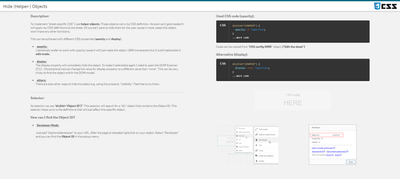 Hide (Helper-) Objects Hide (Helper-) Objects |
A "helper-object" carries and injects the CSS definition on a specific sheet. This sheet helps you to hide this object and which objects can be used for it. |
|
|
This example demonstrates how to add better guidance to your dashboards by segmenting your background. |
|
|
Sometimes selections can be mandatory to consume a dashboard, or the creator likes to guide the user through the filter pane by using colored filter boxes. I show you how. |
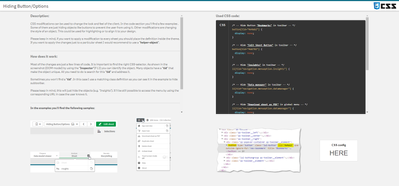 Hiding Button/Options Hiding Button/Options |
How to hide objects like the selection bar or elements within context-menus in case these functions shouldn't be used in the app or on this sheet? |
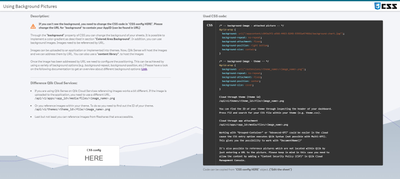 Using Background Pictures Using Background Pictures |
Adding background-pictures to your dashboard can spice up the overall flavor of your dashboards. This can be used for segmentation or just to add some style. |
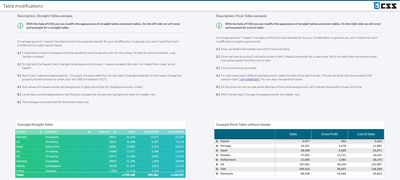 Table modifications Table modifications |
In this section, we will completely change the look and feel of a straight- and pivot table. |
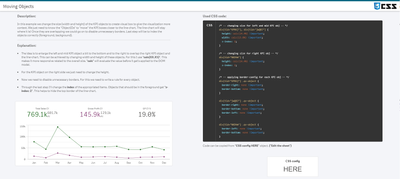 Moving Objects Moving Objects |
Let's create an illusion by just moving our objects closer together. After that, I'll look like we just have one. |
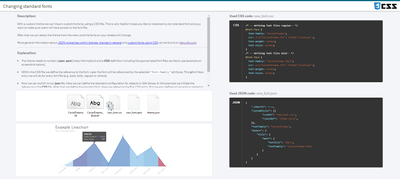 Changing standard fonts Changing standard fonts |
This sheet explains the easiest way to implement your own font by using a custom theme. It's just a few lines of code. |
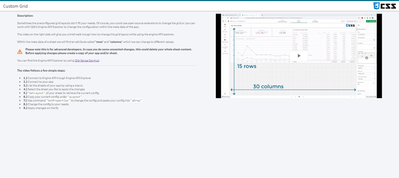 Custom Grid Layout Custom Grid Layout |
No matching grid? This trick shows you how to create your own grid for a specific sheet by changing the metadata through Qlik Engine API Explorer. |


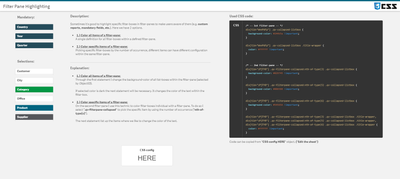
Installation:
Under "Attachments" you can find the required package. The zip package includes a qvf file (Qlik Sense - CSS MasterClass V 1.0.qvf) and an extension (ShowHTMLfromMeasure). After importing the extension and app we need to change a quick configuration because the app has a different ID on your system now.
Open sheet called "Using Background Pictures". Normally this sheet has a background image. This gets referenced over the internal app-ID. Click on "Edit Sheet" and select the displayed CSS box ("CSS config HERE"). Navigate to submenu "Styles" and change the used app-ID in "Styles (CSS)" to your app-ID (displayed in the URL). Now you should see a background picture on this sheet.

Usage:
Every sheet has the same structure. First, a description explains the trick in general and how it's working. On most of the sheets, you also get the explanation for the used CSS selectors. On the right-hand side, you can see the used code in a black code box. You can't copy the code from here. To do so enter the "edit-mode" and click on the "CSS config HERE" button. This object is always the "Helper-object" that carries the used and explained CSS code. Navigate to the "Styles" submenu and copy the code from the "Styles (CSS)" window. I recommend using an external editor to modify or review the CSS code.
In case you like to transfer the trick to your dashboard you just need to change the object ID. If you don't know how to find the object ID this will be explained on sheet "Hide (Helper-) Objects".
Have you ever wonder how the examples from the Qlikview help may look like?
Please see below and enjoy responsibly...
Dual()
Definition:
Forced association of an arbitrary string representation s with a given number representation x. In QlikView, when se
...Have you ever wonder how the examples from the Qlikview help may look like?
Please see below and enjoy responsibly...
Dual()
Definition:
Forced association of an arbitrary string representation s with a given number representation x. In QlikView, when several data items read into one field have different string representations but the same valid number representation, they will all share the first string representation encountered. The dual function is typically used early in the script, before other data is read into the field concerned, in order to create that first string representation, which will be shown in list boxes etc.
Syntax:
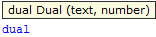
where
text - this is first column of data
number- this is second column of data

Qlikview has specific way of storing data. Each field is represented by Text and Number data type called dual.
The Text format is visible to user and the Number is being used for calculation and sorting.
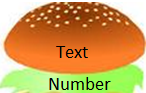
You can imagine that each field has top Text layer and bottom
(like salad in your Hamburger) Number layer.
This association works most of the time and for most of the data type but there are situation that we need to force this association to work the way we want.
Preparation
Remember 
- To use the script below the csv file must be saved in the same folder that your qvd file
Qlik help example contains two tables: inline and from csv file(sample attached)
load dual ( string,numrep ) as DayOfWeek inline
[ string,numrep
Monday,0
Tuesday,1
Wednesday,2
Thursday,3
Friday,4
Saturday,5
Sunday,6 ];
Directory;
LOAD Date,
Sales
FROM
afile.csv
(txt, codepage is 1252, embedded labels, delimiter is ',', msq);
//The last line is not part of Qlikview help but you have to have this line to correctly load data into Qlikview
after Reload we have:

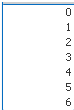
As you probably know when Values are on the left hand side they represent Text when on the right Number.
So why we have Text on the right?
In the background (during load) the numbers have been associated with the text.
So what you see is the bun what you do not is the underlay salad:
Practical use:
Example 1
The simple but maybe not the most useful calculation is to add Days of the week from our data =sum(DayOfWeek) |
|

Example 2
Counting days of the week:
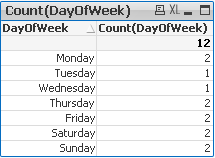
Example 3
(please use attached xlsx file and below Script)
A survey has been conducted and the data in Excel file looks like this:
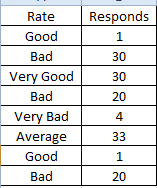
What we want is to assign more meaningful description to the rate numbers.
Script:
Data:
mapping load * Inline
[ Rate,Value
Very Good,5
Good,4
Average,3
Bad,2
Very Bad,1
]
;
Sort:
load
Responds,
dual(Rate,ApplyMap('Data',Rate)) as Rate
FROM
Survey.xlsx
(ooxml, embedded labels, table is Sheet1);
Now we can create Straight Table or bar Bar Chart:
| 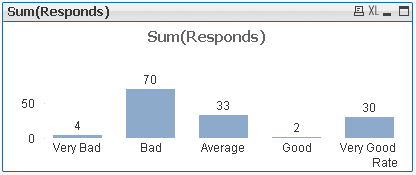 |
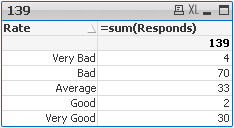
This function can be use in many different ways.Please research our community to find more examples.
Still feeling hungry?
Do you Qualify?- How to use QUALIFY statement
Missing Manual - GetFieldSelections() + Bonus Example
MaxString & MinString - How to + examples
The second dimension... or how to use secondarydimensionality()

Everyone knows that sometimes we need to use chr() function to put paragraph sign - chr(13) – or single-quote - chr(39).
But sometimes you need a special symbol, but you don’t know the number. You can find it in the Internet, but I’ve found a Qlik wa
...Everyone knows that sometimes we need to use chr() function to put paragraph sign - chr(13) – or single-quote - chr(39).
But sometimes you need a special symbol, but you don’t know the number. You can find it in the Internet, but I’ve found a Qlik way how to do it.
- Just create a straight table.
- Add Calculated Dimension =ValueLoop(1,100) or even =ValueLoop(1,10000)
- Add Expression chr(RowNo())
- And find a symbol that you need.
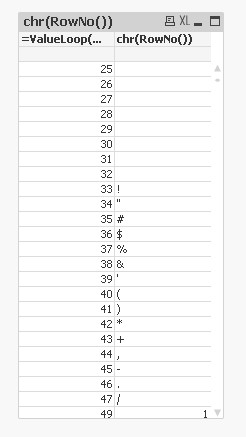
There is a faster way, If you found a symbol in the Internet and would like to know what is the number for this char.
For example delta sign
Δ
Use the ord() function
Ord(‘Δ’) gives you 916. So if you need to put this symbol somewhere you can use chr(916)
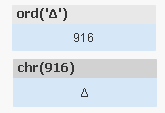
Some interesting codes are
=chr(9650) & chr(9651) & chr(9660) & chr(9661)

=chr(9733) and =chr(9734)


Be aware!
in the comments in different discussion jaimeaguilar mentioned that
"using chr() function you can display any ASCII / ANSI character (from chr 0 to 255) or Unicode chars (from chr 256 and up). The corresponding number in chr() function for the Unicode chars is the number referred as decimal, that can be found in plenty internet sites. Almost any Unicode char will display in ajax, but in some cases the correct displaying will depend on the page encoding."
- Tags:
- qlikview
- tips&tricks
- tricks
- Labels:
-
QlikView

At QlikWorld 2020 I'm hosting a session called "Top 10 Visualization tips". Here's the app I used with all tips including test data. Tip titles, more details in app:
* Charts *
Parliament diagram
Scatter with trackline
Calendar Graph - Month view
Cale
At QlikWorld 2020 I'm hosting a session called "Top 10 Visualization tips". Here's the app I used with all tips including test data. Tip titles, more details in app:
* Charts *
Parliament diagram
Scatter with trackline
Calendar Graph - Month view
Calendar Graph - Year view
Meteogram
Spiral plot
Rank chart
Slope graph
Timeline chart
Candlestick chart
Range chart
Ridgeline chart
Stream Graph
Chord diagram
Coxcomb chart
Race chart
* UI tweaks
Toolbar toggle
Hide toolbar
Hide selection bar
Hide sheet title
Hide popup buttons
Hide Pivot buttons
Hide search bar
Hide three nav
Watermark
Center titles
Highlight rows
Larger scrollbars
* Dev tips*
Scatter overlap
Persistent colors
Color thresholds
Trellis container
Responsive and mobile tips
Include from Github
Tooltip table
Radial bar charts
100% bar charts
Title and text matters more than we think
Thumbnails
Quarterly month average
Image to chart
Magic quadrant
Link to app
I want to emphasize that many of the tips are invented by others than me, I tried to credit the original author at all places when possible. Many of the tips have been published before on the Qlik Community, the app below can be viewed as my current top picks.
If you liked it, here's more in the same style:
- 24 days of visualization Season III, II, I
- Top 10 Tips Part X, IX, VIII, VII, VI, V, IV, III, II , I
- Let's make new charts with Qlik Sense
- FT Visual Vocabulary Qlik Sense version
- Similar but for Qlik GeoAnalytics : Part III, II, I
Thanks,
Patric
- Labels:
-
App Development
A QlikView Technology White Paper
Published: November, 2011
www.qlik.com
Introduction
Event Driven Execution (EDX) allows the running of QlikView batch jobs based on external events. The primary usage of EDX is to have an external scheduler or Extract,T
...A QlikView Technology White Paper
Published: November, 2011
www.qlik.com
Introduction
Event Driven Execution (EDX) allows the running of QlikView batch jobs based on external events. The primary usage of EDX is to have an external scheduler or Extract,Transform, and Load (ETL) tool (for example, Informatica) run QlikView batch jobs as part of a larger batch process. There are also other use cases, forexample, triggering a QlikView batch when a file arrives and user-initiated batches. This document describes the requirements for each of these three use cases.
The example code (attached below as QMSEDX-v1.exe) and executable (attached below as QMSEDX_CommandLine_v1.exe) that is delivered together with this document uses the new EDX API, which means this document and the example code are useful both when using the EDX functionality for the first time and when migrating from previous versionsof the EDX API.
Use Cases
Using an External Scheduler or ETL Tool
Many large organizations have other batch requirements than just QlikView. Such organizations often use a standard tool to run all batch processes, so that the IT training costs are minimized and common operations (for example, logging and re-launching) are handled in one central place. In addition, QlikView batch processing is almost always reliant on new data being available and in many cases this data is created by other batch processes. An external scheduler or ETL tool can be used to prepare the data and then run the QlikView batch to load it.
Most scheduler and ETL tools are designed to run external batch programs via a command line interface. The reasons for this include:
- Batch processes are long-running, so starting aseparate process to handle them provides a simple way for the scheduler tomonitor the batch processes.
- The scheduler can be configured to run the batchusing a particular operating system account that provides the required securitycontext.
- If the batch process fails, the standard operatingsystem error handler can be used to pass this information back to the scheduleror ETL tool.
The main alternative to using a command line tool is using some sort of web services. Unfortunately,web calls cannot be used for long-running processes, since a timeout eventually occurs. A common solution to this problem is to start the process with a web request and then follow it up regularly with subsequent requests to find out if the original request has finished successfully or not.
File Arrival Detection
In many IT departments, the inter-system communication is not orchestrated by ETL or even Enterprise Application Integration (EAI) tools. Instead, files are pushed. For example, a non‑QlikView batch job that extracts data from a production database is typically owned by the IT team running the database, which means the team is responsible for creating and configuring the batch job and ensuring that it runs correctly.On the QlikView side, a program that checks if a file has arrived must be running, so that the file can be used in a subsequent QlikView batch.
In this scenario, simply starting the QlikView batch process should be enough. There is no need to follow its execution. The program is typically a Windows service as it runs all the time.
User-initiated Action
TheQlikView Automation API provides a number of functions that run QlikView batch scripts, for example, Document.Reload(). However, it is normally not a good idea to let users run batch jobs, since a QlikView batch job typically replaces the entire data set of an application used by many users.This means a single user can interfere with the work of all the others unless the QlikView batch is carefully configured. Because of this, the batch functionality is disabled in a QlikView Server deployment.
- The marketing department at a pharmaceutica lcompany has an organizational division between the analysts and the product managers. The analysts are in charge of loading a dozen external data sources of varying quality. Once the data relating to a particular product is ready, the running of a QlikView batch loads the data and publishes the application to the relevant product managers.
- A software company with thousands of employees wants each employee to have access to their sales data up to the last 30 minutes. The computer resources needed to support such data usage are massive. Since the salespeople only use the system once a week on average, it is decided to allow each user to run a QlikView batch to generate a QVW (for the user)whenever needed.
EDX in QlikView 11
In QlikView 11, EDX runs through the QlikView Management Service (QMS) API. This is a major change from QlikView 10, where EDX is realized by calls directly to a QlikView Distribution Service (QDS). The QMS API is a web service API that uses theSimple Object Access Protocol (SOAP). Client applications make HTTP (web) requests to QMS on port 4799. The system is secured by NT LAN Manager (NTLM) as well as special protective measures to avoid certain types of hijacking attacks known as “time limited service key”. This combination of security means the client application must be written in .NET and therefore the provided example code is .NET projects/solutions developed in Microsoft Visual Studio 2010.
The client application uses NTLM to authenticate a Windows account to QMS. QMS then checks which Windows groups the Windows account for the client application is member of to determine the function calls the user is allowed to make. Most of the QMS API requires membership in a local group called “QlikView Management API”, but to run EDX, a separate group, “QlikView EDX”, should be used. Both groups are local Windows groups on the server where QMS runs.
The client application makes calls to instruct QMS to start a task and in return receives an error code indicating success or failure, as well as an execution ID. The execution ID uniquely identifies the execution of the task as opposed to the task itself. The client application then periodically polls QMS to check the progress of the task execution. This poll request returns a data structure that contains, among other things, the execution status, start time, stop time (if already finished), and a list of new execution IDs. These subsequent execution IDs represent the execution of tasks that are triggered because the initial task has finished. The client application can then follow an entire set of inter-related tasks that together make up a full parallelized batch flow.
Lastly, the example code outputs log information and returns an error code to the operating system. The error code can be recovered in a standard way, for example, by using the %ERRORLEVEL% environment variable in a BAT file.
Changes Compared to Previous Versions
From a functionality perspective, the following has changed compared to using EDX in QlikView 10:
- Because communication is with QMS instead of QDS, a QDS cluster can be used to load balance EDX calls. If high availability is required for the batch environment, QMS is a single point of failure. Consider either virtualization of QMS or an active/passive system.
- The overall success or failure code of aQlikView batch can be returned. Previously, the status of the task could be fetched (that is, the definition of the batch job), but not the execution ofthe batch job.
- The execution of subsequent tasks can be followed.
Notes on Using the QMS API
Finally,some notes on using the QMS API in QlikView 11:
- The EDX password must not be null. Use an empty string, if no password is configured.
- The QDS ID is required in the function call that starts the EDX batch job. However, higher-level privileges than membership in “QlikView EDX” are required to get a QDS ID. The simple solution is to pass an empty GUID for the QDS ID, which means QMS will search for the task in all configured QDS instances. Almost all projects today only have one logical QDS configured, so this can be a useful solution.
- EDX can be used without a QlikView Publisher license. Simply pass the name of the QVW instead of a task name and the reloadschedule of the QVW will run.
- Labels:
-
QlikView Publisher
The attached file SectionAccess.zip contains several example documents that show how Section Access can be used to restrict access to specific users and to specific data.
This is not a guide on how to use Section Access, but instead shows some of
...The attached file SectionAccess.zip contains several example documents that show how Section Access can be used to restrict access to specific users and to specific data.
This is not a guide on how to use Section Access, but instead shows some of the common errors and how to avoid them.
An excellent guide to Section Access can be found here http://community.qlik.com/docs/DOC-1853
Marcus_Sommer has accumulated a comprehensive list of Section Access Resources in this document Section Access
These examples will require a licenced copy of QlikView to open them, so they not suitable for users with QlikView Personal Edition.
The example documents will ask for a username and password to open them and set the Section Access permissions. The following usernames and passwords can be used to open the documents and see the different functionality with Section Access. When changing from one user to another, you must close QlikView before you can open a document as another user.
UserID, Password
ADMIN, ADMIN
JOHN, JOHN
MARY, MARY
PETER, PETER
SIMON, SIMON
You can view the load script to see how the Section Access and data is configured.
Section Access Example 1
This document attempt to restrict access to a list of named users, but this fails as the section access field names are not set as UPPERCASE in the script.
Section Access Example 2
The app is now correct and prompts for a username and password before users can access the data.
Examples 1 & 2 use the Basic section access data from SectionAccess.xlsx
Access, UserID, Password
USER, USER, USER
ADMIN, ADMIN, ADMIN
USER, JOHN, JOHN
USER, MARY, MARY
USER, PETER, PETER
ADMIN, SIMON, SIMON
Section Access Example 3
The data is restricted so users can only access the Cost Centre data as listed in the Cost Centre column in Section Access.
Access, UserID, Password, CostCentre
USER, USER, USER, *
ADMIN, ADMIN, ADMIN, *
USER, JOHN, JOHN, A
USER, MARY, MARY, B
USER, PETER, PETER, C
ADMIN, SIMON, SIMON, A
Section Access Example 4
This adds extra DUMMY rows to the section access table so the * entries can now access all cost centres.
Access, UserID, Password, CostCentre
USER, USER, USER, *
ADMIN, ADMIN, ADMIN, *
USER, JOHN, JOHN, A
USER, MARY, MARY, B
USER, PETER, PETER, C
ADMIN, SIMON, SIMON, A
DUMMY, DUMMY, DUMMY, D
DUMMY, DUMMY, DUMMY, E
DUMMY, DUMMY, DUMMY, F
DUMMY, DUMMY, DUMMY, G
DUMMY, DUMMY, DUMMY, H
Note – you cannot open the document as user DUMMY because DUMMY is an invalid Access value, only ADMIN and USER entries are allowed to open the document.
Section Access Example 5
This adds Region to the restrictions as well as CostCentre, but the restriction on Region fails as the
region fieldname is not UPPERCASE.
Access, UserID, Password, CostCentre, Region
USER, USER, USER, *, *
ADMIN, ADMIN, ADMIN, *, *
USER, JOHN, JOHN, A, North
USER, MARY, MARY, B, South
USER, PETER, PETER, C, East
ADMIN, SIMON, SIMON, A, North
ADMIN, SIMON, SIMON, A, East
DUMMY, DUMMY, DUMMY, D, North
DUMMY, DUMMY, DUMMY, E, South
DUMMY, DUMMY, DUMMY, F, East
DUMMY, DUMMY, DUMMY, G, West
DUMMY, DUMMY, DUMMY, H
Section Access Example 6
The Region fieldname is uppercase, but the restriction on Region still fails as the region data is not UPPERCASE.
Section Access Example 7
The Region restriction now works by loading the region data into a second field named REGION_SA and forcing the data in REGION_SA to UPPERCASE.
Version3 - The Region field has been removed from the Section Access table. This fixes the error identified by kanhomcake (March 27 2014).
Hopefully this will help avoid some of the basic errors that can be made when implementing Section Access.
Colin Albert.
- Tags:
- scripting
- section+access
- security
- Labels:
-
QlikView
What it is used for?
The Qualify statement is used for switching on the qualification of field names, i.e. field names will get the table name as a prefix.’

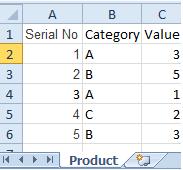
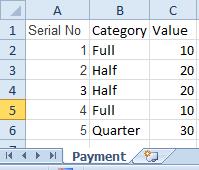
In situation where we have two (or more) Tables with the same field names:
| Product | Payment |
|---|---|
 |  |
The Qua
...What it is used for?
The Qualify statement is used for switching on the qualification of field names, i.e. field names will get the table name as a prefix.’
In situation where we have two (or more) Tables with the same field names:
| Product | Payment |
|---|---|
| |
The Qualify statement will assign name of the Table to fields:
Remember 
- To use the script below the Excel file must be saved in the same folder that your qvd file
Otherwise you will need to make changes the this path - [Qualify.xlsx]
QUALIFY *;
Product:
LOAD [Serial No],
Category,
Value
FROM
Qualify.xlsx
(ooxml, embedded labels, table is Product);
QUALIFY *;
Payment:
LOAD [Serial No],
Category,
Value
FROM
Qualify.xlsx
(ooxml, embedded labels, table is Payment);
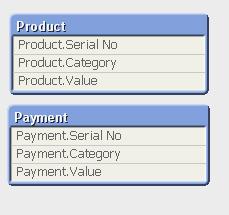
The Outcome:
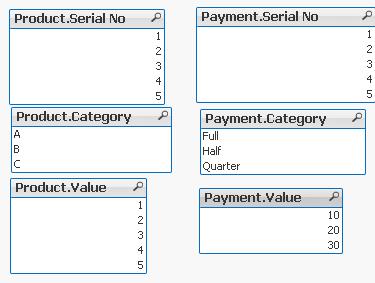
Table Viewer:
Read only if you need to know more....
If we have not used ‘QUALIFY’ statement in situation as above Qlikview would map both of the Tables with outcome like below:
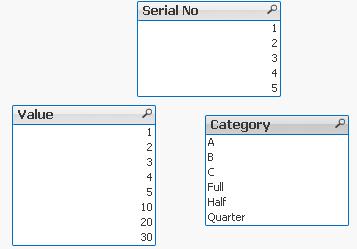
The end result -merge of those two Tables is correct only for the “Serial No” fields
The “Value” and “Category” fields although merged is none of use to us.
To fix this we can only Qualify fields that we do not want to associated:
QUALIFY Category,
Value;
Product:
LOAD [Serial No],
Category,
Value
FROM
Qualify.xlsx
(ooxml, embedded labels, table is Product);
QUALIFY Category,
Value;
Payment:
LOAD [Serial No],
Category,
Value
FROM
Qualify.xlsx
(ooxml, embedded labels, table is Payment);
or by using UNQUALIFY statement:
(which works as opposite to QUALIFY)
QUALIFY *;
UNQUALIFY [Serial No];
Product:
LOAD [Serial No],
Category,
Value
FROM
Qualify.xlsx
(ooxml, embedded labels, table is Product);
QUALIFY *;
UNQUALIFY [Serial No];
Payment:
LOAD [Serial No],
Category,
Value
FROM
Qualify.xlsx
(ooxml, embedded labels, table is Payment);
In second example the ‘QUALIFY *’ part will add Table name to all fields and the UNQUALIFY statement will remove those names only from specified fields(this method is very useful if we got large numbers of fields)
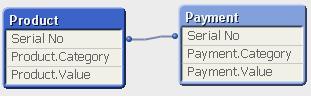
Outcome is as below:
Fields:

Table Viewer:
Feeling Qlikngry?
Date formats can often be challenging for beginners, particularly when different data sources supply dates in different formats, and your reporting requirements specify yet another final date format.
There are two main functions for dealing with da
...Date formats can often be challenging for beginners, particularly when different data sources supply dates in different formats, and your reporting requirements specify yet another final date format.
There are two main functions for dealing with date formats.
Date() and Date#()
Often I see people using the two functions in different combinations with a bit of trial and error until they get the result they want, without really understanding why it has worked. But, with a few simple basics understood, this is easy to understand.
First: Dates are a dual data type
Date fields, once properly formatted, are a dual data type. This means that each value in the field has two components, a string (text) representation of the date, and an underlying numeric component.
You may have seen when working with dates in Microsoft Excel that sometimes when you change the format of a date cell you end up with 42019 instead of 15/01/2015. This number is a difference, in days, between the date and an “epoch date”, in this case 01/01/1900. This is done, because this way it’s much easier to subtract one date from another to find the difference or add a number of days, months or years to a date to forecast for example.
Second: Each function manipulates only one component of that dual data type
Date#() takes a date string (e.g. the text ‘15/01/2015’) and calculates and adds the numeric component to make the proper dual data type date field. It leaves the string component unchanged.
Date() takes a number (either the number 42019 or an already properly interpreted date field with the underlying numeric component already in place) and calculates and adds (or changes) the string component. It leaves the numeric component unchanged.
Both functions take an optional second parameter as a format string for how to interpret in the case of Date() or how to format in the case of Date#(). If this second parameter is not provided, the default set in the script variables is assumed.
Example: A string in the format 2015-01-15 needs to be loaded, interpreted as a date, and formatted to 15/01/2015.
Let's assume the source field is called [OrderDate].
Solution: Date(Date#([OrderDate], 'YYYY-MM-DD'), 'DD/MM/YYYY') as Date
Reading from the inside out, we take the [OrderDate] field, apply Date#() to interpret the string and calculate the appropriate numerical component using the format mask YYYY-MM-DD, and then apply Date() to that result to reformat the string representation using the format mask DD/MM/YYYY.
Aside: Timestamps
Times and Timestamps take this simple concept one step further. In this case a time is again represented by a string (e.g. '12:00:00' or '15/01/2015 12:00:00') and the underlying numerical component will represent the time as a decimal fraction of a day (e.g. 0.5 or 42019.5). The corresponding functions are Time() and Time#() or Timestamp() and Timestamp#().
- Labels:
-
Qlik Sense
-
QlikView

Often when building QlikView applications, or picking up applications which have been built by someone else I want to have a quick and easy way of viewing the data that is in that application. To enable me to do this I have put together a page of ob
...Often when building QlikView applications, or picking up applications which have been built by someone else I want to have a quick and easy way of viewing the data that is in that application. To enable me to do this I have put together a page of objects that lists all tables and fields in the data model and then gives outline information about any selected field. These objects can be copied and pasted into any QlikView application to view the data model of that document.
I have documented how this document works and the reasons why you might use it in a blog post here:
https://www.quickintelligence.co.uk/qlikview-data-profiler/
Please see the blog post for further details on using this document.
There is now a Qlik Sense version of this app, which you can find on Qlik Community here:
Qlik Sense App: Generic Data Profiler
I hope that you find it useful. You will find other applications that I have uploaded under my profile on QlikCommunity, or on our Downloads Page.
Steve
https://www.quickintelligence.co.uk/blog/
PLEASE NOTE: The 'With Mask' version of the file includes an experimental tab that may or may not work well on large data sets. Please see comment below for details. If you are not sure which to download go for DataProfiler.qvw. Thanks!