Unlock a world of possibilities! Login now and discover the exclusive benefits awaiting you.

Analytics & AI
Forums for Qlik Analytic solutions. Ask questions, join discussions, find solutions, and access documentation and resources.
Data Integration & Quality
Forums for Qlik Data Integration solutions. Ask questions, join discussions, find solutions, and access documentation and resources
Explore Qlik Gallery
Qlik Gallery is meant to encourage Qlikkies everywhere to share their progress – from a first Qlik app – to a favorite Qlik app – and everything in-between.
Qlik Community
Get started on Qlik Community, find How-To documents, and join general non-product related discussions.
Qlik Resources
Direct links to other resources within the Qlik ecosystem. We suggest you bookmark this page.
Qlik Academic Program
Qlik gives qualified university students, educators, and researchers free Qlik software and resources to prepare students for the data-driven workplace.
Recent Blog Posts
-
Qlik Sense Wordpress Plugin
There are a lot of people that use Wordpress as their company's portal. If you are one of these people then, you may find this plugin very useful. You... Show MoreThere are a lot of people that use Wordpress as their company's portal. If you are one of these people then, you may find this plugin very useful. You can create a mashup from within wordpress, using the Capabilities API, without writing a single line of code. Just add the settings with the host and the App ID, then the shortcode for the objects that you want and you are done.
Here, I will show you how to do that.
- First go to your wp admin panel, under "Plugins" click on "Add New" and then search for "Qlik"
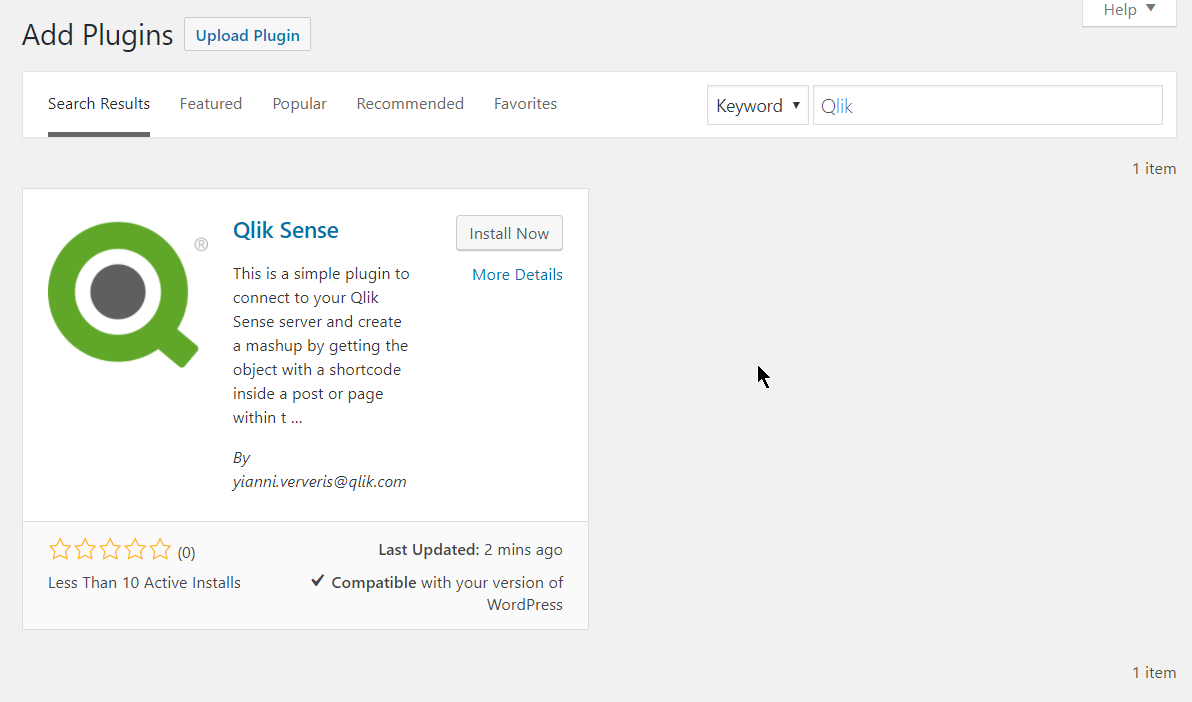
- Click on "Install Now" and then on "Activate"
- This will create a "Qlik Sense" settings page, just open that
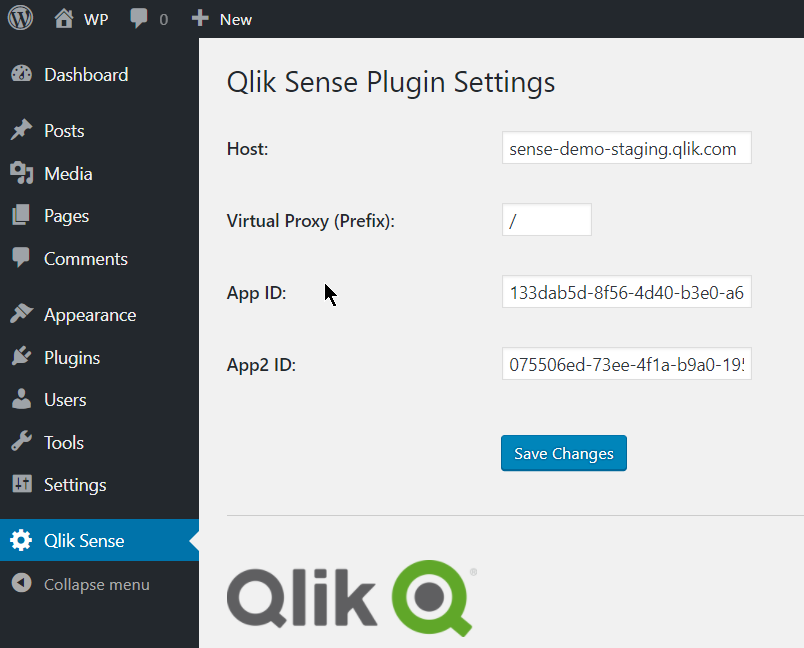
- Here you need to define your host, the Virtual Proxy (prefix) and the App Id, as you would in a regular mashup. If you are planning on using a second app, then add the second app id in "App2 ID".
- Save changes.
- Then add the shortcode into your posts "[qlik-sense-object id="page1-obj2" qvid="nvqpV" height="400" app2="true"]"
- id: is the unique div id. This is needed especially when you want to display the same object in 2 different instances
- qvid: Is the object id as found in the "dev-hub/single-configurator"
- height: The height of the visualization in pixels
- nointeraction: Add this if you want to disable interactions. If you want the objects to have interaction, you can just omit this.- app2: Add this if your object is coming from the second app that you have specified in the settings
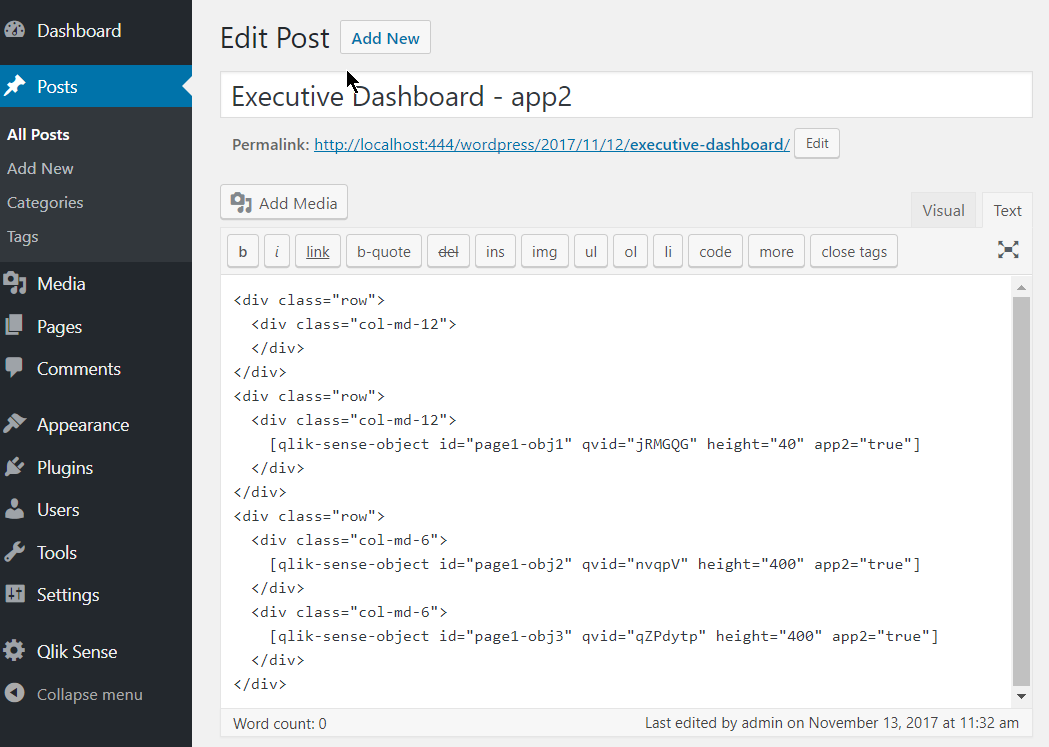
- I have added few objects with a specific height in a bootstrap template for better layout. Now, lets preview the page
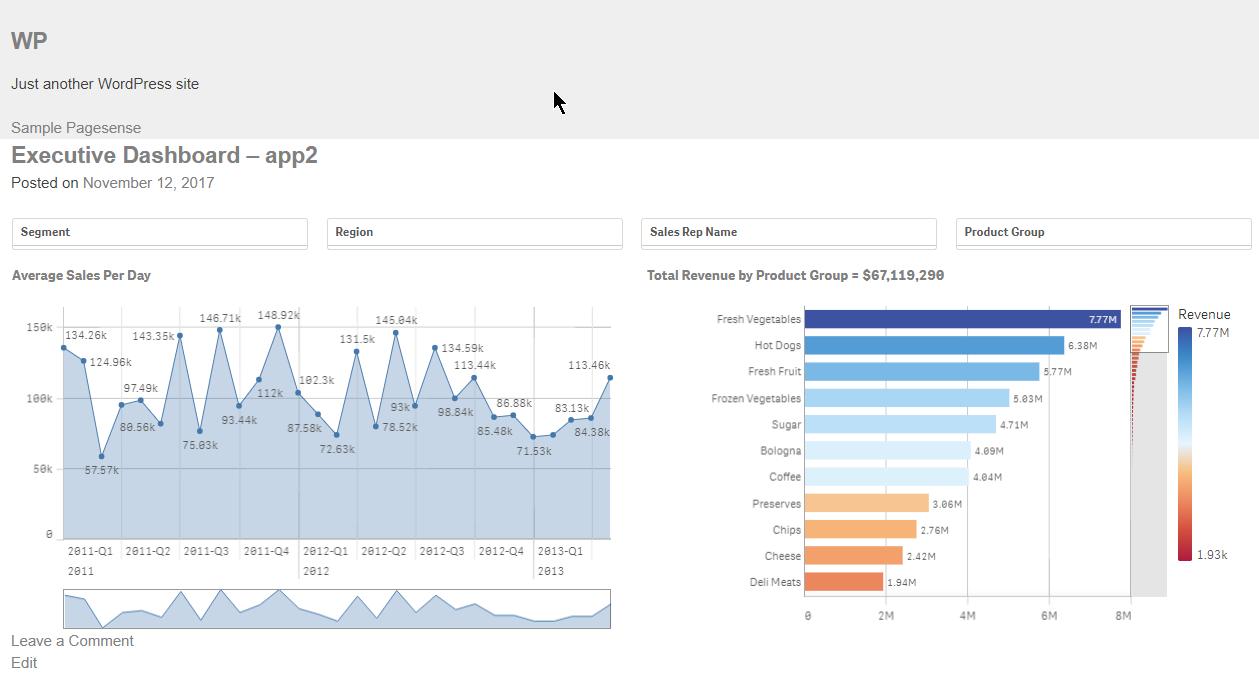
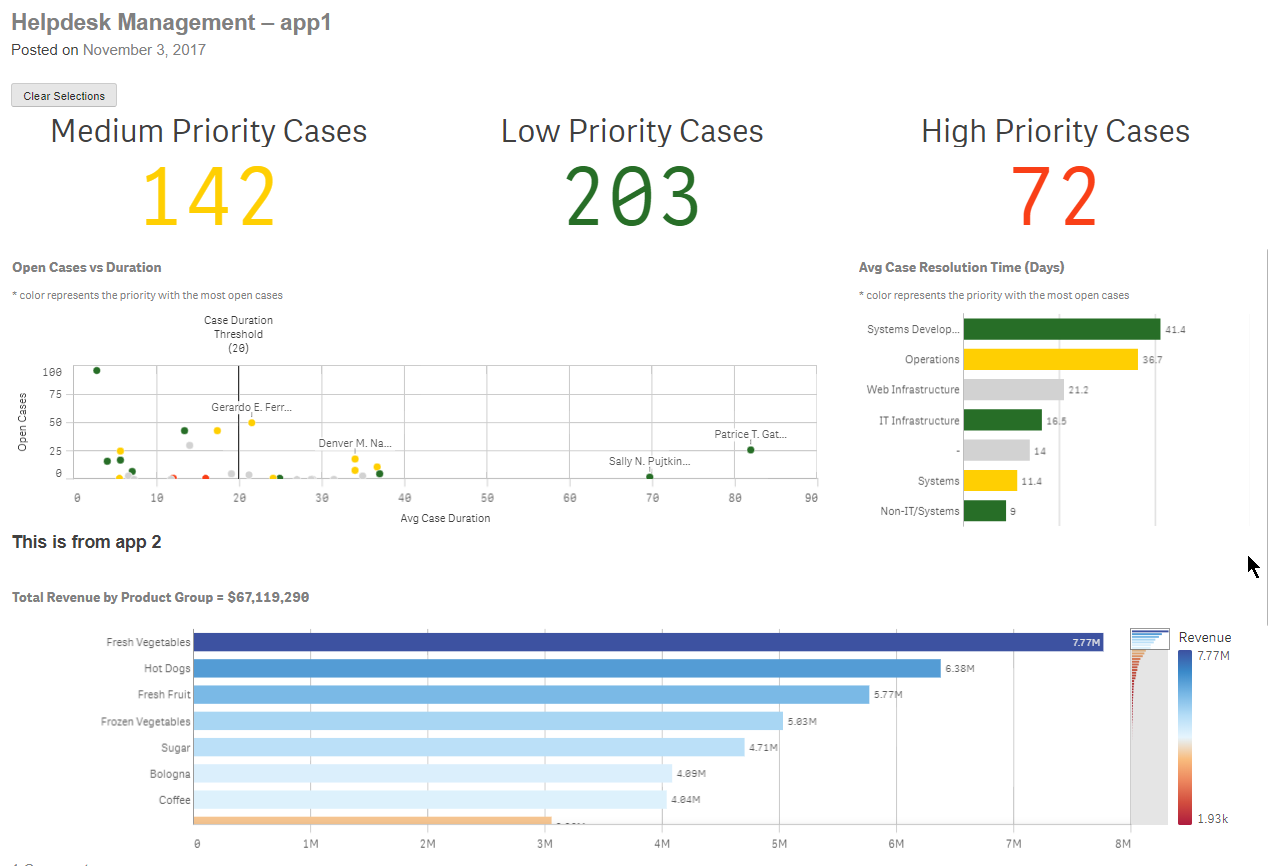
Make sure you whitelist your url in the virtual proxy.
If you use it and like it, please give it a 5 star in Wordpress.
This is it!
Yianni
In Portuguese: Qlik Sense Plugin para Wordpress by cleveranjos. Thank you Clever!
- First go to your wp admin panel, under "Plugins" click on "Add New" and then search for "Qlik"
-
IT Service Desk
IT Service Desk Senwes The purpose of this app is to monitor the tickets the service desk receives in order to improve efficiency. Discove... Show MoreIT Service DeskSenwes The purpose of this app is to monitor the tickets the service desk receives in order to improve efficiency.
Discoveries
The app discovered that the time it takes for certain tickets to be completed can be improved.
Impact
The Pro-active monitoring dashboard included in the app allows the IT department to pro-actively respond to high priority incidents that's having a direct impact on business.
Audience
IT Monitoring/ Service Management.
Data and advanced analytics
Better tracking of ticket duration.
-
Rise in demand for data analytics skills
Data Analytics professionals are indispensable in any organisation. Company leaders develop lucrative strategies for the growth of the organisation ba... Show MoreData Analytics professionals are indispensable in any organisation. Company leaders develop lucrative strategies for the growth of the organisation based on data analytics done by professionals, hence their work is instrumental in the highest decision-making of an organisation. The demand for data analytics and data science professionals is only going to increase in the coming years, not just in India but also globally. A huge 45% increase in jobs in the Indian market is a result of data analytics requirements.
Read more on this in an article in Education Times: https://www.educationtimes.com/article/higher-education-by-invitation/95905611/why-there-is-a-rise-in-demand-for-data-analytics-professionals
If you are a student or educator, learn how to get trained and qualified in data analytics: qlik.com/academicprogram -
Recipe for a Box Plot
When you want to look at the distribution of a measurement, a histogram is one possibility. However, if you want to show the distribution split over s... Show MoreWhen you want to look at the distribution of a measurement, a histogram is one possibility. However, if you want to show the distribution split over several dimensional values, a Box Plot may be a better choice.
You may, for instance, want to evaluate the quality of units produced in different machines, or delivered by different suppliers. Then, a Box Plot is an excellent choice to display the characteristic that you want to examine:
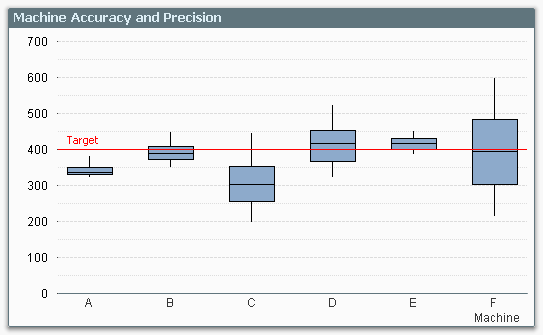
The graph clearly shows you the performance of the different machines compared to target: Machine A has the precision, but not the accuracy. Machine F has the accuracy, but not the precision.
The Box Plot provides an intuitive graphical representation of several properties of the data set. The box itself represents the main group of measurements, with a center line representing the middle of the data. Usually the median and the upper and lower quartile levels are used to define the box, but it is also possible to use the average plus/minus one standard deviation.
The whiskers are used to show the spread of the data, e.g. the largest and smallest measurements can be used. Usually, however, the definition is slightly more intricate. Below I will use the definition used in six sigma implementations.
There, the whiskers are often used to depict the largest and smallest values within an acceptable range, whereas values outside this range are outliers.
The concept of the Inter Quartile Range (IQR) – the difference between the upper and lower quartile level – is used to calculate the acceptance range. Hence:
- Inter Quartile Range (IQR) = Upper Quartile Line (UQL) – Lower Quartile Line (LQL)
- Upper Acceptance Limit (UAL) = UQL + 1.5 * IQR
- Lower Acceptance Limit (LAL) = LQL - 1.5 * IQR
The picture below summarizes the box plot.
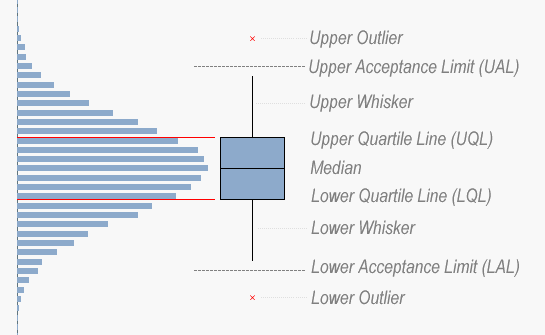
And here is how you implement this in QlikView…
- Go to the Tools menu and choose “Box Plot Wizard”.
- On the “Step 1 - Define data” page, you choose your dimension. In my example, this was Machine, but it could be Supplier or Batch or something similar.
- Use the same dimension once more in the “Aggregator” control.
- Use the average of your measurement in the “Expression” control – Avg(Measurement).
- Click “Next”.
- On the “Step 2 - Presentation” page, you should choose “Median mode”.
- Check “Include Whiskers” and “Use Outliers”.
- Click “Finish”.
QlikView has now created a Box Plot with general expressions that almost always display a meaningful result, and allows for an intermediate aggregator. However, the expressions are not what we want for a six sigma box plot, so we need to change them to the following: (Below, the dimension is called Dim, and the measurement is called Val.)
- Box Plot Middle: Median(Val)
- Box Plot Bottom: Fractile(Val,0.25)
- Box Plot Top: Fractile(Val,0.75)
The whiskers and the outliers all need a nested aggregation – each value needs to be compared to the acceptance levels for the group – so they all contain an Aggr() function that calculates the relevant acceptance limit:
- Box Plot Lower Whisker:
Min(If(Val>= Aggr(2.5*Fractile(total <Dim> Val,0.25) -1.5*Fractile(total <Dim> Val,0.75), Dim, Val), Val)) - Box Plot Upper Whisker:
Max(If(Val<= Aggr(2.5*Fractile(total <Dim> Val,0.75) -1.5*Fractile(total <Dim> Val,0.25), Dim, Val), Val)) - Lower Outlier:
Min(If(Val< Aggr(2.5*Fractile(total <Dim> Val,0.25) -1.5*Fractile(total <Dim> Val,0.75), Dim, Val), Val)) - Upper Outlier:
Max(If(Val> Aggr(2.5*Fractile(total <Dim> Val,0.75) -1.5*Fractile(total <Dim> Val,0.25), Dim, Val), Val))
And with this, I leave you to create your own box plots.
Further reading related to data classification:

-
Qlik アドボケイトミートアップ開催報告
今回のミートアップは、世界でも50名しかいないQlik Luminary のお一人、セガの萬さま司会進行によるオフラインでの開催となりました。第1部は2テーブルに分かれたグループディスカッションで「Qlik を使ったビジネスインパクト」と「Qlik の社内展開」の2テーマを取り上げました。 それぞ... Show More今回のミートアップは、世界でも50名しかいないQlik Luminary のお一人、セガの萬さま司会進行によるオフラインでの開催となりました。第1部は2テーブルに分かれたグループディスカッションで「Qlik を使ったビジネスインパクト」と「Qlik の社内展開」の2テーマを取り上げました。
それぞれのテーマを OGI 荻本さま、富士通中川さまにテーブルリーダーとして進行いただき、各社の課題やベストプラクティスの紹介など、活発な議論が交わされました。中には、実際に使っているアプリを見せながら自社の取り組みを紹介された方もいらっしゃいました。
議論の内容の一部をご紹介します。
Qlik を使ったビジネスインパクト
- 隠れていた、ばらばらだったデータがよりわかりやすくなり、可視化される
- ユーザ同士で集まって、ノウハウを交換、分析の技術の交換している、週に一回の共有会、月一回の顔合わせ:今月やった自慢話、ノウハウとして持ち帰る、など
- Qlik Sense を使うと会議でパワポがいらなくなった
A社事例
人事メンバーが自らボトムアップで Qlik とアラートを実装・展開し、人事から有給取得状況に関するアラートが届くようになった。「決められた有休日数を消化する」というアクションに繋がっている。
Qlik の社内展開
- 多くの人に使わせるのではなく、濃い人たちに「これがないと困る」という環境を作る。
- 成果を作って広げていく、エバンジェリスト構想(やる気のある人を配置して、ボトムアップ)
- 家庭教師方式(課の人間がプロジェクトに入り、5人くらいのチームでコンサル形式でやる。課題のヒアリング、成果を出す)がよい
B社事例
業務に必要な分析に関する相談を受けるチケットシステムとそれに対応するチームを作っている。分析の実装の仕方はあえて教えない。分析の方針などについてコンサルしていくイメージ。業務の課題からスタートしているので必要なデータや可視化だけが作られていく。その結果、ちゃんと使われる。
第2部は学研福田さま、山上さまより、小学生の間で話題の「ナニコレンズ」の事業化の経緯、そして本事業を Qlik Sense でどのように管理しインサイトを得ているのか、ビジネストランスフォーメーション(BX)から実際のアプリに至る深い示唆をいただきました。
その後、弊社槙野よりご挨拶とともに始まった懇親会兼忘年会では、セガ萬さまから各ゲームタイトルを管理するアプリをご紹介いただいたり、ご希望の方には会場と同じビル内にあるQlikの新オフィス見学ツアーを実施、「リアルイベント」ならでは醍醐味を楽しまれました。
引き続き来年もユーザーのみなさまが他のユーザーの方やQlikと交流できる機会をたくさん作っていきます。ご期待ください!
-
Data literacy skills are not all about data
When thinking about what it means to be data literate, it's easy to focus only on technical skills. We assume that to be data literate our priority sh... Show MoreWhen thinking about what it means to be data literate, it's easy to focus only on technical skills. We assume that to be data literate our priority should be to fine tune our data preparation, or data visualization abilities, for example. But being data literate encompasses a vast range of competencies that sometimes don't relate directly to data at all.
In his recent blog for The Data Literacy Project, Kevin Hanegan (Chief Learning Officer at Qlik) discusses how technical data skills alone are not enough when it comes to discovering insights in data and being data literate. Asking the right questions of our data, and developing soft skills such as critical thinking and creativity are just as important as the technical skills. While AI can automate many human tasks, our human intuition and emotional intelligence mean we are still a crucial piece of the puzzle. Learn more about the competencies required to become truly data literate in the Data Literacy Project blog here.
You can start working on your data literacy skills by making the most of your access to the Academic Program. By studying on the data literacy courses included in our program, the same courses used by customers, you can start to lay the foundations for your future in the data driven workplace. Data literacy is set to be the most in-demand skill by 2030, with 85% of executives believing these skills will be as vital in the future as the ability to use a computer is today. Taking the time to learn these skills will help to cement your future success, check out our Data Literacy courses here. If you haven't yet signed up for the Qlik Academic Program, you can follow this link: qlik.com/academicprogram
-
Vision 360 hospital management
Vision 360 hospital managementToccatoWe have a complete view of all matters in a hospital, from arrival, admission, procedures and discharge.Discoveri... Show MoreVision 360 hospital managementToccatoWe have a complete view of all matters in a hospital, from arrival, admission, procedures and discharge.Discoveries
Understand all the resources used in the passage of patients through the hospital sectors.
Impact
Managers are able to change the format of views quickly and autonomously.
Audience
hospital managers
Data and advanced analytics
Managers can quickly see which specialty or sector is in greatest demand or spending.

-
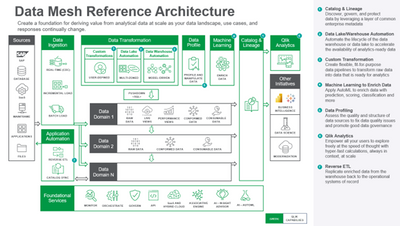
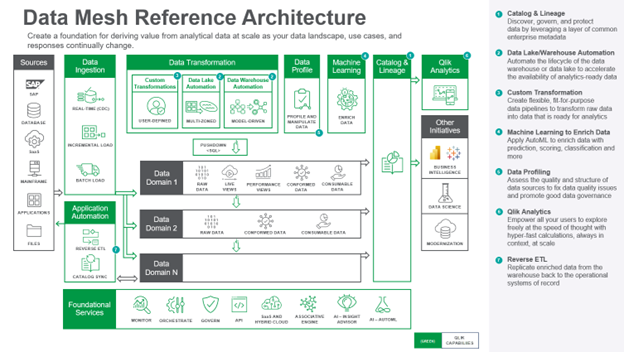
Qlik Use Case Reference Architecture - #6: Data Mesh Reference Architecture
The architecture comprises the following components:Data is ingested from transactional systems with low latency. Change data capture for real-time da... Show MoreThe architecture comprises the following components:
Data is ingested from transactional systems with low latency. Change data capture for real-time data replication ingests data without impairing production system performance.
Data Warehouse Automation accelerates the availability of analytics-ready data by automating the entire data warehouse lifecycle.
Data Lake Automation powers the process of providing continuously updated, accurate, and trusted data sets for business analytics.
Custom Transformation allows users to create flexible, fit-for-purpose data pipelines to transform raw data into data that is ready for analytics.
Data Profiling enables users to assess the quality and structure of data sources to fix data quality issues and promote good data governance.
Machine Learning enriches data with prediction, scoring, classification, and more.
Catalog & Lineage capabilities empower users to discover, govern, and protect data using AI and machine learning built on a layer of common enterprise metadata.
Analytics is used to discover, interpret, and communicate meaningful patterns in data to apply toward effective decision making
Reverse ETL replicates enriched data from the warehouse back to the operational systems of record.
-
Qlik Reporting PowerPoint Format
Can't see the video? View it on the Qlik site here Want to see more?YouTube - PowerPoint Output Format - Subscription and Report Service Walkthrough Q... Show MoreCan't see the video? View it on the Qlik site here
Want to see more?
- YouTube - PowerPoint Output Format - Subscription and Report Service Walkthrough
- Qlik Site - PowerPoint Output Format - Subscription and Report Service Walkthrough
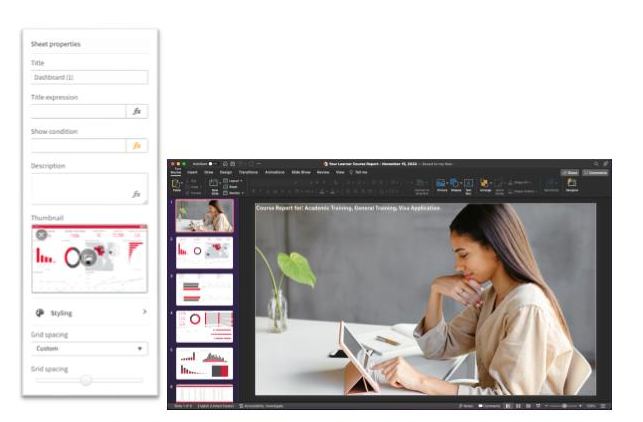
For Qlik business users, PowerPoint output format is now available when scheduling sheet or chart report delivery. For report developers, PowerPoint format is also available from the Qlik Reporting Service when used via direct API call or with Qlik Application Automation and the reporting connectors.
When delivering sheets to PowerPoint, the visualizations within a Qlik Sense sheet are optimally presented in the PowerPoint slide as individual images with opaque backgrounds, allowing the recipient to resize individual images, annotate with native objects and apply PPT theming to the slide before business presentation. An associated Qlik Sense Client change will also allow for background images in a Qlik Sense sheet and a finer grain grid if application/report developers wish to pre-design an app for PowerPoint format report usage.
Qlik continues extend functionality and future-proof investment for Qlik cloud reporting with our release today. As we head into 2023, we continue to partner with our customers on addressing their critical reporting requirements and delivering against our cloud reporting roadmap. Join us on January 24th for our Talk to Experts Tuesday Qlik Community webinar, “Q&A with Qlik: Making the Move to Qlik Cloud Reporting”.
-
Customer Managed Keys and GeoOperations now available Qlik Cloud Government
Qlik is committed to our US Public Sector customers through Qlik Cloud Government and continuing our investment into the platform. Our latest release... Show MoreQlik is committed to our US Public Sector customers through Qlik Cloud Government and continuing our investment into the platform. Our latest release for Qlik Cloud Government includes the following two features:
- Customer Managed Keys – enhanced encryption capabilities offering customers the ability to bring their own encryption keys
- GeoOperations – advanced mapping calculations to solve geographical problems with data
To learn more about both, please see content on each below and the attached links for videos, workshops, and more!
2. Customer Managed Keys
We are pleased to announce that Customer Managed Keys is now available in Qlik Cloud Government, offering advanced data encryption and allowing customers to bring their own encryption keys when storing data in Qlik Cloud.
For public sectors customers with higher security requirements, Customer Managed Keys offers an additional security layer enabling organizations to bring their own encryption keys (BYOK) to protect the data stored at rest in their Qlik Cloud tenant. This empowers the customer to retain full control over their data’s encryption key.
Additional control around data access
Customer Managed Keys ensures only the customer has access to the data – not Qlik. If data is encrypted using customer-managed keys and the customer disables access to the encryption key, it is technically impossible for Qlik to decrypt the data without the customer’s consent. The customer keeps full control over the data’s lifecycle.
Qlik’s first implementation of Customer Managed Keys will use AWS Key Management Service (AWS KMS). AWS KMS is a managed service that makes it easy to create and control the cryptographic keys that are used to protect your data. AWS KMS uses hardware security modules (HSM) to protect and validate your AWS KMS keys under FIPS 140-2.
Technical Diagram of integration with AWS KMS
Customer Managed Keys brings that extra level of trust and governance for sensitive data moving in to Qlik Cloud.
Supporting Resources:
- Overview and Walk-through Video
- Qlik Help Site to configure tenant encryption
- Additional support resources click here.
2. GeoOperations
GeoOperations enables geographic calculations and functions such as calculating routes or travel areas and supports loading geographic data from a wide variety of data sources into Qlik Cloud Government. Qlik’s GeoOperations empowers organizations to solve geographic problems and unlock more value of out their data.
GeoOperations functions are available in script layer for both the application’s load script and at the visualization level. GeoOperations functions also can be used to transform geographic data or make calculations.
Advanced Mapping Features of GeoOperations:
- Extracts spatial relations so that they can be handled by Qlik.
- Load time lookups of locations (as an alternative to the presentation time lookups in the map chart).
- Aggregation of points in clusters or bins.
- Specify locations as:
- Point, line, or area geometries
- Latitude and longitude fields
- Named points or areas
- Load geographic data from a range of input formats.
- Use operations on data already loaded in Qlik.
A few examples below of GeoOperations:
- Multi-layered mapping visualizing natural disaster impact to populations/structures, etc.
- Determining travel areas from points to identify under-served geographies
- Finding quickest route to deploy resources in response to emergency and/or disaster events
- Linking GPS positions to hospitals, schools, or road networks
- Building custom areas from a list of municipalities or constituents
To learn more about GeoOperations, visit the Qlik Help page or check out the YouTube Video.
For a GeoOperations example and follow along exercise, click here.
-
Leveraging the power of qlik-cli
I’m always on the lookout for a tool that would make my life easier as a developer. Qlik-cli is a great asset to have in your toolbox when working wit... Show MoreI’m always on the lookout for a tool that would make my life easier as a developer. Qlik-cli is a great asset to have in your toolbox when working with Qlik Sense SaaS. As its name suggests, it is a command line interface that lets you tap into Qlik’s published APIs and take advantage of the full power and possibilities of Qlik Cloud.
Being able to perform any administrative task from the command line can be very attractive for developers or system administrators who, for one, are used to dealing with cloud platforms via a cli, but also just want to access certain tools quickly without going through the management console graphical interface especially when trying to execute tasks in bulk or automate certain workflows.
So whether you are looking to run tasks or reloads, check on those reloads, move apps between environments, manage user access, or make updates at a large scale, qlik-cli is the right tool for that.
You can check out this recent blog post for a great introduction to the qlik-cli to learn about what it is and walk through the installation process to get up and running quickly: https://community.qlik.com/t5/Qlik-Design-Blog/Using-Qlik-cli-to-automate-workflows/ba-p/1943319
How does it works:
Once you’ve installed qlik-cli on your machine, you will need to grab your API Key from the Qlik Cloud tenant and create and configure a context from the command line to authenticate to Qlik Sense SaaS.
You can always view contexts if you happen to have multiple tenants or users via the "qlik context ls" command, and switch between them using "qlik context use <context-name>"
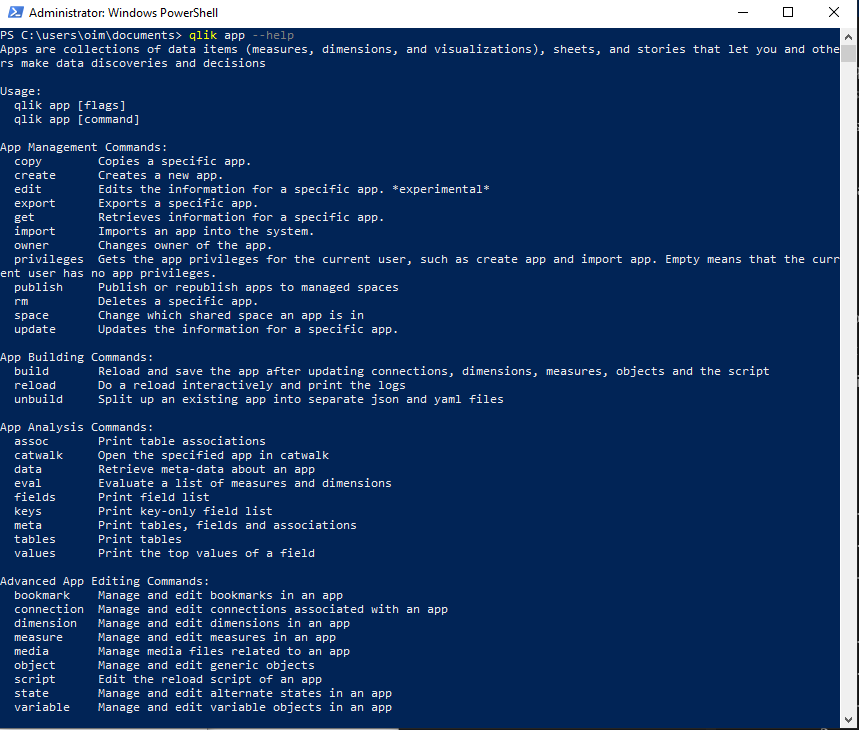
With qlik-cli’s built-in documentation, it’s very intuitive to see see which commands and flags you can use by adding --help to any command.
For instance qlik app --help will return the following:
What are some of the things you can use qlik-cli for:
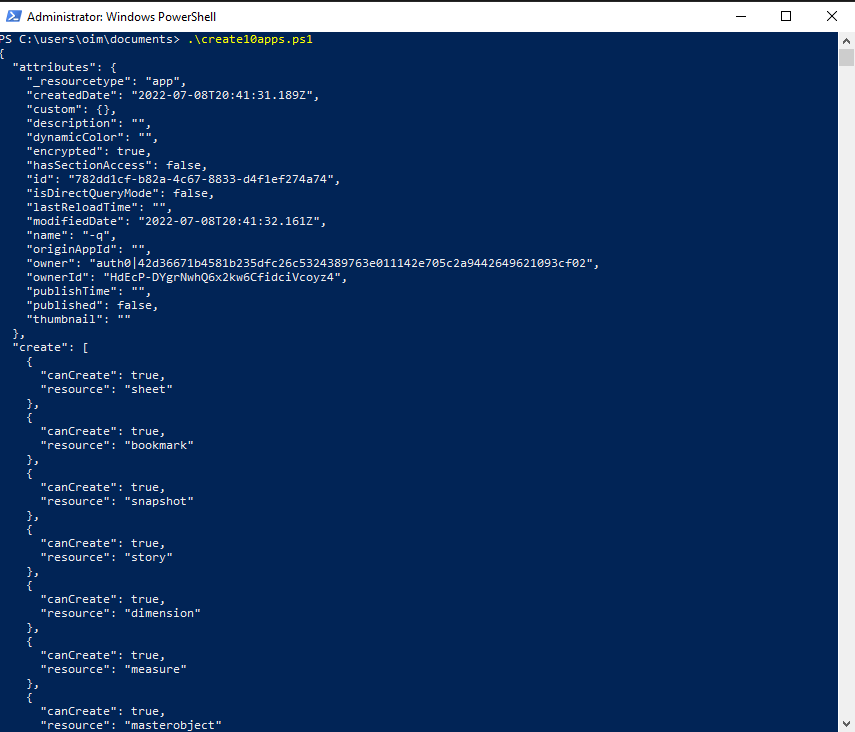
A quick and easy example to show how easy it is to perform certain tasks with qlik-cli is to create an app, add a script and reload it:
qlik app create --attributes-name cli-testapp -q
qlik app script set <path-to-script> --app <appid>
qlik reload create --appId <appid>
That’s it! Running just 3 lines is all it takes to have an app ready for use.
But what if we wanted to create 10 apps instead of one?
Easy, all we got to do is wrap that same command we used above (qlik app create —attributes-name <name>) in a shell script “for” loop.
$appIds = @()
function appExists {
	param([String] $appName)
	$result = qlik item ls --resourceType app --name $appName | ConvertFrom-Json
	return $result[0].resourceId
}

For ($i=0; i -lt 10; $i++) {
	$name = "qlik-cli-app-$i"
	$app = appExists -appName $name
  if(!$app) {
		$app = qlik app create --attributes-name $name -q | Out-String
	}
	$appIds += $app
}

return $appIds
You can view a more detailed tutorial on qlik.dev: https://qlik.dev/tutorials/creating-and-deleting-apps-in-bulk-with-qlik-cli
A good idea then is to maybe create a space and move all these apps to it with a few commands such as: “qlik space create” and “qlik app space update”
You can also do some basic task chaining by using a function that runs against a JSON object containing task name, app id and status. This process can be especially helpful when wanting to execute a reload upon the completion status of a preceding reload.
Here is a tutorial that walks you through doing just that: https://qlik.dev/tutorials/task-chaining-with-qlik-cli
Another great application of the qlik-cli for folks who are moving away from Qlik Sense Enterprise Client-Managed to Qlik Cloud, is to use it for migration. By leveraging basic PowerShell scripts and qlik-cli commands, you can facilitate and speed up a process that would otherwise be tedious. You can find more information about the whole process here . Take a look at the PowerShell scripts (download and extract the “Qlik Cloud migration tools” zip file) to see qlik-cli commands in action for inspiration.
I hope this post helped you get a sense of how powerful yet simple qlik-cli can be when it’s used alongside shell scripting to access and unlock the full potential of Qlik Cloud APIs.
-
Qlik Sense Mobile - Enhanced Decisions on the Go
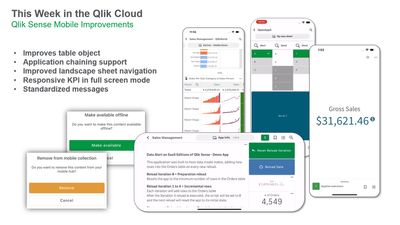
With this release, we have made numerous improvements that enhance usability and insights on the go. We have significantly improved the mobile table ... Show MoreWith this release, we have made numerous improvements that enhance usability and insights on the go. We have significantly improved the mobile table object, with better rendering and performance, while continuing to support mini charts, images, totals, search, and adding features such as row counts, expand/transpose rows, and the ability to copy cells. We’ve revamped our landscape mode sheet navigation, adding a quick and easy way for users to switch between sheets using native gestures. We now support application chaining on mobile, allowing users to persist filters across multiple apps. And we’ve made additional improvements such as the presentation of the KPI object in full-screen mode and the standardization of our warning messages.
Mobile analytics are a critical factor in realizing the true value of your overall analytics, allowing more people to access data and make informed decisions in all types of situations. With this release, we continue to demonstrate our ongoing commitment to bring best-in-class mobile capabilities to our customers – delivering the unique power of our associative engine to drive insight at the point of decision.
If you haven’t tried Qlik Sense Mobile yet, we encourage you to do so. It can be found on the Apple and Android app stores.
-
Using Nebula.js to build a visualization extension for Qlik Sense: Stream Chart
In order to go beyond the default charts and custom object bundles that ship with Qlik Sense, you need to develop custom visualization extensions whic... Show MoreIn order to go beyond the default charts and custom object bundles that ship with Qlik Sense, you need to develop custom visualization extensions which will allow you to extend the capabilities of Qlik Sense using standard web technologies. In this post, we will cover how to leverage Qlik’s open source solution, Nebula.js, a collection of JavaScript libraries and APIs that make this task easy!
Once the visualization is developed using Nebula.js, you can then bring it to Qlik Sense to be used in your Apps.
- Pre-requisites and project creation
First things first, let’s make sure you have all you need to get started.
- Access to a terminal (we will need this to run nebula.js CLI commands)
- Node.js installed in your computer (v10 or higher)
- A text editor (VS code or similar)
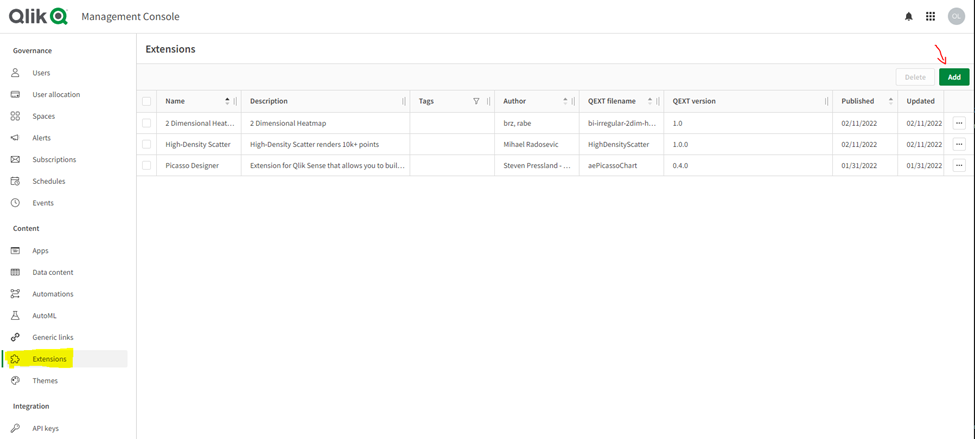
- Web Integration ID (you can get this from the Management Console under “Web” on your Qlik Cloud Tenant. Make sure to put http://localhost:8000 in the Allowed Origins)
Once you have the pre-requisites covered. Fire up your terminal and write the following command.
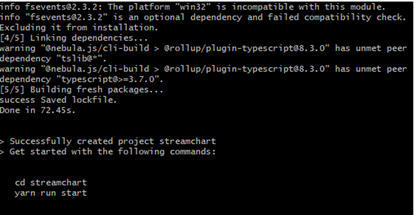
npx @nebula.js/cli create streamchart --picasso minimalThis command uses Nebula.js CLI, a handy command line program that let’s us bootstrap our project easily.
Notice that we added the –picasso flag after the project name with option minimal. This will add the necessary files to our project for Picasso.js, Qlik’s open source charting library that we will use to build the chart.
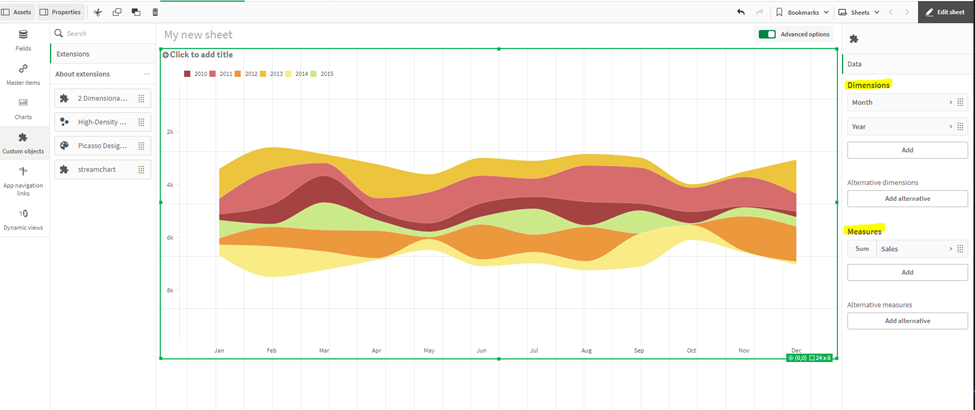
Speaking of the chart, we are going to build a Stream Chart in this post to visualize Yearly sales by month.
Once the cli command is finished running and the project is successfully created, change your directory into it using “cd streamchart” and then run it using “yarn run start”. Then open the folder in your text editor.
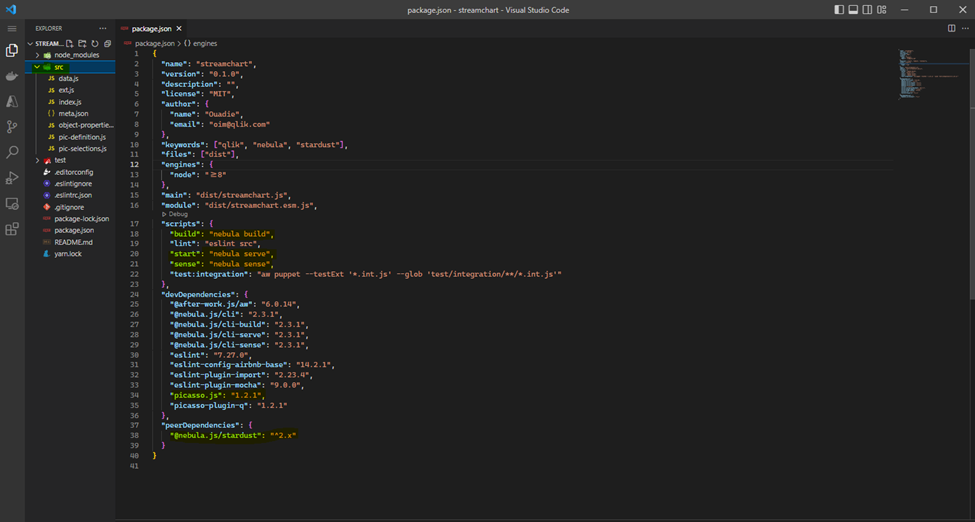
Below is the folder structure of the project. All the work is done under src.
Notice that the package.json file has the scripts we will be using to develop and build the project as well a script to generate the Qlik Sense ready files for the extension. It also lists all the libraries needed in our project, including Picasso.js, Nebula.js/stardust.
/src
- index.js - Main entry point of the visualization
- object-properties.js - Object properties stored in the app
- pic-definition.js – Picasso components definition
- data.js - Data configuration
- The Development Server
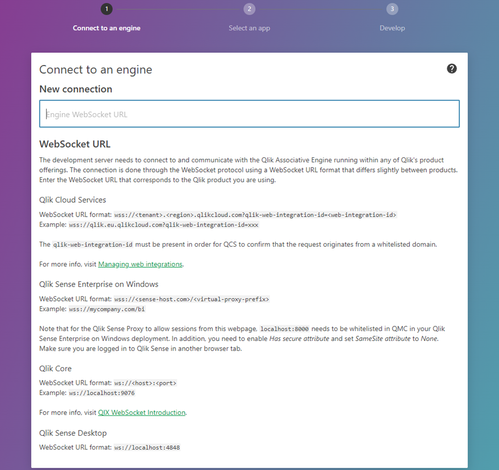
After running the “yarn run start” command, the project will open in your browser at localhost:8000. This is the Local Development Server that we will use to test the visualization extension as we develop it.First step is to connect to the Qlik Engine. To do this, you need to plug in the Websocket URL in the following format:
wss://yourtenant.us.qlikcloud.com?qlik-web-integration-id=yourwebintegrationidAfter we enter the WebSocket URL, we’re prompted to pick our Qlik Sense App that contains our data. Once the app picked, we move to the main edit screen of the local development server.
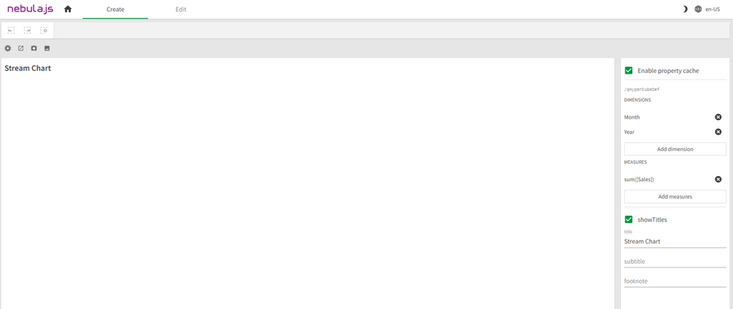
The center section is where our visualization is rendered, and the right sidebar allows us to build up our qHyperCubeDef by selecting Dimensions and Measures.
Remember: edits to the src/index.js that are related to the output, will lead to an auto refresh of the visualization allowing you see live changes in the center section
- Configuring the Data Structure
In previous posts, I have covered details about building HyperCubes and configuring qHyperCubeDef, if you’re new to the concept, don’t hesitate to go through those posts first.
PT 1 and PT2For the purposes of our Stream Chart visualization, we will rely on the automatic generation of the qHyperCubeDef once we choose our Dimensions and Measure on the right side bar.
But if you wanted to make further changes to it, click on the Gear icon on the top-left of the center section to open the qHyperCubeDef object edit popup.
- Adding the Picasso.js components definition
So far, nothing is rendered on the Dev Server UI. So, let’s go ahead and configure the Picasso.js Definition to create the necessary components.
Under pic-definition.js, enter the following code:
export default function ({
  layout, // eslint-disable-line no-unused-vars
  context, // eslint-disable-line no-unused-vars
}) {
  return {
    collections: [{
      key: 'stacked',
      data: {
        extract: {
          field: 'qDimensionInfo/0',
          props: {
            line: { field: 'qDimensionInfo/1' },
            end: { field: 'qMeasureInfo/0' },
          },
        },
        stack: {
          stackKey: (d) => d.value,
          value: (d) => d.end.value,
          offset: 'silhouette',
          order: 'insideout',
        },
      },
    }],
    scales: {
      y: {
        data: {
          collection: {
            key: 'stacked',
          },
        },
        invert: false,
        expand: 0.5,
      },
      t: {
        data: {
          extract: {
            field: 'qDimensionInfo/0',
          },
        },
        padding: 0.5,
      },
      l: {
        data: {
          extract: {
            field: 'qMeasureInfo/0',
          },
        },
      },
      color: {
        data: {
          extract: {
            field: 'qDimensionInfo/1',
          },
        },
        type: 'color',
      },
    },
    components: [
      {
        type: 'axis',
        dock: 'bottom',
        scale: 't',
      },
      {
        type: 'axis',
        dock: 'left',
        scale: 'l',
      },
      {
        key: 'lines',
        type: 'line',
        data: {
          collection: 'stacked',
        },
        settings: {
          coordinates: {
            major: { scale: 't' },
            minor0: { scale: 'y', ref: 'start' },
            minor: { scale: 'y', ref: 'end' },
            layerId: { ref: 'line' },
          },
          layers: {
            curve: 'monotone',
            line: {
              show: false,
            },
            area: {
              fill: { scale: 'color', ref: 'line' },
              opacity: 1,
            },
          },
        },
      },
      {
        type: 'legend-cat',
        scale: 'color',
        key: 'legend',
        dock: 'top',
        settings: {
          title: {
            show: false,
          },
          layout: {
            size: 2,
          },
        },
      },
    ],
  };
}
Notice that the object contains:
- Collections: to stack our data
- Scales
- Components:
- Bottom axis
- Left axis
- Lines component
- Legend
For more information about how to build charts with Picasso.js, visit https://qlik.dev/libraries-and-tools/picassojs and check out some of the previous blog posts.
Go back to the Dev Server UI on the browser, and you should see the chart displayed.
- Package the Visualization Extension, and upload to Qlik Sense
So far, we’ve been working on our local dev environment. We need to generate the necessary files to build the project.
In your terminal run: “yarn run build”. This will generate a “dist” folder containing our extension’s bundled files. You can use this to distribute the extension as an npm package.
However, in order to use this visualization extension in Qlik Sense, we need additional files. Run “yarn run sense” which will create a new folder called “streamchart-ext”.
Make sure to Zip this file in order to get it ready to be uploaded into your Qlik Cloud tenant.
And there you go; you now have a visualization extension that you can use in your Qlik Sense apps!
The full code is on github: https://github.com/ouadie-limouni/qlik-nebula-stream-chart-viz-extension
- Pre-requisites and project creation
-
More visualization extensions for Nebula.js
Nebula.js and its ecosystem with extensions is growing and is growing fast. In the past, I have covered some of the available charts like bar-chart, f... Show MoreNebula.js and its ecosystem with extensions is growing and is growing fast. In the past, I have covered some of the available charts like bar-chart, funnel-chart, line-chart, mekko-chart, pie-chart, sankey-chart and a simple table.
Today I will go over some of the latest editions, a simple Filter, based on a field, a KPI object and a Combo chart.Let's start with the Nebula.js configuration and the connection to our Qlik Sense server.
The code is in observablehq, for framework specific, check links at the end of this blog post.nebula = require("@nebula.js/stardust") n = { const { embed } = nebula; const config = { host: 'qlik-sense.your-server.com', appId: 'xxxxxxxx-xxxx-xxxx-xxxx-xxxxxxxxxxxx’, } const enigmaApp = await enigma .create({ schema, url: `wss://${config.host}/app/${config.appId}`, }) .open(); const app = await enigmaApp.openDoc(config.appId); const n = await embed(app, { context: { theme: 'light', language: 'en-US', constraints: { active: false, passive: false, select: false, }, }, types: [ // We will add the charts later on ], }); return n; }Ok we have Nebula.js configured and a Websocket connection to the engine. We start with a simple Filter. All you have to do is get the Field Name from Qlik Sense and then add the following code into your js page. All of these examples are using the default Helpdesk app.
const field = await n.field('Case Owner Group');
field.mount(filterElement, { title: 'Department' } );
And here is the rendered object
Filter
Live example: https://observablehq.com/@yianni-ververis/nebula-js-filter
Ok, we’ve got the simple filter, lets see how to get a KPI object.
In the previous example add the sn-kpi and then render it
nebula = require("@nebula.js/stardust")
kpi = require("@nebula.js/sn-kpi")
…
types: [
      {
        name: 'kpi',
        load: () => Promise.resolve(kpi),
      }
],
…
  n.render({
    element: kpiElement1,
    type: 'kpi',
    fields: ["=Count( {$<Priority={'High'}, Status -={'Closed'} >} Distinct %CaseId )"],
  });
This is what we get
KPI
Live Example: https://observablehq.com/@yianni-ververis/nebula-js-kpi?collection=@yianni-ververis/nebula
That was easy, right?
Now let’s get into a more complicated one, the Combo Chart.In the previous example add the sn-combo-chart and then render it but with a hyperCube this time so we have more fine control over the labels, type bar/line etc.
nebula = require("@nebula.js/stardust")
comboChart = require("@nebula.js/sn-combo-chart")
…
types: [
      {
        name: 'comboChart',
        load: () => Promise.resolve(comboChart),
      }
],
…

  n.render({
    element: chartElement,
      type: 'comboChart',
      properties: {
        qHyperCubeDef: {
          qDimensions: [
            {
              qDef: {
                qFieldDefs: ['Date.autoCalendar.Date'],
                qFieldLabels: ['Date']
              },
              qNullSuppression: true,
            },
          ],
          qMeasures: [
            {
              qDef: {
                qDef: 'Sum([Number of New Cases])',
                series: { type: "bar", axis: 0 },
                qLabel: 'New Cases',
                // autoSort: false
              },
              qSortBy: { qSortByNumeric: -1 },
            },
            {
              qDef: {
                qDef: 'Sum([Number of Closed Cases])',
                series: { type: "line", axis: 1 },
                qLabel: 'Closed Cases',
              },
              qSortBy: { qSortByNumeric: -1 },
            },
          ],
          qInitialDataFetch: [{ qWidth: 3, qHeight: 1000 }],
          qAlwaysFullyExpanded: true,
          qSuppressMissing: true,
          qSuppressZero: true,
        },
        scrollStartPos: 1,
        showTitles: true,
        title: 'Combo-chart',
        subtitle: 'Sample supernova combochart',
        footnote: 'Sample supernova combochart',
      },
});
And this is the rendered object
Combo chart
So, what if we want to change this to a stacked bar chart and the x-axis labels underneath? We specify the "type" to be "bar" on the second measure and the "dock" to "near"
...
     series: { type: "bar", axis: 1 },
...
  dock: 'near',
...
and we should see this
Stacked barchart
Live example: https://observablehq.com/@yianni-ververis/nebula-js-combo-chart?collection=@yianni-ververis/nebula
That's it for today! Make sure you check out my previous articles with different framework implementations and some visualizations
https://community.qlik.com/t5/Qlik-Design-Blog/Using-Nebula-js-with-React-js-or-in-Simple-html-pages/ba-p/1744410https://community.qlik.com/t5/Qlik-Design-Blog/Using-Nebula-js-with-Angular-or-Svelte/ba-p/1764361
https://community.qlik.com/t5/Qlik-Design-Blog/Sn-table-Nebula-js-latest-extension/ba-p/1780153
Described extensions in the above blogs with live examples
Selections
Selections
Barchart
https://observablehq.com/@yianni-ververis/nebula-js-barchart?collection=@yianni-ververis/nebulaFunnel chart
https://observablehq.com/@yianni-ververis/nebula-js-funnel-chart?collection=@yianni-ververis/nebulaLine chart
https://observablehq.com/@yianni-ververis/nebula-js-line-chart?collection=@yianni-ververis/nebulaMekko chart
https://observablehq.com/@yianni-ververis/nebula-js-mekko-chart?collection=@yianni-ververis/nebulaPie chart
https://observablehq.com/@yianni-ververis/nebula-js-pie-chart?collection=@yianni-ververis/nebulaSankey Chart
https://observablehq.com/@yianni-ververis/nebula-js-sankey-chart?collection=@yianni-ververis/nebulaTable
https://observablehq.com/@yianni-ververis/nebula-js-table?collection=@yianni-ververis/nebulaSpecific Framework templates:
React: https://github.com/yianni-ververis/nebula-react
Angular: https://github.com/yianni-ververis/nebula-angular
Svelte: https://github.com/yianni-ververis/nebula-svelteComing up, Grid chart and Bullet chart.
/Yianni
-
Bar Charts and Digestible Data
At Qlik, we love data, but data is only useful if it is able to be used. Thankfully Qlik offers a variety of chart solutions so you can visualize your... Show MoreAt Qlik, we love data, but data is only useful if it is able to be used. Thankfully Qlik offers a variety of chart solutions so you can visualize your data in the most useful way. Today we start a series focused around charts. We’ll learn what these charts do, and touch on how you can use these charts to best visualize your data.
The first type of chart we’ll be highlighting is the bar chart. Bar charts are a commonly used chart that visualizes amounts as bars. The taller or longer the bar, the larger the amount being represented. Though less common, bar charts can also be used to show negative values across the Y axis of the chart. Two examples of a bar charts can be found below, one displaying a positive value, the other negative.
Now that we know what bar charts do, we can focus on why and what circumstance we should use bar charts to visualize our data. For context, the data we’ll be using is based around sales numbers. These numbers involve sales price, amount sold, the cost of the product and so on. In the example above, our data is based around the master item ‘Margin’. This master item was created by taking the sales price of a product and subtracting the cost of the product to the seller, thus creating a ‘Margin’ or the amount that the seller would make from selling this product after the cost.
Why would we use a bar chart to showcase this data, why not a different type of chart? Below are the same two charts converted into line and pie charts.
As you can see, the reason to use a bar chart for this data instead of a line or pie chart is clarity. The line chart interprets the data as being over a period, connecting the data into one line. Our data is not connected to each other, instead they are individual products. The pie chart again thinks of the data as part of a whole, showing the portion of the whole represented by each item, in the case of the negative product the chart cannot be created as you cannot visualize a negative portion of something. This information would not be useful to the user.
So how can bar charts be used in a real-world scenario? In this instance, the user could want to know what his top five positive margin items are. The user could then use this information to stock more of this product, to push the selling of this product, and ultimately make more money per sell. Likewise, the user may want to see which products are costing him money when sold, thus providing a use case for the negative margins. A negative margin would indicate that the user is losing money every time an item is sold.
Ultimately, bar charts are a great tool to visualize data as individual pieces in relation to one another. The key thought when it comes to bar charts is ‘comparison’, as in, how do these values compare to one another. Hopefully this short blog has begun turning the wheels in your mind with how you can use Qlik and bar charts to visualize your data.
Thank you for giving this blog a read. I would like to make this an ongoing series where we cover different types of charts available at Qlik. If this is something you’d like to see more of, please leave a like on this entry, and comment which chart type you’d like to learn more about.
-
QLIK Master CONSOLLE 2.0
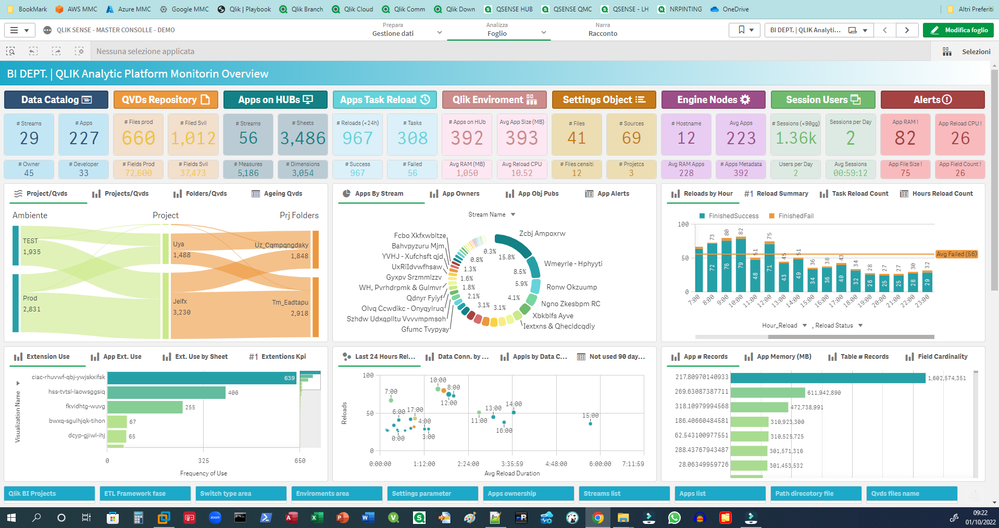
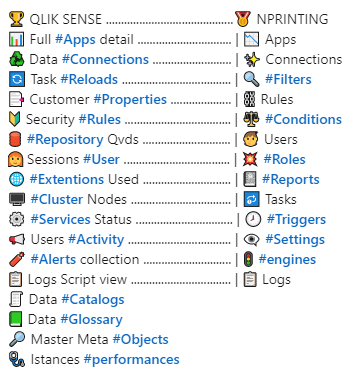
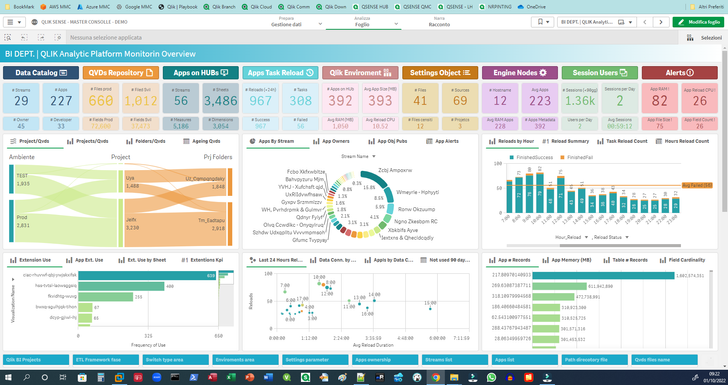
#QLIK #master CONSOLLE 2.0 QLik360 di Valerio Fatatis Here's how to centralize all the main information to monitor and govern in a departme... Show More#QLIK #master CONSOLLE 2.0
QLik360 di Valerio FatatisHere's how to centralize all the main information to monitor and govern in a departmental BI platform based on Qlik technology (Sense & NPrinting)Discoveries
There need is to STANDARDIZE ed INDUSTRIALIZE every single module and component introduced in the many realizations, so as to CAPITALIZE and be able to SHARE every single technical, operational and functional aspect we apply this METHODOLOGY in NEW installations e PRE-EXISTING In both the immediate benefit is to UNIFORM what is prepared in order to be able to guarantee STABILITY', SECURITY, EXTENDABILITY and GOVERNANCE of the platform.
Impact
STABILITY', SECURITY, EXTENDABILITY and GOVERNANCE
Audience
INTEGRATION of the different PROJECT PHASES STANDARDIZATION OF FUNCTIONALITIES CONFIGURABLE AND MONITORED ETL METADATA AS MAIN FOCUS THERE GOVERNANCE of INFORMATION USER INTERFACE STANDARD / CROSS APPS FUNCTIONAL USER EXPERIENCE SHEET OF ANALYSIS BASED ON AD HOC TEMPLATES OTHERS ENHANCEMENT
Data and advanced analytics
Support strategic in the adoption and implementation of advanced Business intelligence systems departmental, aimed at the various departments present in the company, for specific objectives (Sales, Finance, Purchasing Human Resources, Legal, Marketing and Digital Sales, Itc) Definition of rules for the governance of BI farms (Qlik Sense, Qlik View and Nprinting Analyses, Deployment development in departmental BI projects with an "Enterprice" connotation Training (IT Business) for Analyst, Developers Administrators UI / UX Front End designer

-
New Client Managed Trial Downloads app + more!
Hello Qlik Community! Only 24 days left in 2022. Where has the year gone? We have a few enhancements for the first of two releases for December (I kno... Show MoreHello Qlik Community!
Only 24 days left in 2022. Where has the year gone?
We have a few enhancements for the first of two releases for December (I know, I know, I said that last month).
Client Managed Trial Downloads App
The Client Managed Trial Downloads App is another partnership with Customer First R&D. The app shares the initial release + latest patch of Qlik products and is open to all registered users within Qlik Community.
Please note: a Qlik software license is required to trial a product. Please work with your existing Account Manager or Contact Sales if you do not have one.
You must be logged in to view this page. For access issues, please reach out to Qlik Support.
Resources and Events on Download pages
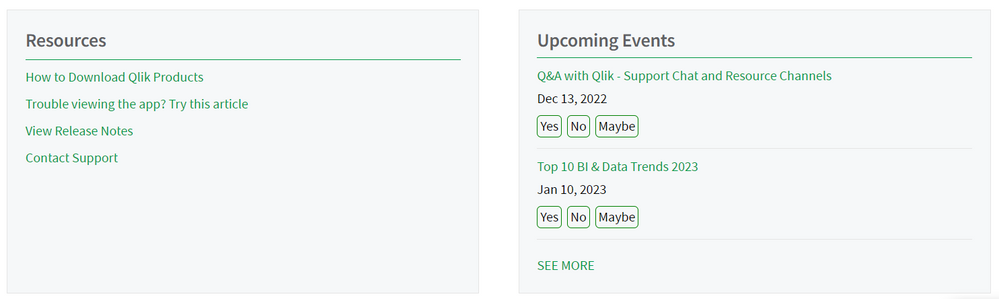
A list of resources has been added to both Download pages (Product Downloads and Client Managed Trial Downloads) that include instructions on using the page, troubleshooting, Release Notes, and more!
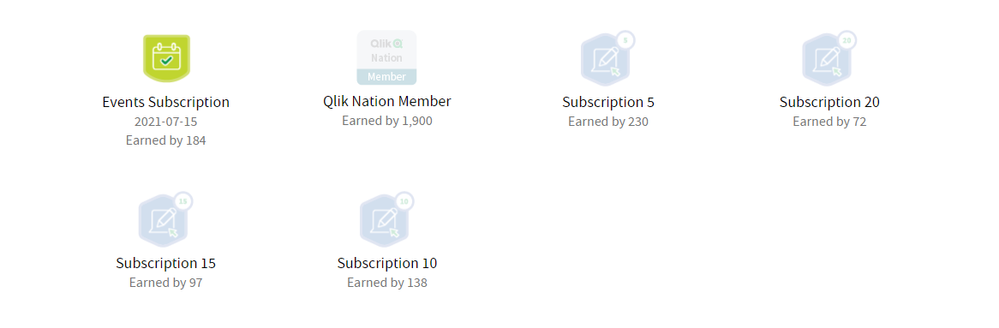
New Subscription Badges
Calling all subscribers! You can now receive badges for subscribing to different pages within Qlik Community.
New Application Automation Connectors
We have new connectors available on the Connectors page, including:
- Qlik Reporting
- Zenput
- Alation Cloud Catalog
- Oracle Eloqua
- FTP
- Google Sheets
- Inphinity
- Demo CRM
- Demo Webshop
- Amazon Redshift
- Amazon Sagemaker
- SFTP
Check back next week for a few more enhancements that are going live!
Your Qlik Community Admins,
Melissa, Sue, Jamie, Nicole and Emma
@Melissa_Potvin @Sue_Macaluso @Jamie_Gregory @nicole_ulloa @emmaspickerman
-
New Content: Qlik Cloud End-to-End
In the digital economy, real-time agility is essential. The faster an organization can respond to events as they evolve, the better it can compete. To... Show MoreIn the digital economy, real-time agility is essential. The faster an organization can respond to events as they evolve, the better it can compete. To make that leap, organizations need to be armed with continuously up-to-date, real-time information and the ability to trigger informed action at the most important moment. This is where Qlik Cloud come in for rescue.
Want to get started with Qlik Cloud Platform? Are you wondering how you can
- Recall opportunities active intelligence offers for more streamlined data integration
- Relate SaaS data analytics capabilities to current and desired organizational outcomes
- Approach the data lifecycle with new perspectives that can better address organizational needs
- Improve organizational outcomes
This video will help you gain a new perspective on the data lifecycle and recognize the value of data and analytics solutions in improving organizational outcomes.
Access Qlik Cloud End-to-End video. Learn how Qlik can streamline data integration, transform data into analytics ready, and deliver real-time data and analytics, enabling your team to share key insights that drive organizational value.
Happy Learning!

-
【オンデマンド配信】危機への対応:2023年トップ10 BI / データトレンド
今こそ、パワーとデータの移行に対応する テクノロジーの分離・「プライバシー債務」・ベテラン労働者不足・ベンチャーキャピタル資金の縮小。世界のテクノロジーリーダーの 10 人中 7 人が、パンデミック後の混乱が競争力の維持に必要なテクノロジーへの投資価格の上昇を引き起こすと懸念しています。こうした状... Show More今こそ、パワーとデータの移行に対応する
テクノロジーの分離・「プライバシー債務」・ベテラン労働者不足・ベンチャーキャピタル資金の縮小。世界のテクノロジーリーダーの 10 人中 7 人が、パンデミック後の混乱が競争力の維持に必要なテクノロジーへの投資価格の上昇を引き起こすと懸念しています。こうした状況下での BI / データに関する動向とは?先手を打つために、把握しておくべきこととは?
「危機への対応:2023年トップ 10 BI / データトレンド」では、2 つの主な考えを基に、今後の企業に影響すると思われるトレンド 10 箇条をご紹介します。ぜひ、オンデマンドでご視聴ください。
※ 参加費無料。パソコン・タブレット・スマートフォンで、どこからでもご視聴いただけます。日本語字幕付きでお届けします。
-
Register for Qlik Learning Events even easier Now!
Qlik Learning Portal Calendar has been updated with a new, easy to use events calendar. Enhancements include new filtering capabilities and a redesign... Show MoreQlik Learning Portal Calendar has been updated with a new, easy to use events calendar. Enhancements include new filtering capabilities and a redesign of the interface for usability enhancements.
To access Calendar Log into Qlik Learning Portal → Select Continuous Classroom → Go Further → Live Webinars from top navigation:
On Live Webinars Page, click on Access Webinar Schedule on the bottom of the page:
Check out the new filtering capabilities, to find events you are looking for easier. You can filter by Time Period, Region, Price, User Role and Category:
With the Free Introduction to Continuous Classroom Webinar, get an introduction of all that the Qlik Continuous Classroom has to offer. With over 300 courses and tutorials to choose from, live instructor webinars, and 1:1 instructor course support, ensure sure you are making the most from your Qlik Continuous Classroom subscription.
As a part of a Qlik Continuous Classroom subscription, enjoy the benefit of access to Live Instructor Webinars delivered on a regular basis on a variety of advanced topics above and beyond content offered in our self-paced learning. If you are unable to attend a particular session, be sure to register to receive the on-demand recording.
Register for an event today. Attend live or watch on your time on-demand!