Unlock a world of possibilities! Login now and discover the exclusive benefits awaiting you.

Analytics & AI
Forums for Qlik Analytic solutions. Ask questions, join discussions, find solutions, and access documentation and resources.
Data Integration & Quality
Forums for Qlik Data Integration solutions. Ask questions, join discussions, find solutions, and access documentation and resources
Explore Qlik Gallery
Qlik Gallery is meant to encourage Qlikkies everywhere to share their progress – from a first Qlik app – to a favorite Qlik app – and everything in-between.
Qlik Community
Get started on Qlik Community, find How-To documents, and join general non-product related discussions.
Qlik Resources
Direct links to other resources within the Qlik ecosystem. We suggest you bookmark this page.
Qlik Academic Program
Qlik gives qualified university students, educators, and researchers free Qlik software and resources to prepare students for the data-driven workplace.
Recent Blog Posts
-
テストデータの作成方法–Load InlineとAutogenerate
はじめに検証のためにアプリやチャートを試しに作ってみたりするに当たって、テストデータ作成は手間がかかる場合が多いのですが、Qlik Senseではロードスクリプトを利用して内部的にテストデータを作成することが可能です。ここではテストデータ作成の幾つかの手法についてご紹介します。 Load .. I... Show Moreはじめに
検証のためにアプリやチャートを試しに作ってみたりするに当たって、テストデータ作成は手間がかかる場合が多いのですが、Qlik Senseではロードスクリプトを利用して内部的にテストデータを作成することが可能です。ここではテストデータ作成の幾つかの手法についてご紹介します。
Load .. Inlineを使ったインラインテーブルの作成
まずは、テーブル形式のデータを直接入力してデータを作成する方法です。件数の少ないデータを手早く入力してテーブルを作成し、チャートを試しに作ってみるといった場合によく利用される方法です。
ロードスクリプトに以下を入力してロードを実行します。
売上データ:
Load * Inline [
国,売上,売上原価
US,100,80
UK,200,180
JP,300,250
];
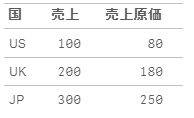
ここで、「国,売上,売上原価」はデータのヘッダー、それ以下の「US,100・・」はデータのレコードに当たります。この処理を実行すると、以下の様なテーブルが作成されます。
また、「Load * Inline 」の「*」はその下の部分で入力した全項目(国,売上,売上原価)をロードするということを示していますが、例えば以下の様な形でこの部分に変換処理を加えることも出来ます。
売上データ:
Load
 RowNo() AS NO, //RowNo関数で連番を追加
 *, //Inline内で入力した全項目
 (売上-売上原価) AS 利益 //利益の項目を追加
Inline [
国,売上,売上原価
US,100,80
UK,200,180
JP,300,250
];
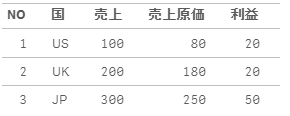
そうすると、以下の様なデータが生成されます。
Load .. Autogenerateを利用したデータ生成
Autogenerateでは生成するレコード件数を指定することができ、件数の多いデータを利用する場合などに利用されます。
テストデータ:
Load
	RowNo() AS NO,
	'AAAAA' AS Char
Autogenerate(10);
上記のスクリプトを実行すると、Autogenerateに指定された件数分の10件のデータが生成されます。ただ、先ほどの「Load .. Inline 」とは違ってレコードは手入力を行わず、どの様なレコードを生成するかをLoadの後に項目定義を入力する必要あり、上記の例ではRowNoによる連番と固定の文字列をレコードの値として定義しています。
また、文字列、数値、日付などのデータのランダムな値を生成する便利な方法が以下のサイトに掲載されており、ここでご紹介します。
まず、文字、数値、日付などのランダムな値を生成するための以下の変数を定義します。(文字、上段文字、下段文字については文字列を生成できる様、上記サイトのサンプルにRepeat関数を追加しています。)
SET vRandChar = Repeat(Chr(Floor(Rand() * 94 ) + 33), $1); //文字
SET vRandCharU = Repeat(Chr(Floor(Rand() * 26 ) + 65), $1); //上段文字
SET vRandCharL = Repeat(Chr(Floor(Rand() * 26 ) + 97), $1); //下段文字
SET vRandNo = Round(Rand() * ($2 - $1)) + $1; //$1 ~ $2の数値
SET vRandDt = Date(Floor(Rand() * (YearEnd(MakeDate($2)) - MakeDate($1))) + Num(MakeDate($1)), 'YYYY-MM-DD'); // $1 ~ $2の日付
SET vRandTime = MakeTime(Floor(Rand() * ($2 - $1) + $1), Floor(Rand() * 60), Floor(Rand() * 60)); //$1 ~ $2の時間
SET vRandND = Round(NormInv(Rand(), $1, $2), $3); //平均 $1, 標準偏差 $2, 精度 $3の正規分布の値
そして、以下の形でロード文を定義します。
テストデータ:
Load
    $(vRandChar(1)) AS 文字,
    $(vRandCharU(5)) AS 上段文字,
    $(vRandCharL(10)) AS 下段文字,
    $(vRandNo(0,100)) AS 数値,
    $(vRandDt(2010,2015)) AS 日付,
    $(vRandTime(0,24)) AS 時間,
    $(vRandND(0,1,.1)) AS 正規分布
Autogenerate (1000);
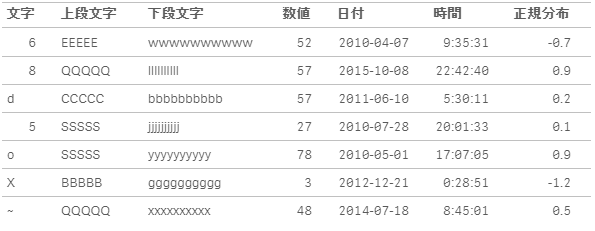
そうすると、以下の様なデータを作成することができます。
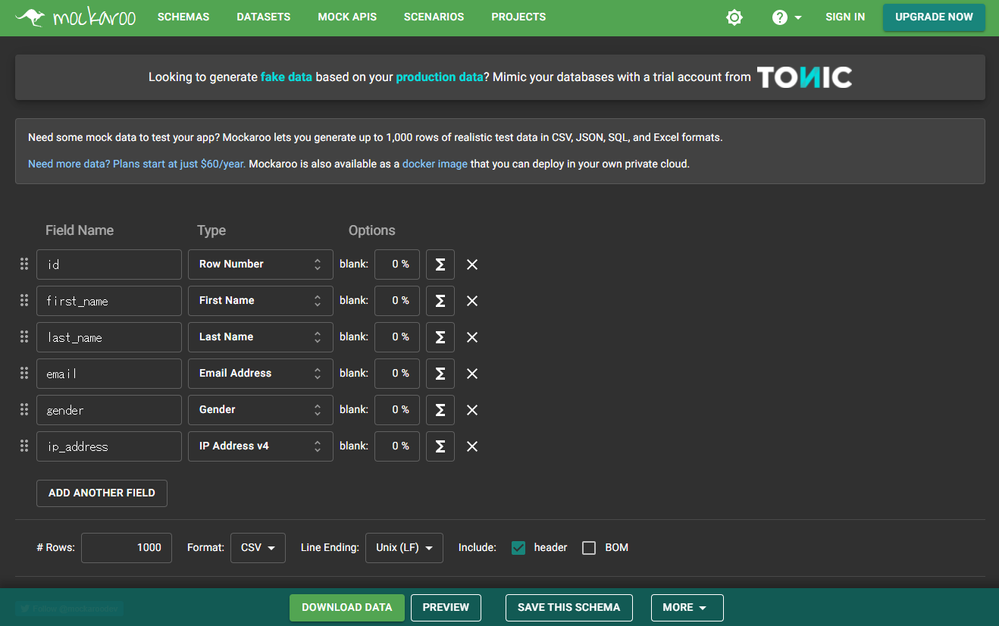
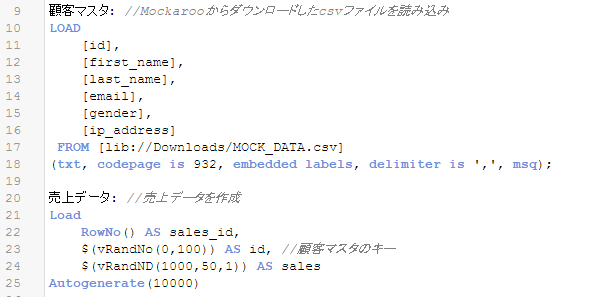
また、同じく上記のサイトで紹介されている方法として、Mokarooというサイトで名前、email、性別などの項目を選択して1,000件までのデータを作成することができ、そのデータを活用することもできます。例えば「顧客マスタ」のテストデータ作成をイメージして、以下の様な定義のデータを作成します。
そして、以下の形でMockarooで作成した「顧客マスタ」データを取り込み、ファクト/トランザクションのデータに当たる売上データを先ほどの手順で作成します。
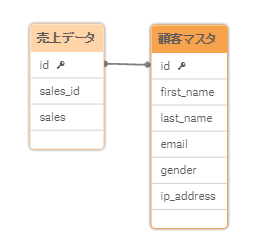
そうすると、以下の様な形でデータモデルが作成され、より実践に近いデータを利用することができます。
まとめ
ここでは、Load .. Inline および Load … Autogenerateを利用したテストデータ作成の方法についてご紹介させて頂きました。
-
累積グラフの作成-RangeSum
はじめにここでは、RangeSum関数を使って以下の様な形の累積グラフを作成する方法をご紹介します。 準備このエントリでは、「前月比や前年比、成長率などの算出-Above, Before」と「移動期間合計や移動期間平均の算出–RangeSum, RangeAvg」のエントリでご紹介したAbove関... Show Moreはじめに
ここでは、RangeSum関数を使って以下の様な形の累積グラフを作成する方法をご紹介します。
準備
このエントリでは、「前月比や前年比、成長率などの算出-Above, Before」と「移動期間合計や移動期間平均の算出–RangeSum, RangeAvg」のエントリでご紹介したAbove関数とRangeSum関数を利用しますので、そちらをまだ読まれていない方はまずそちらをご参照ください。
サンプルデータを利用して、ご説明する操作を実際に試して頂くことができます。以下のリンクからサンプルデータをダウンロードし、ダウンロードしたZIPファイルを任意の場所に解凍してください。
そして、新規アプリを作成してダウンロードしたZIPファイルに含まれるファイルを取り込んでください。
累積グラフの表示
「移動期間合計や移動期間平均の算出–RangeSum, RangeAvg」のエントリでは過去12ヶ月分の売上を表示するために以下の形でRangeSumとAboveを利用しました。
RangeSum(Above(Sum([売上]),0,12))
上記Above関数の引数の「0」は自分自身のレコードを示しており、自分自身のレコードを含めて2つ目の引数に指定されている「12」個分上の範囲に位置するSum([売上])の集計値(つまり過去12カ月分の集計値)を合計するということを行っていました。
今回の累積グラフも以下の形で基本的に同じ手法を取りますが、一か所だけRowNo()の関数を利用している部分が異なります。
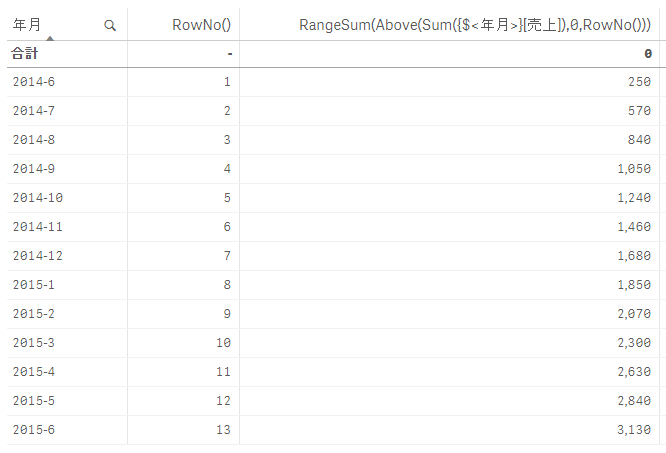
RangeSum(Above(Sum([売上]),0,RowNo()))RowNo()は以下の形でレコードの行数を返しますが、この関数を先ほどの「12」の代わりに指定しています。そうすると、例えば10行目では10個分、20行目では20個分上の範囲に位置する集計値を合計するということになりますので、1行目からの全ての値を合計するということを行う形となります。
2軸を利用する場合等の注意点
軸の絞り込みや、2軸での対応については「移動期間合計や移動期間平均の算出–RangeSum, RangeAvg」のエントリでご説明したものと同じことがここでも適用されます。
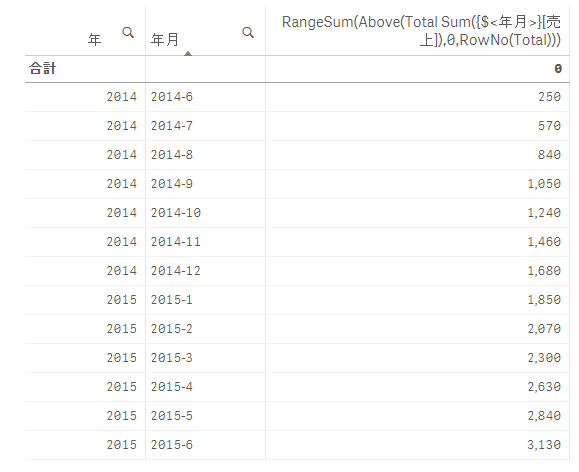
一点注意が必要なのは、2軸を利用して以下の形で「年」を跨いで集計するためにTotalを利用する場合、RowNo(Total)という形でRowNo()の中にもTotalを指定する必要があります。
RangeSum(Above(Total Sum({$<年月>}[売上]),0,RowNo(Total)))まとめ
以上、Qlik Senseで累積グラフを作成する方法をご紹介しました。
-
移動期間合計や移動期間平均の算出–RangeSum, RangeAvg
はじめに時系列でのトレンドの分析を行う場合、日次や月次での集計を行うと変動幅が大きくカクカクした動きとなるため、滑らかな線で表示させてトレンドを分かりやすくするために、直近の過去12ヶ月を合計する移動12ヶ月計(Moving Annual Total: MATや、Rolling n-period ... Show Moreはじめに
時系列でのトレンドの分析を行う場合、日次や月次での集計を行うと変動幅が大きくカクカクした動きとなるため、滑らかな線で表示させてトレンドを分かりやすくするために、直近の過去12ヶ月を合計する移動12ヶ月計(Moving Annual Total: MATや、Rolling n-period Totalとも呼ばれます)や、それらの期間の平均(同様にMoving Annual Averageや、Rolling n-period Averageとも呼ばれます)を算出することが行われます。ここでは、RangeSumとRangeAvg関数を用いて、Qlik Senseでこれらの計算を行う方法をご紹介します。
準備
このエントリでは、「前月比や前年比、成長率などの算出-Above, Before」のエントリでご紹介したAbove関数を利用しますので、そちらをまだ読まれていない方はまずそちらをご参照ください。
サンプルデータを利用して、ご説明する操作を実際に試して頂くことができます。以下のリンクからサンプルデータをダウンロードし、ダウンロードしたZIPファイルを任意の場所に解凍してください。
そして、新規アプリを作成してダウンロードしたZIPファイルに含まれるファイルを取り込んでください。
RangeSumの基本的な使い方
移動期間合計や移動期間平均を算出するには、RangeSum関数と「前月比や前年比、成長率などの算出-Above, Before」のエントリでご紹介したAbove関数等を組み合わせて行います。
ここでは、以下の形でAbove関数に2個の数値の引数を指定します。
Above(Sum([売上]),0,12)
2つ目の数値の「0」は自分自身のレコードを示しており、自分自身のレコードを含めて2つ目の数値に示されている「12」個分上の範囲に位置するSum([売上])の集計値(つまり過去12カ月分の集計値)を合計するということを行います。
ただ、この状態では12個の独立した値を保持していますので、これらの値をさらに一つの集計値にまとめます。それを行うのがRangeSumです。
RangeSum(Above(Sum([売上]),0,12))
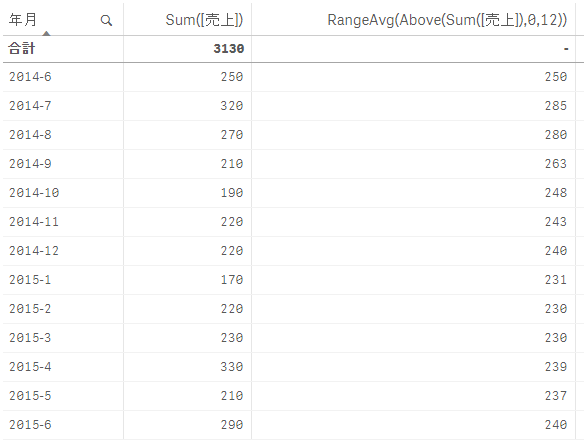
そうすると、以下の形で過去12ヶ月分の売上が集計されます。ここで上記の「12」の値を「3」に変えれば過去3カ月分の集計を行えるなど、ここで集計する期間の長さを調整することができます。
また、RangeSumではなく、RangeAvg関数を利用すると、期間合計ではなく期間平均を算出することもできます。
RangeAvg(Above(Sum([売上]),0,12))
軸の絞り込みや、2軸での対応など
軸の絞り込みや2軸以上を利用する場合などの対応は「前月比や前年比、成長率などの算出-Above, Before」のエントリでご紹介した方法と同様となります。
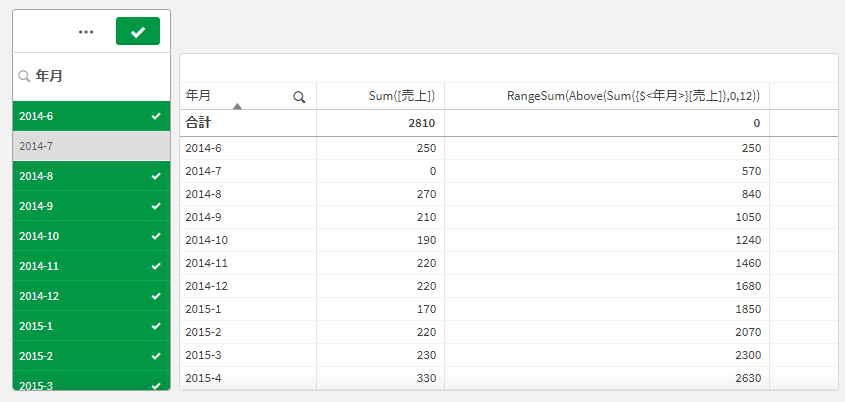
まず、以下の形でSET分析を追加して「年月」の選択を無視する形にすると、「2014-7」が選択で除外された場合でもこの月を含んだ形で移動12ヶ月計が計算されます。
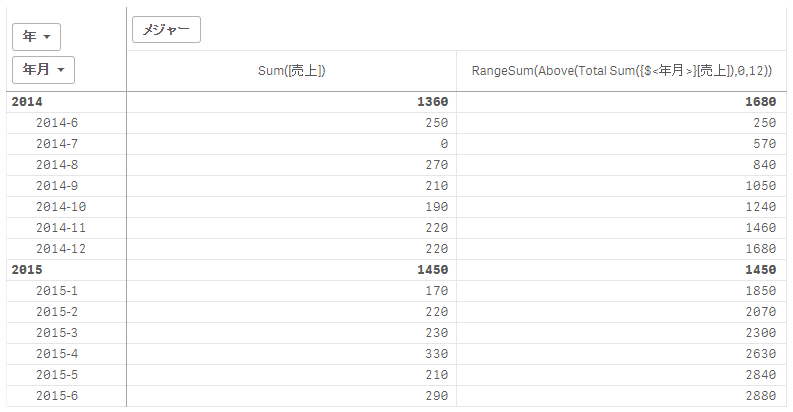
RangeSum(Above(Sum({$<年月>}[売上]),0,12))以下の「年」「年月」といった形で2軸を設定している場合には上記の数式では年を跨って集計されないため、以下の形でTotalを追加する必要があります。
RangeSum(Above(Total Sum({$<年月>}[売上]),0,12))また、同様のことを行うには以下の形でAggrを利用する方法もあります。
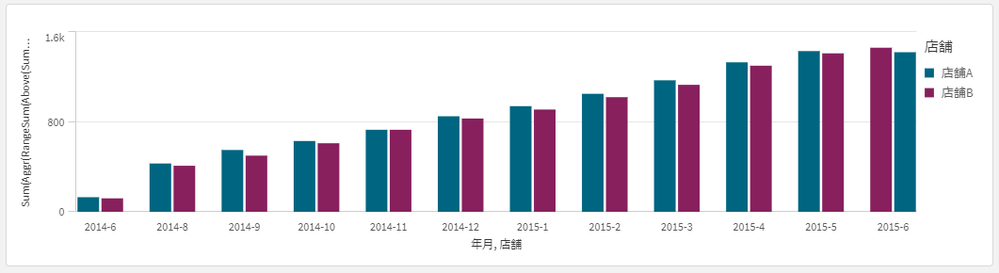
Sum(Aggr(RangeSum(Above(Sum({$<年月>}[売上]),0,12)),年月))ただし、軸の並びが「年月」>「店舗」となっているが「店舗」ではなく「年月」の順で集計を行いたい場合はAggrを利用する必要があります。これは例えば以下の形で棒グラフを2軸でグループ化するような場合でも適用されますのでご注意ください。
Sum(Aggr(RangeSum(Above(Sum({$<年月>}[売上]),0,12)),店舗,年月))横方向での計算については、以下の形でAboveの代わりにBefore関数を利用する形となります。
RangeSum(Before(Sum([売上]),0,12))
まとめ
以上、RangeSumやRangeAvgを使った移動期間合計や移動期間平均の算出の方法についてご説明させて頂きました。
-
Meet Dr. Jean-Yves Corre-Qlik Ambassador Class of 2022!
This week, we introduce Dr. Jean-Yves Le Corre, one of our new Educators in the 2022 class of Qlik Academic Program Ambassadors. Jean-Yves is an Educa... Show MoreThis week, we introduce Dr. Jean-Yves Le Corre, one of our new Educators in the 2022 class of Qlik Academic Program Ambassadors. Jean-Yves is an Educational Developer at the Academy of Future Education at Xi'an Jiaotong-Liverpool University ( XJTLU), Suzhou, China.
Jean-Yves
Jean-Yves is originally from Paris and has been living in China for more than 15 years.
Jean-Yves first introduced Qlik in a summer school program offered by International Business School Suzhou ( IBSS), the business school department of the university. Thereafter, he started using Qlik in the courses he taught at Xian Jiaotong Liverpool University ( XJTLU) in August 2019.
He also introduced the Qlik Academic Program while teaching the course ‘Data Analytics and Business Strategy’ in December 2019 to postgraduate students at XJTLU.
Jean-Yves was instrumental in securing the purchase of four licenses of Qlik Sense Enterprise by the university as a leader of IBSS@Data Mining Lab which is responsible for promoting technology-driven innovative teaching practices at XJTLU.
Jean-Yves is especially interested in embedding Qlik into a cognitivist approach of learning to maximize learning experience to enhance cognitive and behavioral skills of students. He believes that the role of Qlik in education is not only to help build data analytics solutions but to facilitate a process of group cognition and learning through manipulation and visualization of data among learners, helping them to develop assumptions in making interpretations of reality and share results, challenge assumptions and bring confidence in problem-solving. According to him, Qlik also brings a dimension of creativity to management accounting education.
The approach followed by Jean-Yves to incorporate resources of the Qlik Academic Program is by integrating the program resources in his courses. He also supervises undergraduate students who are leveraging the academic program resources for their final year research project.
Jean-Yves mentions that there are several cases of students who found a job in the field of data analytics, thanks to their previous experience using Qlik in the courses he taught.
Jean-Yves’ plans for 2022 include, in his new role as Educational Developer at XJTLU which he started recently, to focus on promoting Qlik to support innovative teaching practices at XJTLU, as well as creating opportunities for educational research around Qlik.
Jean-Yves sees the role of Qlik in the creation of digital artifacts for creative learning. One area of research he is working on is using Qlik as an educational tool for constructivist learning, i.e “data visualization as tool to facilitate socio-cognitive conflicts in the process of knowledge construction”
His favorite hobbies include travelling, music (piano, jazz, classic music and many other kinds of music forms), cycling and relishing the social life in China.
As an Educator Ambassador for 2022, Jean-Yves hopes to gain professional experience and recognition as an educator.
Please join us in welcoming Jean-Yves to the Ambassador Program and congratulating him on his many accomplishments as an Educator and Qlik enthusiast!
To learn more about Educator Ambassadors visit: https://www.qlik.com/us/company/academic-program/ambassadors
If you are interested to learn more about the Qlik Academic Program and its amazing resources, visit qlik.com/academicprogram
-
Qlik、ガートナー マジッククアドラントで、12年連続 BI 市場のリーダーに!(Qlik Blog 翻訳)
ブログ著者:Dan Sommer本ブログは Qlik Shows Its Moves: Twelve Years a Leader in the Magic Quadrant! の翻訳になります。 2022年 ガートナー アナリティクス & BI プラットフォームについてのマジック・クアドラント レ... Show Moreブログ著者:Dan Sommer
本ブログは Qlik Shows Its Moves: Twelve Years a Leader in the Magic Quadrant! の翻訳になります。2022年 ガートナー アナリティクス & BI プラットフォームについてのマジック・クアドラント レポートが公開・ダウンロードできるようになりました。本レポートは業界で最も参照されており、Qlik の顧客や分析プラットフォームの導入をご検討されている企業にとって、重要な情報源となっています。この度、Qlik が 12年連続でリーダーに認定されたことを喜ばしく思います。その年によって位置を示す点が動くことはありますが、一貫して Qlik のお客様に信頼いただいている証です。
多くの事業者が、名高いクワドラント(4 分類)への参入を目指して切磋琢磨しています。今年は 17 社の参加で、トップは 3 社だけでした。Qlik がその中に入るということは、大変光栄です。映画「サタデーナイトフィーバー」のジョン・トラボルタを思い出します。彼は内気で目立たないけれど、ダンスフロアに立って脚光を浴びるとマジックを見せることができるのです。ここでは、右上のリーダーの領域がダンスフロアで、Qlik はそこで動きを見せることができるのです。
ガートナー社による各事業者についての論評は非常に短いため、なぜ Qlik がリーダーなのか、もう少しコメントに深みを持たせるよう補足させていただきます。
イノベーションの遂行:Qlik は昨年、Qlik Cloud と SaaS アプリケーション間のタスクやデータワークフローの自動化をこれまで以上に容易にする、Qlik Application Automation をリリースしました。また、データとコンピューティングが必要な場所にクラウド分析機能を安全に拡張する、Qlik Forts™ をリリースしました。さらに、Qlik AutoML で拡張アナリティクス機能を拡張しました。これにより、コード不要の自動機械学習を提供し、高度な拡張アナリティクス機能で機械学習のパワーを分析チームにもたらします。Qlik は、分析データパイプラインの機能を拡張して、データ系統の提供と説明できる BI を推進しました。これにより、データパイプラインを流れるデータ(ソースから変換、活用に至るまで)を完全に把握するのに必要なデータファブリックの提供を強化します。Qlik は、こうしたすべての拡張において高い評価を得ています。ガートナー社は、各事業者に関する注意事項を提供しています。Qlik に関しては、最近の戦略的な買収による製品の結束におけるリスクについて、指摘しています。実際、平均 9 ヶ月で最近の買収案件を完全に統合して SaaS プラットフォームに統合し、単一のユーザーエクスペリエンスを実現していることを考えると、不可解だと思います。ぜひ、このエンドツーエンドのデモで、Qlik Active Intelligence Platform がどのように統合されているのかをご確認いただければと思います。
顧客中心主義:マジッククアドラントでは、製品はほんの一部でしかありません。最終的には、当社の全従業員が、お客様のビジネス成果の達成を支援する活動に参画しています。ガートナー社が Qlik の顧客中心の姿勢、テクノロジー、サービス、成功事例、データリテラシーへの投資による市場のリード、そしてすべてのお客様の投資の保護を保証していることを評価してくれたのは、喜ばしいことだと思います。本レポートでは、企業の分析を刷新する Qlik の「アナリティクスモダナイズプログラム」について言及されています。刷新となると他社製品に目を向けるかもしれませんが、Qlik の提案は強力であると自信を持って言えます。これが、当社の既存顧客が非常に忠実だということです。また、あまり強力とは言えない他社のソリューションでは期待通りにいかなかったり、壁にぶつかってしまったため、Qlikに戻って来た理由でもあるのです。企業がデータと分析への取り組みを拡大する中で、Qlik なら、さらに多くのことを行うことができます。ビジョン:新型コロナウイルスのパンデミックを乗り越え、近代化が加速しています。企業は今、サプライチェーンの改善、効率性の実現、デジタル・イノベーションの推進を使命としています。受け身の体制から、反応的・能動的になるには、新しい考え方と新しい能力が必要です。そのためには、データライフサイクルにおいて、より優れたコラボレーションが必要です。リアルタイムのパイプラインと業務の流れ、最終的には、人間がこの循環に存在してもしなくても、なんらかのアクションや意思決定につながるものであることが求められます。そして、分散したデータとアプリケーションを融合し、組織の境界内と境界間でバリューチェーンを構築することが必要です。さまざまなスタックを横断して水平に切断し、すべてのデータの活用に対応できる事業者は、ほんの一握りです。Qlik は、データ・分析・自動化をリードする企業として、アクティブインテリジェンスを提供することで、このビジョンを実現できるよう支援します。
その結果、Qlik がリーダーに認定されたことは、非常に誇り高く喜ばしいことだと思っています。ですが、リーダーであることは、あくまでも手段です。Qlik は、クラブのダンスフロアにいるのです。今後は、Qlik が提供する製品がいかに強力であるか、そしてアクティブインテリジェンスがいかにお客様の変革に貢献するかを示すために、より議論を深めていくことができます。Qlik のビジョンは、このマジッククアドラントよりも壮大です。Qlik は、データ・分析・自動化のための世界をリードする独立したプラットフォームとして、市場で強力なポジションを築いています。
-
【ガートナー社 新着レポート】Qlik、12年連続で BI 市場のリーダーに!
ガートナー アナリティクス & BI プラットフォームについてのマジック・クアドラントでは、以下についてご紹介しています。 統一された規程の評価基準 – BI ツールを簡単比較 ビジョンと実行力において、各事業者がどの程度ガートナー社の基準に合致しているかという独自の分析 BI 市場の視覚的な概要... Show Moreガートナー アナリティクス & BI プラットフォームについてのマジック・クアドラントでは、以下についてご紹介しています。
- 統一された規程の評価基準 – BI ツールを簡単比較
- ビジョンと実行力において、各事業者がどの程度ガートナー社の基準に合致しているかという独自の分析
- BI 市場の視覚的な概要 – 評価されている事業者が一目瞭然
BI 市場の全体像とは?ガートナー アナリティクス & BI プラットフォームについてのマジック・クアドラントで、Qlik が 12年連続でリーダーに位置づけられている理由をご確認ください。
-
Introducing the new 'Platform SDK'
Hi Everyone,As more & more developers integrate & embed Qlik Sense into various 3rd party platforms, the need to simplify the development process is p... Show MoreHi Everyone,
As more & more developers integrate & embed Qlik Sense into various 3rd party platforms, the need to simplify the development process is paramount. With that in mind, today I am excited to announce the new Qlik Platform SDK.
What is this new SDK?
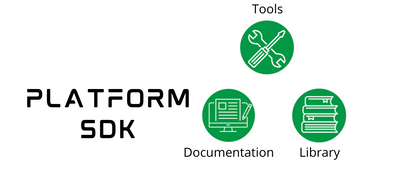
The Platform SDK is a suite of tools, libraries, and documentation that simplifies building high-quality and performant applications on top of the Qlik Sense Platform. The idea is to let developers extend solutions without the need to develop them from scratch.
What can we do using it?
As of now the Platform SDK is in its nascent phase. We have introduced a module called 'Auth' which is responsible for implementing authentication & authorization in browsers and web apps. So, you can use it to:
- construct a websocket URL easily using a predefined method.
- get login info about users.
- create/delete apps.
- connect to the Engine.
What programming languages does it support?
The best part of this SDK is that it comes in two flavors - TypeScript & Python. So, you have a lot of flexibility with TypeScript definitions and it also opens up scope for the Python developer community.
Please note that the Platform SDK packages are early development releases. So, please expect breaking changes as it updates and stabilize.
Here's an introductory video from the Qlik Developer series that explains what this is all about.
Let us know what you think about this new SDK and reach out for any questions.
~Dipankar, Qlik R&D
-
Meet Nicole! Our Newest Member to Qlik Community Team
Dear Members, I’m delighted to introduce Nicole Ulloa (Pronunciation: oo-yo-ah) who joins Qlik as Technical Online Community Manager. In our Qlik Co... Show MoreDear Members,
I’m delighted to introduce Nicole Ulloa (Pronunciation: oo-yo-ah) who joins Qlik as Technical Online Community Manager. In our Qlik Community, her user name is @nicole_ulloa
For over 7 years, Nicole has been involved in the Technology sector. As a software developer at Datalogic Software Nicole gained experience with application design, UI/UX, DevOps practices, user accessibility, user support and database management. As lead software developer, Nicole was responsible for multiple projects submitted to the state of Texas. Nicole also spent time as a Freelance Transcriptionist.
Nicole will be focused on Community Analytics and Reporting and Community Survey Data. Nicole will dive into source data of Community and will assume responsibility for user feedback; allowing us greater opportunity to listen and optimize the customer and community experience.
Nicole is a certified Project Management Professional (PMP) who holds a Bachelor of Science and Master of Science in Computer Science from the University of Texas.
Nicole lives close to the Matamoros, Tamaulipas, Mexico border and is bilingual / fluent in Spanish.
In her free time, Nicole enjoys multiple hobbies including reading, camping, weight training, and jogging. Currently, she is reading How I Killed Pluto and Why It Had It Coming by Michael E. Brown and always welcomes suggestions for new books to read. When she's not pumping iron or jogging a marathon (she has jogged a full 26.2 miles), she appreciates time watching movies or TV alongside her family and feline companion, Mr. Balls McGee. She regularly strives to learn new skills and gain new experiences through hobbies.
Please help me give a very warm welcome to Nicole as she starts her journey with Qlik!

-
Meet Mario De Felipe Pérez – Qlik Educator Ambassador Class of 2022!
Mario is currently teaching at both the Escuela de Organización Industrial, in Andalucía, and at the ENAE Business School, part of the University of ... Show MoreMario is currently teaching at both the Escuela de Organización Industrial, in Andalucía, and at the ENAE Business School, part of the University of Murcia. He is a Professor of Data Visualization, Data Science and Business Analytics and embeds Qlik Sense into his teaching at both schools. “We have used Qlik Sense desktop and Qlik Sense Cloud to deploy practices and projects, also we use materials from the data literacy program…This year I teach three editions of a data visualization program, where students learn using different data visualization tools. After completion of the course, most students respond in a survey they liked Qlik more than other tools”.
Mario is such a committed Qlikkie that in addition to teaching he has participated in several events, such as the Qlik Spain: Data Driven Day 2021 and webinars on topics such as Data Literacy and Data Monetization using Qlik. In addition to this he has created tuition videos on Qlik Sense to introduce more people to the platform, you can find one of his videos here.
During 2021 Mario participated in a Data Literacy Program to help students get employed after their studies, this led to several students securing employment. When I asked Mario why he was interested in becoming an Academic Program Educator Ambassador he said, “I love teaching and I love Qlik. I don't think better way to combine my true loves”. He hopes that in the coming years he will have the opportunity to teach in other institutions and continue to empower students to become more data literate.
If you’re interested in some of the Data literacy resources mentioned in this blog, or you’re curious about how you can secure access both Qlik Sense Cloud and Desktop, visit this page to find out more qlik.com/academicprogram.
-
FYI - Be prepared for an upcoming change to the Qlik Cloud (Qlik Sense SaaS Hub)...
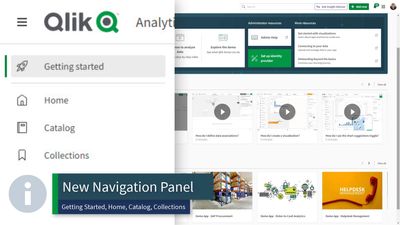
Check out this brief video to learn more about some changes and improvements to the Qlik Cloud (Qlik Sense SaaS Hub) navigation panel, coming soon! C... Show MoreCheck out this brief video to learn more about some changes and improvements to the Qlik Cloud (Qlik Sense SaaS Hub) navigation panel, coming soon!
Can't see the video on YouTube? Check out this link to see it on our site!

-
You can't improve what you don't measure, Qlik invites you to a free skills asse...
Test your Qlik Sense® superpowerIf you don't measure, then how do you know how you are doing?More than 900 Skills assessments taken this year! Take Sk... Show MoreTest your Qlik Sense® superpower
If you don't measure, then how do you know how you are doing?
More than 900 Skills assessments taken this year! Take Skills Assessment for free yourself.
Business Analyst
Data Architect
System Administrators
Create powerful, clean visualizations to quickly explore information and gain critical insights using multiple devices with Qlik Sense.
Manage and consolidate data from different tables and sources to be integrated into clean dashboard interfaces. Try everything from data modeling and functions to data loading and application structure
Architect and secure Qlik Sense platforms. Manage user accessibility and get to know the Qlik Management Console (QMC) as well as application access rule administration and data connection protocols.
If you prefer to check the info related to our courses, go ahead!
Business Analyst / Data Architect
System Administrator
· Data Modeling for Qlik Sense
Available for on-premise and SaaS
Additional class schedules include Create Report with Qlik NPrinting and Advanced Topics in Design and Development
We have private training options available as well, Contact us at Education@qlik.com
Happy Learning!

-
Row-level security in Qlik Sense SaaS
Security in a Qlik app is often achieved using a feature called “Section Access”. It is an extremely flexible and useful feature that permits row-leve... Show MoreSecurity in a Qlik app is often achieved using a feature called “Section Access”. It is an extremely flexible and useful feature that permits row-level security inside an app. It also allows data-driven security definitions instead of manually defined static rules. See more on A Primer on Section Access.
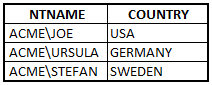
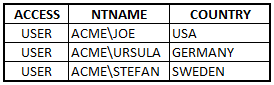
The basic idea is to load an authorization table that defines what different users are allowed to see:
When the app is opened, the Qlik engine makes an invisible selection corresponding to the proper user scope (COUNTRY) and removes all excluded data, also in other tables. This way, each user will only see what he or she is authorized to see.
User name
In QlikView and Qlik Sense on Windows, the user name needs to be in the NetBIOS format:
But this user name cannot always be found among the claims of the identity provider used in the cloud. To see the claims of your identity provider, you need to log on to Qlik Sense SaaS and append “/api/v1/diagnose-claims” to the URL:
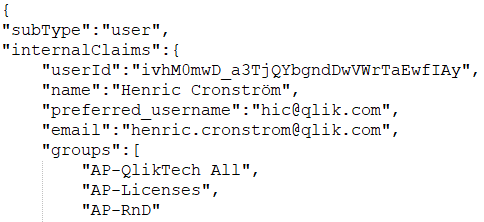
You will then get something that, when formatted, is similar to the following:
Here you can see the attributes sent by your identity provider to Qlik Sense SaaS . In this example, there is no attribute among the claims that corresponds to the NetBIOS user name.
Solution 1
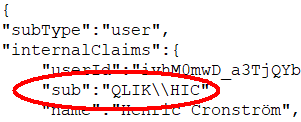
When you set up your Qlik Sense SaaS tenant, you should make sure that the NetBIOS user name (also called sAMAccountName) is mapped to the “sub” claim. This will be compared to NTNAME and USERID in Section Access.
If you do this, your on-premise Section Access will work in Qlik Sense SaaS . No other changes are needed. You can use an authorization table like the one below, both on premise and in the cloud, since the field NTNAME now works in all Qlik platforms.
Solution 2
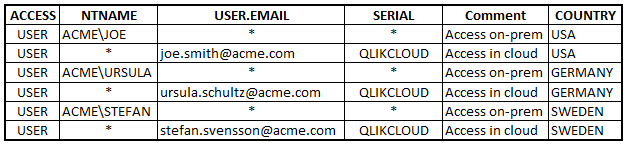
Without the NetBIOS user name, you need to authenticate the user in a different way, e.g. through the e-mail address. But this means that you need to modify your authorization table slightly. The new table could look like this:
Note that each user now has two records: One for on-premise access, one for cloud access. The wildcards ensure that only the relevant authenticating fields are used.
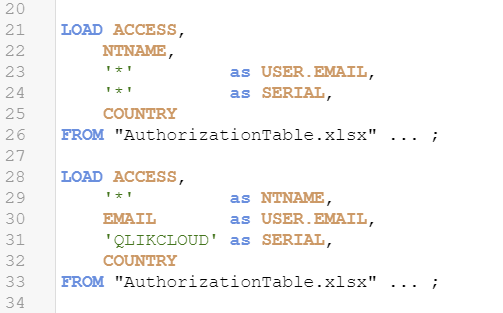
The simplest way to create the duplicate records is to add a second Load statement in the script:
The SERIAL field is used for an environment test. Without it, the records pertaining to cloud would give access to all users in an on-premise QlikView environment: Existing QlikView installations ignore the field USER.EMAIL. But with the SERIAL field, QlikView will deny access for all records where SERIAL doesn’t have a wildcard.
Solution 3
Use groups in NTNAME or GROUP to identify users. These fields will be compared to the "groups" claim.
Summary
- NTNAME can be used in all environments. On-premise it is checked against the name of the authenticated user. In Qlik Sense SaaS it is checked against the “sub” claim and the "groups" claim.
- USERID can be used in Qlik Sense SaaS . It is checked against the “sub” claim.
- GROUP can be used in Qlik Sense SaaS . It is checked against the "groups" claim.
- USER.EMAIL can be used in Qlik Sense SaaS where it is checked against the “email” claim. It does not yet work in other platforms.
- SERIAL can be used in Qlik Sense SaaS as an environment test. It passes the test if it contains the string ‘QLIKCLOUD’. The corresponding check does not yet work in QlikView.
- The prefix ‘USER.’ is reserved for new Section Access fields.
Finally - we will continue our work to improve Section Access so that customers can create one single authorization table that works across all platforms.
Good luck with your cloud deployment!
HIC
Additional reading:
A primer on Section Access
-
Native ADHOC
Native ADHOC application with dynamic Dimension and Metrics. There is no need to use extensions. -
Qlik Certification Program Launches Digital Badging
In a few weeks we will be retiring our Qlik CertTracker platform. Qlik will be utilizing the digital badging platform Credly to issue digital badges ... Show MoreIn a few weeks we will be retiring our Qlik CertTracker platform. Qlik will be utilizing the digital badging platform Credly to issue digital badges for all our certifications going forward. This is an exciting opportunity for you to share your certification with colleagues, employers and customers!
Since Qlik certifications naturally age out as the product evolves, we will not be moving older certifications forward to the Credly platform. The following Qlik product certifications will be awarded a badge on the Credly platform:
-Qlik Compose
-Qlik Replicate
-QlikView 12 Business Analyst, Data Architect, or System Administrator
-Qlik Sense Business Analyst, Data Architect, or System Administrator (June 2019 release)
- Qlik Sense Business Analyst, Data Architect, or System Administrator (February 2021 release)
If you wish to have permanent record of any certifications not listed above, you must complete the following steps by March 25, 2022:
- Login to your Qlik CertTracker account
- Select “Printable Documents” from the right-hand menu
- Print or download any certificates you wish to retain
Look for more information in the coming weeks concerning the issuing of Qlik badges on the Credly platform and remember, you have until March 25, 2022 to download your historical Qlik certification logo and certificate!
-
10分で試すQlik Senseでデータ分析
■ はじめに本チュートリアルでは、Qlik Sense Desktopを使って、短時間で試しにチャートやデータ・ストーリーテリングを作成する手順をご説明します。ソースデータとして「売上明細.xlsx」と「商品マスタ.xlsx」の2個のExcelファイルを対象としてQlik Senseに取り込み、売上... Show More■ はじめに
本チュートリアルでは、Qlik Sense Desktopを使って、短時間で試しにチャートやデータ・ストーリーテリングを作成する手順をご説明します。ソースデータとして「売上明細.xlsx」と「商品マスタ.xlsx」の2個のExcelファイルを対象としてQlik Senseに取り込み、売上分析アプリケーションを作成します。
■ 準備
Qlik Senseのセットアップ
Qlik Senseのセットアップ方法については以下をご参照ください。
Qlik Sense Business(SaaS版)の無料トライアル開始手順
Qlik Sense Desktopの無料トライアル利用開始手順
サンプルデータのダウンロード
添付のサンプルデータ(売上データ)をダウンロードし、任意の場所に保存してください。
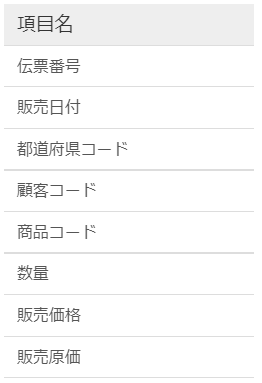
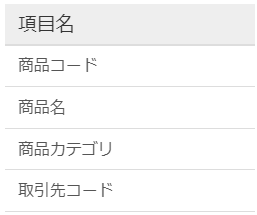
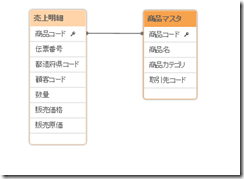
ここでは、Excelファイルに含まれた以下の2個のシートを取り込んで分析を行います。2つのシートは「商品コード」をキーとして関連付けられています。Qlik Senseではデータの取り込みを行う際に同名のキーが自動的に紐付けられ、特に紐付を行う作業は不要です。
売上明細
商品マスタ
■Qlik Senseの起動とアプリの新規作成
まずQlik Senseを起動します。
クラウド版Qlik Senseを使用する場合は、ブラウザ上でテナントのURLを入力してください。
デスクトップ版Qlik Senseを使用する場合はデスクトップ上の次のQlik Sense Desktopのアイコンをクリックします。
Qlik Sense が起動されます。
ここからはクラウド版Qlik Senseをもとに操作をご説明していきますが、Desktop版にも応用していただけます。
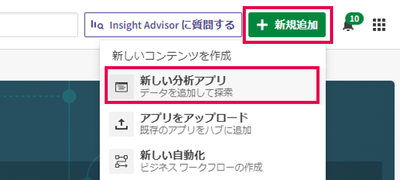
画面右上の「アプリの新規作成」ボタンをクリックします。クラウド版ではさらに「新しい分析アプリ」をクリックします。
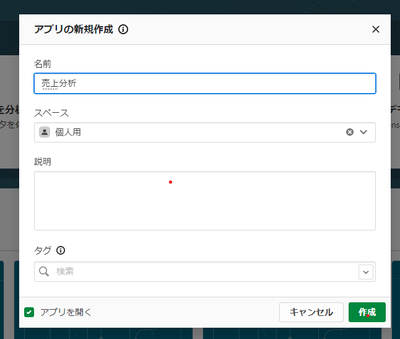
アプリの名称に「売上分析」と入力し、「作成」をクリックします。アプリが開きます。
■データモデリングとデータの取り込み
データのロード
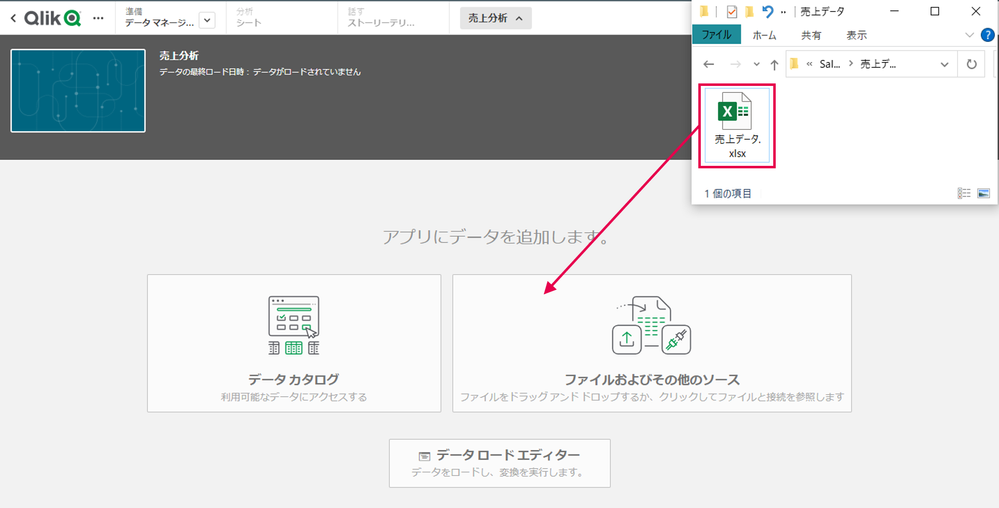
では、次に分析対象となるデータの取り込みを行います。まずは、商品マスタを取り込みましょう。事前にダウンロードしたファイルをエクスプローラー上で参照し、「商品マスタ.xlsx」をQlik Sense Desktopの画面上にドラッグ&ドロップします。
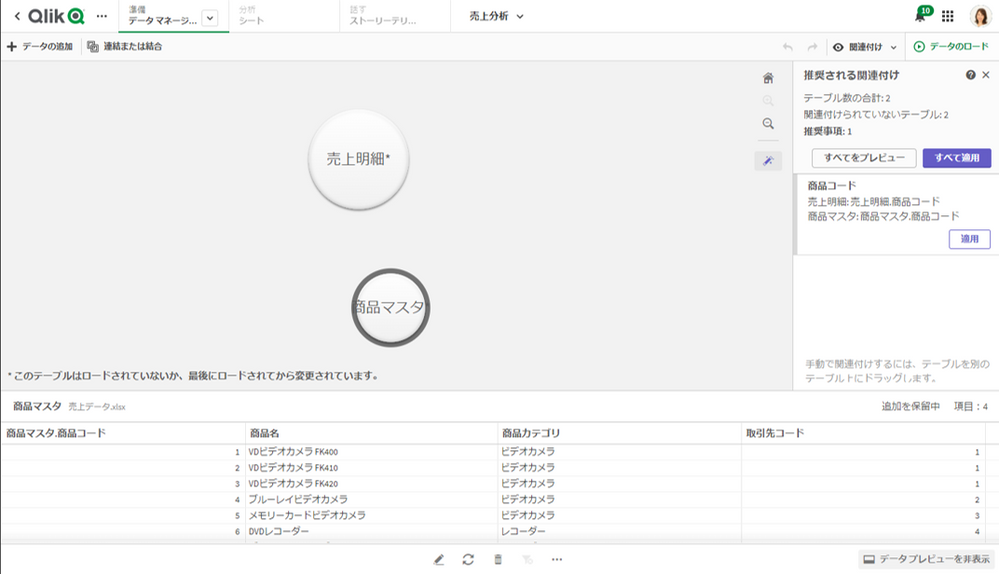
商品マスタと売上明細の取り込みが完了しました。データ取り込みに成功していると、以下のようなデータマネージャーが立ち上がります。
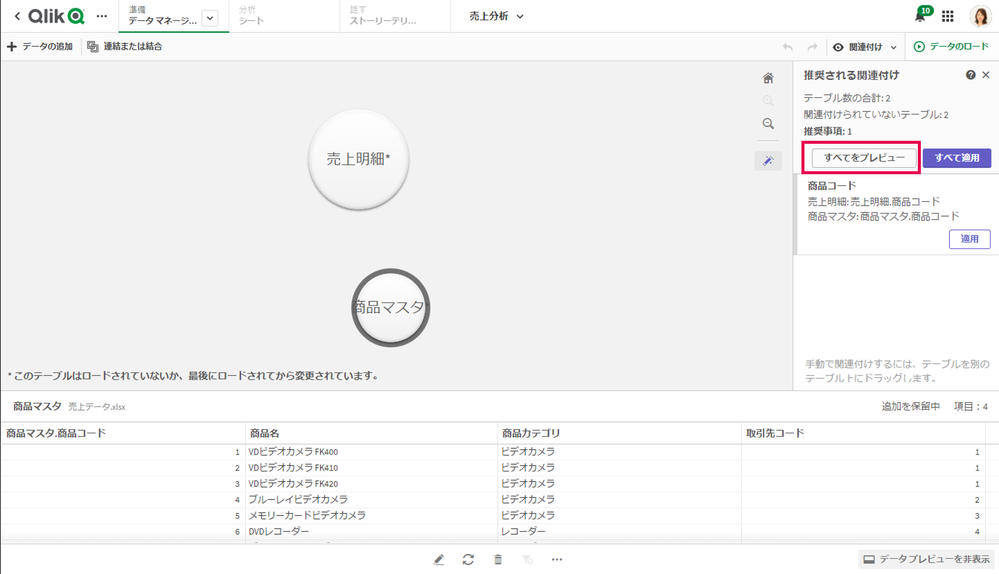
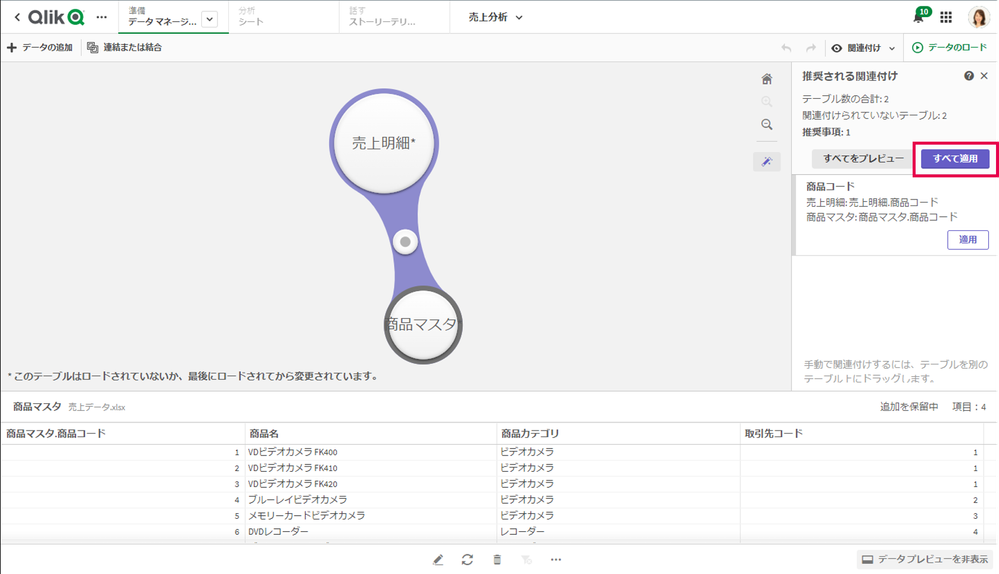
データマネージャーでは、データテーブル間の紐づけを行うことができます。ここでは右側の「すべてをプレビュー」をクリックします。
Qlik Senseによりデータのプロファイリングが行われ、最適な形でデータの紐づけの推奨プレビューが表示されます。ここではそのまま右側の「すべて適用」をクリックします。
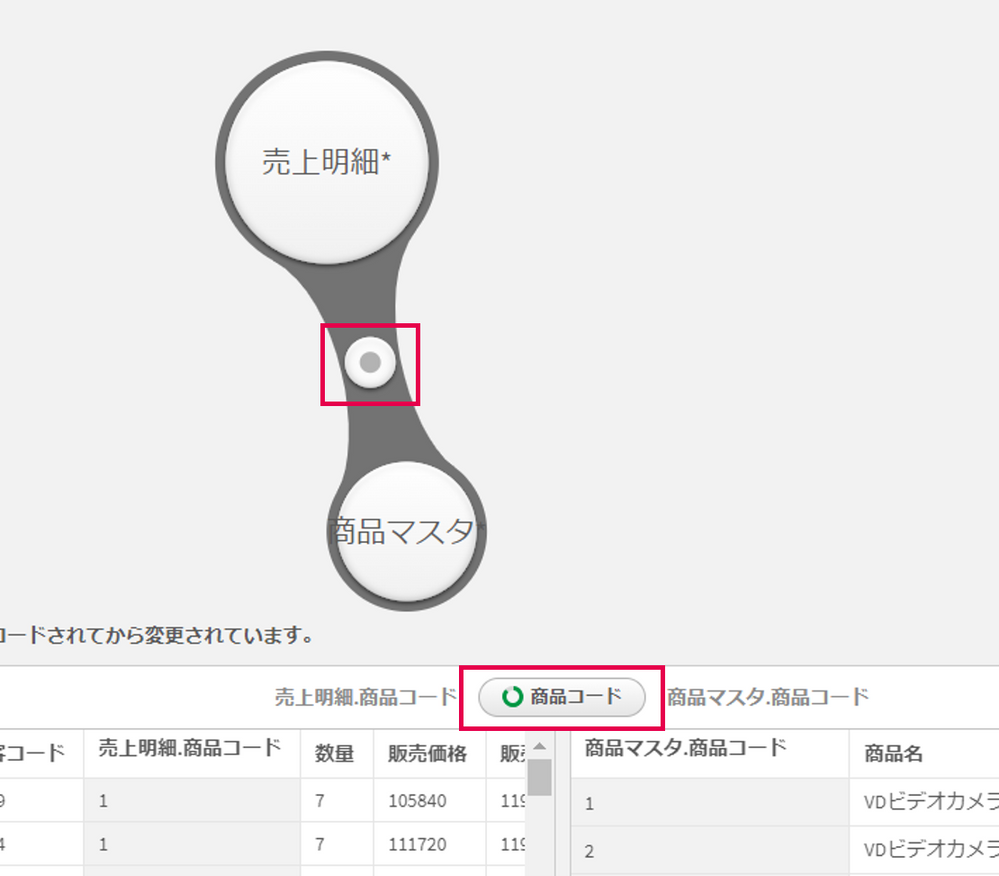
バブルの接合部をクリックすると「商品コード」で自動的にデータ間の紐づけがなされたことが確認できます。「商品コード」をクリックします。
その他のキーの紐づけ候補が表示され、また「カスタムの関連付け」で任意のキーを指定して紐づけることも可能です。ここでは右上の「データのロード」をクリックしてこのままデータをロードします。
データが正常に読み込まれたら「シートに移動」をクリックします。
■ビジュアライゼーションの作成
グラフの追加
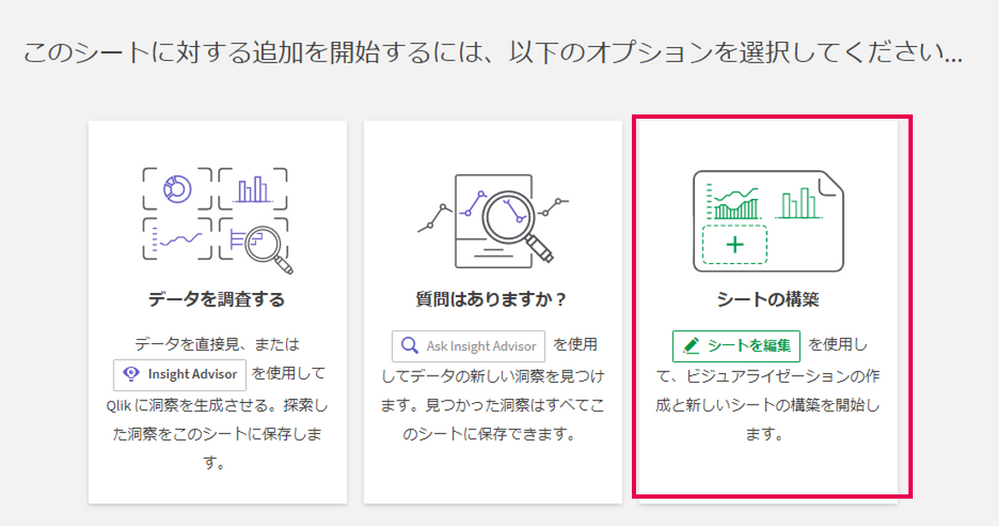
データの取込みが完了しましたので、そのデータを使ってQlik Senseのシートにグラフを作成したいと思います。シートの編集には3つの方法がありますが、一番右の「シートの構築」で実施してみましょう。
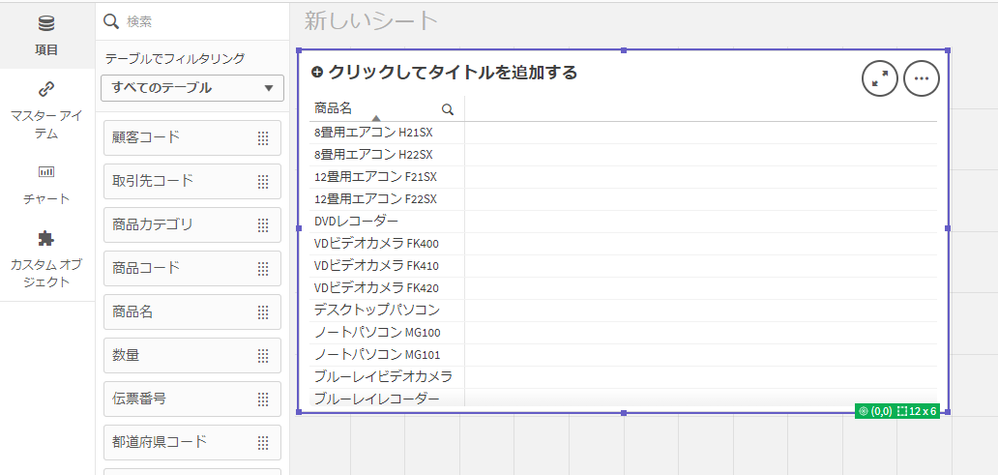
左側の「項目」タブから「商品名」をシート上にドラッグ&ドロップします。
以下のように商品名のテーブルが表示されます。
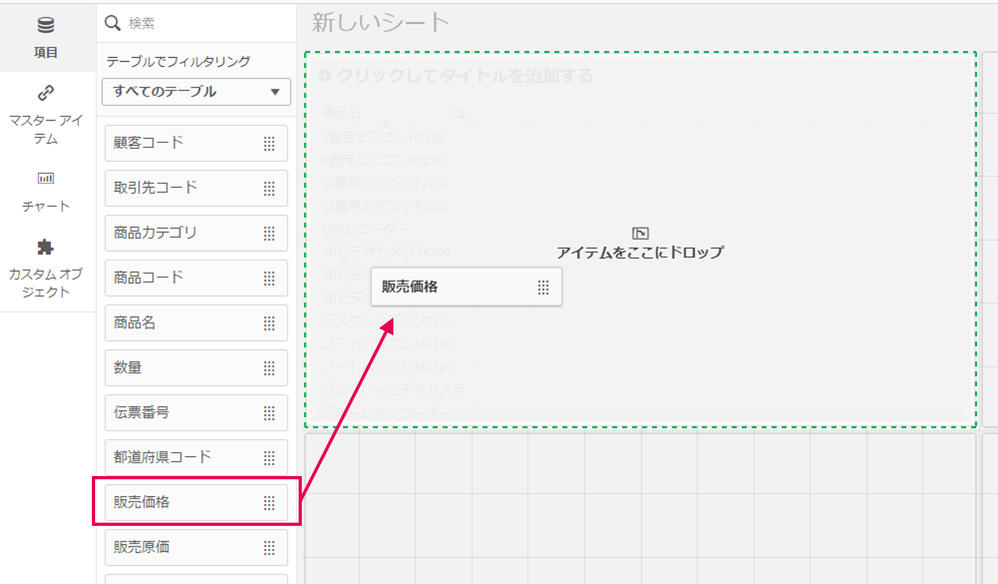
さらに「販売価格」を作成されたテーブル上にドラッグ&ドロップします。
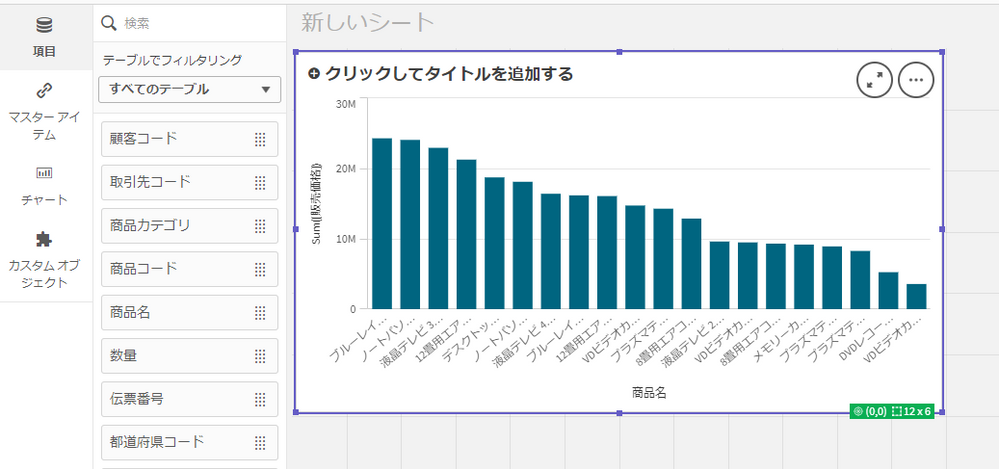
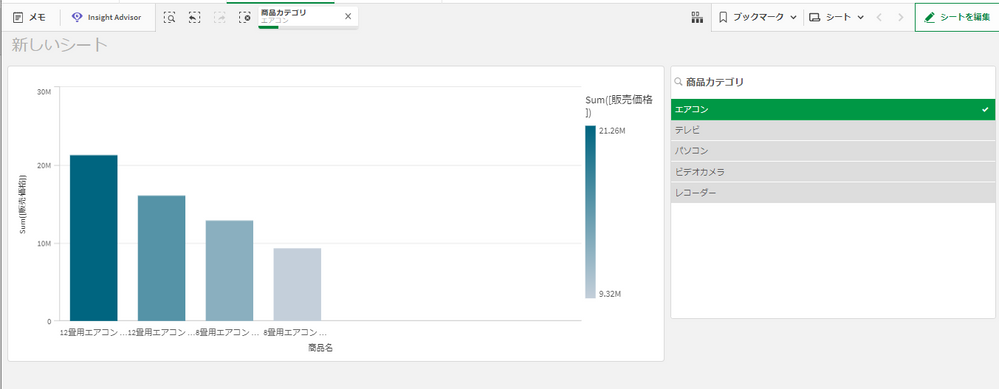
以下のような商品名を軸として販売単価を集計した棒グラフが作成されます。※「推奨チャート」の機能が既定で有効とされているため、選択した軸とメジャーに応じて推奨されるグラフ(ここでは棒チャート)が自動的に推奨されています。
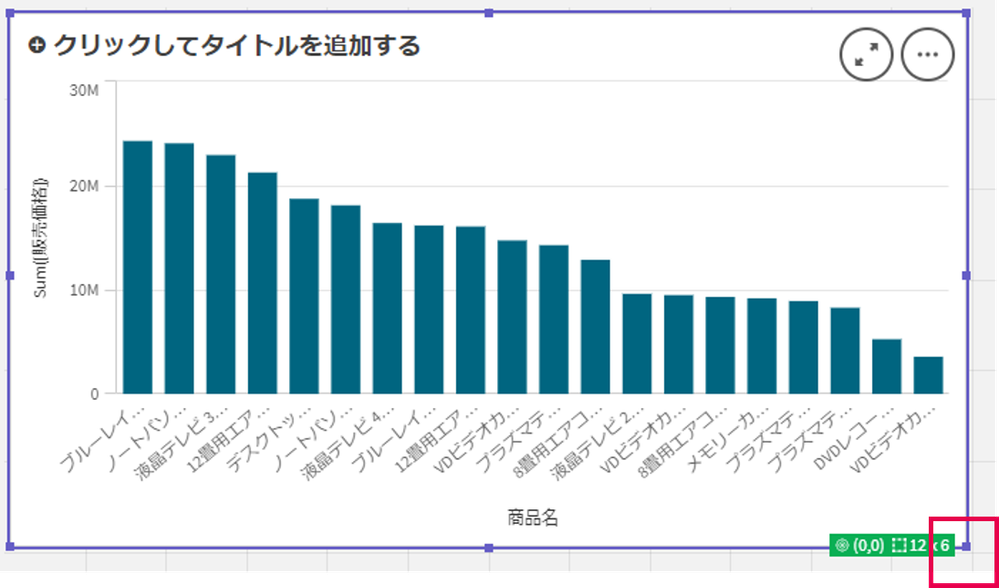
チャートを囲む紫色の枠線の右下角をドラッグしてチャートのサイズを見えやすい形に調整してください。
チャートの設定変更
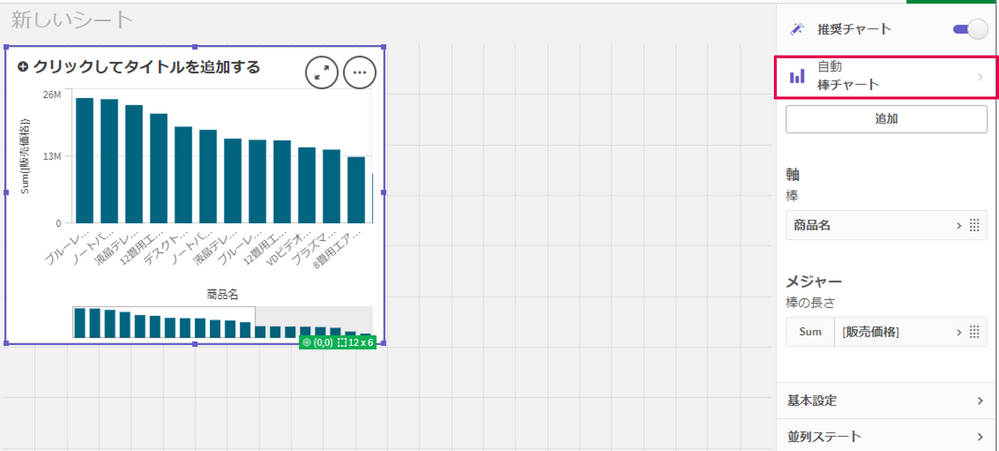
チャートを選択したまま、右側のプロパティの「自動 – 棒チャート」をクリックします。
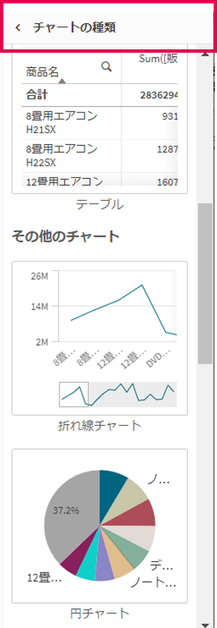
他の推奨チャート一覧が表示され、これらを選択することで棒グラフではなくテーブルや円グラフなどの他のチャート種類に表示を変更することができます。ここでは変更を行わず、トップの「チャート種類」をクリックしてそのまま元の画面に戻ります。
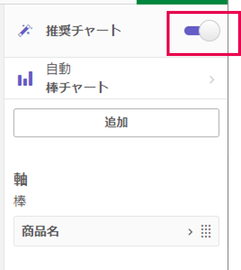
また、推奨チャートが自動選択された状態ではプロパティは最低限の項目を表示する簡易表示状態となっています。より細かいプロパティを設定するために標準のプロパティ表示に変更が可能です。ここでは上部「詳細チャート」のトグルスイッチをクリックします。
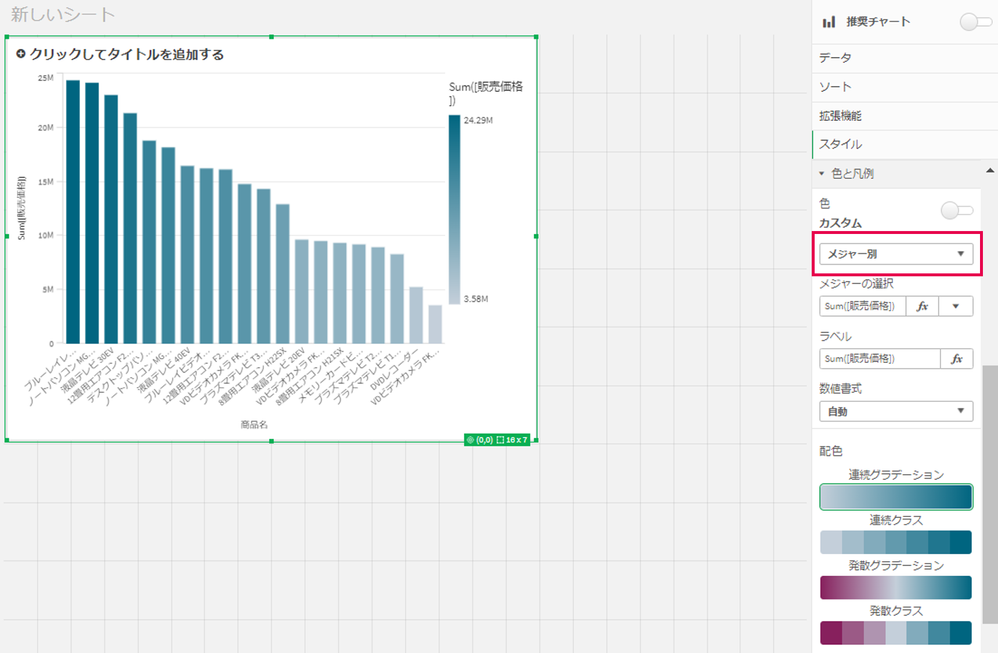
以下のようにより多くのプロパティが表示されます。ここでは色を変更するために「色と凡例」タブから「色」のトグルスイッチをクリックします。
「メジャー別」を選択すると、メジャーの値の大きさによって棒グラフの色の濃淡が表現される色の表現に変わりました。
フィルタの追加
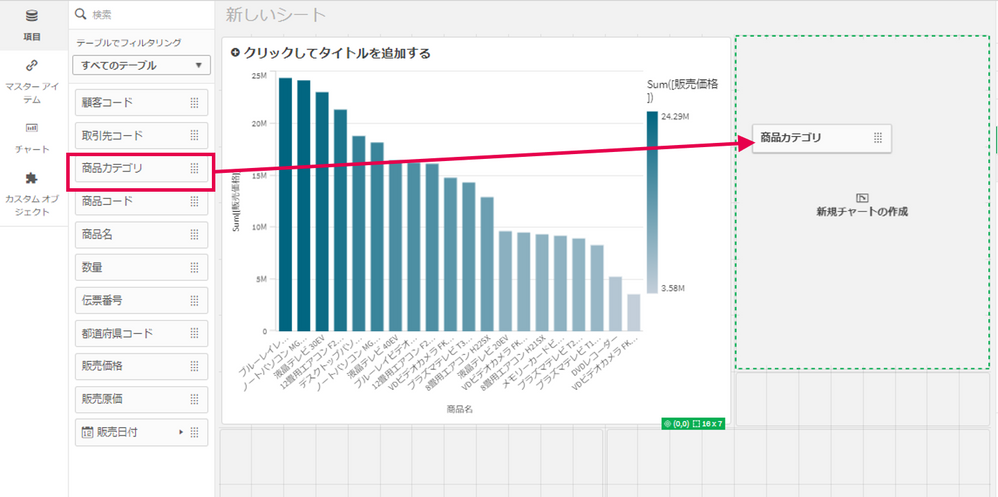
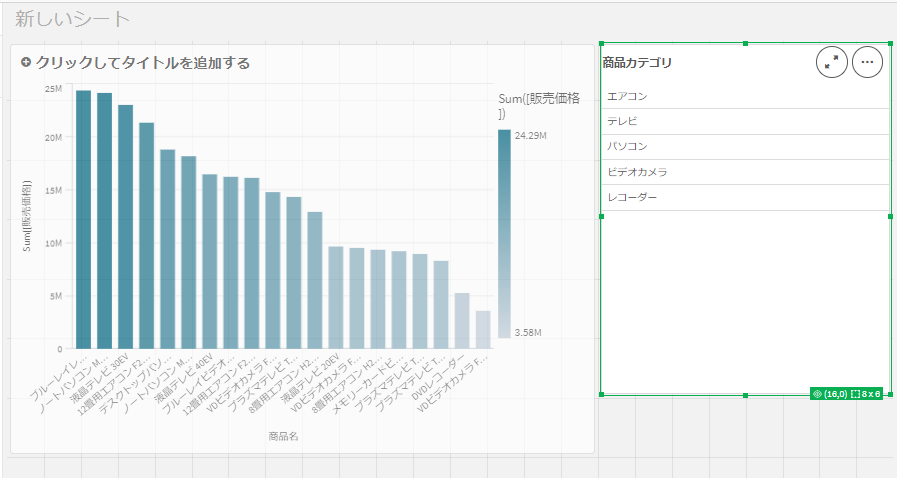
次に商品カテゴリでデータの絞り込みを行えるよう、フィルタの追加を行います。まず、左側からの「項目」メニューからキーボードの「Shiftキー」を押しながら「商品カテゴリ」の項目をシートの右側の空白スペースに配置します。
以下のようにフィルタが追加されました。(※ Shiftキーを押しながら項目をドラッグ&ドロップで追加することで、チャートではなくフィルターとして追加することができます。)アプリの動作確認
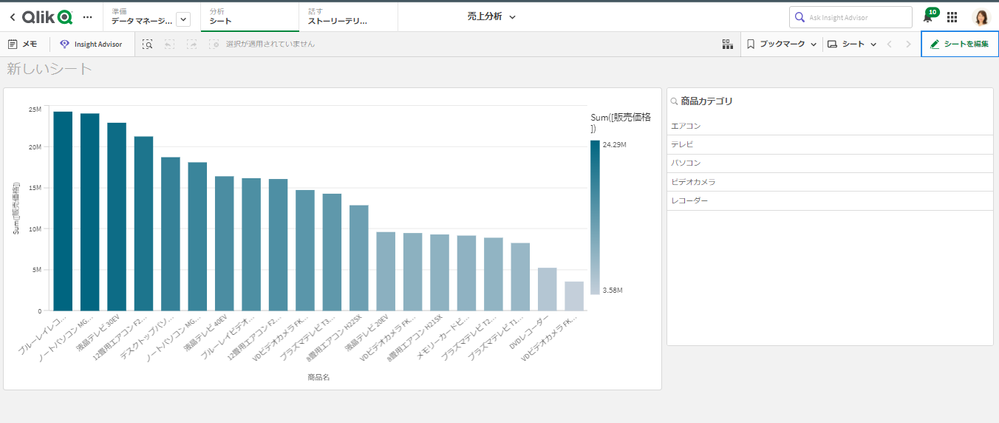
では、作成が完了したアプリの動作を確認してみましょう。右上の「完了」ボタンをクリックして編集モードを完了します。
以下の形でアプリの作成が完了しました。
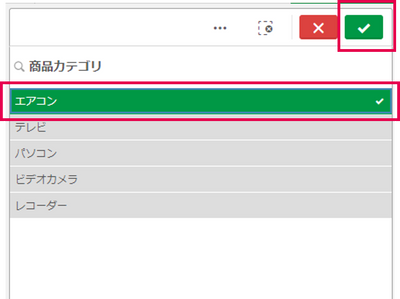
フィルタから項目をクリックして選択し、緑のチェックボタン(選択の確認)をクリックするとデータの絞り込みが行われます。
データが絞り込まれました。
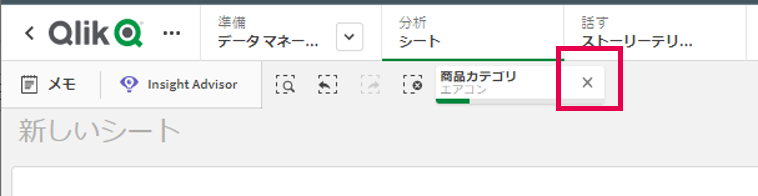
選択された項目は上部の選択バーに表示されます。選択をクリアする場合には×マークをクリックします。
■データ・ストーリーテリングの作成
最後に、作成したチャートを使ったデータ・ストーリーテリングを作成します。データ・ストーリーテリングとは、チャートのスナップショットを張り付けたプレゼンテーションのシートを作成し、データを分析するだけではなく、そこから得られた洞察や知見などをストーリーとした資料を作成できるものとなります。
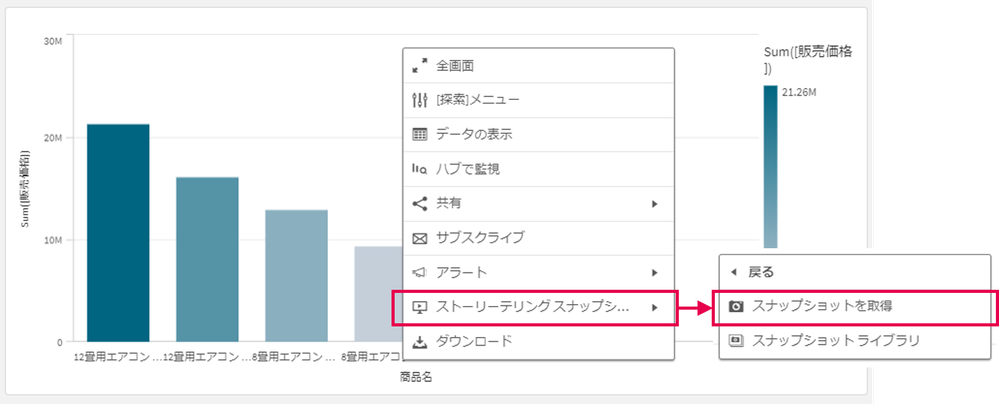
スナップショットを取得するチャート上で右クリックし、「ストーリーテリングスナップショット」をクリック、「スナップショットを取得」をクリックします。
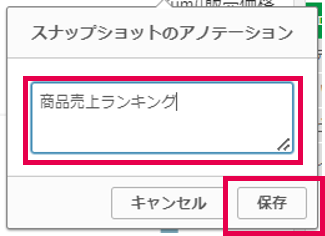
アノテーション(注釈)に「商品売上ランキング」と入力して「保存」をクリックします。
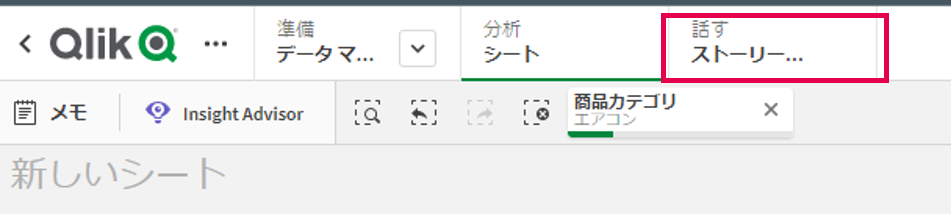
上部メニューの「ストーリーテリング」を選択します。
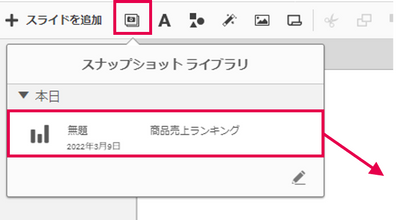
「スナップショットライブラリ」のアイコンをクリックし、取得したスナップショットをスライドにドラッグ&ドロップします。
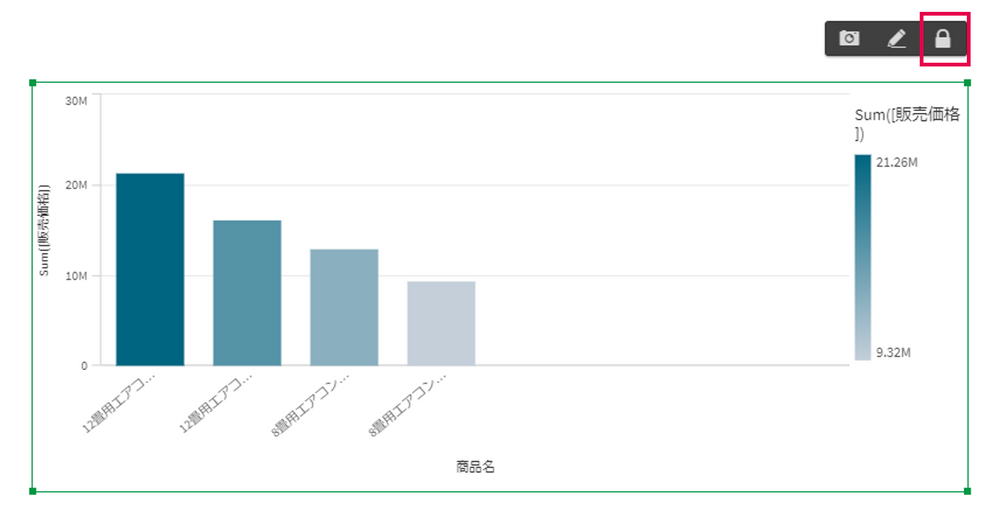
既定ではスナップショットの縦横サイズ比が固定されているため、それを解除するために「スナップショットのロック解除」アイコンをクリックします。
スナップショットの枠の角をドラッグしてサイズを調整します。
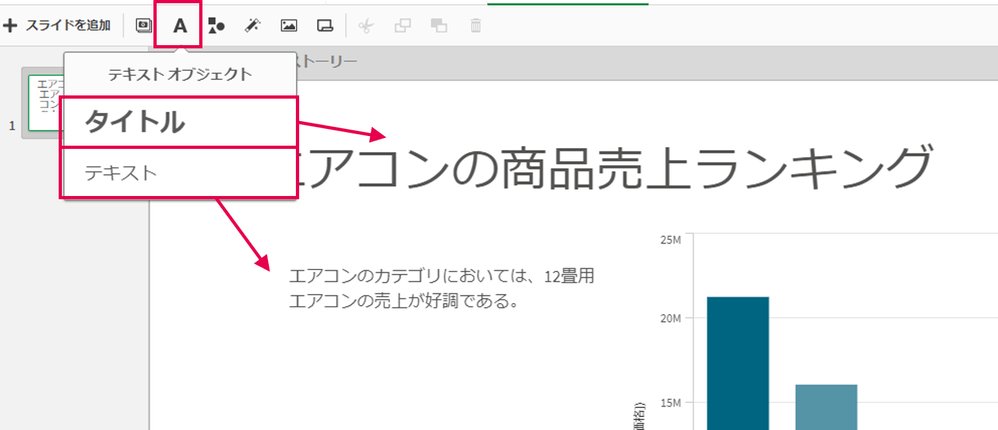
「テキストライブラリ」のアイコンをクリックし、タイトルやテキストをシートにドラッグ&ドロップして追加します。
左上の「+スライドを追加」アイコンでスライドを追加することが可能です。今回はスライドの追加を行わず、1ページのみのストーリーとしてそのまま再生を行います。
右上のスライド再生ボタンをクリックし、ストーリーを再生します。
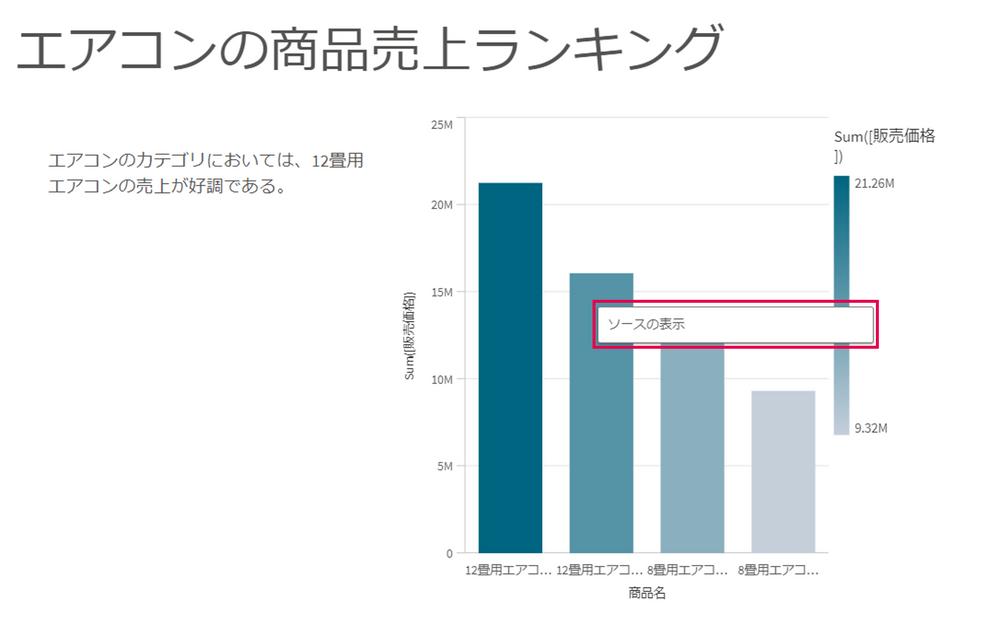
ストーリーの再生が実行されます。このストーリーを利用してエアコン商品売上ランキングについてプレゼンテーションを行うことができます。ここでは、例えば「商品を別のカテゴリに絞ったら結果はどうか?」という質問を受けたとします。そのような場合でも、その場でソースのチャートを表示させて結果を確認することができます。棒グラフ上を右クリックし、「ソースを表示」を選択すると、ソースのグラフを表示することが出来ます。
スナップショットが取得されたフィルタ条件が適用されたソースのグラフが表示されますので、ここで異なった条件に変更して確認することができます。トップメニューの「ストーリーテリング」をクリックするとストーリーの再生画面に戻ることができます。
■まとめ
以上、ここではクラウド版Qlik Senseを使って、サンプルデータを取り込んで簡単なチャートやストーリーを作成する手順を実施しました。Qlik Senseでは複数のデータを取り込み、ドラッグ&ドロップで短時間でインタラクティブなグラフやチャートを作成できることがご確認いただけたかと思います。

-
Welcome back Angelika Klidas - Qlik Educator Ambassador Class of 2022!
This week we would like to introduce Angelika Klidas, who happens to be a returning Educator Ambassador. We are excited to have been able to select A... Show MoreThis week we would like to introduce Angelika Klidas, who happens to be a returning Educator Ambassador. We are excited to have been able to select Angelika as an Ambassador for the 2nd year in a row due to her continued enthusiasm for Qlik’s Academic Program and her efforts in 2021. On a personal front, Angelika became grandma to Dean last year and she’s very excited about this!
Angelika’s journey with Qlik began in 2008 when she started out installing and managing a successful QlikView Competence Center as a team manager of the team. Since then, she has always been a huge Qlik advocate in both her day job and her university teaching. Angelika works as an Operations Manager at Bitmetric BV and is responsible for general management, determining the strategic and tactical direction of the company, sales and account management along with some innovative work! She also teaches Data and Analytics at the University of Applied Sciences in Amsterdam which is her part time role. She is a conceptual thinker who lives by the phrase “think big, act small, and scale fast” which she uses to inspire others to evolve in their use of data and analytics.
Angelika applied to become a Professor Ambassador with the Qlik Academic Program as she is passionate about educating students in data analytics and championing the cause of data literacy. Due to the change in situation in the field of education, she included new aspects in her teaching style which include preparing questions in Kahoot and some sheets around that topic. This helps students, in her opinion, filter the data with filters and be able to teach them more.
For 2022, she aims to work on updating her teaching materials, actualizing the new data sets for her case “the milkshake bar” and, on a lighter note, help students that did not finish the assignments to finish their assignments!
Angelika is proud of the fact that she is the Qlik Academic Program Ambassador and has included the Educator Ambassador badge, mentioned it on her resume and highlights it in her presentations. She is keen to present at Qlik World, Qlik’s flagship event, and hopefully that might materialize in the future!
In Angelika’s words, “I love the power of grey, love the academic program and the great benefit that it gives to me and my students. My students are able to pursue their dreams when they want to work in the Data & Analytics work field.” She is excited about the fact that some of her students got a job in the data & analytics world field, which is amazing!
Angelika feels that more and more organizations are now emphasizing the importance of data literacy and putting data management in place. She loves to work with the four pillar system on which she wrote a blog around this topic recently, https://www.linkedin.com/pulse/2022-harness-accelerated-power-data-digital-angelika-klidas/
In Angelika’s words, “I love the (academic) program, it helps the students in gaining analytics knowledge for my students. They can learn at their own pace and look for solutions through the learning platform, but also use the knowledge from the community and demo.qlik.com where they can find all kinds of cool solutions”
We are looking forward to working closely with Angelika during her tenure as an ambassador yet again and to creating more links with Universities in the Netherlands. For more information about our Ambassador Program please visit: qlik.com/us/company/academic-program/ambassadors
-
Qlik Senseの一通りのチャートを理解する
■はじめにここでは、基本となるチャートプロパティ設定を理解した上で、一通りのチャートの利用や設定方法を概観したいと思います。■各チャートのご説明KPIKPIパネルは重要業績評価指標 (KPI)を目標達成度などで色分け表示して目に留まりやすく可視化するためなどに利用します。 KPIでは、以下の「売上」... Show More■はじめに
ここでは、基本となるチャートプロパティ設定を理解した上で、一通りのチャートの利用や設定方法を概観したいと思います。
■各チャートのご説明
KPI
KPIパネルは重要業績評価指標 (KPI)を目標達成度などで色分け表示して目に留まりやすく可視化するためなどに利用します。
KPIでは、以下の「売上」と「利益率」の例の形でメインとサブの計2つの指標を追加することができます。
メジャーの「条件付きの色」をONにして「限度の追加」ボタンをクリックすることで閾値を追加することができます。例えば、以下の例では250,000,000円以下を赤字、それ以上を青字で表示する設定としています。
また、「スタイル」>「プレゼンテーション」タブ上で「シートにリンク」をONにすると、他のシートにリンクを張ることができます。
そうすると、例えば「KPIの明細を見たい」といった場合に、KPIパネルをダブルクリックすることで可能となります。
ウォーターフォールグラフ
ウォーターフォールグラフは、以下のような形で売上高の構成を正負の値で分解して把握するなどに利用されます。
メジャーを複数追加し、プロパティの「データ」>「メジャー」からメジャーを選択して「メジャー演算」から「加算」「減算」を選択して正負を切り替えることができます。また、「小計」チェックボックスをONにすると小計(以下イメージの灰色の棒)が追加されます。
ゲージ
ゲージでは、以下の形で達成状況などをゲージとして表示することができます。
「スタイル」>「プレゼンテーション」から「最小」と「最大値」を指定します。
また、スタイルを棒に変更し、表示方向を「垂直」、「水平」から選択することができます。
「セグメントの使用」をONにして「ライブラリ」をOFFにすると、「限度の追加」をクリックして目標の達成状況等に応じた閾値を追加し、色分けを行うことができます。
コンテナ
コンテナを利用すると、複数のチャートの表示を上部のタブで切り替えることができます。限られたスペースでユーザーの切り替え操作によってチャート表示を選択できるため、シートの限られたスペースを有効に利用するために利用されます。
「コンテンツの追加」をクリックするか、プロパティパネルの[コンテンツ]タブを開いて[追加]をクリックすることでチャートのタブを追加することができます。また、既存のチャートをコンテナ上にドラッグ&ドロップすることでも追加ができます。
コンボチャート
コンボチャートでは、複数のメジャーを追加して、異なる表現で一つのチャートに表示することができます。
「データ」>「メジャー」からメジャーを選択し、「棒」、「線」、「マーカー」から選択します。また、初期設定では主軸が設定されるため、以下の形で「売上」や「利益率」など単位が異なる場合には「副軸」を選択して、左側と右側に軸を分割します。
ツリーマップ
木構造のデータをネストした長方形の階層構造で表現し、長方形の面積でメジャーの値の大小が表されます。以下の形で「商品カテゴリ」>「商品名」といった複数の軸を設定すると、設定された軸が階層構造で扱われます。
「スタイル」>「色と凡例」で「色」の設定の自動をOFFにし、「軸ごと」や「メジャーごと」(メジャーに設定した値の大小を色の濃淡で表現)などに変更することで色分けを行います。
テーブル
軸やメジャーを複数追加してテーブルに表示することができます。
テキストと画像
テキストと画像では、チャートのエリアにテキスト、画像、ハイパーリンク、メジャーなどを埋め込むことができます。
「データ」>「メジャー」からメジャーを追加することができます。
チャートをダブルクリックし、テキストの入力や書式設定などを行うことができます。追加したメジャーは以下の形で部品として取り扱われます。
「スタイル」>「背景画像」の「背景画像を使用」をONにすることで背景画像を設定することができます。メディアライブラリから画像を選択します。Qlik Senseの画像ファイルは以下のフォルダに配置することでメディアライブラリに追加することができます。(SaaS版Qlik Senseではメディアライブラリに画像をアップロードします。)
C:\Users\%username%\Documents\Qlik\Sense\Content\Default
ヒストグラム
ヒストグラムでは度数分布を表現することができ、横軸に階級、縦軸に度数(出現頻度)が表示されます。
ヒストグラムでは一つの項目のみを指定します。そして、プロパティの[ヒストグラムの設定]で横軸の設定を行います。以下は棒のカスタム設定を有効にし、「棒の数」を50に設定してx軸の階級を50に分割しています。「棒の幅(X軸)」を選択してx軸のそれぞれの階級の幅を指定することもできます。
ピボットテーブル
ピボットテーブルでは複数のメジャーと、複数の軸を行と列に追加してクロス表を作成することができます。
軸が複数階層となっている場合には編集モードを終了し、「+」ボタンをクリックして展開することができます。
項目名をクリックすると検索などを行うためのウインドウが表示されます。
また、ドラッグ&ドロップで軸の行と列の位置を移動することができます。
「スタイル」>「プレゼンテーション」の「完全に展開」をONにすることで、軸を常に展開した状態とすることができます。
「行のインデント」をOFFにすると、軸がインデントではなく階層での表示となります。
フィルターパネル
フィルターパネルは、以下の形で複数の項目をグループ化して、縦並び、横並びでフィルターを表示することができます。
ボタン
ボタンを利用することにより、ボタンによる様々な制御を行う機能を追加することができます。アクションを追加することで、ボタンをクリックすると項目値の選択を行う、ブックマークを適用する、変数の値を変更する、といったことが行えます。
また、ナビゲーションを追加することで、ボタンをクリックすることでシートの移動を行う制御を行うことができます。
ボックスプロット
ボックスプロット(箱ひげ図)はデータの分布・ばらつきを把握するために利用されます。
軸とメジャーをそれぞれ1つずつ選択すると、選択した軸の単位で集計された分布を表します。以下の例では商品ごとの売上高の分布を表しています。
また、2軸の選択を行うと、2軸目でグループ化が行われます。以下の例では2つ目の軸の商品カテゴリでグループ化された、商品ごとの売上高の分布を表示します。
ボックスプロットには箱、ひげ、外れ値、中心線が表示されますが、それぞれの要素についてどのような範囲、値をもとに表示するかについてプロパティの[ボックスプロット要素]の「プリセット」や「ひげの長さ」などの設定で変更することができます。
マップ
地図イメージを背景に表示させ、売上金額などに応じてサイズや色の濃淡が異なるバブルを地図上に配置するポイントマップや、都道府県の単位などでエリアを区切り、売上金額などに応じて各エリアの色の濃淡を変えて表示するエリアマップなど様々なマップ表現をサポートしています。
メッコチャート
設定した2軸がX軸、Y軸に対応し、それぞれの軸の幅が値の大きさを同時に表現することができます。以下の例ではX軸の幅が四半期ごとの売上高の大きさ、Y軸の幅が商品カテゴリごとの売上高の大きさをそれぞれ表現します。
円グラフ
円グラフでは軸に基づいたメジャーの集計値の構成比を表現することができます。
「スタイル」>「プレゼンテーション」からドーナツの表示を選択することも可能です。
また、「値ラベル」の自動をOFFにし、「値」を選択することでパーセント表示から集計値の表示に切り替えることもできます。
散布図
散布図では、X軸とY軸にメジャーの値を設定してデータをプロットし、2つのメジャーの相関関係などを表現することができます。
散布図ではプロットするデータに対応する1つの軸と、X軸とY軸に対応する2つのメジャー、もしくはそれにバブルのサイズを加えた3つのメジャーを追加することができます。
多数のデータポイントを全て表示しようとした場合には、全ての点を表示するのではなく、データの密度を色の濃淡で表現した圧縮した形で全体像が表示されます。
データの一部をズームアップしてみると、以下の様に各セルごとのデータポイント数が表示されます。
さらにズームアップすると、以下の様に個々のデータポイントが独立して表示されます。
折れ線チャート
折れ線チャートでは時間などを軸として値の推移を表現することができます。軸とメジャーをそれぞれ1つずつ追加し、例えば以下の形で「年月」を軸として「売上」の推移を表示します。
また、以下の形で「年月」に「商品カテゴリ」の軸を追加すると、「商品カテゴリ」毎の「年月」の「売上」推移を表示することができます。
「スタイル」>「プレゼンテーション」から「データポイントを表示します」をONにすると、折れ線グラフのデータポイントを表示することができます。
「スタイル」>「プレゼンテーション」から「エリア」を選択すると、線ではなくエリアのグラフに表示を切り替えることができます。
「エリア」グラフを選択した状態で「積み上げ面」を選択すると、データを積み上げたエリアのグラフを表示することができます。
「値ラベル」をONにすると、データポイントの値を表示することができます。
分布プロット
分布プロットは数値データのグループごとの範囲や分布の比較に利用されます。
ボックスプロット(箱ひげ図)と同様、1 つまたは 2 つの軸と 1 つのメジャーを使用します。以下の1軸の例では商品ごとの売上高の分布を表しています。
また、2軸の選択を行うと、2軸目でグループ化が行われます。以下の例では2つ目の軸の商品カテゴリでグループ化された、商品ごとの売上高の分布を表示します。
棒チャート
棒チャートでは軸ごとにメジャーの集計値を棒の大小で表現します。軸とメジャーをそれぞれ1つずつ追加し、例えば以下の形で「月」を軸として「売上」の大小を棒で表示します。
また、以下の形で「月」と「商品カテゴリ」の2軸を追加すると、1つ目の軸の「月」でグループ化して、2つ目の軸の「商品カテゴリ」ごとの「売上」を表示します。
「スタイル」>「プレゼンテーション」から「積み上げ」を選択すると、以下の形で1つ目の軸の「月」ごとに、、2つ目の軸の「商品カテゴリ」の「売上」を積み上げて表示します。
「水平」を表示すると、棒を水平表示に切り替えることができます。
「値ラベル」をONにすると、各棒に値のラベルを追加することができます。
上記の例では2つの軸を追加しましたが、以下の様に軸は1つのみとし、複数のメジャーを追加することも出来ます。以下の例では、「年」を軸として「売上」と「販売原価」の2つのメジャーを表示しています。
以上です。
-
データの絞り込み–Where, Where Exists
■はじめにここでは、ロード処理で取り込むデータを絞り込むために利用される、WhereとWhere Existsについてご紹介します。■準備サンプルデータのダウンロード記事の添付ファイルからサンプルデータ(SalesData.zip)をダウンロードし、ダウンロードしたZIPファイルを任意の場所に解凍し... Show More■はじめに
ここでは、ロード処理で取り込むデータを絞り込むために利用される、WhereとWhere Existsについてご紹介します。
■準備
サンプルデータのダウンロード
記事の添付ファイルからサンプルデータ(SalesData.zip)をダウンロードし、ダウンロードしたZIPファイルを任意の場所に解凍してください。
アプリの作成とデータの取り込み
新規のアプリを作成し、ダウンロードしたデータを取り込んでください。以下のようなデータモデルが作成されます。
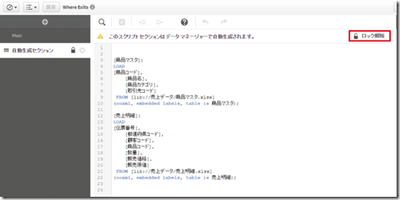
ロードエディタを開いて「自動生成セクション」のタブを開き、「ロック解除」をクリックしてロックを解除します。
■条件指定によるデータの絞り込み – Where
では、まず条件を指定してソースデータから取り込むデータの絞り込みを行ってみたいと思います。ここでは、「商品マスタ」の中から「商品カテゴリ」が「ビデオカメラ」のレコードのみに絞り込みを行います。
商品マスタの取り込み部分のスクリプトに以下の赤字のステートメントを追加します。
[商品マスタ]:
LOAD
[商品コード],
	[商品名],
	[商品カテゴリ],
	[取引先コード]
 FROM [lib://売上データ/商品マスタ.xlsx]
(ooxml, embedded labels, table is 商品マスタ)
Where [商品カテゴリ] = 'ビデオカメラ';
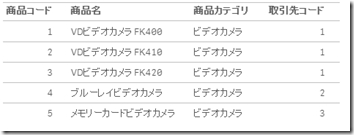
上記の変更を行ってリロード処理を実行すると、以下の形で取り込まれるデータが絞り込まれます。
尚、Where句には以下の様な条件の指定を行うことも可能です。
- Where [商品コード] >= 3 AND [商品コード] <=5; //3以上、5以下の[商品コード]に絞り込み
- Where [商品名] Like ‘*テレビ*’; //「商品名」にテレビを含むレコードに絞り込み
■既に存在するデータのみの取り込み – Where Exists
次に、既に取込まれている「商品マスタ」に存在する「商品コード」に合致するデータに絞り込んで「売上明細」のデータを取り込みます。
[売上明細]:
LOAD
[伝票番号],
	[都道府県コード],
	[顧客コード],
	[商品コード],
	[数量],
	[販売価格],
	[販売原価]
 FROM [lib://売上データ/売上明細.xlsx]
(ooxml, embedded labels, table is 売上明細)
Where Exists([商品コード]);
上記の処理を実行すると、既に取り込まれている「商品マスタ」に存在する「商品コード」(1~5)のみが取り込まれます。
尚、上記例では両方のテーブルに存在する項目名が共通の「商品コード」となっているため引数は一つとなりますが、異なる場合には以下の形でそれぞれのテーブルの項目名を指定します。この時、1つ目の引数は最初に取り込まれるテーブルの項目名で「’ (シングルクオート)」で括りますが、2つ目の引数に指定する後に取り込まれるテーブルの項目名はクオートで括りませんので注意が必要です。
- Where Exists(‘商品コード’, 商品ID); //最初のテーブルの項目名が「商品コード」、後に取り込まれるテーブルの項目名が「商品ID」の場合
また、逆に最初のテーブルに存在しない項目のみを「Where Not Exists」を使って後のテーブルから取り込むことも出来ます。
- Where Not Exists(‘商品コード’, 商品ID);
■まとめ
ロード処理で取り込むデータを絞り込むために利用される、WhereとWhere Existsについてご紹介しました。
-
データの行列入れ替え(Pivot/Unpivot) – Crosstable, Generic Load
■はじめにここでは、Pivot(ピボット)・Unpivot(アンピボット)と呼ばれるデータの行列入れ替え処理を行う方法をご説明します。以下の図の左側のテーブルのようなピボット形式でExcelなどにデータが保持されている場合がありますが、一般的にBIツールでのデータ分析には適切ではないため、右側のテー... Show More■はじめに
ここでは、Pivot(ピボット)・Unpivot(アンピボット)と呼ばれるデータの行列入れ替え処理を行う方法をご説明します。以下の図の左側のテーブルのようなピボット形式でExcelなどにデータが保持されている場合がありますが、一般的にBIツールでのデータ分析には適切ではないため、右側のテーブルのような形式に列から行に変更する処理を行うことがあります。これをUnpivot(アンピボット)処理と呼びます。
また、逆に右側のテーブル形式から左側のテーブル形式へ行から列へ変換する方法をPivot(ピボット)処理と呼びます。ここではそれぞれの処理を行う方法をご説明します。
■列を行に変換(Unpivot処理)
データマネージャーで行う方法
データマネージャー画面の下の
をクリックして編集画面を表示し、画面上部の「ピボット解除」をクリックします。行に変更したい項目、前述のテーブルの例では1月、2月から6月まで、を選択すると、画面下のピボット解除プレビューに月度を属性項目として縦に持つテーブルが表示されます。
「ピボット解除を適用」をクリックします。「テーブル.属性項目」と「テーブル.データ項目」をわかりやすい名称に変更します。
「ピボット解除をもとに戻す」で戻すこともできます。
データロードエディタで行う方法
上記のピボット解除をロードスクリプトで行うと下記のようになります。
CROSSTABLE ([月度],[金額],1)
LOAD 商品,1月,2月,3月,4月,5月,6月 from ....;
LOADまたはSELECTステートメントにcrosstableプレフィックスを追加し、カッコ内に属性項目に付ける名称、データ項目に付ける名称、元テーブルの行見出しの数を指定します。行見出しが複数ある場合も同様に行えます。下の例をご覧ください。
CROSSTABLE ([月度],[金額],2)
LOAD 年,商品,1月,2月,3月,4月,5月,6月 from ....;
■行を列に変換(Pivot処理)
では次に行から列へ変換する方法をPivot(ピボット)処理の方法をご説明します。(この処理はロードスクリプトのみで可能となっています。)
入力データは、以下の様に1列目にキーとなる項目名、2列目に属性、3列目に値を持っている必要があります。
このようなデータを入力として、ロードスクリプトのLOADまたはSELECTにGenericプレフィクスをつけると前述のように分割することができます。
Generic LOAD * from ....;
また、キーとなる項目が複数ある場合、Genericプレフィクスをつけると、最後の2列が属性と値として処理されます。そのような場合には、それぞれが2つのキー項目を持つテーブルに分割されるため、合成キーが発生します。合成キーの解消には二つの方法が考えられます。
① Generic LOADの際にキーを結合する方法
Generic LOAD
Autonumber(クラス & 名前)as Key,
属性,
値
この場合、元のクラスや名前の情報を保持するために、別途下記のテーブルも作っておきます。
LOAD
Autonumber(クラス & 名前)as Key,
クラス,
名前
② テーブルを結合して以下のように一つにする方法
テーブルの数が多い場合は次のような スクリプトで実施することもできます。
-
前月比や前年比、成長率などの算出-Above, Before
はじめにデータ分析では年、半期、四半期、月などの単位で前期との比較や成長率の算出などが良く行われますが、ここではQlik Senseで用意されているAboveやBeforeなどの関数を利用してこれらの算出を行う手順をご紹介します。 準備サンプルデータを利用して、ご説明する操作を実際に試して頂くこと... Show Moreはじめに
データ分析では年、半期、四半期、月などの単位で前期との比較や成長率の算出などが良く行われますが、ここではQlik Senseで用意されているAboveやBeforeなどの関数を利用してこれらの算出を行う手順をご紹介します。
準備
サンプルデータを利用して、ご説明する操作を実際に試して頂くことができます。以下のリンクからサンプルデータをダウンロードし、ダウンロードしたZIPファイルを任意の場所に解凍してください。
そして、新規アプリを作成してダウンロードしたZIPファイルに含まれるファイルを取り込んでください。
基本的なAboveの利用
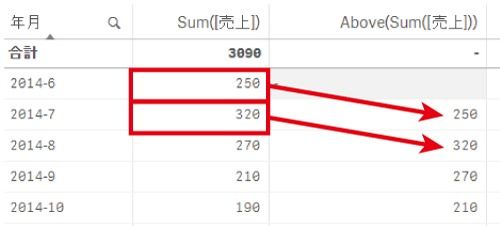
まず基本的なAboveの利用方法を見ていきたいと思います。Aboveの関数を利用すると、テーブル上で一つ上のレコードを取得することができます。
では、以下の形で一つ上のSum([売上])値を取得してみましょう。
Above(Sum([売上]))
これにより、以下の形で一つ上の前月のレコードを取得できていることが分かるかと思います。(どの様な順でレコードが並んでいるか、ソート順の設定が重要となりますのでソートの設定にご注意下さい。)
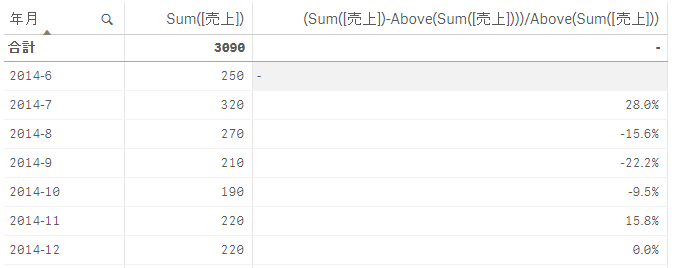
また、この数式を少し変更してみて以下の形とすると、前月からの成長率を計算することができます。
(Sum([売上])-Above(Sum([売上])))/Above(Sum([売上]))
同様な手順で軸に年、半期、四半期などを利用すれば、それぞれの単位で前期比を表示させることができます。
また、前月比ではなく前年同月比を計算したいケースもあると思いますが、その場合は「Above(Sum([売上]), 12)」といった形でAboveにもう一つの引数を数値で与えます。この「12」という数値は、一つ上ではなく「12個上」のレコードを取得する指定となり、例えば年月を軸として以下の数式を追加すると、12ヶ月前の前年同月比を算出することができます。
(Sum([売上])-Above(Sum([売上]),12))/Above(Sum([売上]),12)
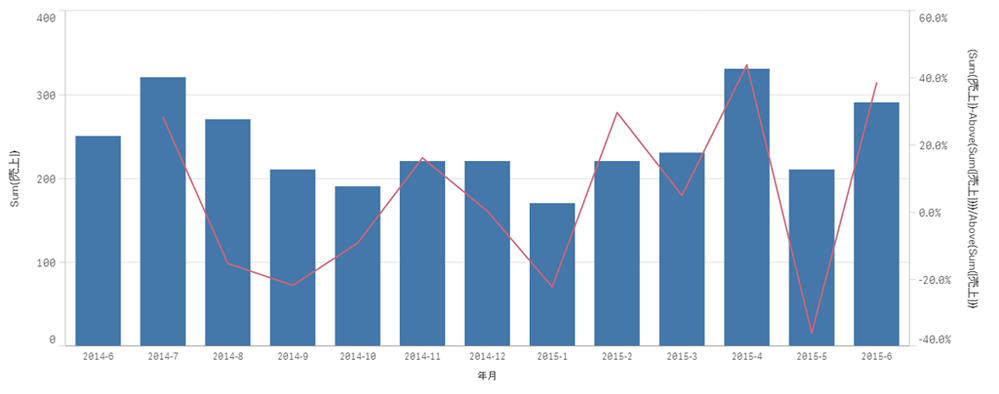
ここまでの例ではテーブルを使ってご説明しましたが、棒グラフ、折れ線グラフ、コンボチャートなどにおいても同様の手法で前月比などを表示させることができます。
軸の絞り込みを行う際の注意点
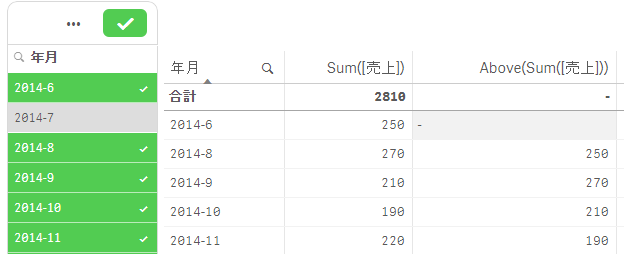
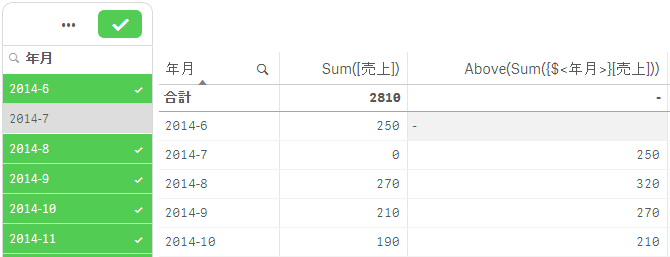
一点注意が必要なのは、例えば以下の形で「2014-7」を選択から除外した場合、「2014-8」のAbove(Sum[売上]))の値は前月の「2014-7」ではなく、「2014-7」が除外された「2014-6」の値が表示されるということになります。
これを以下の形でSET分析を利用して「年月」の選択を無視する形にすると、「2014-7」が除外された場合でも無視され、「2014-8」の前月は「2014-7」として表示させることができます。(SET分析については「思い通りのチャート集計を実現–Qlik SenseのSET分析」のエントリをご参照ください。)
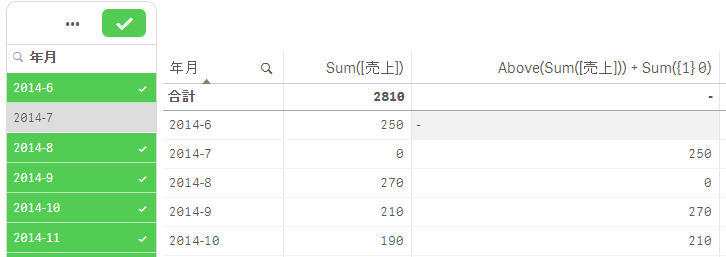
Above(Sum({$<年月>}[売上]))これを以下の形でSET分析の{1}を利用して全ての月にゼロを追加し、全ての月を表示させる処理を加える方法もあります。ただし、この場合は7月の値が選択から除外されているため、「2014-8」の値は0となります。
Above(Sum([売上])) + Sum({1} 0)軸が2軸以上ある場合
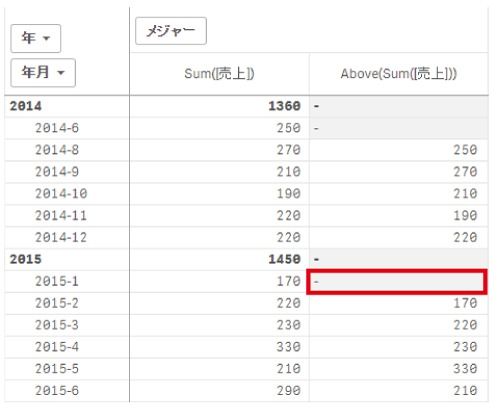
これまでは全て1軸でのみを扱ってきましたが、軸を2軸にした場合を見てみたいと思います。以下は、「年」と「年月」の2軸を追加したピボットテーブルを表示しています。
ここで注意が必要なのが、「年」でグループ化された中で「年月」の1つ上のレコードを取得するため、「2015-1」は年を跨って一つ上の「2014-12」を取得せずにヌル値の表示となってしまっています。
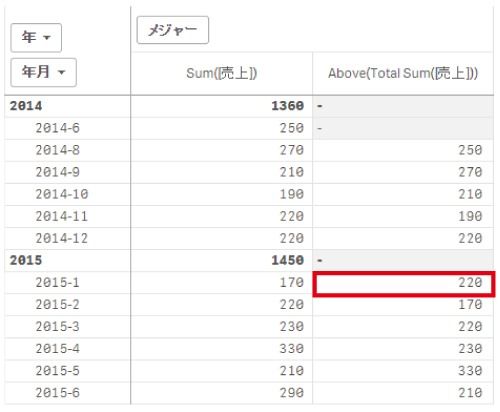
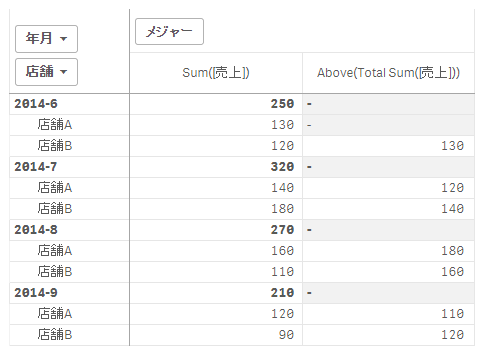
この様にヌル表示となっていて問題がない場合もありますが(例えば1軸目が「年」でなく「店舗」になっている場合等)、ヌル値の表示を避けるには以下の形で「Total」をAboveの中に追加します。そうすると年を跨って一つ上の「2014-12」値が取得されて「2015-1」に表示されます。
Above(Total Sum([売上]))Aggr関数をAboveと組み合わせて同様のことを行うことも可能です。
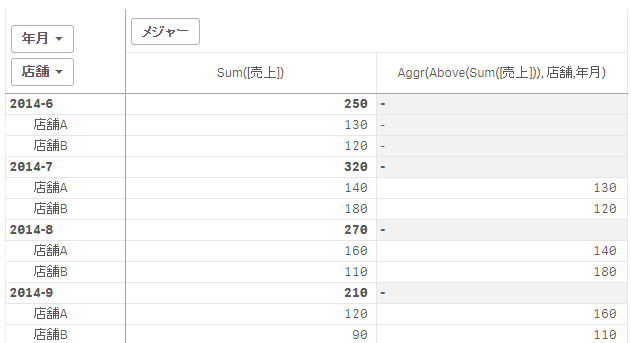
Aggr(Above(Sum([売上])), 年月)
ただし、上記のケースではTotal、Aggrいずれを利用しても同様の結果が得られますが、Aggrを利用しなければいけないケースがあります。例えば以下の様なケースで、1軸目を「年月」、2軸目を「店舗」で設定すると、Totalを使った方法では思った通りに計算されません。
これは、例えば「2014-7」「店舗A」の一つ前は「2014-6」「店舗A」としたいのですが、テーブルの軸の並びが「年月」>「店舗」となってしまっているため、一つ前のデータが「2014-6」「店舗B」となってしまっていてそのデータを取得してしまっているからです。
この様な場合にはTotalではなく、以下の形でAggrを使った計算を行う必要があります。以下ではAggrによって「店舗」>「年月」の順で並んだ軸で内部的に作成された一時テーブルで計算がされるため、想定した値が出力されます。
Aggr(Above(Sum([売上])), 店舗,年月)
横方向での計算 – Before
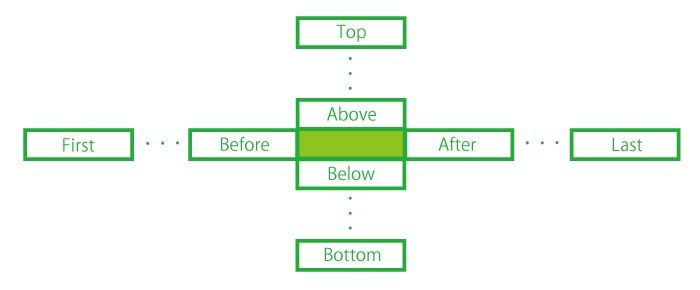
これまでは1つ上のレコードを参照するAbove関数のみを利用してきましたが、以下の形で上下左右のレコードの位置を指定する関数がそれぞれ用意されています。
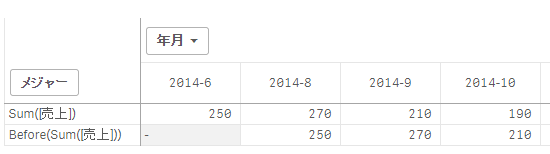
ピボットテーブルでは、これまで扱ってきた形で軸を行に配置するのではなく、列に配置することもできます。この場合に一つ前のレコードを取得するためには、上のレコードを参照するAbove関数ではなく、左側のレコードを参照するBefore関数を利用します。
Before(Sum([売上]))
そうすると、上記の形で左側の前月の値を取得することができます。(尚、Aggr関数を利用する場合には内部的な一時テーブルで集計がなされるため、この場合でもAbove関数を利用して集計を行うことができます。)
まとめ
ここでは、AboveやBeforeなどの関数を利用して、前期との比較や成長率の算出などを行う方法をご紹介しました。