Unlock a world of possibilities! Login now and discover the exclusive benefits awaiting you.

Recent Documents
-
Qlik Talend Data Catalog: How to request or update your license
The HostInfo.xml file in Talend Data Catalog is used for license management. It contains your server's hardware and host identity information and is r... Show MoreThe HostInfo.xml file in Talend Data Catalog is used for license management. It contains your server's hardware and host identity information and is required whenever you need a new license generated by Qlik.
- To download the HostInfo.xml file from your Talend Data Catalog, sign in as a user with the Application Administrator capability global role assignment.
- Go to MANAGE > License.
- Click DOWNLOAD LICENSE INFORMATION
-
Submit the HostInfo.xml file to the Qlik Customer Portal as part of your license request.
Qlik will use the host information to generate a license file tied to your server.
For active-passive cluster setups, you can get a license that works for both servers by providing two HostInfo.xml files, one for each server in your license request. - Once you have obtained your new .lic file, sign in as a user with the Application Administrator capability global role assignment.
- Go to MANAGE > License.
- Click UPDATE LICENSE
- Confirm with Yes that you wish to continue.
- Browse to the new license file and click Import.
- Refresh your browser and log back in to see your new license.
Related Content
Environment
- Qlik Talend Data Catalog
-
Monitoring Qlik Cloud Capacity
This Techspert Talks session covers: Understanding capacity usage Explore the reporting app Tips for managing consumption Chapters: 01:08 - Wha... Show More
-
What to do when the Qlik Sense Desktop .unlock file has expired and no new one i...
The Qlik Sense Desktop .unlock file (Qlik_Sense_Desktop.unlock) expires regularly but will be replaced with a new version. Should no new version be av... Show MoreThe Qlik Sense Desktop .unlock file (Qlik_Sense_Desktop.unlock) expires regularly but will be replaced with a new version. Should no new version be available just yet, then:
- Wait for the new .unlock file to be made available; a short delay during a release cycle is expected
- Authenticate your Qlik Sense Desktop client as per Starting Qlik Sense Desktop
Environment
- Qlik Sense Desktop
-
How to view Active and Expired Licenses in Support Portal
The Legacy Support portal has been discontinued as per Decommissioning the legacy support portal (support.qlik.com) January 23rd, 2026 . How can I see... Show MoreThe Legacy Support portal has been discontinued as per Decommissioning the legacy support portal (support.qlik.com) January 23rd, 2026 .
How can I see all my legacy Qlik serial numbers or licenses?
To get an overview of your legacy serial number, contact Qlik Support by starting a chat.
-
QlikView task list empty after applying Unified Signed License Key (SLK) in a no...
If you were previously running a QlikView environment without a Publisher license and have now swapped to an SLK (Signed License Key), all document re... Show MoreIf you were previously running a QlikView environment without a Publisher license and have now swapped to an SLK (Signed License Key), all document reload tasks will be cleared. The same applies to moving a QlikView environment from a non-Publisher to a Publisher with a legacy serial number, as both instances enable Publisher and discard all existing document tasks.
Always back up your QVPR before applying a new license or replacing an existing license. See QVPR database files.
The instructions in this article only apply to non-Publisher environments. If you already have an active QlikView Publisher, applying an SLK will not affect your tasks.
Before applying the SLK
A QlikView Server-only environment (no licensed Publisher) has the following configuration and user interface available in the QlikView Management Console (QMC) :
- The QlikView Server License tab and Client Access License (CALs) tab
- A list of existing Tasks (Document Tasks)
- The User Documents tab listing all available documents (apps); any documents with a reload task will be indicated with an alarm clock icon
After the SLK has been applied
All Publisher functionality is enabled as soon as an SLK has been applied. The following configuration and user interface will be available:
- The Signed License Key tab and the Professional and Analyzer access tab
- All pre-existing tasks (User Document tasks) are removed
- The Documents tab now includes a Source Documents sub-tab
As a side effect, all Document Tasks are lost.
How to recover pre-existing tasks
To recover pre-existing tasks and revert to a non-Publisher environment while retaining the SLK license, including Professional and Analyzer license management, follow these steps:
- Stop all QlikView services
- Restore the previously backed-up QVPR (see How To restore the QVPR from a backup or how to recreate the QVPR)
This reverts QlikView to the previous state, removing the Professional and Analyzer management tab. - Within the restored QVPR folder, open the QlikViewServerResource.xml file in a text editor
The upcoming modifications re-enable the Professional and Analyzer management tab, which is crucial for managing your QlikView environment. - Modify the LicenseModel value from “Legacy” (A) to “New” (B)
- Save the changes
- Restart all services
Following this change, your QlikView environment will function as if it does not have a Publisher license, though you will retain the User Interface:
- The Professional and Analyzer access tab remains in place, allowing for license management
You need this tab to manage your license and user assignments. - Source Documents remains in place but is empty and offers no functionality
- User Documents do not retain the alarm clock icons for documents (apps) with existing tasks, but the tasks are now visible in the Tasks overview and run as expected
Tasks can still be added and edited in the User Documents view, but can also be managed from the Tasks list.
Initially, after changing LicenseModel from Legacy to New, or if the Service Dispatcher has not been restarted, the tasks may appear as Unrunnable.
Restart the services to clear this, specifically the Service Dispatcher.
Related Content
Environment
- QlikView
- The QlikView Server License tab and Client Access License (CALs) tab
-
QlikView server (QVS) unlicensed after applying Signed License Key (SLK) while a...
After applying a valid Signed License Key (SLK), the QlikView Server (QVS) remains Unlicensed in the QlikView Management Console. This occurs while a ... Show MoreAfter applying a valid Signed License Key (SLK), the QlikView Server (QVS) remains Unlicensed in the QlikView Management Console. This occurs while a network proxy is used on the QlikView server host.
Resolution
This solution requires QlikView May 2024.
- Navigate to %ProgramData%QlikTech\ManagementService\QVPR\
- Locate LicenseService.xml and open it in an editor (may require administrative permissions)
- Find the <LicenseService> section and modify the following parameter values to localhost:
(A) ServerAddress="https://localhost:9200/"
(B) ServerName="LicenseService@localhost" - Save the changes to LicenseService.xml
- Navigate to %ProgramData%QlikTech\QlikviewServer\
- Locate Settings.ini and open it in an editor (may require administrative permissions)
- Find the [Authentication] section and change the following parameter's value to localhost:
(C) NxServiceConnectionString=http://localhost:9200 - Find the [Settings 7] section and change the following parameter's value to localhost:
(D) LicenseServiceUrl=http://localhost:9200 - Still in the [Settings 7] section, add the following parameter:
CustomLicenseServiceUrl=http://localhost:9200
The CustomLicenseServiceUrl parameter is required to prevent the QlikView server from reverting to default license service settings.
For details, see How to Modify the QlikView Server Settings.ini file. - Restart all QlikView services
Cause
QlikView cannot reach the license server when a network proxy is configured on the host machine.
Internal Investigation ID(s)
SUPPORT-6241, QV-23738, QV-23918
Environment
- QlikView all versions
- Navigate to %ProgramData%QlikTech\ManagementService\QVPR\
-
QlikView & Qlik Sense Unified (Dual Use) License - User Allocation
With a Unified license (formerly called Dual Use License) the legacy QlikView license is complemented with a Qlik Sense license that can be applied to... Show More
With a Unified license (formerly called Dual Use License) the legacy QlikView license is complemented with a Qlik Sense license that can be applied to the QlikView server as it includes QlikView entitlement license attributes. Such license needs to be activated with the Signed License Key (SLK). When a customer enters an Analytics Modernization Program (AMP, formerly known as Dual Use program), QlikView CALs (e.g. Named User CALs, Document CALS, Session CALs and Usage CALs) are converted into Professional User, Analyzer User, and Analyzer Capacity User allocations based on the Analytics Modernization Program conversion ratios.Here are two scenarios:
I. If a customer transitions to AMP with on-premise (client-managed) Qlik software (e.g. converts to the perpetual estate or convert to subscription Qlik Sense Enterprise on Windows), a Unified License containing the converted quantity of Professional Users, Analyzer Users and Analyzer Capacity would be delivered. This license contains a customized Qlik Sense Enterprise Signed License Key (SLK) which can also be deployed on QlikView Server and/or QlikView Publisher. If a user is assigned a Professional or Analyzer user license, this assignment information is synchronized to all Qlik Sense and QlikView deployments activated using this Unified License key. As such one user just needs one license to access the entire Qlik software platform (regardless if it is Qlik Sense or QlikView).
In this scenario, as long as the QlikView Server and Qlik Sense edition use the same Identity Provider (IdP) the user can access apps on both environments consuming only one user license allocation.
If the user license is reallocated in any of the systems to a different user, the same will occur across both QlikView and Qlik Sense environments.
II. If a customer transitions to AMP with Qlik Sense Enterprise SaaS add-on, a Qlik Sense Enterprise SaaS tenant may use a Unified License for the on-premise deployment. The customer is able to upload QlikView document prepared by the on-premise QlikView software directly into Qlik Sense Enterprise SaaS for distribution.A QlikView Server or a Qlik Publisher software can be activated in two ways:
1) Using a legacy method with 16-digit QlikView license key and the corresponding control number
2) Using a modern Unified License with Signed License Key containing needed QlikView Server and Publisher Service attribute(s). In this latter scenario, user license assignment (Professional/Analyzer) and analyzer capacity would be synchronized with other deployments using the same Signed License Key as it is done in the Unified License model
If the customer opts to remain in Perpetual licensing, the existing QlikView license model can be retained. Otherwise, if the customer opts for conversion into Subscription licensing model, a set of QlikView subscription license attributes mirroring the existing QlikView perpetual license key setup would be delivered such that the customer switch to the subscription QlikView keys without the need for an immediate migration project towards using Unified licensing.
Note: Please note that Qlik is no longer starting clients on the Perpetual license model. See End of Perpetual License Sales
Environment:
Related Content:

-
Qlik Cloud Analytics entitlement removed without any action on the tenant
A Professional or Full entitlement was removed without any action from the tenant administrators. Going to the Administration activity center and revi... Show MoreA Professional or Full entitlement was removed without any action from the tenant administrators.
Going to the Administration activity center and reviewing Events by filtering for the Event Type "com.qlik.license.assignment.deleted" or "com.qlik.license.assignment.updated" shows no activity.
Resolution
Always align entitlements between your environments.
Cause
If the same Signed License Key is also used by another tenant or on a version of Qlik Sense Enterprise for Windows, any change from those other environments will be synchronized to your tenant.
Because the action was not performed on the tenant itself, the tenant's Events section (or the Audit APIs) won't show them.
Environment
- Qlik Cloud Analytics
-
Automate deployment of the Capacity consumption app with Qlik Automate
This template was released on September 29, 2025. Many customers rely on the Capacity Consumption Report in Qlik Cloud to understand usage and billing... Show MoreThis template was released on September 29, 2025.
Many customers rely on the Capacity Consumption Report in Qlik Cloud to understand usage and billing patterns. Until now, deploying and refreshing this app required repetitive manual steps: downloading from the admin console, publishing it into a managed space, and re-publishing every time a new version was needed.
This approach made monitoring difficult and often left customers with out-of-date insights.
What's new
A new Qlik Automate template automates the end-to-end deployment of the consumption app into a managed space of your choice. Once set up, the app is refreshed daily - ready for admins or billing users to work with.
With this in place, you can:
-
Stay current – The app refreshes once per day (morning CET), so your analytics reflect the latest usage data.
-
Collaborate easily – Place the app directly into a managed space for shared access.
-
Enable subscriptions and alerts – Users can subscribe to sheets or KPIs, or create alerts on thresholds that matter to them.
-
Maintain governance – The template creates/uses the right spaces and applies roles automatically.
-
Eliminate manual work – No more re-publishing or searching through personal space copies.
How it works
-
The automation checks that you are on a capacity-based subscription (your app size must be 100MB or less; larger data sets still need to be deployed manually or via script).
-
It ensures you are a TenantAdmin (required for license and app access).
-
It creates a staging space (for imports) and a managed space (for sharing).
-
It imports the latest version of the app into staging, then publishes it to the managed space.
-
You can configure how many historic versions you want to keep in the shared space. By default, no staged apps are kept.
Scheduling
Since the underlying data is refreshed once per day in the morning CET, we recommend scheduling this automation to run around midday CET. This ensures that your managed space always holds the latest daily version of the app.
Requirements
-
TenantAdmin role
-
Capacity-based subscription
-
Report size ≤100MB (larger reports cannot currently be deployed with Qlik Automate)
Get Started
-
Create a new automation, navigate to the App Installer category, and select the Capacity consumption app deployer template.
-
Update the variables (space names, versions to keep).
-
Test manually once.
-
Schedule it to run daily (around midday CET).
Once enabled, you’ll have a single source of truth for consumption reporting - ready to drive alerts, subscriptions, and collaborative analysis across your admins.
Related Content
- Review the Help documentation on the capacity report to understand its metrics and counters.
Environment
- Qlik Cloud
-
-
Qlik Cloud Admin 201
This Techspert Talks session covers: Troubleshooting entitlement allocation Exploring Capacity Consumption Leveraging Qlik APIs for User Management ... Show More
-
Qlik Sense Desktop Authentication Requirements
Before you can start using Qlik Sense Desktop, you need to authenticate yourself against a Qlik Sense Enterprise server. You need to have a working ne... Show MoreBefore you can start using Qlik Sense Desktop, you need to authenticate yourself against a Qlik Sense Enterprise server. You need to have a working network connection to enable authentication.
The following requirements need to be met:
- A functioning network connection to the Qlik Sense Enterprise Client-Managed Server or Enterprise SaaS/Business tenant.
- Use of a Professional license. Analyzer licenses do not support Desktop Authentication
For legacy token license: User and Login Passes allow Desktop Authentication - No TEST license. Test licenses disallow the use of authentication links
- Compatibility must be met. See Qlik Sense Desktop patch process and compatibility with on-premise installs and Qlik Cloud .
After you have been authenticated once, internet access is not required to continue using Qlik Sense Desktop. However, you have to re-authenticate yourself if thirty days have passed since you last authenticated.
Environment
Qlik Sense Desktop
Qlik Cloud
Qlik Sense Enterprise on Windows
Qlik Sense BusinessRelated Content
Starting Qlik Sense Desktop | Qlik Sense on Windows Help
Starting Qlik Sense Desktop | Qlik Cloud Help
Configuring Qlik Sense Desktop authentication link
How to authenticate Qlik Sense Desktop against SaaS editions
How to authenticate Qlik Sense Desktop against a Qlik Sense Enterprise on Windows server -
Qlik Talend Administration Console (TAC): License update timing for TAC
Q: When does the Qlik Talend Administration Console license information update? A: Adding a license to the Qlik Talend Administration Console will upd... Show MoreQ: When does the Qlik Talend Administration Console license information update?
A: Adding a license to the Qlik Talend Administration Console will update it immediately.
When using a High Availability (HA) setup, the license cache remains for 60 minutes, and it takes 60 minutes for the recheck of the license from the database (licenses table) to take place. In a scenario where the first license was only just applied to the primary Talend Administration Console, the second Talend Administration Console will check the database after 60 minutes.
If a license check should be forced, restart the Talend Administration Console service(s) that need their license updated, or manually add the license in the server, which will write over the license in the database.
Environment
- Qlik Talend Administration Console (TAC)
-
Qlik NPrinting: License information was removed by the restore procedure
After otherwise successfully restoring a Qlik NPrinting backup, the license information remains blank. This information is expected to be restored as ... Show MoreAfter otherwise successfully restoring a Qlik NPrinting backup, the license information remains blank. This information is expected to be restored as well.
Resolution
This has been addressed as defect QCB-31631.
Workaround:
Activate the Qlik NPrinting license manually.
Fix Version:
Qlik NPrinting February 2024 SR5 and later releases. See the Release Notes for details.
Environment
- Qlik NPrinting May 2023 SR6 and SR7
- Qlik NPrinting February 2024 SR3 and SR4
Information provided on this defect is given as is at the time of documenting. For up-to-date information, please review the most recent Release Notes or contact support with the ID QCB-31631 for reference.
-
Packaging shift to third-party runs for Qlik Automate
Beginning on the 30th of January, Qlik introduced the concept of 3rd party runs in Qlik Automate. This is the first step towards a shift in our packag... Show MoreBeginning on the 30th of January, Qlik introduced the concept of 3rd party runs in Qlik Automate. This is the first step towards a shift in our packaging that will focus on third-party runs only, while standard runs become free of charge.
This shift will happen over the course of a couple of months, giving you sufficient time to analyze your usage and make adjustments if necessary. Please reach out to your account manager if you have any questions.
Contents
- Timeline
- Standard run vs third-party run
- Standard runs
- Third-party runs
- Possible third-party runs
- Transition of existing entitlements
- Introduction of third-party runs (Jan 30th)
- Switch to new packaging (April 2nd)
- Enforcement of overages (May 6th)
- Packaging details
- FAQ
Timeline
The timeline below illustrates how the various stages of this packaging update will happen. In between each stage should be sufficient time to analyze your usage and prepare for the enforcement.
- January 30th: Introduction of third-party runs
- April 2nd: New third-party packaging is available for purchase
- May 6th: Enforcement
- Third-party limits for seat-based licenses
- Third-party overages for capacity licenses
Standard run vs third-party run
Standard runs
An automation run is considered a standard run if it only executes blocks from the following categories:
- All Qlik connectors (Qlik Cloud Services, Qlik Reporting, Qlik AutoML, Qlik …)
- Base blocks (excluding Call URL & Cloud Storage)
- Mail & Microsoft Outlook
Example:
Third-party runs
An automation run is considered a third-party run if it executes any blocks that are not in the standard connector categories.
As a rule of thumb, a standard run will execute one or more blocks from third-party connectors. Among others, third-party connectors are connectors like Slack, Amazon S3, Microsoft Excel, Call URL. A full overview of all automation connectors if available here.
Example:
Every run of this automation will execute the Send Message (Slack) block.
This will make every run a third-party run as the Slack connector is a third-party connector.
The “Contains third-party blocks” label indicates that the automation contains an active third-party block.Possible third-party runs
For a run to be considered a third-party run, we only evaluate executed blocks. If the third-party blocks in the automation were not executed, the run will not count as a third-party run. A block not being executed could be caused by many factors like Condition blocks, Filter List blocks, deactivated third-party blocks, ...
This illustrates that an automation with a “Contains third-party blocks” label will not necessarily generate third-party runs on every run.
Example:
This automation will only execute the Send Message (Slack) block if the reload fails (from the Do Reload block). This means it will only generate third-party runs depending on the state of the Condition block.
Transition of existing entitlements
Introduction of third-party runs (Jan 30th)
- Customers who are entitled to included runs will get these as third-party runs
- Purchased runs will be converted to third-party runs
- Renewals before the end of March will maintain the same included third-party runs until next renewal.
Switch to new packaging (April 2nd)
- Every new purchase will be using the new packaging
- Renewals will revert third-party runs to the edition included quantity of the new packaging + any purchase of third-party runs using the new packaging
Enforcement of overages (May 6th)
- When your monthly third-party runs are exhausted, overages will be enforced.
- For Capacity licenses with included third-party runs only, automations with active third-party blocks will no longer start and an overage status will be displayed.
- For Capacity licenses with purchased third-party runs, overages will be charged according to your contract and configuration.
- For User based licenses with included or purchased third-party runs, automations with active third-party blocks will no longer start and an overage status will be displayed.
- Automations without active third-party blocks will continue to run (since they cannot generate third-party runs).
Packaging details
The below table provides an overview of the new packaging for automations that will come in effect on April 2, 2025. Please reach out to your account manager for quotes and pricing related questions.
FAQ
1. Will max concurrency be shared across run types?
Yes, both run types will count towards the same max concurrency.2. Will usage of Qlik APIs through the Call URL block or other generic connectors count towards third-party runs?
Yes, when these blocks and connectors are used to make API requests to Qlik APIs, they will still count towards third-party runs. If you are missing blocks or functionality in a Qlik connector, please create an improvement request on our Ideation portal or support an existing request.3. Will the new packaging have an included amount of third-party runs?
Yes, the new packaging will continue to provide some third-party runs for most editions of Qlik Cloud. Details are available in the above section "Packaging details".4. Why are some automations with third-party blocks missing the label "Contains third-party blocks"?
An automation will only receive the label when someone performs a manual run or saves it in the editor. We are planning a new update that will apply this label to all automations with active third-party blocks regardless of someone saving them or not.
Please note that regardless of this label being on an automation or not, automation runs will still be evaluated and receive a correct billable yes/no label. -
How to Convert Qlik Sense Enterprise Tokens to Professional / Analyzer Capacity
The video above demonstrates how to convert Qlik Sense Enterprise servers with Tokens to the Professional and Analyzer capacity licensing model. The ... Show MoreThe video above demonstrates how to convert Qlik Sense Enterprise servers with Tokens to the Professional and Analyzer capacity licensing model.
The conversion breaks down like this:
- User Access Passes -> Professional
- Everyone else into Analyzer Capacity
Steps
- Copy and Save existing User Access rules, storing for future reference.
- Do the same for Login Access rules
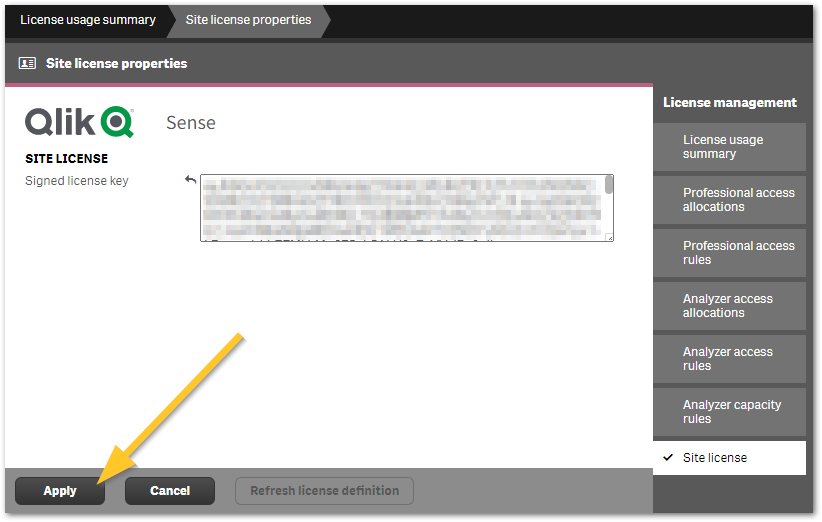
- Paste the Signed License Key (SLK) in the signed license box, and hit Apply
- Recreate the Professional Access rules from scratch or copy and paste from the User Access Rule.
- Validate the rule and click Apply
- Recreate the Analyzer Capacity access rule from scratch or copy the Login Access rule
- Validate the rule and click Apply
Environment
- Qlik Sense Enterpise
The information in this article is provided as-is and to be used at own discretion. Depending on tool(s) used, customization(s), and/or other factors ongoing support on the solution below may not be provided by Qlik Support.
Related Content
Please refer to the Qlik Sense® License Conversion Policy dated March 2021 for details.
Transcript
Hello and welcome to this short video guide on upgrading a Qlik Sense token server to a Qlik Sense Professional and Analyzer subscription license.
Our starting point for this upgrade guide is a very simple Qlik Sense Enterprise server, which is using the token style license. That means users gain access using either a User Access or a Login Access pass. Token style Qlik Sense uses the legacy LEF license with a serial and control number activation. This will be replaced in the Professional and Analyzer model license with a Signed License Key (SLK).
Make sure that you copy or save the existing user access rules storing the rules for future reference. We will do the same for the login access rules. Copy and save the rule conditions for future reference.
When you're issued with your new Qlik Sense Enterprise Professional and Analyzer subscription license, you will be issued a new license key or a new tenant. You may continue to use the old Qlik Sense Enterprise token license for up to four months. This will allow you to stand up a new Qlik Sense Enterprise site with Professional Analyzer users in parallel, and transition over time; or do it in one big go.
In this example, we are going to upgrade an existing Qlik Sense token server using the Signed License Key to move it to the Professional and Analyzer user model. Paste the Signed License Key in the signed license box and hit apply. When the license is successfully applied, you will see the license number as well as a license summary on the summary page. In this example, we have 4 Professional Users, as well as 8,000 minutes of Analyzer Capacity per month. There are no user allocations carried over from the old token model.
We need to recreate the Professional access rules. You can create rules from scratch or copy and paste the old token rules to a new Professional allocation rule, like so. Make sure you validate the rule and then hit apply.
We will do the same thing for the Analyze Capacity access rule. Copy the old token access rule for login access and paste it in the analyze capacity access rule. Validate the rule and hit apply. A quick test will validate that the Professional user access rules are functioning correctly. And here we can see that a Professional user was successfully allocated according to the rule we've set up.
Now we will check that the Analyzer capacity allocation rule is also working as expected. Click on the license usage summary tab; and here you can see that 6 minutes of analyzing capacity have been consumed. Everything is working as expected.
Thank you for watching. We hope you found this video useful.
If you would like more information, take advantage of the expertise of peers, product experts, and technical support engineers by asking a question in the Qlik product forums on Qlik community; or check out the support program space. Here you can search for answers in the support knowledge base, learn directly from Qlik experts via support webinar like Techspert Thursdays, and don't forget to subscribe to the support update blog. Thanks for watching.
-
How to buy a new Qlik license
You are a prospective customer and are looking to purchase a Qlik Cloud subscription. See How to purchase Qlik Sense SaaS digital subscription. If yo... Show MoreYou are a prospective customer and are looking to purchase a Qlik Cloud subscription.
- See How to purchase Qlik Sense SaaS digital subscription.
- If you are looking to manage an active subscription, see Managing Your Subscription in My Qlik.
You are a prospective customer, having never purchased Qlik licenses before and are interested in learning more about Qlik products and making a purchase:
- Go to Qlik.com to browse our available offerings and engage in our Live Chat if you have questions.
- Or contact Sales directly.
You are an existing Customer, having previously purchased a license directly from Qlik and wish to purchase additional licenses or CALs:
- Please contact your Account Manager. If you are unsure who the Account Manager is for your company, contact Support using Live Chat.
You are an existing Customer and purchased your licenses through a third party (not directly from Qlik) and wish to purchase additional licenses or CALs:
- Please contact your Responsible Partner from which you previously purchased licenses. If you are unsure who your Responsible Partner is, contact Support using Live Chat.
-
How is Analyzer Capacity managed between Qlik Sense Enterprise and QlikView?
As a benefit of our Analytics Modernisation Program (AMP), a signed license key is issued as a unified license key. This enables the use of one licens... Show MoreAs a benefit of our Analytics Modernisation Program (AMP), a signed license key is issued as a unified license key. This enables the use of one license across Qlik Sense Enterprise on Windows and QlikView, granted the license has the required QlikView infrastructure attributes (QV_NODES for QVS, QDS_NODES for Publisher).
This allows for analyzer capacity to be shared across all systems using the same license.
Environment
QlikView
Qlik Sense Enterprise on Windows
With a Signed License Key (SLK) applied as a unified license across multiple environmentsHere is an example:
A QlikView server currently shows 18 minutes of consumption in the QlikView Management Console (Fig 1.)
This can be accessed through: System (A) > Licenses (B) > Choose the License (C) > Professional and Analyzer access (D)
Fig 1
If a user accesses and consumes on a linked Qlik Sense Enterprise Server, the Qlik Sense Enterprise Management Console will show the up-to-date consumption. See Fig 2. Note the 24 minutes, an increase from the 18 we have seen in QlikView.
This can be accessed in the Qlik Sense Management Console > License Management > License usage summary
Fig 2
The usage on the server will be synchronized and shown on the other linked servers within approximately 10 minutes. See Fig 3 and note the 24 minutes, which matches the value in Qlik Sense.
Fig 3
For local consumption data, each server will store its own consumption and user information.
For Qlik Sense Enterprise on Windows, the License Monitor app will show capacity consumption.
For the QlikView Server, the capacity consumption is shown and stored in the local session log file, with the CAL consumed being Analyzer Capacity, with a log entry like this:
RLS64 12.50.20200.0 20210412T132942.000+0200 20210412T133617.000+0200 C:/ProgramData/QlikTech/Documents/retail store performance.qvw 20190220T113522.000+0200 Socket closed by client 20210412T133601.000+0200 00:00:16 0.000000 10228 1303493 31 2 QTSEL\ghd 1718e2e6-5b1c-4b9e-87a9-d9200f55e37a Ajax QvWS 12.50.20200.0 browser.msie illa/5.0 (windows nt 10.0 On 4747 fe80::df3:cd38:b86f:50bd 58495 Analyzer Capacity 6 315dcfab-7448-4f4b-8209-ef34742b1abe
-
Updating or applying your Qlik license after a license renewal
Your currently active product license may need to be updated after the renewal of your Qlik license or after you have requested modifications (such a... Show More -
How to BackUp and Restore Qlik NPrinting Repository Database from End to End
! Note: Do NOT modify the NPrinting Database for any reason using PG Admin postres query or any other execution tools as this will damage your NPrin... Show More! Note: Do NOT modify the NPrinting Database for any reason using PG Admin postres query or any other execution tools as this will damage your NPrinting Deployment and prevent successful NPrinting Database backup and restore operations.
! Note: Do NOT restore an older version of an NPrinting Database to a New NPrinting server or restore a newer version of the NPrinting database to an older version of NPrinting Server.
Examples:
- NP 21.0.0.0 to NP 21.0.0.0 This is OK
- NP 20.29.7.0 to NP 20.39.6.0 NOT OK This will compromise your deployment of NPrinting
- NP 20.39.6.0 to NP 20.29.7.0 NOT OK This will compromise your deployment of NPrinting
These rules apply to general releases and service releases: The point version of the NPrinting Database being restored must match the point version of NPrinting Server being restored to (see Backup and restore Qlik NPrinting).
- How to Identify an incorrectly/unnecessarily restored database: Identify NPrinting Server restored with incorrect NPrinting database version
! Note: From NPrinting February 2020 and later versions, it is NOT necessary to enter a superuser database password
! Note: If you are making a backup for the Qlik Support team, please add the following NPrinting user information so that we can log onto the NPrinting Web Console following the local restore of the database (also ensure that NPrinting Authentication is enabled. Go to Admin > Settings > Authenticationuser: npadmin@qlik.com
password: npadmin@qlik.com
NP Role: Administrator
This procedure is meant to backup and restore (partial backup and restore of these individual items is not possible*):NP Web Console Items:
- NPrinting apps
- Tasks
- Connections
- Filters
- Schedules
- *Reports (can separately be exportable/importable however only and exclusively between identical versions of NPrinting. See Related Content section link below)
- Conditions and most settings applied to an existing system
NP Backup zip File Contents (do NOT open and modify the contents of this file):
- A dump of the NPrinting database repository
- All files used by report templates
- All files related to reports published on the NewsStand
- All files related to On Demand reports
- The backup file size can be 'roughly' estimated by enumerating the size of the folder "c:\programdata\nprinting\apps"
NOTE: Settings that are not backed up or restored are documented below.Resolution:
NOTE:
- Do not unzip the backup file (np_backup.zip), simply copy it to
c:\nprintingbackups
Before Proceeding: Please log on as the NPrinting service account used to run the NPrinting Web Engine and Scheduler services before proceeding
- The video below makes no mention of the Qlik NPrinting License Service which was included on newer versions. It also needs to be stopped as documented below.
- If restoring to a different NPrinting server environment, see step 7 below for additional consideration not covered in the video below.
1. Stop only the following Qlik NPrinting services (do NOT stop any other services)
Open the Windows Service Manager (services.msc), and stop the following services (by right-clicking them, and then clicking Stop). This will ensure any manual or scheduled NPrinting Publish Tasks are not executed during the backup or restore process:
- Qlik NPrinting Engine Service (NOTE: Stop all NP Engines connected to your NP server before proceeding)
- Qlik NPrinting Scheduler Service
- Qlik NPrinting WebEngine Service
- Qlik NPrinting Audit Service
- Qlik NPrinting License Service
2. Create a folder for the backup in:
C:\NPrintingBackups3. Open Command prompt and change directory path
Do NOT modify any syntax or add any additional unnecessary spaces
Open the command prompt making sure to run cmd.exe as Administrator and change directory as follows:cd C:\Program Files\NPrintingServer\Tools\Manager4. Backup
Copy and paste the following backup syntax to the command prompt console. Replace superuserDBpassword with your password first used when installing NPrinting.
Qlik.Nprinting.Manager.exe backup -f C:\NPrintingBackups\NP_Backup.zip -p "C:\Program Files\NPrintingServer\pgsql\bin" --pg-password YourSuperuserDBpasswordHereor with Current Supported versions of NPrinting (no password required)
Qlik.Nprinting.Manager.exe backup -f C:\NPrintingBackups\NP_Backup.zip -p "C:\Program Files\NPrintingServer\pgsql\bin"5. RestoreCopy and paste the following backup syntax to the command prompt console. Replace superuserDBpassword with your password first used when installing NPrinting.Qlik.Nprinting.Manager.exe restore -f C:\NPrintingBackups\NP_Backup.zip -p "C:\Program Files\NPrintingServer\pgsql\bin" --pg-password YourSuperuserDBpasswordHereor with Current Supported versions of NPrinting (no password required)Qlik.Nprinting.Manager.exe restore -f C:\NPrintingBackups\NP_Backup.zip -p "C:\Program Files\NPrintingServer\pgsql\bin"Keep in mind: You may safely ignore any restore 'error' messages found in the nprinting_manager.log file as seen below.File C:\Users\domainuser\AppData\Local\Temp\2\nprintingrestore_20201203082300\files\xxxxxxxxxxxxxxxxxxxxxxxxxxxx does not exist in the source backup package.- These are references to NPrinting Apps/Connections/Reports that once existed and have been subsequently deleted from the NPrinting Web Console.
- For example, A report/connection/NP App may have been deemed retired, then manually deleted by a user with appropriate NP role permissions since it no longer served any specific purpose.
6. Start all NPrinting server services that were stopped earlier.
Restoring to a Different Environment! Note: If re-installing on existing or restoring to a different NPrinting server environment, ensure that the destination NPrinting server license is enabled/activated before restoring the NP database.
If restoring to a different NPrinting server environment (same NP database version as the NP server version that you have restored to),
Note that once the restore to the Target/Destination server is complete you will need to update the following applicable settings in the NP Web Console on the Target/destination server that the NP database has been restored to:
NPrinting Engine:
- Sept 2019 and earlier NPrinting versions: Update the NP Engine in the Engine Manager via the NPrinting Web Console. Add the name of the new NP Engine Computer name here and disable or delete the original NP Engine entry.
- November 2019 and later versions, you will need to follow the Resend Certificate section of the following article New Engine Certificate Installation Process and Resolving NP Engine Offline in order to resend the NPrinting Engine certificates
NP Connections:
- QlikView NP Connection paths if local QVW or QVP connection paths have changed
- Sense connections: if the Sense IDs, Proxy address and NP Identity (NP service account used on the target NP server) has changed at the time of the NP database restore
Qlik Sense Certificates (if using NPrinting Qlik Sense connections)
- April 2019 and earlier NPrinting versions: you will need to re-import the Qlik Sense certificates to the new NPrinting server
- If June 2019 and later NPrinting versions: you may simply copy the previously exported client.pfx file to the following folder and Restart all NPrinting server services
C:\Program Files\NPrintingServer\Settings\SenseCertificates
- How to Connect NPrinting to Single or Multiple Qlik Sense servers (NP June 2019 and later versions only)
- NPrinting May 2023 and Newer: If working exclusively with May 2023 and later NPrinting versions, use this certificates help page: https://help.qlik.com/en-US/nprinting/Content/NPrinting/DeployingQVNprinting/NPrinting-with-Sense.htm
Related Content:
Other helpful information about the NP Backup and Restore tool and process:
- NPrinting Manual Backups creates (the following is also true for the programmatic backups performed during the NPrinting Upgrade process)
- a temp file and folder backup that uses up c:drive space
- This temp backup folder is removed once the manual backup is completed
- Note: The temp folder backup location cannot be modified
- NPrinting performs Three Automated Backups of the NPrinting Database during the upgrade process only. The c:\drive where NPrinting Server is installed must have sufficient space to allow the upgrade process to proceed without failure. The upgrade process creates:
- a pre-upgrade backup of the NP database (pre-upgrade backup of the NP Database)
- a post upgrade backup (upgraded version of the NP database).
- a temp file and folder backup (which is removed once the upgrade is completed)
- The pre and post upgrade backup files can be found here:
Note:The pre and post upgrade backup files are appended with the NP version number and backup dateC:\ProgramData\NPrinting - Backup and restore log history is found here:
C:\ProgramData\nprinting\logs\nprinting_manager.log - The automated NP backup contains the same file and folder structure as the manual NP backup process. (these files and folders must NOT be modified).
- The NP backup/restore tools and process cannot be used to backup and/or restore individual NPrinting reports.
- To 'Backup/Export' and or Restore/Import individual reports, please visit Moving reports between environments
*NOTE:
- This article applies to Supported Versions of NPrinting only
Online Help Tutorial Reference Sources (choose the applicable version):- NPrinting Server: Disk space optimization
- Qlik NPrinting Upgrade Install from NPrinting 17.3.x or higher
- Exporting and installing Qlik Sense certificates
- Backup and restore Qlik NPrinting
- Backing up the Qlik NPrinting audit trail
- Restoring Qlik NPrinting audit trail data from a backup
- Identify wrong NPrinting database version restored to NPrinting Server
-
Qlik's Analyzer Capacity License: How to assign it and track usage
Analyzer Capacity Licenses can be assigned automatically based on Analyzer Capacity License Rules. These rules can be set up to provide Analyzer Capac... Show MoreAnalyzer Capacity Licenses can be assigned automatically based on Analyzer Capacity License Rules. These rules can be set up to provide Analyzer Capacity to users, groups, or anonymous users.
This article covers what function the license type has, how to assign it, and how to track usage.
Index:
- What is an Analyzer Capacity license?
- How to assign Analyzer Capacity Licenses
- Assigning Analyzer Capacity in Qlik Cloud:
- Create an Analyzer Capacity License Rule in Qlik Sense Client-Managed:
- How to monitor Analyzer Capacity usage
- Qlik Cloud
- Qlik Sense Enterprise on Windows Client Managed
- In QlikView
- How Qlik Sense Analyzer Capacity Works (video)
- Related Content
- Environment
What is an Analyzer Capacity license?
The Qlik Sense Analyzer Capacity license type is automatically assigned to users not assigned a Professional or Analyzer license and consumes time during an active session with the minimum session length set to 6 minutes.
Overview:
- An Analyzer Capacity license type would typically be used by users not assigned to any of the available named user types (Professional or Analyzer).
- The capabilities for the Analyzer Capacity license type are similar to the current Analyzer user type and support the same features.
- Analyzer Capacity is available for:
- Analyzer Capacity works with both Signed License Key and Signed License Definition.
Details:
- The minutes are based on a monthly subscription, which resets at 0:00 UTC time on the first day of the calendar month.
- Consumption is in 6-minute blocks. No consumption during idleness.
- Overage can be added to the subscription. See How to manage Overage for Analyzer Capacity.
How to assign Analyzer Capacity Licenses
Assigning Analyzer Capacity in Qlik Cloud:
No setup is required. See Managing users - Capacity-based subscriptions.
Create an Analyzer Capacity License Rule in Qlik Sense Client-Managed:
- Open the Qlik Sense Management Console
- Go to Licenses Management
- Open Analyzer Capacity Rules in the right-hand menu (See fig 1)
- Click Create new
Fig 1
- Provide details for your rule. In our example, we are enabling users in the group capacity to receive Analyzer Capacity Licenses.
Name: Name of your rule
Description: Description of your rule
Actions: Allow access
Populate the conditions accordingly. See Fig 2.Fig 2
If you are looking to provide access for anonymous users, see How to allow Anonymous Hub access in Qlik Sense Enterprise on Windows. - Click Apply
- All users in the defined group will now receive an Analyzer Capacity License.
How to monitor Analyzer Capacity usage
Qlik Cloud
The Entitlement Analyzer for Qlik Cloud provides detailed usage data for Analyzer Capacity, but a tenant admin can gain an overview through the Management Console at any time:
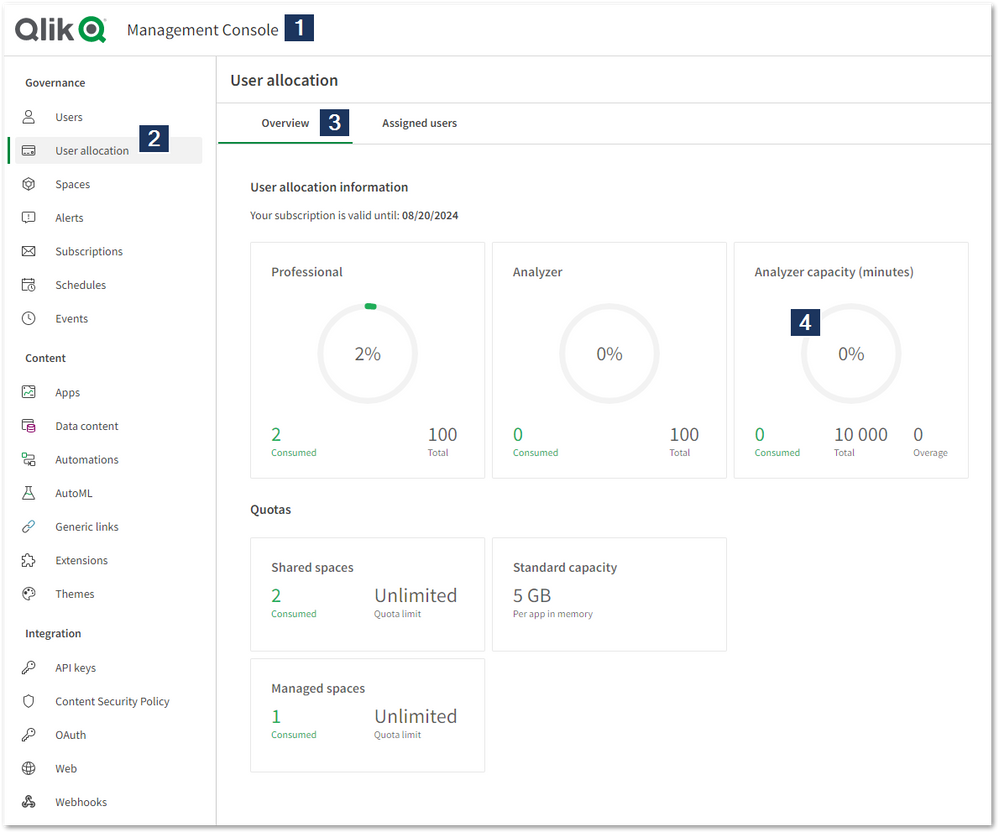
- Open the Qlik Cloud Management Console
- Open the User allocation tab
- Open the Overview tab
- Review the current Analyzer capacity usage
The Entitlement Analyzer is only available for Qlik Cloud.
Looking for more details? Check out Monitoring Qlik Cloud Capacity | Techspert Talks.
Qlik Sense Enterprise on Windows Client Managed
The bundled License Monitoring app provides usage data for Analyzer Capacity, but an administrator can gain an overview through the Qlik Sense Management Console at any time:
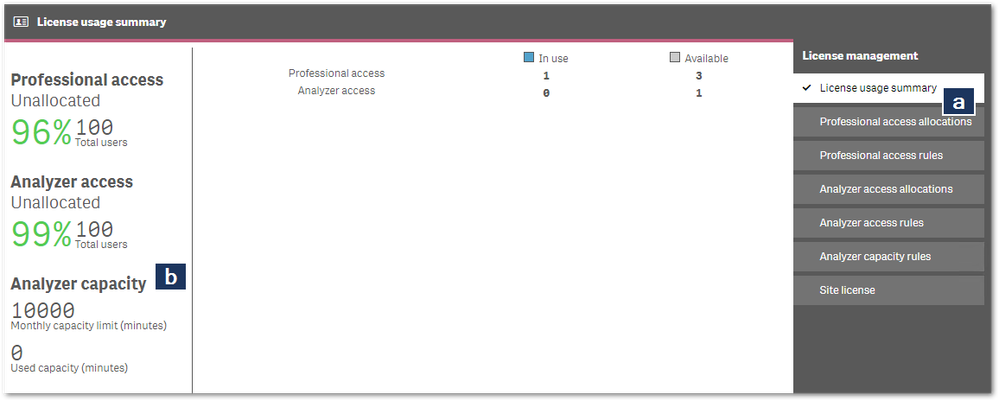
- Open the Qlik Sense Enterprise on Windows Management Console
- Go to License Management
- The License usage summary tab (a) lists the current Analyzer capacity usage (b)
In QlikView
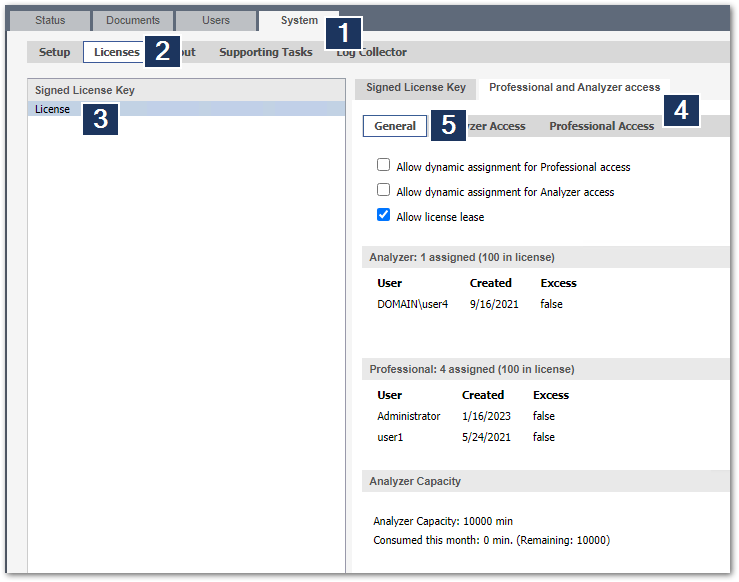
- Open the QlikView Management Console and go to System
- Open the Licenses tab
- Select License
- Switch to the Professional and Analyzer access tab.
- The General tab lists the current Analyzer Capacity usage
How Qlik Sense Analyzer Capacity Works (video)
Related Content
- Analyzer capacity license and monitoring (Client Managed)
- Qlik Licensing Service Reference Guide
- Assigning user allocation (Qlik Cloud)
- Analyzer capacity license (Qlik Cloud)
- Top 5 things to know about modern Qlik Licensing
- Monitoring Qlik Cloud Capacity | Techspert Talks
Environment